Week 8-Challenge
MODEL 01:
AIM:
To do 3D Meshing of the given components.
with Elements sizes: Min- 2mm, Target- 5mm, Max- 7mm
Tet collapse: 0.15
CAD MODEL:
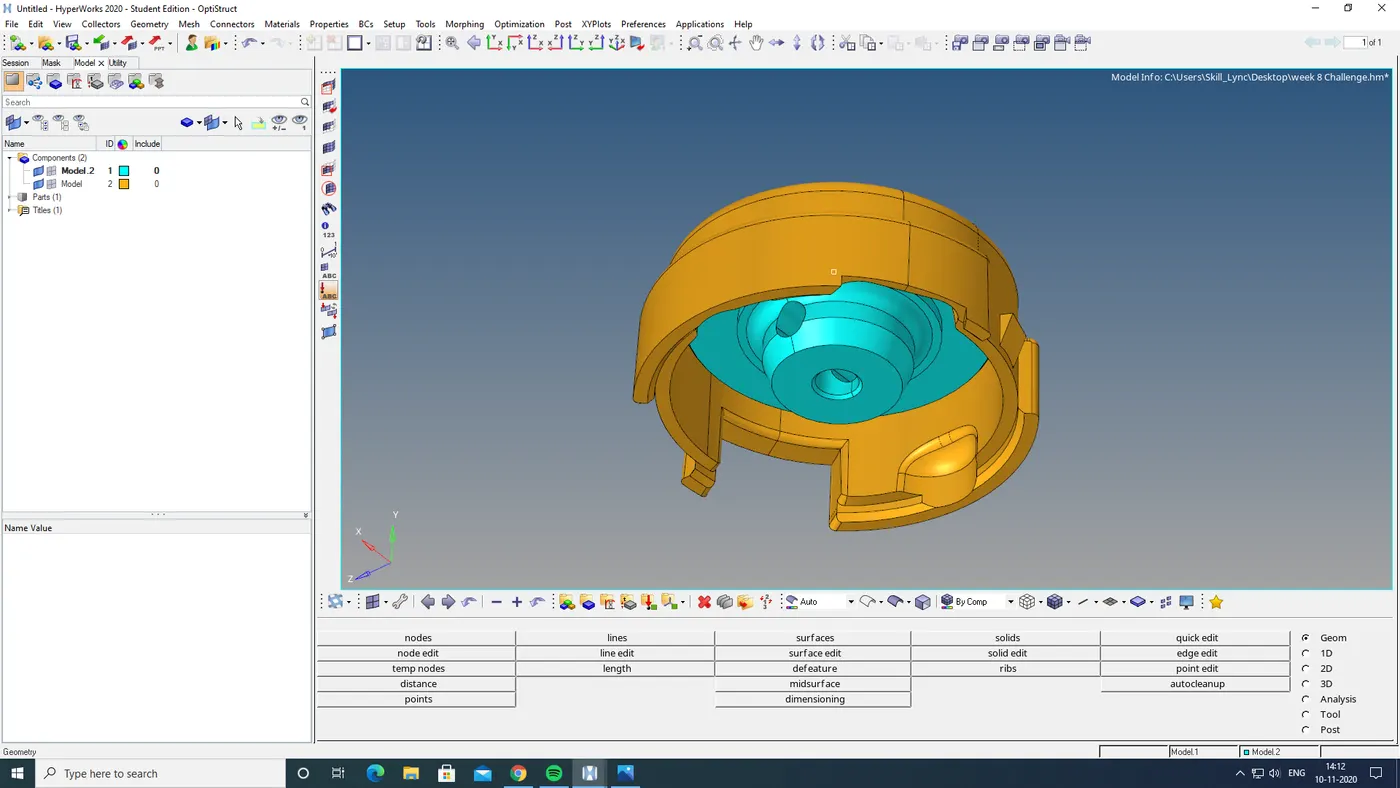
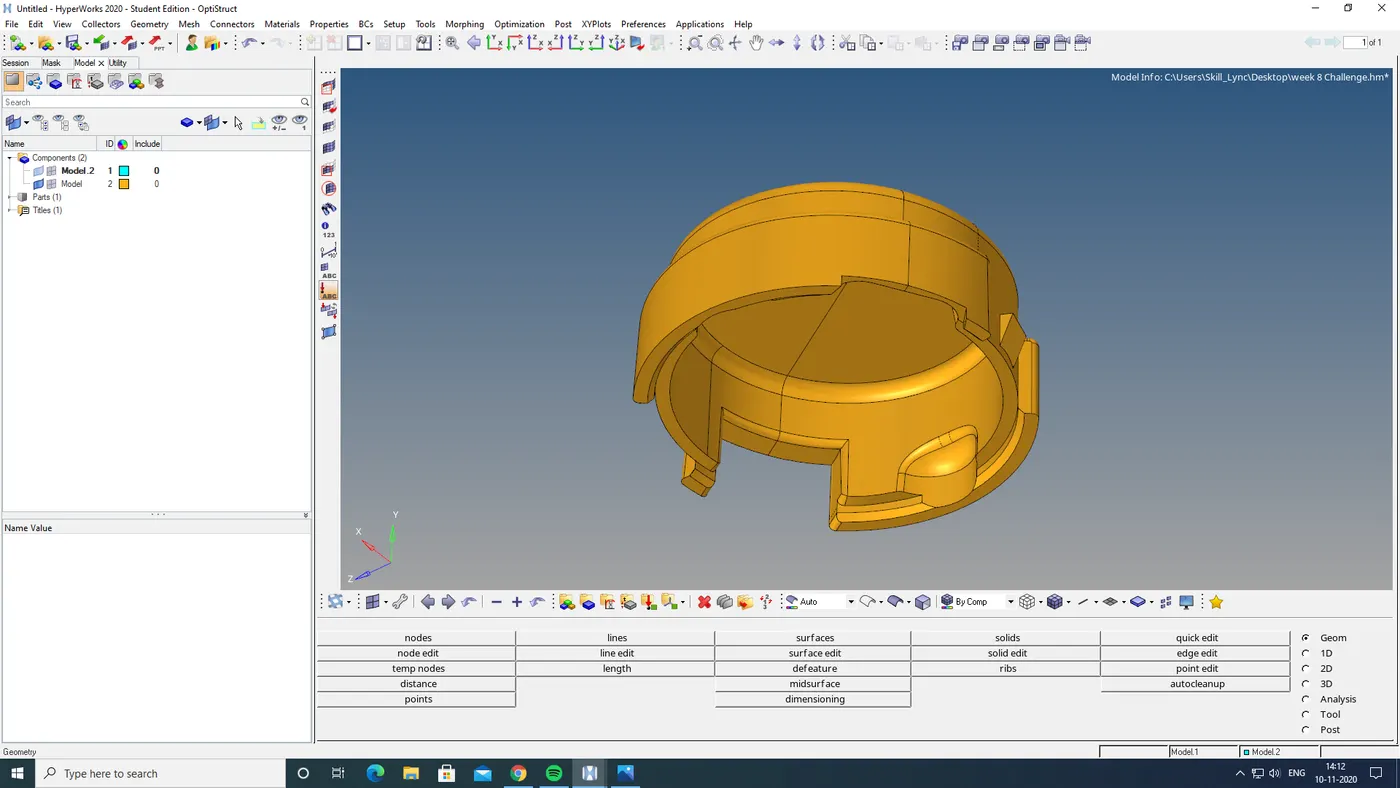
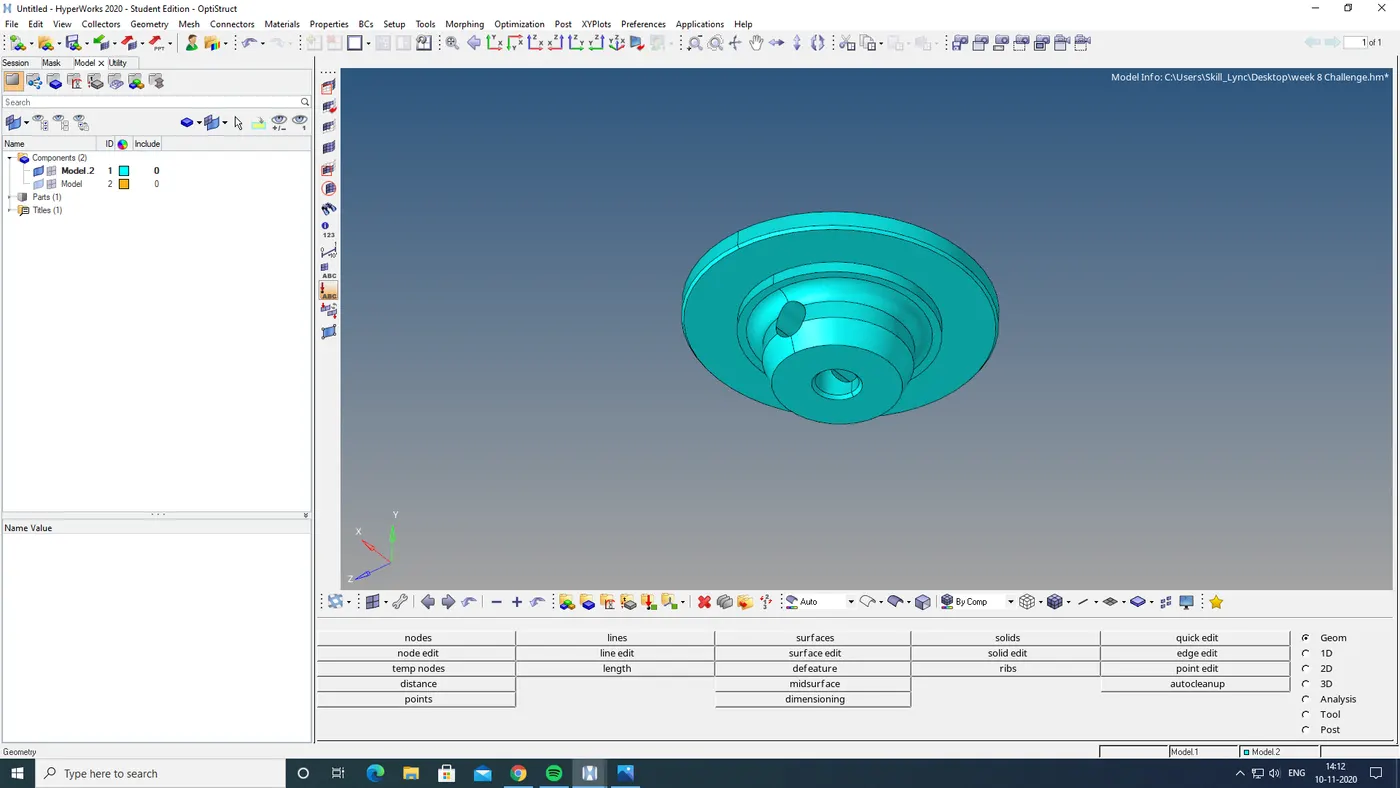
The two components inside the model are:
PROCEDURE:
STEP 1: geometry cleanup.
The geometry cleanup of the model is done using quick edit option in geom.
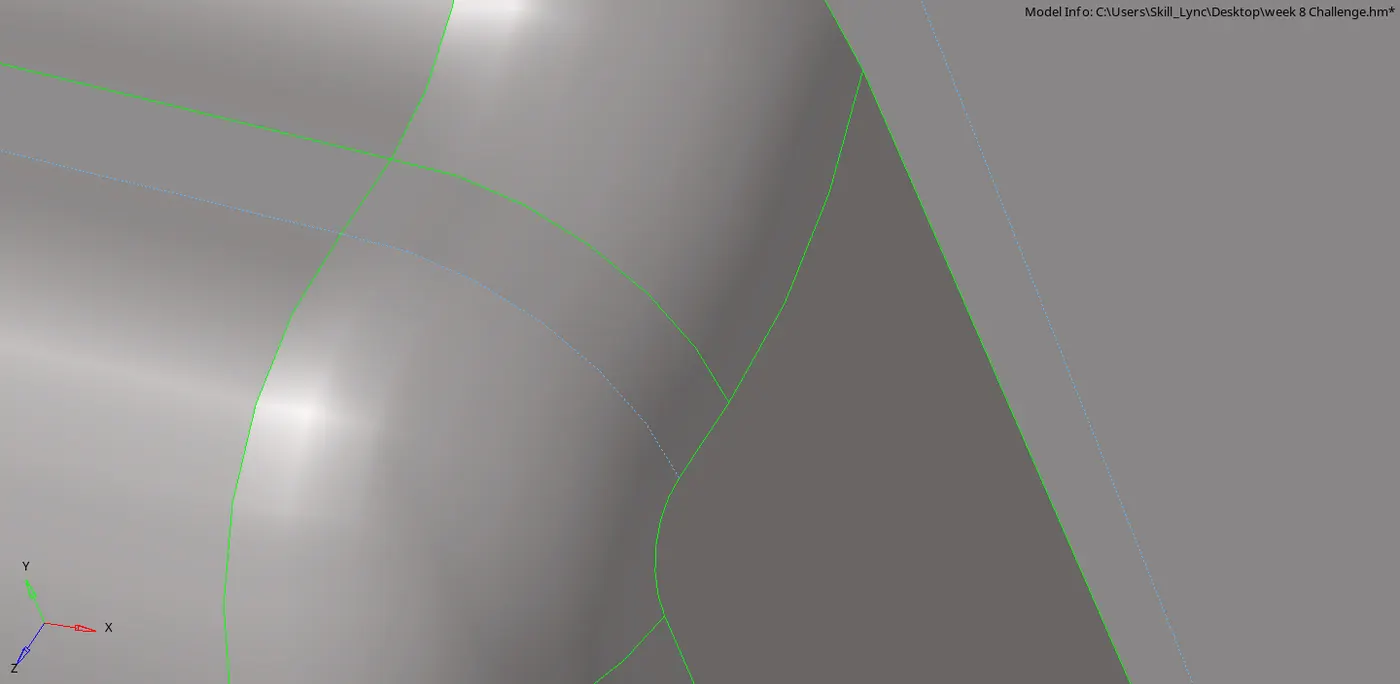
here i toggle some lines which may cause min element length error . inorder to avoid this error we toggle some lines and remove some points.
STEP 2: CREATING 2D SHELL ELEMENTS:
- Inorder to cleate 2d shell elements 2D> automesh> select suface and give to mesh in trias.
- by going prefeference > crieteria file settings i untick all other parametre other than min and max length in 2D.
- by selecting surface by surface i created 2d shell elements in entire 2w0 components.
- here some of the elements got failed in min and max error
- this errors are cleared by remeshing the elemements and split the surface
- the quard formed by splitting surface is removed by remeshing the elements by selecting elements in by config quad4 .
- here i got cleared all min and max error.
STEP 3: CONVERT TO 3D TETRA MESH.
- To convert to 3d tetra elements
- first i go preference > crieteria file settings> 3d> here i give the tetcolapse value as .15 and aplly it and click ok
- then i took 3d> tetramesh parametre > given max and min size> tick fill void, fill midnodes, smoothing and given tetcolapse value.
- then i go to tetra mesh and select the elements and click mesh.
- then i mask some elements and check weather the terta mesh is formed. and i got the tetra mesh.
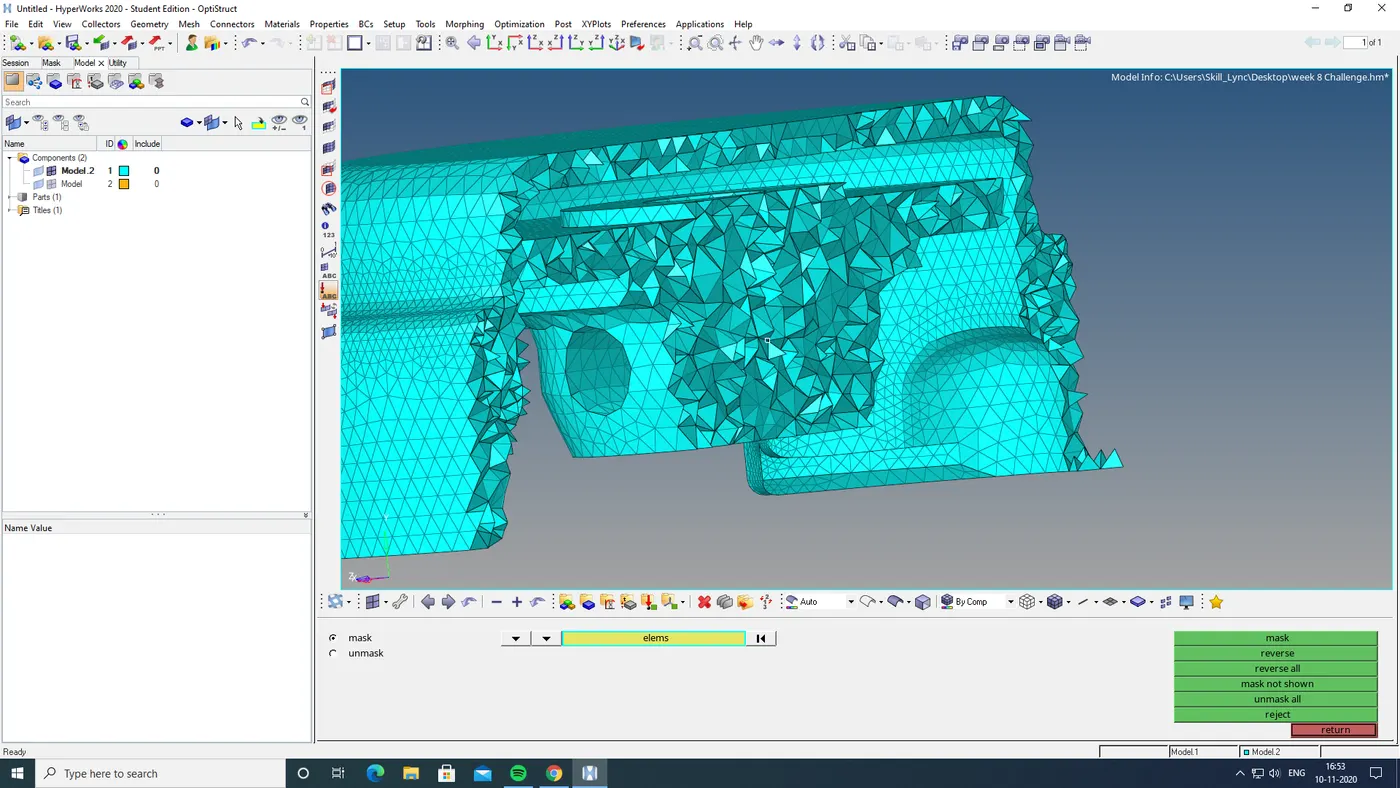
- then i go to f10 to check the tetcollapse. and the tetcollapse formed is cleared by tertra remesh and transalate option by masking only the failed elements
- then i got a perfect tetra mesh with zero tetcollapse.
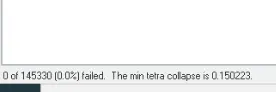
FINAL MODEL:
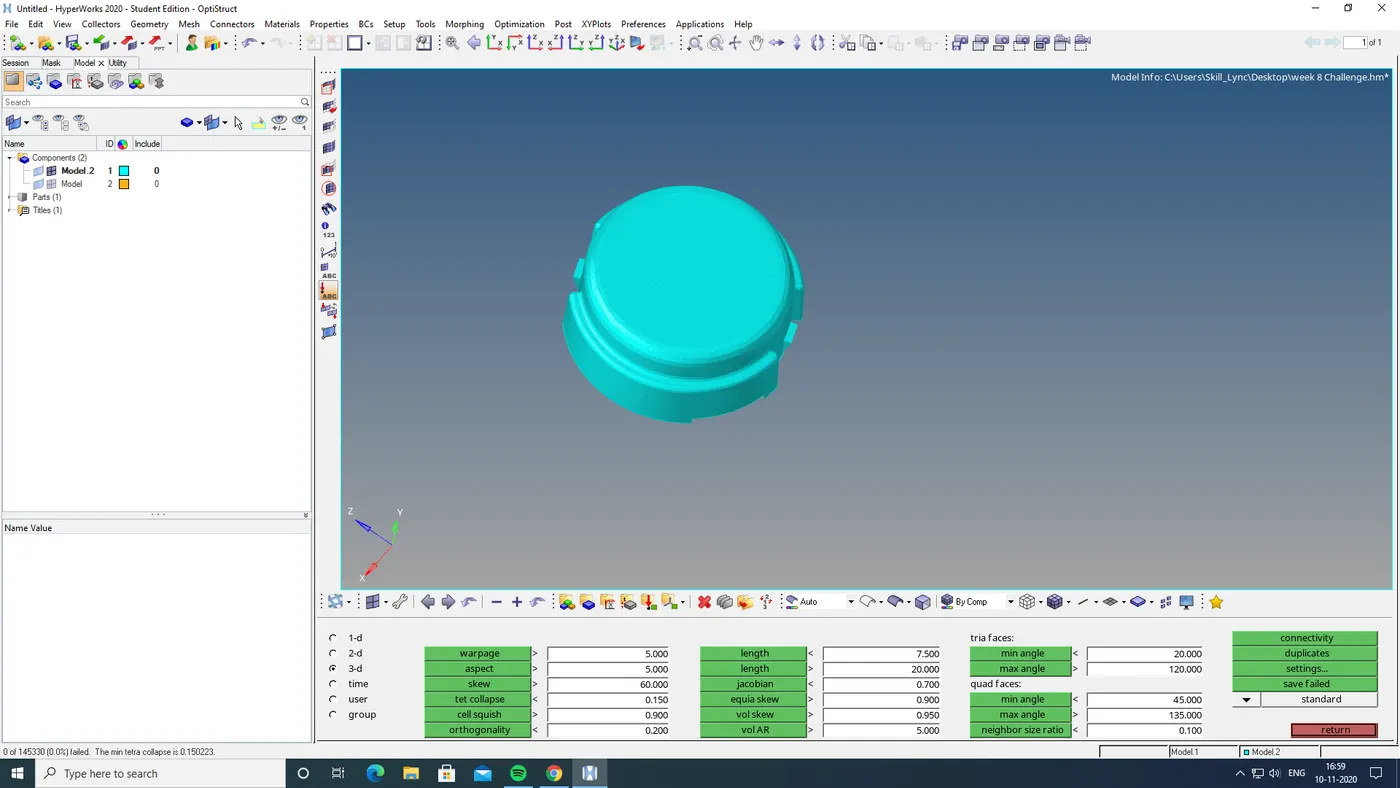
RESULT:
Done 3D Meshing of the given components.
with Elements sizes: Min- 2mm, Target- 5mm, Max- 7mm
Tet collapse: 0.15
MODEL 02:
AIM:
To do 3D Meshing of the given components.
with Elements Target length- 6mm
Tet collapse: 0.15
CAD MODEL:
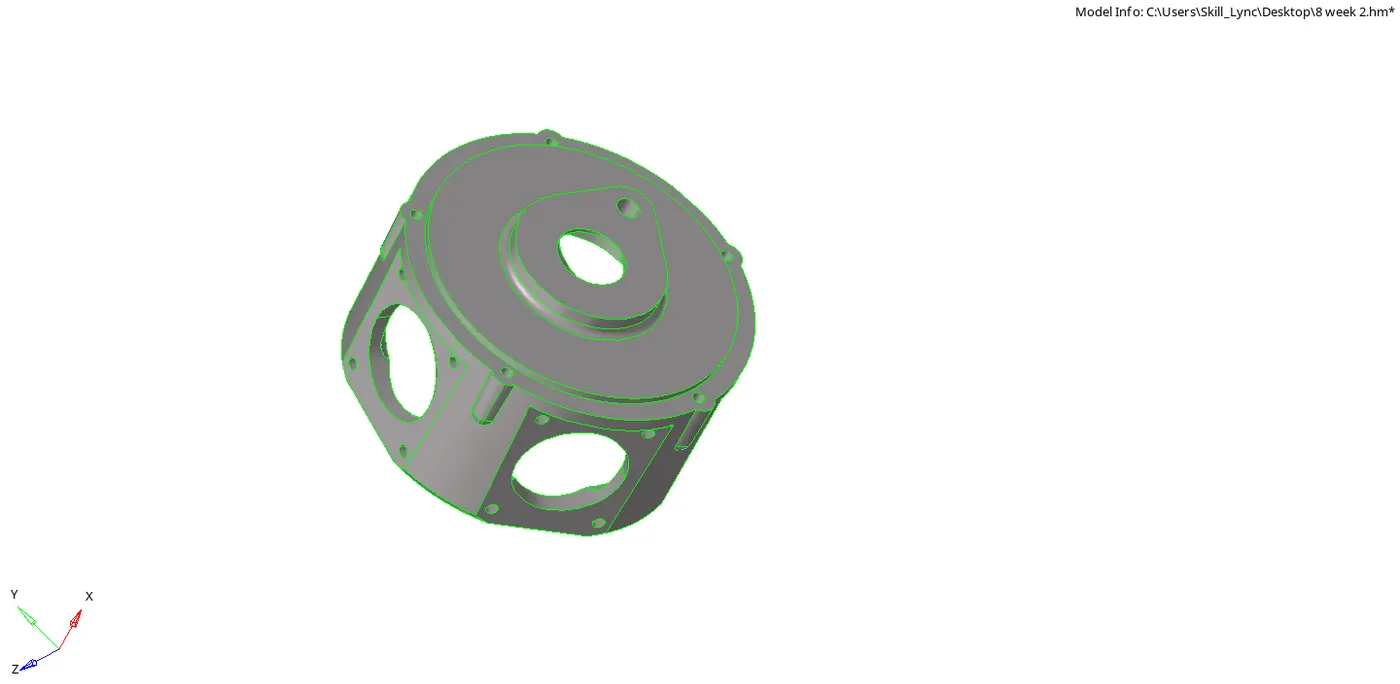
PROCEDURE:
STEP 1: CREATING 2D SHELL ELEMENTS:
- Inorder to cleate 2d shell elements 2D> automesh> select suface and give to mesh in trias.
- by going prefeference > crieteria file settings i untick all other parametre
- by selecting surface by surface i created 2d shell elements in entire components.
STEP 2: CONVERT TO 3D TETRA MESH.
- To convert to 3d tetra elements
- first i go preference > crieteria file settings> 3d> here i give the tetcolapse value as .15 and aplly it and click ok
- then i took 3d> tetramesh parametre > tick fill void, fill midnodes, smoothing and given tetcolapse value.
- then i go to tetra mesh and select the elements and click mesh.
- then i mask some elements and check weather the terta mesh is formed. and i got the tetra mesh.
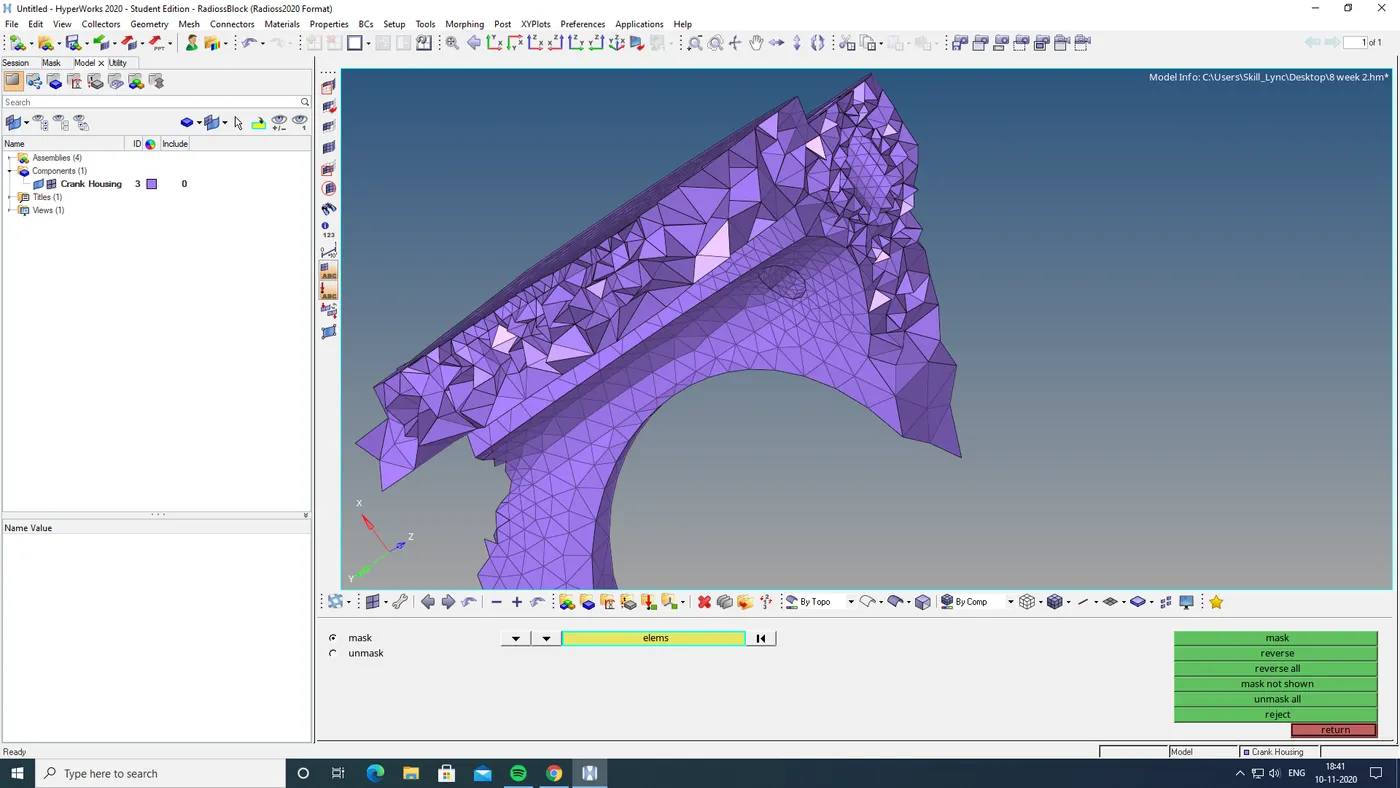
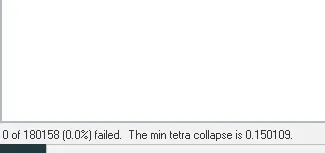
- then i go to f10 > 3D to check the tetcollapse. and the tetcollapse formed is cleared by tertra remesh and transalate option by masking only the failed elements
- then i got a perfect tetra mesh with zero tetcollapse.
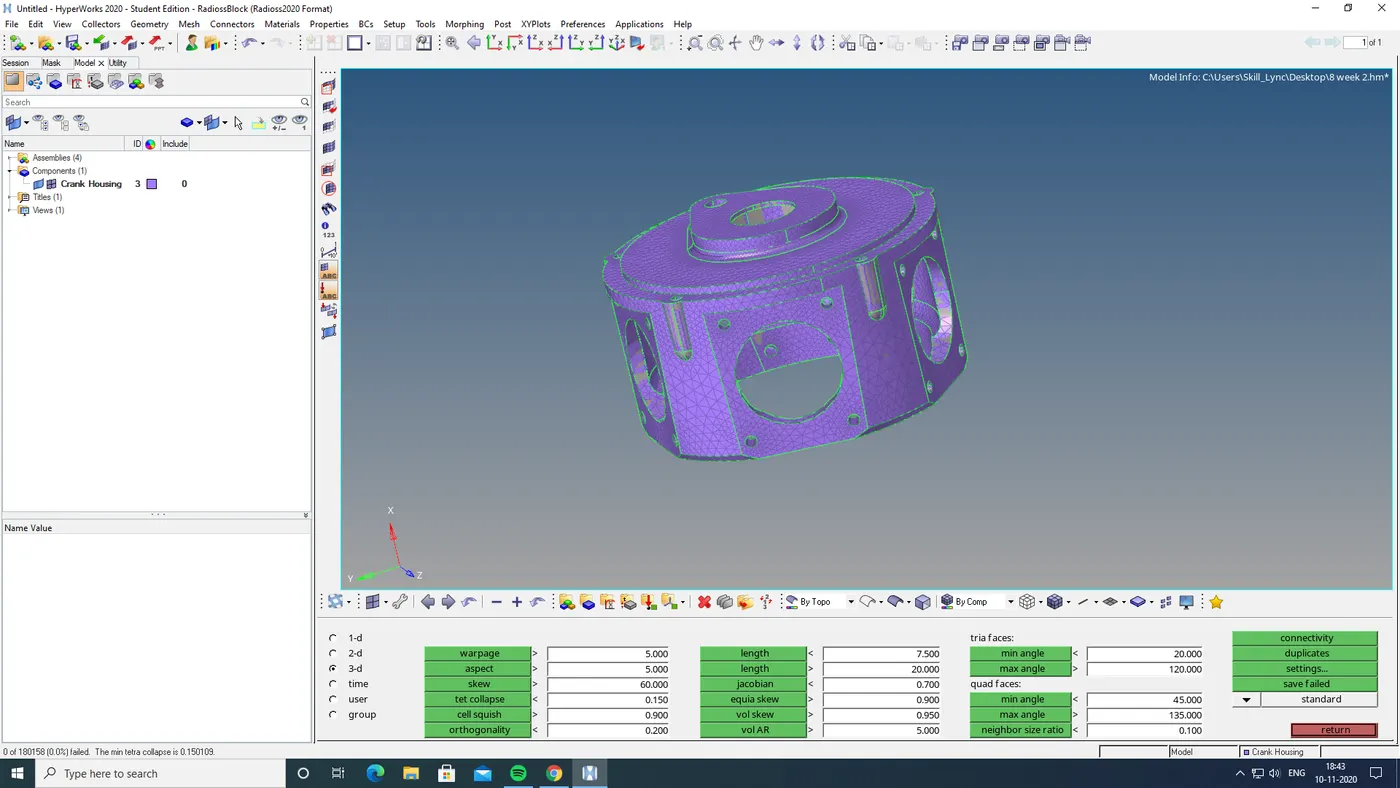
FINAL MODEL:
RESULT:
Done 3D Meshing of the given components.
with Elements Target size- 6mm
Tet collapse: 0.15
MODEL 03:
AIM:
To do 3D Meshing of the given components.
with Elements Target length- 6mm
Tet collapse: 0.15
CAD MODEL:
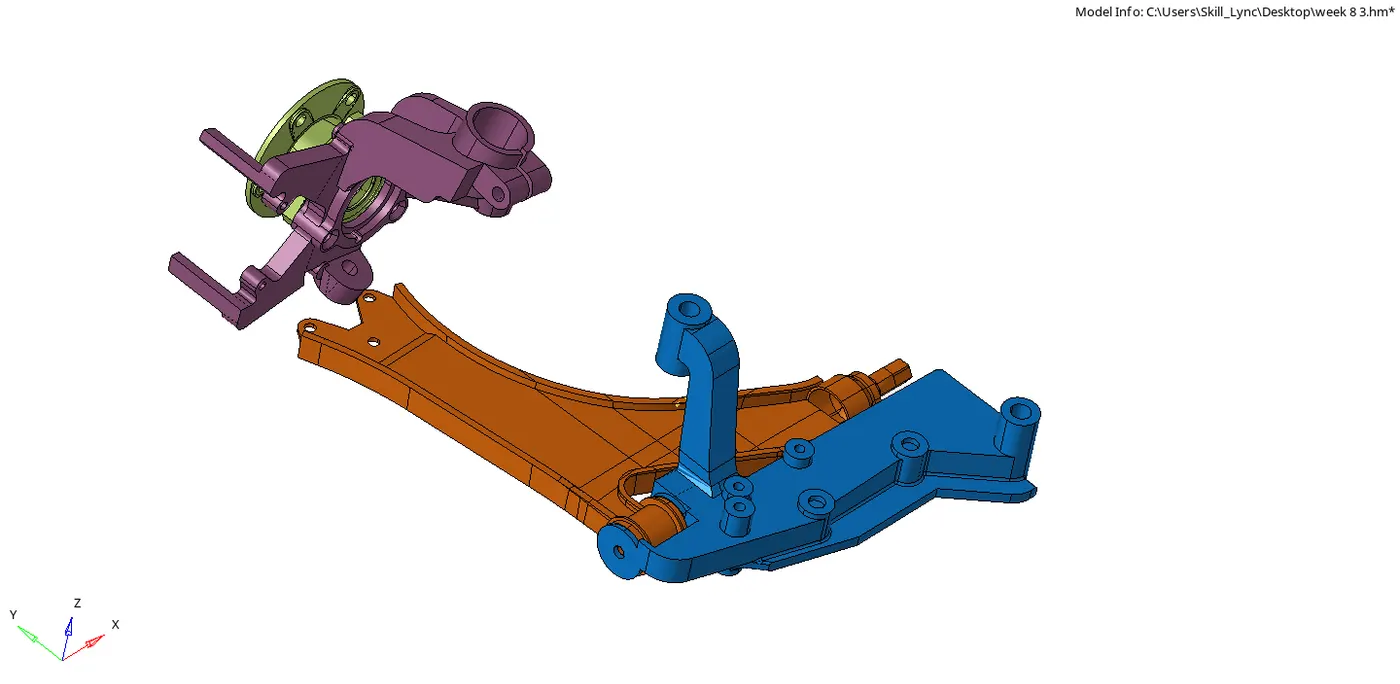
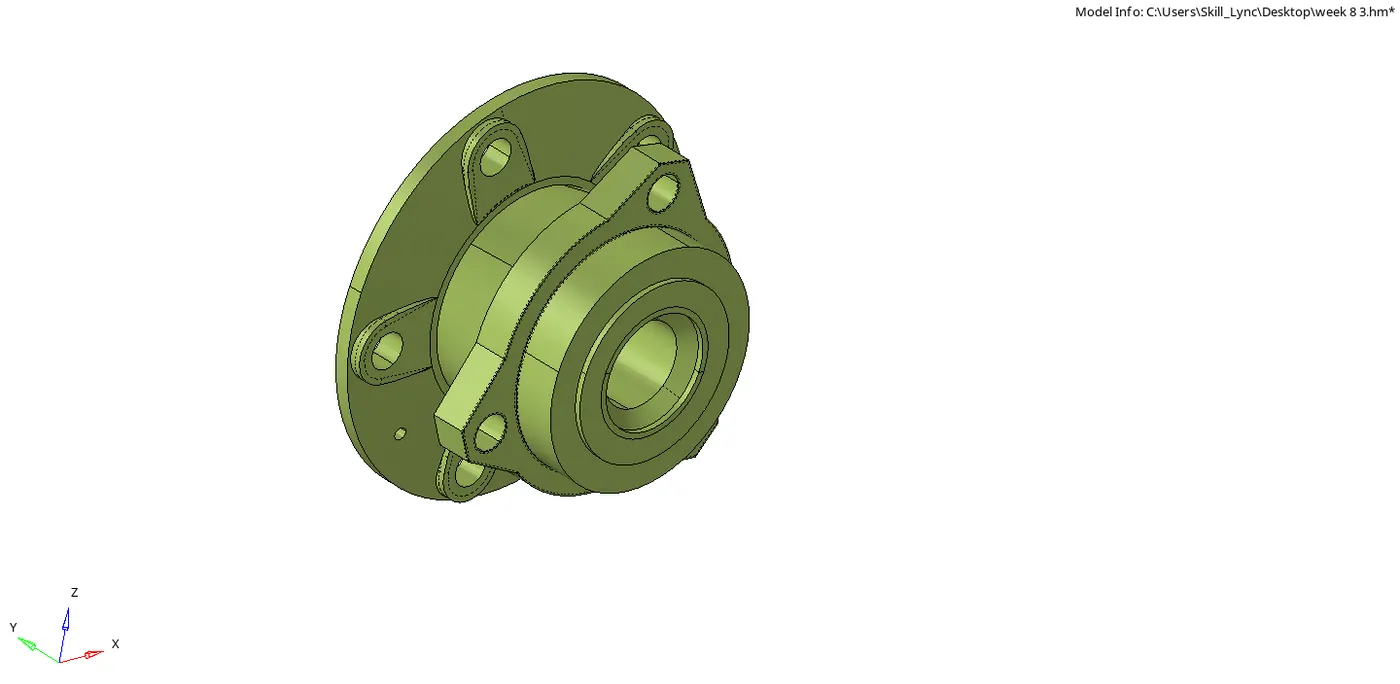
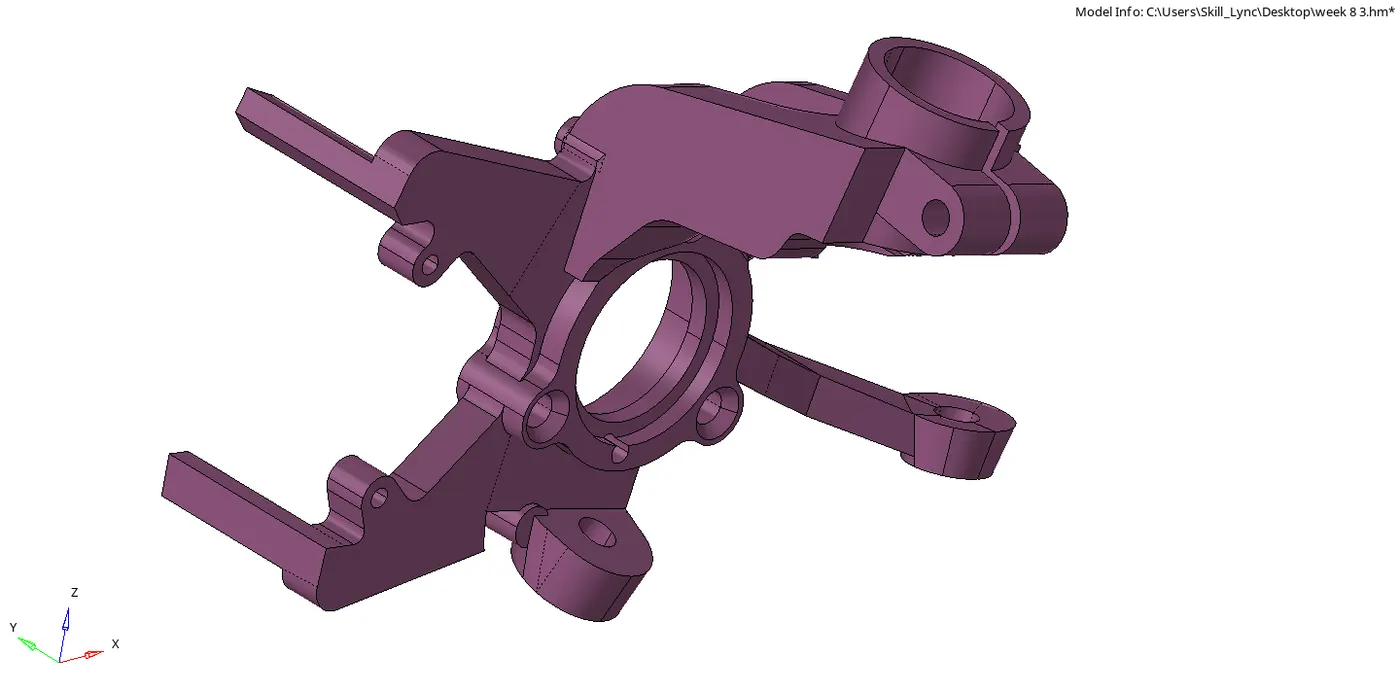
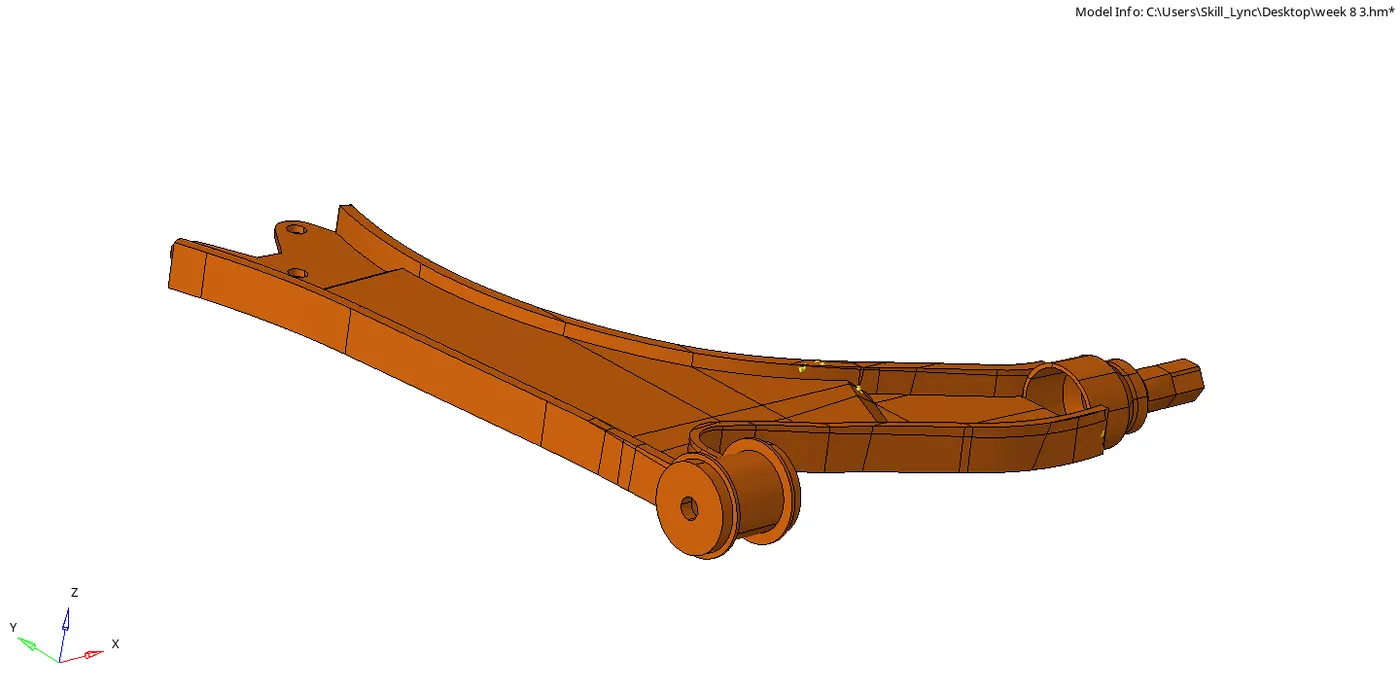
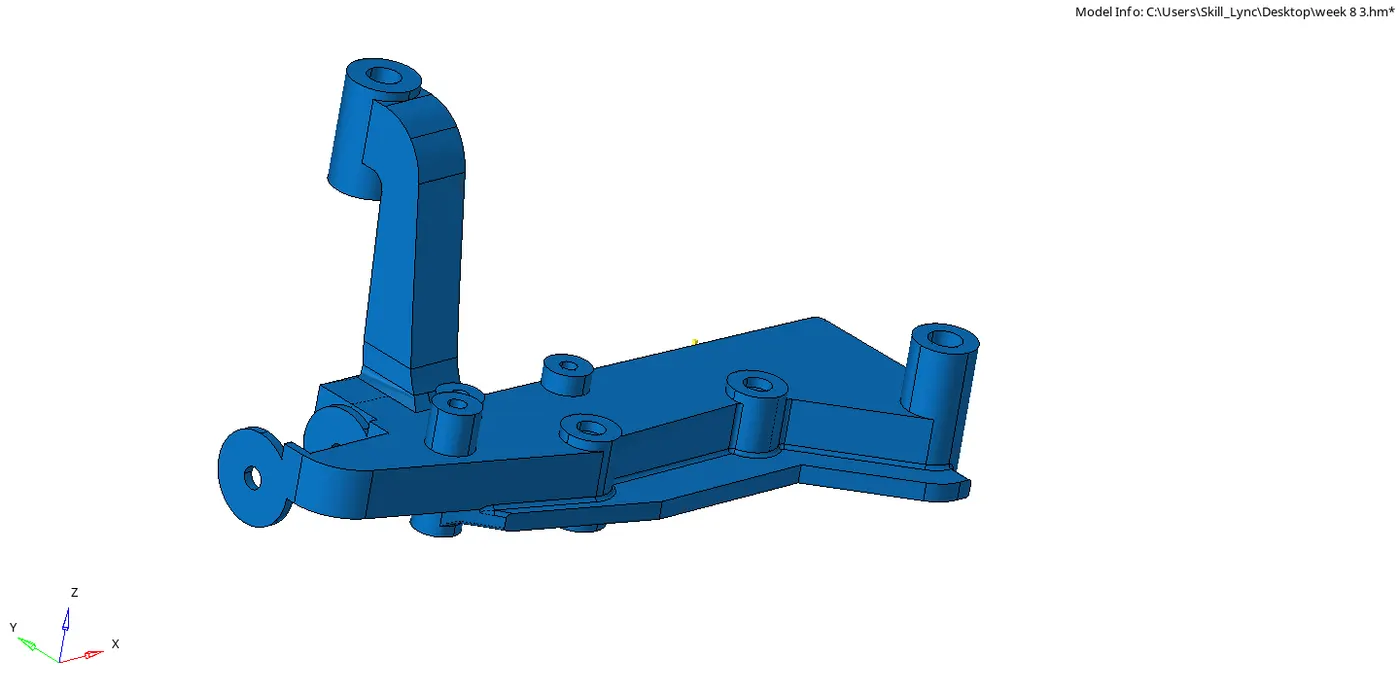
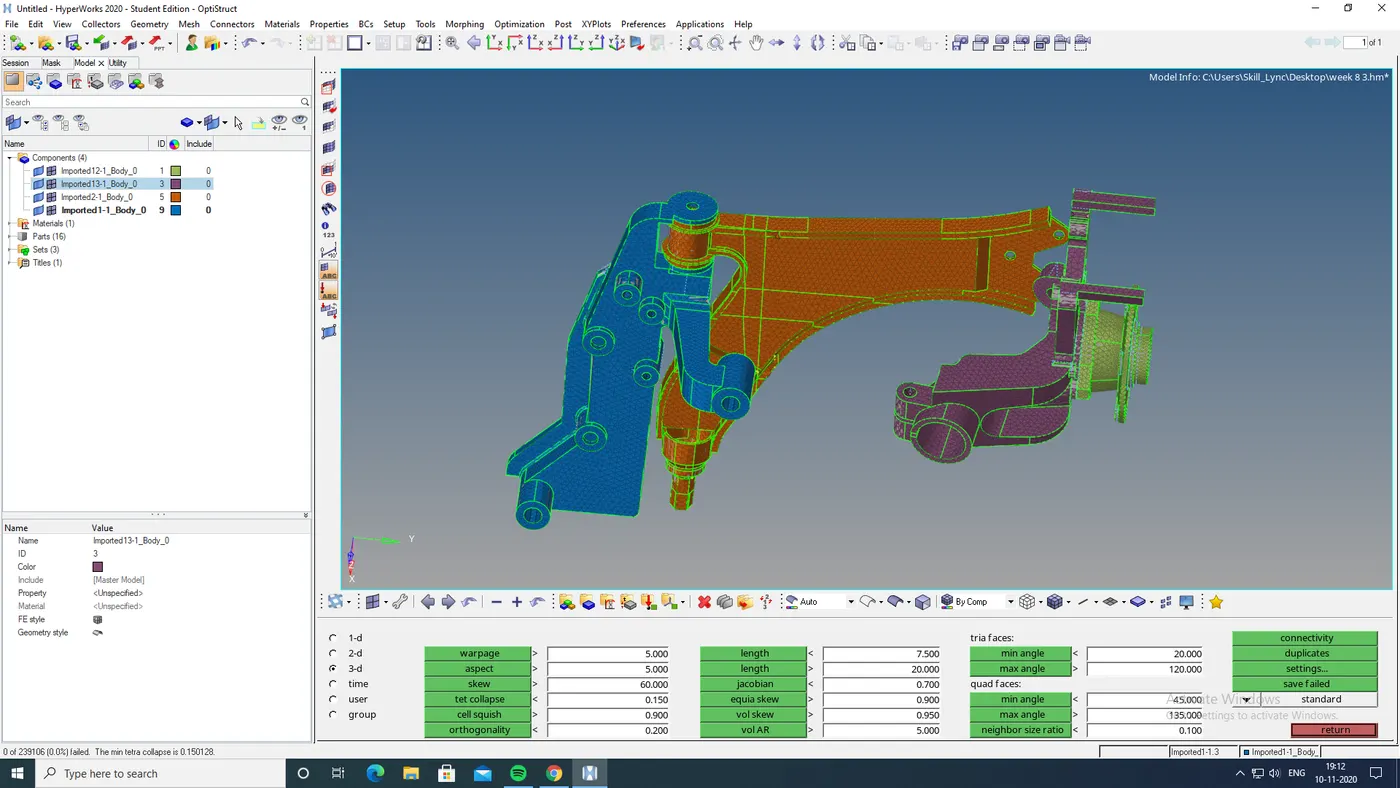
The 4 components in this are:
PROCEDURE:
STEP 1: TO VOLUME TETRA MESH.
- To do volume tetra mesh i go 3d> tetra mesh>tetra parametre.
- tick fill void, fill midnodes, smoothing and given tetcolapse value.
- then i go to volume tetra nd selected entire surface as it include solid.
- then i got tetra mesh in entire component
- then i mask some element and check weather it is tetra meshed.
STEP 2: REMOVE TET COLLAPSE:
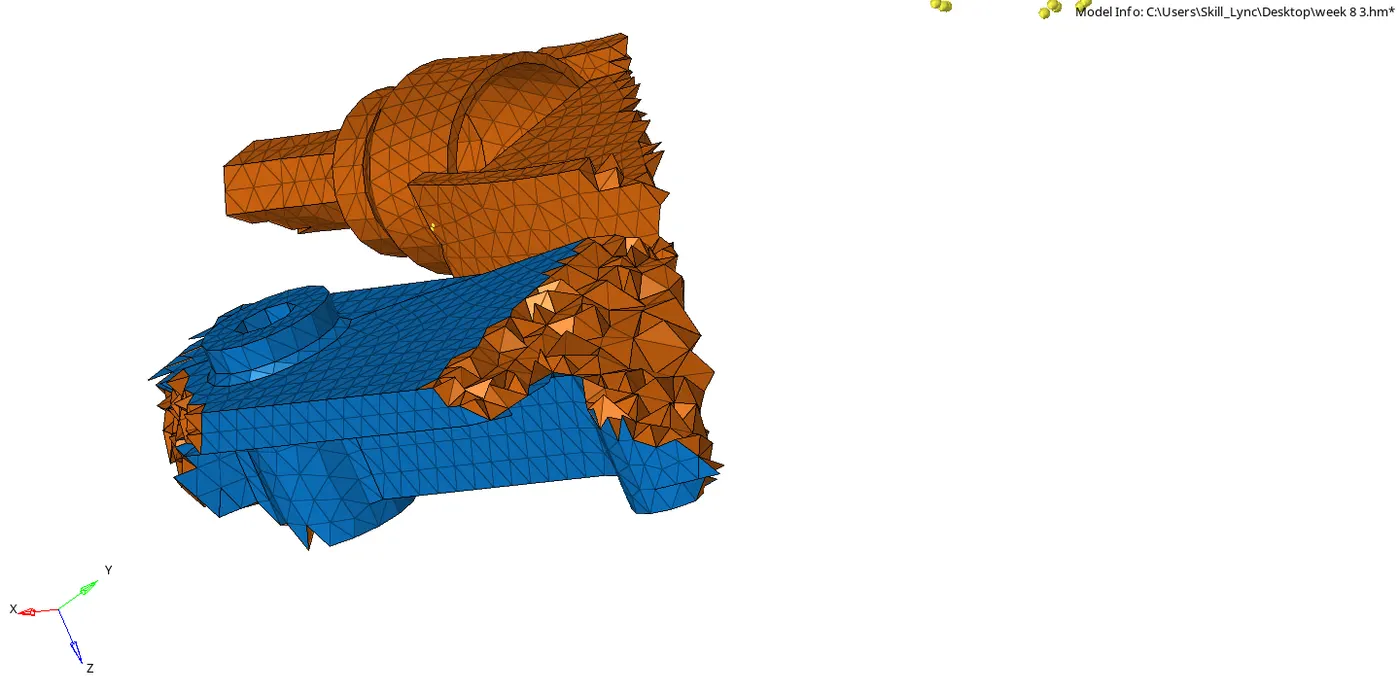
- To check the tetcollapse i go f10> 3d> click on tet collapse . and can see the tet collapse.
- the tetcollapse is removed by tetra remesh by giving tetra parametra and tetraremesh and selecting the elements and click remesh.
- by repetedly remeshing the failed elements the number of tet collapse got redused .
- and the last few tetcollapse is removed manualy
- by using translate option in shift f4.
- and also by replace option for few element which is too small
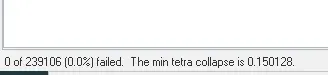
- and then i got zero tet collapse
FINAL MODEL:
RESULT:
Done 3D Meshing of the given components.
with Elements Target size- 6mm
Tet collapse: 0.15