Week 8 - Challenge 4 - Coin Holder Design
CENTER CONSOLE COIN HOLDER
Aim :- The Main objective is to perform a draft analysis and make into a solid particle the given CAD model.
Procedure :-
- Open the CAT part, for doing the operation of draft analysis.
- Select file click ok, and open the CAT part.
- Before doing the drafting analysis, make sure that the whole part is joined or not.
- If it's not joined properly. First join it properly.
- After the whole part is joined, then start the draft analysis.
- Take the center point of the circle.
- Take the line and draw the line with the help of circle intersection and point with reference.
- Drag the line in z - axis.
- Click on the intersection icon and take the xz- axis and press enter button.
- Then the xz planes will be shown very properly.
- After taking xz planes, then check yz planes in the same way for bisecting the axis line with help of either sides of lines.
- Before going to make a solid body, extract the sub elements of a given element.
- For easy understanding make the sub elements into different colors.
- After taking the sub elements extract it for making into correct structure
- In the above figure, sub elements are extracted. After extracting the extra elements should be trimmed with help of a trim tool.
- Extrapol has to be added to combining the elements.
- One side of sub elements is removed, extracted and trim the extra surface made into a proper sub element.
- After completing the one side, the other side also has to do the same operation.
- After doing some operations on the other side it also forms into a proper form.
- After completing the sub elements to be untrimmed.
- Select the sub elements and make it offset of 2.5 mm distance in z direction.
- After combining the both sides of the element interacting on either side.
- Trim the planes which are interacting on either side.
- Boundary sections should be extrapolated on either side and back side of the element.
- After the trimming the extrapolated part, class B element should be made as class A surface.
- Convert the sharp edges into fillet.
- Make class C surface with help on class B surface.
- Select the class B surface and select the offset icon to make the offset of 2.5mm.
- In the next step surfaces are surface trim.
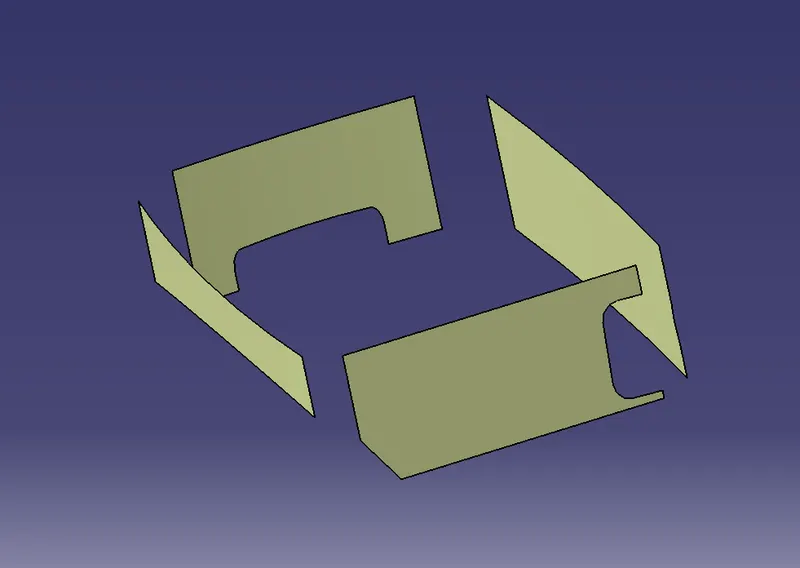
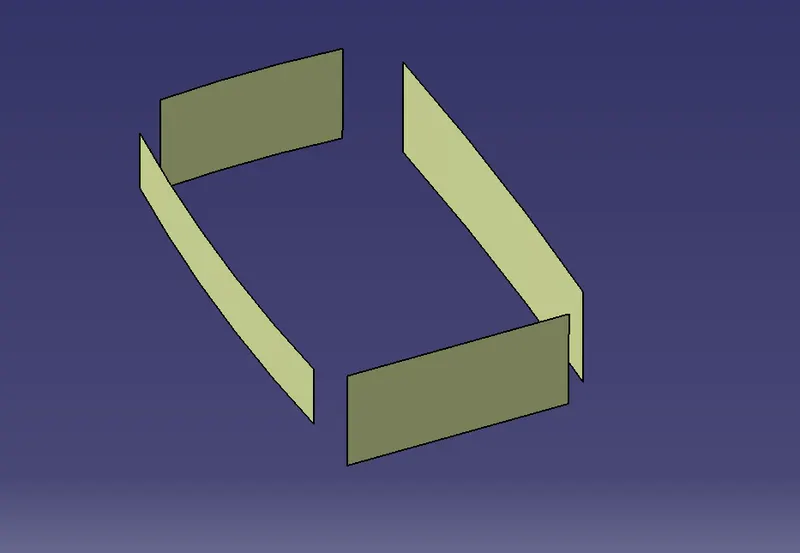
- Surface should be extrapolate for coinciding every surface.
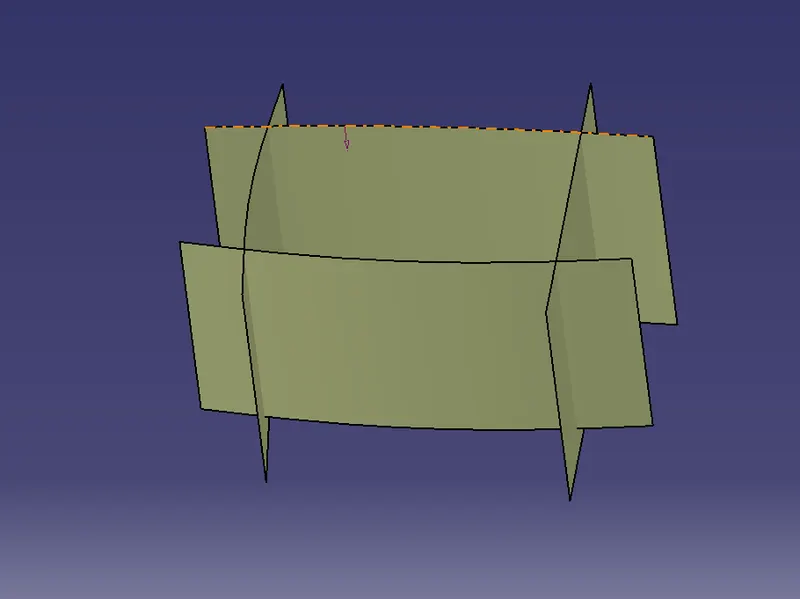
- Trim the unwanted surfaces and form a cube like structure.
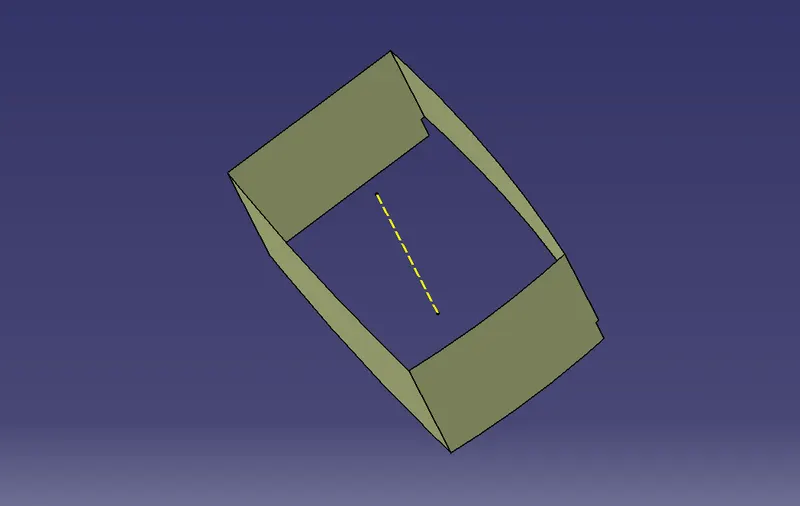
- With the help of class A surface we have to extract the upper layer and side layer.
- And exprolate the two planes with the help of extract lines.
- To exprolate the planes, select the edge plane to increase the surface.
- After that trim the extra surfaces which are interacting with each other.
- Offset the surfaces of both planes after that only trim surfaces forming the extra planes.
First surface :-
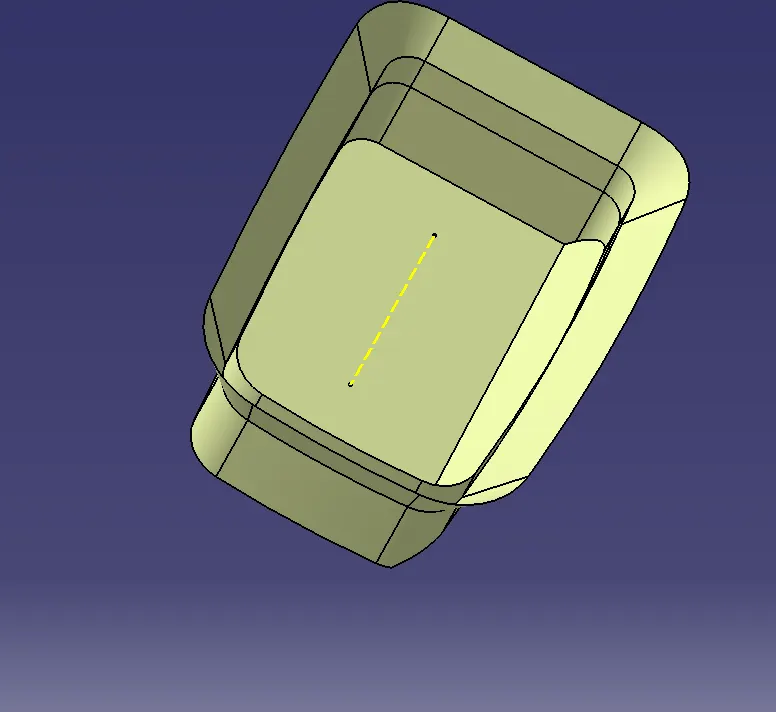
- After trimming the extra surface top surface is formed properly.
- First surface consists of the top surface and side surface.
- To combine properly, give the fillet by measuring with the help of class A surface by extracting the fillet surface and unitrim the extract part.
- Measure the edge of the extracted part and the fillet value is in radius.
Second surface :-
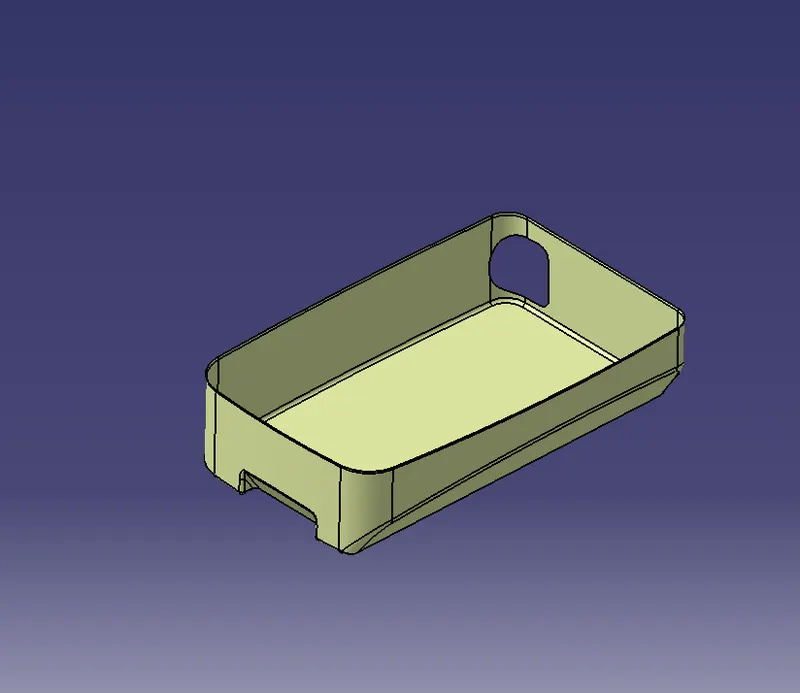
- After trimming the extra surface top surface and back surface is formed properly.
- Second surface consists of the top surface and back surface.
- To combine properly, give the fillet by measuring with the help of class A surface by extracting the fillet surface and unitrim the extract part.
- Measure the edge of the extracted part and the fillet value is in radius.
Middle layer :-
- Middle layer is a little bit complicated.
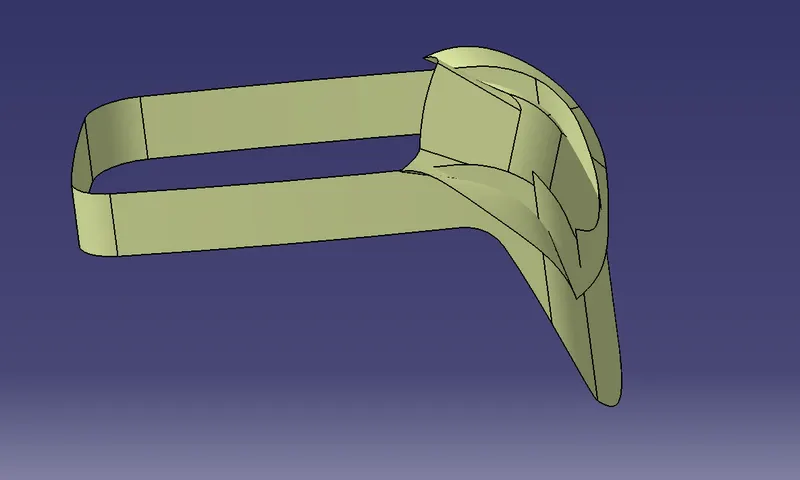
- Middle layer consists of three parts.
- First part is situated in the back side.
- Second part is on the top surface. Combine the top surface and back surface part. With help of blend command.
- Take a point on the top surface in inclination. Draw a line with point - point direction, pick the point from the top surface edge and another point from the line.
- Take a point on the back surface in inclination. Draw a line with point - point direction, pick the point from the top surface edge and another point from the line.
- Draw a curve smooth from top surface edge point to back surface edge point.
- Take the blend command, select the guide line then select the intersecting line.
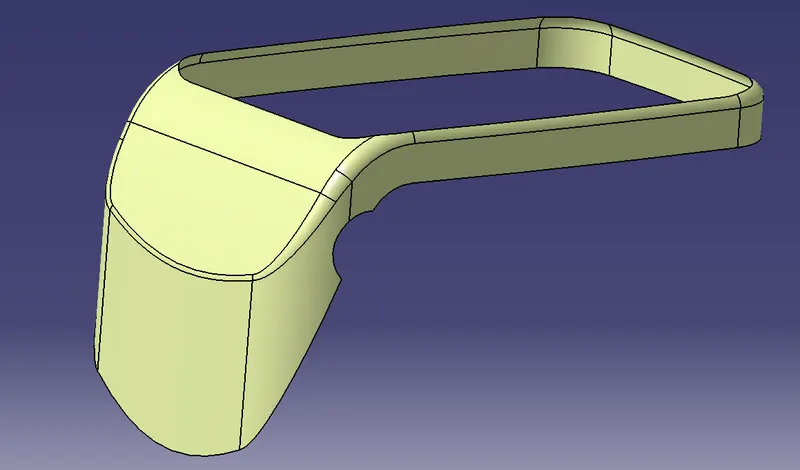
- Holding surface should be made. Extract the planes from class A surface and exprolate the planes.
- Trim the extra surfaces. Make a clear object.
- Give the fillet for the entire object with proper measurement.
- Intersect the class A surface with class B surface.
- Take spine command, apply on the total object to intersect with surface B.
- Trim the extra surface.
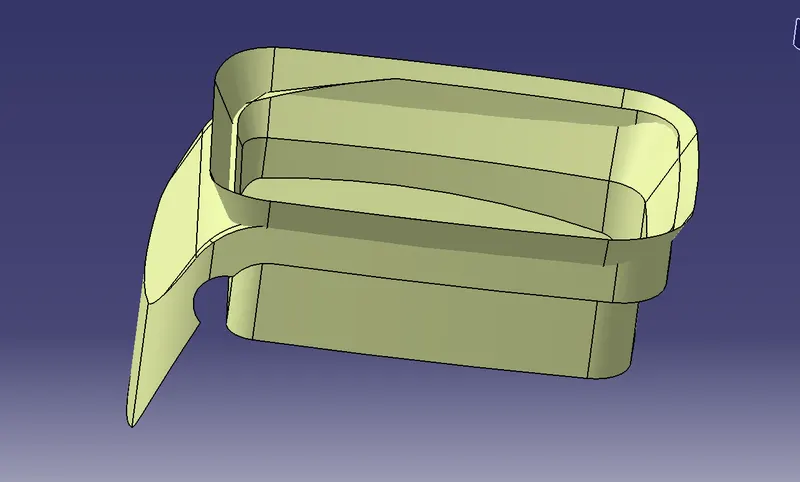
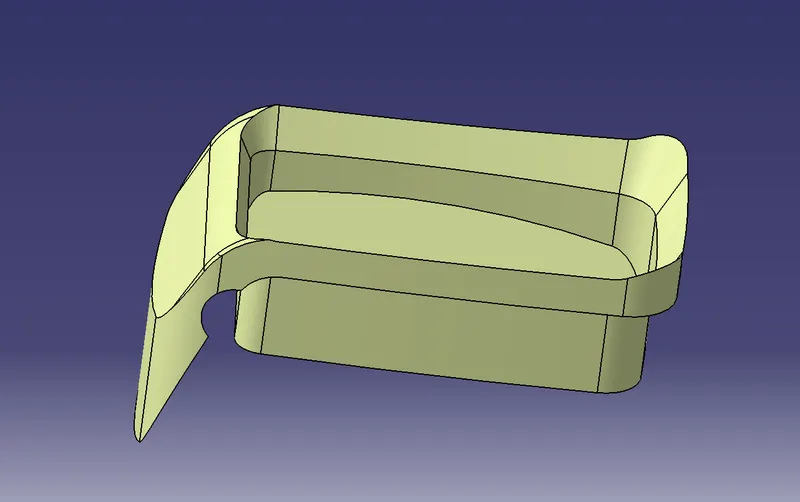
- Select the boundary of class A surface and draft line.
- With the help of guidelines, a sweep command is used to extract the element to join and make it as a single element.
- Unhide the class B surface and join with class C surface.
- Trim the extra surface which is under the element.
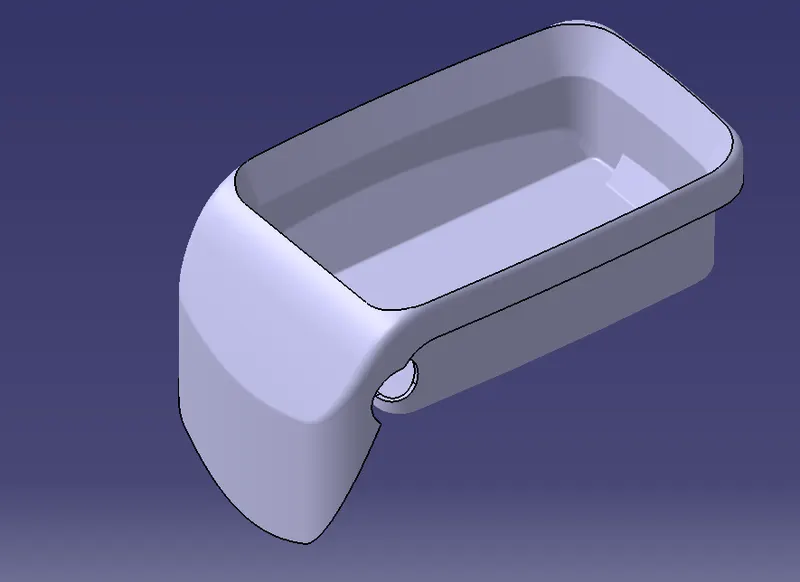
- After trimming the surface element looks like as shown in figure below.
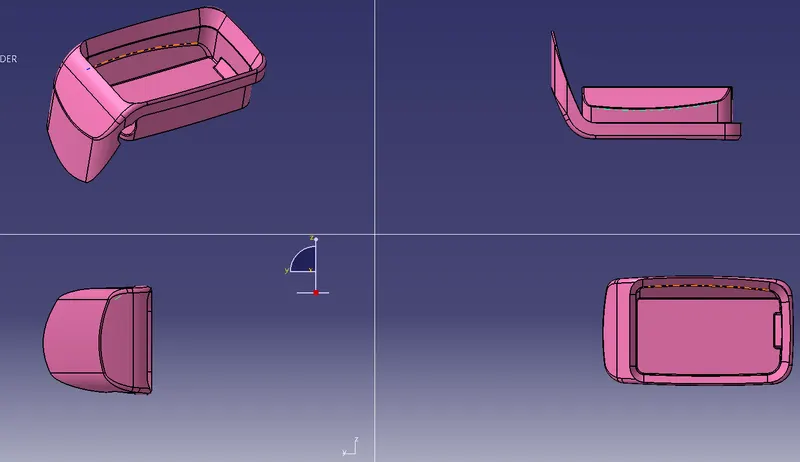
- Make the element into solid form with the help of surface command.
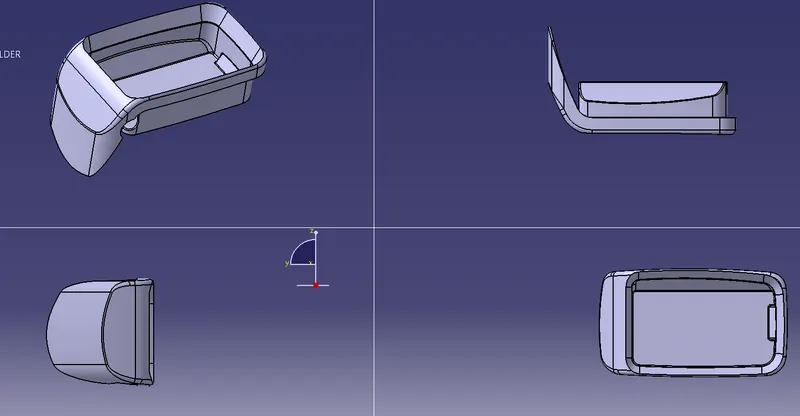
Draft analysis:-
- In this component, Draft analysis is not possible because, component is 90 degrees.
Result :-
The draft analysis and tooling axis is created and the model created and checked, there are no errors in the model.