Week 8 - Challenge 3 - Switch Bezel Design
AIM:-
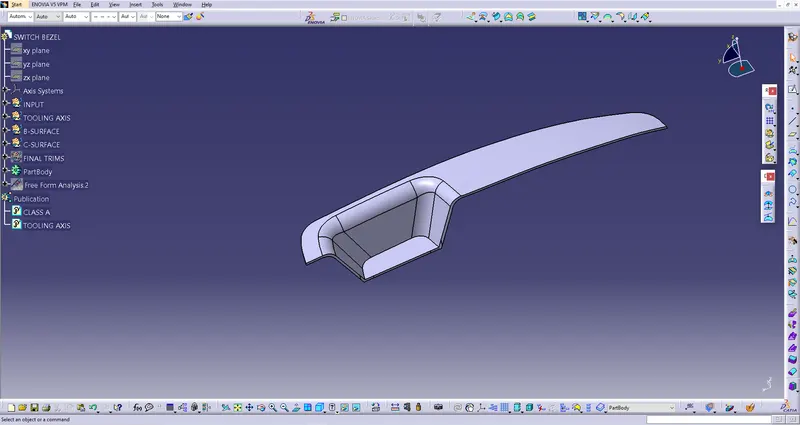
Create the Switch Bezel Plastic component through the given class-A surface. To begin with, the tooling axis for the given Class-A Surface should be created meeting the requirements of the draft angle and at the end perform the draft analysis on the model.
- Tooling axis
- Publication
- Draft analysis
PROCEDURE:-
- TOOLING AXIS
In order to create a tooling axis first, we have to analyze the given geometry. The tooling direction we create determines the clearance on all the faces of the geometry. So that there won't be any issue while ejecting the part from the core and the cavity. By analyzing the geometry we know that the clearance of tooling direction ios on the Z-Axis. In order to create a tooling axis, we need a point definition and an Axis system. Plot a point on the inner side of the bezel where the screw hole will be in the real part and insert an axis system. Now select the INTERSECTION tool from the WIREFRAME tab and select the first element as YZ plane and the second element as Class-A in the pop-up and hit OK. Now we have two identical lines facing outwards on the YZ plane. With reference to the identical lines, we create two parallel lines by setting the line type as point to point. We create these lines in order to clear the tooling axis for the identical faces on the YZ plane. To get the toling axis reference we bisect the parallel lines. To do that select the line command from the wireframe set the line type as bisecting and select the parallel lines as lie 1 and line 2 then the point as well. By ding that we have a bisecting line represented in orange colour.
- PUBLICATION:-
The publication acts as a reference to geometry. So before draft analysis, we have to publish both Class-A and Tooling axis.
- DRAFT ANALYSIS:-
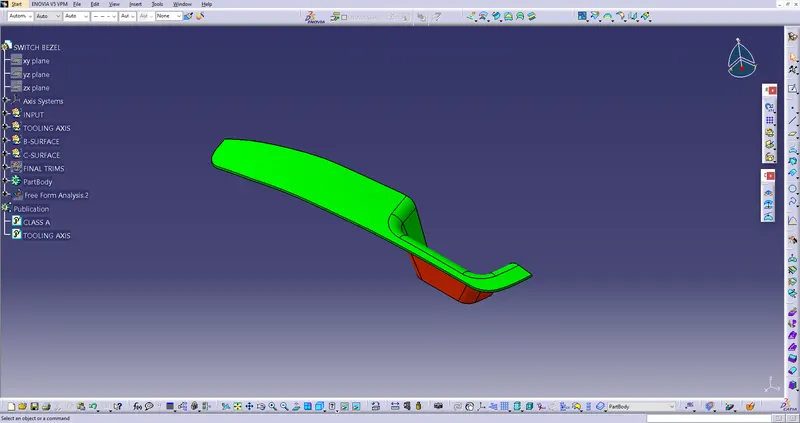
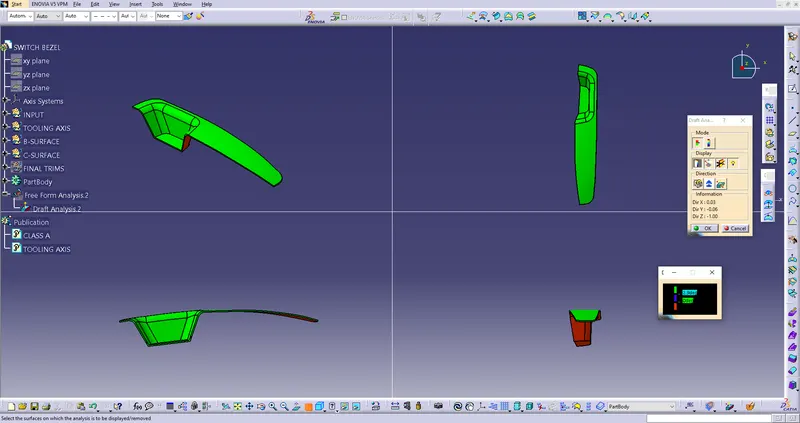
The draft analysis is performed by INSERT-->ANALYSIS-->FEATURE DRAFT ANALYSIS. To give the draft direction use the compass and align the Z-axis of it with the following axis which we created for the model. Once it is properly aligned, lock the draft direction. The red colour will be shown on the screen, select the bezel and the current draft angle is displayed.