Week 8 - Challenge 2 - Switch Bezel Design
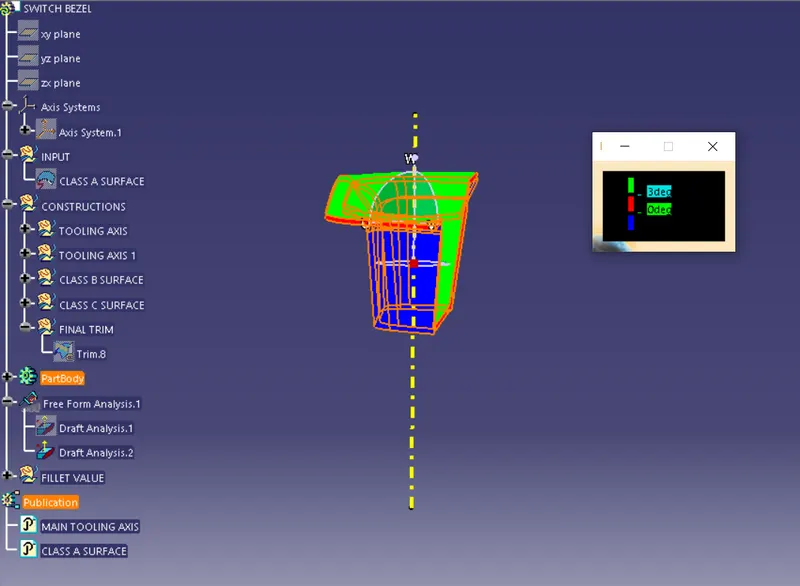
Draft analysis on Class A surface of Switch Bezel
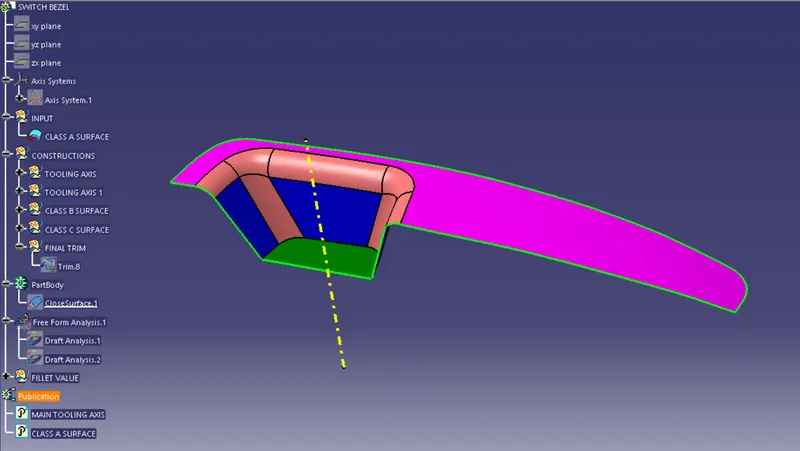
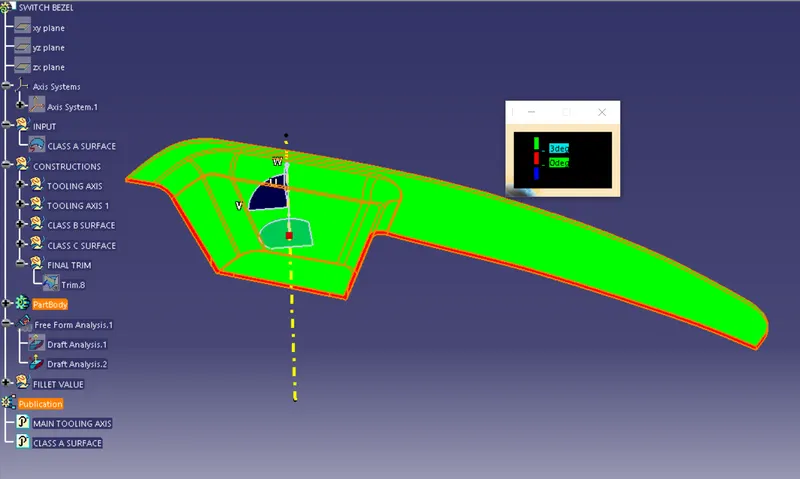
Open draft analysis and move the compass to coincide with the Tooling axis as below
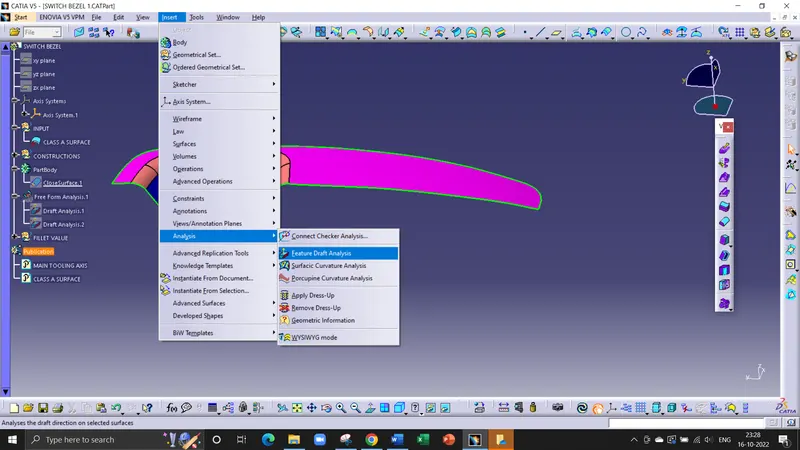
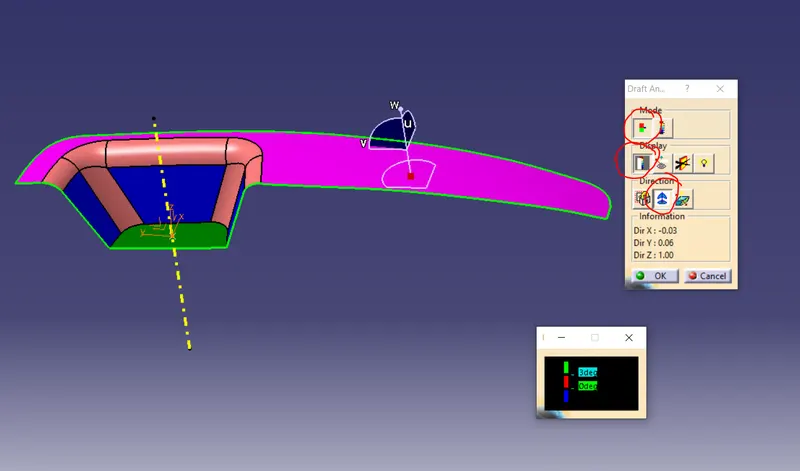
Lock the compass and check the radius using the running analysis option
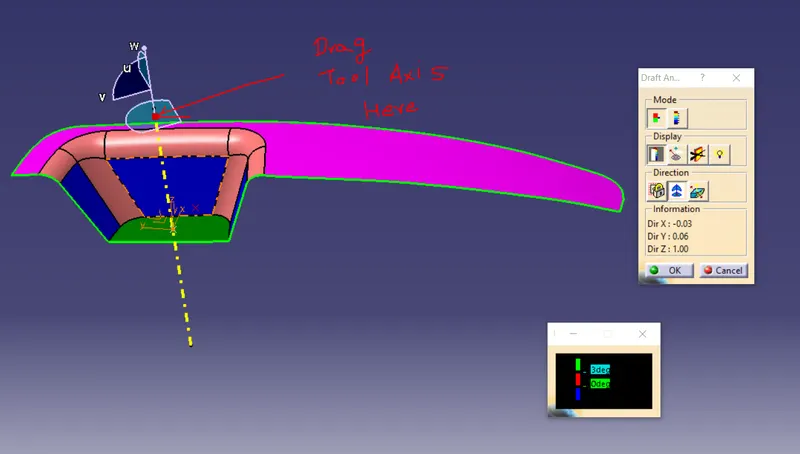
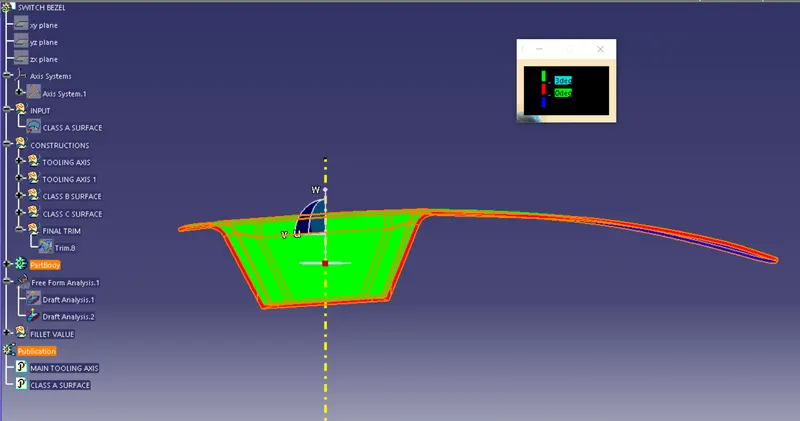
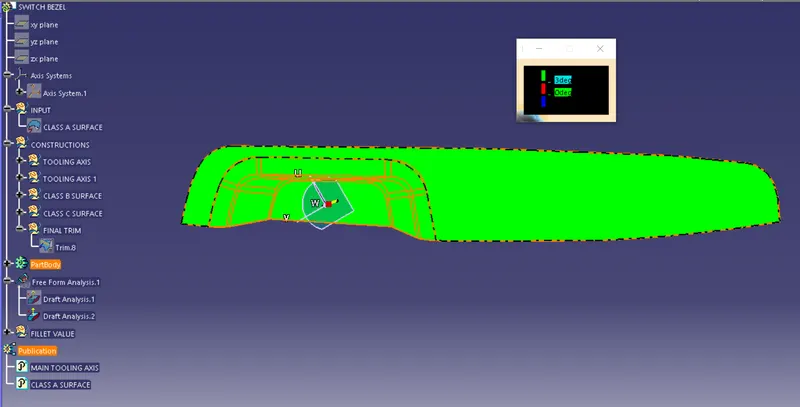
Set the color code for the draft angle i.e green for above 3 degrees, Blue for 0-3 degrees, and red for angle value lesser than 0.
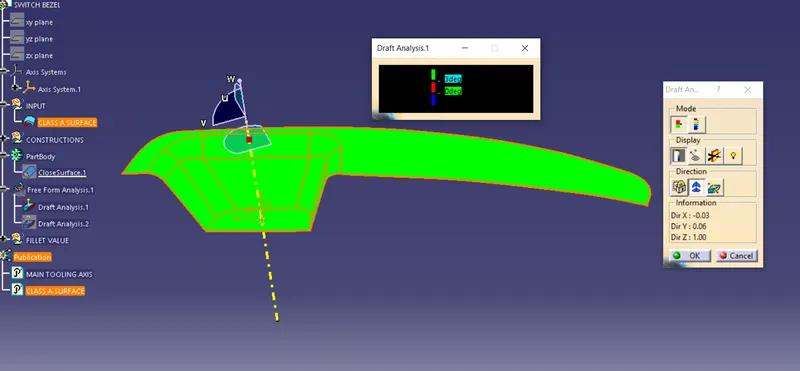
Click on the surface using the light effect, if the color goes green throughout means your draft analysis is good.
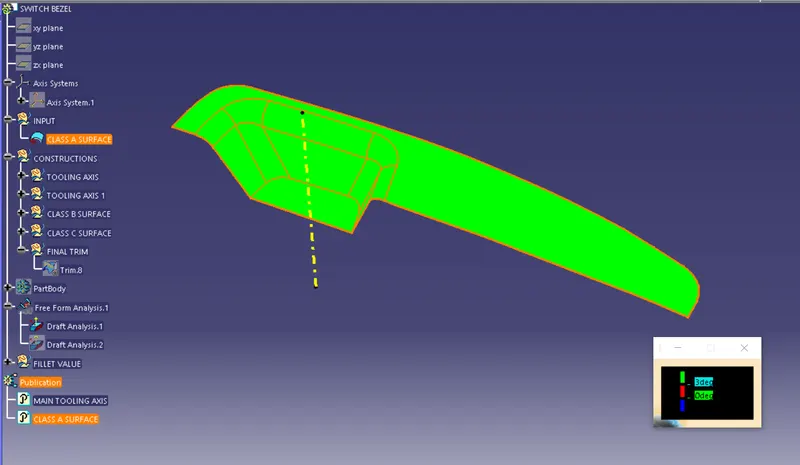
- Now creating the tooling axis by using bisecting line and a dummy axis
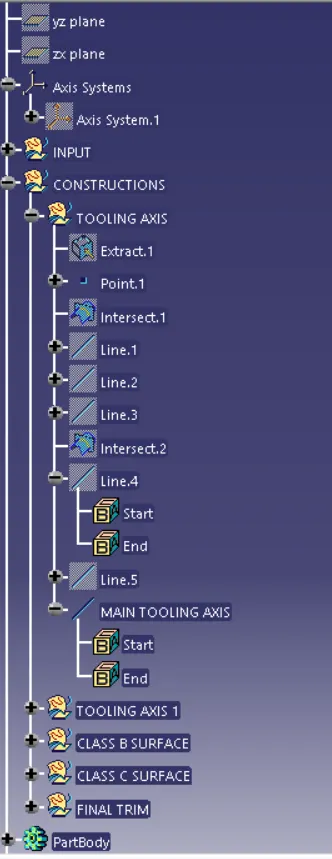
open the file which contains the Class A surface, after creating a geometrical set "Tooling Axis" then select the most appropriate position, and in this select a base of the tab/pocket.
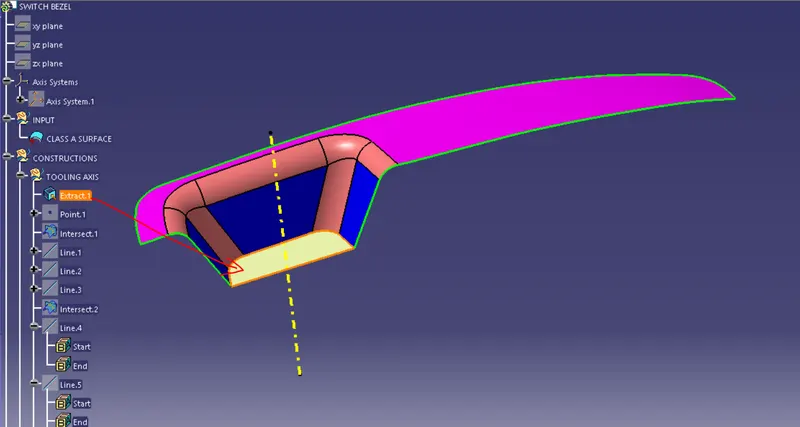
Then create a point at the surface extracted and insert a axis system
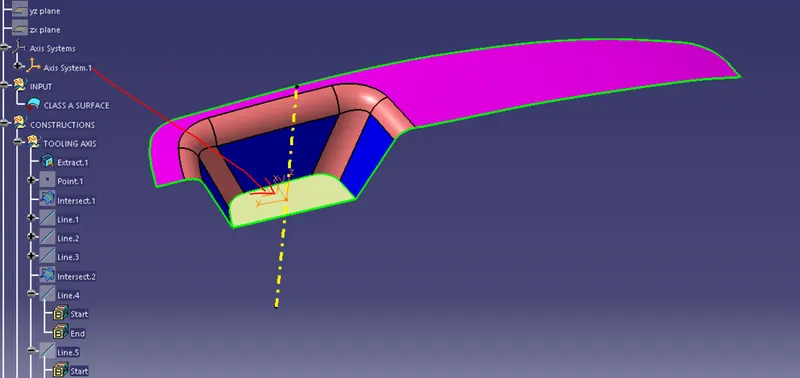
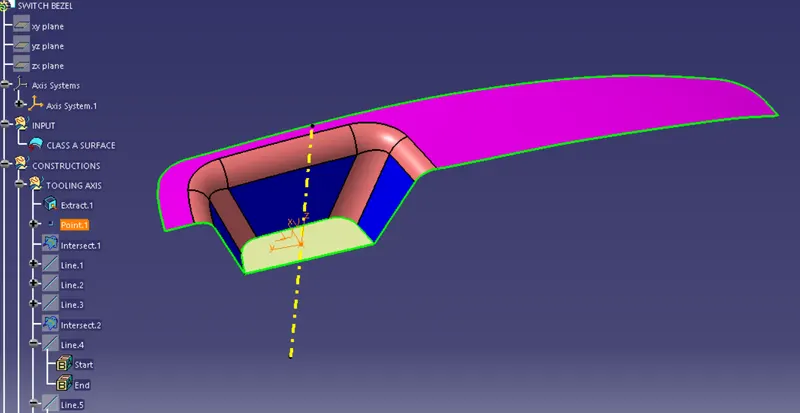
After that create a plane on the point created with reference to XY plane direction.
Then select the intersect tool that gives the intersection on the Class A surface.
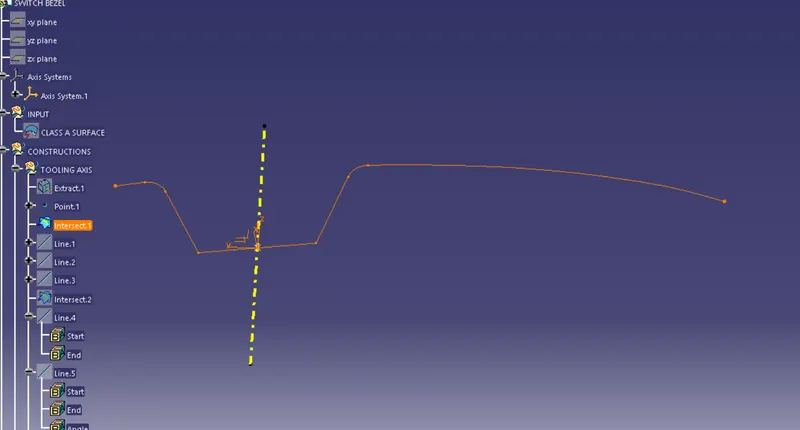
Now create 2 lines using the point and direction method as shown below screenshot.
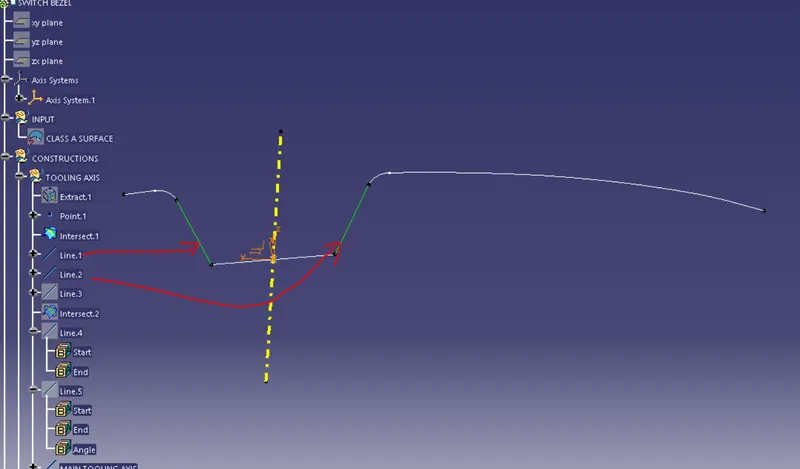
the Last step creates a bisecting line using the above 2 lines.
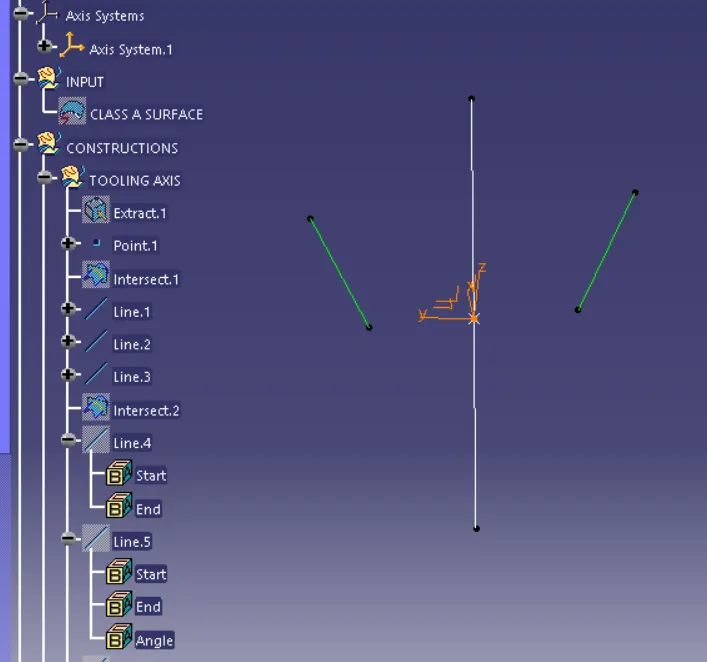
The above line is made for the Y direction and making the line for the X direction with the same procedure used above
But in this, we need to draw a line manually and keep its angle to 5 degrees
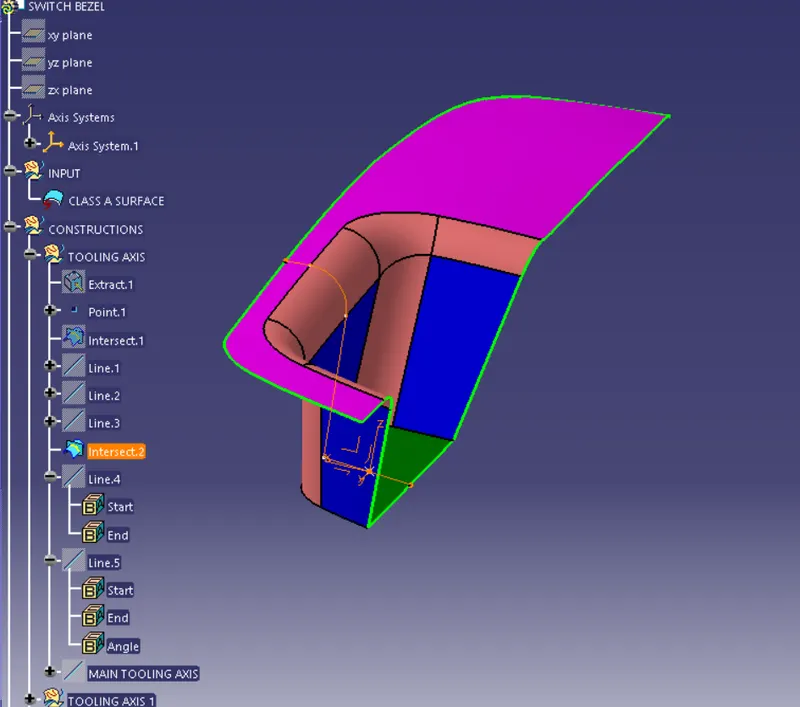
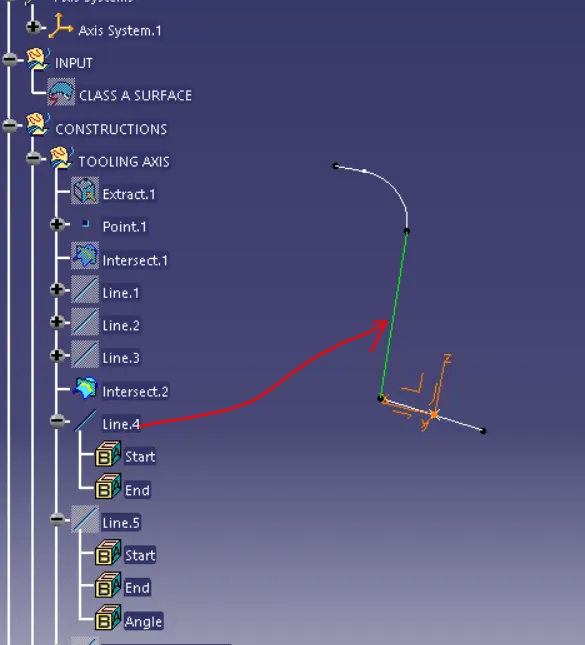
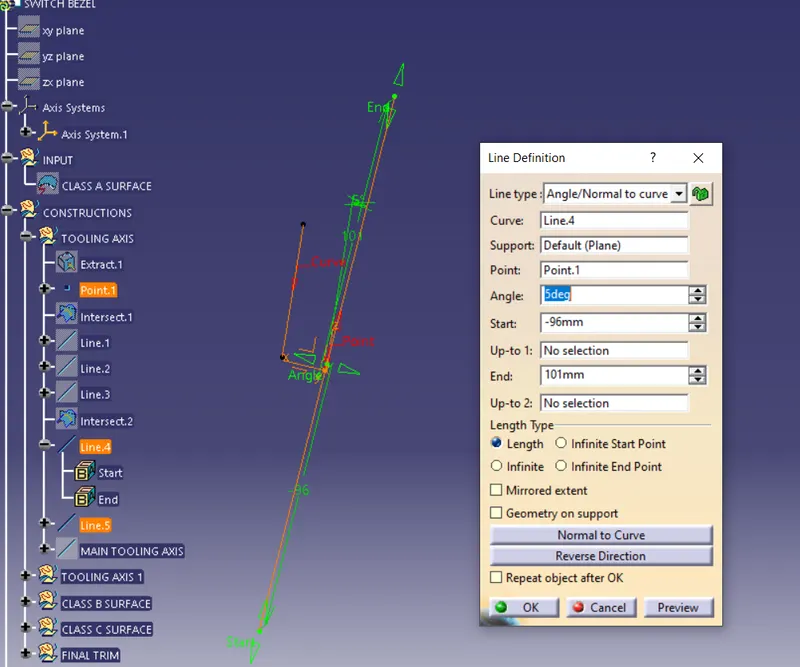
The final step for the Tooling axis
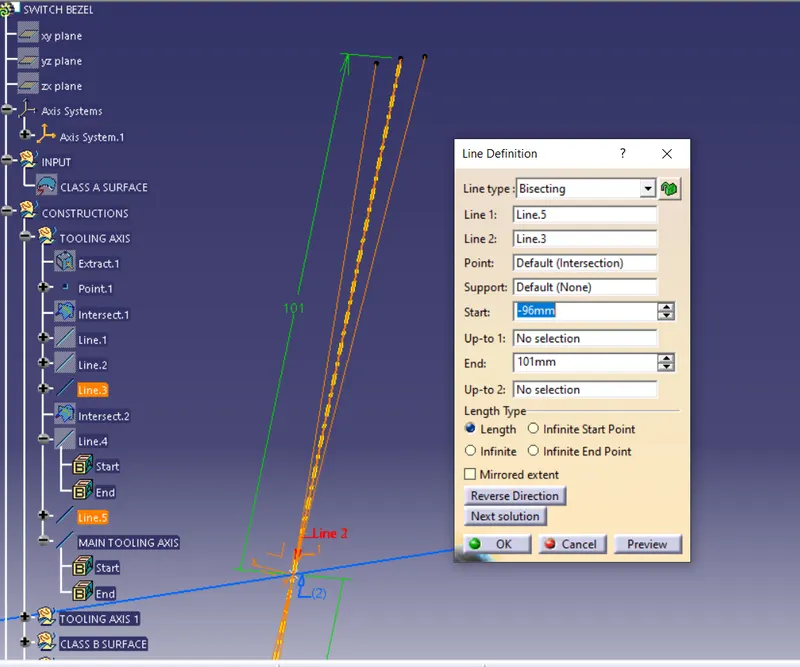
Bisect the lines line 3 and line 5 using the bisecting line command
Color it yellow and published it.
- DRAFT ANALYSIS OF SWITCH BEZEL
ISO
FRONT
TOP
SIDE
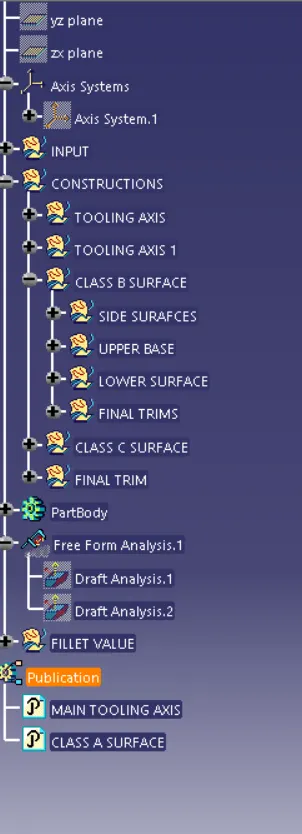
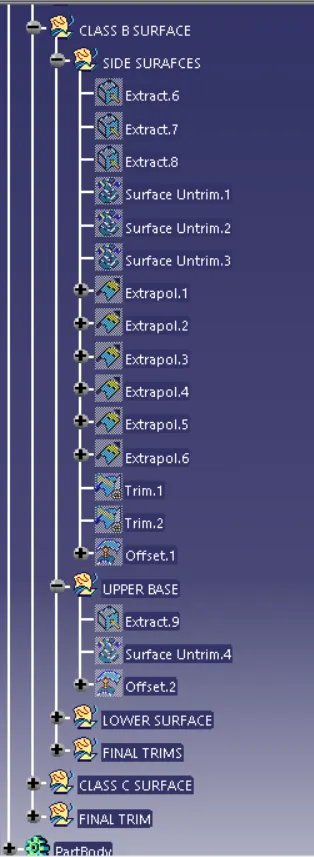
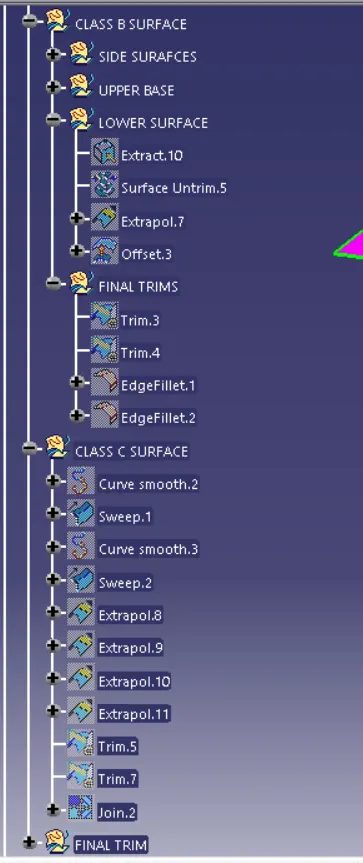
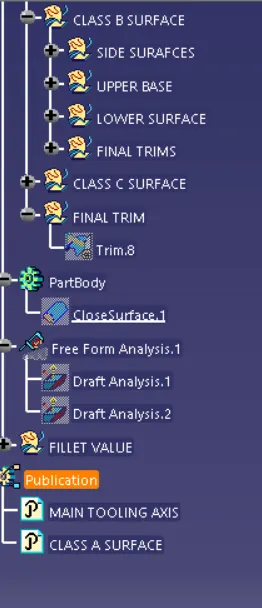
TREE STRUCTURE