Week 8 - Challenge 2 - Base Bracket Design
Report
Draft Analysis is very usefull tool to analysis the draft value of plastic components as well as sheet metal components. In molding process, no part can ejected from the tool if it is having a straight 90 degree profile from its base surface.so, we provide small angle to each and every area of the component to get an easy removal of the component from the tool. Draft analysis technique is used to analyze whether our part model created in cad is manufacturable based on the draft condition applied.
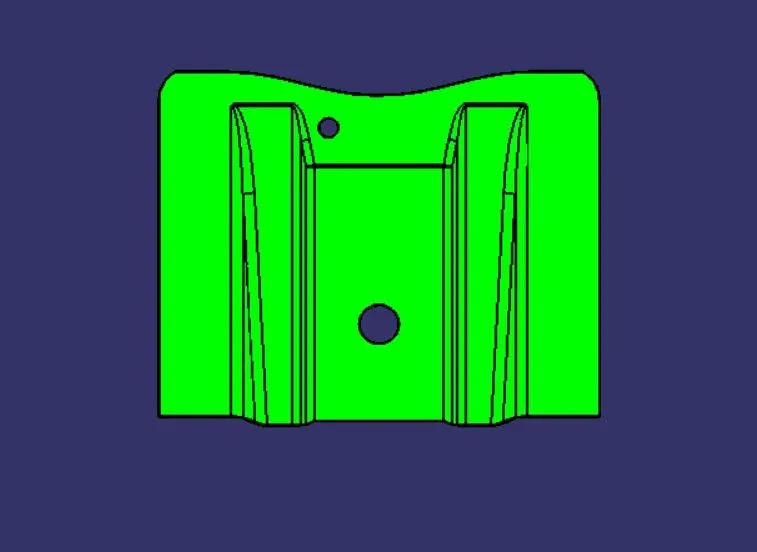
In this Base Bracket components we check the draft analysis of given class-A part. for analysis draft firstly check the which plane is suitable for molding then after we draw tooling axis.
Process to draw Tooling Axis:-
- Pick the centre point of the circle by using piont command.
- Creat dummy tooling axis by using line comand.
- Creat plane using referance plane of YZ Plane.
- Intersect the class A part with respect to creating plane.
- Then draw two line that are troubling during molding.
- Bisect the two drawn line and that are our main Tooling axis.
Class A Draft Analysis
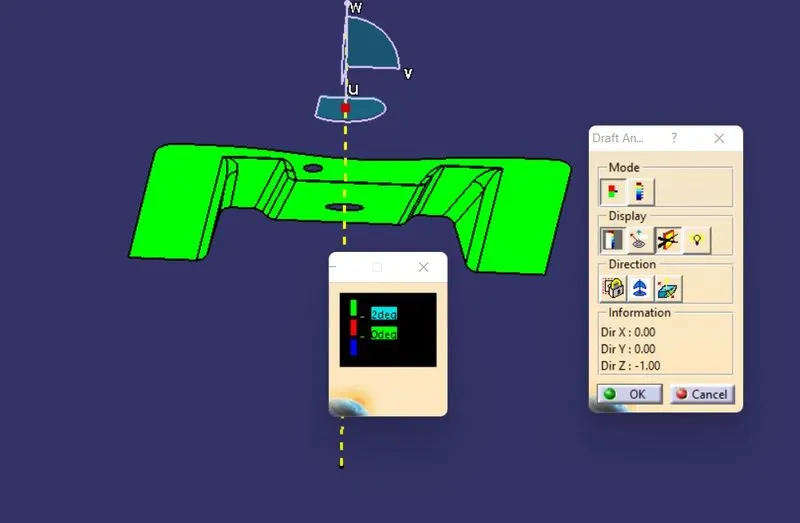
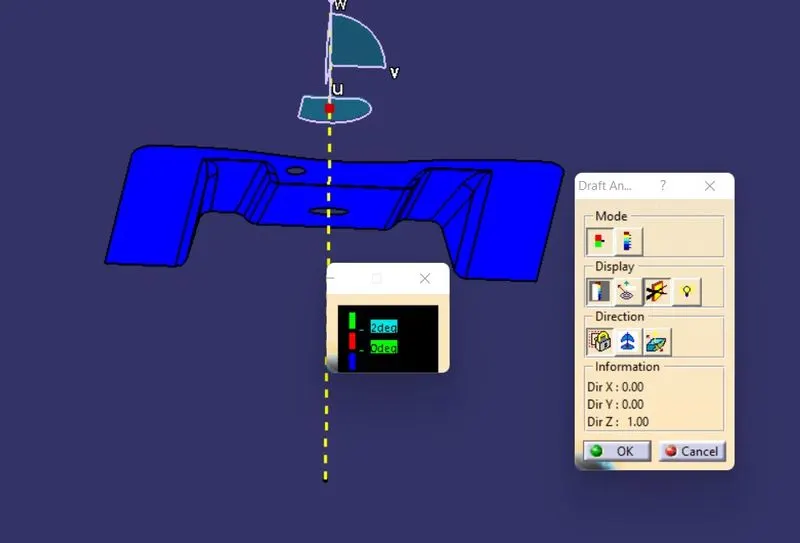
After creating tooling axis, we perform draft analysis.Draft analysis workbench available in part design, Generative shape design, wireframe and surface for building and free style shaper workbench. Draft Analysis workbench available in Insert>Analysis>Draft Analysis. Firstly change the view mode to customize view parameter and select material option from the mesh and select material. After That Drag the axis simble and fited in the tooling axis. Two sub window pop up one is for draft deviation colour bar and second is menu bar. Green colour part represent ok for manufacturing but second side show blue that mean need to thick the part so we we create B surface and C surface then we make solid using close surface operation after that we check draft analysis one more time like class A.
Final Draft Analysis
F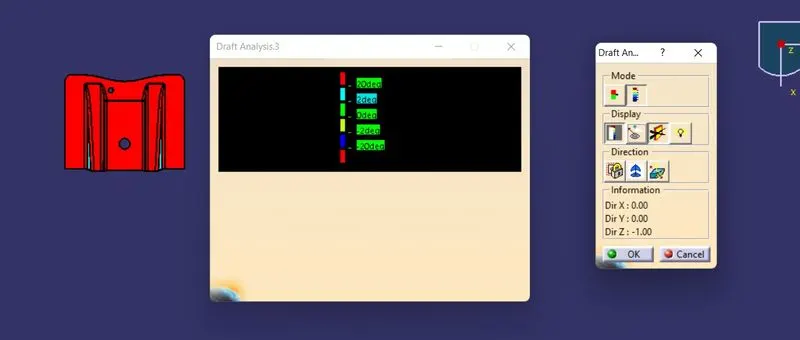
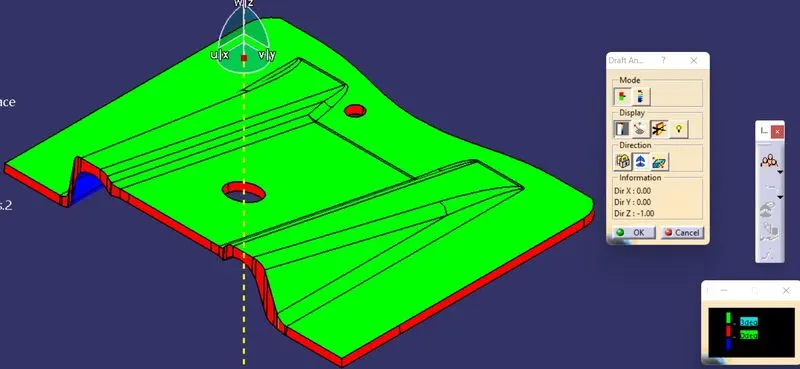
Front View
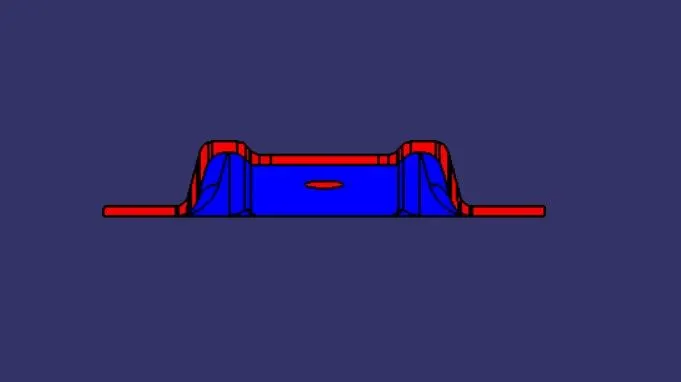
Isometric View
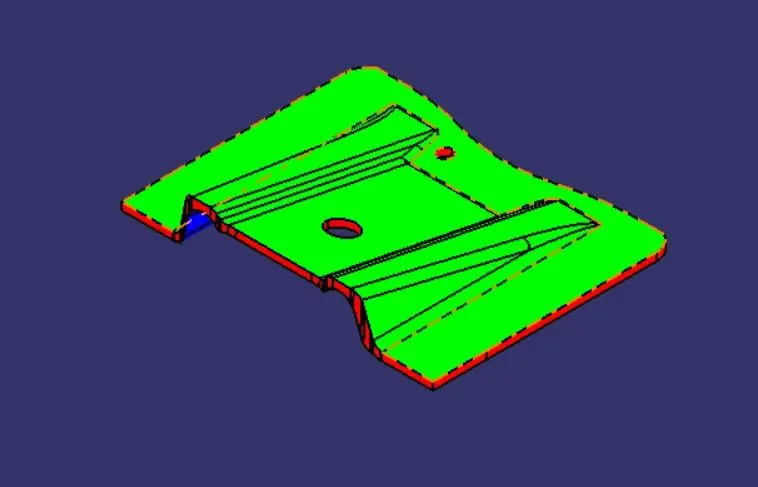
Side View
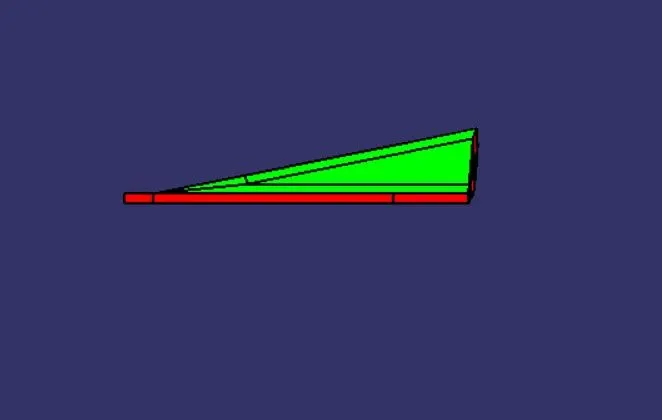
Top View