3D Tetra meshing on oilcap housing and suspension arm bracket with zero tetcollapse failures.
AIM : To create 3d (tetra) mesh on the CAD models according to the element sizes given with zero tetcollapse failure.
Given data :
Tet collapse: 0.15
1. Create 3D Meshing(Teramesh) with Elements sizes: Min- 2mm, Target- 5mm, Max- 7mm for oil filter cap Housing model
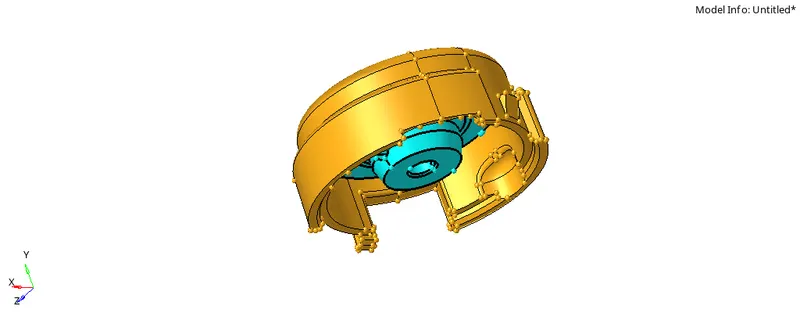
2. For the given housing and suspension arm bracket models, Create 3D tetramesh with 6mm element size.
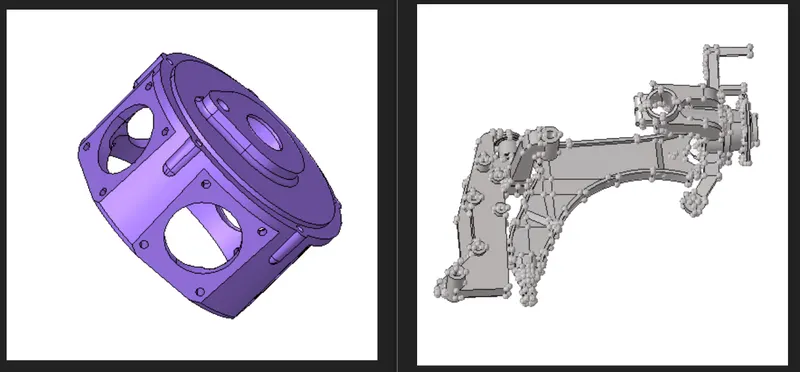
PROCEDURE :
Firstly we will import the housing.since the model we have given is in .stp format
Files with the .step extension are usually 3D model files created in the STEP file format. STEP stands for Standard for the Exchange of Product Data. This ISO standard exchange format is used to distribute 3D data files (such as CAD files) in a format that can be viewed by a variety of software applications.
To import the model in hypermesh to import solver deck  and switch to import geometry
  and select the suitable file type from the given options and click on import.since housing is given in .stp file format so i chose STEP as my file type.
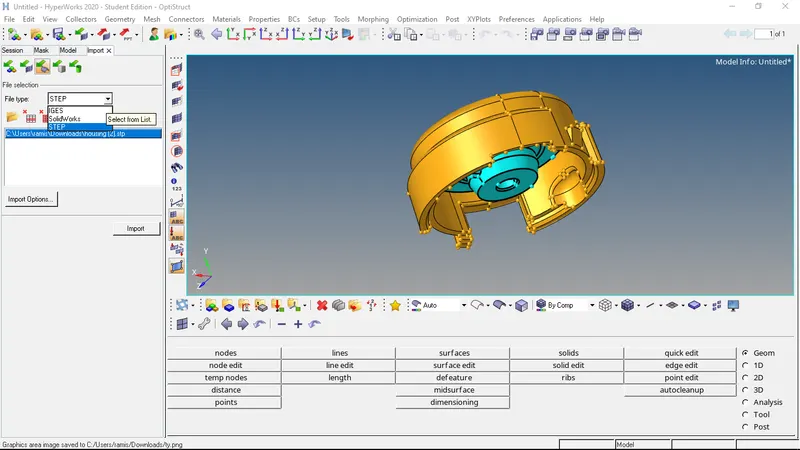
Then we delete the solids if present by selecting delete entities option or with f2 key we select the displayed solids and delete them.the housing contain two separate components so i organized them in their own collector components with tools-organize option.then later the cover component has too many topological errors like missing surfaces,free edges,etc which needs to be resolved for good mesh deployment they can be removed using tools in quick edit panel.these are some of the errors we fixed in the geometry of housing model.
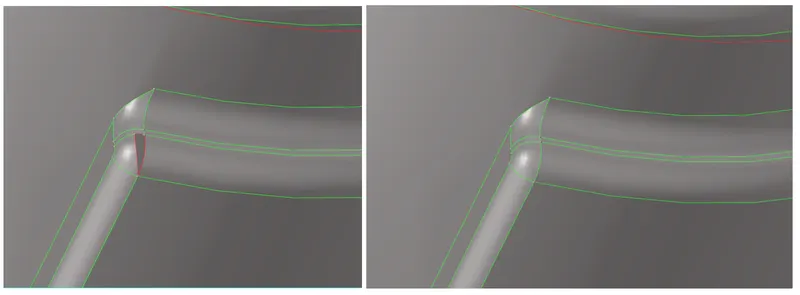
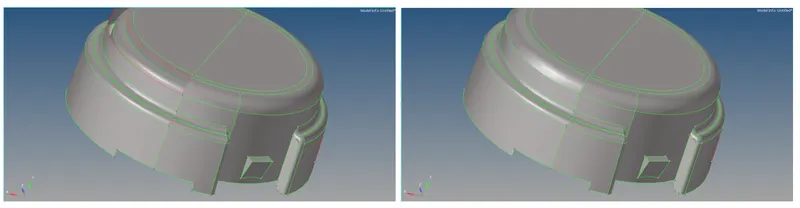
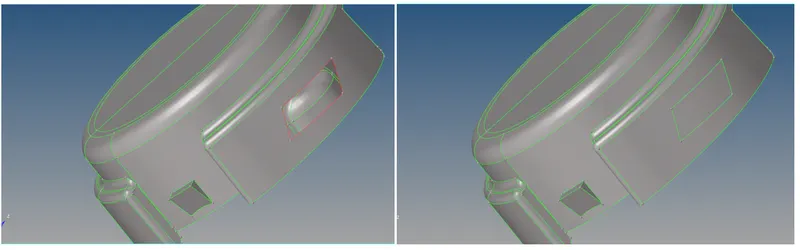
after removing all the geometrical errors we continue with applying 2d mesh by selecting 2d-automesh-surfaces .then we have to select all the surfaces we want to apply mesh on.we can press F12 key as a shortcut to enter into meshing panel.
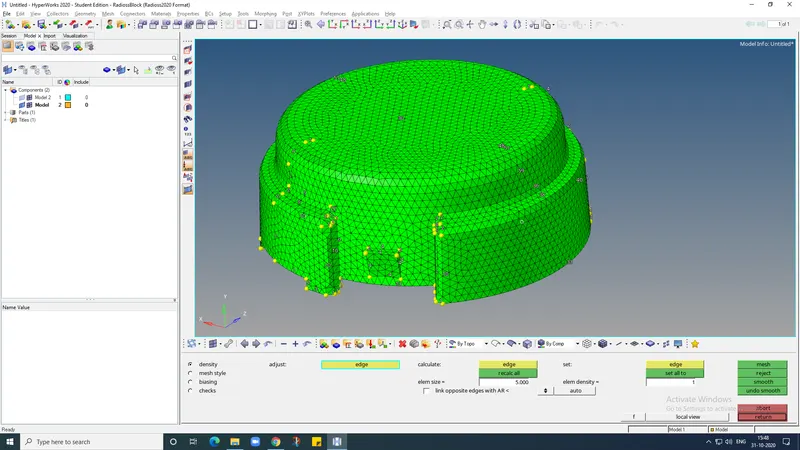
now the model is ready for tetra meshing.the process for tetra meshing is as follows.go to 3D-tetramesh,in the tetramesh panel select the elements under the "fixed tias/quads to tetra mesh" option.after selecting the elements click on the mesh button
once the meshing is finished .few elements are masked at random areas of the model to check the mesh generation.
this method is how we convert 2d tria elements into tetrahedral elements using tetramesh panel.after completing the tetra mesh we check for failed elements by selecting tools-check elems-3D-tet collapse.
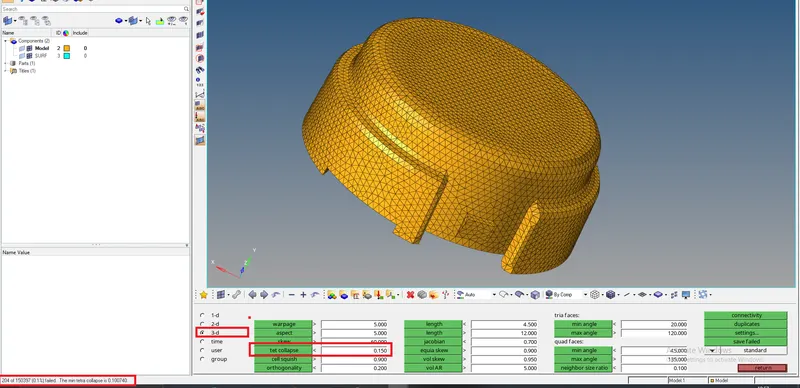
in the status bar it will show how many elements are present in the model.Click on the “save failed” option to save the tet collapse failed elements Isolate the failed elements, by clicking on “Mask” option Then right click on “elements”, to select the “retrieve” option.This will automatically select the failed elements as your masking entities.Click on the “mask” to hide the failed elements, then select the “reverse” option to show only the failed elements in the HyperMesh GUI
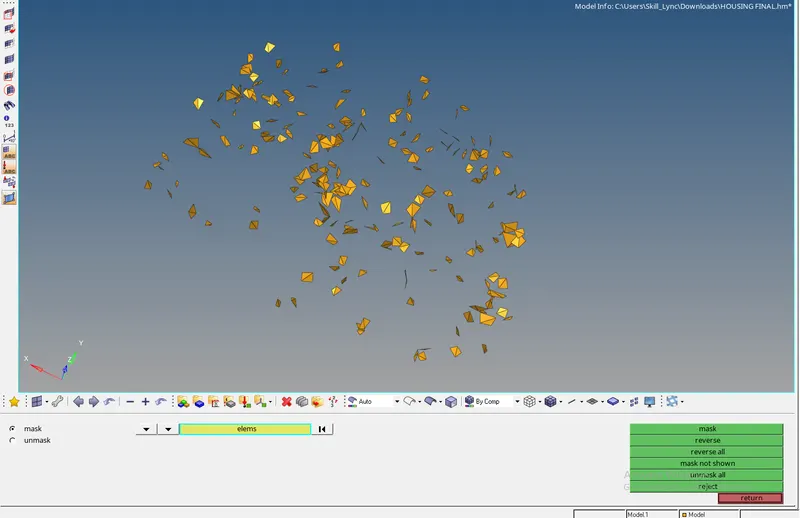
Now to clear the Tet collapse, select the Tools→ translate command. Manually inspect the failed element and do the following procedure:
-
Pick a node in any one failed element, which has minimum height.
-
Select N1, N2, N3 which represents the opposite plane of the prior selected node.
-
Choose the magnitude value approximately by trial and error method.
-
Click on the “translate” button to move the node
since there are so many failed elements clearing tet collpase for all elements take more time so we follow another method to clear the tetcollapse Using the “Tetra remesh” panel, to remesh failed elements. for that we go to the Tools→ tetramesh→ Tetramesh parameters, to specify the tet collapse value.Tick the checkbox of “Max tetra size” and “Min tetra size”, to specify the limit of tetra mesh size.Under “Elem quality target”, enter the target tet collapse value and tick the checkbox of fill voids, fix midnodes, smoothing
Once, after setting the “Tetramesh parameters”, select the “Tetra remesh” option.Select the “3D elements” and “2D baffle elems” for remeshing the model.Click on the “remesh” button, to clear the failed elements.
To ensure the Tet collapse quality, check the failed elements in the “check elems” option.In the status bar, now it will show the 0% failed elements as shown below:
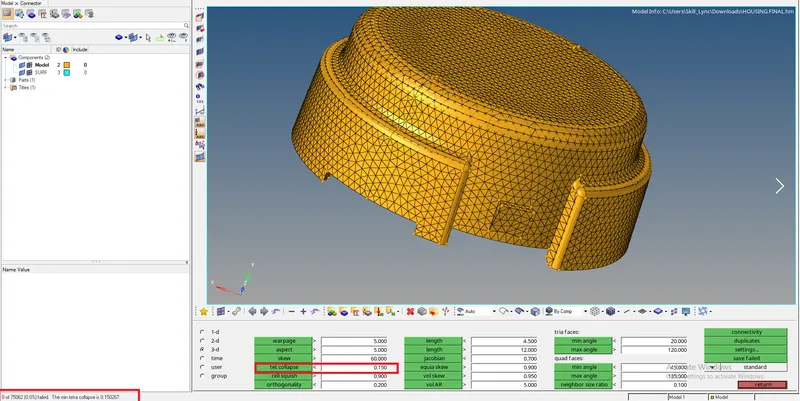
now for the other model we follow different methodology of meshing which is Generating Tetra Mesh, by using “Quick Tetra Mesh, from the Utility panel”
-
Import the Model into HyperMesh and clean the geometry.
-
Delete the solid from the model, by selecting the Delete→ Solid→ Delete entity.
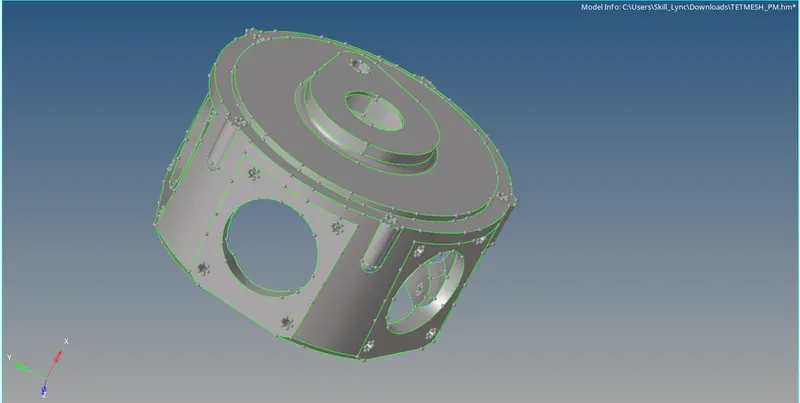
Click on the View→ Browsers→ HyperMesh→ Utility, as shown below.
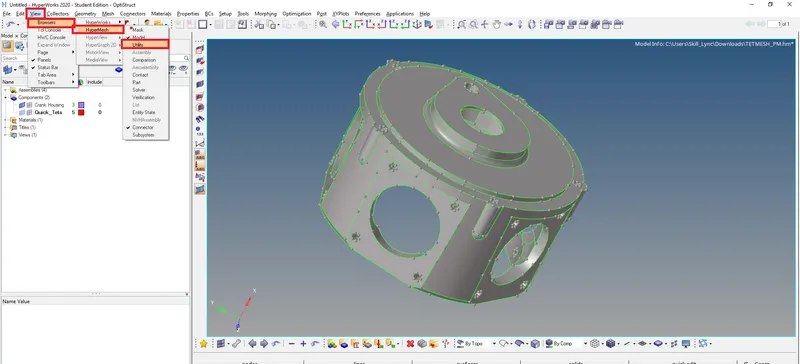
Now select the Geom/Mesh from the “Utility Menu”, then click on the Quick TetraMesh
In the Quick Tetra tab, select the Components and Surface.Specify the Mesh size (as per the Quality mentioned)which is 6mm.Then change the Mesh type to “Trias only”.Click on the Mesh button to generate the Tetra Mesh
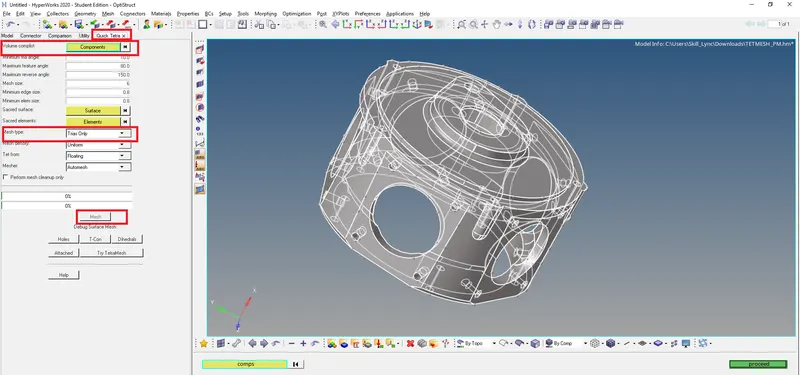
After completion of the Surface Mesh, a dialogue box will be popping up, as shown below.
Click on the OK button to complete the Tetra Meshing Process. Meanwhile a new component collector will be created in the Tab bar, which contains the tetrahedral elements
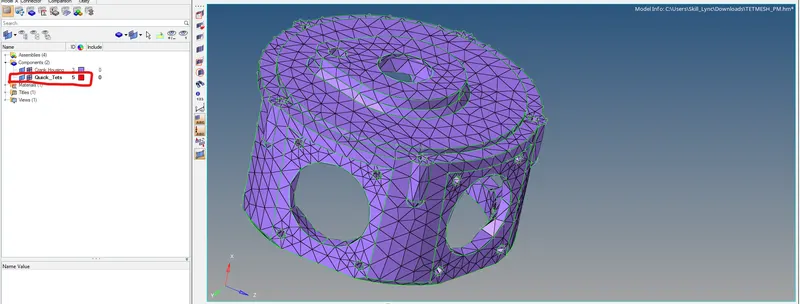
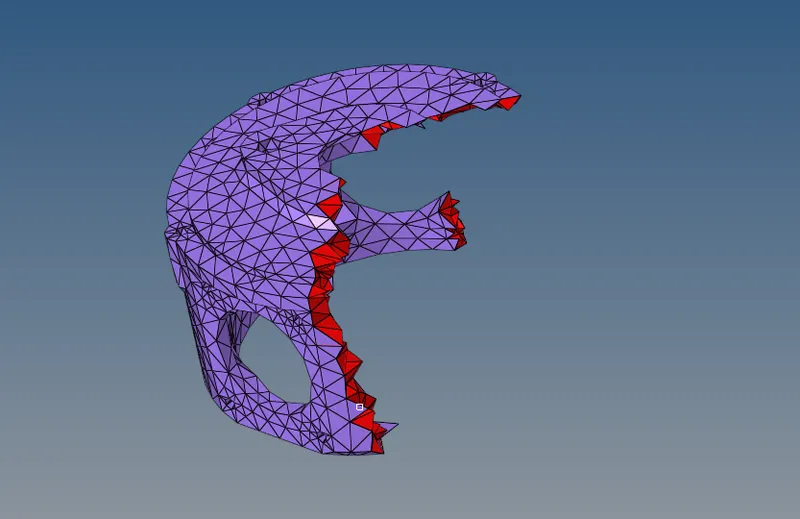
we mask few elements to check the 3d tetra mesh that has been created
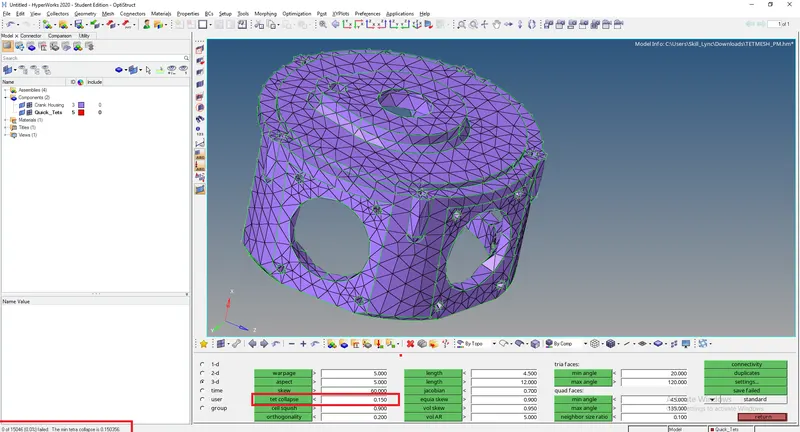
after completing the tetra mesh we check for failed elements by selecting tools-check elems-3D-tet collapse.here we found zero tet collapse occurs in this model.
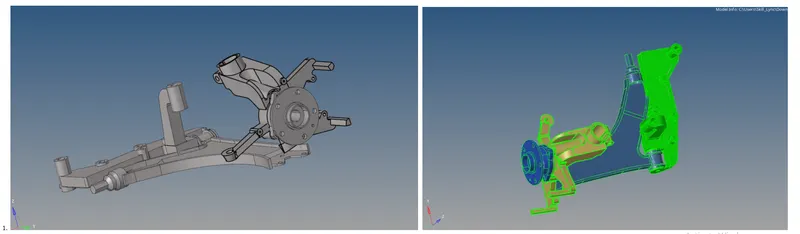
now,for third model which is rear suspension arm with three components we follow different procedure to create tetramesh
by using the Volume Tetra Mesh Panel,Import the Model into HyperMesh and clean the geometry.Keep the solid of the model, select 3D→ tetramesh.
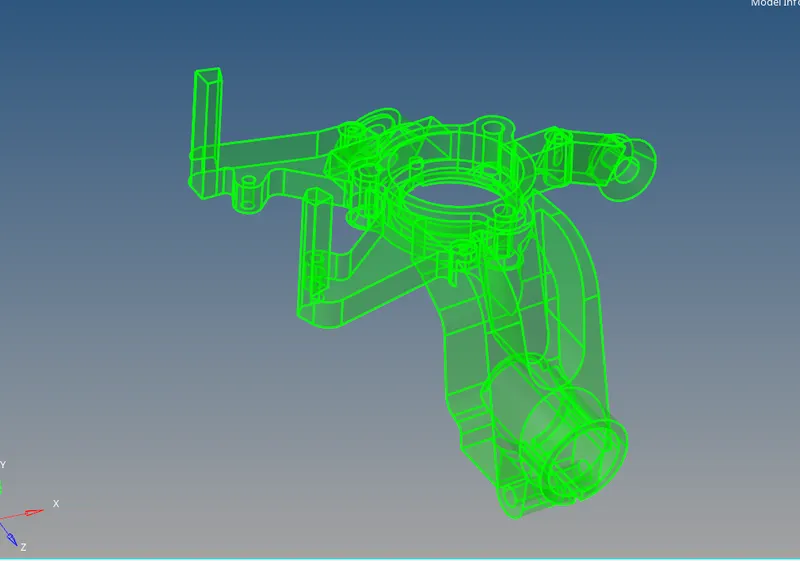
Click on the Volume tetra option, select the solid of the model.Tick the checkboxes of “Use curvature” and “Use proximity” Specify the Minimum element size (as per the quality criteria).Then tick the checkbox of “Cleanup elements”.Click on the “Mesh” button to generate the Volume Tetra Mesh.
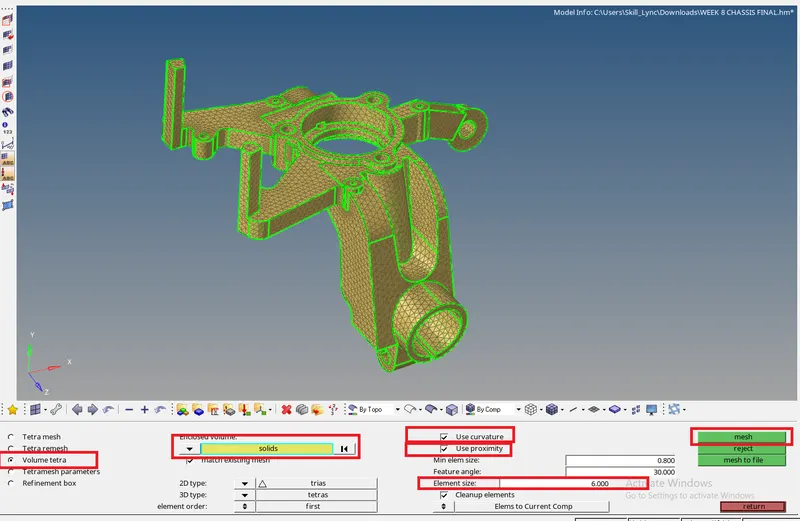
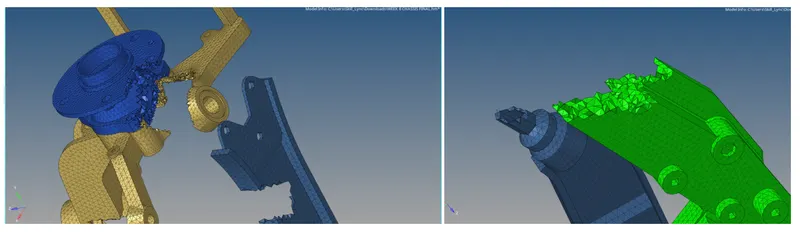
then we mask few elements of the model to see the wether the 3d mesh is formed properly or not. After meshing with volume tetra option we check for tetcollapse failures we comes out as zero failures.here the below images shows the model before and after applying 3d tetra mesh.
RESULT:
Successfully Created 3d tera mesh on the given three cad model using three different procedures available with zero tetcollapse failures.