Week 8-3D Tetra Meshing Challenge
week8-3d tetra meshing challenge
objectives: To create a 3D tetra meshing on the given component in three different components with two different methods with given quality criteria.
procedure:
- first import cad model(hood) to the hypermesh by going to import ⇀ import geometry⇀ stp file ⇀and click import.
- after, delete the solid part and start to clean up the geometry.
- once the geometry cleanup is over,mesh the given geometry with given quality criteria and target length.
- the 3d mesh panel have tetra mesh option:3D⇀ tetra mesh .we can generate mesh by using tetra mesh option or we can also use volumetric mesh to generate a 3d tetra mesh.
- if the surface is not enclosed the meshed will fail, suppose even when we have enclosed surface or solid and still, it fails, we can mesh the given geometry by going to utility option:utility⇀ mesh⇀ quick tetra mesh⇀ enter the parameter and select the component to mesh and select the mesh.
- also if we using 2d to 3d conversion method don't forget to delete the 2d shell mesh once the 3d mesh is done.
- check the min and max length in 2d shell mesh and we convert into 3d check for tet collapse.
- once the tet collapse as identified save the failed element and mask the element and cleck reverse to change the element in order to achieve the quality criteria.
- click f10 to go to element check or gap to the 2d panel and click the element check and check the min and max tab to see the element which are failing to that criteria.
- and even if we can remesh the 3d tetra mesh once the 3d mesh is done done and if we want to make any changes to mesh we can change the parameter and carry to remesh:3D⇀teramesh⇀tetra remesh
- for volumetric mesh go to 3D⇀tetramesh⇀volumetric mesh⇀enter the parameters drop down the 2d panel to select the tria and drop down the 3d panel to select the tetra ⇀to select the component either surf or solid and click the volumetric mesh, before meshing ensure that you enter the criteria in tetra parameters panel.
- failed elements can be solved by using the translate option or distance option :tools⇀translate⇀select the nodes to translate⇀select the plane by (N1,N2,N3)⇀ Click translate
- for distance click geometry panel select distance and select the node by two-node option and change the distance.
- as per the given statement,
-
TetraMesh Generation Method: 2D to 3D Conversion
Elements sizes: Min- 2 Units, Target- 5 Units, Max- 7 Units
Tet collapse: 0.15
In this model we gonna mesh with 2d and then we gonna convert into 3d mesh ,the method is used inorder to achieve good quality,initially we will be mesh the surface with the 2d shell mesh and then the quality checks will be carried out and the 2d shell mesh (tria) is converted into 3d tetra mesh. check the min and max length in 2d shell mesh and we convert into 3d check for tet collapse.
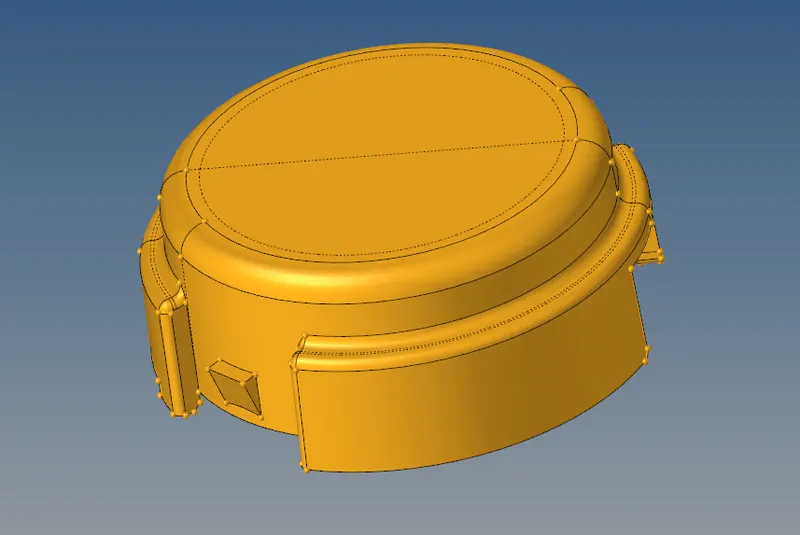
img:original model(model1)
2.TetraMesh Generation Method: Quick Tetra Mesh/ Volume Tetra Mesh
Target Element size: 3 Units.
Tet Collapse: 0.15
volume mesh is carried out in this geometry,
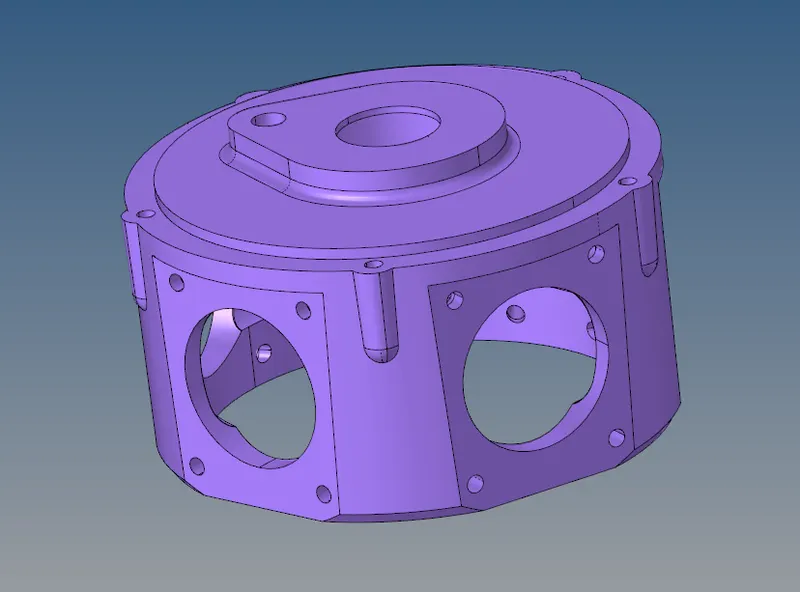
img:original model(model2)
3.TetraMesh Generation Method: Quick Tetra Mesh/ Volume Tetra Mesh
Target Element size: 4 Units.
Tet Collapse: 0.15
volume mesh is carried out in this geometry,
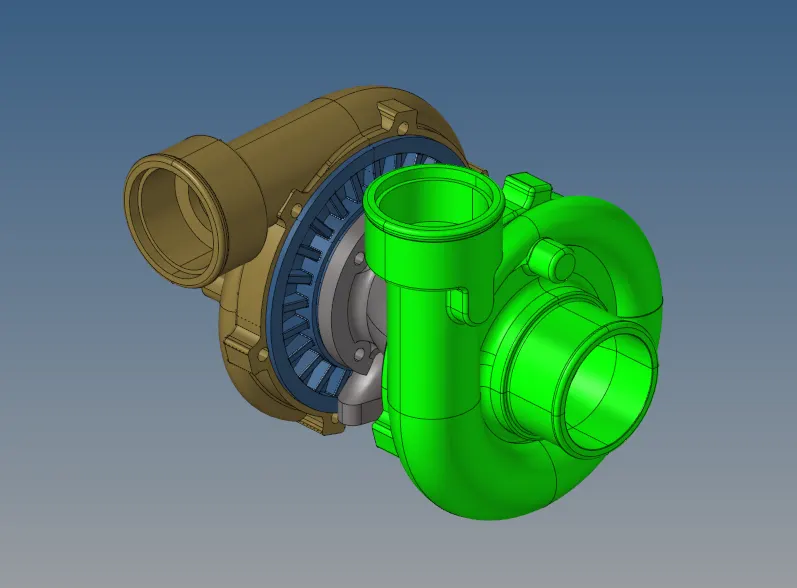
img:original model(model3)
meshed model:
1)model1:
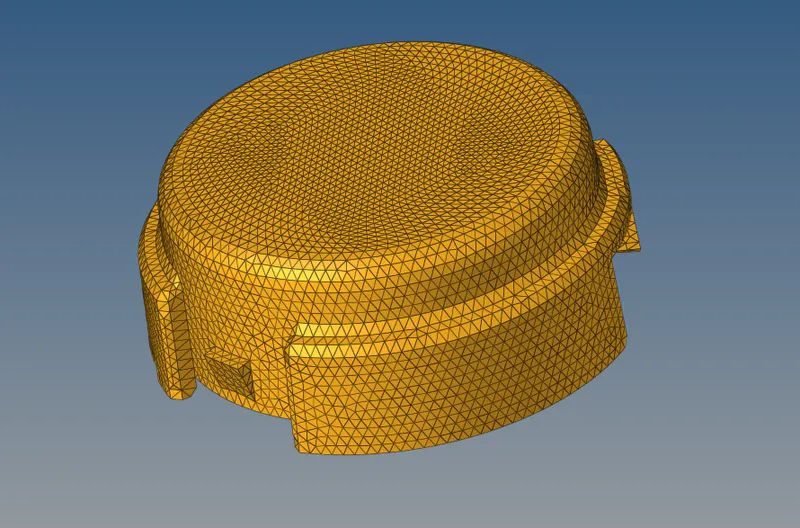
2)model2:
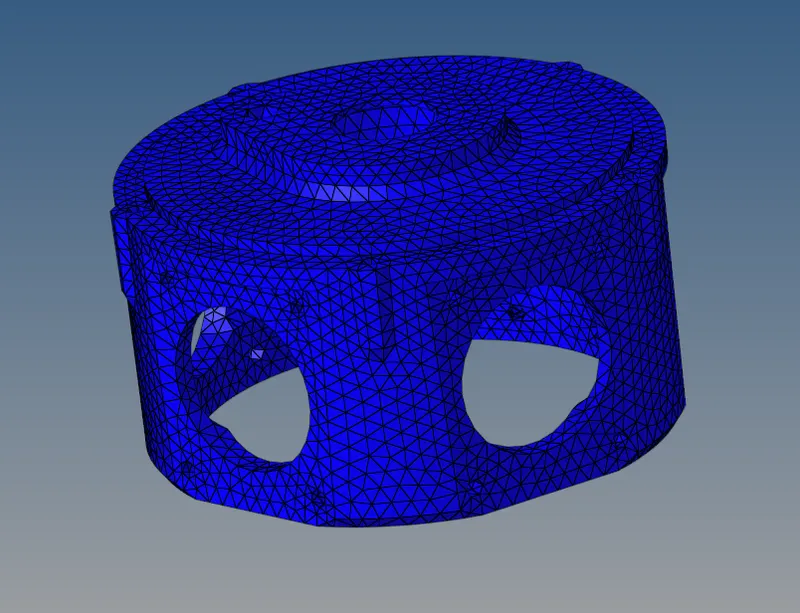
3)model3:
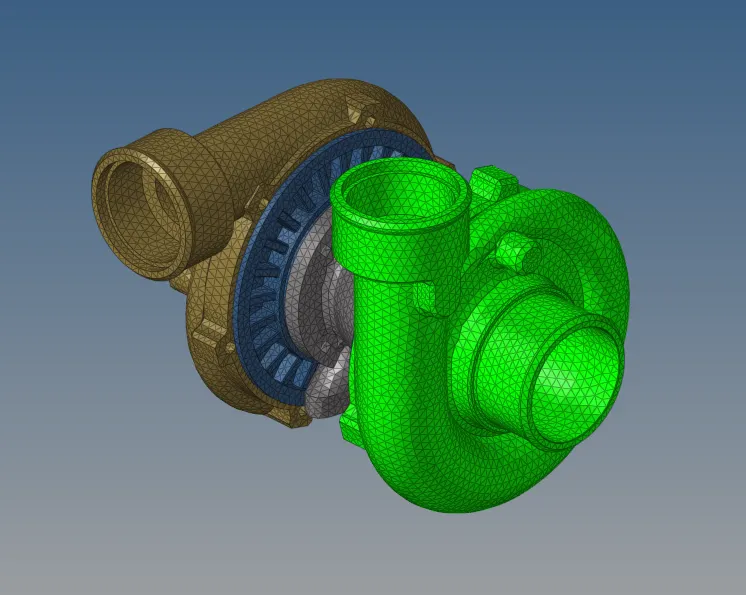
result:
- geometry cleanup is carried out on the given solid or surface.
- meshed the geometry as per the given quality criteria
- check for the quality error and solve the error where the element fail to the criteria by using translate or distance option.
learning objectives:
- learn how to mesh a geometry by using tetra elements by using two different methods.
- learned how to clear the quality error in 3d mesh element.