Week 8-3D Tetra Meshing Challenge
Objective:
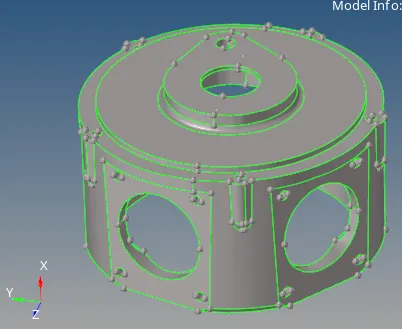
1. To create a Teramesh for Housing component with the following quality criteria.
TetraMesh Generation Method: 2D to 3D Conversion
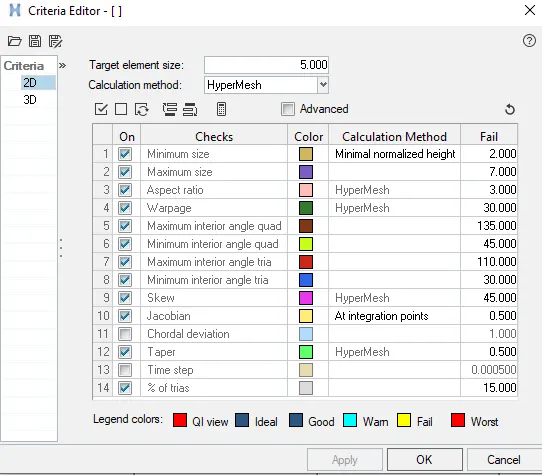
Elements sizes: Min- 2 Units, Target- 5 Units, Max- 7 Units
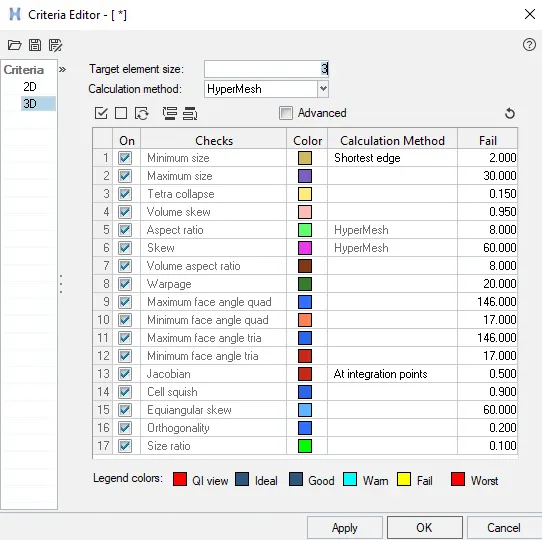
Tet collapse: 0.15
2. To Create a 3D Tetramesh with the following quality criteria.
TetraMesh Generation Method: Quick Tetra Mesh/ Volume Tetra Mesh
Target Element size: 3 Units.
Tet Collapse: 0.15
3. To Create a 3D Tetramesh with the following quality criteria.
TetraMesh Generation Method: Quick Tetra Mesh/ Volume Tetra Mesh
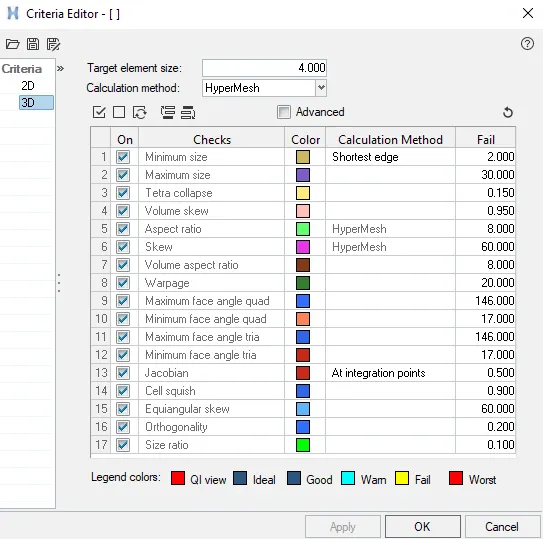
Target Element size: 4 Units.
Tet Collapse: 0.15
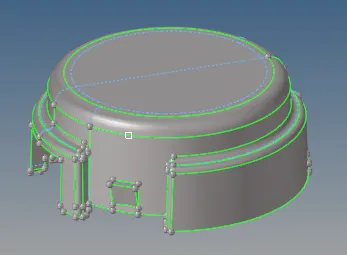
CAD Model Image:
1. Housing Component
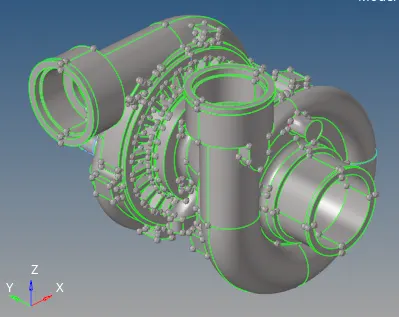
2.
3.
Procedure:
1. For Housing Component:
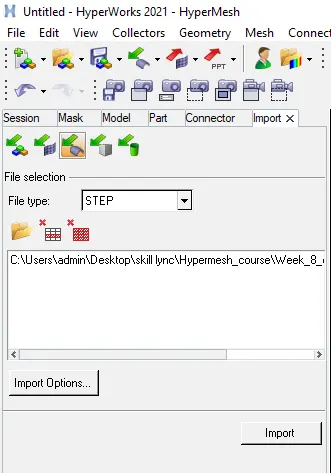
a. Import the .stp file using "Import" option in the File menu or in the "Tool Bar" panel.
b. Once the model is imported in the Hypermesh, change the values of "Criteria file settings" and "Parameter file setting" as required.
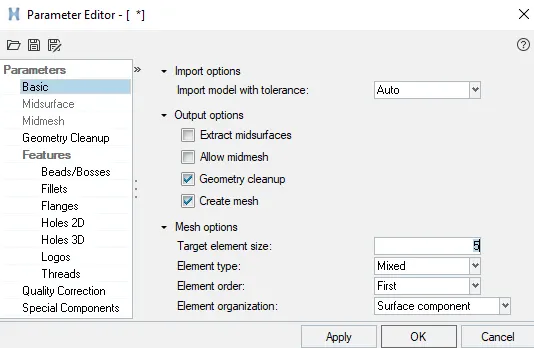
c. Now Go to "Geom" panel and select "Autocleanup" option to Automatically repair all the surface in the model.
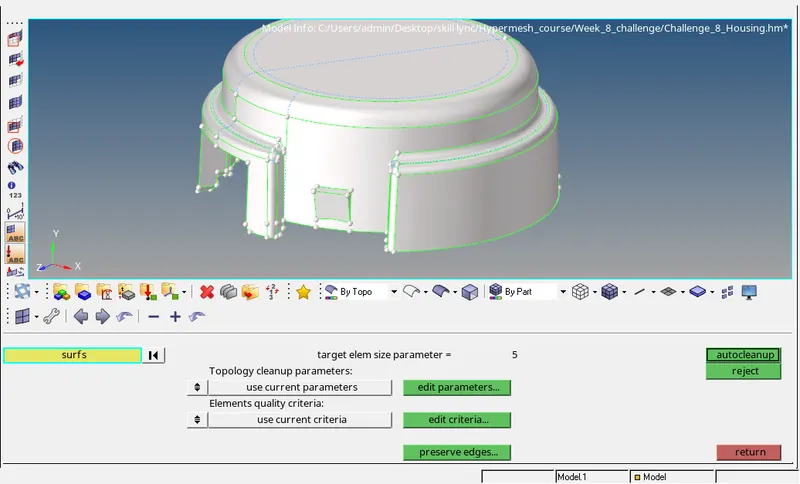
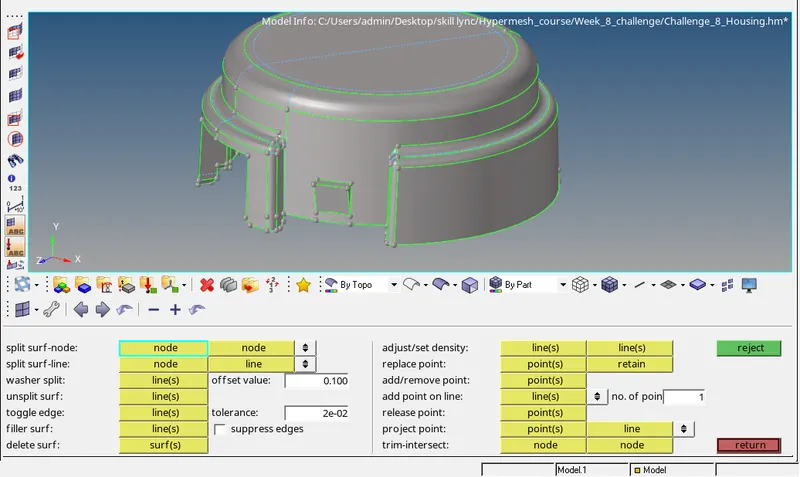
d. Once the Topology repair is done on the model, look for the free edges and repair it using the "quick edit" option in the "GEom" panel.
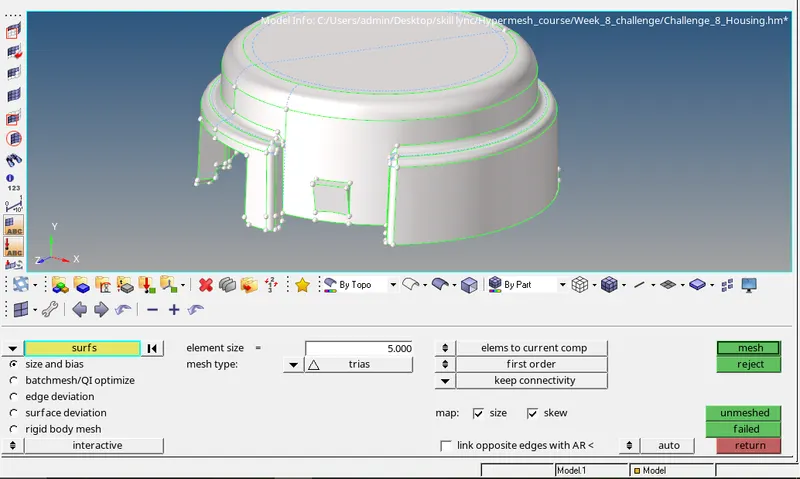
e. Further, Go to "2D" panel and select "automesh" option. select all the surfaces and mention element size as "5 mm" and element type as "tria". Check the boxes of size and skew and click on mesh to generate the 2D mesh on the surfaces.
f. Once the 2D mesh is generated, Go to "3D" panel and select "tetramesh" option. In the Tetramesh, Select all the tria elements using elements option in the "Fixed trias to tetramesh" and select simple pyramid option click on "MESH" to generate a 3D tetra mesh using the 2D mesh.
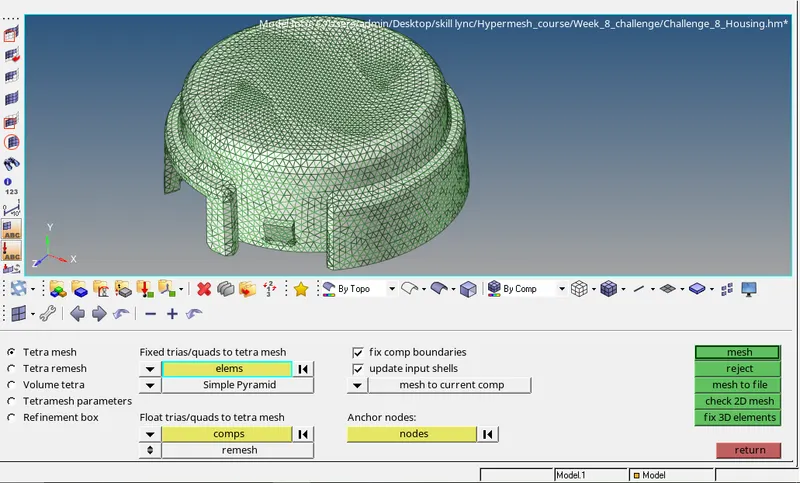
2. TETMESH_PM(CRANK HOUSING):
a. Open the .hm file in the Hypermesh Using "OPEN" option in the "file menu" or in the "Tool bar".
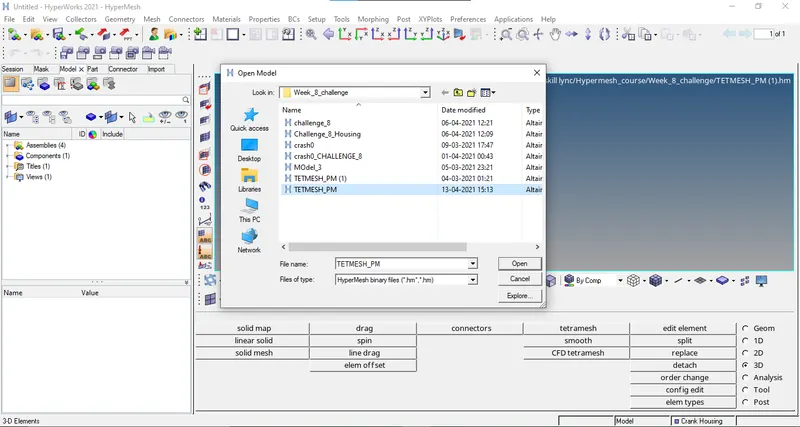
b. Once the Model is imported in the Hypermesh, modify the "Criteria file Settings" and "Parameter file Settings" according to the given values.
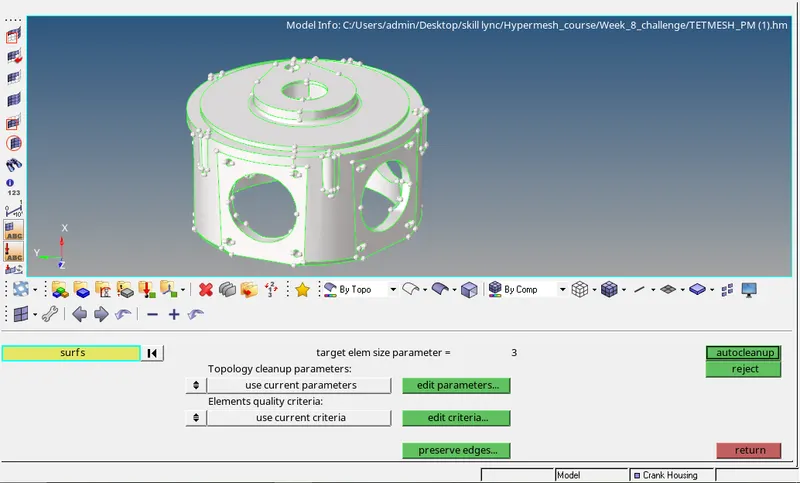
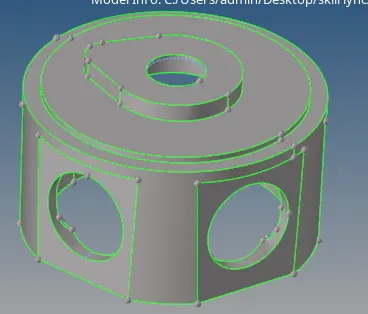
c. Perform the Topology repair using "Autocleanup" option in the "Geom" panel to defeature the desired holes in the model. Also, many other features needs to be defeatured using "Quik Edit Panel" or "Defeature" option in the "Geom" panel.
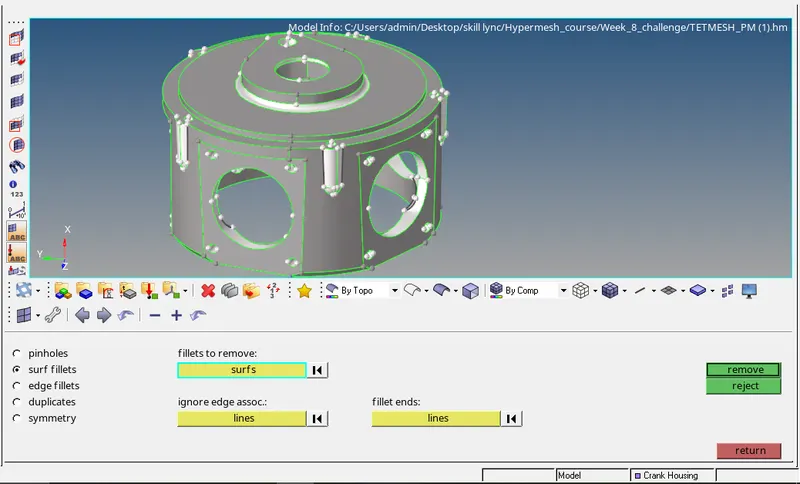
d. Once all the Topology/ Surface repair is being done, look fot the free edges in the model and stich those edges to make a enclosed model.
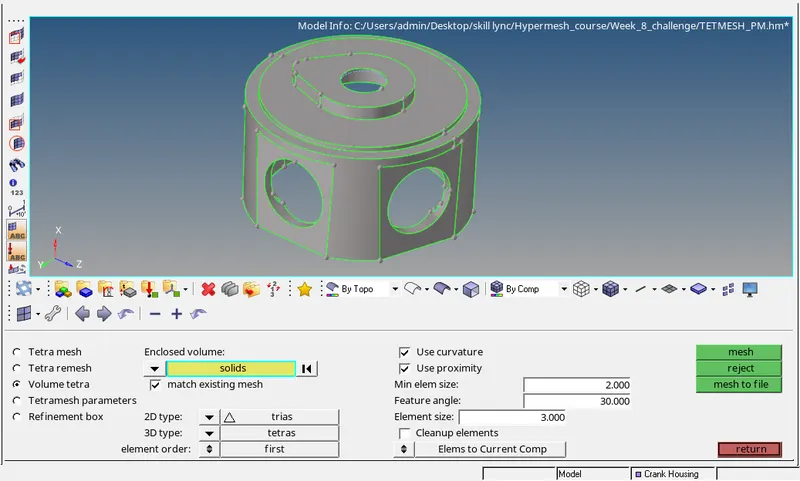
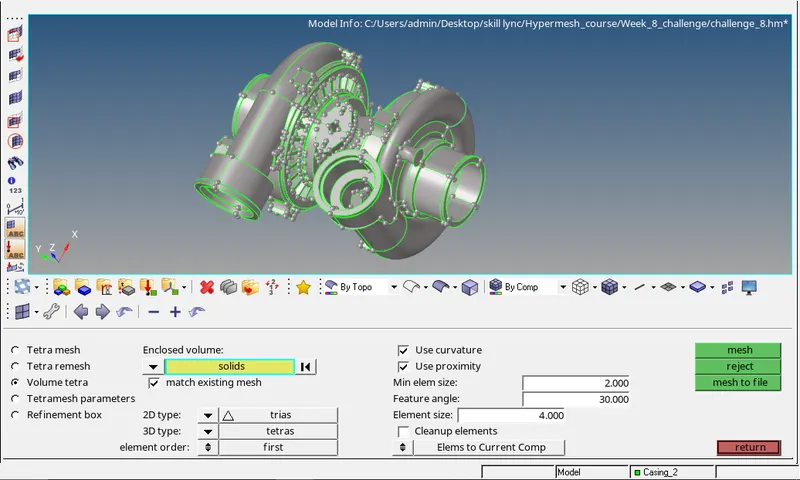
e. Now go to "3D" panel and select "tetramesh" option. In the tetramesh option go to VOLUME TETRAMESH and select the solid component in the window. And select all other options following below image.
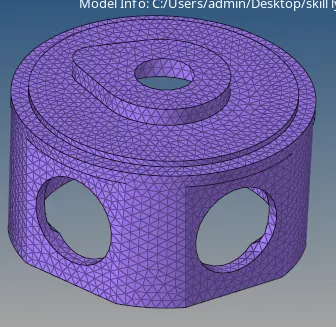
f. 3D Volume tetramesh is generated succesfully on the model.
3. Challenge_8
a. Open the model "challenge_8" in the Hypermesh using Open option in the "file menu" or "Tool bar'
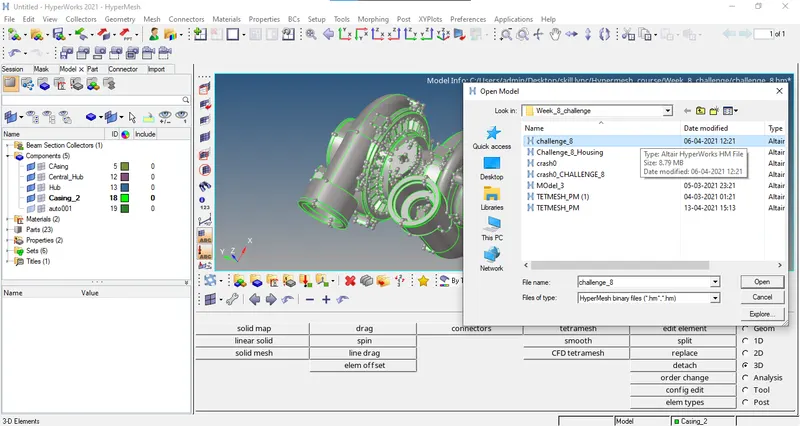
b. Once the model is opened in the Hypermesh, modify the "Criteria file Settings" and "Parameters file settings" entering the given values.
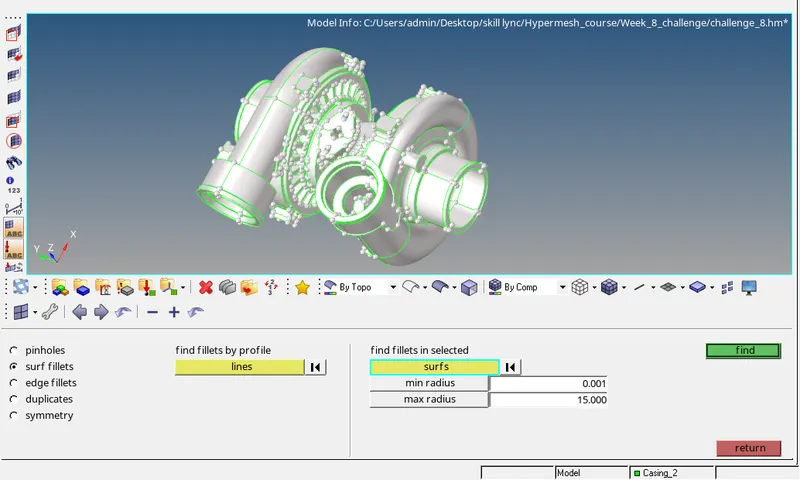
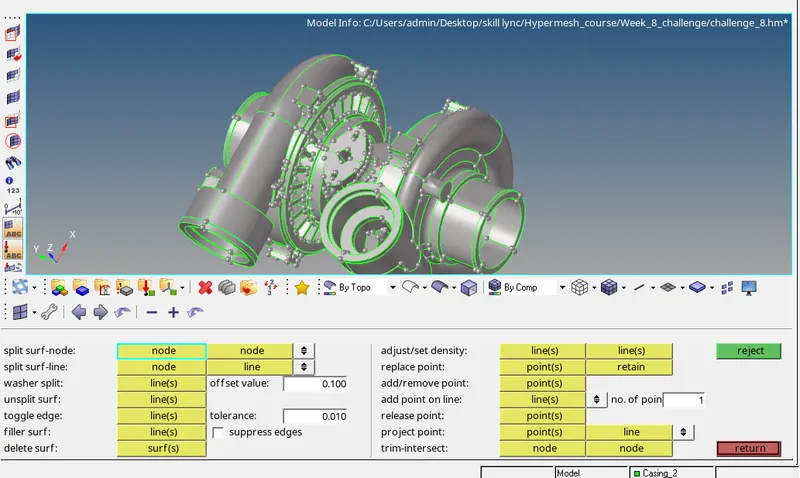
c. Further "Defeature" all the Surface fillets using "Defeature" option in the "Geom" panel. Some of the fillets couldn't be defeatured using the DEFEATURE command for this manual defeaturing has to be done using various commands like "Quik Edit", "Surfaces" etc.
d. Further, Check for all the "free edges" and rectify if any free edges are present. Now, go to the "3D'" panel and select "Tetramesh" command.
Result:
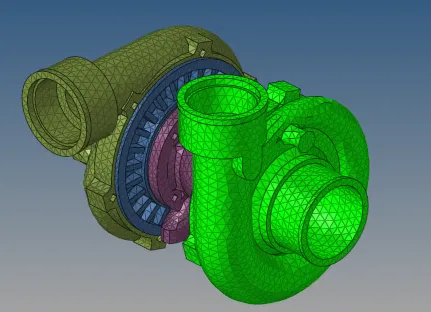
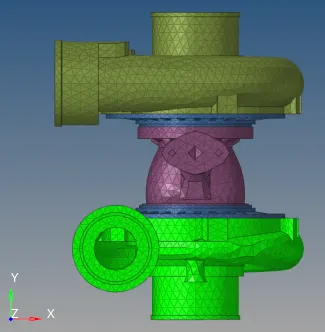
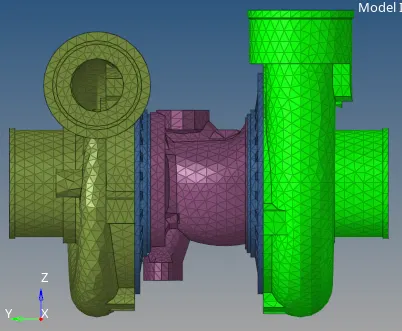
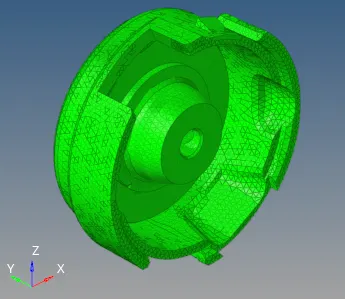
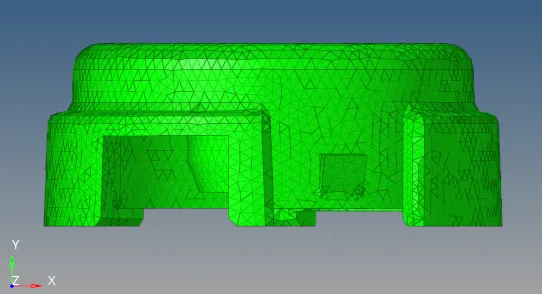
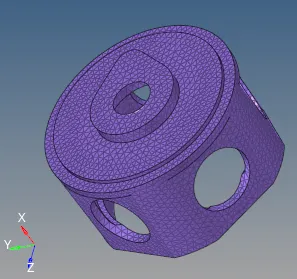
3D tetramesh is generated succesfully on all the models following all the quality criteria.
FINAL MODEL IMAGES:
1. Housing Component:
2. TETMESH_PM
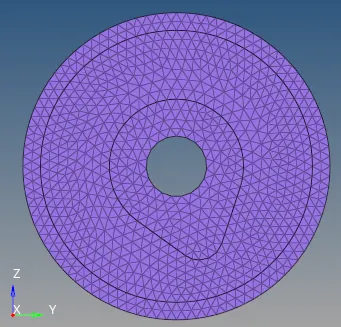
3. Callenge_8