Week 8-3D Tetra Meshing Challenge
AIM: To perform 3D mesh (Tetra Element) over the given models.
OBJECTIVE:
- To Create a Tera mesh for Housing component with the
following quality criteria.
- Element Generation Method: 2D to 3D Conversion
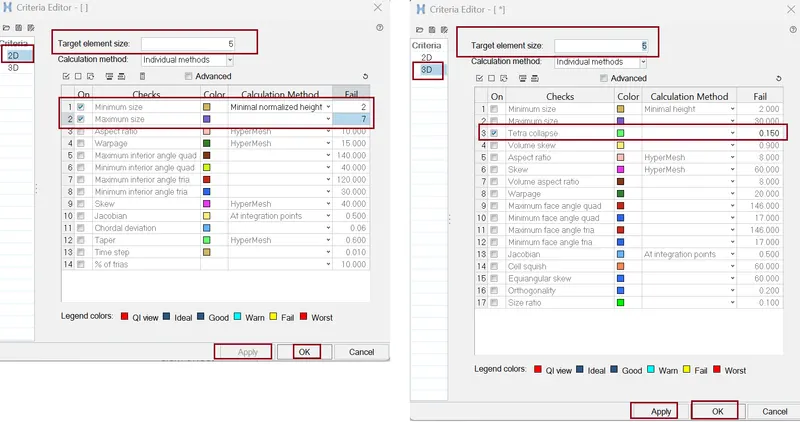
- Elements sizes: Min- 2 Units, Target- 5 Units, Max- 7 Units
- Tet collapse: 0.15
- To Create a 3D Tetra mesh on MODEL_2 with the
following quality criteria.
- Tetra Mesh Generation Method: Quick Tetra Mesh/ Volume Tetra Mesh
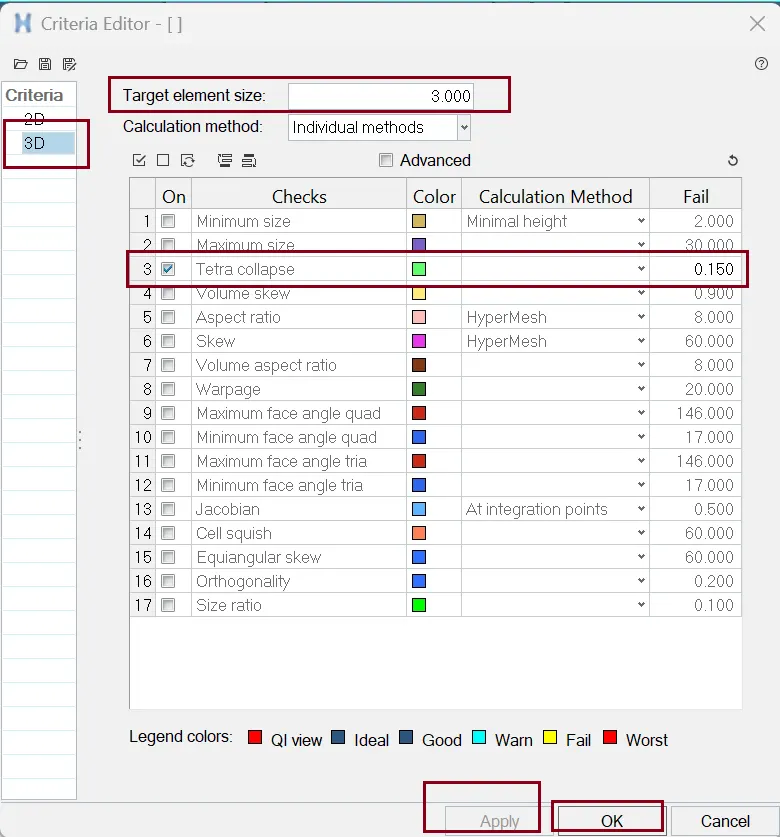
- Target Element size: 3 Units.
- Tet Collapse: 0.15
- To Create a 3D Tetra Mesh Over Turbo Charge assembly with the
following quality criteria.
- Generation Method: Quick Tetra Mesh/ Volume Tetra Mesh
- Target Element size: 4 Units.
- Tet Collapse: 0.15
PROCEDURE/STEPS: -
- import cad geometry file
Here we have three MODELS, Housing component, MODEL_2 and Turbo Charge assembly. We need to work on all the MODELS one by one.
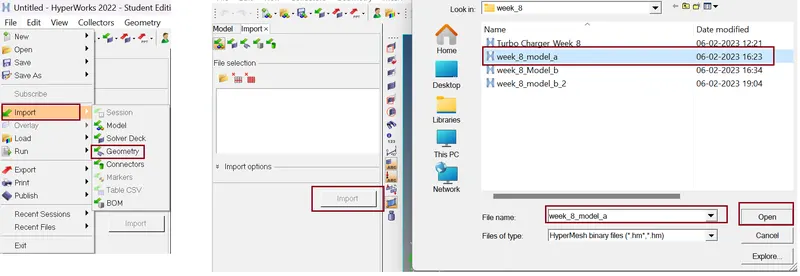
Command: File >> Import >> Model >> Locate the file directory (as per given figure) >> hit Open >> hit Import.
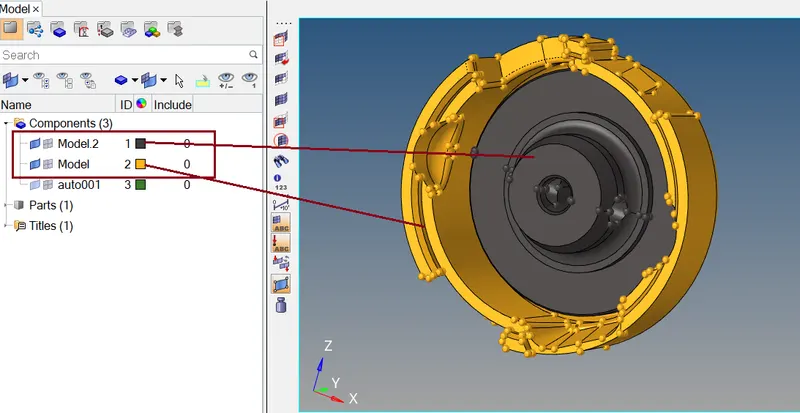
1.) Housing component Model
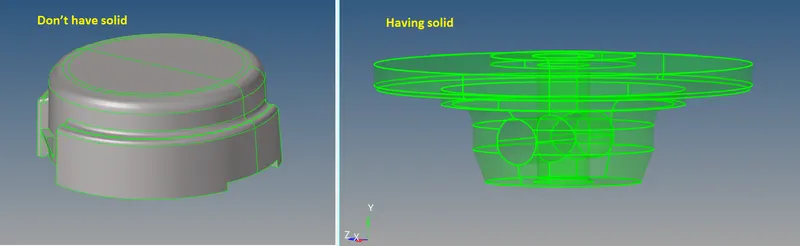
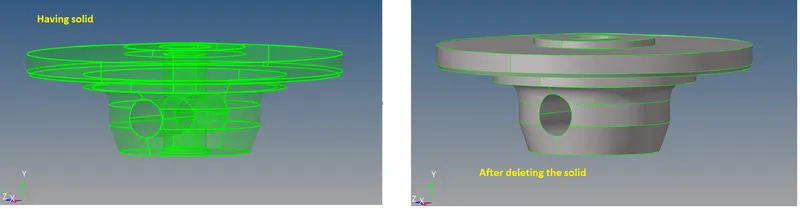
- Checking for solid surfaces:
Some times when model is import in hyper mesh then model is shown in "wireframe mode" we have to change the view to shaded by selecting "shaded geometry" view. And we check the model for any solid surface is present of the component, because we are working for the 2D mesh modelling for that we need to avoid the 3D solid surfaces.
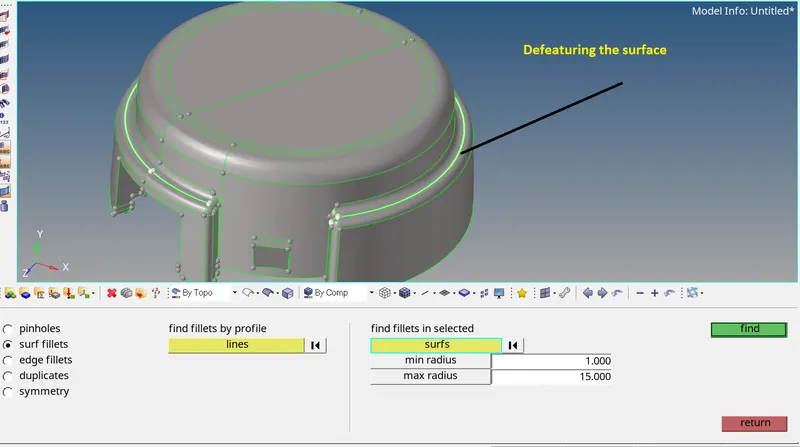
- Geometry clean-up
Perform manual defeaturing for the areas where the elements might fail for quality. And also we Remove the unnecessary fillets, toggle unwanted edges.
- Quality Criteria setting:
Now we want to start surface Meshing on the Component. Before meshing we need to set quality criteria.
Command for setting Quality Criteria: Preference >> Criteria file setting >> Edit the card as per figure below >> hit Apply >> ok.
- 2D meshing:
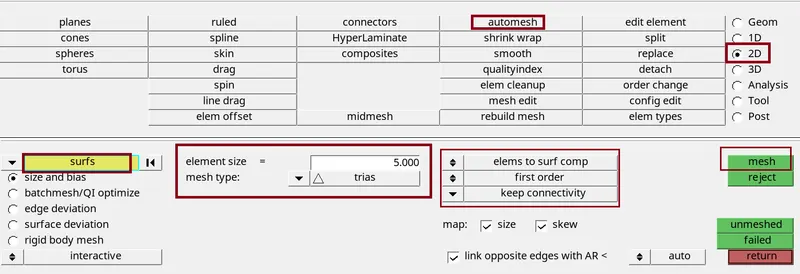
Now we start the surfaces meshing for this we use....
Command: 2D >> automesh >> edit the tab as per figure below >> select the surface >> hit mesh >> hit middle mouse click. We can also access this tab by pressing F12 key.
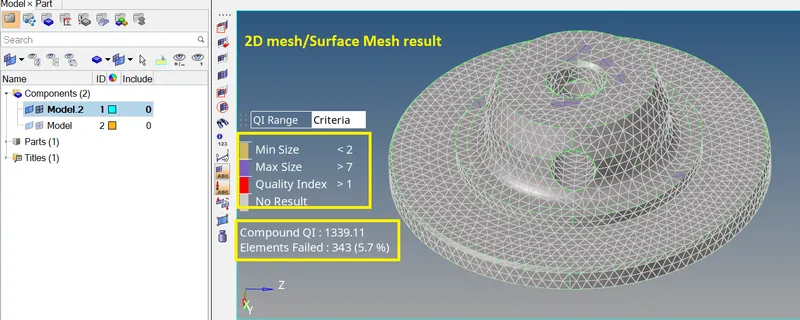
- 2D Mesh results:
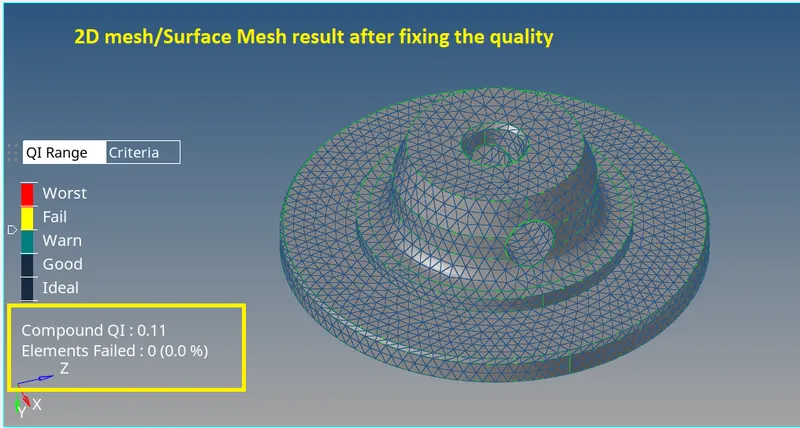
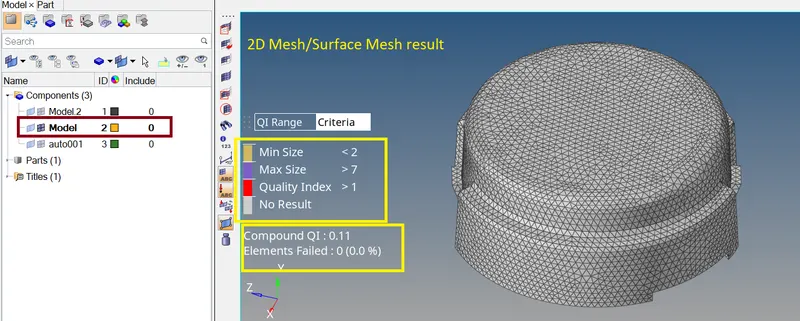
- 3D Mesh or Volume Mesh
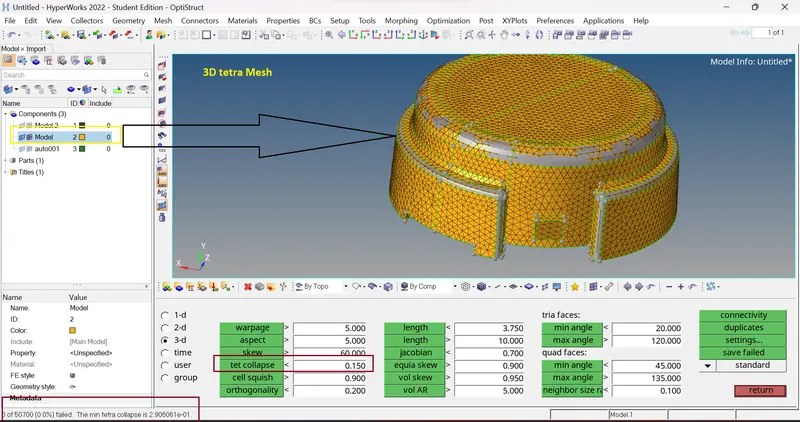
Now we Perform 3D tetra Mesh using 2D tria elements.
Command: 3D >> tetramesh >> select all the elements >> mesh.
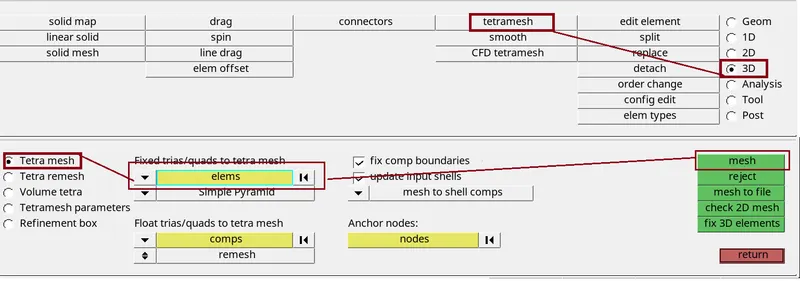
3D Mesh Result:
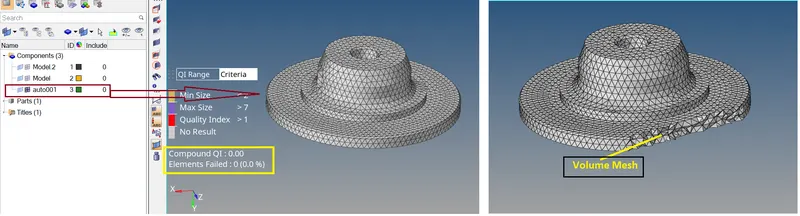
2.) MODEL_2:
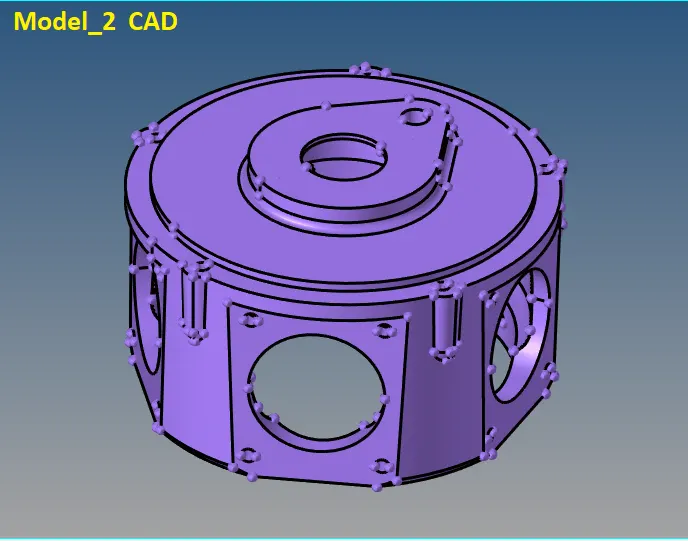
- import cad geometry file
Similarly, we can Import the geometry to the Hyper Mesh GUI
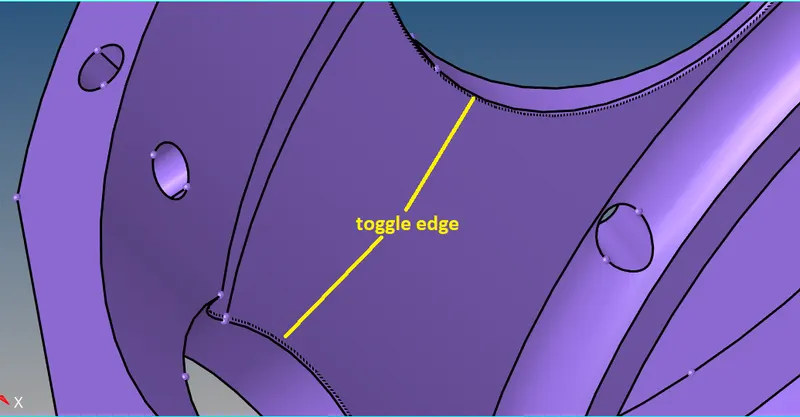
- Geometry clean-up
Similarly, Perform manual defeaturing for the areas where the elements might fail for quality. And also we Remove the unnecessary fillets, toggle unwanted edges.
- Quality Criteria setting:
Command for setting Quality Criteria: Preference >> Criteria file setting >> Edit the card as per figure below >> hit Apply >> ok.
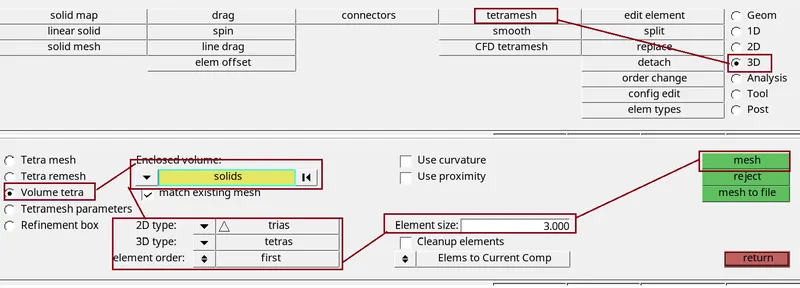
- 3D Mesh or Volume Mesh
Now we Perform 3D tetra Mesh without using 2D tria elements.
Command: 3D >> tetramesh >> Volume tetra >> select the solids >> mesh.
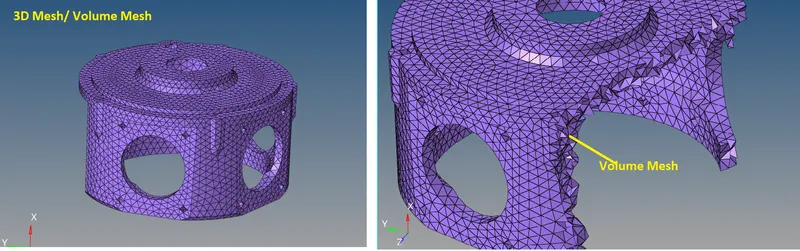
3D Mesh Result:
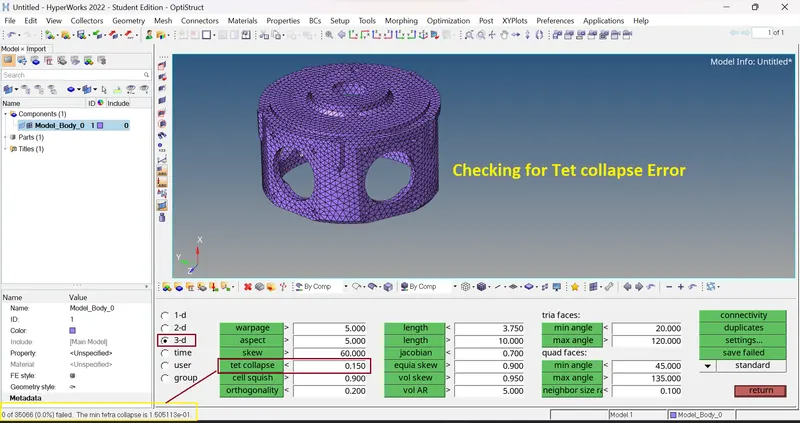
- Checking for tet Collapse Error:
given model is meshed and fixed all the tet collapse error
3.) Turbo Charger
- import cad geometry file
Similarly, we can Import the geometry to the Hyper Mesh GUI
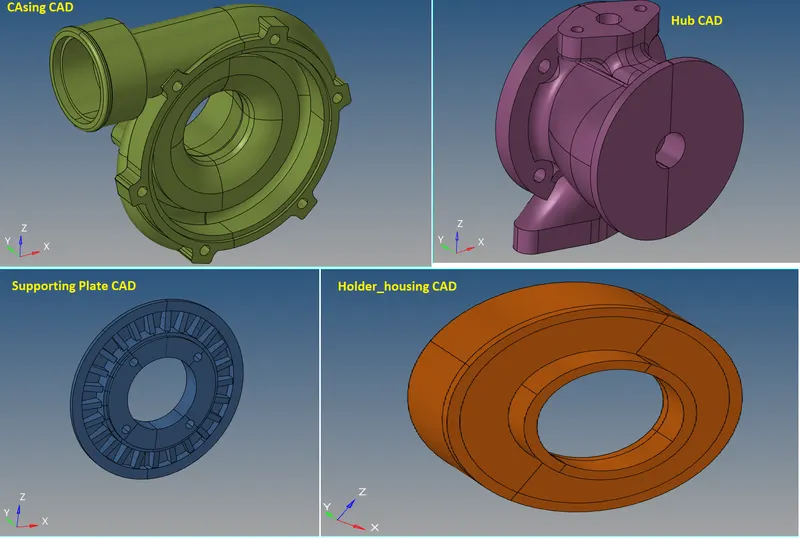
- Geometry clean-up
Similarly, Perform manual defeaturing for the areas where the elements might fail for quality. And also we Remove the unnecessary fillets, Duplicate Surfaces and toggle unwanted edges.
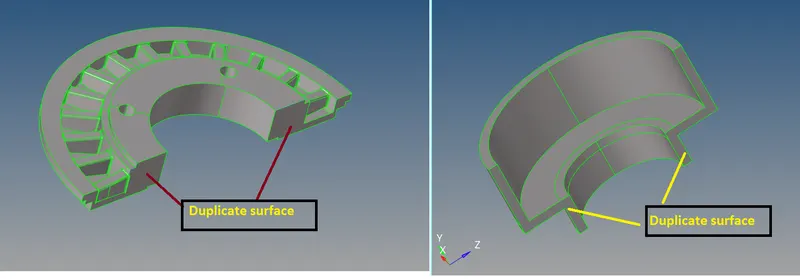
We need to delete the duplicate surface and toggle the line.
- Quality Criteria setting:
Command for setting Quality Criteria: Preference >> Criteria file setting >> Edit the card as per figure below >> hit Apply >> ok.
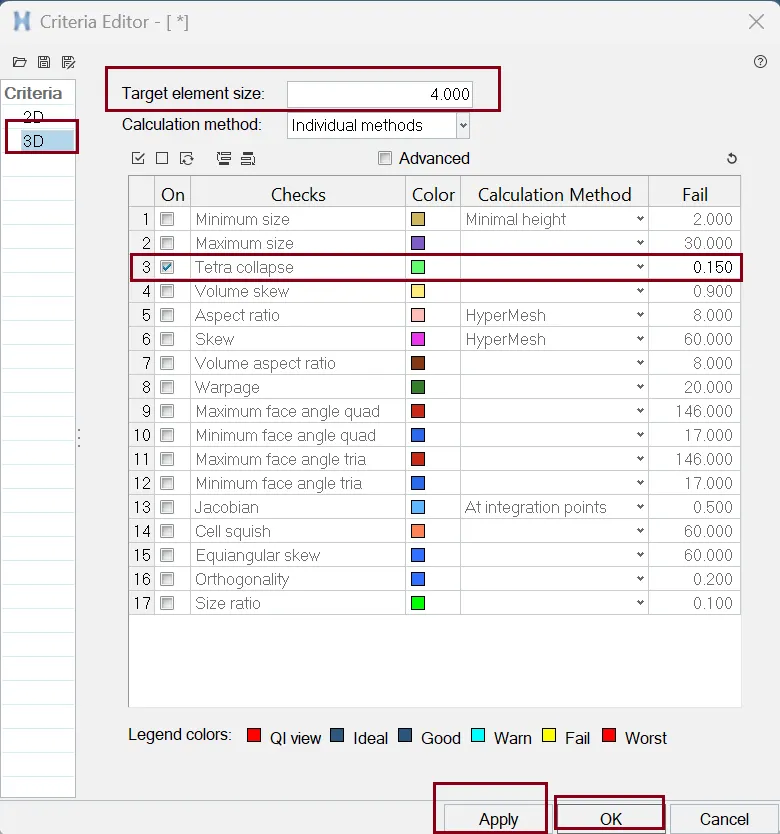
- 3D Mesh or Volume Mesh
Now we Perform 3D tetra Mesh without using 2D tria elements.
Command: 3D >> tetramesh >> Volume tetra >> select the surfs >> mesh.
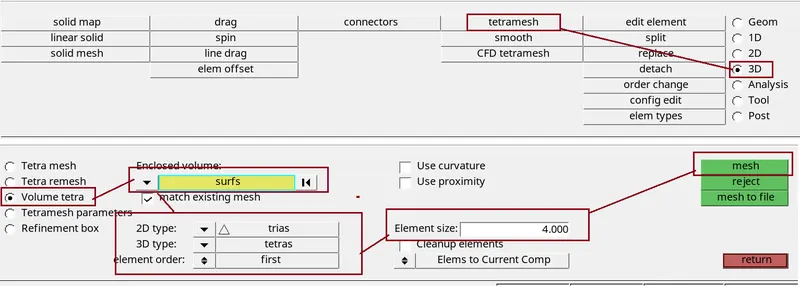
3D Mesh / Volume Mesh Result:
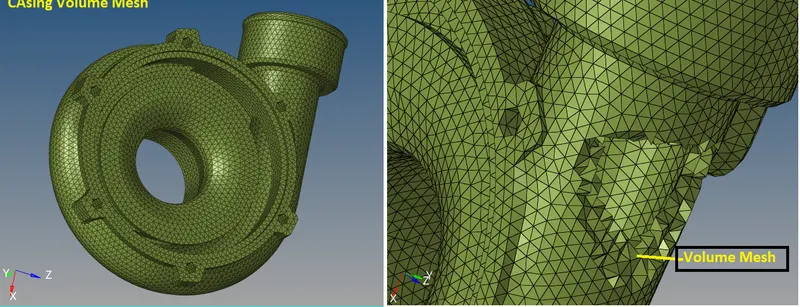
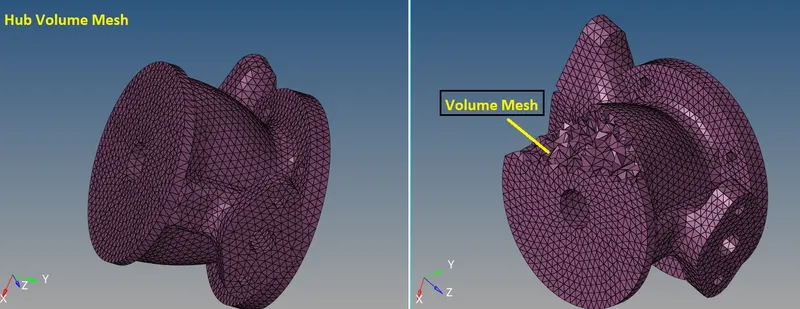
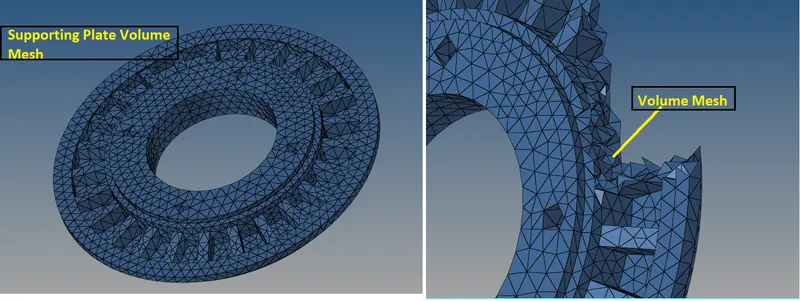
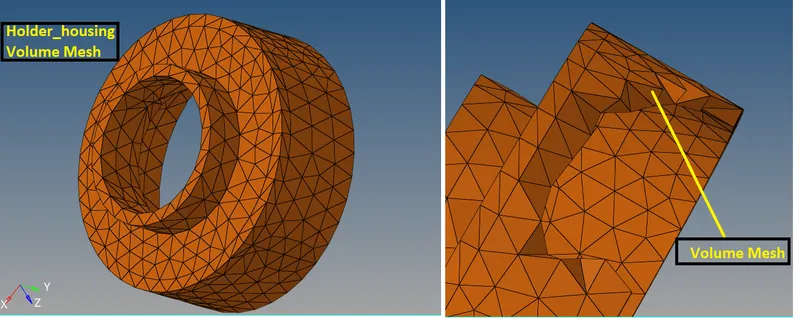
- Checking for tet Collapse Error:
Here we switch on all the Mesh and then Check for Tet Collapse error
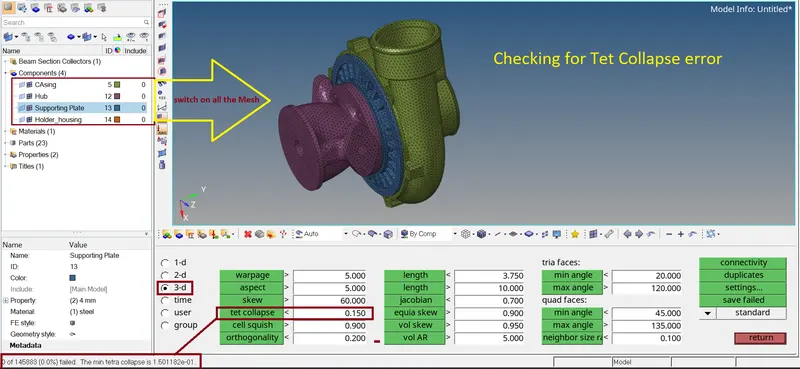
Tet Collapse Error:
- This error will present Generally where surfaces are not capture Properly by the element.
- We can fix Tet Collapse in different ways –
1.) Before start Meshing Clean the surfaces. (Toggle unnecessary lines, Capture fillet and feature properly)
2.) Go to Tools>Check Elements>3D>Tet collapse & enter the value provided for it and look for failing elements. We can separate the failing elements by going to Save failed, then open mask menu >Elements >Retreive >Mask>Reverse. This will only show the failed elements. Now we have to deal with the element failures manually & resolve them one by one by changing the distance of various nodes associated with these elements and setting a proper height for the tetra element.
CONCLUSION:
Here we done Geometry clean-up, 2D meshing over Surfaces and Convert 2D Mesh into 3D Mesh/Volume Mesh, Also perform all type of 3D mesh Directly over the solid/surface. All the features in the model are captured properly with good mesh flow and we clear all failing element (Tet Collapse).
Learning outcome: -
- How to Perform 2D Mesh over the Surface.
- How to Convert 2D Mesh into 3D Mesh/Volume Mesh.
- Different ways of performing 3D Mesh Directly Over the Surface.
- Different ways of clearing tet Collapse element failure.
**************************************************************************************************************************************************************************************************************************************************************************END
Thanks & regards,
Devesh kashyap