Week 8-3D Tetra Meshing Challenge
AIM
Create a Teramesh for Housing component, Model 2 and Model 3 with the following quality criteria.
- Housing Model :
TetraMesh Generation Method : 2D to 3D Conversion
Elements sizes: Min- 2 Units, Target- 5 Units, Max- 7 Units
Tet collapse: 0.15
- Model-2 :
TetraMesh Generation Method: Quick Tetra Mesh/ Volume Tetra Mesh
Target Element size: 3 Units.
Tet Collapse: 0.15
- Model-3 :
TetraMesh Generation Method: Quick Tetra Mesh/ Volume Tetra Mesh
Target Element size: 4 Units.
Tet Collapse: 0.15
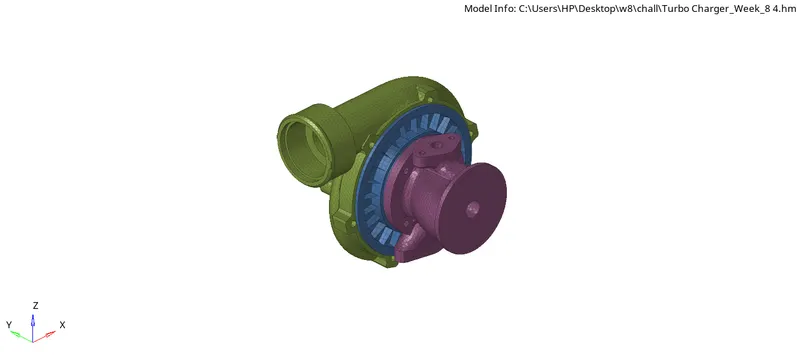
MODEL
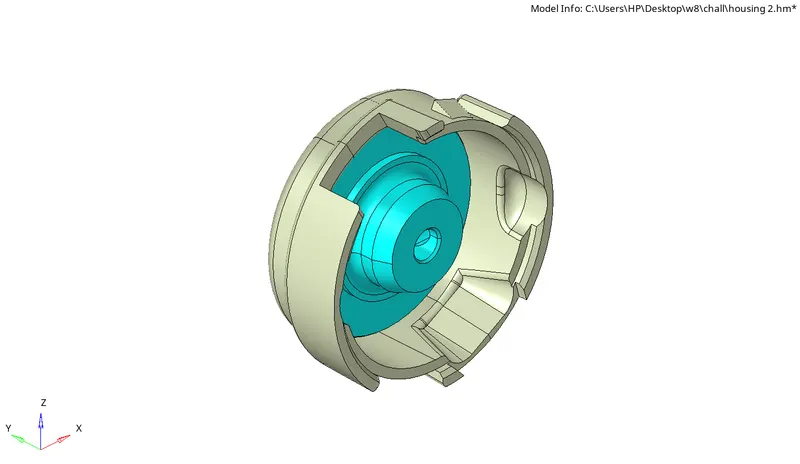
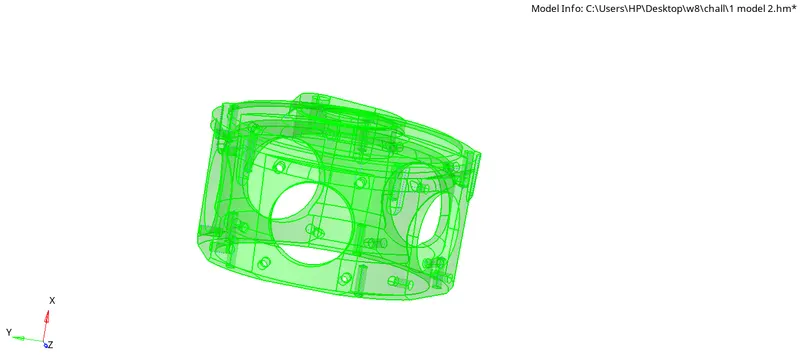
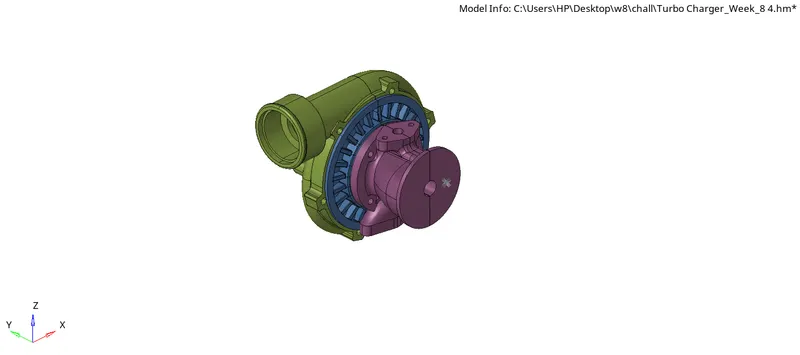
PROCEDURE
- Solid meshing is mainly used in components which are above the thickness 5mm.There are three methods for generating solid meshing.
- Convert 2D mesh into 3D mesh
- Volume tetra
- Quick tetra
Convert 2D mesh into 3D mesh
- First Import the housing model.
- Select "import geometry" option and also set the file type format, then import the first model.(import geometry>model>open)
- we have to clean up the given model by removing the holes and unfilled surfaces (Geometry>quick edit>fill hole)
- Defeature the component where minmum ength criteria failed.(Geo>defeature)
- Toggle the edge where minmum length be failed and unwanted divisions and divide the model into different sections.(F11-Quick edit)
- Give the quality criteria and mesh parameters for the given model.(Preference>criteria file settings/parameter setting)
- After the geometry cleanup, go to 2D mesh menu and select automesh option, change the element size to 5, element type to mixed and select the mid surface and click mesh to generate the mesh.(2D>automesh>select surface>mesh)
- After completed the meshing awe have to check quality so shift the view into by element quality.For solid meshing mainly we check min length and max length.(F10)
- Use rebuild option for fixand proper meshflow(2D>rebuild)
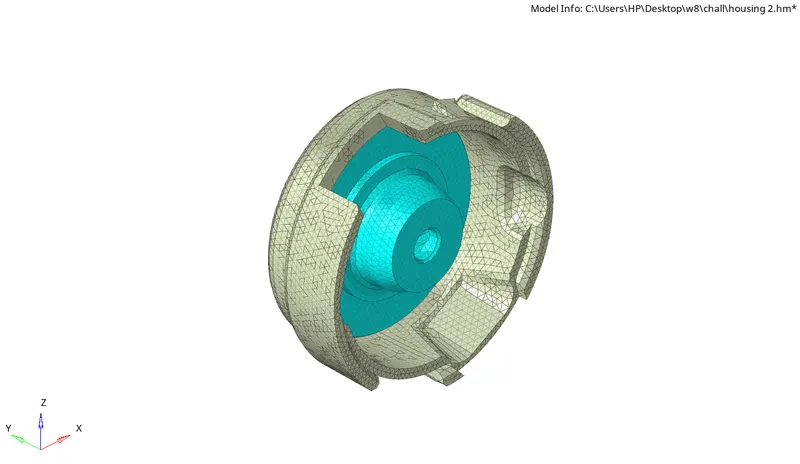
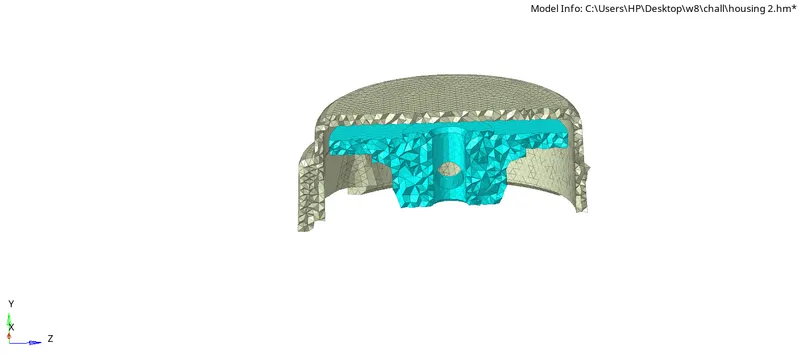
- After fixing the 2D Quality go to the tetra mesh panel and change the component to elements and select the all elements and proceed with mesh(3D>tetra mesh>select elements)

- After generating the tetra mesh check tetcollapse (F10>3D)
- If there is any tetcollapse we can fix by changing tetrmesh parameters(3D>tetramesh>tetramesh parameters)

- Under element quality target enter the tetcollapse and tick fill voids,fix midnodes and smooth then go to tetraremesh and select all elements and remesh. Now all tetcollapse will be fixed
Generating Tetramesh by using volume mesh
- In this method we directy go to the tetra mesh without 2D meshing.
- Select "import geometry" option and also set the file type format, then import the first model.(import geometry>model>open)
- Go to the volume mesh and select the solid and mesh the model then 3D mesh is generated directly(3D>tetramesh>volume mesh)
- In volume mesh panel change 2D type into trias.

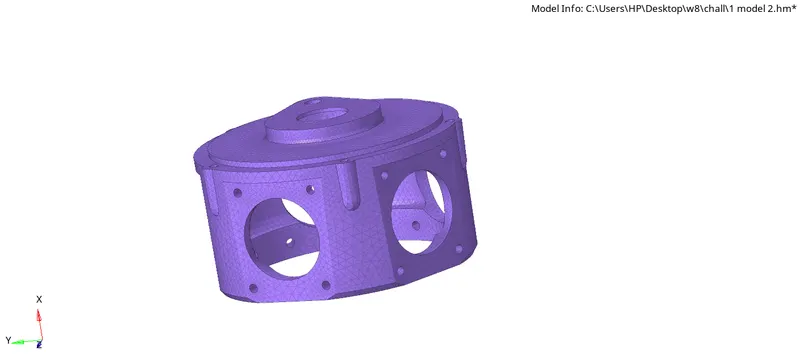
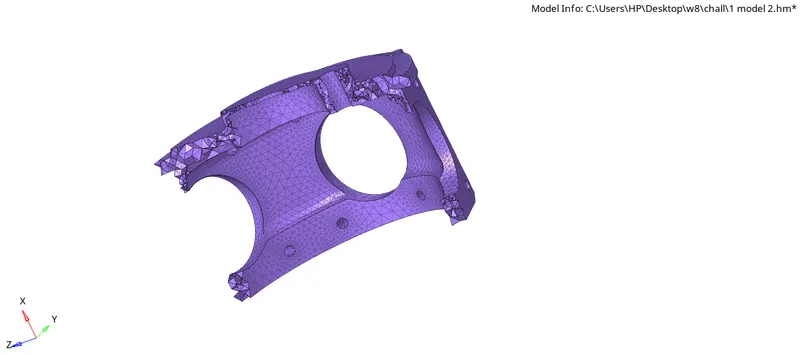
Generating tetramesh by using Quick tetra mesh
- Import the Geometry in the hypermesh.
- Clean up the geometry and delete the solids (F2)
- Go through the following steps (View>Browser>hypermesh>Utility)
- A window is opened select the Geo/mesh and pick quick tetra mesh
- In quick tetramesh panel select the component and edit the target element length and select trias only and clickon mesh.
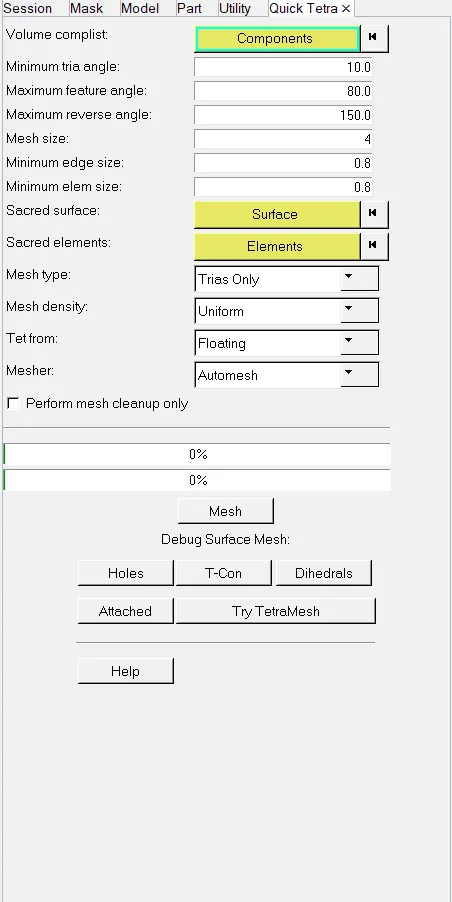
- Now tetra mesh has been generated on the component.
- Tetcollapse can be fixed by folllowing the same procedure that is explained in the housing model.
CONCLUSION
Tetra mesh has been generated for all three models by using these three method with given quality criteria.