| HYPERMESH | 3D Tetra Meshing (Week 8)
MODEL 1
Objective :
To create a Tetramesh for Housing component with the following method & quality criteria :
TetraMesh Generation Method : 2D to 3D Conversion
Quality Criteria :
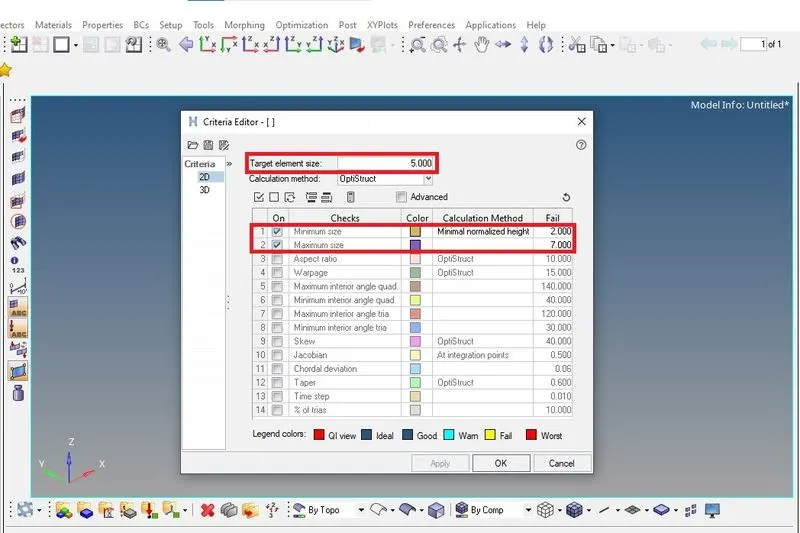
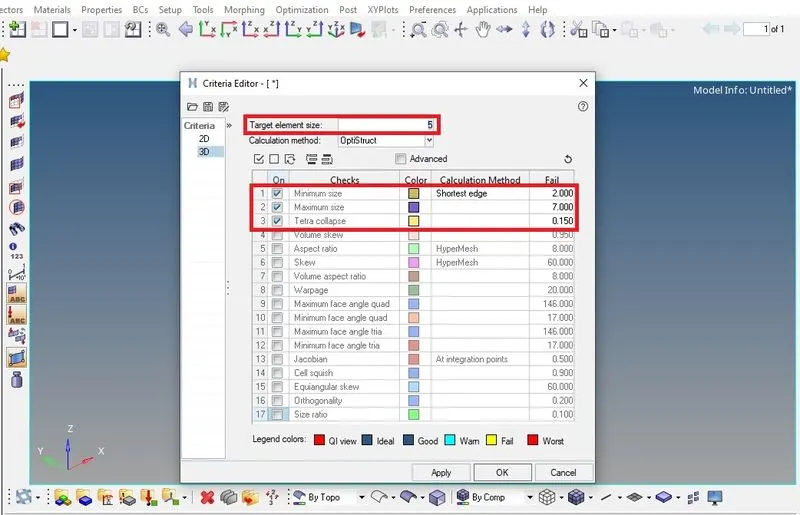
Elements sizes : Min- 2 Units, Target- 5 Units, Max- 7 Units
Tet collapse : 0.15
Procedure :
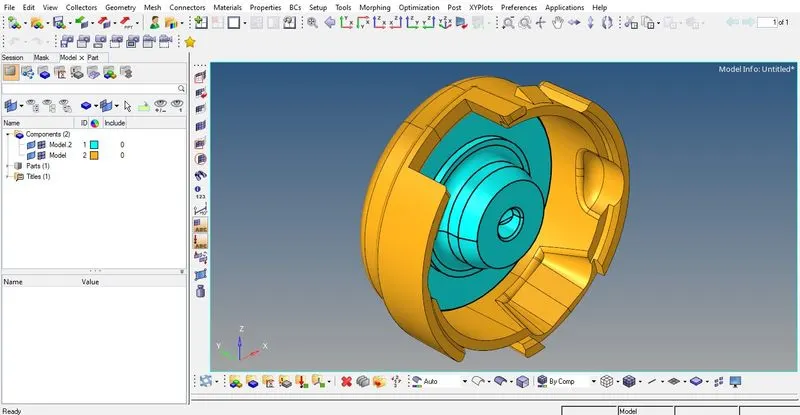
- Import the given model file in .STP format in the Hypermesh workspace. The imported model has two components and it looks in GUI as shown below.
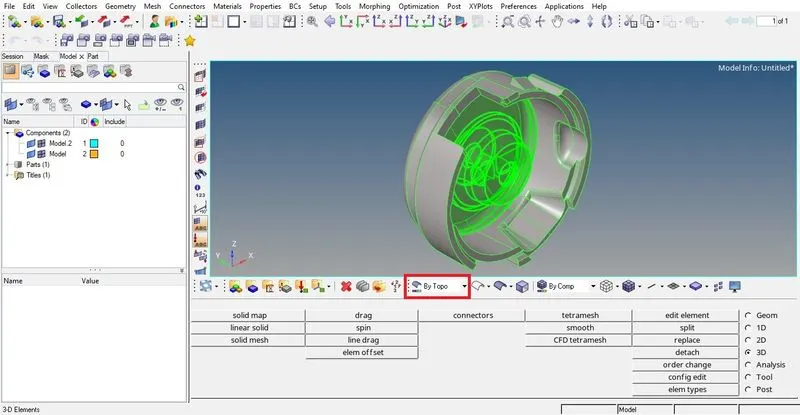
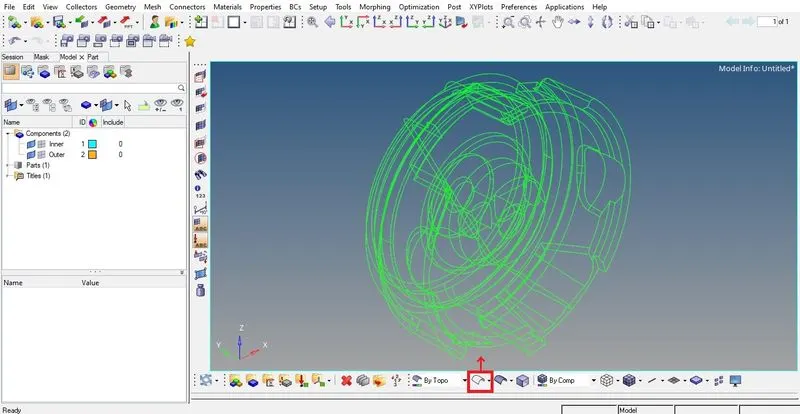
- By changing the Geometry Color Mode from "Auto" to "By Topo" we can easily figure out which components are solids and which are surfaces. Usually the solid-components turn completely green while the surface-components remain gray along with feature lines in their respective colors.
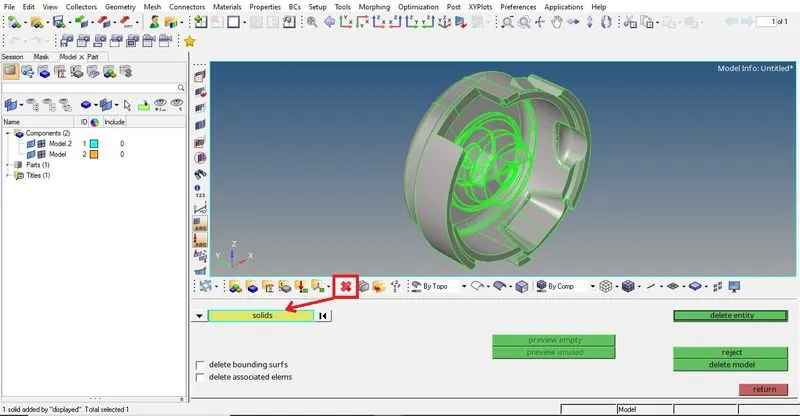
- Delete the solids in the model.
After deleting the solids, we are left with the surfaces which will look like as shown below.
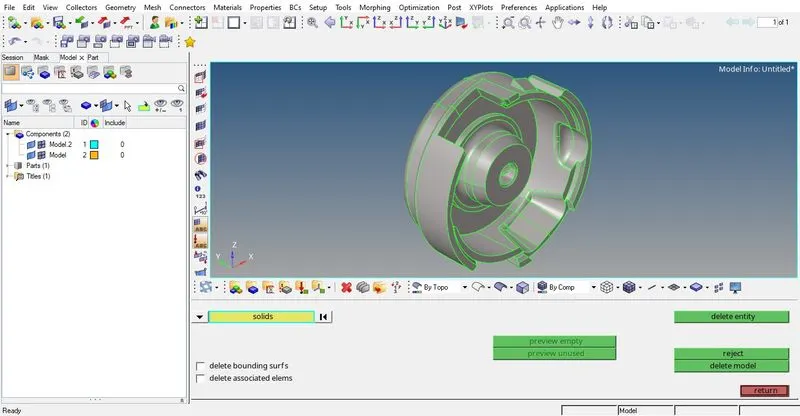
- Look up for any Free edges in the surface geometry in wireframe mode and repair them. Fortunately there were no free edges found in the model as can be seen in the figure below.
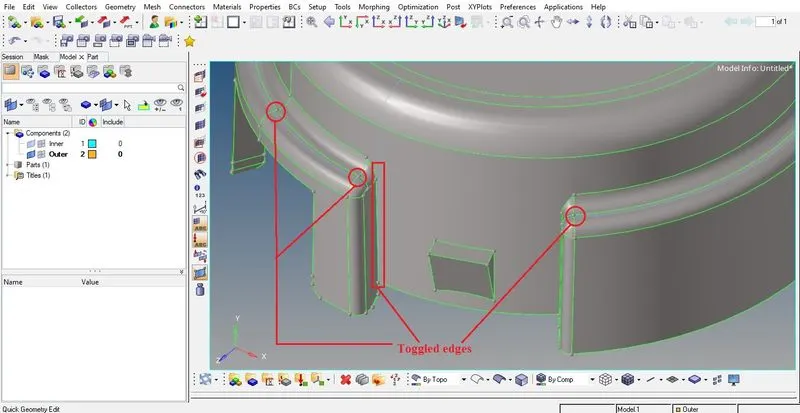
- After observing the surfaces closely it was found that some Geometry cleanup is required to avoid failure of 2D elements after meshing. Few regions where the minimum distance was found less than the minimum element size were repaired using toggle edge under Quick edit option.
- Set the given quality parameter values in the Criteria Editor for both 2D and 3D. This is a must requirement before meshing as the software algorithm will try to stick to the defined values. Untick the all those parameters that are not defined in the question.
- 2D mesh both the component's surfaces one by one using automesh option. Make sure the created mesh for the both the components are collected under their respective component collectors (i.e Inner & Outer).
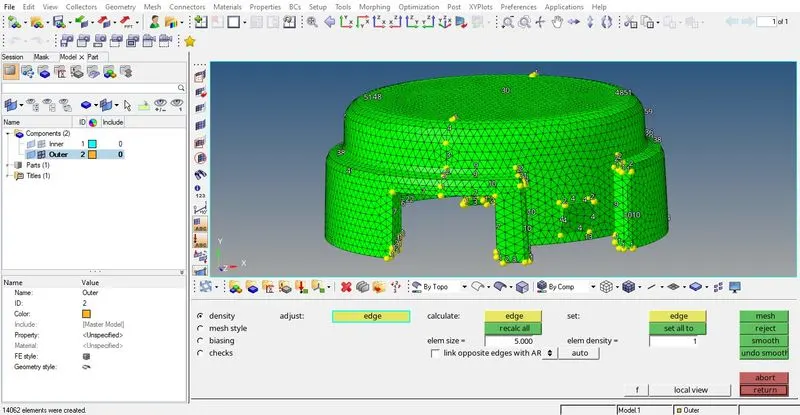
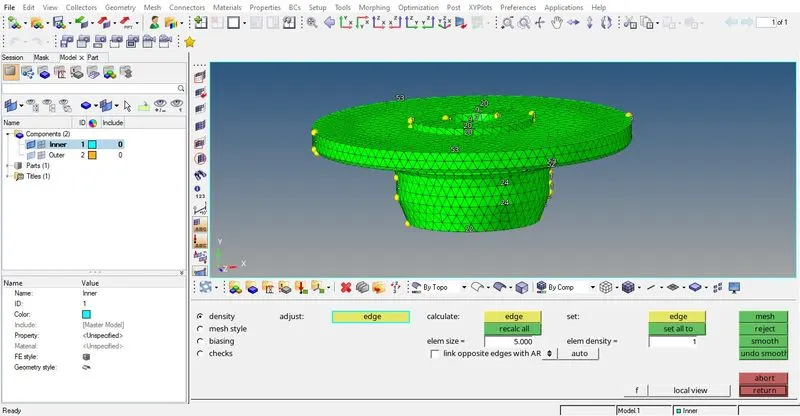
- Check for the Quality of 2D elements using quality index option under 2D.
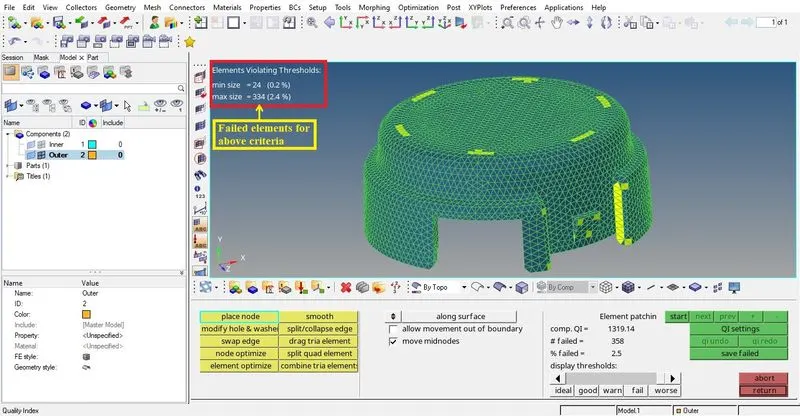
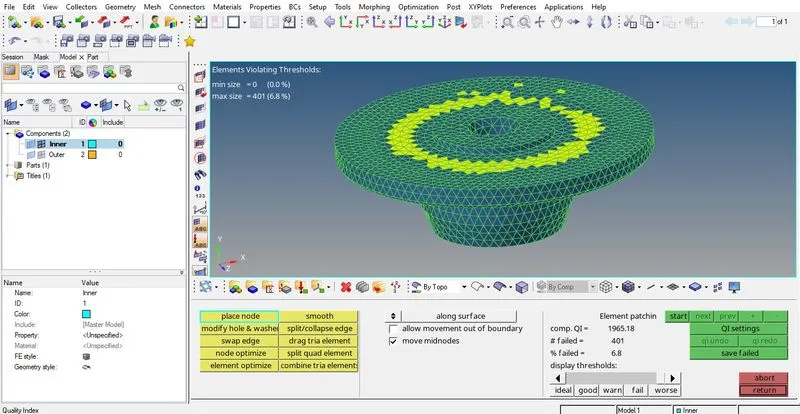
- Fix the failed elements by place node & element optimize options under quality index.
Other than this we can also remesh the failed elements along with few adjacent elements by using automesh option again. For this we need to follow the path :
2D > quality index > save failed.
Tool > mask > elems > retrieve > mask > reverse. (also unmask adjacent)
2D > automesh > elems > displayed > mesh.
After fixing all the failed elements in both the components, they will look like as shown below.
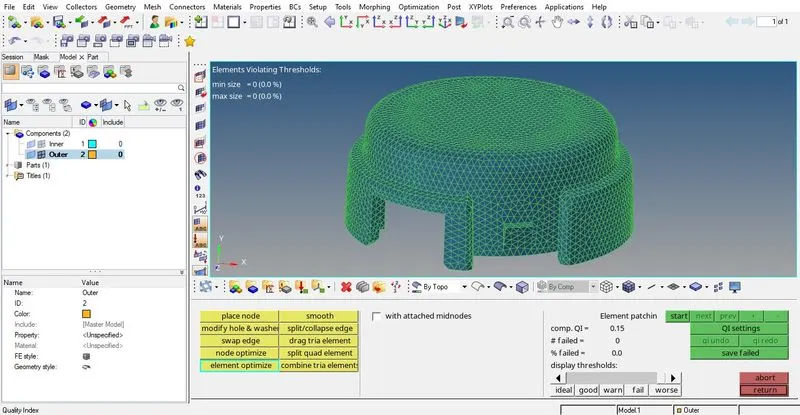
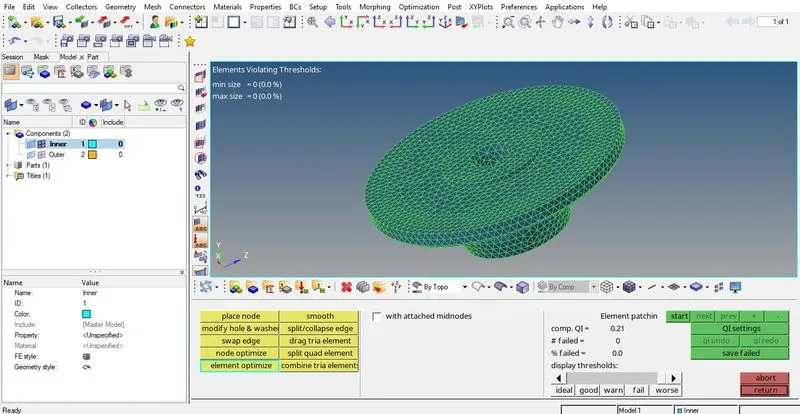
- Now go to 3D > tetramesh > Fixed trias to tetra mesh > elems > displayed > mesh.
Perform this step for both the components separately. Make sure to select mesh to current comp in order to collect the generated 3D Tetrahedron elements under the original component collector.

- Check for tet collapse of generated 3D elements through : Tool > check elems > 3-d > tet collapse.
When we hit tet collapse the status bar shows the number of failed elements due to it. If we come across any number of failed elements, we need to fix them either through Tetra remesh option or through individual correction of elements using translate/distance options.
Fortunately in this case there are no such failed elements were found as can be seen in the image below.
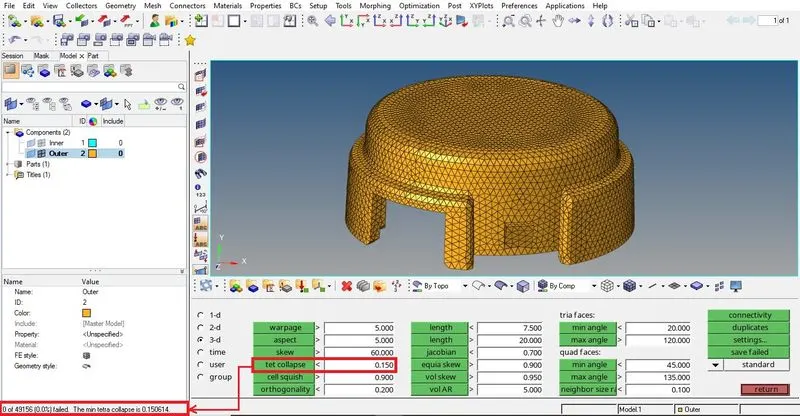
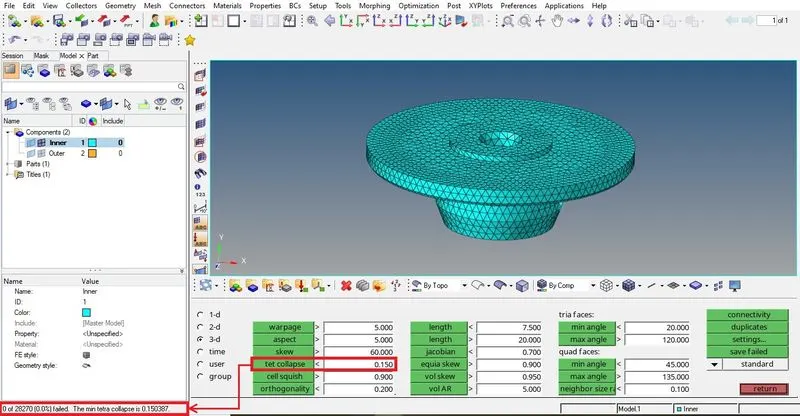
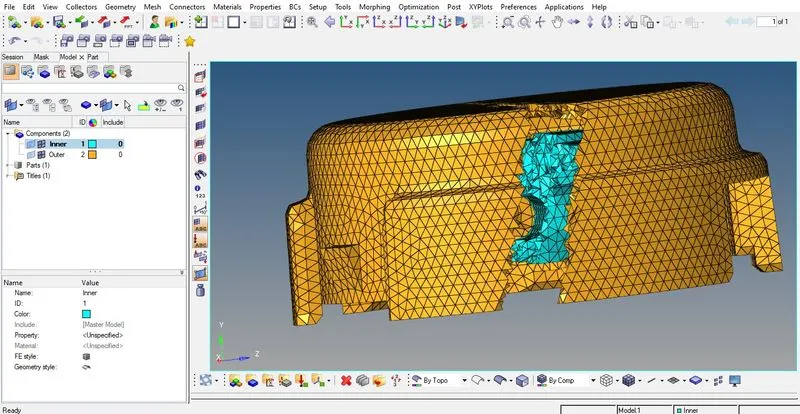
Final Model Image :
To view the 3D elements generated inside the component we need to simply mask any selected part of the model.
MODEL - 2
Objective :
To create a 3D Tetramesh with the following method & quality criteria.
TetraMesh Generation Method : Quick Tetra Mesh
Quality Criteria :
Target Element size : 3 Units.
Tet Collapse : 0.15
Procedure :
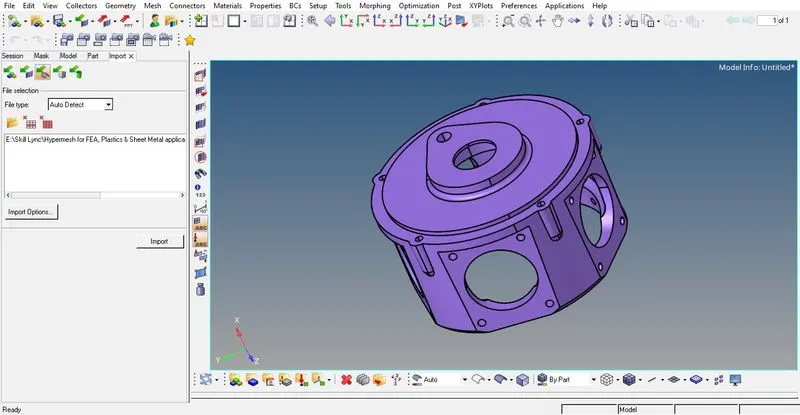
- Import the given model in .IGES format in Hypermesh workspace. The imported model has only one component and it looks in GUI as shown below.
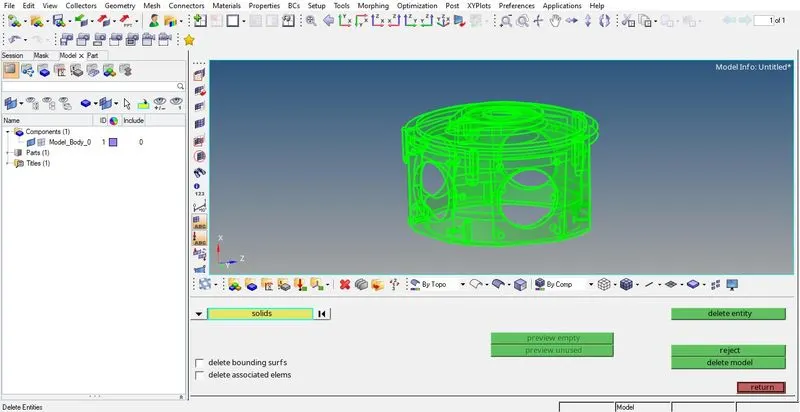
- Delete the solids in the model.
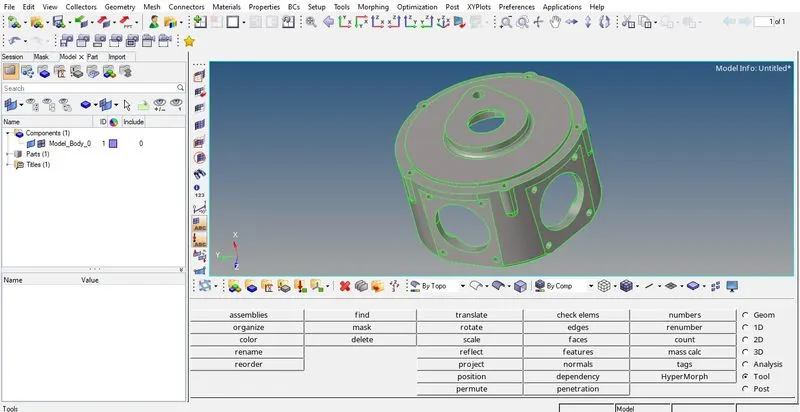
Surface geometry after deleting solids will look like as shown below.
- Follow the path : Menu Bar > View > Browsers > Hypermesh > Utility > Geom/Mesh > Mesh Tools > Quick Tetra Mesh
Quick Tetra Mesh is one of the 3 ways for creating 3D mesh in a component. It automatically generates 2D mesh and then converts it to 3D mesh on its own. Only few simple inputs are required under its panel to initiate the process.
Under "Volume comp list : Components" tab of the panel, we need to select the components that need to be meshed by checking the boxes in the component list. Also set the Mesh size & Mesh type as defined. Finally hit the Mesh button to let the algorithm work for us.
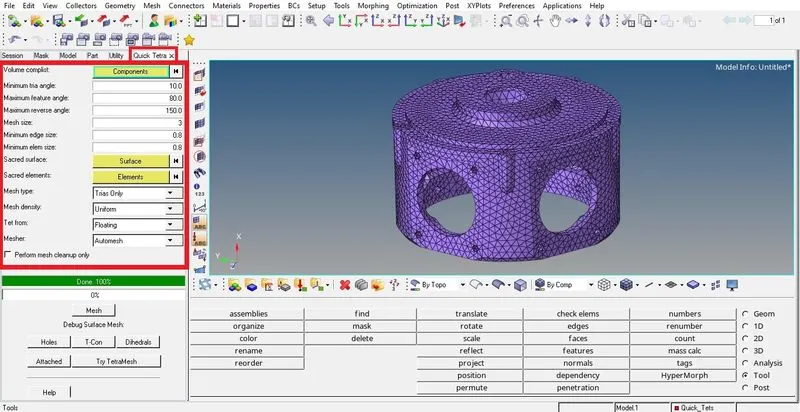
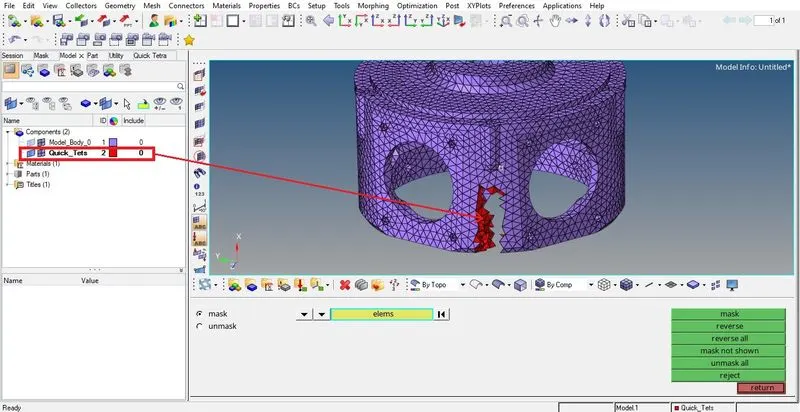
The generated Tetrahedron elements will be collected in a separate collector named Quick_Tets with a different color assigned to it from 2D shell mesh. The 2D shell mesh will be stored in the original component collector and thus acquire its color.
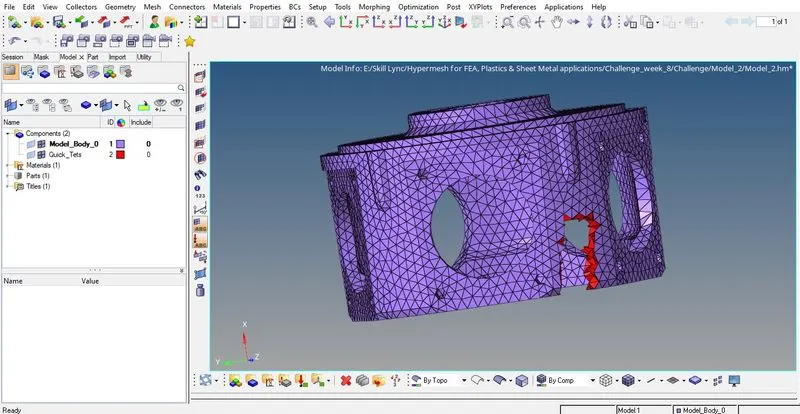
The inside Tetra elements can be seen by masking certain part of the component.
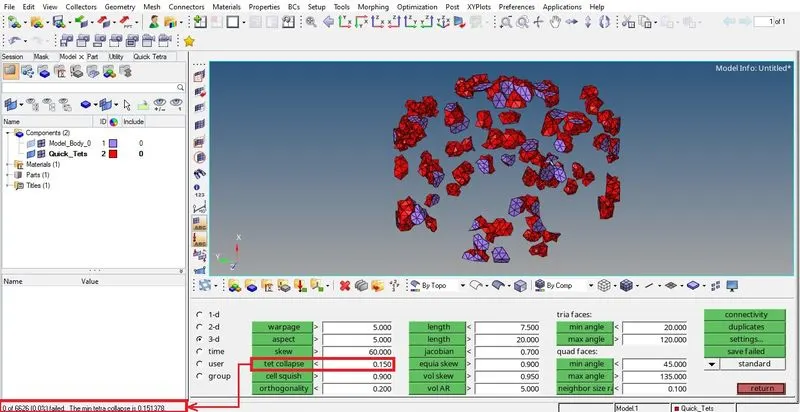
- Check for tet collapse of generated 3D elements.
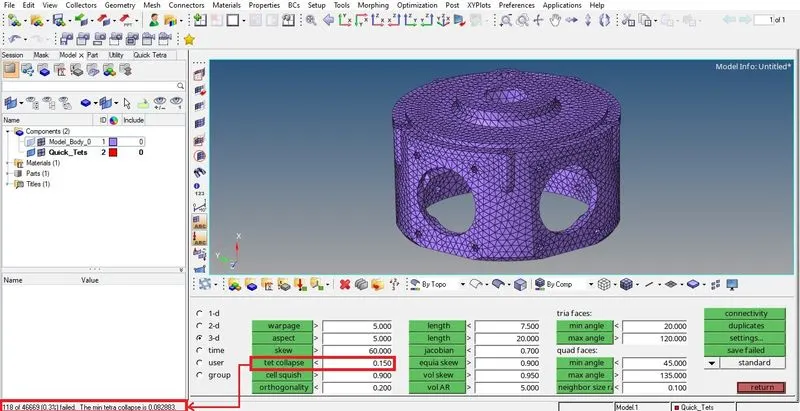
Tet collapse is basically a 3D quality parameter that checks the Tetra elements for their minimum height. The minimum height by which a Tetrahedron element must be greater than is defined by the tet collapse.
Total no. of failed elements due to tet collapse could be seen under Status bar.
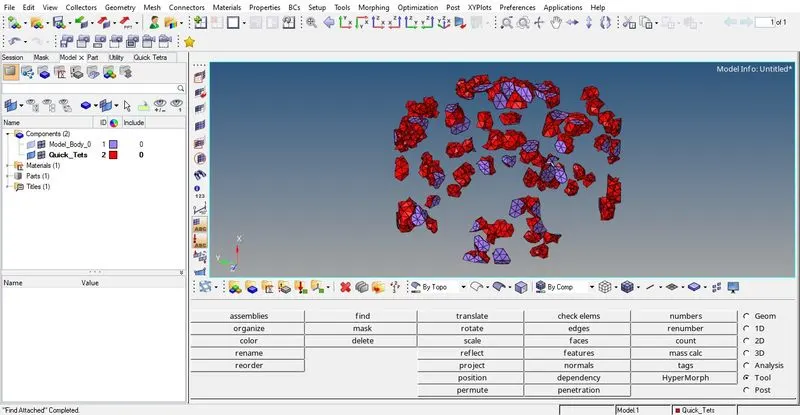
- Save the failed elements & Mask the unfailed elements as previously discussed in Model_1.
- Unmask the adjacent elements to the failed elements before going for Tetra remeshing.
- Follow the path : 3D > tetramesh > Tetra remesh > 3D elements > elems > displayed > remesh
Note : Before going to Tetra remesh we need to visit Tetramesh parameters option once to check whether all the necessary parameters are defined or not.
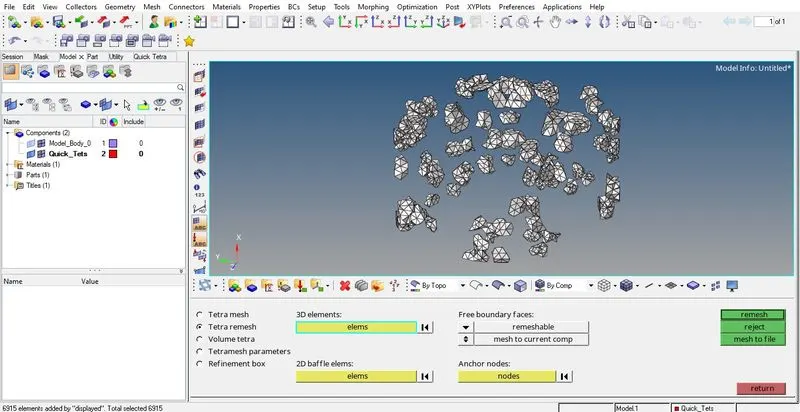
- To check whether the remeshing of failed elements have cleared them from tet collapse, we again need to follow the step discussed previously.
The failed elements are remeshed and checked for tet collapse again and again untill the Status bar show "0 failed elements".
If the number of failed elements is very less, they can be fixed manually one by one through translate/distance option also.
Final Model Image :
MODEL - 3
Objective :
To create a 3D Tetramesh with the following method & quality criteria.
TetraMesh Generation Method : Volume Tetra Mesh
Quality Criteria :
Target Element size : 4 Units.
Tet Collapse : 0.15
Procedure :
- Import the model & Delete the solids.
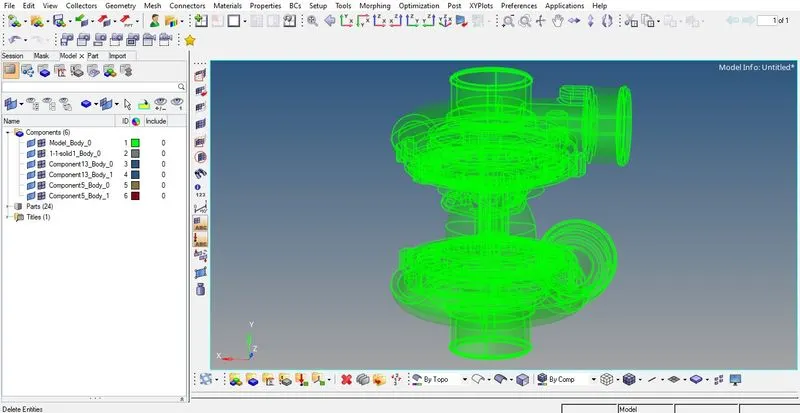
Surface geometry after deleting solids :
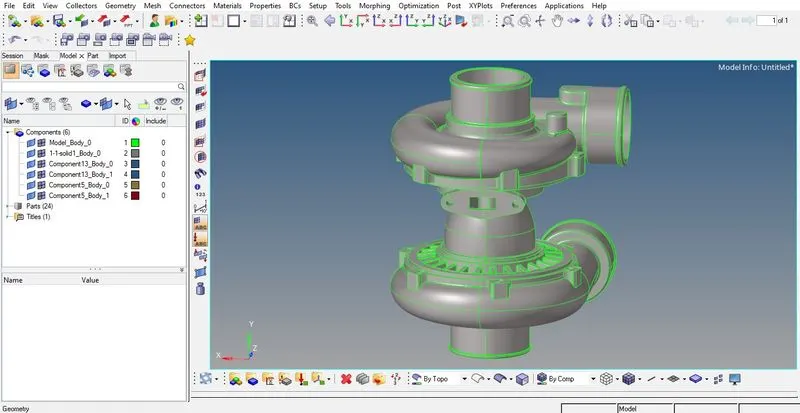
- Follow the path: 3D > tetramesh > Volume tetra > Enclosed volume > surfs > displayed >mesh
Volume Tetra is the third method to mesh a component with 3D Tetra elements.
Note : Before hitting mesh, don't forget to set the other options like 2D type, 3D type, element order, Element size under Volume tetra option.

Since the model has 5 different components, it is suggested to mesh them one by one for the sake of convenience and avoiding mistakes.
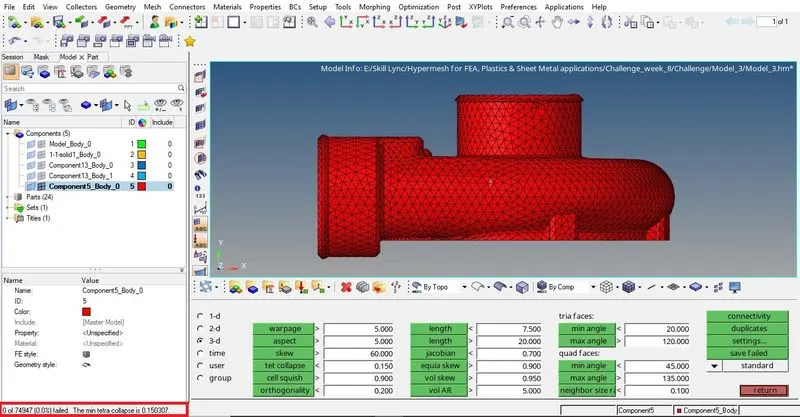
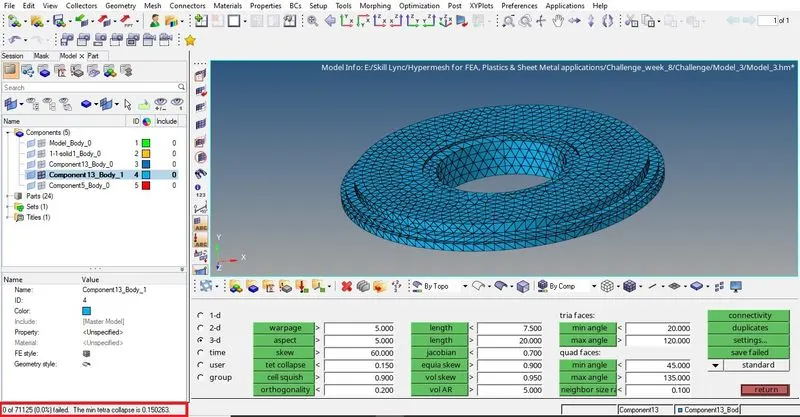
- Tet collapse is also checked one by one for each component.
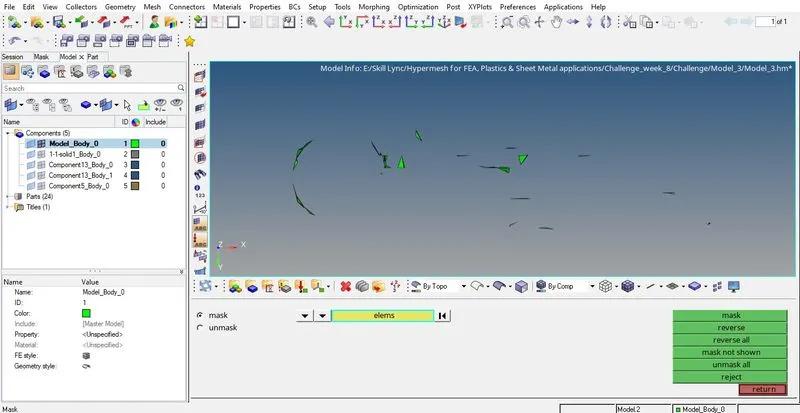
Unmasking adjacent elements to failed elements & then selecting them under Tetra remesh option :
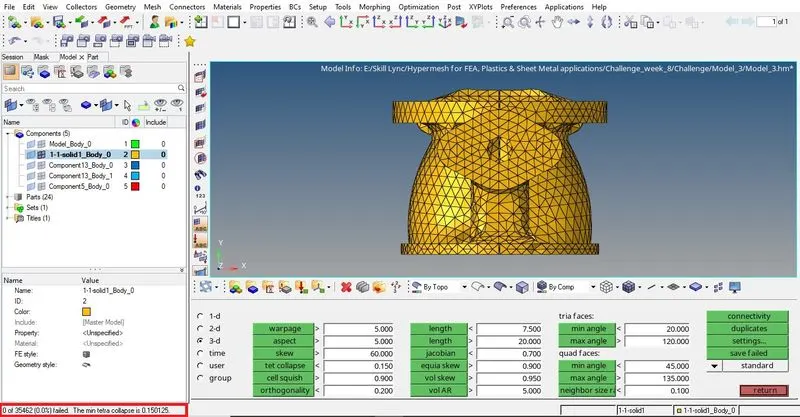
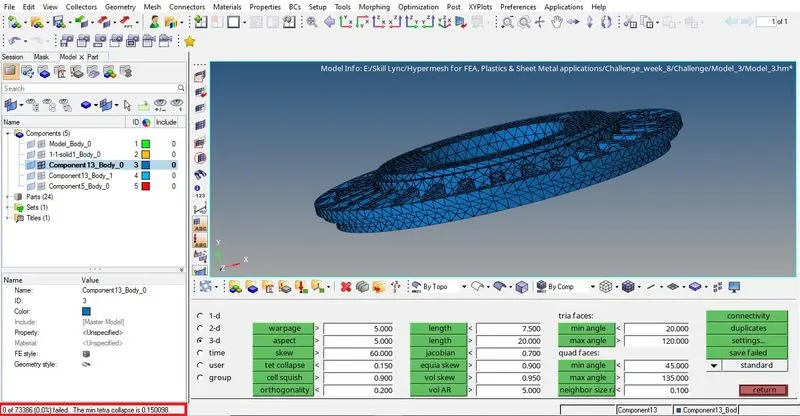
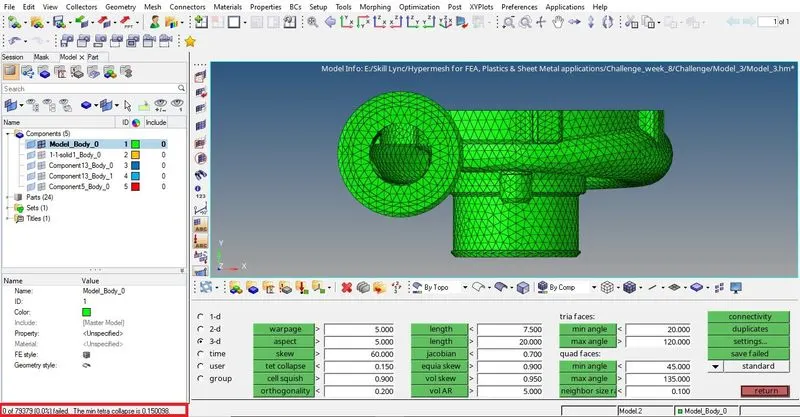
- Tet collapse was fixed component by component as shown in below images :
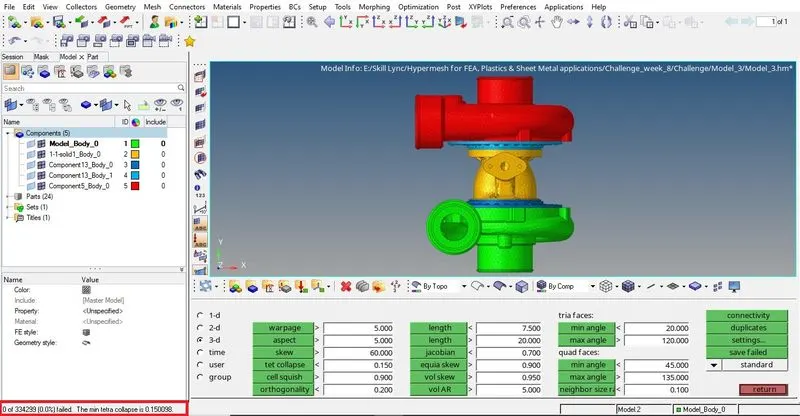
Check for complete model for tet collapse :
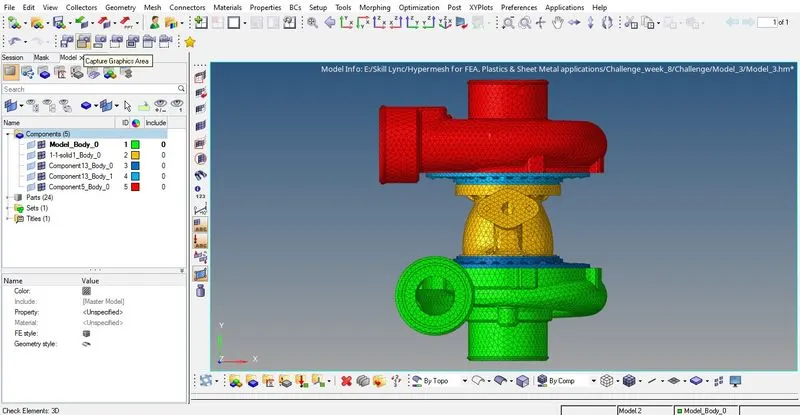
Final Model Image :
Conclusion :
In this challenge we have learned about 3 different methods to generate 3D Tetra mesh in a component.
Also we learned about how to clear tet collapse.