| HYPERMESH | 1D Element Creation (Week 4)
OBJECTIVE :
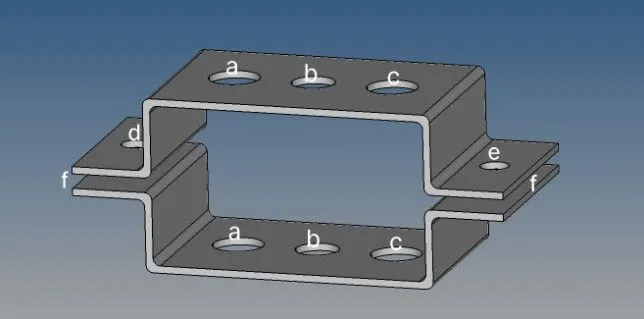
Create 1D elements on the given component at different locations as depicted in the attached figure. Assign following details at the respective locations in the model :
Rod element :- Translational DOF should be constrained with RBE2 link
Cross-section: BOX-Section
Dimension a = 12 mm
Dimension b =10 mm
Thickness t = 0.75 mm
Beam element :- All DOF should be constrained with RBE3 link
Cross-section: I-Section
Dimension a = 8 mm
Dimension b = 10 mm
Dimension c = 8.5 mm
Thickness t1 = 0.75 mm
Thickness t2 = 0.6 mm
Thickness t3 = 0.6 mm
c. Bar element :- Constrain only xand y DOFs With RBE3 link
Cross-section: X-Section
Dimension DIM1 = 5 mm
Thickness DIM2 = 1.2 mm
Dimension DIM3 = 10 mm
Thickness DIM4 = 1.2 mm
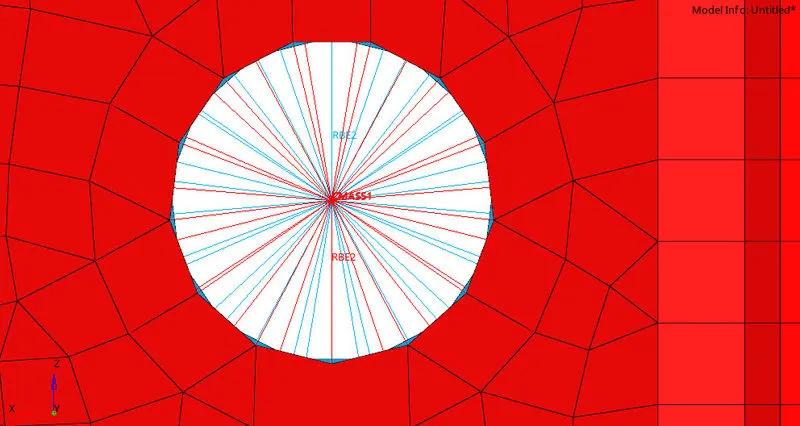
d. & e. : Apply the massof magnitude 10 with the RBE2 link
f. : Join the two components with Spring elements.
PROCEDURE :
1. Import the given 3D CAD model which is a kind of bracket, into the HyperMesh using the “Import Geometry” option & by selecting correct file type under it i.e. IGES.
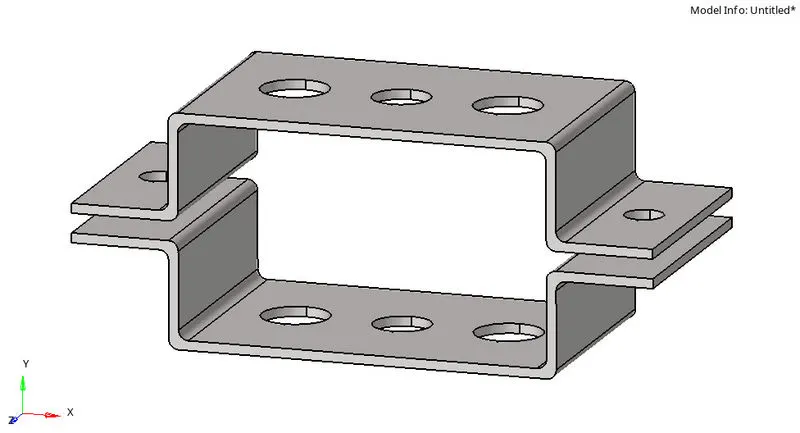
2. The above Bracket consists of two parts i.e. the upper half & the lower half. Hide one of the surface (lower) from the "Components" view option to avoid confusion before generating mid-surface.
Extract mid-surface using the pathway : Geom ----> midsurface ----> extraction options -----> skin offset ----> auto extraction ----> surfs. 'Skin offset' is choosen as it better captures the fillets compared to other options.
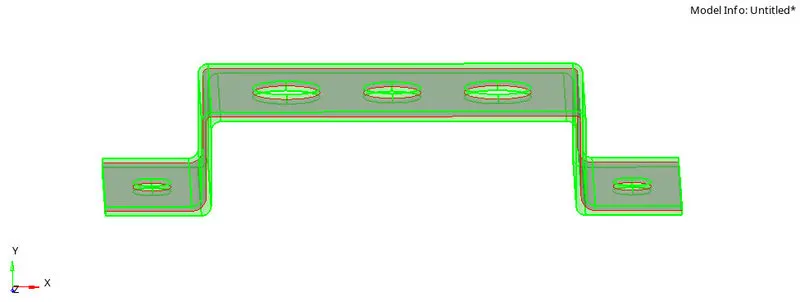
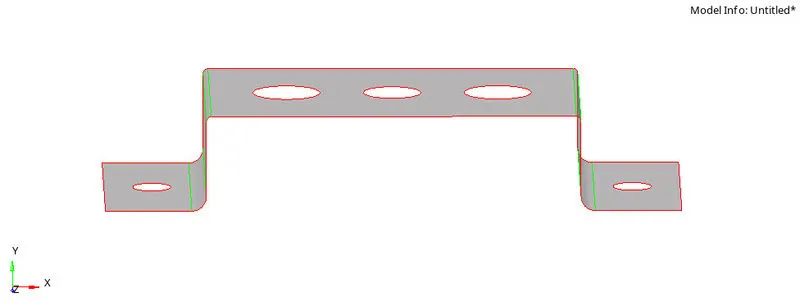
The extracted mid-surface is renamed as Bracket_1 & assigned red color from the Model tree view under Components.
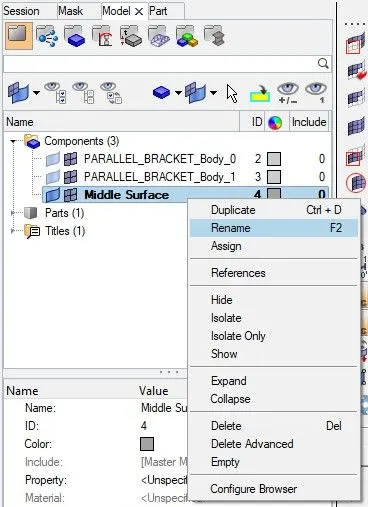
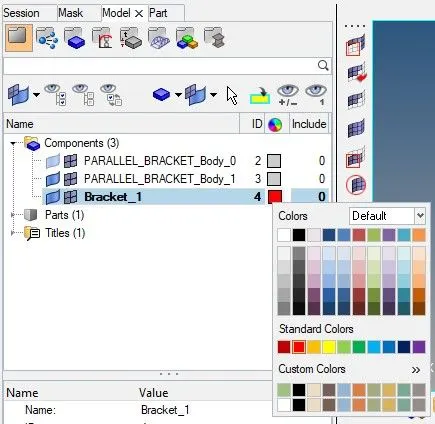
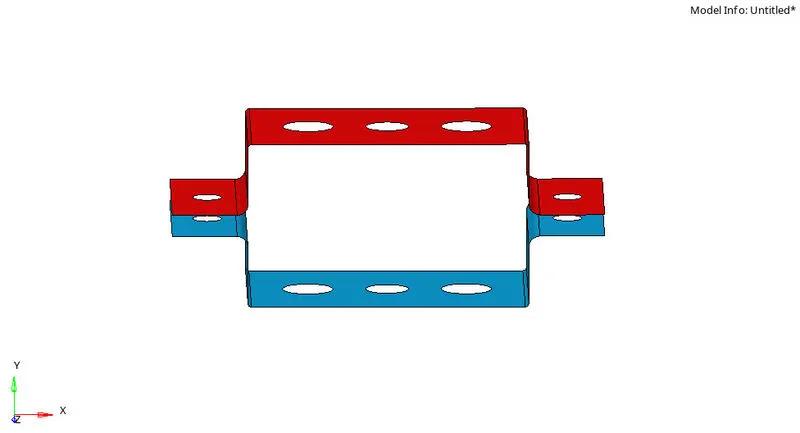
Similarly, the mid-surface of lower half of the bracket is also extracted. But it's not renamed as shown above because its not a separate surface & remains associated with upper mid-surface. To separate the surfaces from each other do the following :
- Create a new component under Components and rename it as Bracket_2. Assign it some color (here we chose blue)
- Pathway : Tool ----> organize ----> collectors ----> surfs (hide the upper half & select the lower half) ----> dest component = Bracket_2 ----> move.
- Now delete lower Middle-surface from Components tree.
3. Create washers around all the holes using the pathway : Geom ----> quick edit ----> washer split ----> offset value (set as 5) ----> lines (select all the holes)
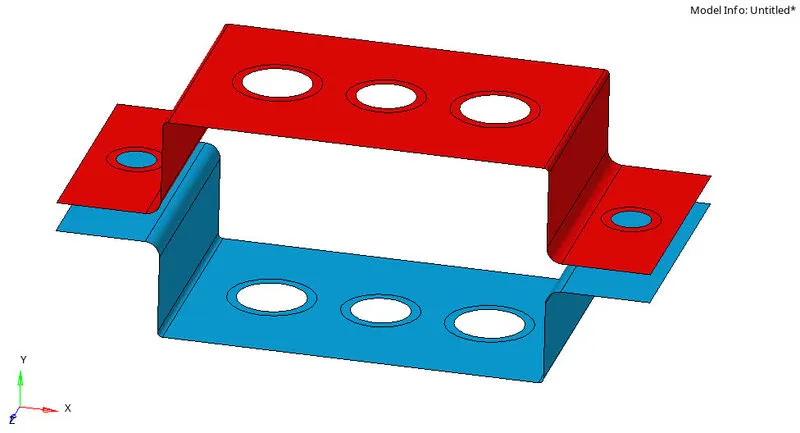
4. Generate 2D mesh using the pathway : 2D ----> automesh ----> surfs (select all the dispalyed surfaces) ----> element size (set as 5) ----> mesh type (keep as mixed) ----> mesh
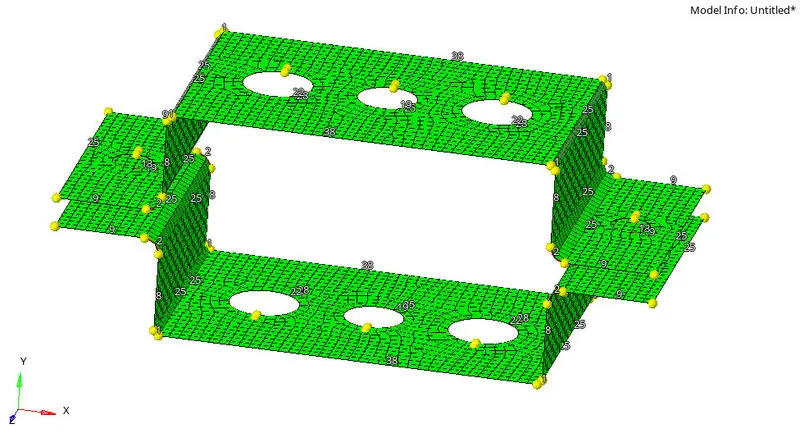
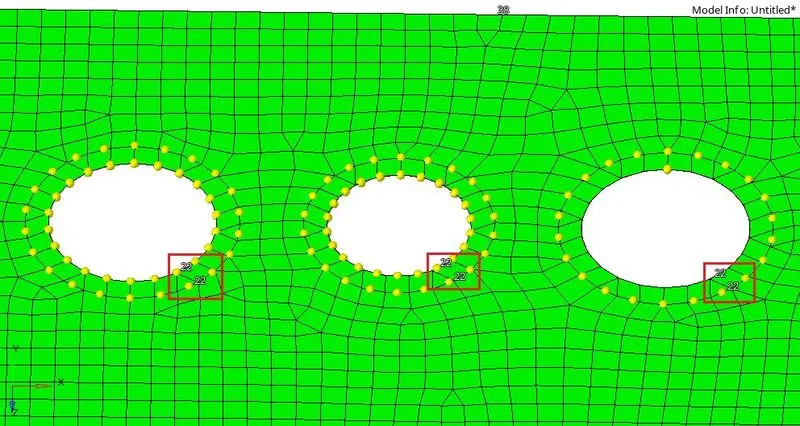
5. Equalize the number of nodes at inner & outer sides of each hole. This results in better mesh capturing the hole. It can be done by left clicking (increase) or right clicking (decrease) of the mouse over the numbers displayed near each hole. Also the number count of nodes should be kept even.
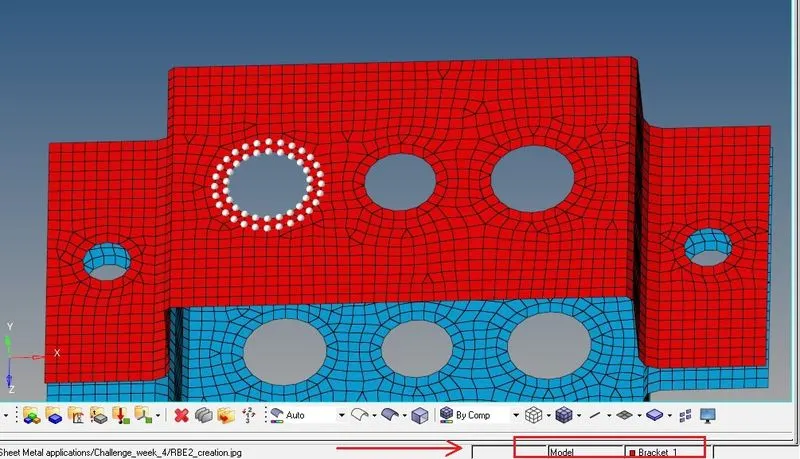
6. Create RBE2 elements at loaction 'a' by using the pathway : 1D ----> rigids ----> nodes (select the dependent nodes around the hole & washer) ----> dof (uncheck all the rotational dofs i.e. 4, 5 & 6 as defined in the question) ----> create.
Make sure that the current selection is Bracket_1 (red) before visiting the rigids option, otherwise the element created will not be associated with the Bracket_1.
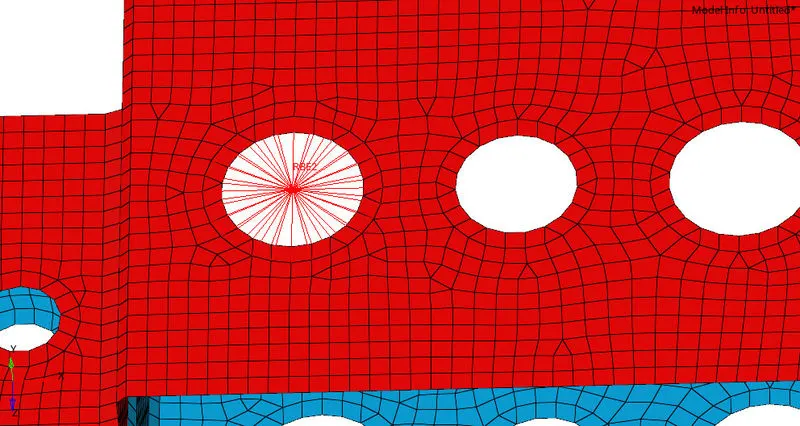
7. Similarly, the remaining RBE2 elements are created at their defined locations. In the similar fashion RBE3 elements are also created by visiting the rbe3 option under 1D.
The dofs need to be checked/unchecked before creating the elements as per the question.
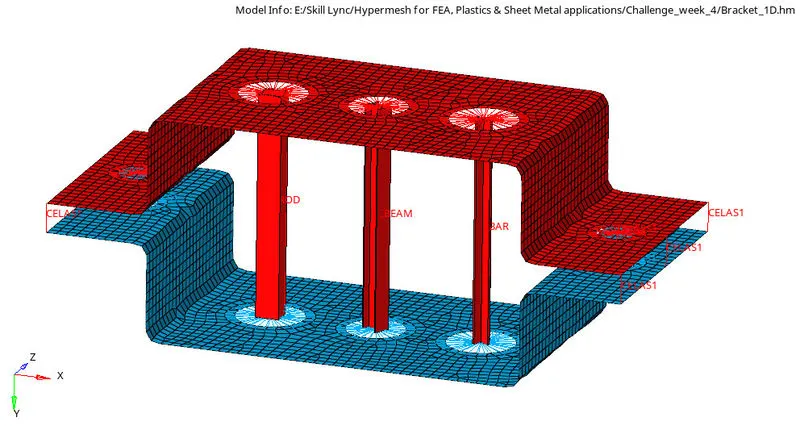
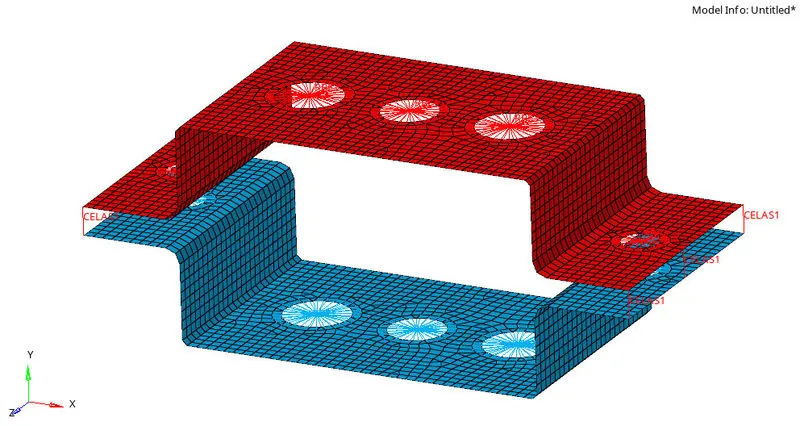
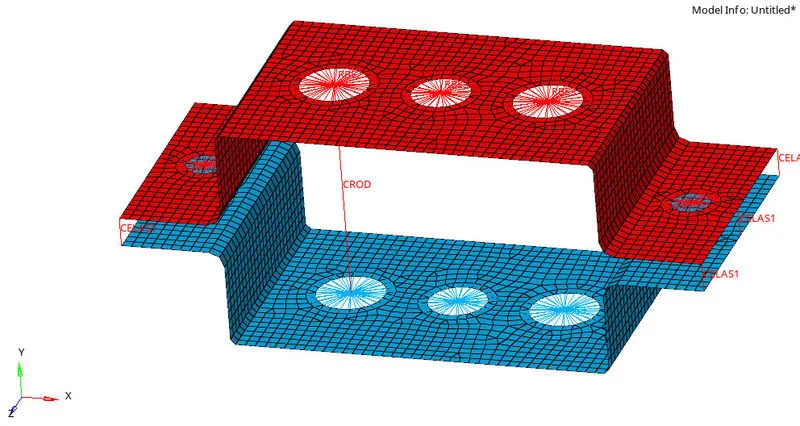
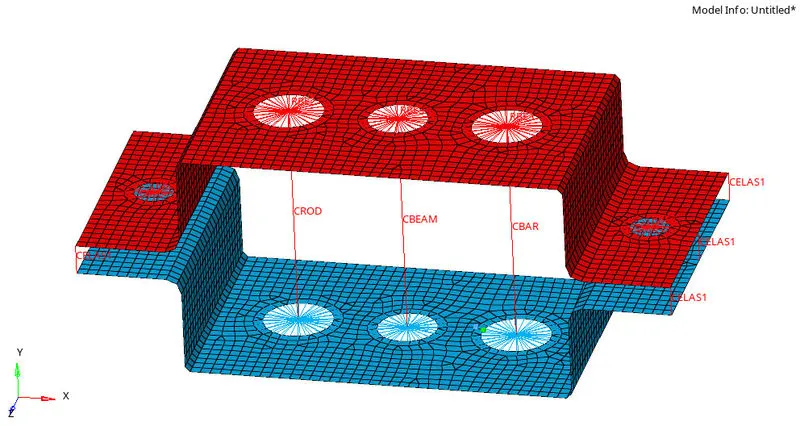
Lastly the spring elements are created at 'f' i.e. end edges of both the halfs of bracket, by visiting springs option under 1D. One pair of node is required to create a spring element. Three such elements are created at each end. Spring element could be identified as CELAS1 in the model.
After all the elements are created the meshed model will look as shown below :
8. For creation of Material right click over Tab area and select Material in the drop down. Rename the material as Steel as the properties defined by default are of steel only.
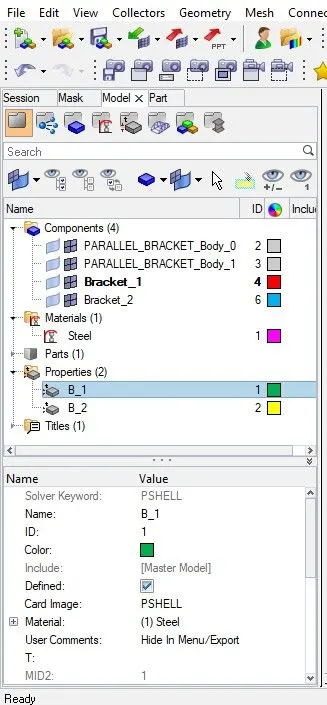
Similarly, we create two Properties in the Tab area and rename them as B_1 & B_2. Under property details Card image is selected as PSHELL & Material as Steel.
These created properties are then assigned to mid-surfaces Bracket_1 & Bracket_2 respectively.
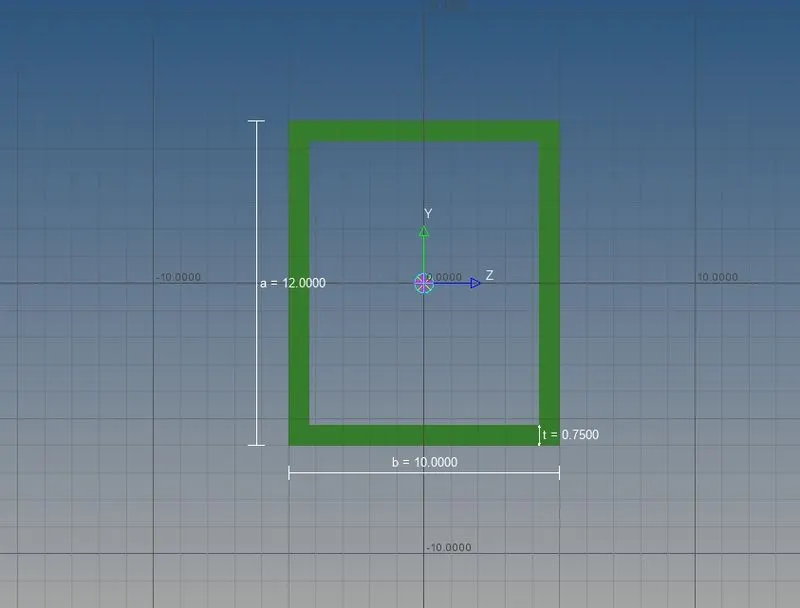
9. Before the creation rod, bar or beam type of 1D elements, one needs to define its cross-section using HyperBeam option.
Pathway : 1D ----> HyperBeam ----> standard section ----> type ----> thinwalled box ----> create ('HyperBeam View' window opens up. Define the given dimensions under it.)
Similarly, under HyperBeam View remaining two sections (i.e. I & X) are also created.
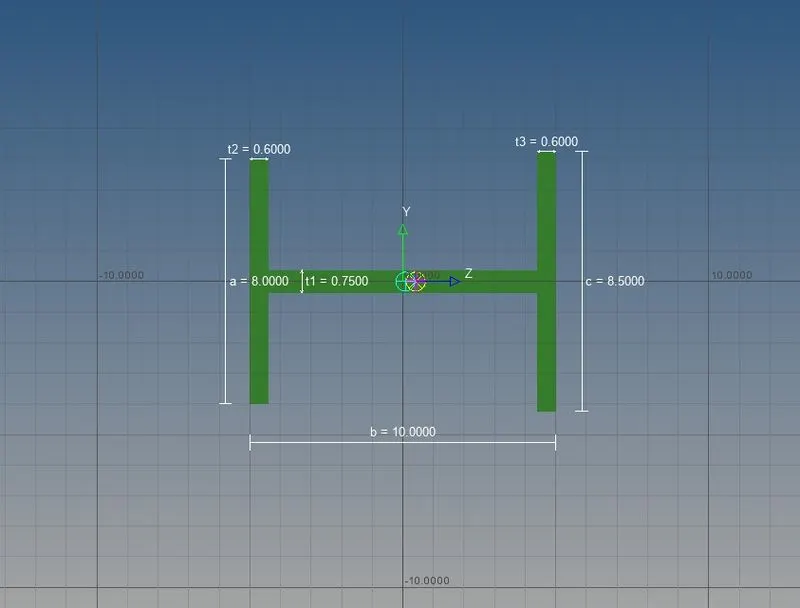
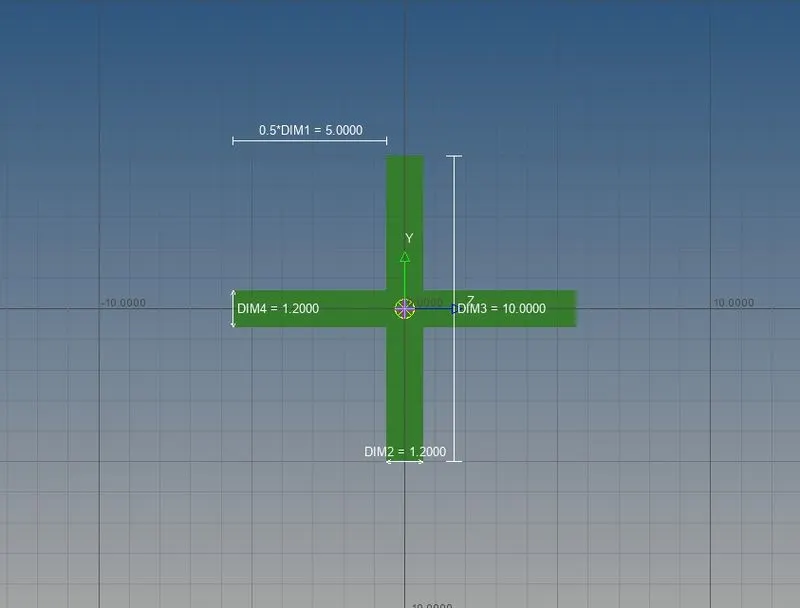
10. Again we need to create separate properties under Tab area, one each for each kind of element i.e. Rod, Beam & Bar. Under property details view, select Card Image as PROD, PBEAM & PBAR for ROD, BEAM & BAR elements respectively. Also select the correct Beam Section from the list of above defined cross-sections as per the question.
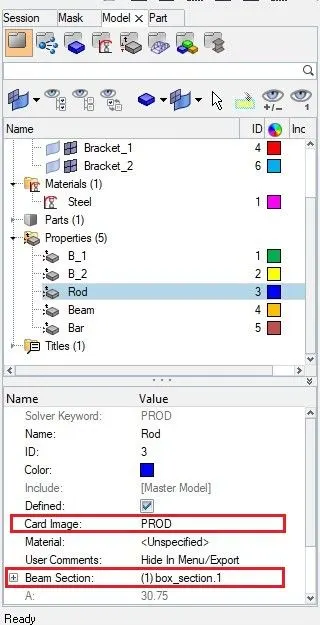
11. Create Rod element between RBE2 links using the pathway : 1D ----> rods ----> property (select Rod in the list) ----> elem types (select CROD in the list) ----> node (select Independent nodes of the RBE2 elements) ----> create.
Before hitting create, watchout for current selection.
12. Create Beam element using the pathway : 1D ----> bars ----> property (select Beam in the list) ----> elem types (select CBEAM in the list) ----> node A/node B (select Dependent nodes of the RBE3 elements) ----> orientation (select two nodes in the same plane as N1 & N2 while the third node as N3 out of the plane in perpendicular direction).
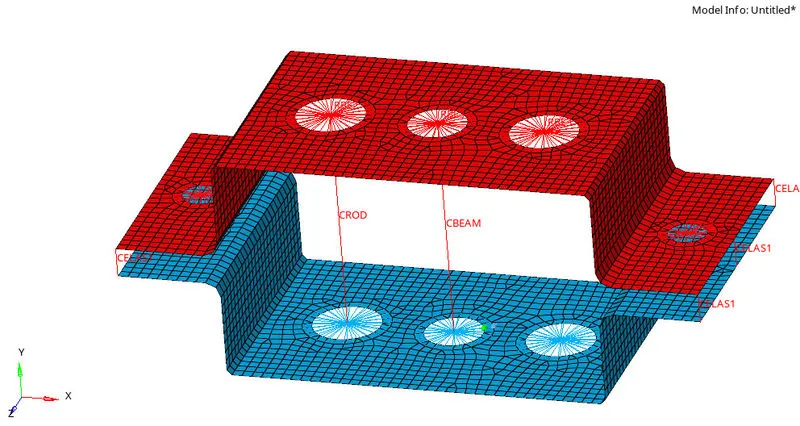
13. Similarly, the Bar element is also created following the previous step. Only the property and element type need to be selected accordingly.
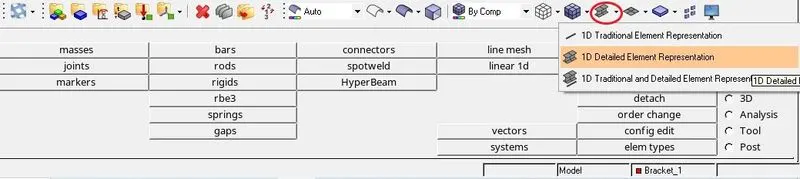
14. In order to view the elements with their defined cross-sections, one need to switch from '1D Traditional Element Representation' to '1D Detailed Element Representation' in the Tool Bar.
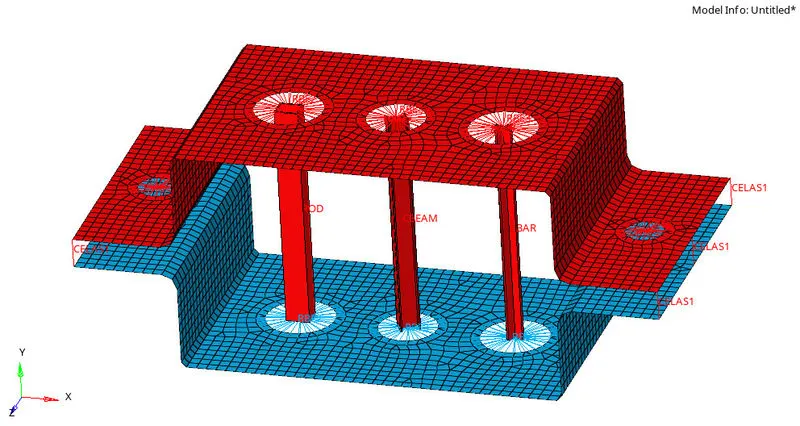
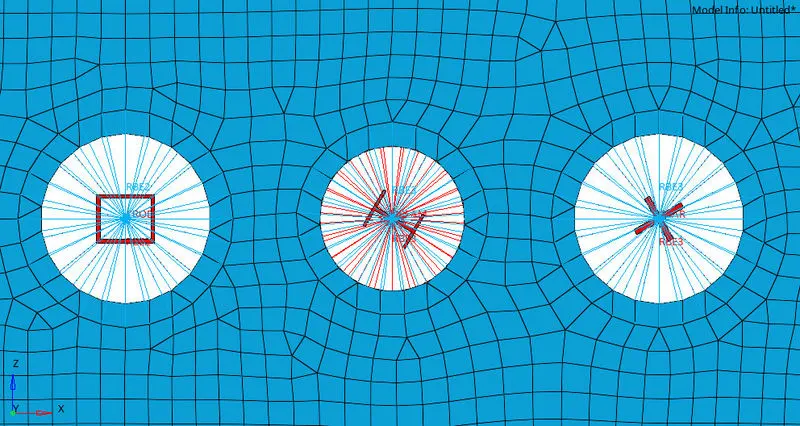
15. Finally, the mass is allocated at the respective locations as per the question using the pathway : 1D ----> masses ----> mass (set magnitude as 10) ----> elem types (select CMASS1 from the list) ----> node (select the Independent node of RBE2 element) ----> create.
FINAL MODEL IMAGE :