Week 8-3D Tetra Meshing Challenge
OBJECTIVE 1: The objective of this week is to create a Teramesh for Housing component
PROCEDURE:
Step 1: Import the object that is in step file format.
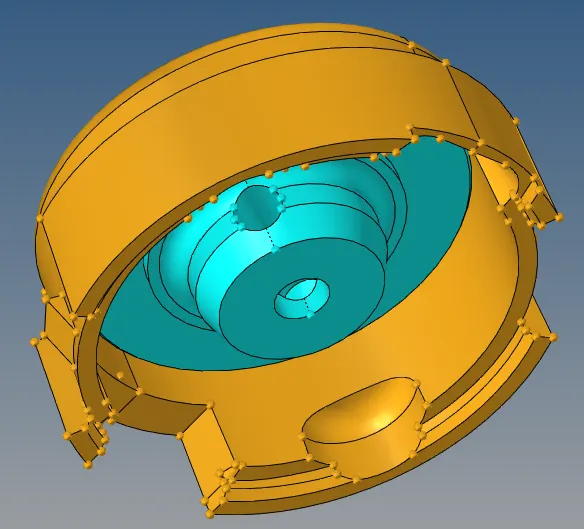
Step 2: After importing now rename the components individually.
Step 3:Firstly, go to tool panel and click on delete option. now select all the solids in the component and click delete.Now the component will have only surfaces left.
Step 4: Now remove the surface fillet whose length are less than the target element size in order to capture the surface properly.
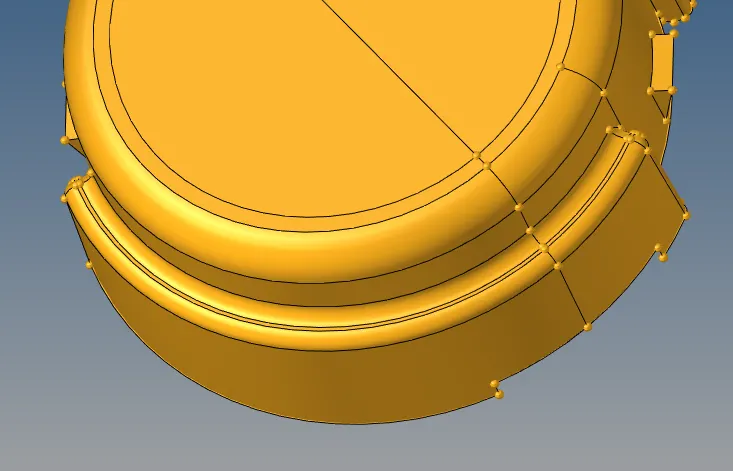
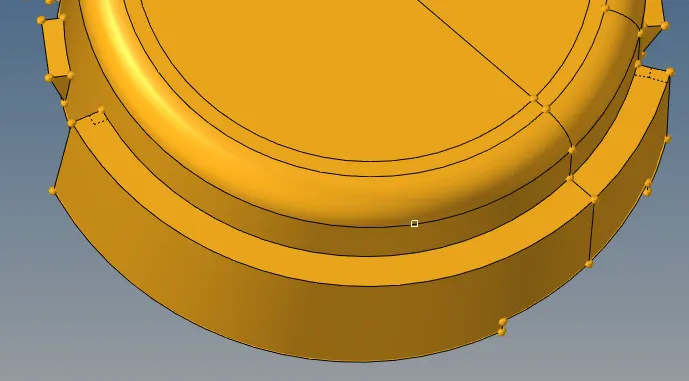
Step 5: After removing the fillet mesh the surface with 2d elements with element size 5 mm and element trias only.
Step 6: Now go to tools tab and click the check elements button.Now check the element for min and max element size.
Step 7: If the element are not within the range remesh the elements so that they will meet the element size limit.
Step 8: After remeshing now go to 3d tab and click on tetramesh button.click on tetramesh parameter radio button and set the min length - 3 mm and max length - 7 mm and tet collapse equal to .15
Step 9: Now click on tetramesh radio button and select all the elements and click mesh.
Step 10: Now go to tools tab and click the check elements button.Now go to 3d tab check the tet collapse so that all the elements are less than .15
OBJECTIVE 2: The objective of this week is to create a Teramesh for Housing component
PROCEDURE:
Step 1: Import the object that is in step file format.
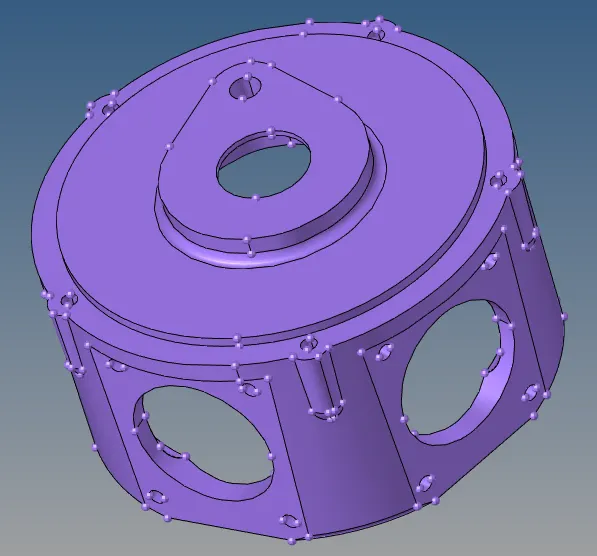
Step 2:Go to tool panel and click on delete option. now select all the solids in the component and click delete.Now the component will have only surfaces left.
Step 3: Now remove the surface fillet whose length are less than the target element size in order to capture the surface properly.
Step 4: After removing the fillet mesh the surface with 2d elements with element size 3 mm and element trias only.
Step 5: After remeshing now go to 3d tab and click on tetramesh button.click on tetramesh parameter radio button and set the tet collapse equal to .15
Step 6: Now click on tetramesh radio button and select all the elements and click mesh.
Step 7: Now go to tools tab and click the check elements button.Now go to 3d tab check the tet collapse so that all the elements are less than .15
OBJECTIVE 3: The objective of this week is to create a Teramesh for Housing component
PROCEDURE:
Step 1: Import the object that is in step file format.
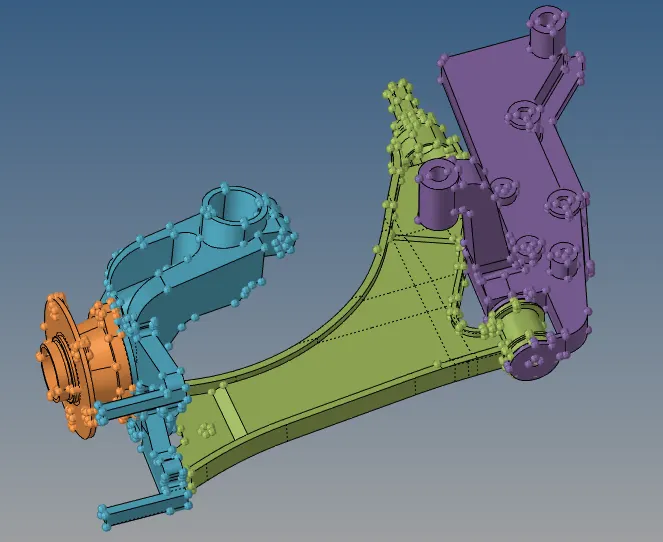
Step 2:Go to tool panel and click on delete option. now select all the solids in the component and click delete.Now the component will have only surfaces left.
Step 3: Now rename the component individually and give colour code to them
Step 4: Now mesh the surface with 2d elements with element size 6 mm and element trias only.
Step 5: After remeshing now go to 3d tab and click on tetramesh button.click on tetramesh parameter radio button and set the tet collapse equal to .15
Step 6: Now click on tetramesh radio button and select all the elements and click mesh.
Step 7: Now go to tools tab and click the check elements button.Now go to 3d tab check the tet collapse so that all the elements are less than .15