Week 8-3D Tetra Meshing Challenge
3D Tetra Meshing Challenge
Objective: To Create the Terameshes for given components using different methods.
Problem specification:
- Create a Teramesh for Housing component with the following quality criteria.
Tetra Mesh Generation Method: 2D to 3D Conversion
Elements sizes: Min- 2 Units, Target- 5 Units, Max- 7 Units
Tet collapse: 0.15
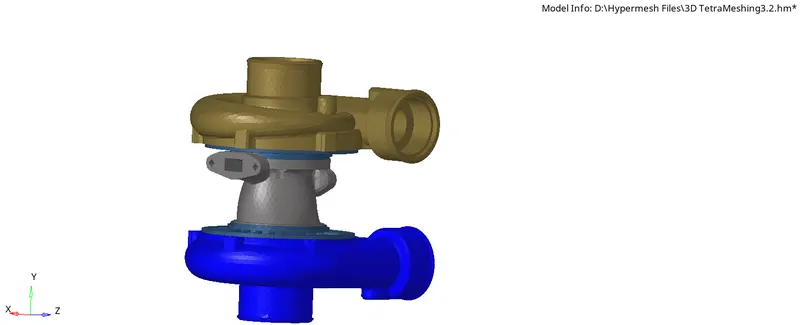
- For the given model, Create a 3D Tetramesh with the following quality criteria.
Tetra Mesh Generation Method: Quick Tetra Mesh/ Volume Tetra Mesh
Target Element size: 3 Units.
Tet Collapse: 0.15
- For the given assembly model, Create a 3D Tetramesh with the following quality criteria.
Tetra Mesh Generation Method: Quick Tetra Mesh/ Volume Tetra Mesh
Target Element size: 4 Units.
Tet Collapse: 0.15
Tetra Mesh Generation Methods:
- Conversion of 2d Tria elements to tetrahedral elements, by using Tetra Mesh panel.
- Quick Tetra Mesh by using utility pannel.
- Volume Tetra Mesh.
Method 1: Conversion of 2d Tria elements to tetrahedral elements, by using Tetra Mesh panel.
1)Import the model and perform suitable geometry clean-up.
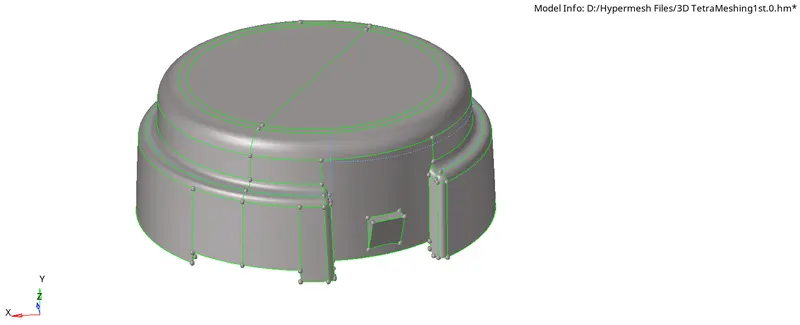
2) Go to 2d auto mesh and create 2d tria elements as specified in the problem.
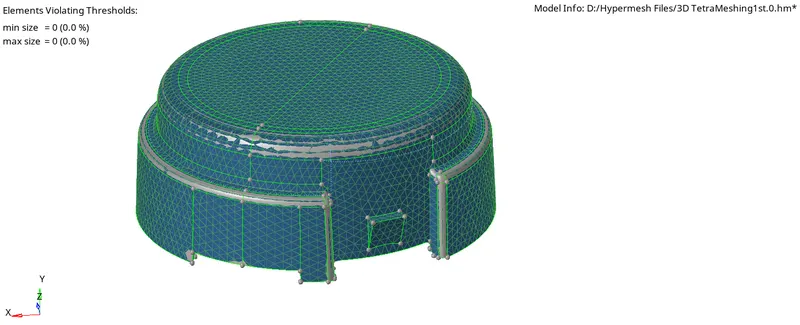
3) Now go to 3d panel and select the Tetramesh option.
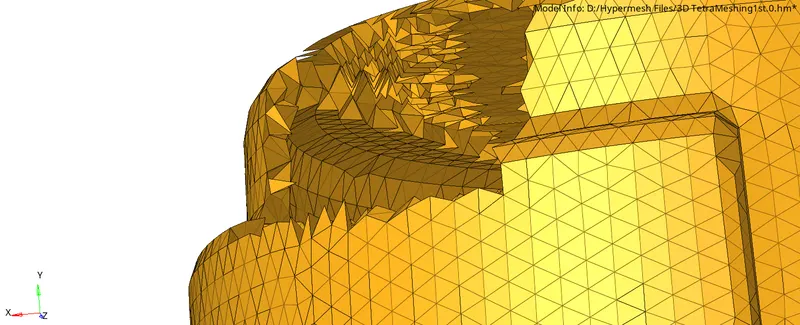
4) Now select the elements under the "Fixed tria/ quad to tetra" option and then press the middle mouse button.
5) Mask the few elements after tetra mesh generation.
Method 2:Quick Tetra Mesh by using utility pannel.
1)Import the model and perform suitable geometry clean-up.
2) Delete the solids from the model.
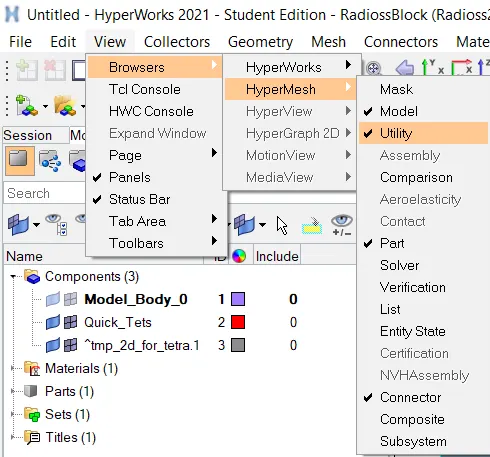
3) Click on View>Browser>Hypermesh>Utility
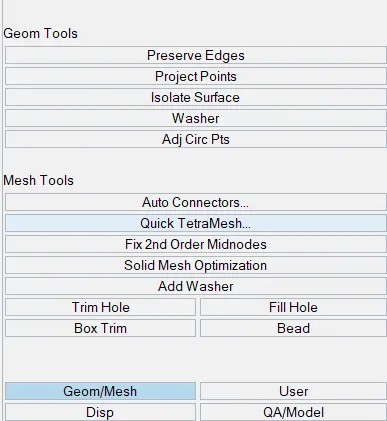
4) Now go to Geom/Mesh option and then click on Quick TetraMesh
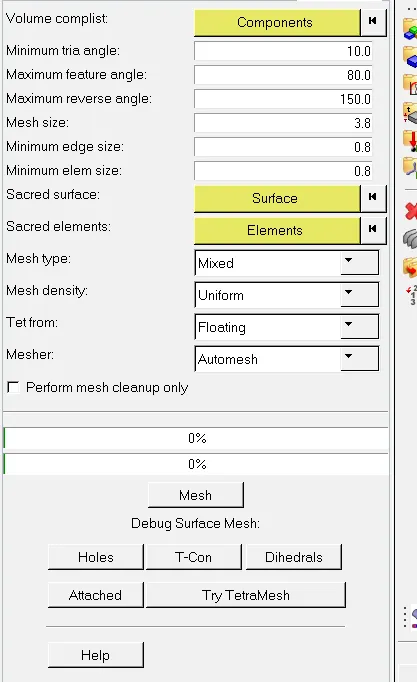
5) Now Select The components and Surface and then proceed
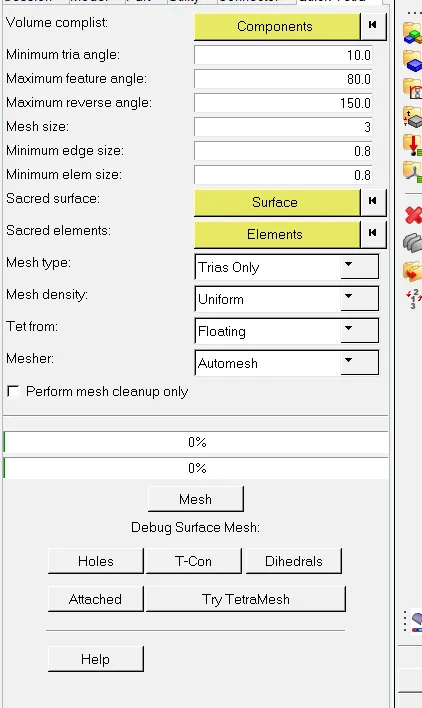
6) Now select Mesh Type as Trias only and Mesh size 3 then click on Mesh.
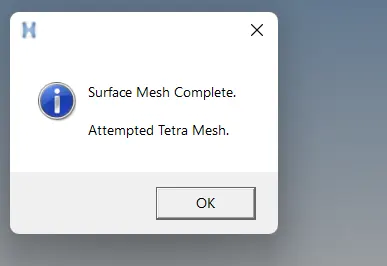
7) Now click ok
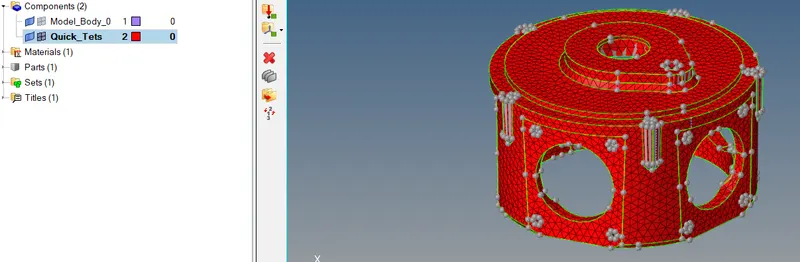
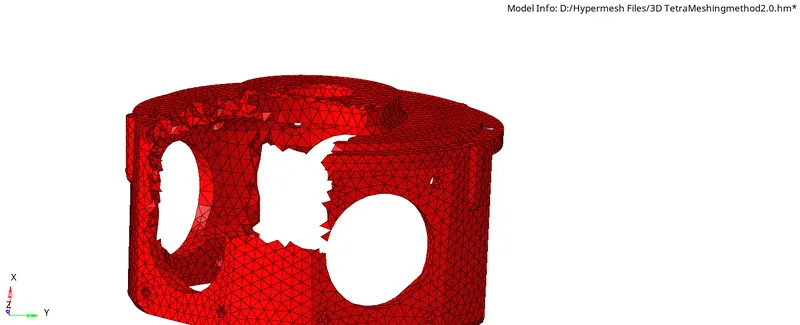
Method 3: Volume Tetra Mesh
1) Import the model and perform suitable geometry clean-up.
2) Keep the solid of the model
3) Go to 3d Tetramesh and select the Volume TeraMesh option
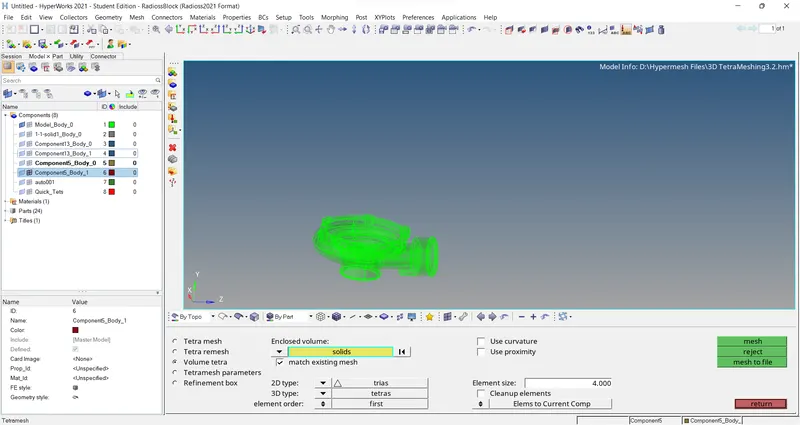
4) Select the solid and then press the middle mouse button to generate Teramesh.
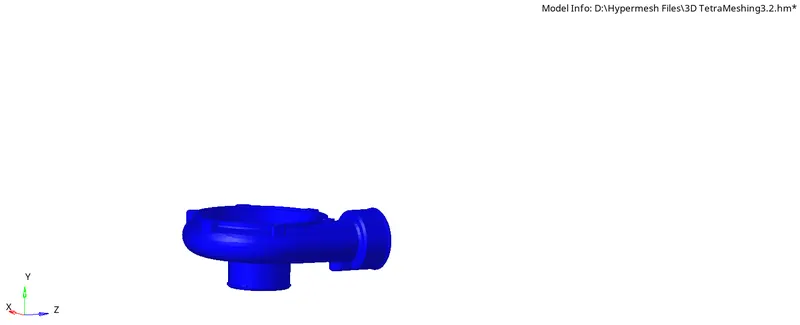
After the generation of 3d TeraMesh check, Tet collapses. It is necessary to clear all the tet collapses.
Steps to clear Tet collapses
1) Press Fn+f11 and click on 3d and check tet collapses.
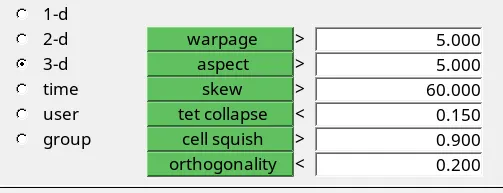
2) Save all the failed elements and then mask them and the adjacent elements.
3) Go to Tetramesh Parameters and check the options as shown-

4) Go to Tetra remesh options and select free boundary faces as "remeshable" and then click on remesh.

5) Check again after remesh.
6) If some elements are still left then go to the translate node option and increase the height of the elements manually one by one.
Results:
Created the Terameshes for the given components using different methods as mentioned above and cleared all the Tet collapses.
1)
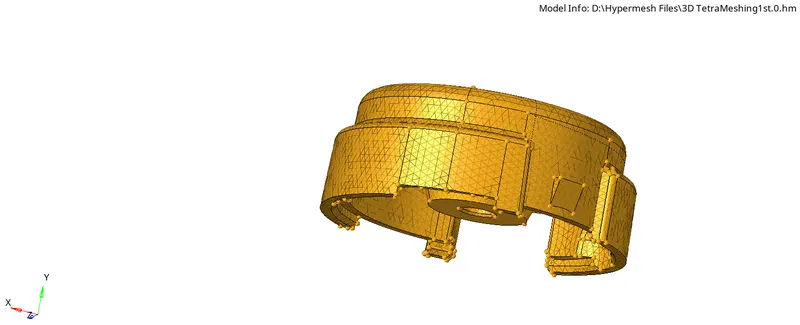
2)
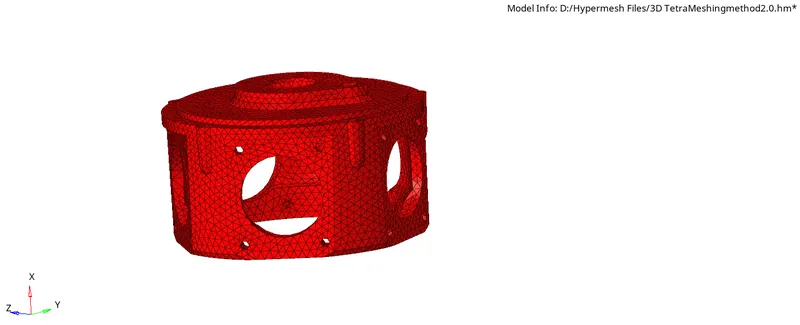
3)