Week 7 Challenge - Assembly Workbench
PROCEDURE FOLLOWED WHILE WORKING ON THE ASSIGNMENT.
Part design Procedure:
- Opened a part design workbench and created a geometrical set for the sketches.
- Created a point on 0,0,0 coordinate and started with the positioned sketch with the created point as the projection point and selecting the suitable plane.
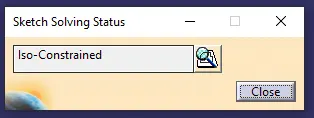
- Finished the sketch consisting of all the dimensions and making sure that the sketch is iso-constrained.
- Made multiple sketches if there it was required.
- Used pad to extrude the sketch and for some of the part, multipad option has been used to cut-short the additional steps.
- Gave the fillets wherever it was mentioned in the provided drawing.
- Cross checked the created model with the drawing dimensions and made sure there are no sketches present in the Partbody design tree(made sure to define geometrical set on beginning of every sketch).
- Saved the CATPart with the part name.
- Opened the Assembly workbench.
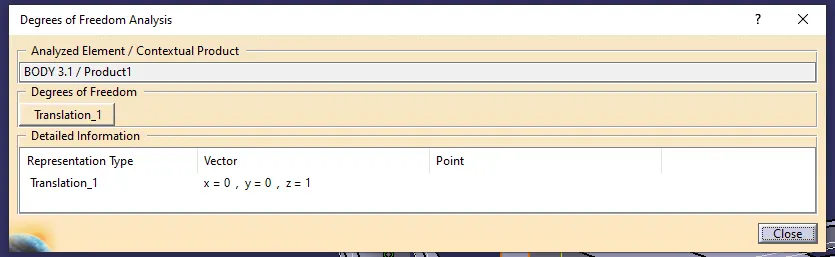
- Placed the base part designed in the workbench, and fixed it making sure it has no degrees of freedom by checking in the DOF analysis, and assembled other part models around the fixed base model using the Coincedence Constraint, Contact Constraint and Manipulation.
- Making sure the parts are constrained having only necessary DOF's (only one in most of them).
- Saved the CATProduct with the part name.
- Opened the drafting workbench and choose the ISO standards and the reqired sheet size A3.
- Inserted the isometric view of the assembly in the 1st sheet and gave the balloon callouts to the assembly specifing the parts.
- Inserted the Frame and title block present in the Edit>Sheet background>frame and title block
- Inserted the Advanced BOM that is present in the Sheet background interface itself, made sure only required columns are inserted and edited the frame and BOM as per requirements.
- Inserted new sheets and followed the same above procedure following the detail of all the individual parts.
- After finishing saved the CATIA DRAWING file and also saved as PDF.
All the CATPart, CATProduct, CATDrawing and PDF has been attached within the Zip file.