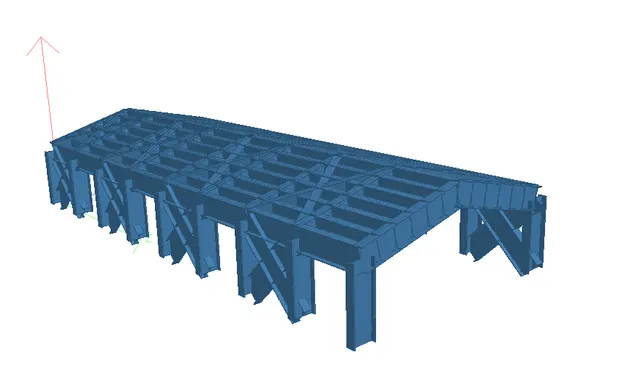
Week 7 Challenge
Modelling of Structure in STAAD Pro
1. Modelling of a structure exercise
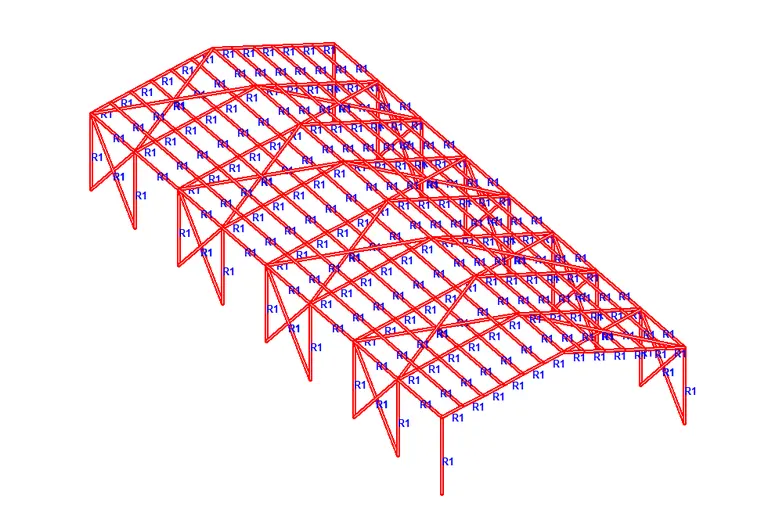
Model a structure with following details
- Bay spacing 5 m
- Span of Truss 30 m
- Shape of Truss – Pratt Truss
- Slope of truss 20 degree
- Height of the column 15 m
- Floor Beams at 5 m from base
- Secondary beams at 1.5 c/c
- Length of the building 50 m
- Column Supporting Floor Beam @ 6 m c/c Along the frame
Procedure:
- Open the Staad software.
- Go to new view create analytical model and save it.
- As per given structure and given data use nodes to define.
- After nodes defone,go to beams and define it.
- Apply nodes and beams to draw the model.
- Daw the columns and floor beam by using givven data with translation command.
- At base use support consition as fix and hinge support.
- After the model creation go to translation command and define the length of the building.
2. Applying Specification and member property for modelled structure
Apply beam steel specification as mentioned below.
- Columns - ISMB 500
- Truss -Top & Bottom chord – ISA 110x110x12, Diagonal member – ISA 75x75x8
- Purlins – ISMC 150
- Tie Beam – ISA 120x120x10
- Floor Primary beams – ISMB 300
- Secondary beams - ISMC 150
- Floor beam supporting columns – ISMB 300
- Assume bottom of the main column as Fixed support & intermediate floor beam supporting column as pinned
- Orient the Angle sections by applying Beta angle.
Procedure:
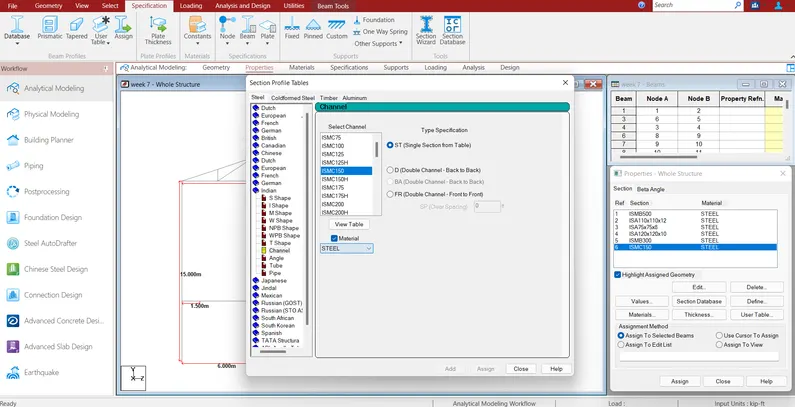
- Go to specification in that section database.
- Choose the Indian Section.
- Define beams,columns,top and bottom chord by selecting section for each groups.
- For beta angle choose beta angle option.
- Create beta angle and select section to apply it.
3. Creating a group exercise.
Form group for following members
- External column
- Internal columns
- Roof Frames
- Top chord of the Truss
- Primary Beams
- Secondary Beams
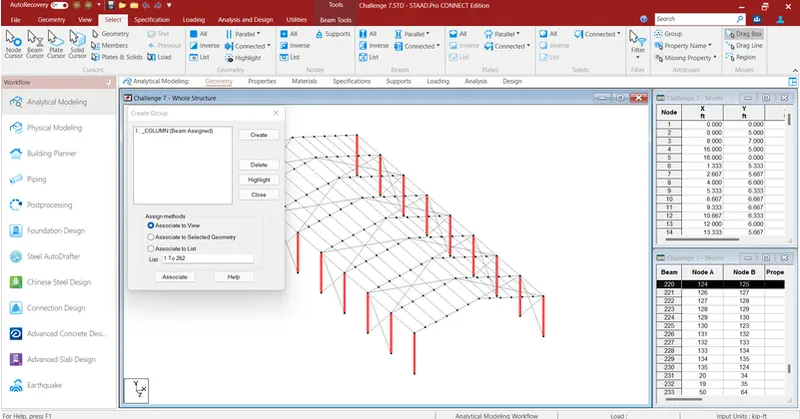
Procedure:
- First open the structure model.
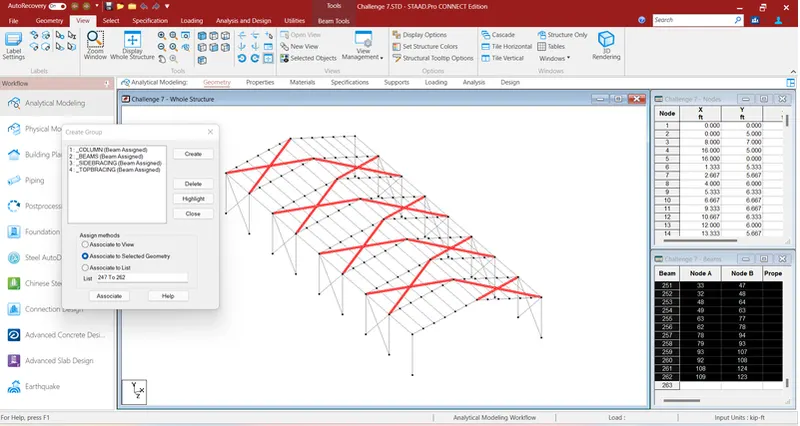
- Go to geometry create groups.
- Give the names of various groups.
- Suuch as external column,internal columns,roof names etc.
- After creation of group associate group to member.
- Check group by highlight option given.