Week 6-Meshing of Hood Challenge
PREPROCESSING OF HOOD MODEL OF A CAR USING HYPERMESH
AIM
- perform geometry cleanup
- extract mid-surface
- mesh the component with given element quality criteria
PROCEDURE
First import the geometry using import geometry option and select IGES file,
Hood model is imported , the hood model components are Inner extract, Outer extract, Hinge reinforcements and latch reinforcement
First we need to delete the solid body, go to Delete-solids-Displayed-Delete entity.
GEOMETRY CLEANUP
Check for geometrical errors visually,check by geometry visualization type by topo. Check for free edges and fill the missing surfacesby clicking on Geometry-quick edit-filler surfaces or Geometry -edge edit -Replace, select the edge to be moved and the edge it needed to be moved to.
EXTRACTION OF MIDSURFACE
In order to extract mid-surfaces go to, Geometry -> Mid-surface -> select the extraction option as autoextract and then go to Auto mid-surface extraction and click on extract to generate mid-surface .
now we can defeature the edges which will fail for minimum element length using, Geometry -> Quick edit -> toggle edge -> select the edges to suppress.
similarly we created mid-surface for all components separately, figure below shows extracted mid-surfaces of all components. For Outer extract
- Toggle all the split lines which are all less than the minimum length.
- Go to midline option (Geom → lines → Midline)
- Select the two fillet edges on the hemming portion and create a mid-line.
Then, go to trim with lines option (Geom → surface edit → Trim with lines → with lines
Define N1 and N2 in that direction, the trim would happen. Nodes can be selected by left click on the line and holding it will turn the line to white, then select where you want to place the N1 and N2 and trim.
Meshing the component with given element quality criteria
- First we need to enter the element quality criteria, select Preferences -> Criteria file settings and enter the values.
- Now we need to split the surface and mesh them one by one in order to get a good mesh flow and to get a checks on trias, go to Geometry -> quick edit -> split surface nodes/ split surface lines.
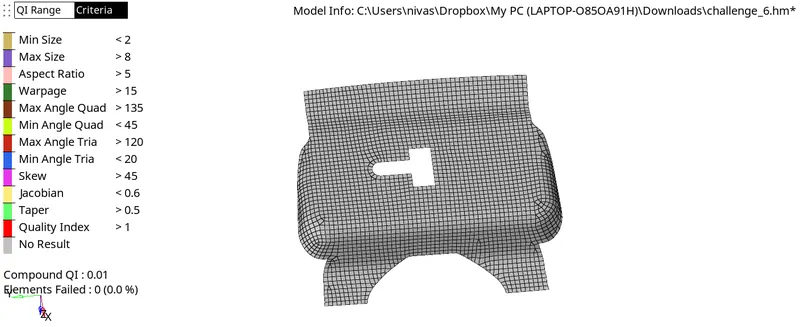
- To create a mesh, go to 2D -> automesh -> select the surface and choose the element size and type of elements -> mesh. Here the element size is given as 5
- we can change the element size by increasing or decreasing the number of nodes, left mouse click to increase and right mouse click to decrease
- we can defeature the edge fillets in latch area using geometry -> defeature - > edge fillets -> input the diameter -> find -> edge fillets will be highlighted and we can remove
- mesh all the surfaces of every component and in order to check for quality go to, 2D -> quality index. and failed elements will be highlighted
CLEANUP TOOLS
In order to clear the quality of failed elements got to 2D -> quality index -> cleanup tools, you can use drag tria element tool to drag and combine opposite tria element ,also we can use swap edge tool to swap tria from free edges also use smooth option to clear the quality of element. Split quad elements and replace node.
MESHED COMPONENTS
1. LATCH
2. HINGE 1&2
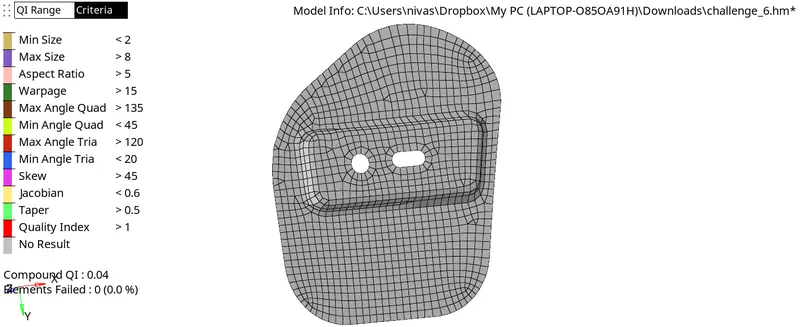
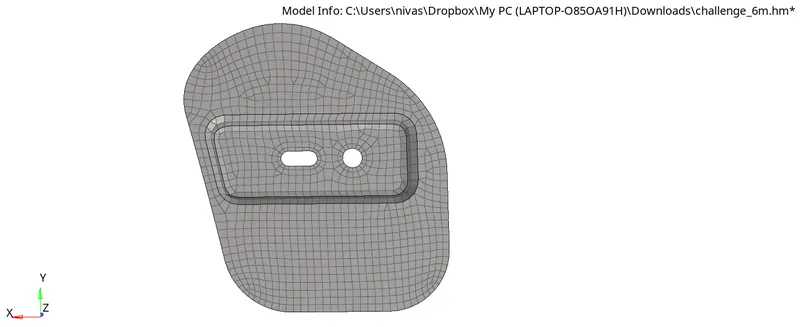
3. INNER
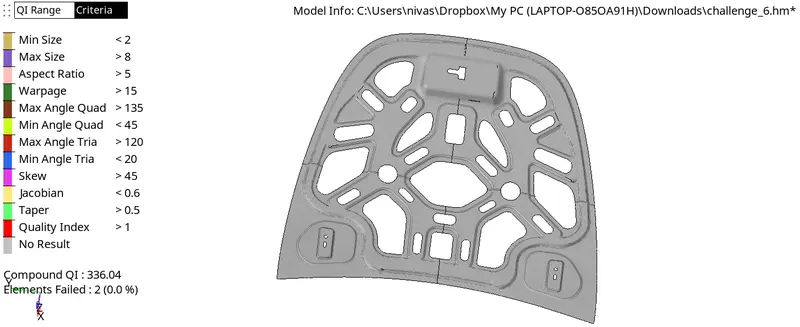
4. OUTER
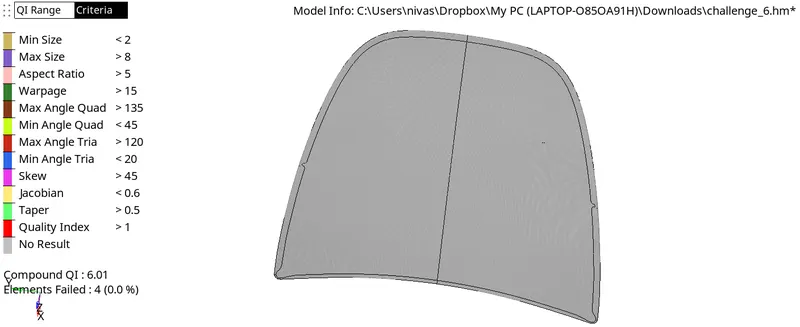
Inner panel and Outer panel are symmetric so we can only mesh the half the portion and reflect the other half by creating duplicate.
First select one half of the surface and delete it.
we can reflect the half portion to otherside using, Tool -> Reflect -> select the axis or N1, N2,N3 -> select all elements and duplicate it -> select a Base point and reflect
Inorder to give connectivity between reflected parts, go to Tools -> edges -> select the component -> give tolerance value -> select preview equivalence - > equivalence
Result
Performed geometry cleanup and extracted mid-surface of Hood model of car and meshed the component with given element quality criteria and assigned thickness to the shell elements.