Week 12:Project 2-Meshing of Rear Wheel Holder challenge
OBJECTIVE:
To cleanup geometry of the given model and mesh it with proper flow and according to given quality criteria.
PROCEDURE:
The component has number of collectors that has been moved into a single collector using Tools-> organize . Select surfaces and choose dest component and move it and deletete the other collectors.
The component has a lot of missing surfaces and free edges and duplicate surfaces which should be cleared before generating midsurface.
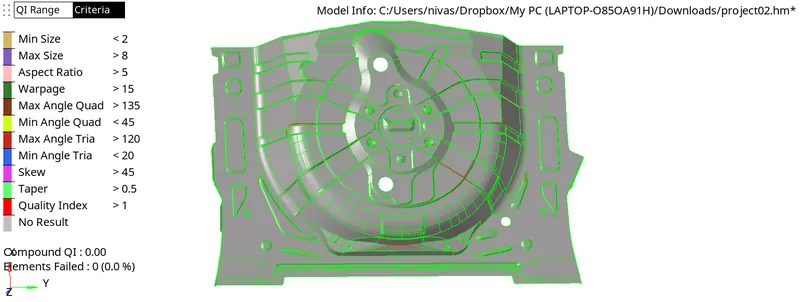
The component has to be midsurfaced manually.we can create a new collector as 'Midsurface' from the collector menu by right-clicking and selecting create > component.
The new component has to be the current component.We have to measure the thickness of the component using Geom->distance . The component has no varying thickness so we can offset it as a whole component .
Go to geom-> Surface edit -> offset . Select the offset option and select the component by Face and enter thickenss as 0.375 . Duplicate it to current component and check the vector normal of the component befor offsetting.Reverse the direction of offse using reverse normal.
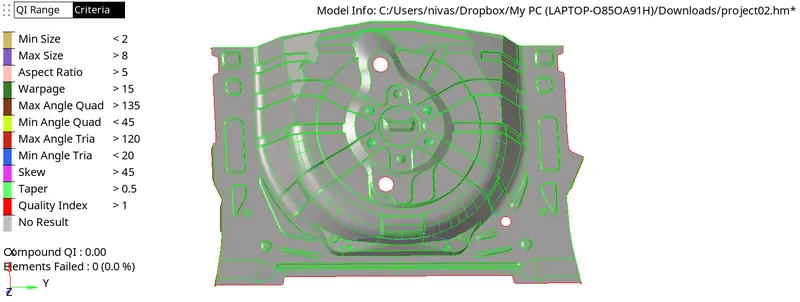
Click offset and the midsurface is generated, check for free edges , missing surfaces and toggle unwanted lines. Use the options is geom -> quick edit to do the cleanup.
After the surface is cleaned up the criteria for meshing is entered in preferences-> criteria file settings.
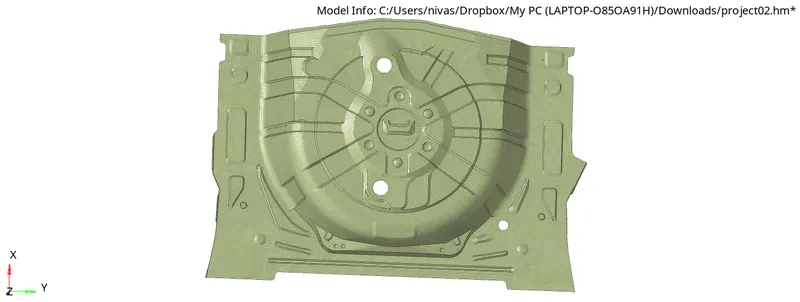
Go to 2D-> Automesh select by surface and start meshing part by part. Toggle unwanted lines that will fail for minimum quality.
After the mesh is done we can check the quality of the mesh using 2D-Qualityindex . The failing elements are highlighted. select Cleanup tools and use element optimize, drag tria elements, compine, place node options to clean the element quality. Use the smooth option to smooth lines.
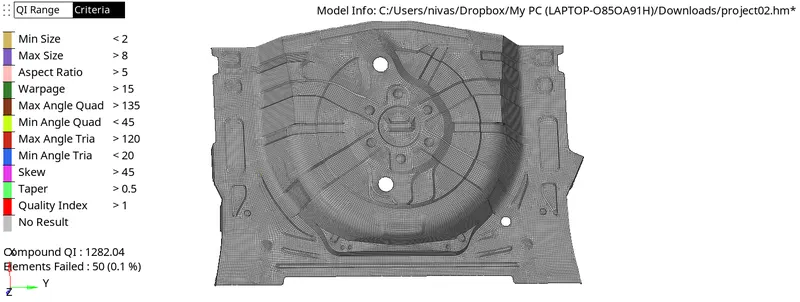
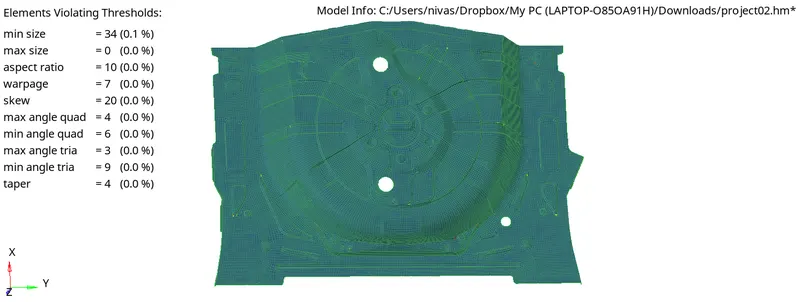
Finally, we can assign a thickness for our midsurface, which is 0.75 mm. We can do this by right-clicking and creating a component in the component tree. After a property is created (and named 'Thickness'), we can go to its section in the bottom left and scroll down to assign the thickness.Create a material and name it as steel and assign it to the property.
Then we can assign the thickness by selecting the midsurface, going to its properties box on the bottom left and assigning a property, by selecting the thickness property.
CONCLUSION:
The given model was cleaned up and the midsurface is extracted and is meshed with proper mesh flow and followed the quality criteria and avoiding as much trias as possible.