Week 6 - Creating connection for Rear door
Week 6 - Creating connection for Rear door:
objectives:To create connection for the given side door by using diffrent 1D elements.
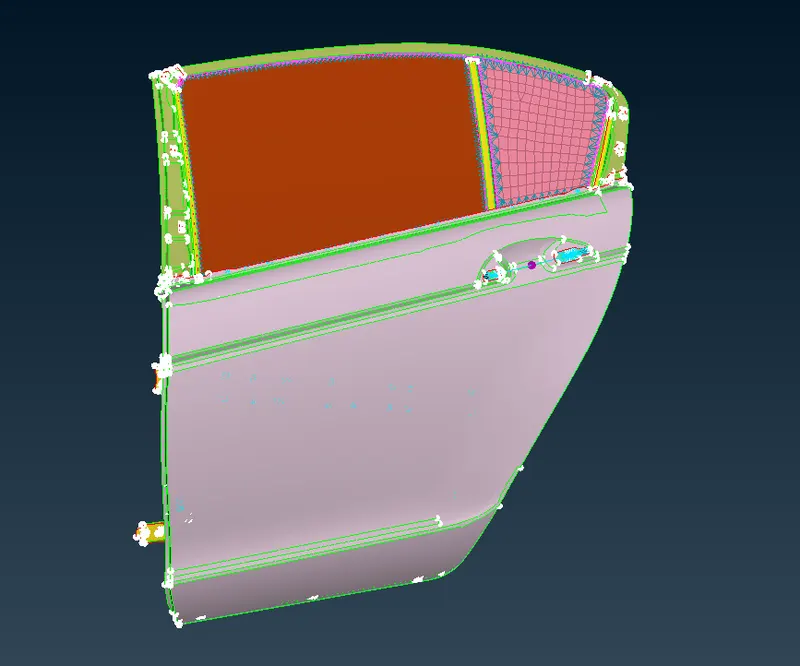
img:FE model of side door
procedure:
- first open the cad model in ansa open⇀choose the folder⇀select the file⇀click"open".
- once the model is open ,give connection with respect to the part and assign property to it.
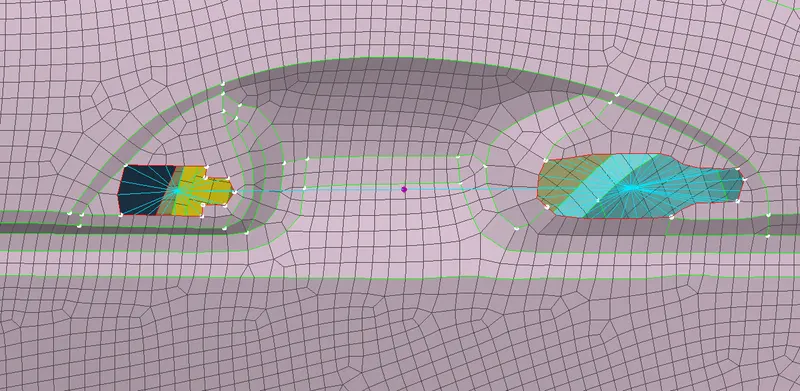
- in the ovove handle give the rbe2 elements for the joints in hangle and assign mass to it in tonnes.
- go to nastran deck and click rbe2(many nodes) and click one of the handle and middle click and asssign property for the rigid and give the dof for the handle.
- for handle all the dof has to constraint,same like for another joint make a rbe2 connection and assign the property and dof,we can assign the same property for both the joints also.
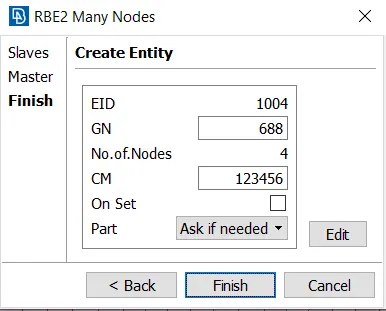
- in hinge give the bolt connection,bolt connection can be done manually nd also automatically.
- for automatic go to the topo module and go to the points cog and click the hole where the bolt has to be placed.
- create a point in the middle of the hole.
- change the points as connector by connverting the points to bolt.you can fnd the convertor option in the top of the gui
- once it converted ,go to the connction manager and click the bolt and selct the property in which in between the bolt connction has to come.
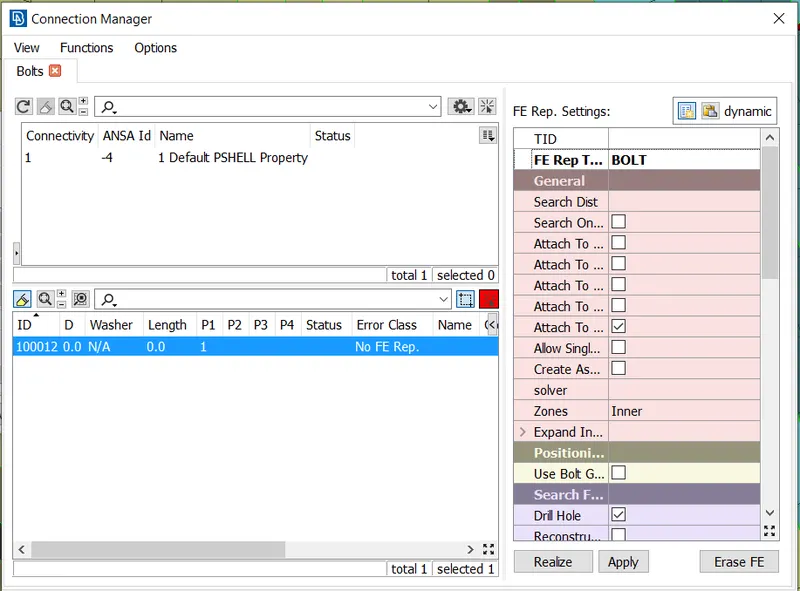
- in P1 select one component and in P2 select the adjacent component and select the FE rep and give the dof for the hinge,and give search distance and give zones for the bolt and click realize for bolt creation.
- for hinge the DOF has to be constraintn for only 5 and rotational of one the dof has to be free ,because in side the door will be rotate in a particular axis.so give dof for hinge has 12345.
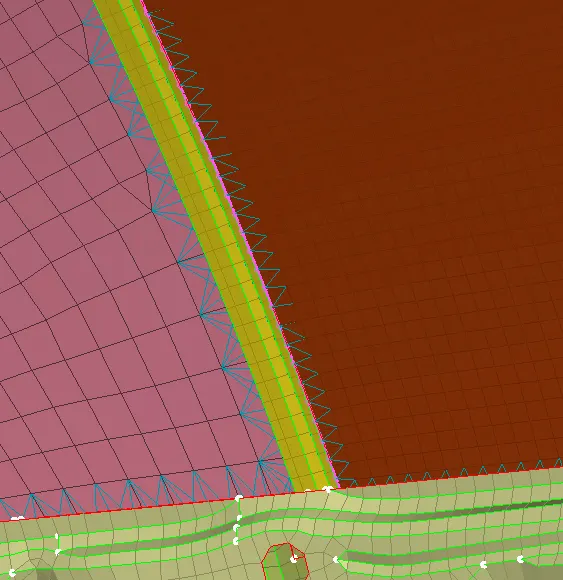
- In the glass and the adjacet panel we have to give cbush because the glass the adjacent panel will have some elastic material ,so we should not connect that with the rigid.
- as we have the FE go to the mesh deck and under perimeter select the FE at to curve option and select the free edge of the glass and convert the curve as spot line by using convert manager.
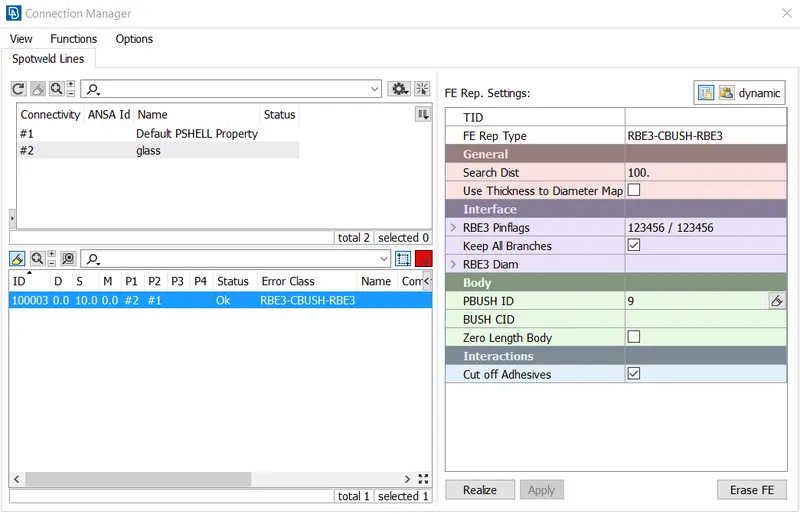
- and go to to the connection manager and select the rbe3-cbush-rbe3 anf give the search distance ,dof,pbushID and click apply and realize.
- like wise we have to give connection for all the parts wherever needed.
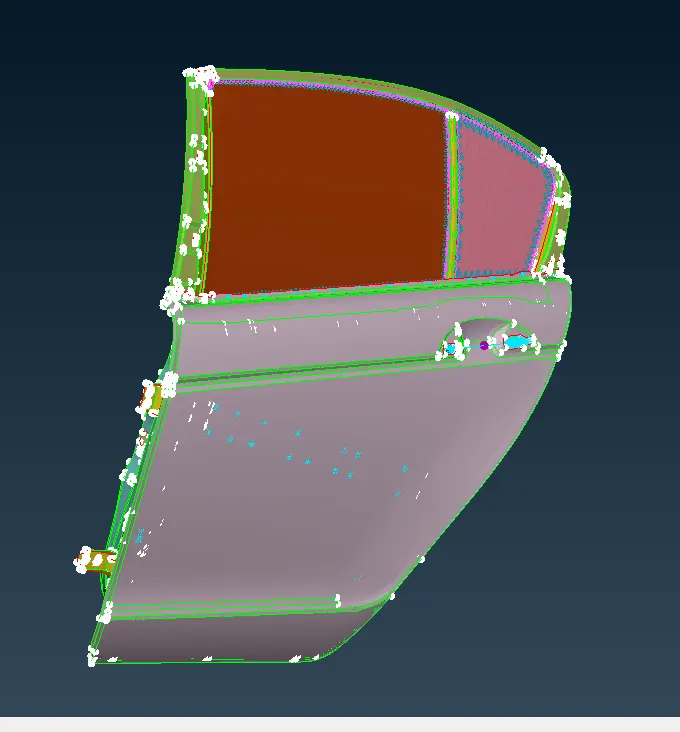
img:full connected side door
result:
- 1D connction is maded on the side door and assigned property to it.
- changed the dof of connection for specific parts
- assign mass wherever needed.
learning outcomes:
- learned how to make 1D connection for nastran deck.
- learned how to assign property to connection
- learned how to assign mass to the element.