Week 6 - Creating connection for Rear door
OBJECTIVE:
To set PID and perform connections for the given rear door model with different connection techniques using ANSA.
PROCEDURE:
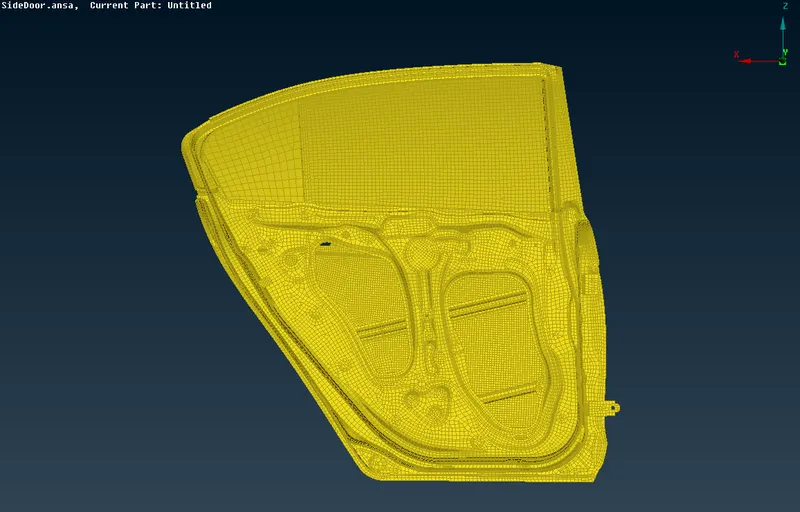
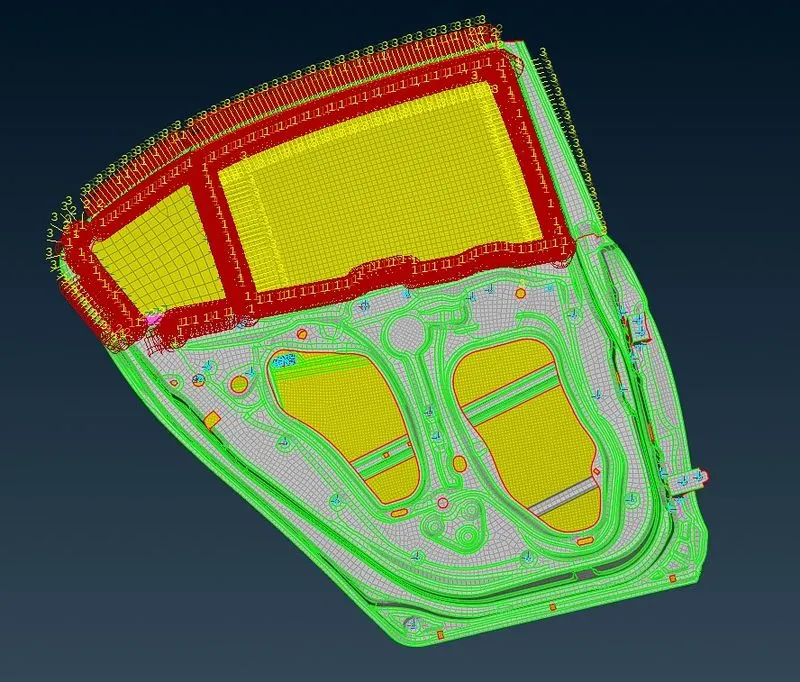
1. The given model is imported into the ANSA software. It is observed that a default PID is set for the model. The imported model is shown in the figure below.
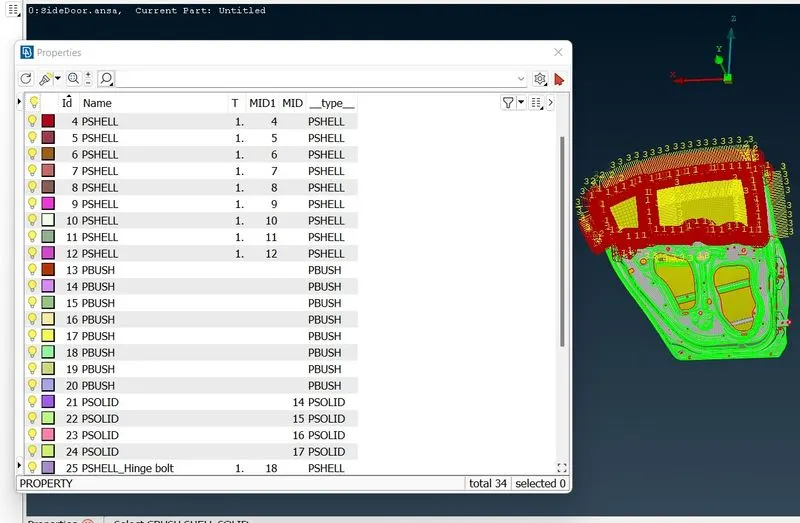
2. Now go to Mesh>>Macros>>Set PID and select the desired part using the Boolean operations and create the New>>PSHELL property for the selected component.
For Bolt Connection:
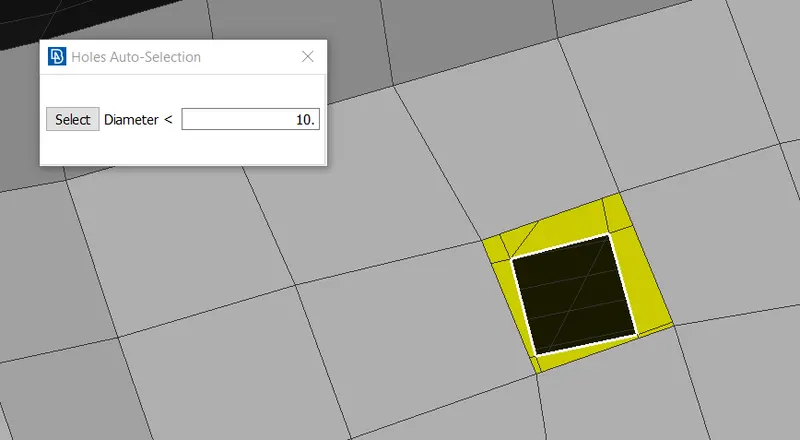
3. Go to Topo>>Points>>On the COG option. Select the edge and create a point. This is shown in the figure below.
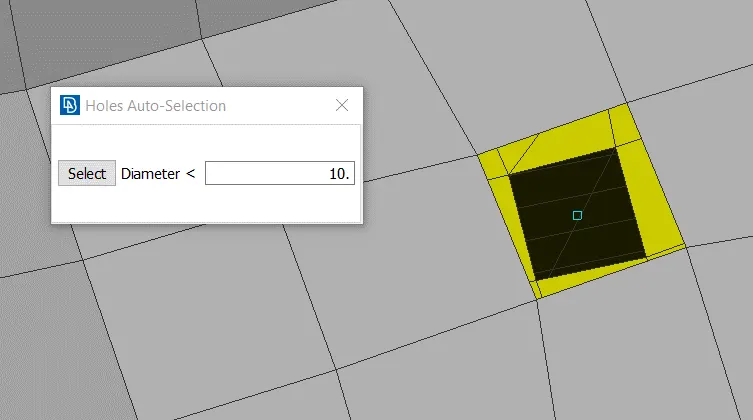
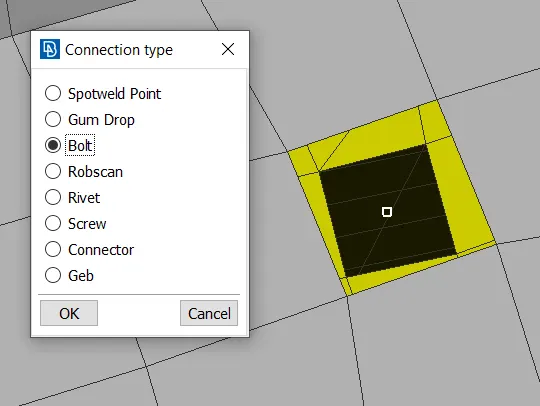
4. Go to the Convert option and select the type Bolt. After doing the convert option, the point is changed in accordance with the selection. It is shown in the figure below.
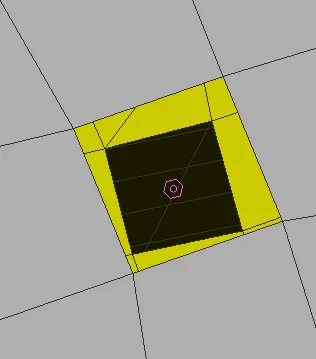
5.Now go to the connection option and select the bolt and hit the middle mouse button. The connection manager window would pop up.
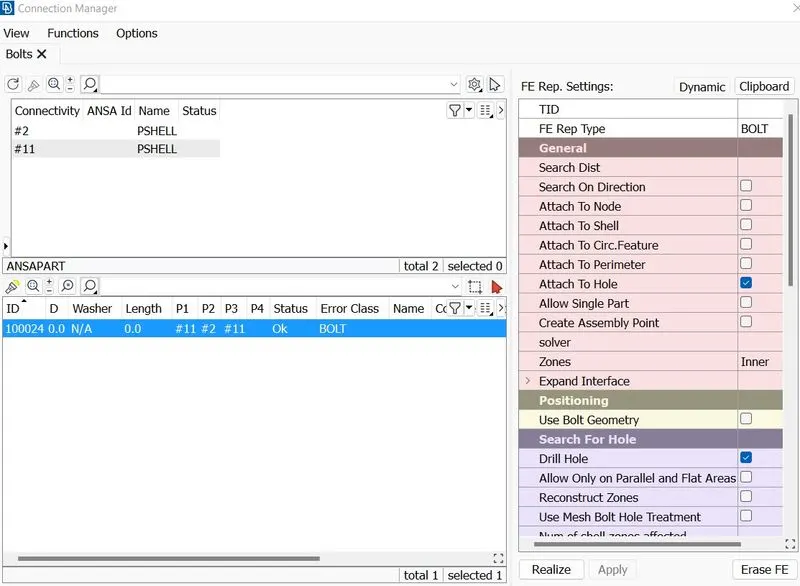
6. In the connection manager window, select the parts which are to be connected using the F1 option. Select FE Rep Type as BOLT and enter the properties as shown in the figure below
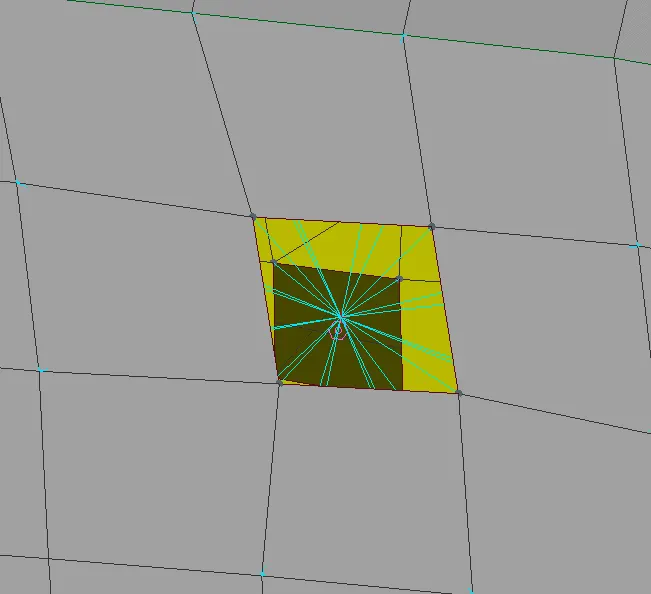
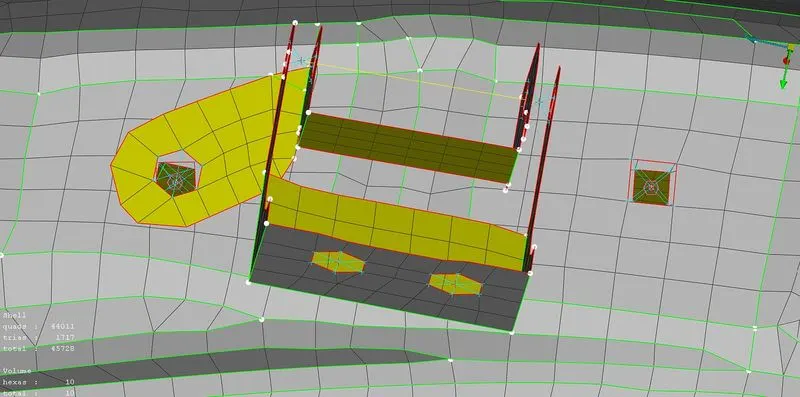
7. Now click on apply and realize. The realized bolt connections are shown in the figures below
For Spotweld Connection:
8. Go to Topo>>Points>>On the COG option. Select the edge and create a point
9. Go to the Convert option and select the type Spotweld Point. After doing the convert option, the point is changed in accordance with the selection.
10.Now go to the connection option and select the spotweld point and hit the middle mouse button. The connection manager window would pop up.'
11. In the connection manager window, select the parts which are to be connected using the F1 option. Select FE Rep Type as RBE3-HEXA-RBE3 and enter the properties as shown in the figure below. (Here the position of the weld is taken for illustration purpose and in actuality, the position might vary)
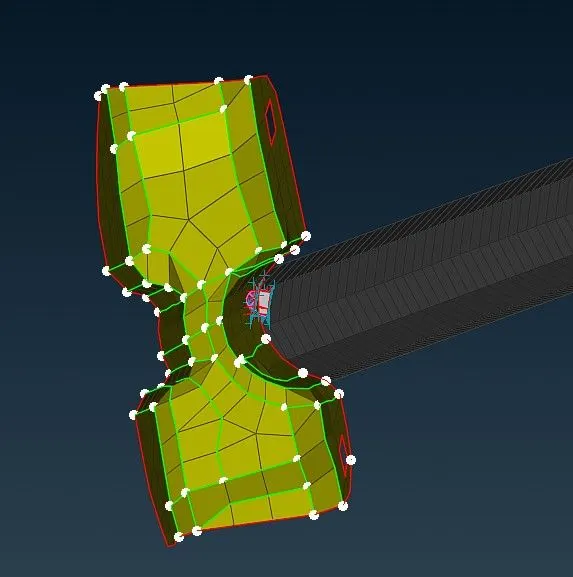
12.Create a PSOLID card for this connection and hit on apply and realize. The realized connections are shown in the figure below.
For RBE2 Connection:
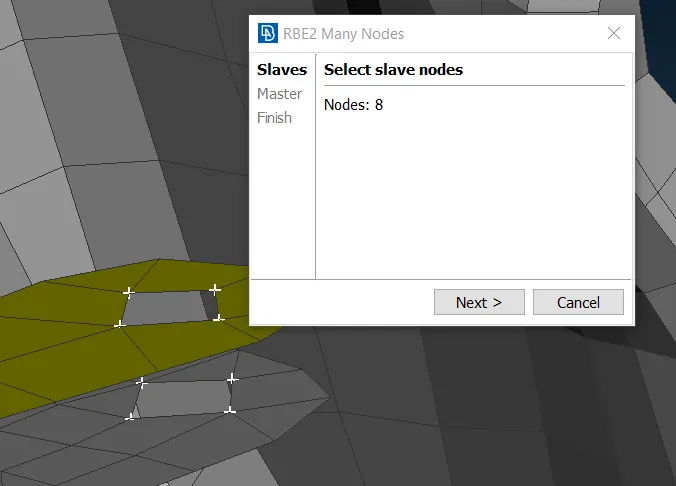
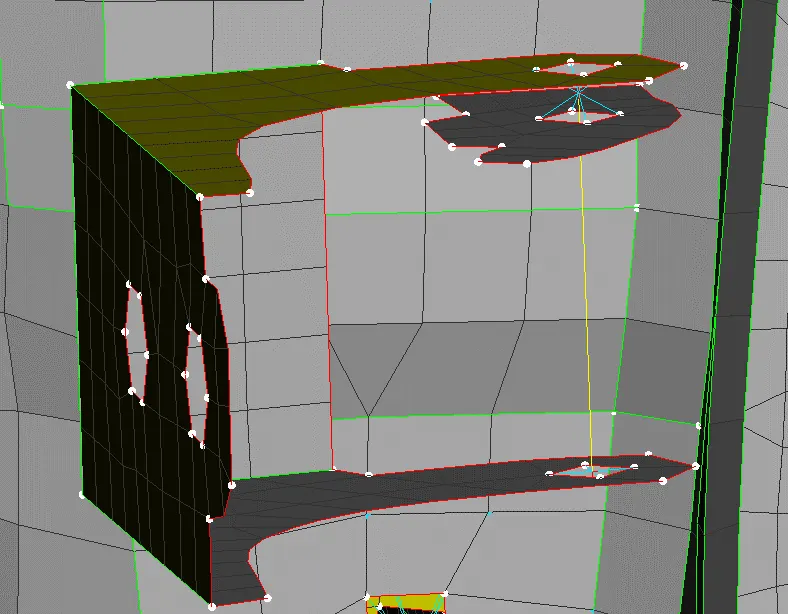
13. Go to NASTRAN Deck>>Elements>>RBE2>>Many Points>>Select the points to which RBE2 must be created. This is shown in the figure below. Here RBE2 is used for realizing hinge connection.
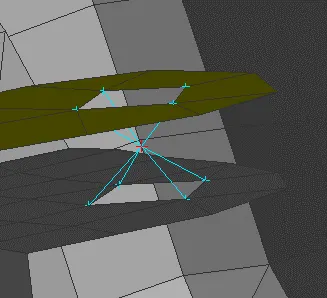
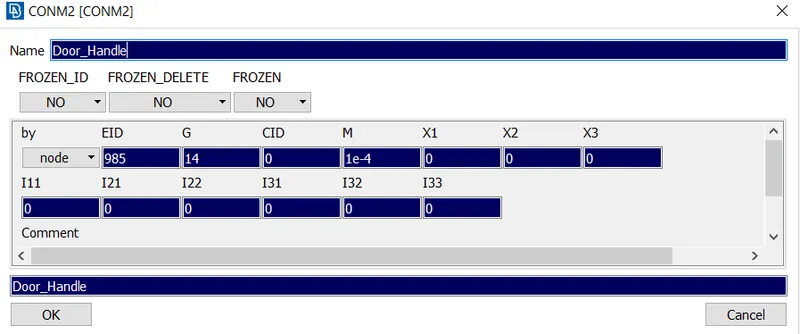
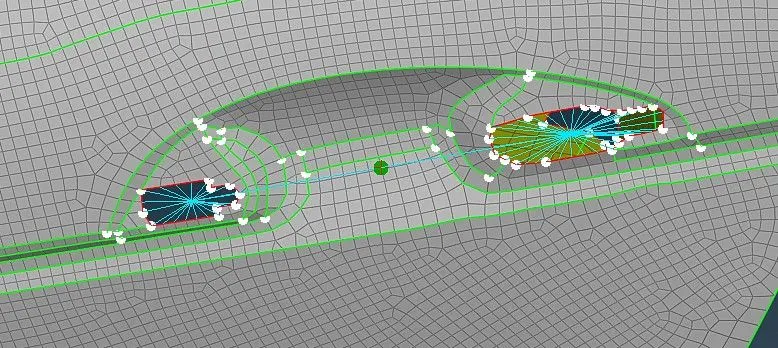
14. For the door handle, the rbe2 connection is established and point mass is added using the CONMi option present in the elements deck. Select CONM2 and pick the necessary node to add the masses. It is to be noted that mass has to be entered in tonnes. The realized connection is shown in the figure below.
For CBUSH Connection:
15. Go to Mesh>>Perimeters>>Feat2Curve option and select the edges to create a curve.
16. Now go to Convert>>Curves option and select the curve and convert it to Spotline.
17. Go to connection>>select the spotline>>Middle mouse>>Connection Manager.
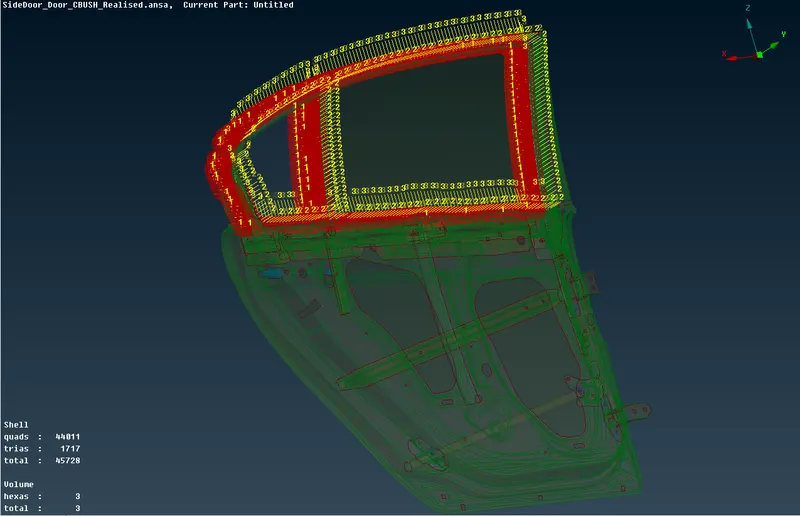
18. Select the parts to be connected using the F1 option. Set FE Rep Type as RBE3-CBUSH-RBE3 and enter the properties shown in the figure below.
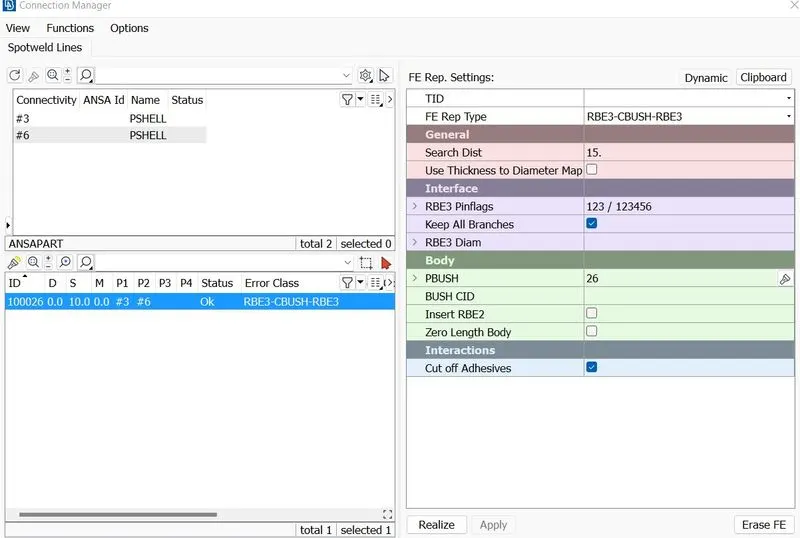
19. The realized connections are shown in the figure below.
LEARNING OUTCOME:
1. In this challenge, various connections like BOLT, Spotweld, and CBUSH are learned.
2. Learnt to assign PID for various parts present in the model.
3. Assigning of mass for the door handle is learned.
CONCLUSION:
The PIDs are assigned to the various parts in the given model. Various connections like BOLT, Spotweld, and CBUSH are created and realized. All the given objectives are satisfied.