Week- 5 - Solid meshing
AIM: - To do Solid meshing on given Rear-view mirror component model.
OBJECTIVE:
- To check the Geometrical errors and fix that error.
- To generate 2D mesh on surface of the components with the help of given Quality Criteria.
- To generate Volume mesh on the Component.
PROCEDURE/STEPS:
- Importing the CAD model
Command: File >> Open >> Rearview_mirror.IGS.ansa
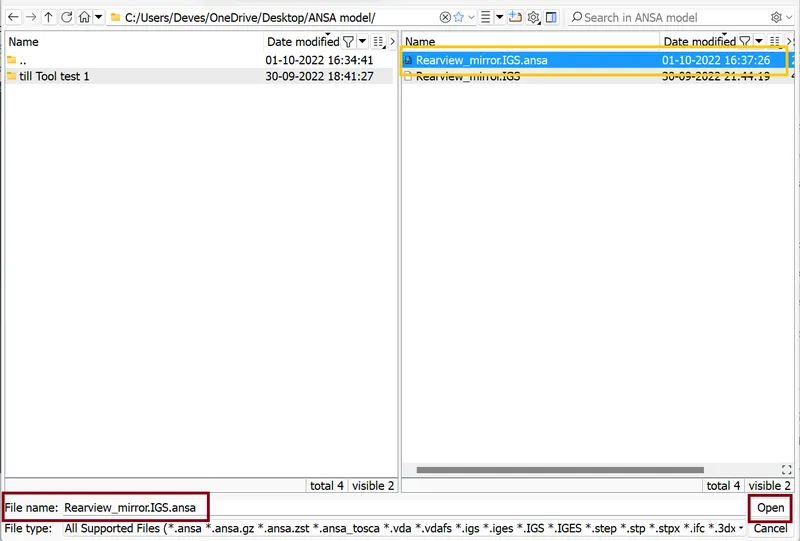
And this model will be imported into ANSA workspace.
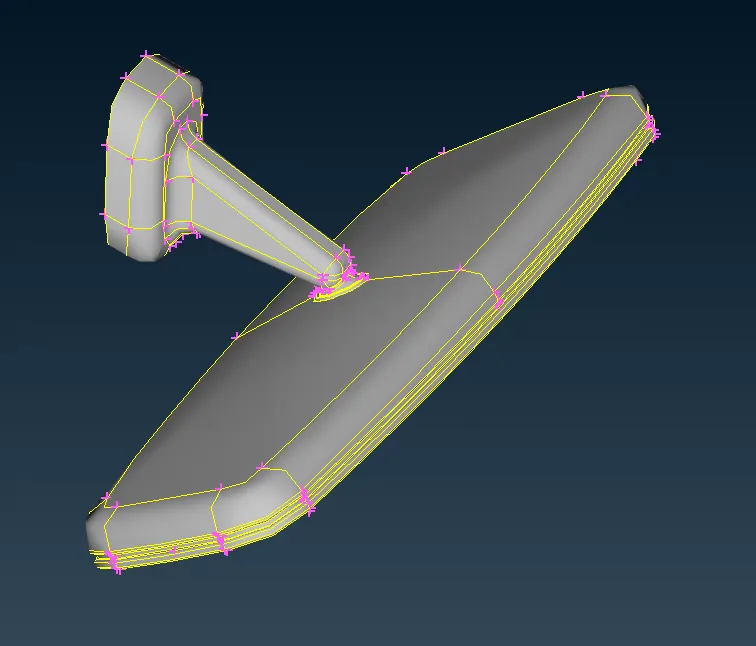
- Geometry Clean up
firstly, we visually analyse the geometry that What are the major and minor geometrical parts are present in this CAD model.
After that wo go to Geometry Clean up. whenever CAD model is imported into the ANSA, there might be several geometrical errors like intersecting surfaces, missing/distorted surfaces etc. due to the format conversion process or inherent bad model. And, it is important to clear all these errors before starting meshing. To ensure that all the surfaces are connected properly we use command Faces>>Topo is used for all the edges of each individual component at a time.
Command: Tools >> Checks >> Geometry >> Execute >> right click on errors >> fix
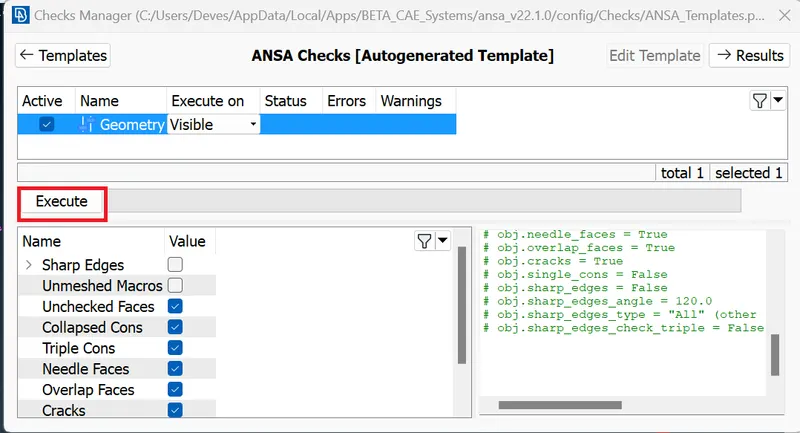
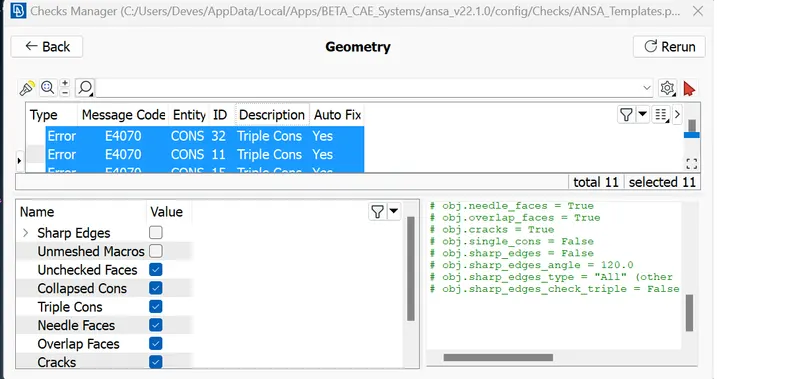
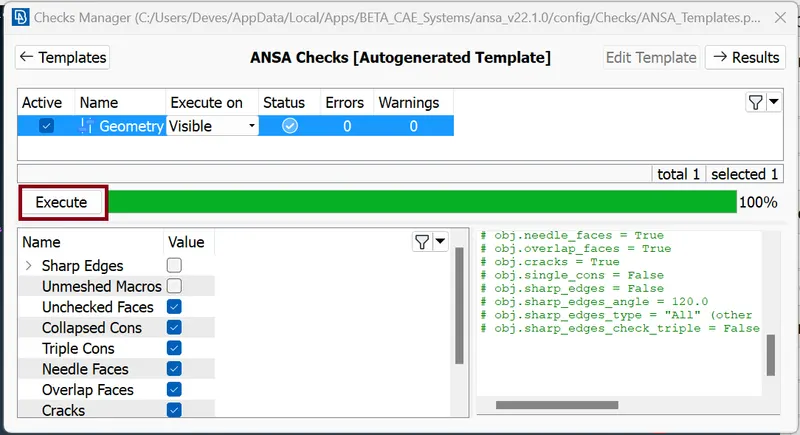
Most of the errors are fixed by right-clicking on the error. We fix two triple CONS error Manually.
- Setting Quality Parameters
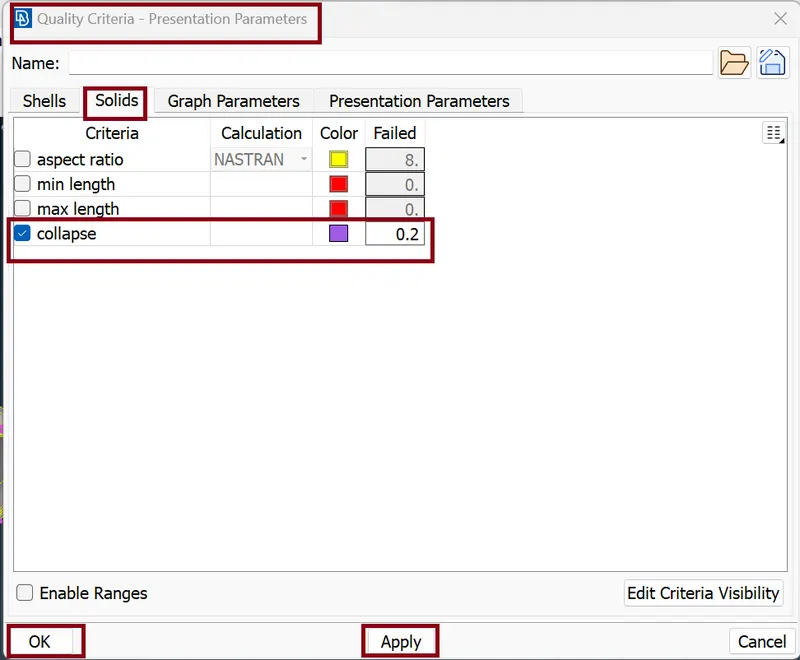
quality parameters are configured by using command: Utilities >> Quality Criteria
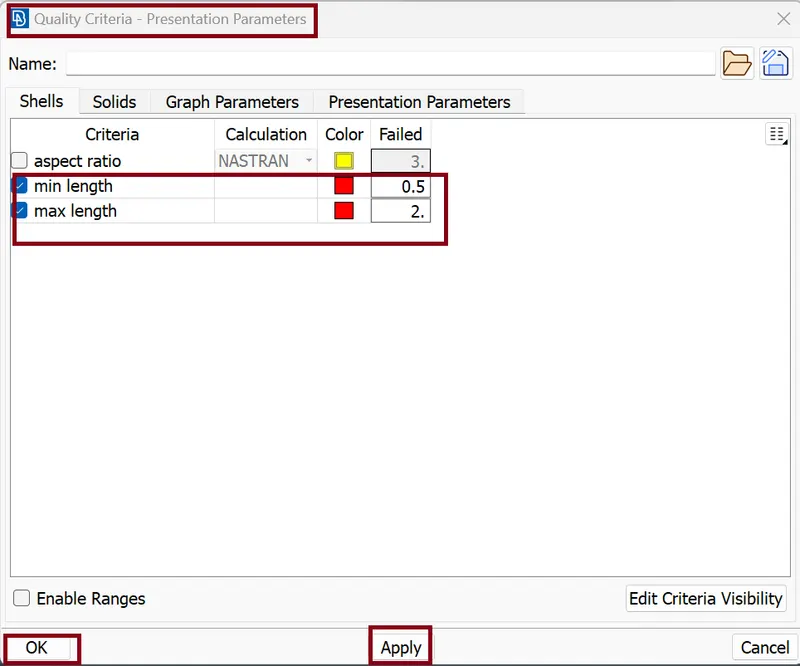
- After setting all given quality Criteria hit Apply and press OK.
- we set Detail on Demand effect at its lowest value point.
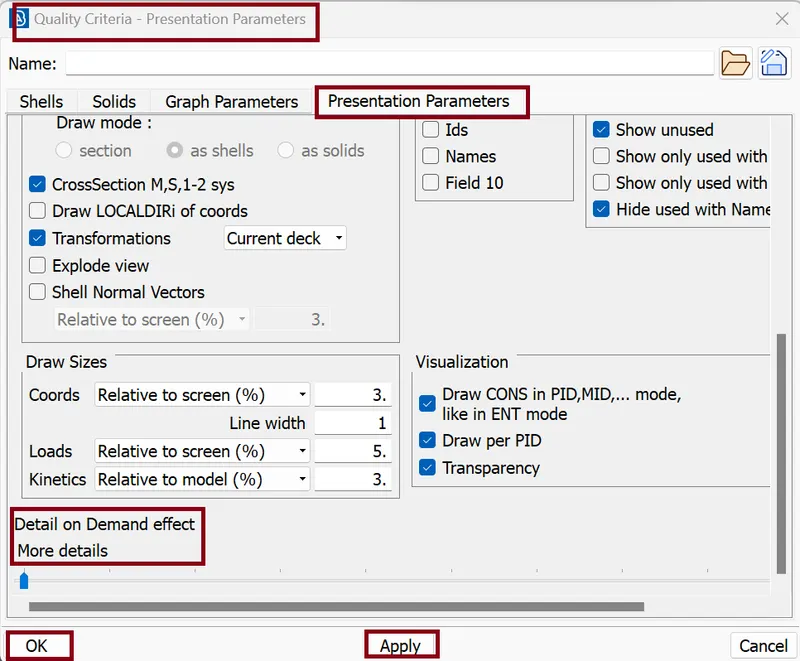
- After that we hit Apply and press OK.
- Next we open Utilities >> mesh parameters
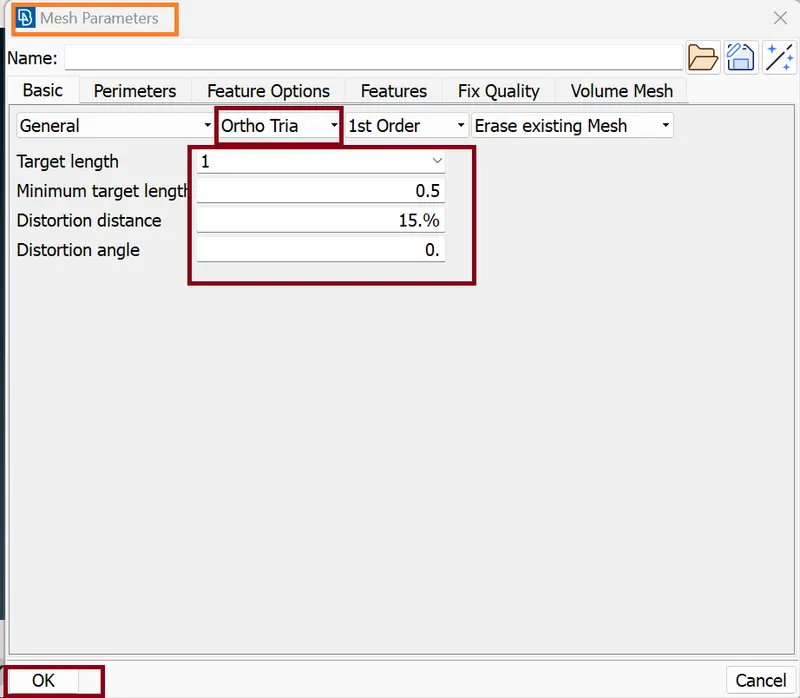
- Here we need to edit some parameters and we mention their appropriate values in red box.
- 2D MESH
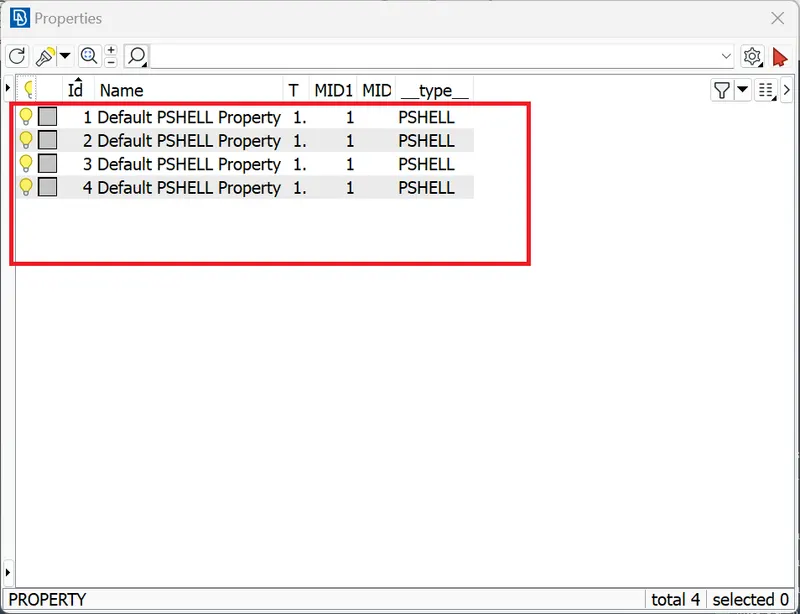
This model has 4 components based on the property. The four different components are shown below…
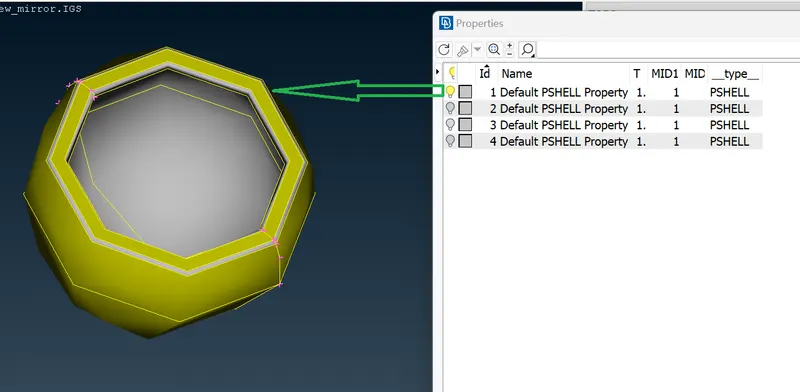
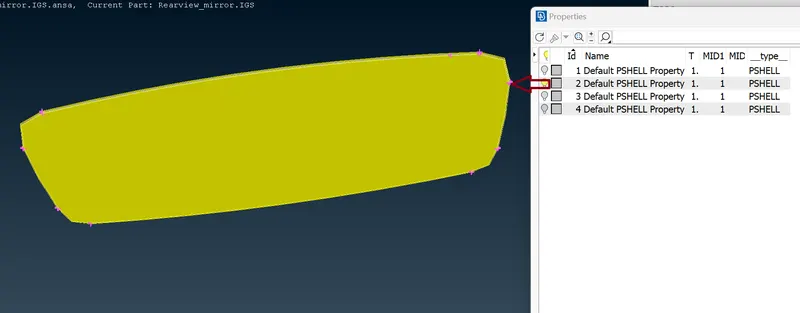
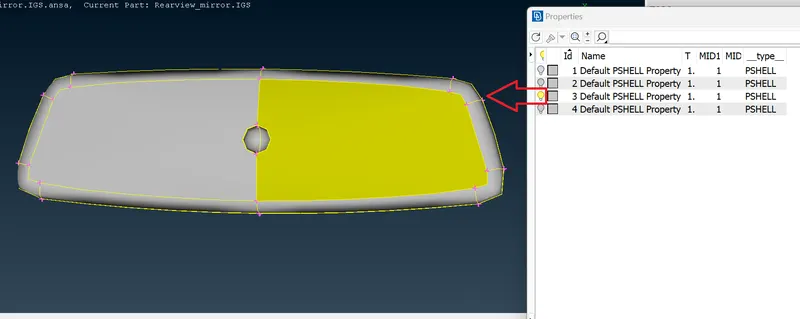
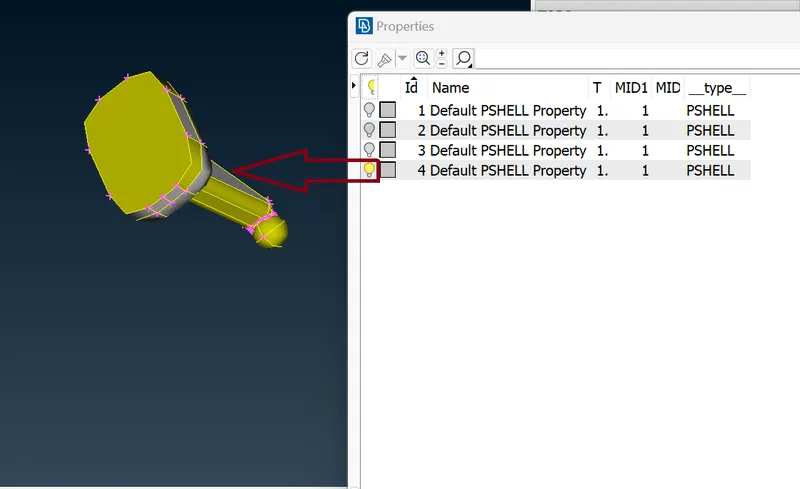
- Now we start meshing Command Classic mesh >> Mesh Generation > > Spot Mesh tool >> select >> select the faces >> middle mouse click for confirmation.
- We use Ortho tria for curved faces and tria for flat surface.
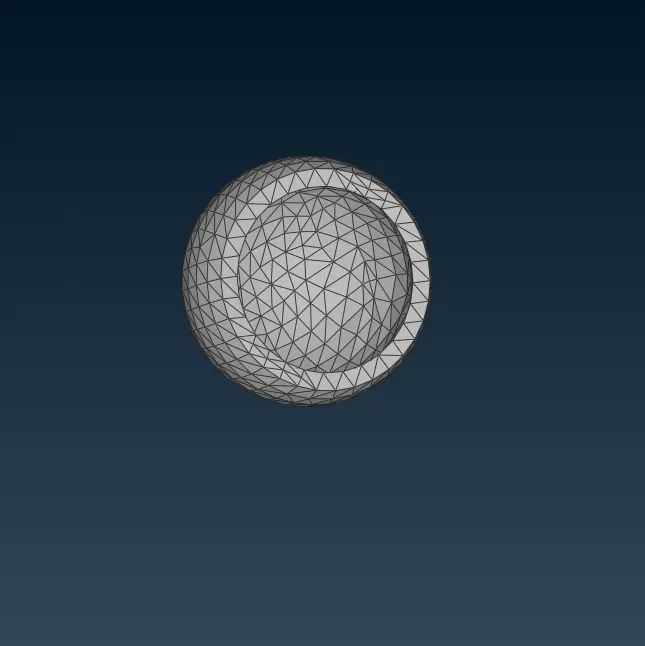
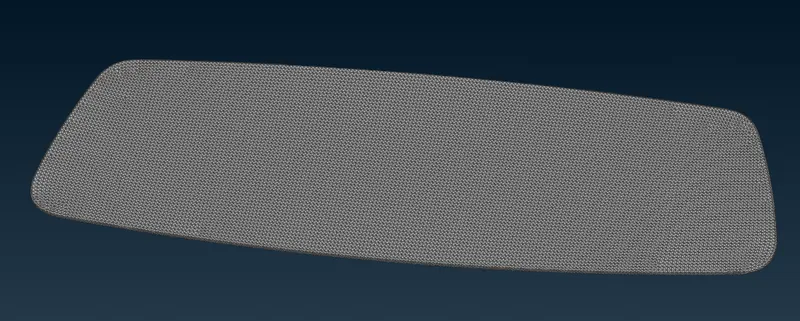
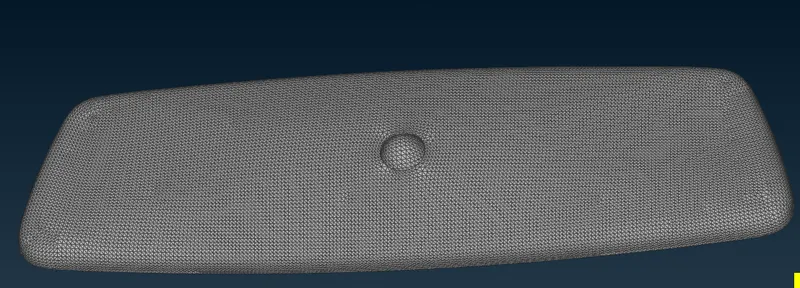
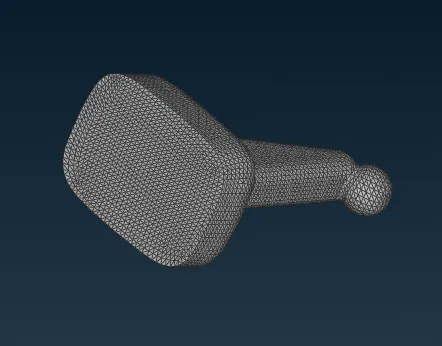
- Then the created mesh is refined by using Command: Shell Mesh >> Reconstruct, >> improve, >>smooth and >> reshape.
- 3D MESH ‘OR’ VOLUME MESH
we will provide the solid quality criteria as given in the problem statement.
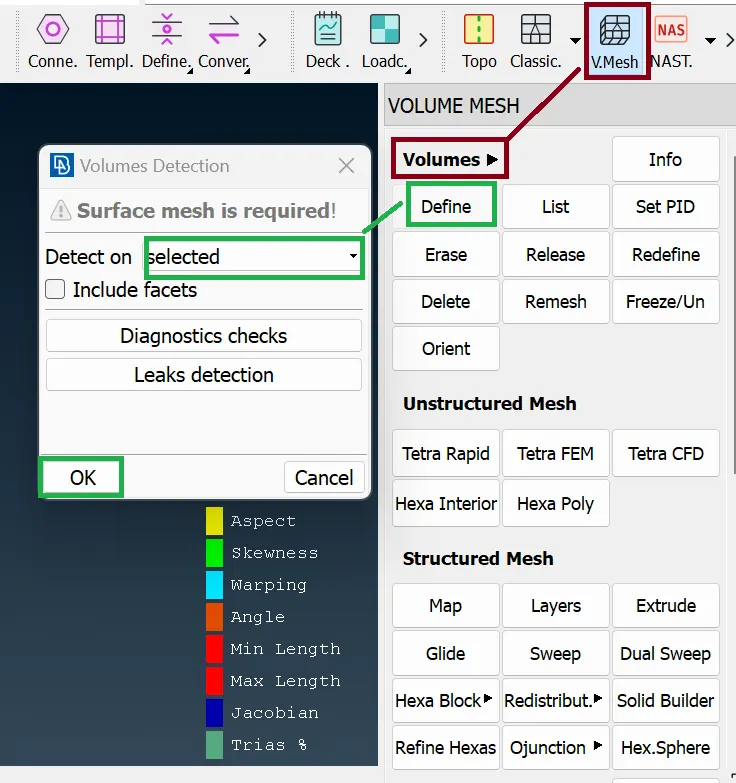
The Volume is defined by using Command: V.Mesh >> Volumes >> Define >> Selected >> Ok >> Window selection >> middle mouse click.
Next, we go to Volumes >> List >> Right click on the solid property >> click remesh (option and select the volume type as) >> tetra rapid to obtain the volume mesh.
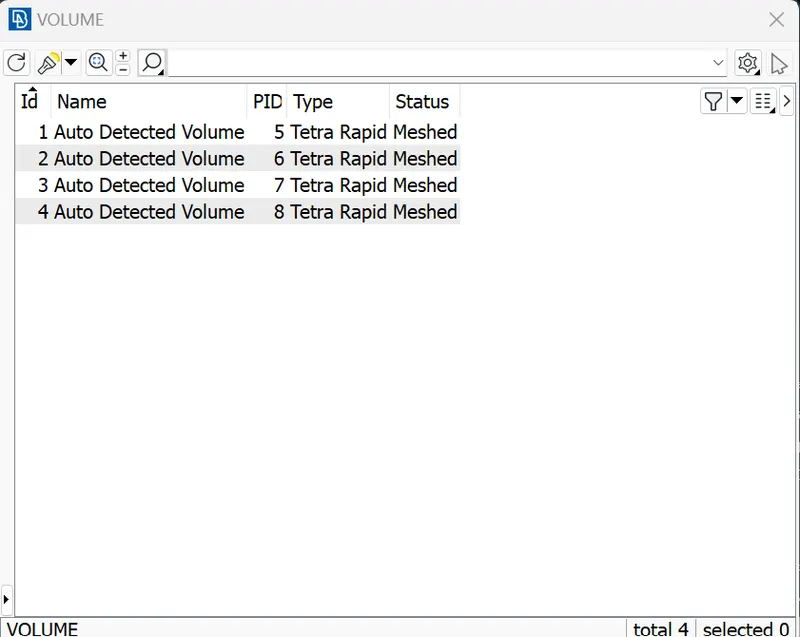
- Once it is done the status on the volume mesh list will show meshed.
- final model will look like the image as shown below.
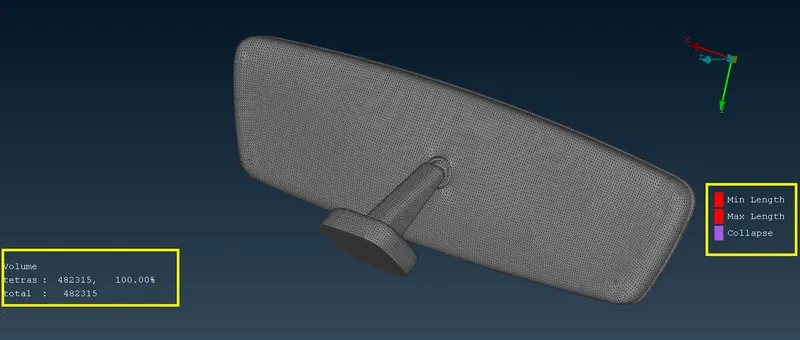
Final Result
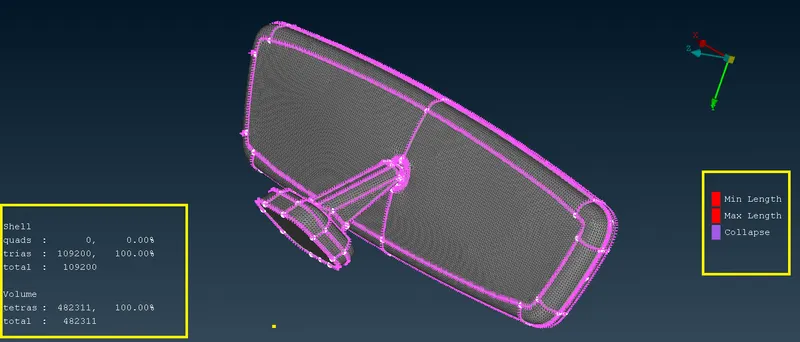
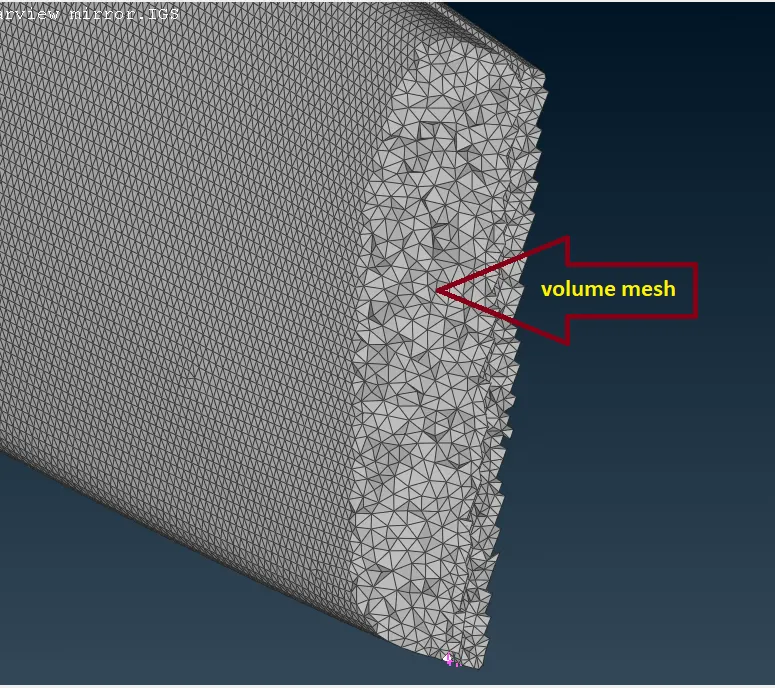
- For confirmation of Volume mesh, we cut the surface and view inside element.
LEARNING OUTCOMES:
- How to define the volume and apply volume meshing.
- How to mesh the given component using tria and ortho tria elements.
- How to clear errors such as kink, dip and tet collapse elements.
CONCLUSION:
Geometry clean-up, 2D meshing and volume meshing of the given Rearview mirror model were successfully done.
****************************************************************************************************************************************************************************************************************************************************************************************************************END