Week- 5 - Solid meshing
SOLID MESHING
Aim: For the given Rearview mirror component, check for the geometrical errors and mesh the Surfaces with the given 2D element Quality criteria and use tetra elements to mesh the Volumes defined in the model and check for the given quality after Volume meshing.
Procedure:
For generating Tetra Mesh below steps are followed
- Geometry Check and Cleanup
- 2D-mesh on the surface
- Defining Volume
- Generating Volume mesh
- Quality check of volume elements
1. Geometry cleanup and Geometry check: Analyze the geometry and check the no. of components present in it. And check for any geometrical errors like single cons, sharp edges, unchecked surfaces, etc. We can do defeaturing if any small lengths or small fillets are available in the geometry. There are four components present in the CAD model.
- Support handle
- Spherical attachment
- Mirror cover
- Mirror
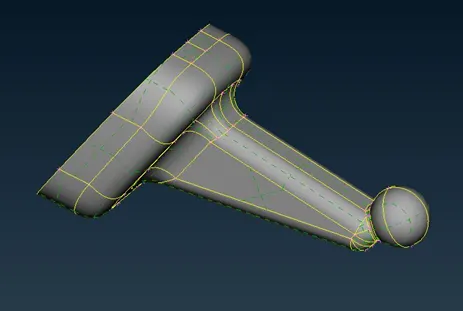
Fig 1: Support Handle
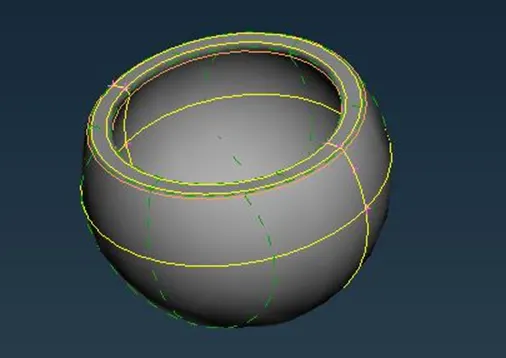
Fig 2: Spherical Attachment
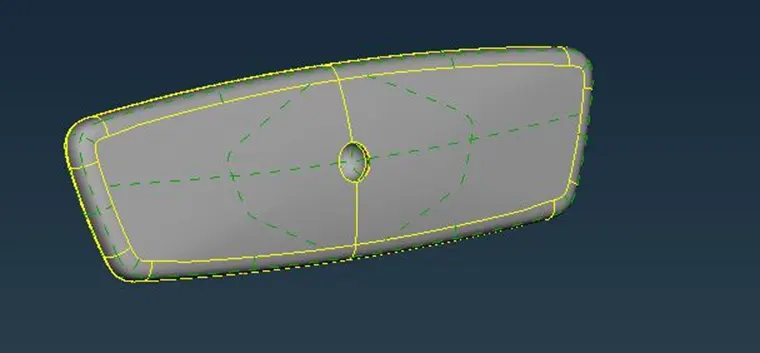
Fig 3: Mirror Cover
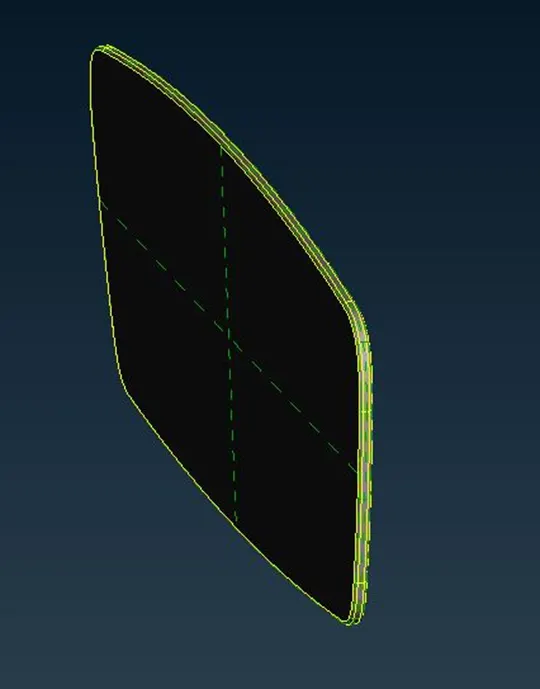
Fig 4: Mirror
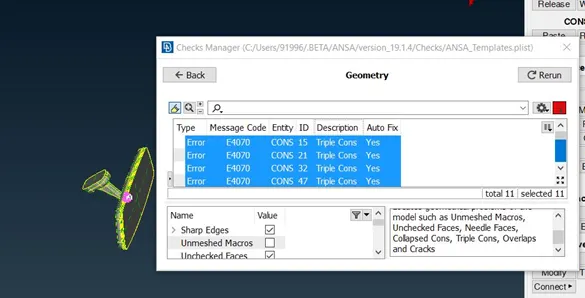
Fig 5: Before clearing geometry errors
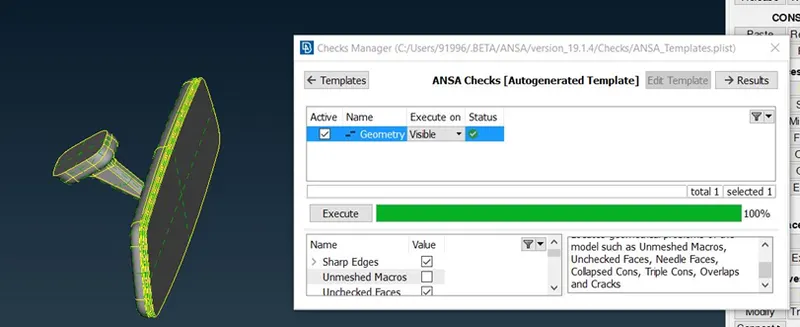
Fig 6: Geometry checks after cleanup
2. 2D-mesh on the surface:
Before doing mesh, give mesh parameters and Quality Criteria. For Tetra mesh only min and max length are only checked.
|
S.No |
Mesh parameters |
Value |
|
1 |
Average length |
1 |
|
2 |
Minimum Length |
0.5 |
|
3 |
Maximum Length |
2 |
|
S.No |
Quality Criteria |
Value |
|
1 |
Target/Average length |
1 |
|
2 |
Minimum Length |
0.5 |
|
3 |
Maximum Length |
2 |
There are many options to deploy tria mesh on the surface in ANSA like Best algorithm, spot mesh algorithm, etc. Here I have used Spot mesh ortho tria and tria mesh on all the surfaces. For curvy surfaces I have used Spot ortho tria mesh to capture the surface nicely. For flat surfaces, I have used Spot tria mesh. For spot tria mesh no. of elements formed are less than ortho tria mesh, that’s why we use, tria mesh for flat surfaces. Check for min and max length criteria. Select the surrounding surfaces also to better flow of mesh when we are using Reconstruct option.
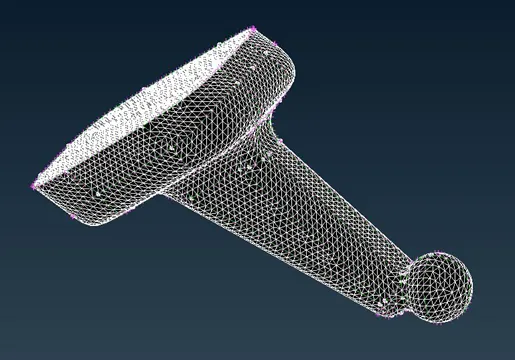
Fig 7: Surface mesh on support handle
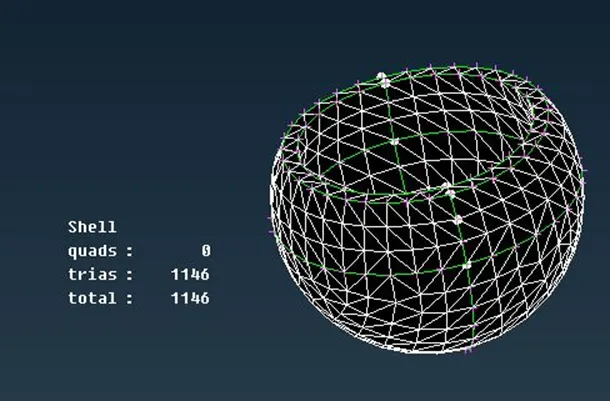
Fig 8: Surface mesh on spherical attachment
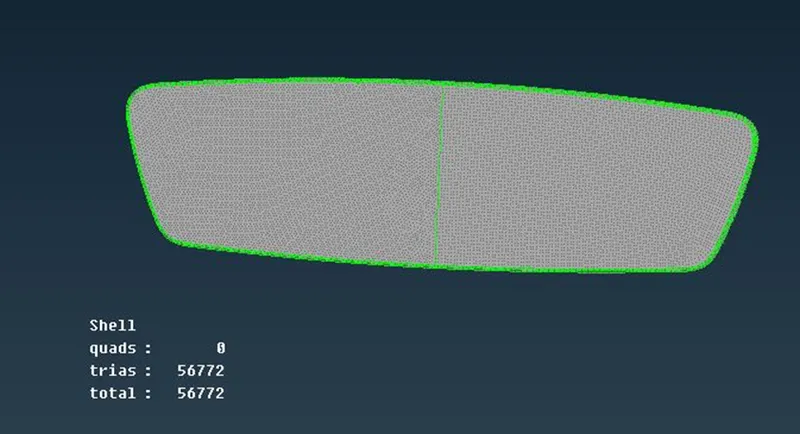
Fig 9: Surface mesh on Mirror cover
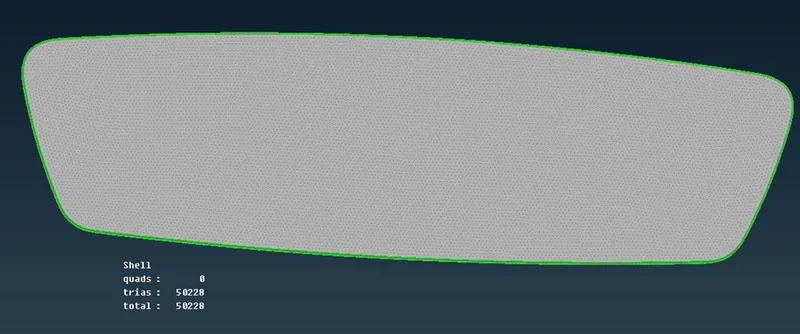
Fig 10: Surface mesh on mirror
3. Defining Volume:
We have 4 parts in the model. So, we have to create four volumes for Tet element generation. For that, Volume mesh> Define> manual> box selection of the whole part. You can give name and PID for that.
4. Generating Volume mesh:
In this step, we generate Tetra elements in the volume that we created in the before step. The surface mesh is mapped on both sides and in the volume it doesn’t follow any structure. Go for, Volume mesh> lists> select the volume and right click> Remesh> Tet Rapid or Tet FEM algorithm. One more method is, you can directly go to unstructured mesh, select Tet Rapid, or Tet FEM algorithm, and select the volume. Both ways you can generate Tet elements in the volume.
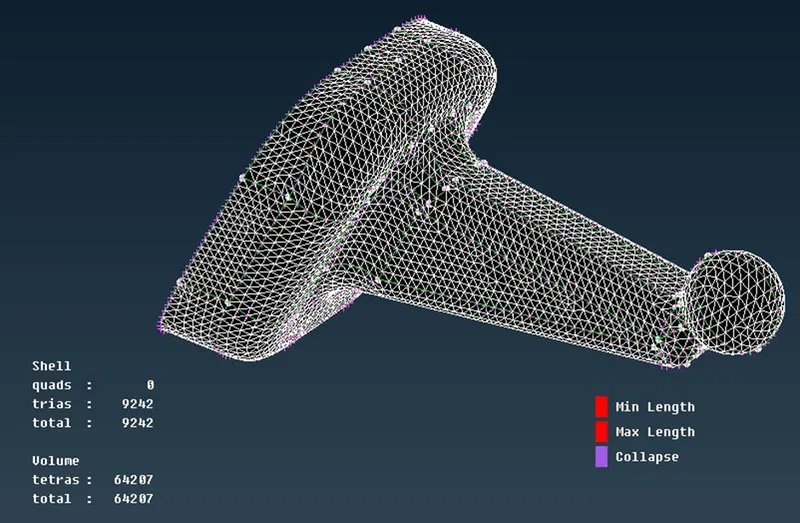
Fig 11: Volume mesh of Support handle
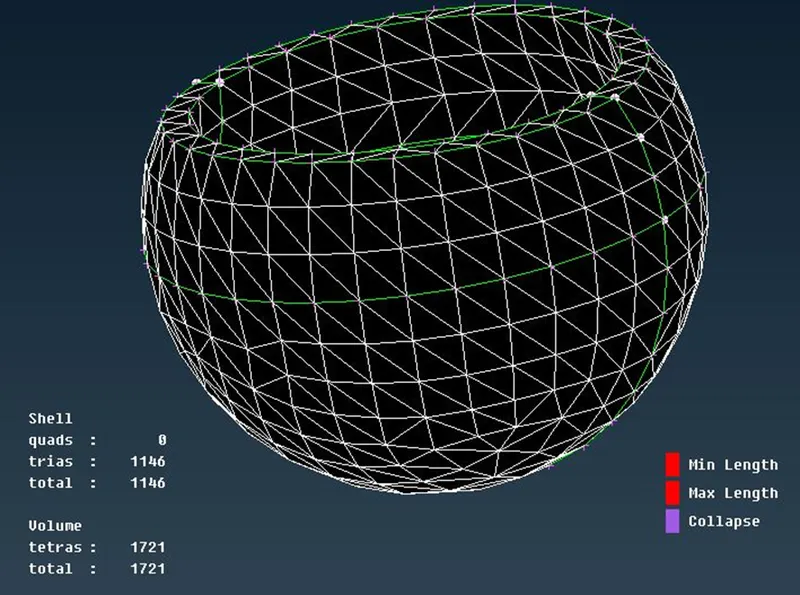
Fig 12: Volume mesh of Spherical attachment
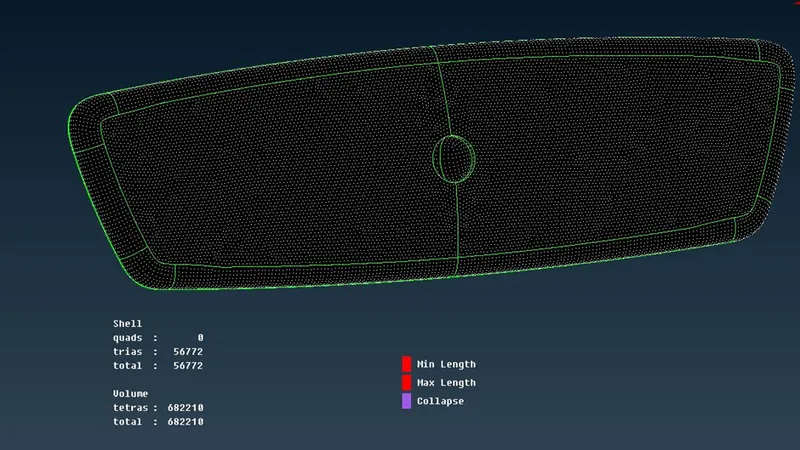
Fig 13: Volume mesh of Mirror cover
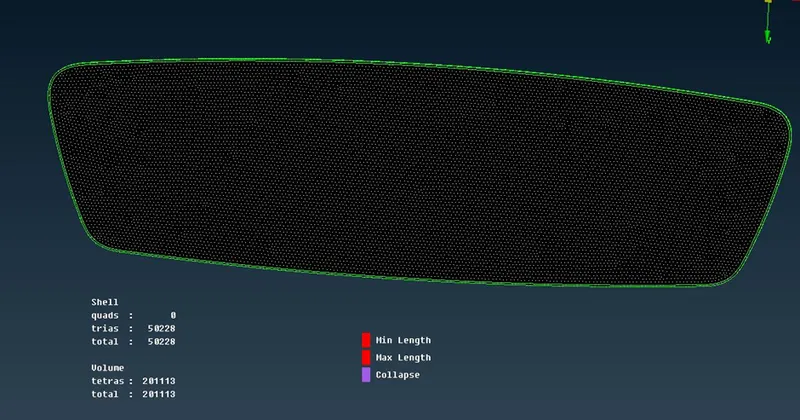
Fig 14: Volume mesh of Mirror
5. Quality Check of Volume elements:
After Tet element generation, go for the Quality check of Tet elements. For Volume mesh, only one element criteria is checked which is Tet collapse. Here we are giving Tet collapse as 0.2. It basically represents the height of the Tet element. For 0.2 Tet collapse, no elements are failing for the tet collapse criteria. So I didn’t use the movement of nodes using the MV Free option. Go for, solid elements in quality criteria, and give Tet collapse as 0.2. Tet Elements are failed only if the value is less than 0.2. The ideal value for the Tet element is 1. That is all equilateral triangles.
|
S.No |
Quality Criteria |
Value |
|
1 |
Tet collapse |
0.2 |
Learning Outcomes:
- Learned creating mesh using spot mesh algorithm
- Learned creating Tet Element generation.
Result:
Tetra mesh is obtained on all the components. And no off elements present.
Total no. of Tetra Elements: 949251
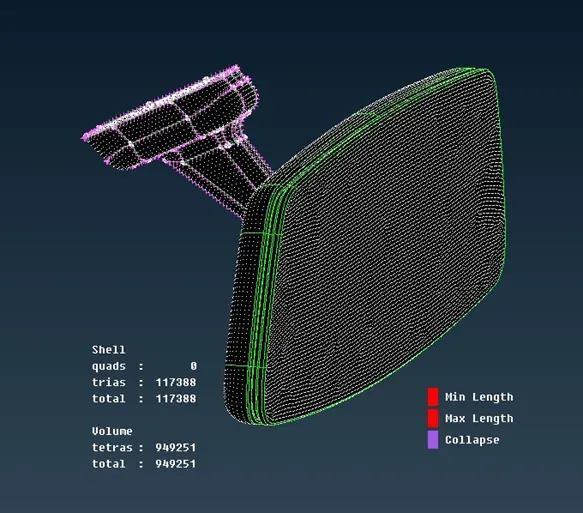
Fig 15: After completion of Volume mesh on all components