Week - 5 - Checking and correcting the Normals
Aim:
To create a code to display normals for the elements
Objective:
To create a widget containing two buttons "reverse normals" and "normal off"
To check the null case
Code:
*clearmarkall 1
*setnormalsdisplaytype 1
*createmark elements 1 "displayed"
*normalsdisplay elements 1


set a .window
catch {destroy $a}
toplevel $a -class TopLevel

wm title $a "Normals"
wm geometry $a 400x150+100+50; update
wm resizable $a 1 0
wm deiconify $a

button $a.01 -text "normals off" -command {normal} -bg white -font {times 10};		place $a.01 -x 0 -y 0 -width 400 -height 30
button $a.02 -text "reverse normals" -command {reverse} -bg white -font {times 10};		place $a.02 -x 0 -y 40 -width 400 -height 30
button $a.03 -text "Adjust" -command {adjust} -bg white -font {times 10};				place $a.03 -x 0 -y 80 -width 400 -height 30

proc normal {} {
*createmark elements 1 "displayed"
*normalsoff
}
proc reverse {} {
*createmarkpanel elements 1 "select the elements for reverse the normal"
set i [hm_marklength elements 1]
if {$i !=0} {
*normalsreverse elements 1
*createmark elements 1 "displayed"
*normalsdisplay elements 1
}
}
proc adjust {} {
*normalsadjust2 elements 1 0 0 0 0 0 50
}
Procedure and code explanation:
First we have to create a code to display normals.
Open notepad++ and create a normal.tcl file
*setnormalsdisplaytype 1 sets the display type of normals as colour mode and *createmark elements 1 "displayed" is the command that is used to creates a mark that containing all the displayed elements. *normalsdisplay elements 1 begins normal display.
set a .window is the command. .window is the window name or path by which it will be referred saved in.
catch {destroy $a} is the command where catch is used to hide errors and destroy is used to close any previously existing window by same name.
toplevel $a -class TopLevel is the command that builds the window.
wm title $a "Normals" is the command that is used to create title of the window.
wm geometry $a 200x100+100+50 is the command that is used to create dimension of the window. 200x300 is width and height of the window. +100+50 is the origin of the hypermesh window where the windoe shoud be placed.
wm resizable $a 0 0 is the command that is used to fix the window means we can not resize the window by dragging. If you put 1 0, you can drag or resize the window on x axix, if you put 0 1, you can drag or resize it on y axix and if you put 1 1, you can drag and resize on both axis.
wm deiconify $a is the command that is used to make the window as active window.
We have to create two buttons for 'reverse normal' and 'normal off'. The syntax for create button is button $windowpath -text "text" -command {something}; place $windowpath -x value -y value -width value - height value. $a.01 and $a.02 is the windowpath, "reverse normal" and "normal off" is the text, {*normalsoff} is the command and also create one more button for adjust normals.
These buttons are used to reverse normals, adjust normals and off the normals.
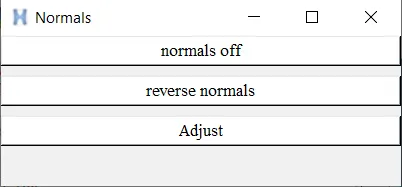
*createmarkpanel elements 1 "select the elements for reverse the normal" is the command that is used to select the elements to reverse normals. set i [hm_marklength elements 1] is the command that stores the selected into a variable 'i'.
$i !=0 is null case if the selected elements is 0, it will not execute. If we select the some elements it will be execute. It will not show you an error. If the null case is not used, it will show you an error.
Output:
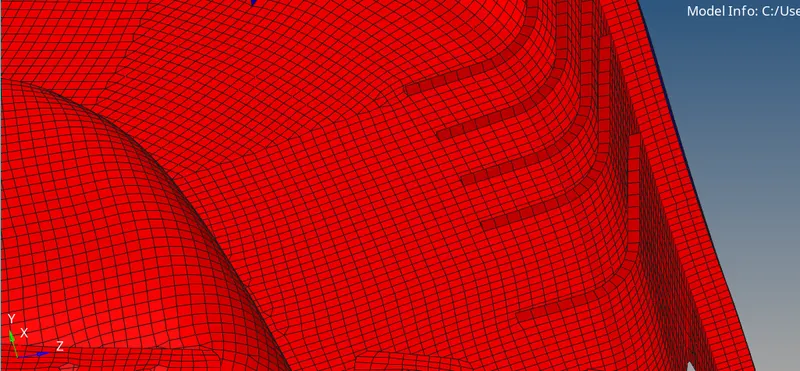
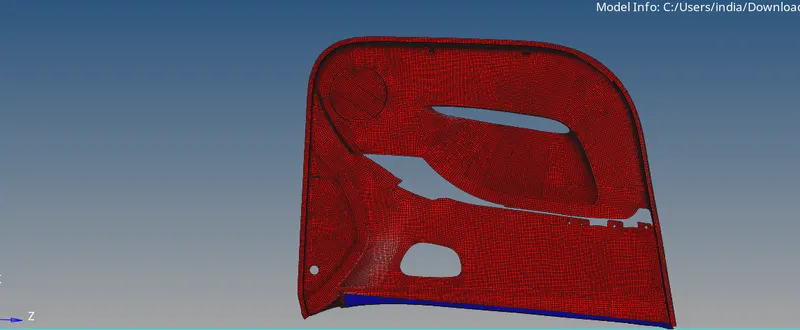
Before displayed the normals:
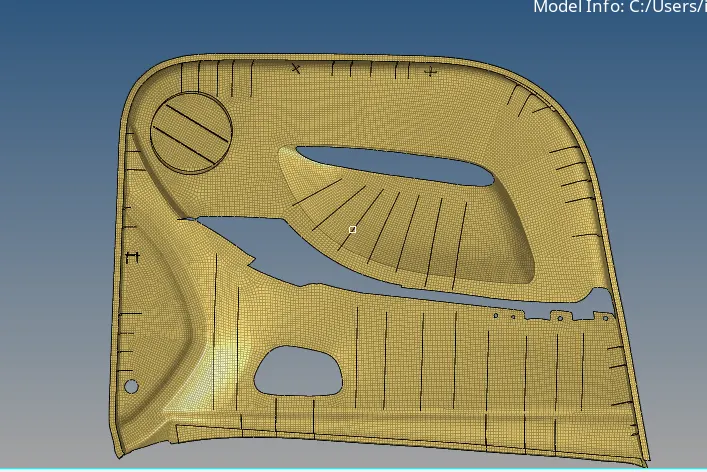
After dispalyed the normals:
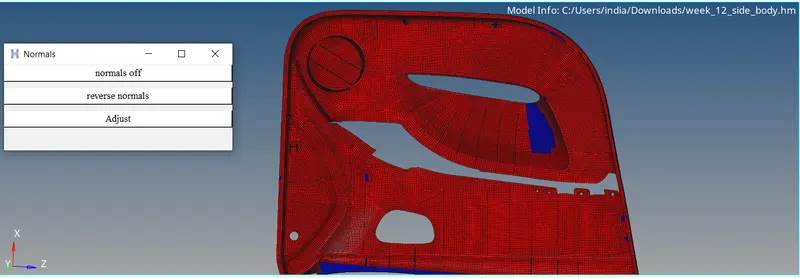
When you click reverse normal button, the element panel will open as shown in the above image and now you can select the elements to change normals'.
Before reversing the normals:
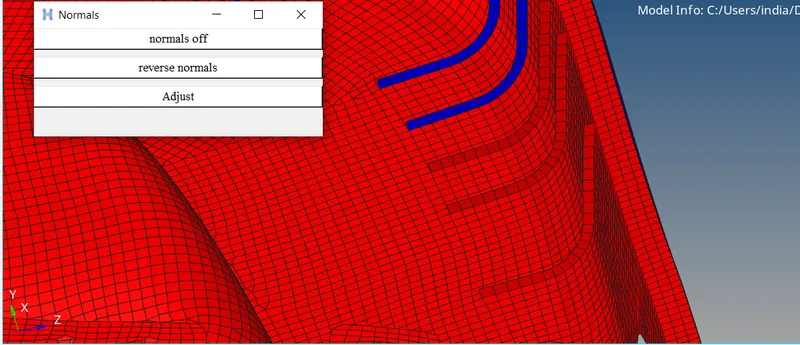
After reversing the normals:
Conclusion:
Created a code to change normals and aslo created widget for reverse normal and normals off. Also checked the null case. The code was sucessfully created.