Week 5 Challenge : Surface wrap on Automotive Assembly
Aim:
To Surface wrap the given 3 geometry after cleaning unwanted surface and merging the 3 into single geometry.
Procedure:
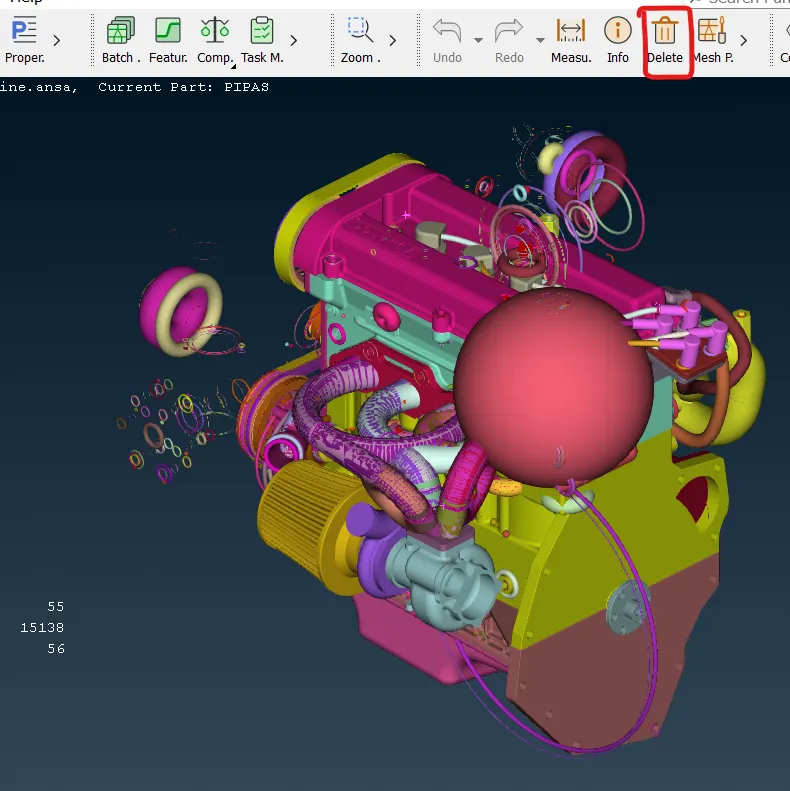
1) Open any given model, start with cleaning the geometry by deleting the unwanted surfaces and overlapping surfaces using delete option.
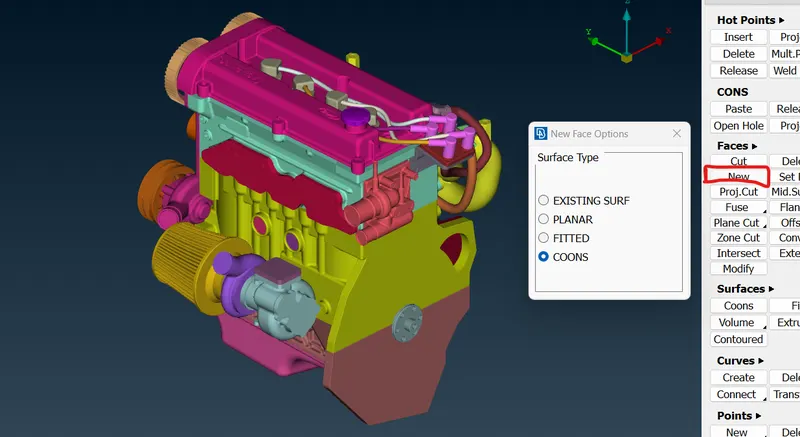
2) Fill all the holes and open region using Fcae>New under topo module to gat the model as clean as shown below.
3) Once all the model is cleaned open other 2 model and follow the same procedure and clean the geometry as shown below.
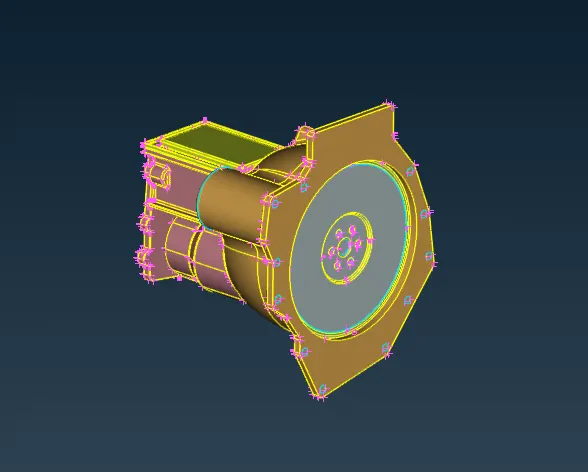
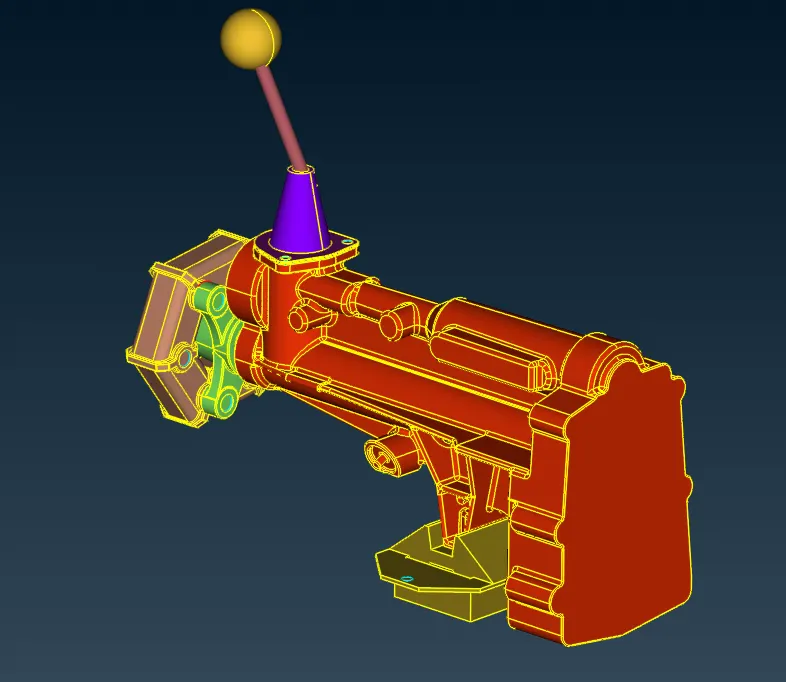
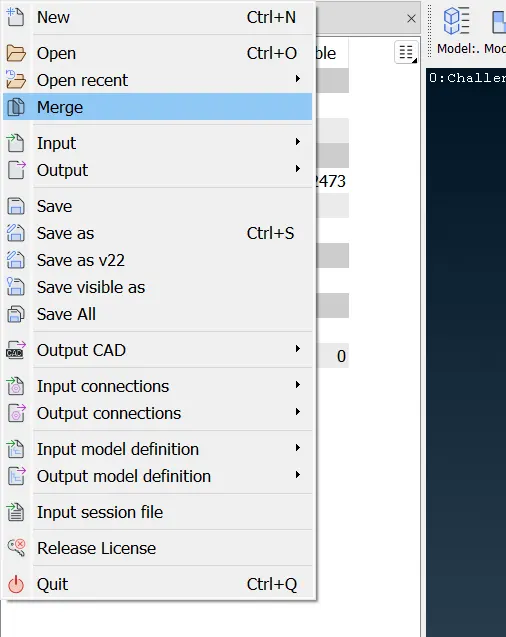
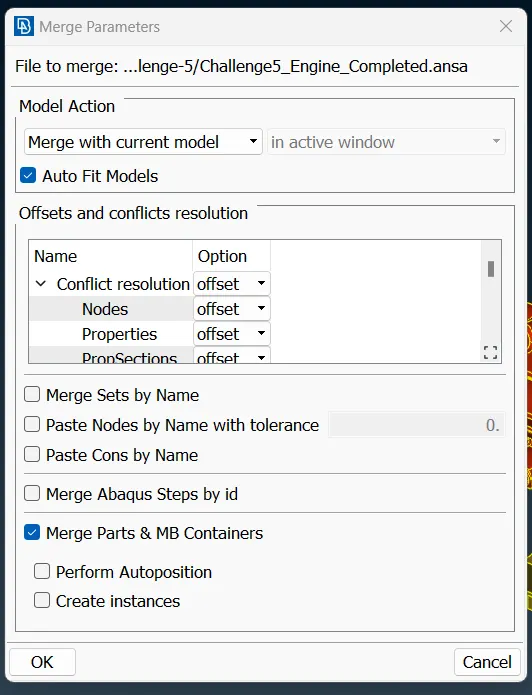
4) Once cleaning all the geometry merge files using File>merge and open respective geometry from any base geometry, Under merge parameter enter fields as shown below and click OK.
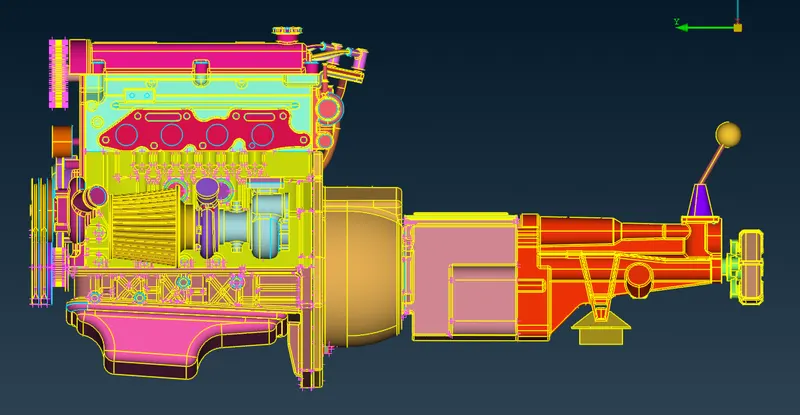
5) The final merged model will look something like below.
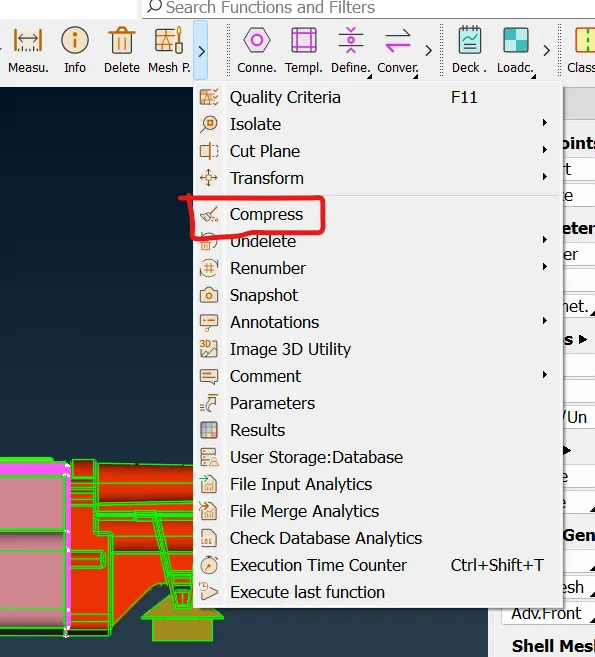
6) Go to compress option and clear all unnecessary PID's.
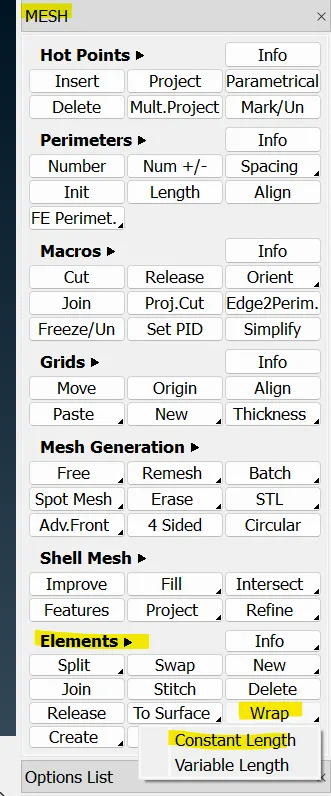
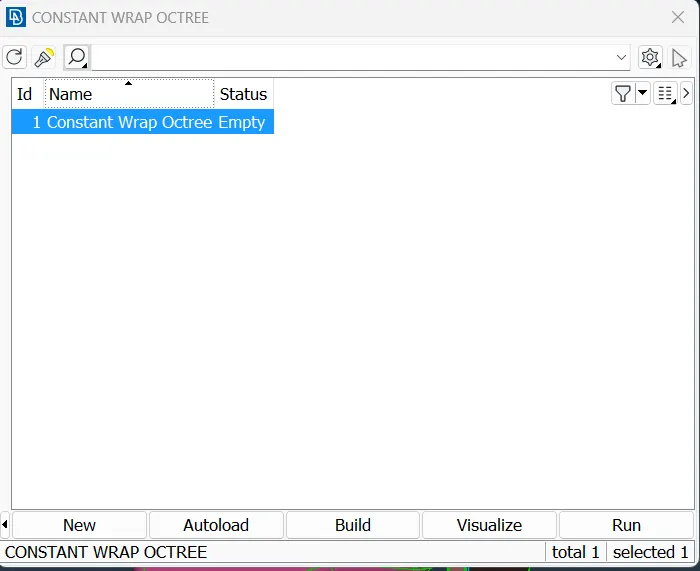
7) After merging, process with surface wraping, under mesh element>wrap>constant length, constant wrap octree will open in that double click on empty and in the new window double click untitled.
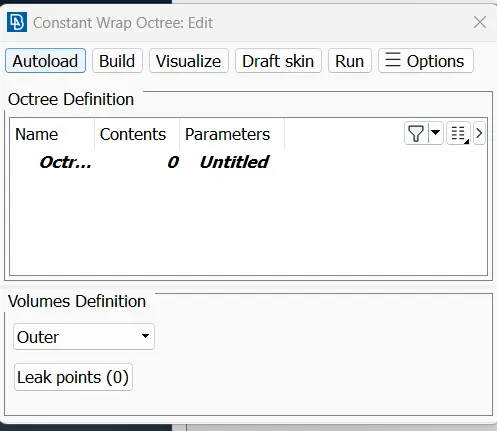
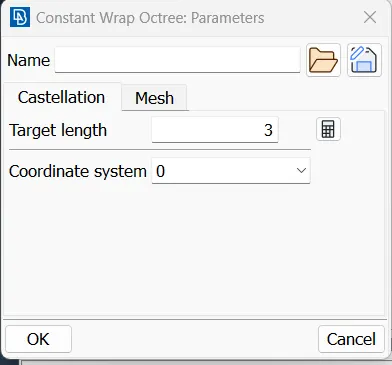
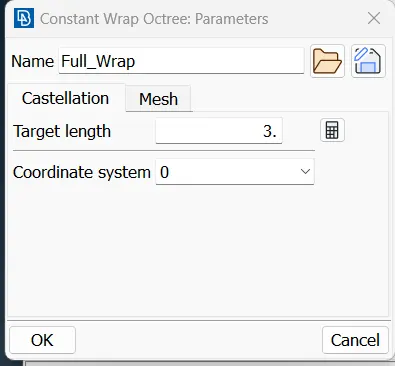
8) The above will lead to Parameter window in that enter the target length as 3, and under mesh tab select details as shown below and click OK.
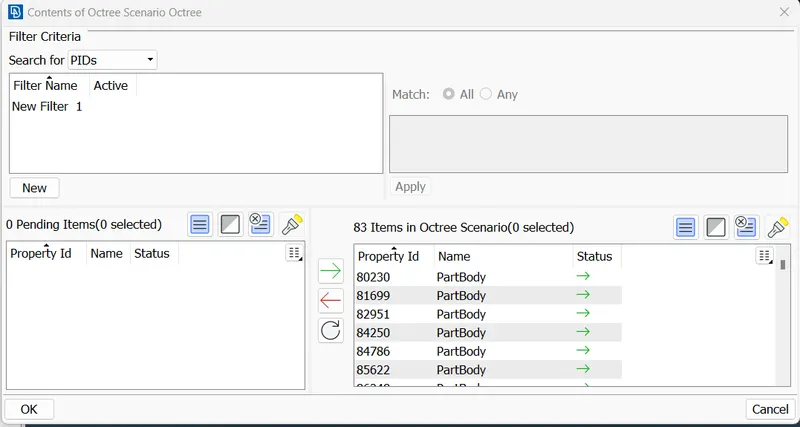
9) Double click on 0 on constant wrap octree: Edit window and in the scenario octree window under search for select PIDs and select all the PIDs from left column to right column by hitting green arrow and click OK.
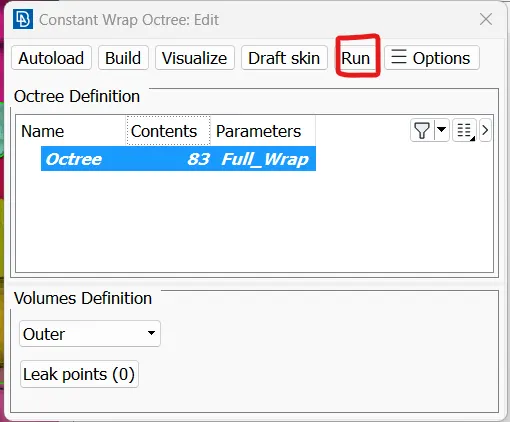
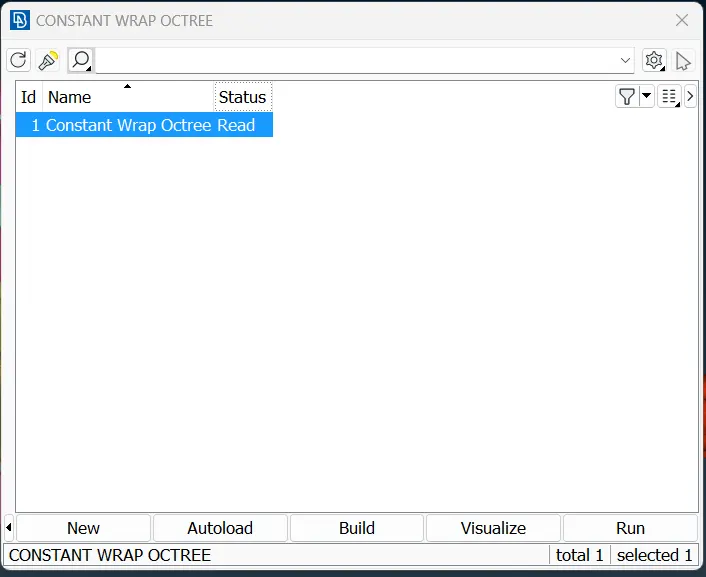
10) The Octree: Edit window will show something like below, in that hit run to start surface wrap, this will finish the surface wrap.
Result:
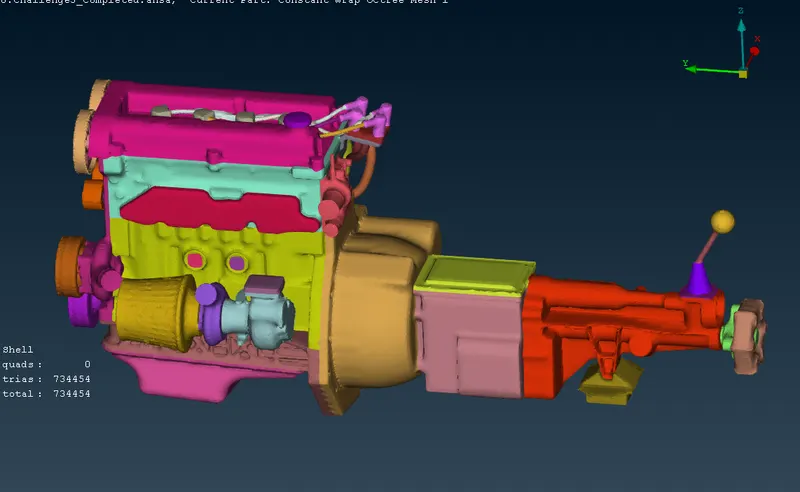
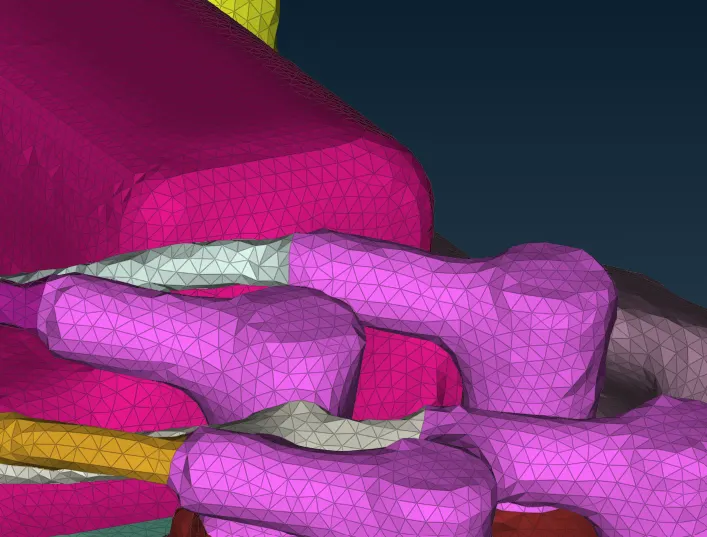
The total element created on the surface wrap is around 734454 and will appear as like below, based on the mesh size, the quality of mesh on each surface may vary.
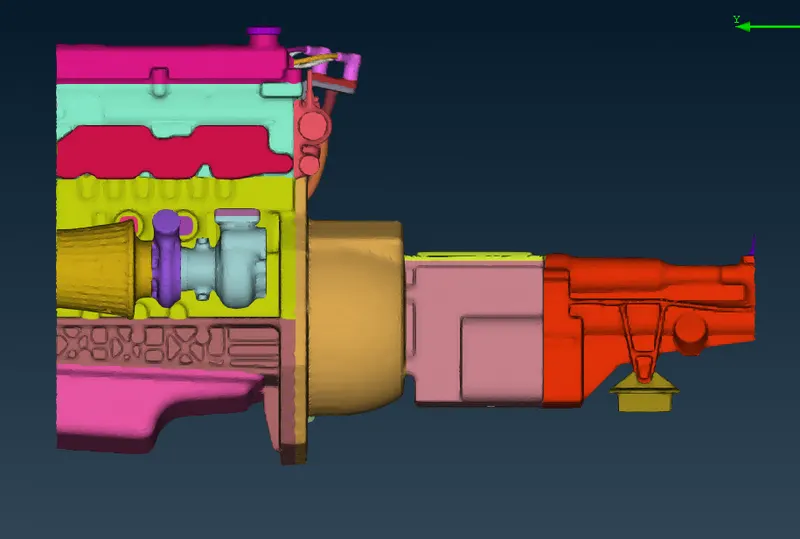
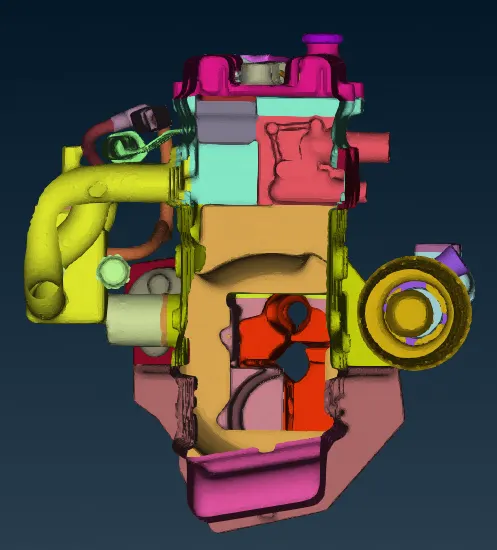
Inorder to check any internal leak or interal wrap in the model due to improper merge or cleaning, hide front and back elements and check for through hole in the surface wrap elements.
Note: Attached model for reference.