Week 5 Challenge
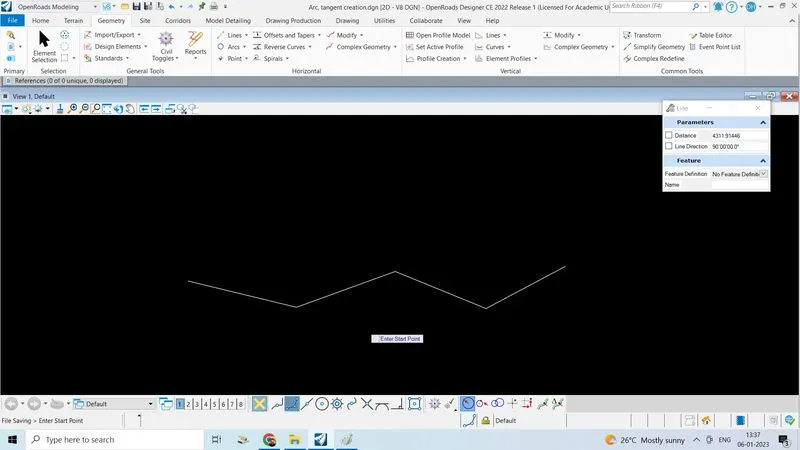
1. Create new DGN file for horizontal geometry. Draw tangent lines with various methods. Insert curves in between them as well at the ends. Apply feature definitions to all these elements.
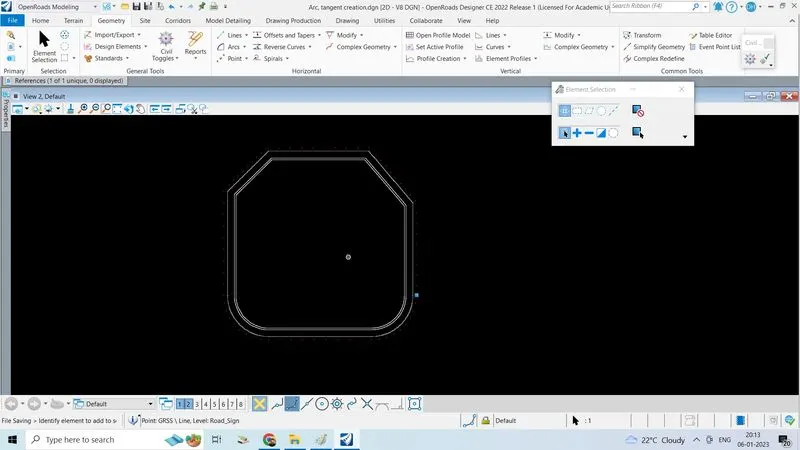
2. Create a square of 500’ side with fillets at 2 ends and chamfer at other two. Make complex. Offset this shape inside 5’ and outside 20’. Apply 3 different feature definitions for each of these shapes.
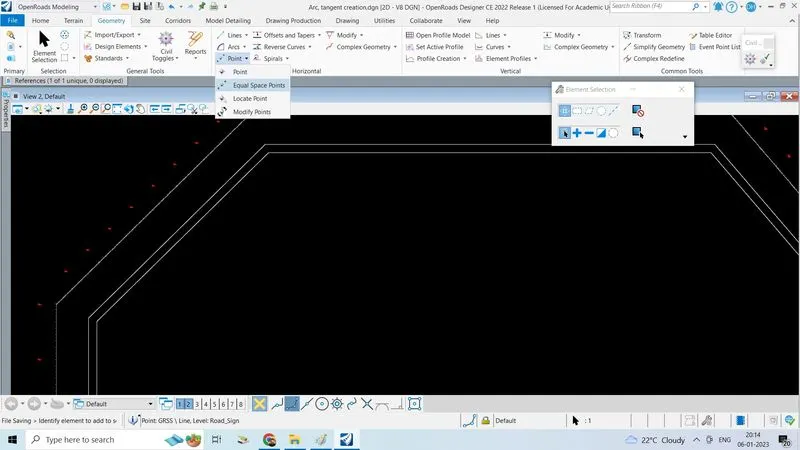
3. Create any point featured element along the outmost shape by point tools.
1. Create new DGN file for horizontal geometry. Draw tangent lines with various methods. Insert curves in between them as well at the ends. Apply feature definitions to all these elements.\
- Click on new file to create new DGN file
- Click on browse to select 2D imperial seed file because geommetry is a 2D work
- Give namme as Arc tangent creation click on save
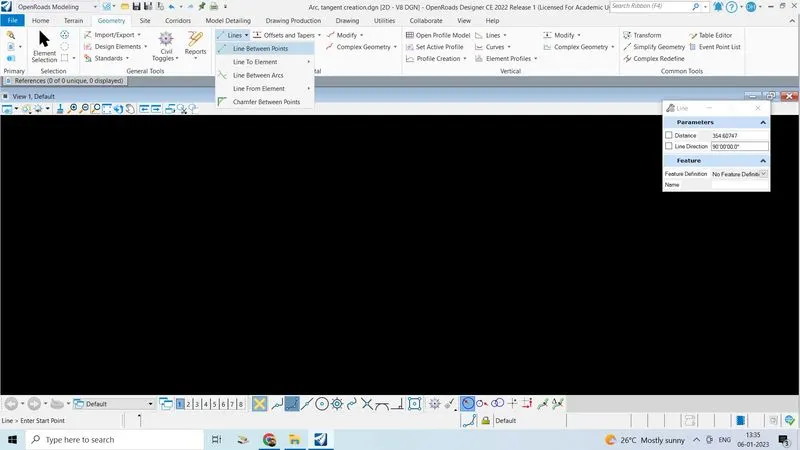
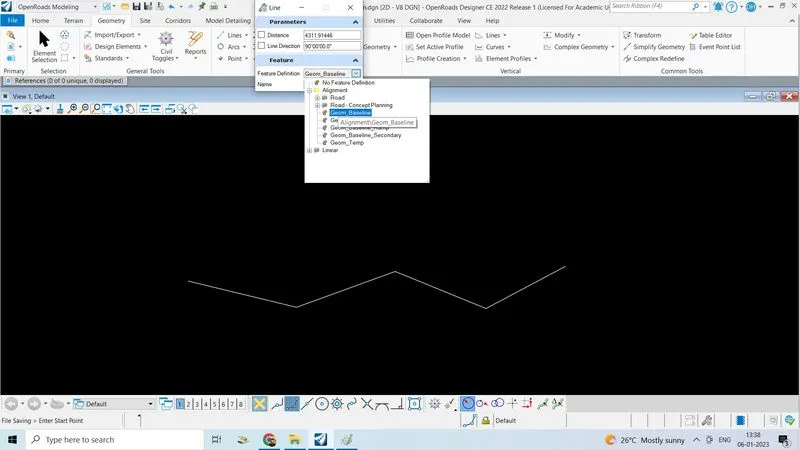
- In geometry tab click on the lines, click on line between points draw the line
- Click on the feature definition, set the feature definition
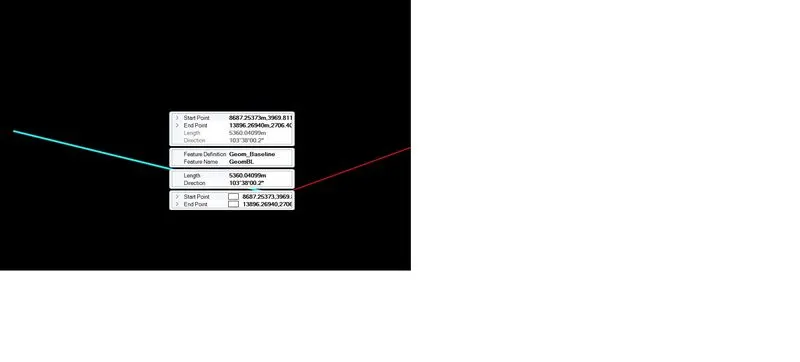
- Left click on the lines the feature is set
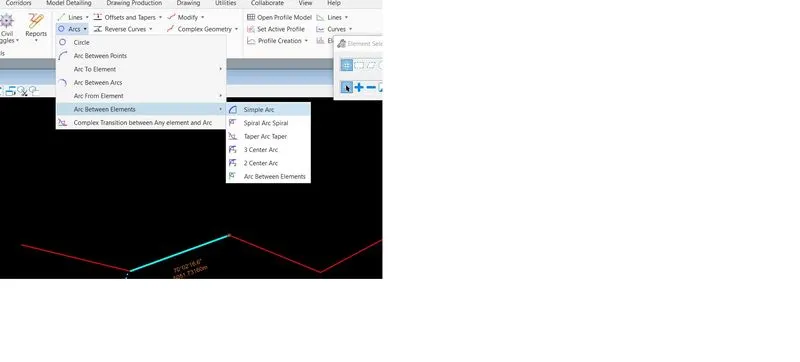
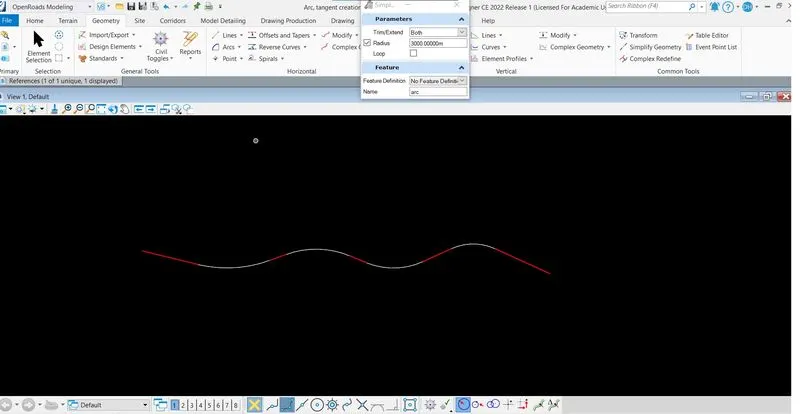
- Click on Acr --->Click on arc Between elements ---> Click on simple arc
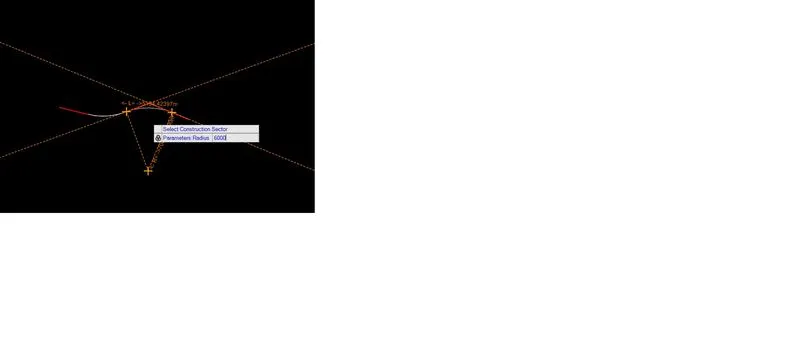
- Locate 1st element 2nd element, give the radius if want to trim both or back or or front select and click enter its over apply featuure definition for curve also
- Result: Drawing tangent lines inserting curves in between them as well at the end applying feature definition to all these elements is done
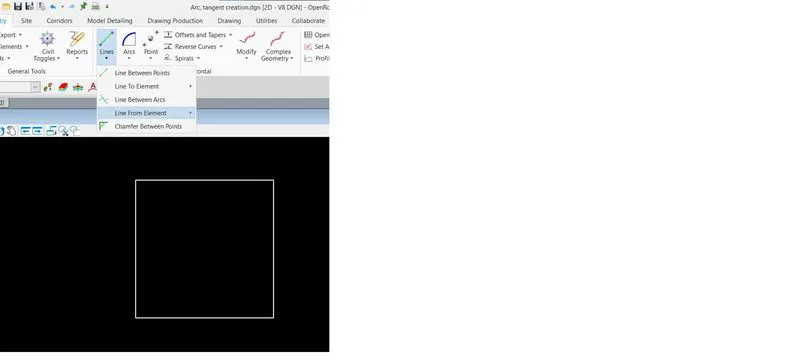
2. Create a square of 500’ side with fillets at 2 ends and chamfer at other two. Make complex. Offset this shape inside 5’ and outside 20’. Apply 3 different feature definitions for each of these shapes.
- Go to geometry tab click on line,click on line between two points and give the distance of lines as they said give distance of 500'
- Geometry tab-->click on line-->click on line between two points-->Give the distance
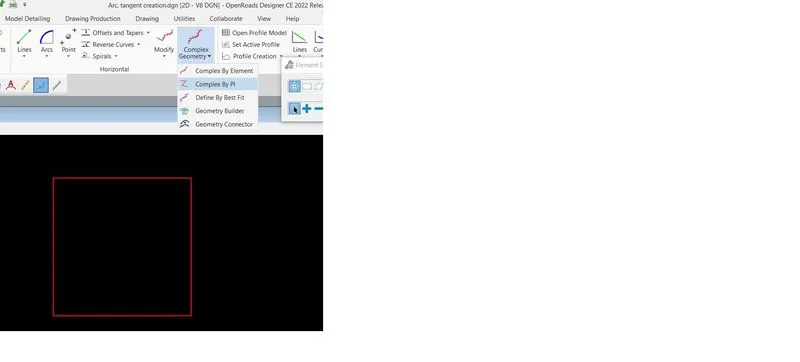
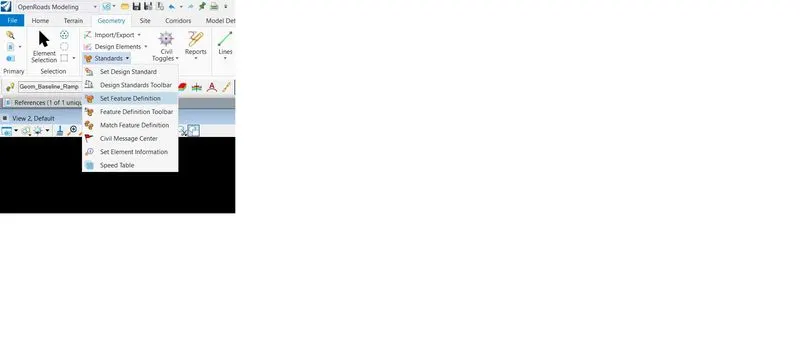
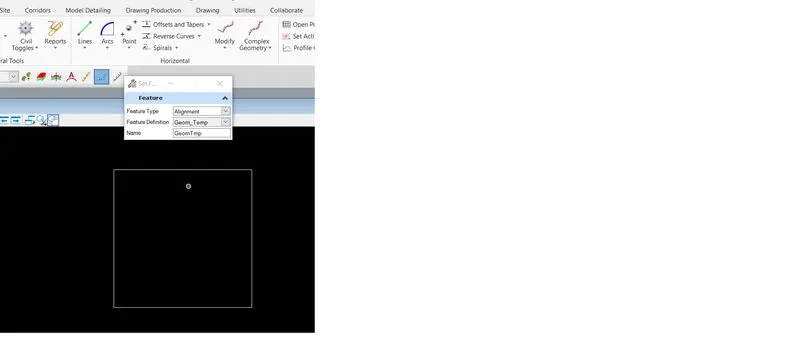
- Geometry tab--> Click on complex by element--> Select element one by one left click--> reset to complete then right click-->Click on standards-->Click on set feature definition and set the feature
- Go geometry tab-->Click on line-->click on chamfer between points-->locate 1st element-->2nd element
- Go to geometry tab->Click on modify-->click on insert fillet
3. Create any point featured element along the outmost shape by point tools.
- Go to geometry tab--> click on equal space point-->select the placement mode-->select the spacing-->select start method, fill all the details
- Click on line
- The point featured element along the almost shape by point tools has been ceated