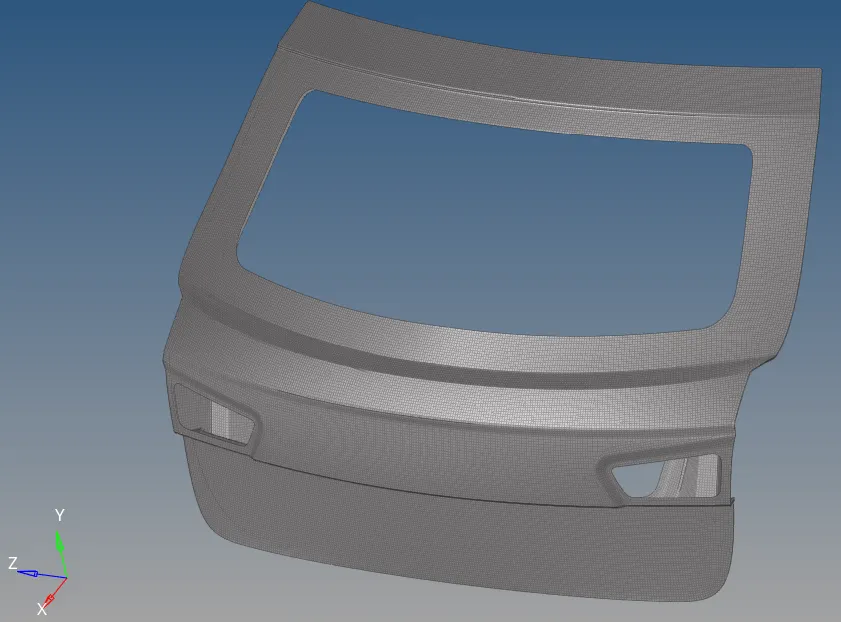
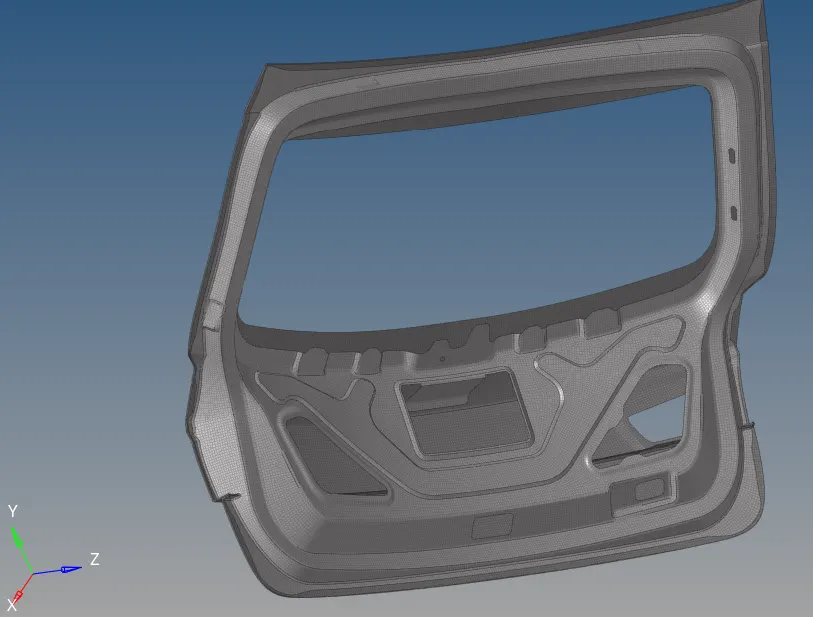
Week 4- Meshing of Backdoor Challenge
OBJECTIVE:
To mesh the backdoor geometry of the car that is provided below.
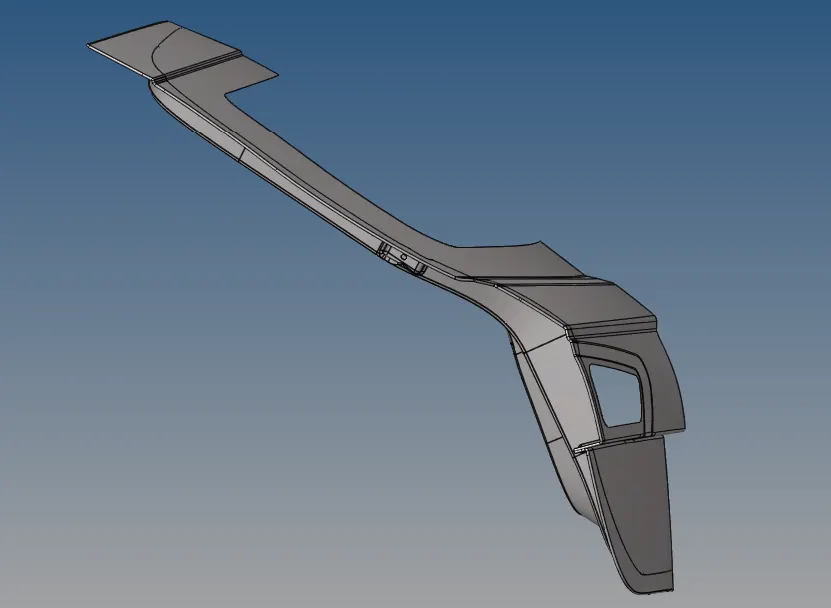
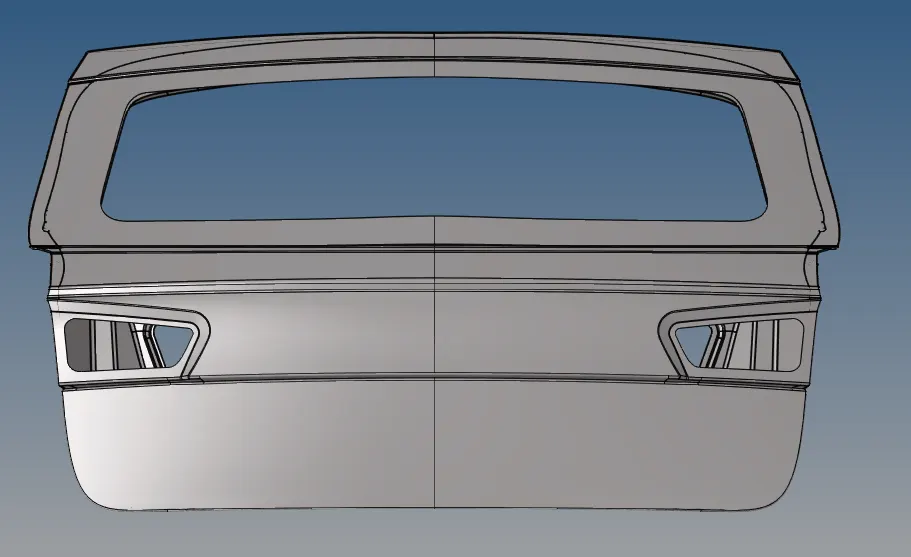
Provided below are the quality parameters that you need to follow:-
Target element size = 5mm.
| S.N | Quality Criteria | Value |
| 1 | Aspect Ratio | 5 |
| 2 | Skewness | 45 |
| 3 | Warping | 15 |
| 4 | Taper | 0.5 |
| 5 | Min. Length | 3 Units |
| 6 | Max. Length | 7 Units |
| 7 | Min angle Quad | 45 |
| 8 | Max angle Quad | 135 |
| 9 | Min angle Tria | 30 |
| 10 | Max angle Tria | 110 |
| 10 | Tria % | 15 |
Procedure:-
Import:-
Go to Import Solver deck --> Import Geometry --> Select file --> Import
After importing the file we get the cad model shown below:-
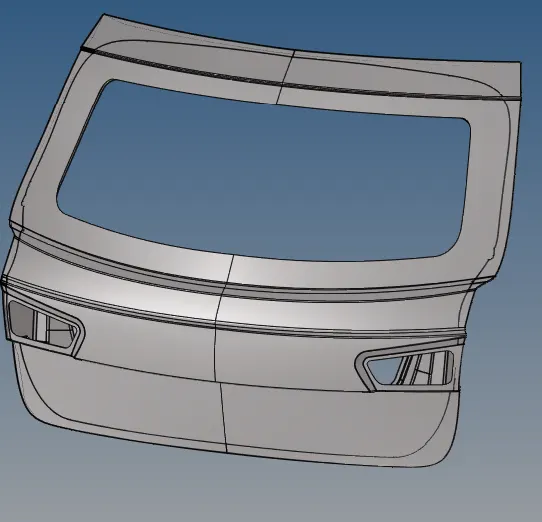
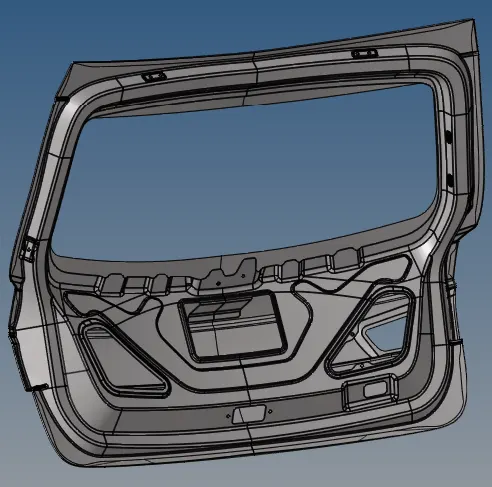
Midsurface generation:-
For generating mid surface we need first to delete the solid from the cad model for that
Click F2 to open the delete menu then the below interface is open, now we need to select the cad solid model that we want to delete then click delete entity.

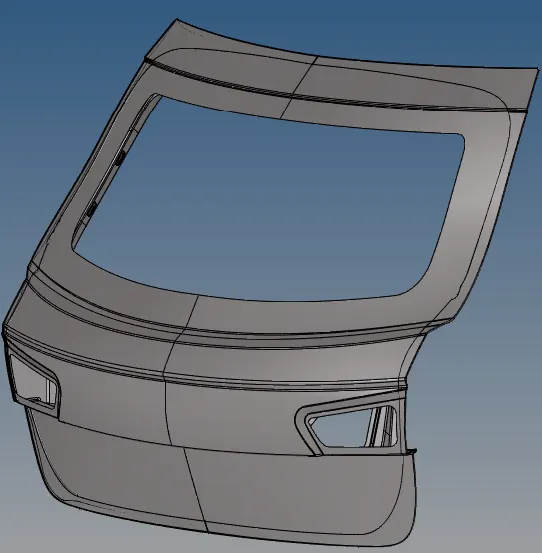
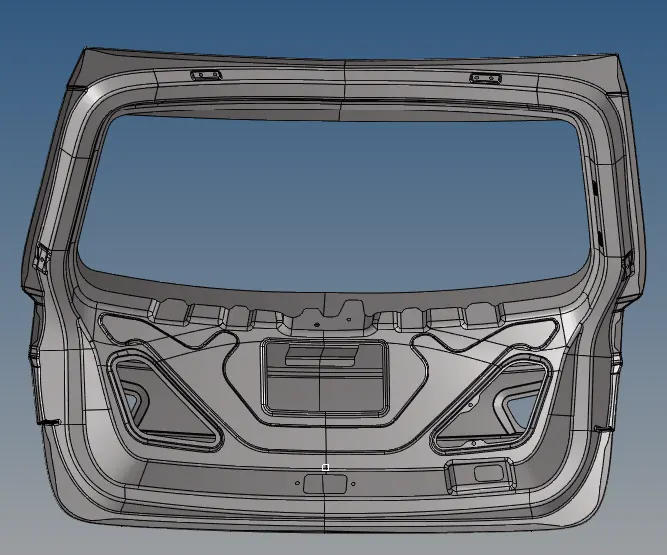
After deleting the solid now we have a surface only, by using this surface we can make a mid surface that is been shown below:-
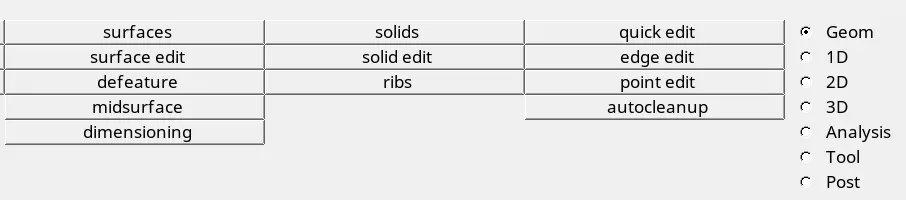
Go to, Geometry --> midsurface --> select surface needs to be mid-surface

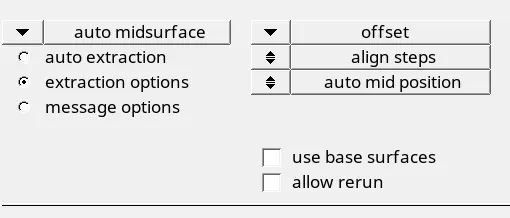
Then go to, the Extraction option --> select offset --> return --> click extract to generate the midsurface of the model
Midsurface images:-
Tropology repair:-
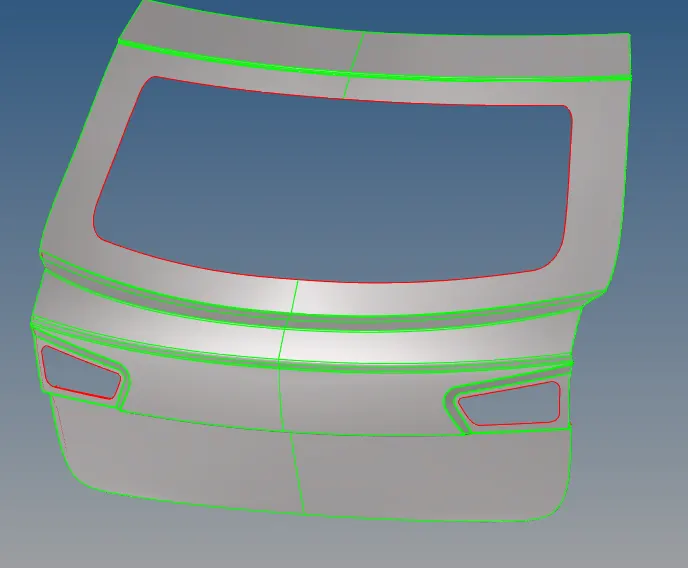
Go to Geometry color mode --> By Tropo, for topology view
Now go to Geometry --> Quick edit tool

By using the above Quick Edit tool we repair the topology errors for our model. After topo repair we get the below image:-
Meshing:-
Before meshing the surface of the backdoor we mask half of the surface we reflect that meshing later to the other side also.
for masking half portion click F5 then select the surface to be masked the click mask
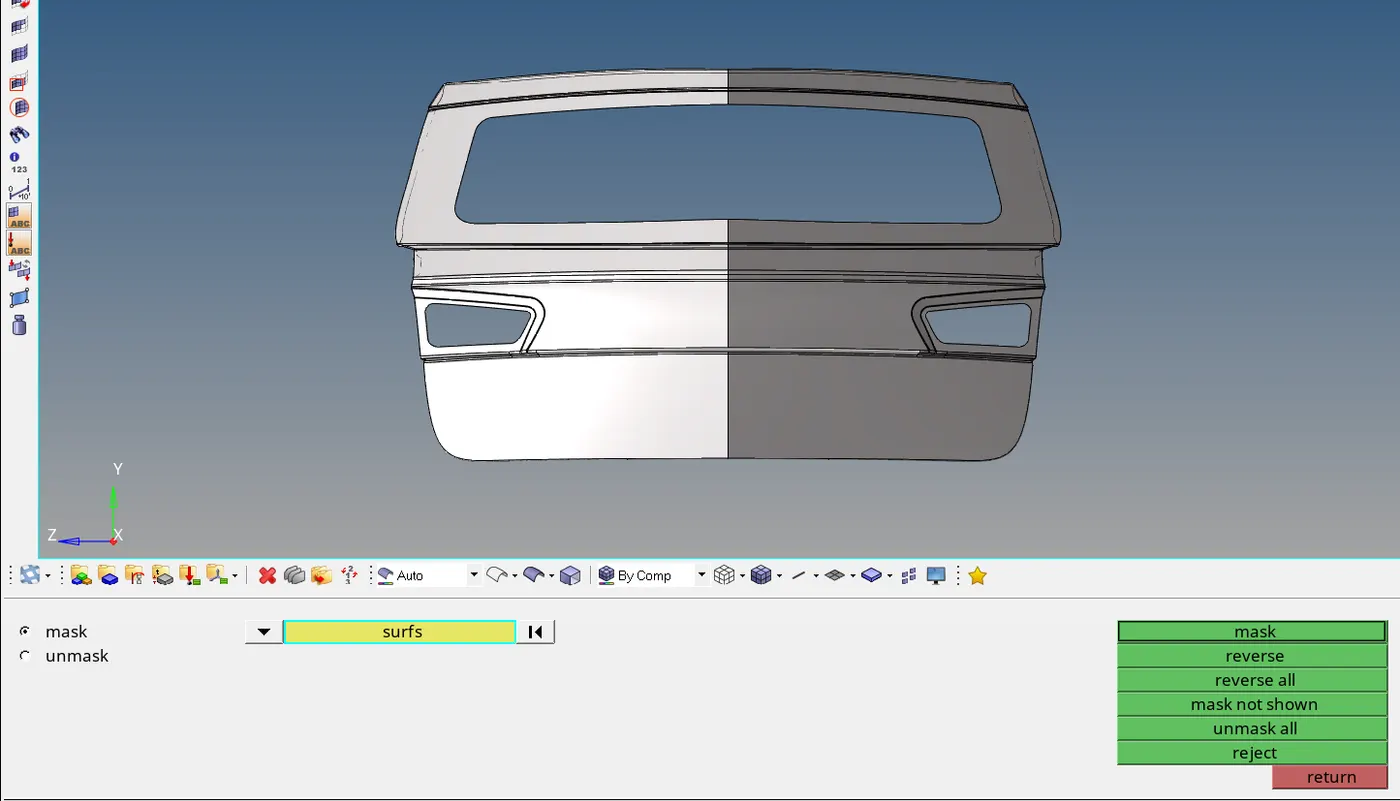
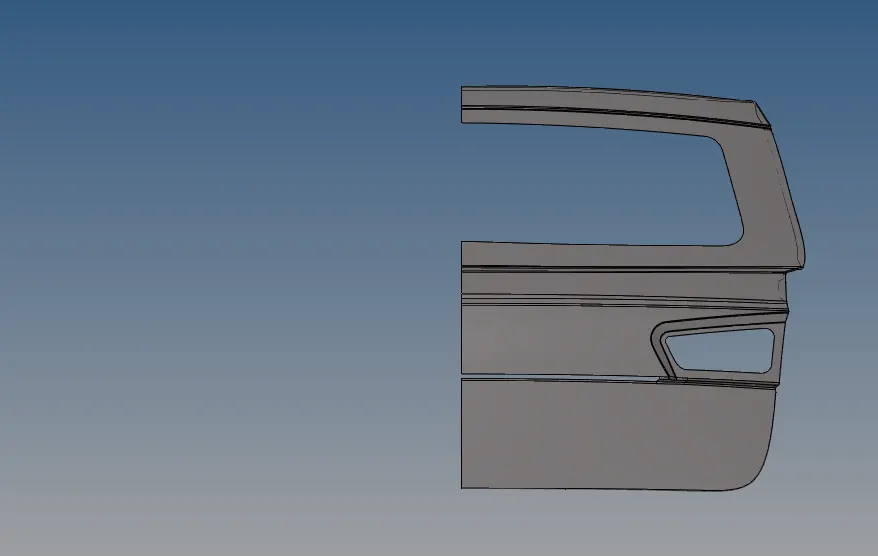
Now click F12 for automesh then there meshing option is open as shown below image then we need to select the surface to be meshed then click mesh for generating mesh.

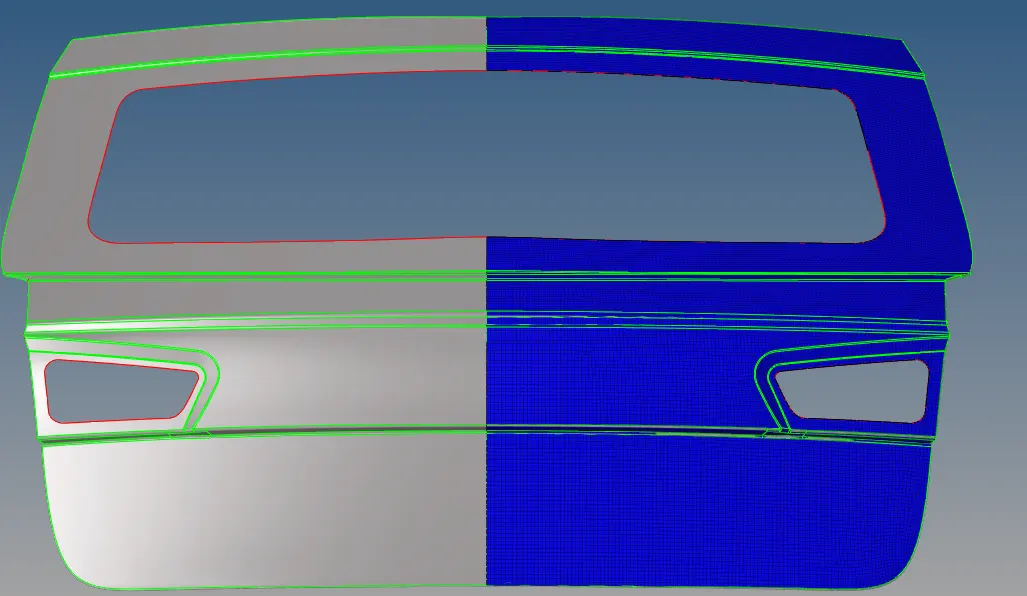
after generating the mesh now we need to check the effect of this mesh to the other side and also make the best for the backdoor B surface.
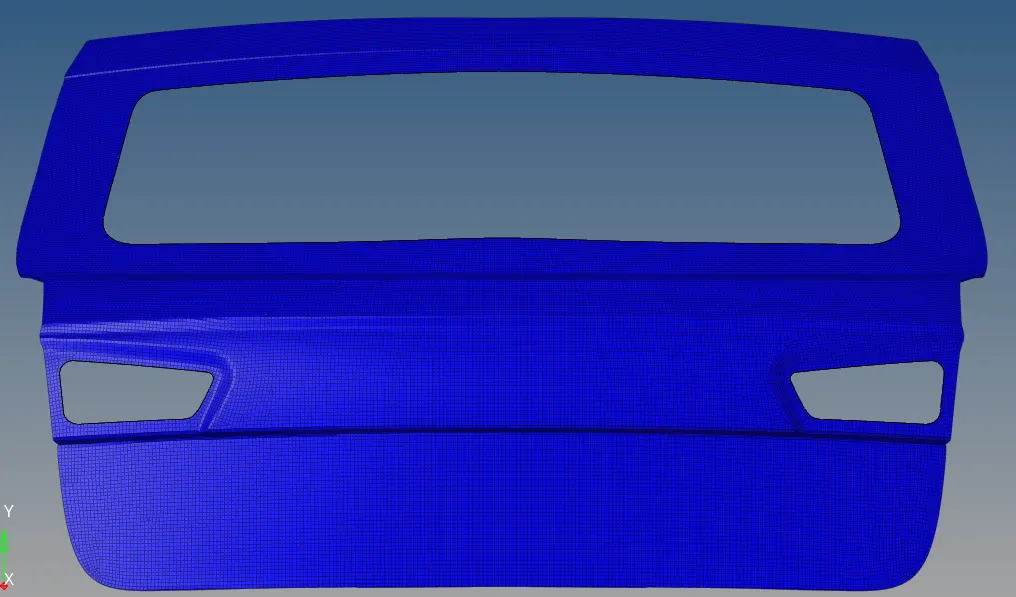
After generating mesh now we need to do a Quality check for this meshing
Quality check:-
For quality check, we need to go 2D --> Qualityindex
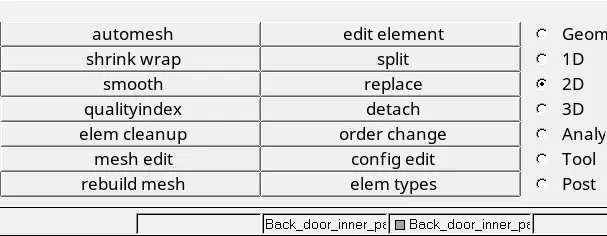
Now click QI Settings
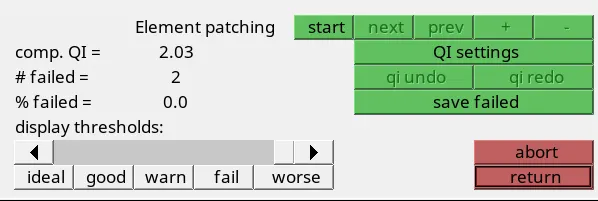
Then we need to enter the threshold values for quality checking that are shown below:-

Now go to cleanup tools for cleaning the elements that are failing:-
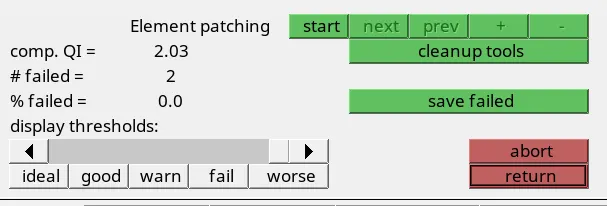
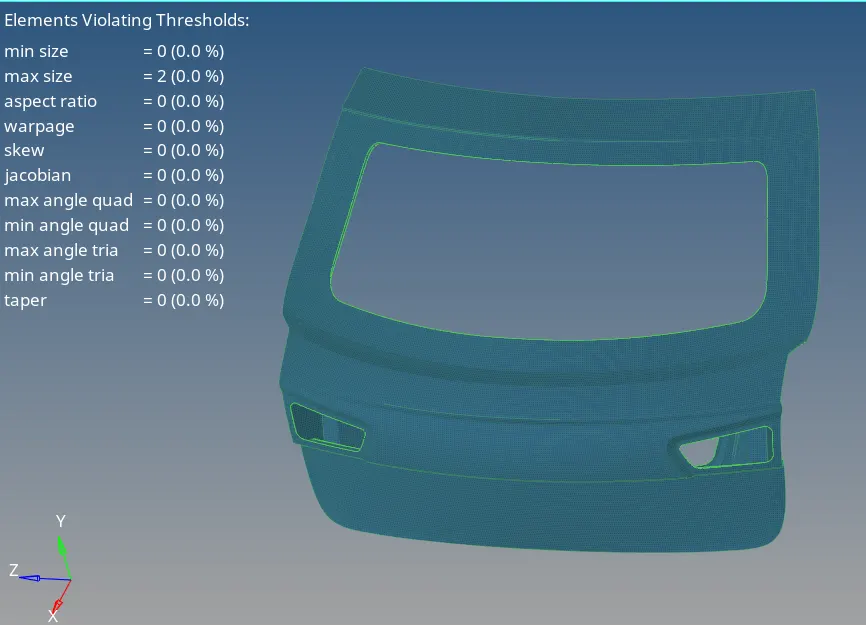
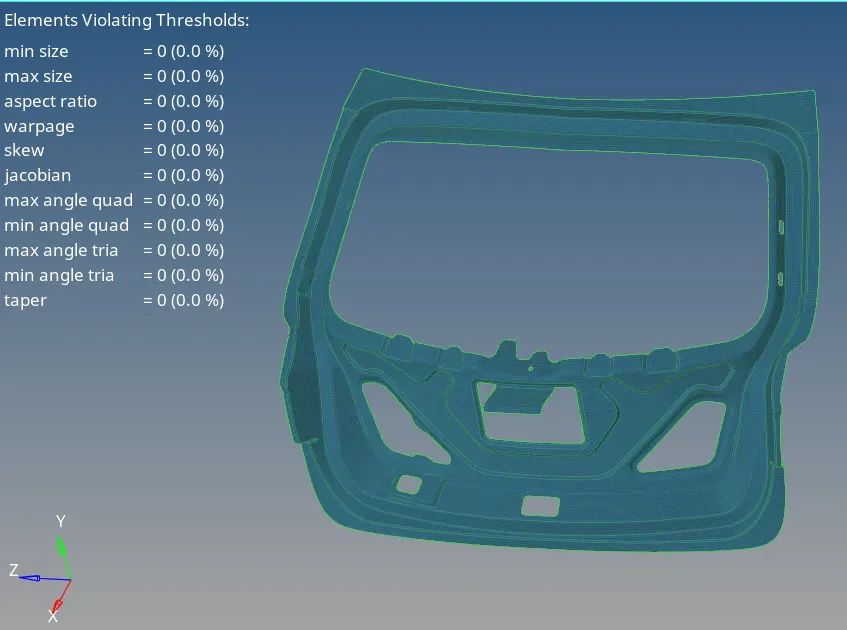
By using these below tools for element cleanup we clean the all quality errors as shown below:-

This is the result of quality cleanup for our model we get after quality check:-
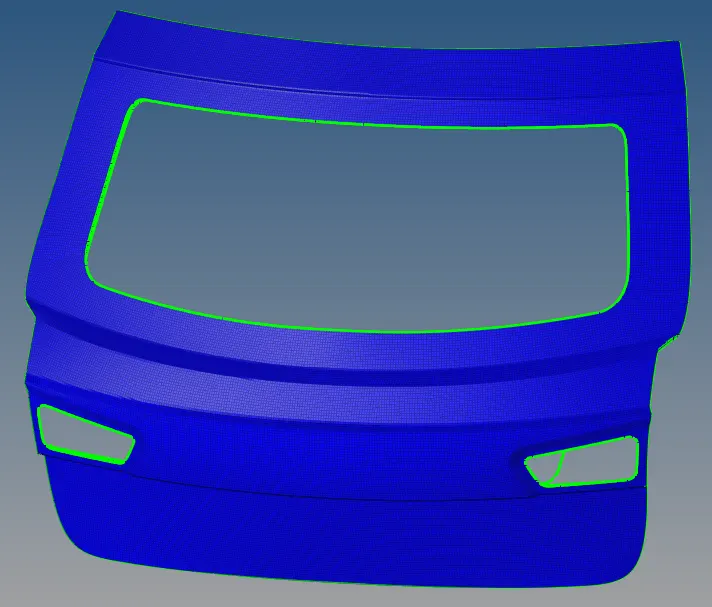
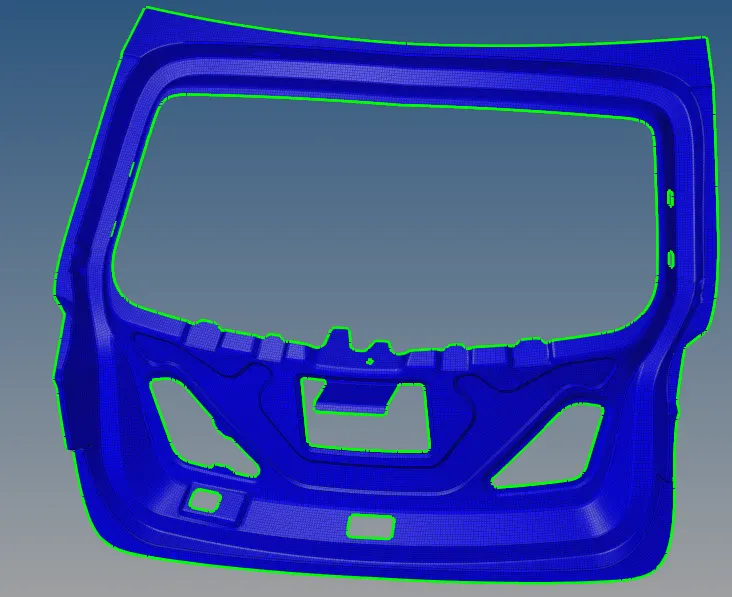
Free edges:-
For checking free edges go to Tools --> Edges

By using this find edges we can check if there are any free edges and then also check the elements not connected by using Preview equivalence then by clicking Equivalence we can fix the inside unwanted edges.
Thes is the final image shown below for free edges:-
Normals:-
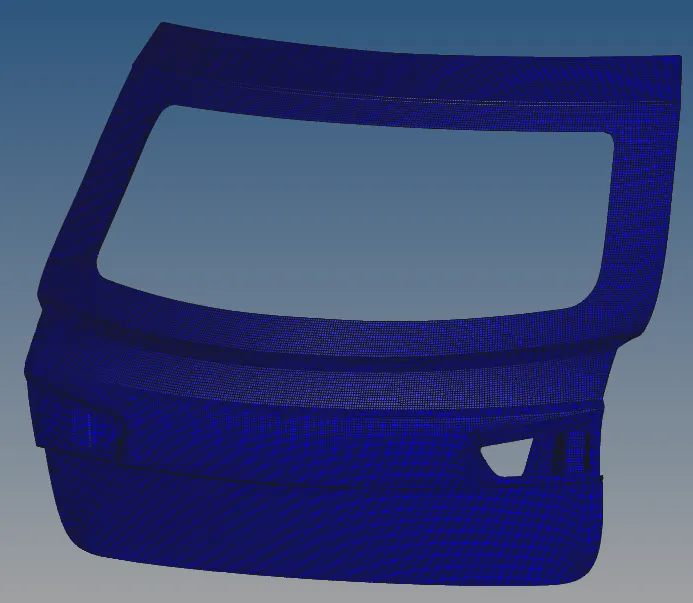
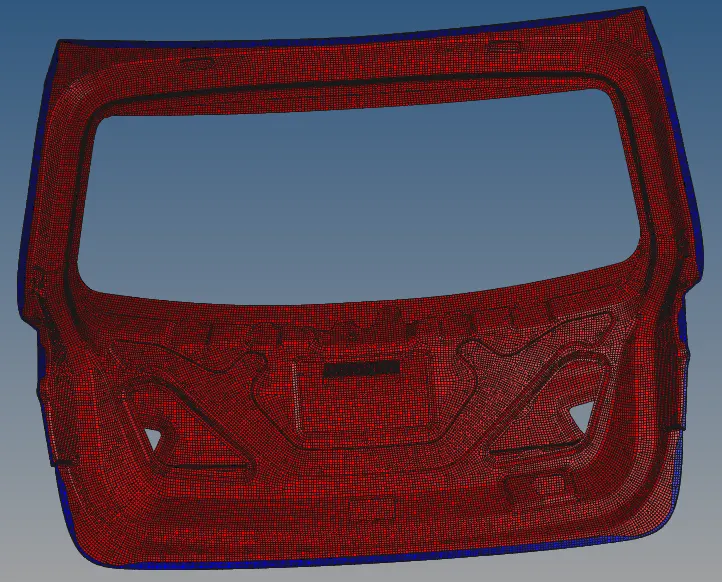
This is the final step where we check the normals in our mesh for that go to Tools --> Normals

click display for viewing normals if we see any normals are not aligned in one direction then for that we can use the Reverse to make the proper normals aligned.
The image is shown below:-
FINAL MODEL IMAGES:-