Week 4 - 2D Meshing for Sheet Metal
OBJECTIVE
- To perform Geometry cleanup
- To create Mid-surface and
- To mesh with the given element Quality Criteria for the given CCB CAD model.
PROCEDURE
1.Open the given CCB CAD model in ANSA by using File > Open
CCB CAD model.
2.For CCB CAD model we should isolate one part and do geomentry cleanup after that midsurface and then mesh of that same part.
3.Same procedure is follow for other remaining parts of CCB CAD model.
4.Now open the property window select one property out of all proprty left click on it and click on show only.
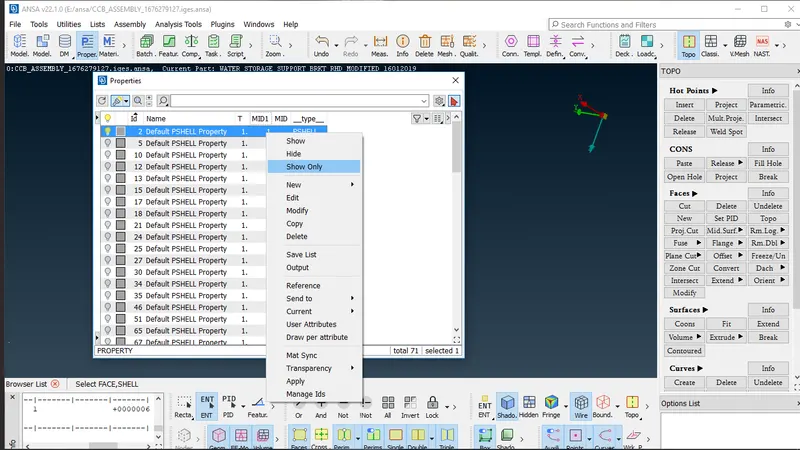
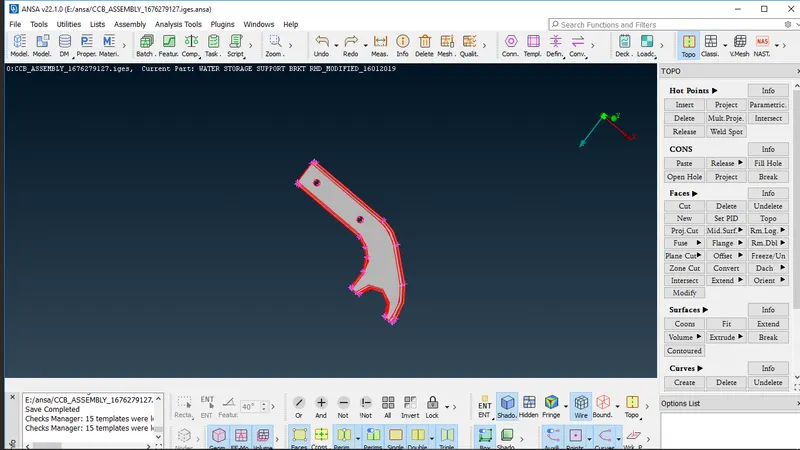
5.now to perform topo to stich all single cons into double cons.
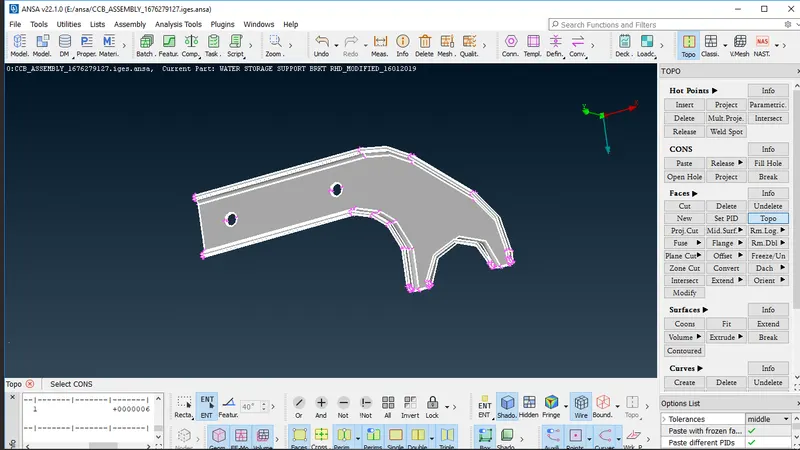
Perform topo on part
5.Now Go to Tool >Checks >Geometry for Cleanup.
6.As shown bellow in screenshot, Checks Manager window click Execute to check any error occurred in part and fix the Error and Cleanup the Geometry.
7.After that Click Execute in the Checks Manager it show no error in part 100% Geometry Cleanup .
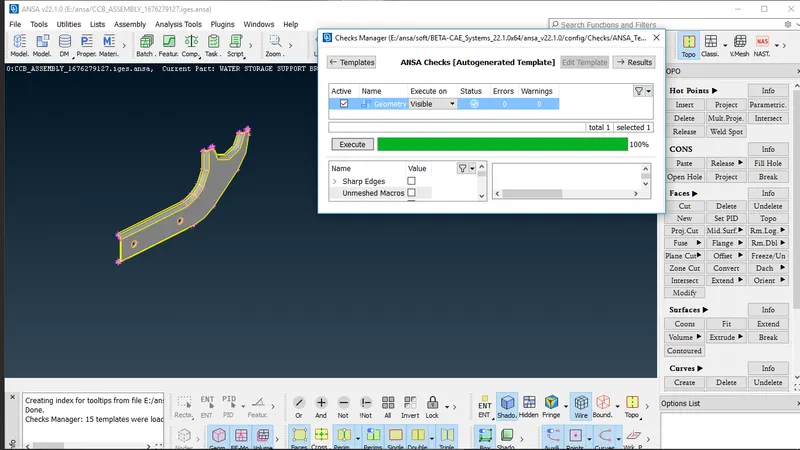
Cleanup the Geometry
CREATING MID-SURFACE:
1.After geometry Cleanup and Mid-surface has to be created one by one all parts of CCB CAD model.
2. initially to Measure thickness of the Part for Creating Mid-Surface. Go to Utilities > Measure Option
3.In the below the window, Click two nodes or cons to measure the thickness of the Component and Store the Measurement.
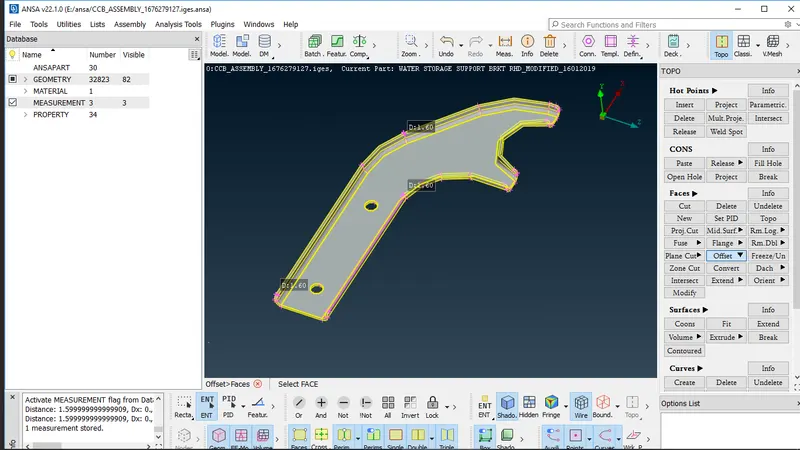
part of CCB CAD model Mid-Surface
3.by using Faces > offsets after that click on featured area and then select face.
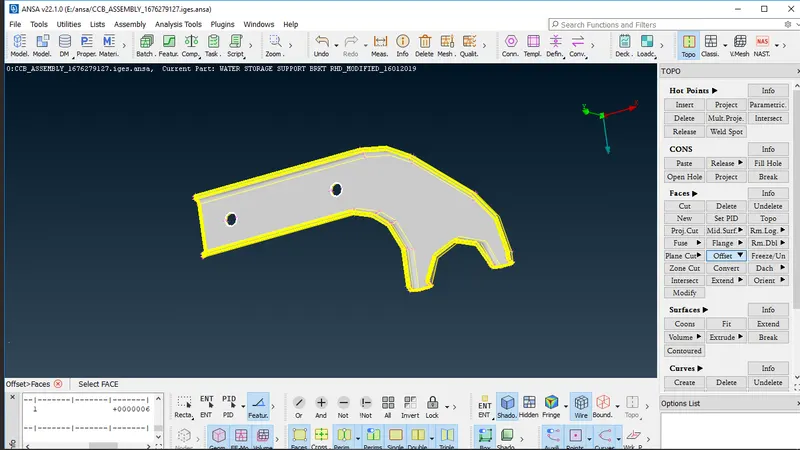
Featured area
4.Select the Face and enter the Offset Value -1.6/2 to create a Mid-Surface for the Component.
Offset Value
5.After entering the Offset Value and click Ok and Mid-surface will be created.
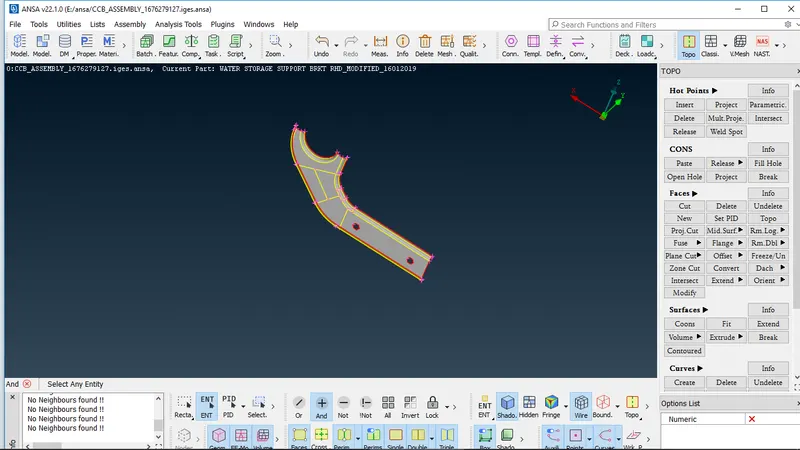
Mid-Surface
6.After creating a Mid-Surface, Click Faces > Set PID option and create New PID for Mid-surface in the properties.
MESHING:
1.For meshing Mid-Surface, set the given mesh Quality Criteria for the part.
2.For that follow Go Utilities >Quality Criteria Option and assign the given Quality Criteria Values.
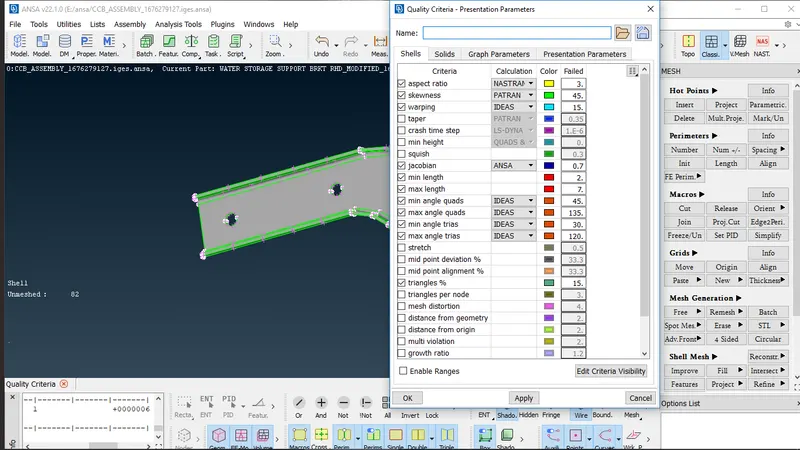
Quality Criteria
Quality Criteria
3.After assigning the Quality Criteria for the Component, Go to Utilities >Mesh Parameters and assign the Average Value for Meshing.
Mesh Parameters
4.Go to Mesh >Perimeters > Length Option and Select the whole good model to Mesh and enter the Value of Perimeter 5mm Length for Meshing.
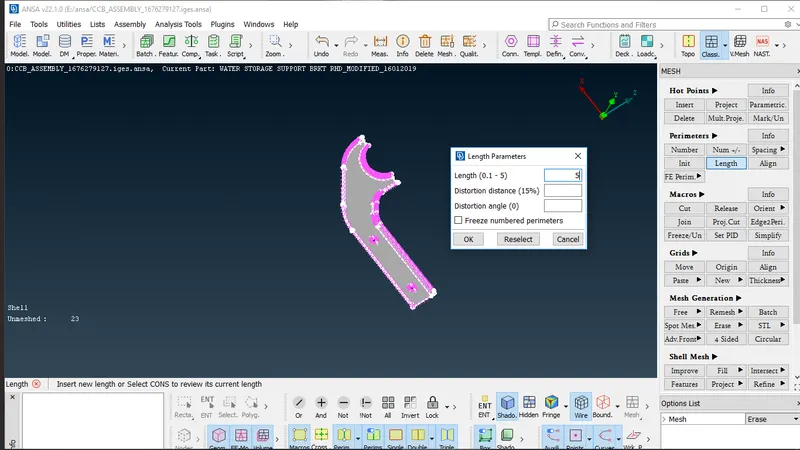
Perimeter Length
5.In order to get good mesh it require to measure the distance between two hot points if it gets less then average length then it will be redistributes hot points in order to maintain average length and divide the surface into parts using cut option so that mesh will be uniform and reduce the number of tria formed.
6.After that go to Mesh >Mesh Generation Option and Select the best Mesh type to mesh the Part by part.
Mesh Generation
7.Use Shell Mesh-->Reconstruct option to rearrange the Mesh and Use Shell Mesh >Smooth Option to refine Mesh lines equally within the Selected Surface and solving the Quality criteria issues.
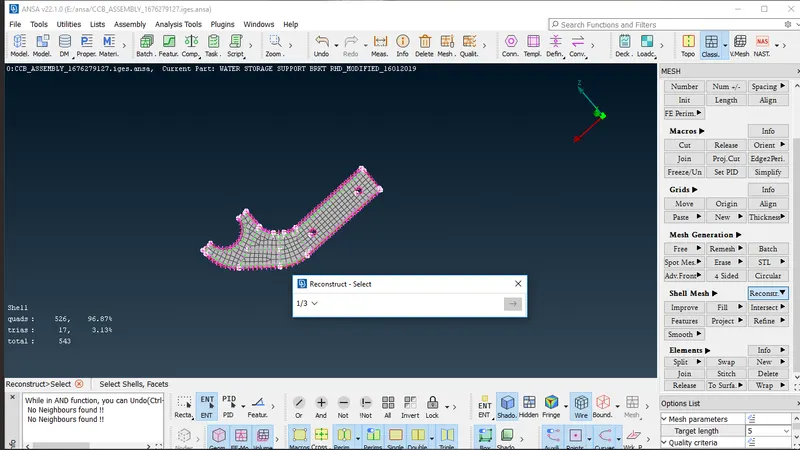
Reconstruct mesh
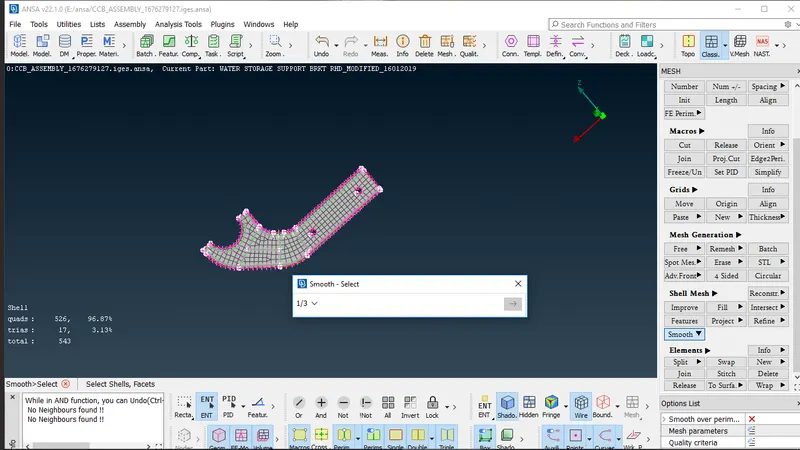
Smooth Mesh
8.Use Grids-->Paste and Elements >Split / Swap / Joint Option to eliminate or reduce the trias and get better mesh flow.
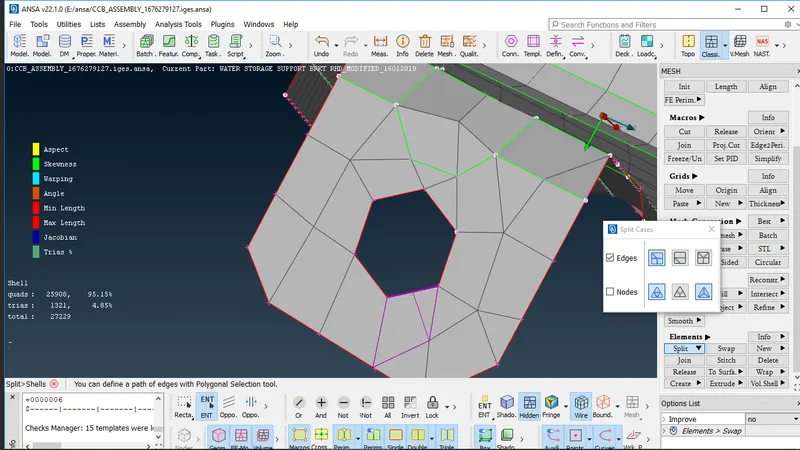
Split to remove tria
9.now to eliminate quality criteria failure mesh we again smooth the mesh surrounding the failure occurrence.
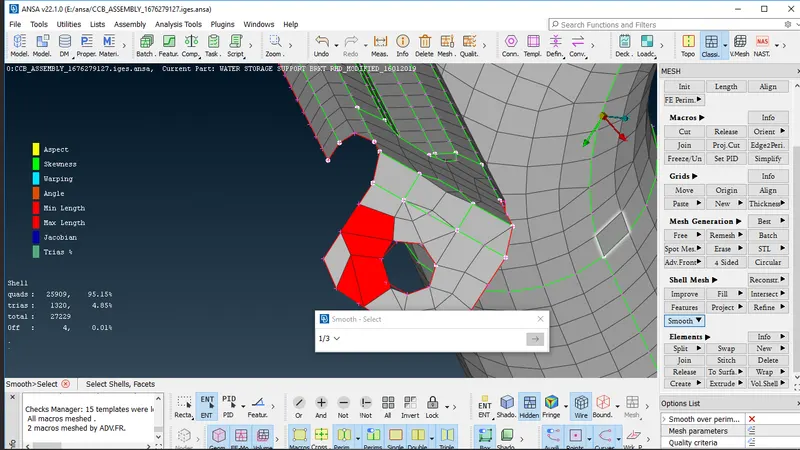
Quality criteria failure
10.After eliminating all mesh criteria failure
11.Parent Surface thickness Value is to be Provide for the Mesh Component.
Go to Lists >Properties option and Assign the Thickness Value.
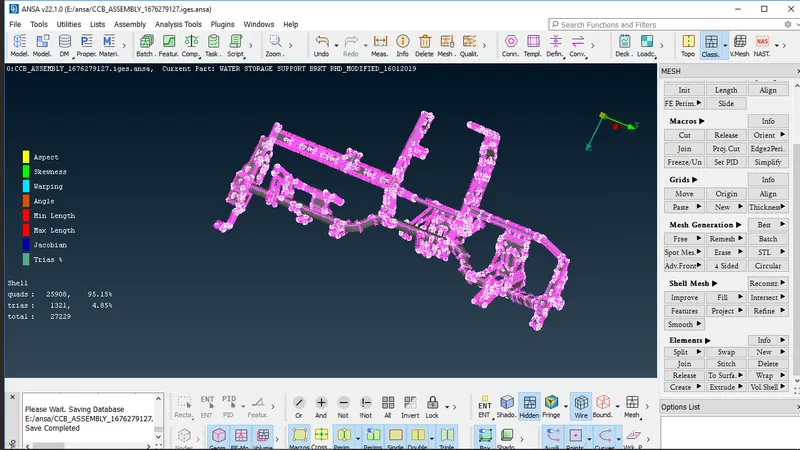
Mesh CCB CAD model