Week - 4 - 2D meshing for Plastic components
challenge - 4 - 2D meshing for Plastic components:
objectives: To mesh the plastic bottle cap by extracting the midsurface and meshing with the given quality criteria and parameters and assign thickness to the midsurface.
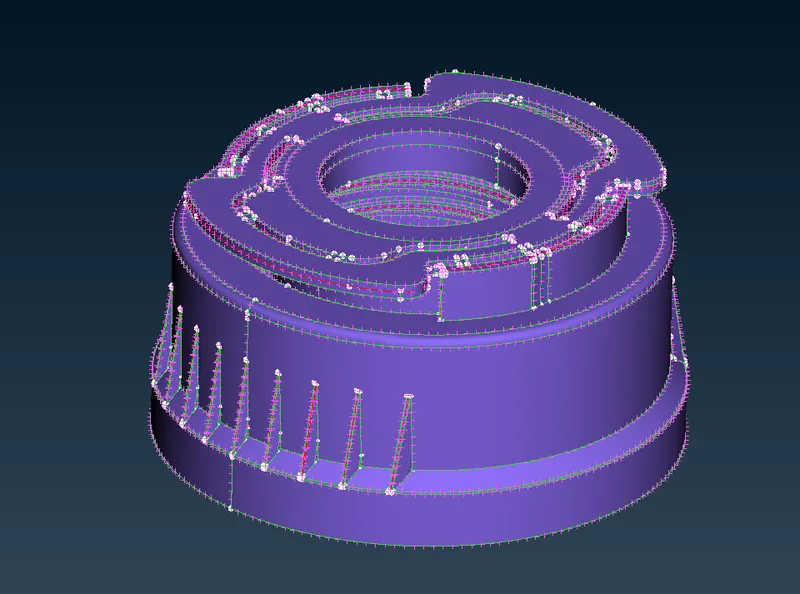
img:original geometry of the plastic cap
procedure:
- first open the cad model in ansa open⇀choose the folder⇀select the file⇀click"open".
- once the file has been imported check the geometry whether it has error in the surface,search for check option in search bar or go to tool⇀check⇀geometry.
- click the option in check geometry to identify the type of error so check all the boxes in the check option and click"excetute"
- once the error has been identified try to remove the error in the check manager itself by click the error by ctrl+A ,and right click and choose fix option to fix the error ,some error cannot be fixed that we should be fixed manually.
- use the tools from the topo to remove the error in the geometry toolslike,HOT POINTS:insert,delete/CONS:paste,release/FACES:cut,delete,new,datch,extend ,intersect,and cut.
- we will be using the obove commans which will be mostly used to cleanup the geometry,once the geometry clleaned again once check the geometry in check manager before extracting the midsurface.
- after the check manager status shows green tick then its time to extract the mid surface form the parent geometry.for dimention x,y>z then we need to extract the midsurface from the geometry.application like instrument panel,plastic component,sheetmetal.
- we can extract the midsurfac by midsurface option or we can also use offset option.for complicted surface like plastic component we will go with the manual offset,mostly we will be using the skin from midsurface to extract the midsurface fom the parent geometry.
- click midsurface⇀skin⇀select the geometry⇀and choose not to delete the parent conponent⇀and middle click⇀and click ok.
- once the midsurafce is extracted ANSA will create a property for the midsurface by itself.
- again check the surface for to check whether we have any error by using check manager.
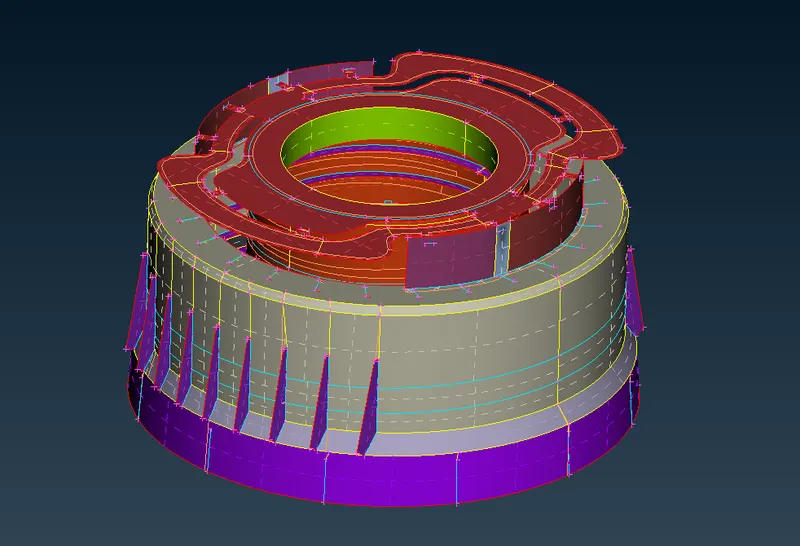
img:midsurface of the plastic cap
- go to mesh panel;in mesh panel go to perimeter⇀length⇀select the geometry for perimeter and give the length as same size as element target length.
- do the same this for macros,once we done with that insert the parameter file and quality file. we can find the option in the top side of the GUI .
- try to slpit the geometry in regular way and try to mesh with the mixed element for to have a good convergence in mesh flow.we mesh this hood for crash analysis so by meshing this hood with type we can achieve good flow and always try to reduce the tria elements.
- for spliting go to the mesh module⇀macros⇀cut⇀and split the surface in regular shape.
- For meshing go to the mesh module⇀mesh generation⇀best⇀click the surface were we want to mesh and middle click on the mouse.
- always recontruct the mesh once the mesh is done for recontrsuct go to the mesh module⇀shell mesh⇀recontruct⇀click the surafce we want to reconstruct.
- once the mesh is done for particular surface try to remove the tria elements and give better flow for the mesh in that surface.
- do the same thing for all the components ,by using the smooth option we can easily reduce the quality criteria.where ever the elements is failing use smoooth option or reconstruct the mesh.
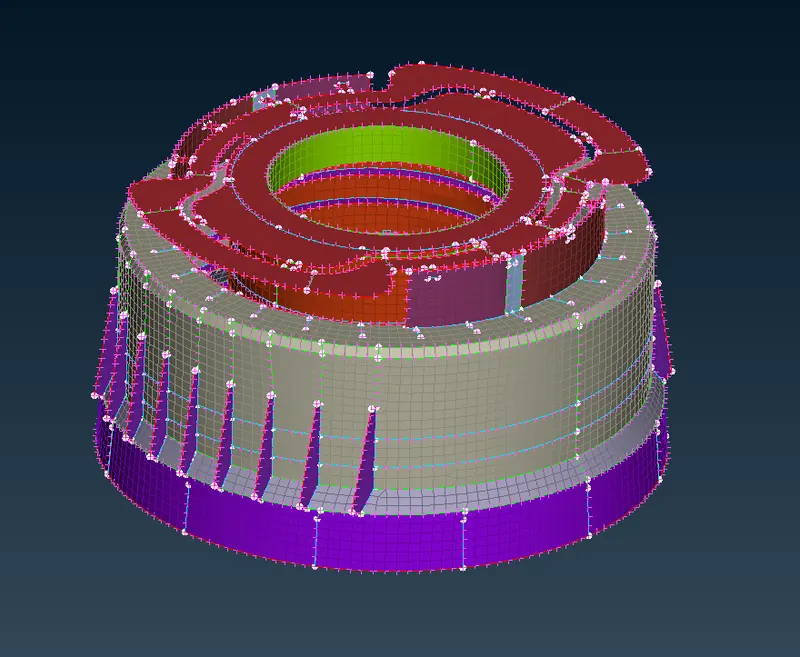
img:meshed plastic bottle cap
- once the meshing is done for all the component assign the thickness by means of assigning the property card,if we use offset ANSA wont craete a property card ,if use use midsurafce option the ANSA will create the property card by itself.
- inorder to create the property card go to the topo module⇀faces⇀set PID⇀select the face ⇀middle click on the mouse button and enter the property catrd and click OK.
- if u want to see the whether the thickness is assigned you can go to the quality criteria setting ⇀presentation parameter⇀click the draw shell as solid.
- ensure that every node is connected ,suppose if node is not connected try to connect it with the help of paste node in the grid option.
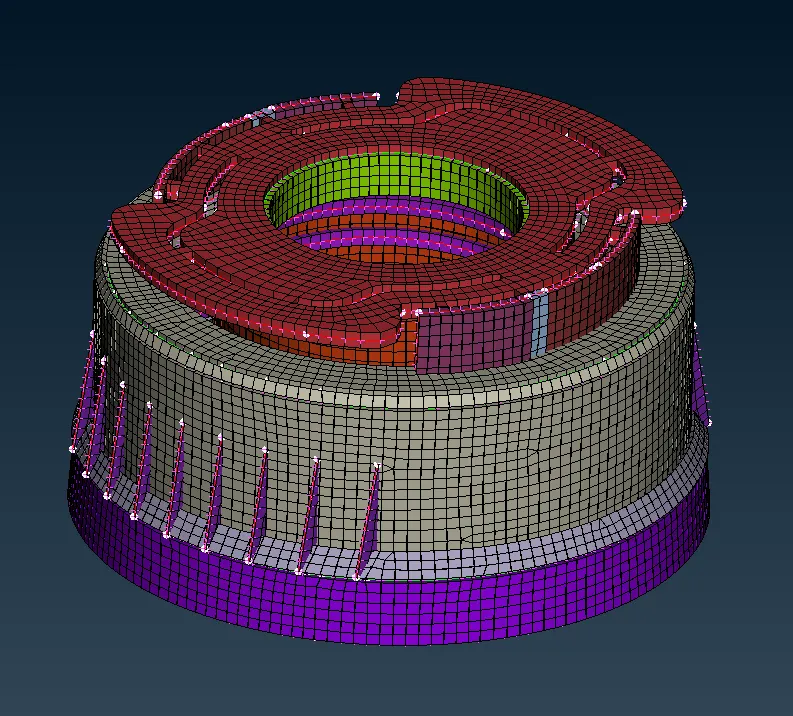
img:thickness assigned to the of the bottle cap
result:
- geometry cleanup is done before meshing.
- midsurface is extracted and assigned property to the midsurface
- meshed the components with the given quality parametrs and criteria.
- checked for failed elements and repaired it and maintained a good mesh flow .
- meshed the symmentry whereever needed for reducing the time.
- thickness is assigned to the 2D shell elements.
learning objectives:
- learned basic tools in ANSA for geometry cleanup.
- learned how to extracted the midsurface from the component.
- learned how to split a geometry and meshed the surface with good quality and mesh flow
- learned how to reduce the element quality error.
- learned how to add thickness by creating property.