Week - 4 - 2D meshing for Plastic components
AIM:
- To do a pre-processing on a given bottle cap model using ANSA.
OBJECTIVE:
- To check the geometrical error on the Bottle cap model.
- To extract a mid-surface of the Bottle cap model.
- To generate 2D mesh on the components based on the quality criteria given.
- Assigning thickness to the components.
PROCEDURE:
IMPORTING THE CAD MODEL:
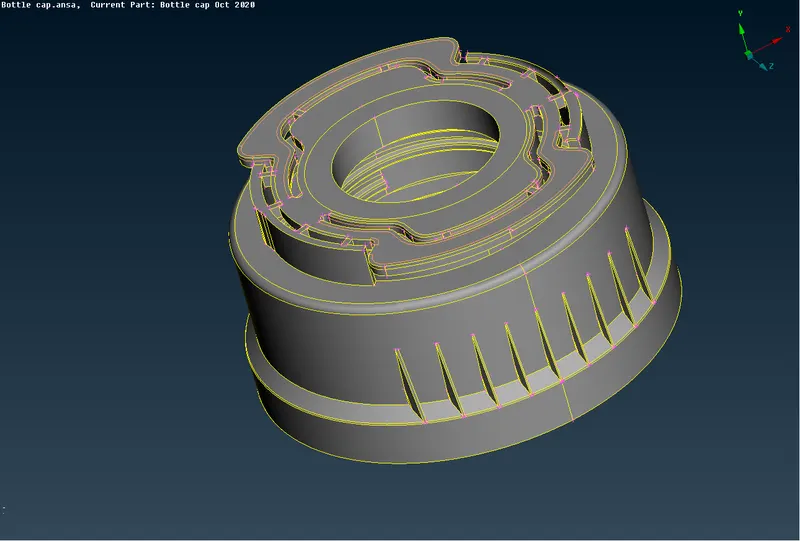
- The CAD model is imported into the workspace by using file > open and select the CAD model.
- The model will be imported into the workspace.
- In ANSA we can import all types of CAD software file formats.
GEOMETRY CLEANUP:
- Before working on the model we need to check whether the model has any geometrical errors.
- To check the geometrical errors go to check manager that is available at the tool bar.
- In the check manager select geometry and click execute.
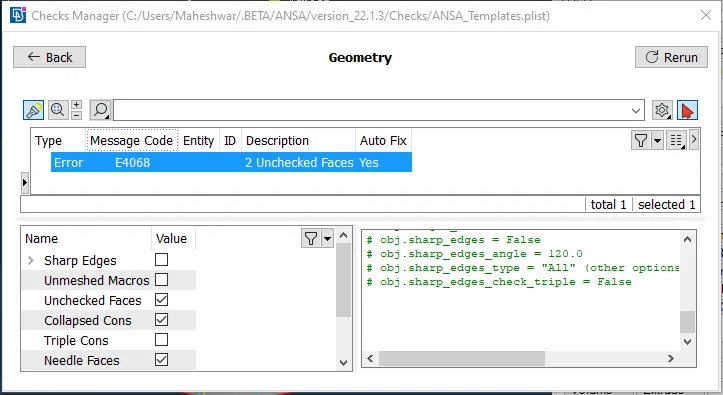
- After clicking on the check geometry the geometrical errors will display.
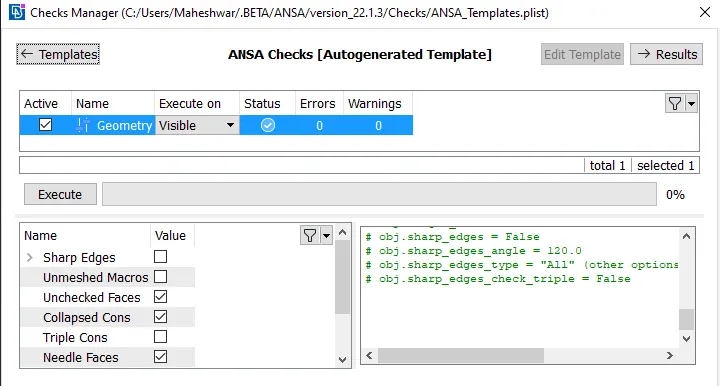
- The geometrical errors can be fixed manually or automatically.
- In our case we fixed the error automatically by right clicking on the error and click fix.
- Once the model has no error it will show green status in the above image and we can proceed further.
MIDSURFACE GENERATION:
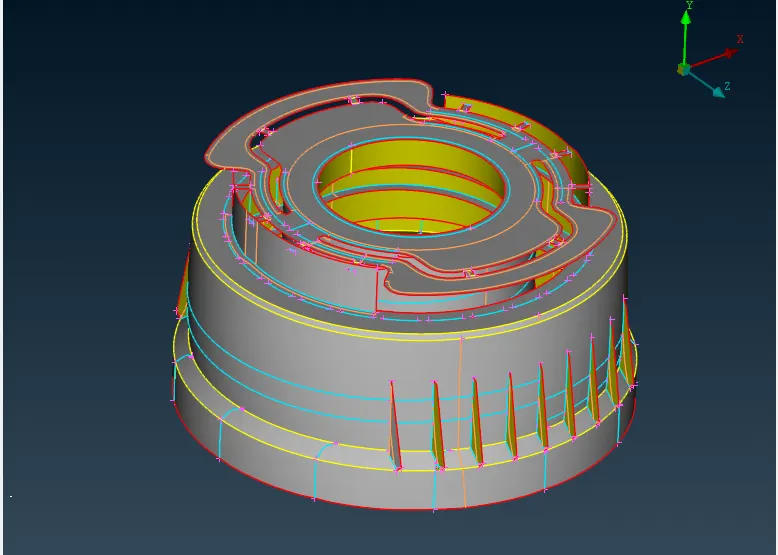
- For extracting Mid surface various tools like Faces > offset, Faces > middle, Faces > mid surface > casting are used to create mid surface automatically and manually.
- The automatic mid surface extraction is not working in this case due to complex features present in the model.
- So in this case manual mid surface extracting tools like offset and middle is used.
- To extract mid manually go to faces > offset
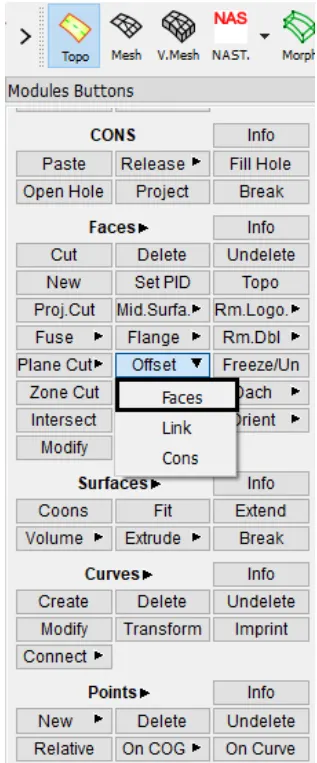
- Select the component faces and give the offset value and click middle mouse button.
- This will convert the solid model into a thin shell components.
- Then the mid surface is extracted by using AND and INOT tools available in ANSA
- The procedure is repeated for all the features to extract midsurface.
PROPERTY ID CREATION:
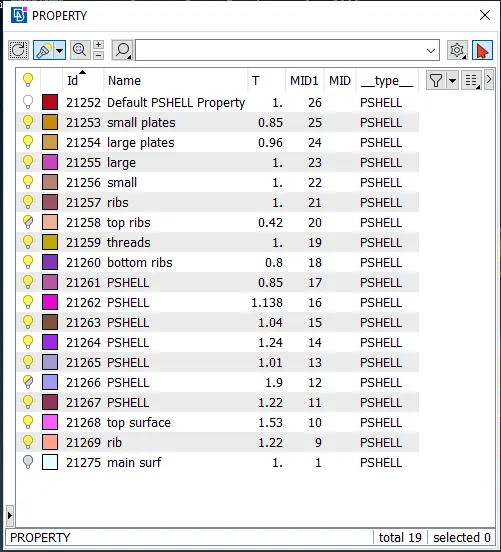
- Then the property id is created for the mid parts by going to set PID and select the surface and give the thickness value and click ok.
- Then go to property id manager and right click the PID and click apply.
2D MESHING:
QUALITY CRITERIA:
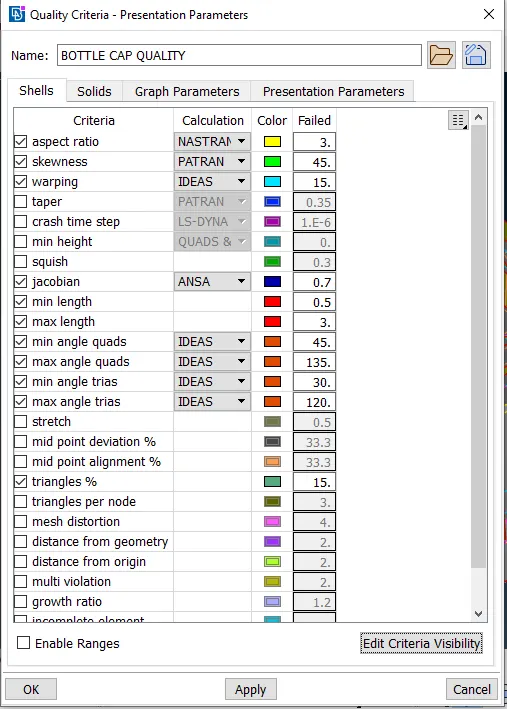
- Go to quality criteria that is available in tool bar.
- The criteria that is given in the question are selected and given the value and clicked apply and ok.
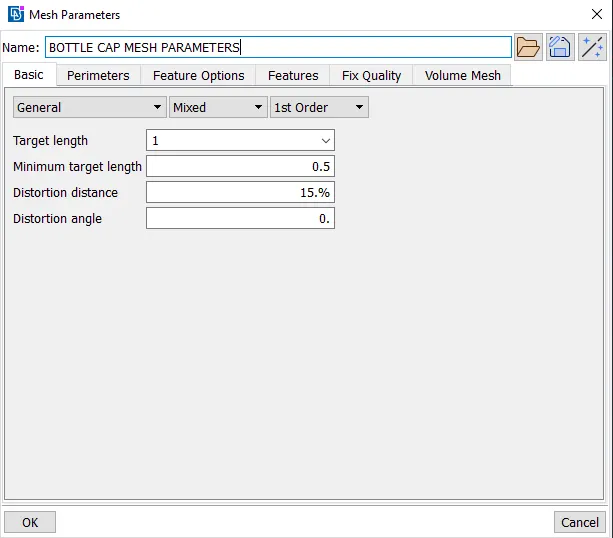
- Then the values of mesh parameters are entered.
- For that go to mesh parameter tool that is available in the tool bar of ANSA.
- Then the meshing is done using mesh generation > best tool. This tool generates the mesh using the best algorithm applicable.
- Then the created mesh is refined using the shell mesh > improve > reconstruct, smooth, reshape tool in mesh module of ANSA.
- It is ensured that there are no rotating quads.
- The trias are kept as low as possible.
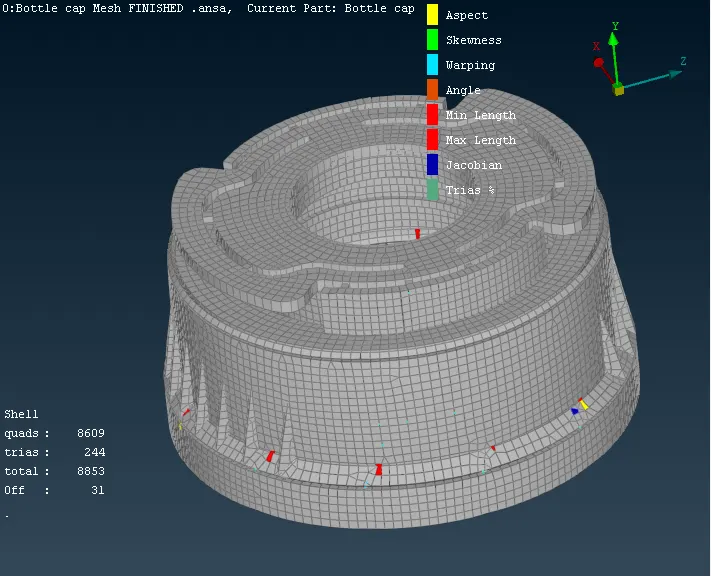
- Finally after creating the mesh and clearing the quality criteria the shell element representation is changed by going to utilities> quality criteria> presentation parameters and enabling the draw shell as solid.
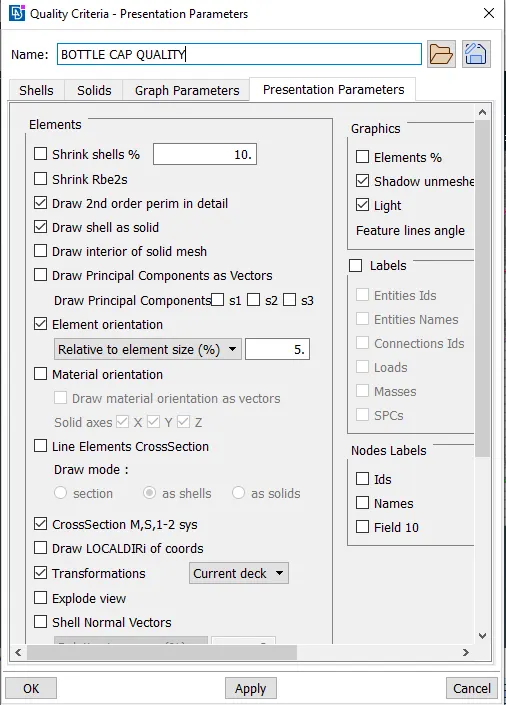
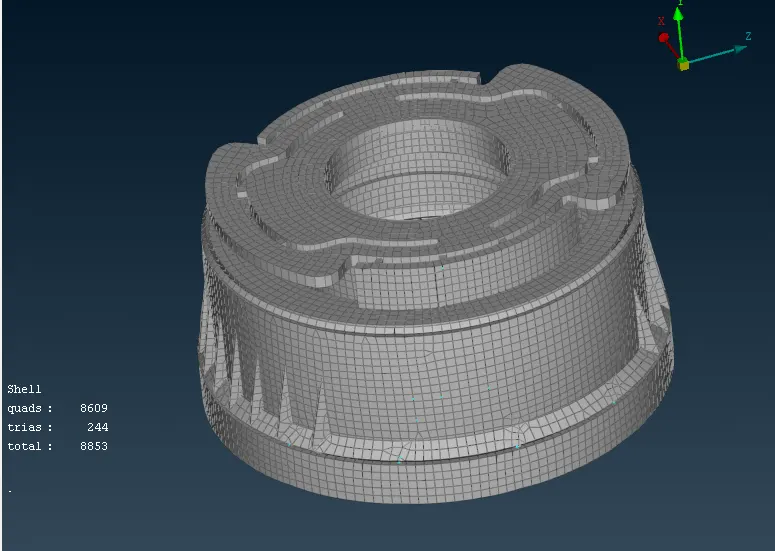
- Draw shell as model will add thickness to the model with the thickness that is provided in property ID.
- Then the final model will look like the image as shown below.
RESULT:
- Hence the mid surface has been extracted from the parent geometry.
- Hence there are no surface deformations in the geometry.
- A well connectivity has been established between surfaces.
- The features have been captured properly.
- A good mesh flow has been achieved.
CONCLUSION:
Geometry cleanup, mid-surface extraction and 2D meshing of the given Bottle Cap model were successfully done.