Week 4-1D Element Creation Challenge
Aim: Mesh the Given component with the Size of 5 Units. Create 1D elements on the following component with given cross-section and DOF
SPECIFICATION:
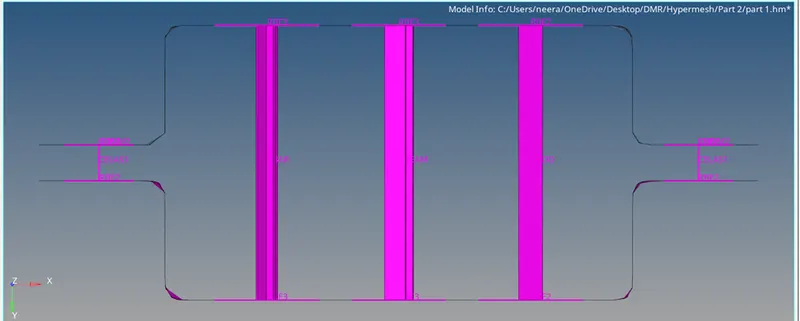
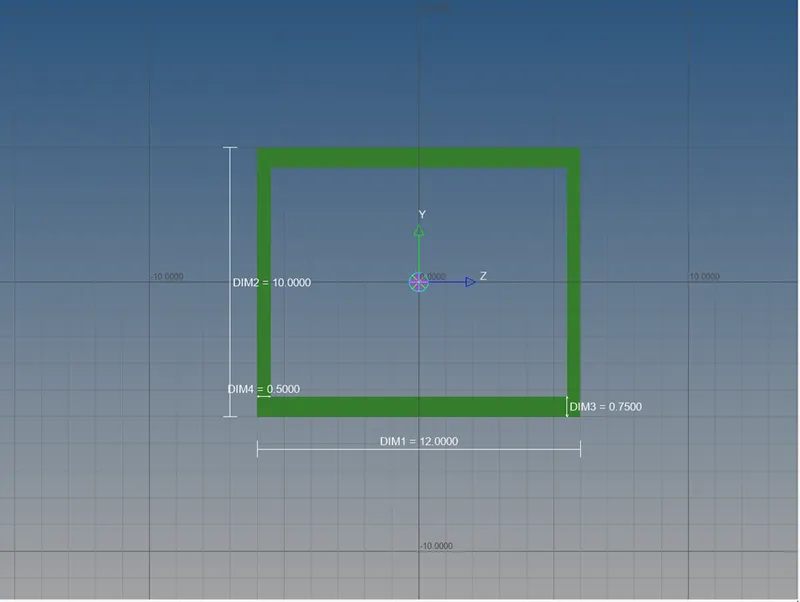
- Rod element:- Translational DOF should be Constrained with RBE2 link
Cross-Section: BOX- Dimension a= 12 mm
dimension b=10 mm
Thickness t= 0.75 mm
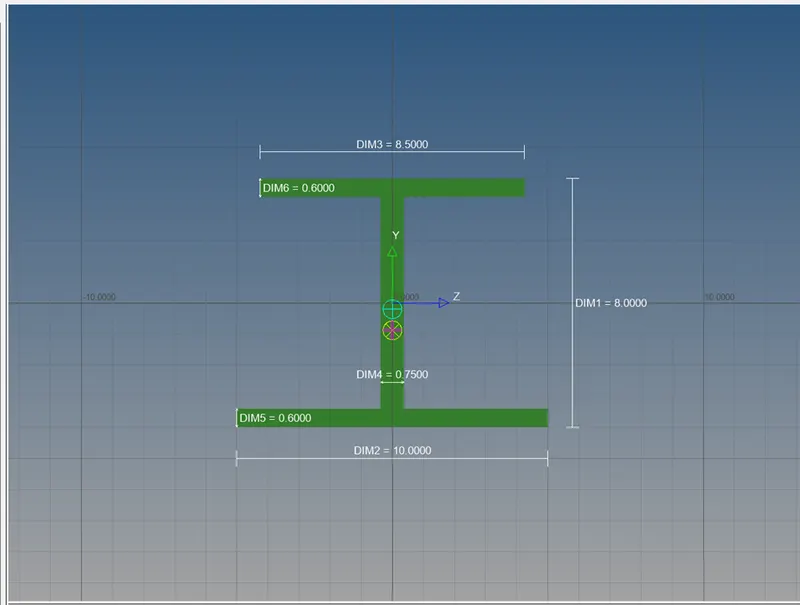
- Beam element:- All DOF should be constrained with RBE3 link
Cross-Section: I Section- Dimension a= 8 mm
Dimension b= 10 mm
Dimension c= 8.5 mm
Thickness t1= 0.75 mm
Thickness t2= .6 mm
Thickness t3= .6 mm
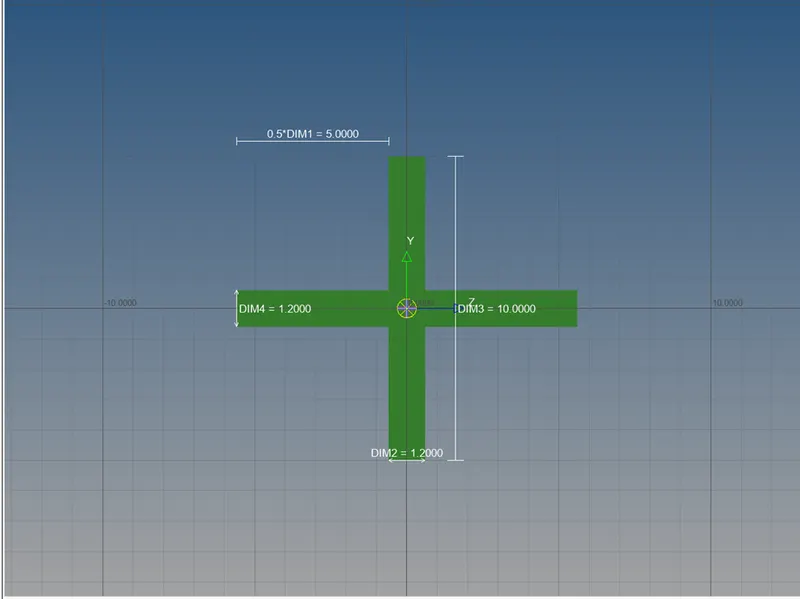
- Bar element:- Constrain only xand y DOFs With RBE3 link
Cross-section: X section- Dimension DIM1= 5 mm
Thickness DIM2= 1.2 mm
Dimension DIM3= 10 mm
Thickness DIM4= 1.2mm
- & e. Apply the massof magnitude 10 with the RBE2 link
- Join the two components with Spring elements
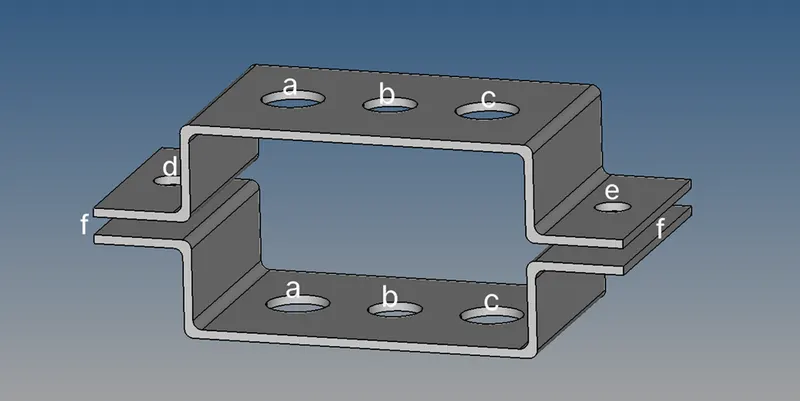
PROCEDURE
- IMPORTING THE GEOMETRY:
File>geometry>select the path >import the file
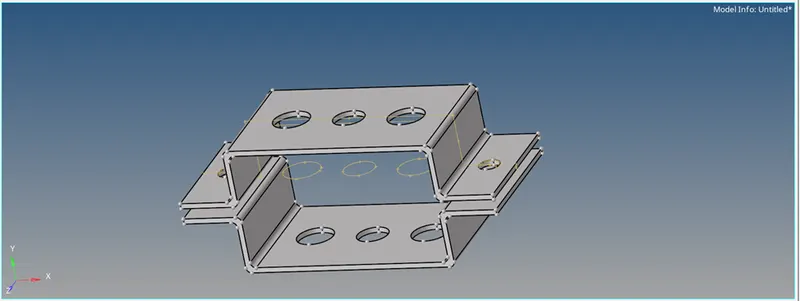
- MID SURFACE OF GIVEN COMPONENT
Geometry > midsurface> select the component>create
For the Top component name bracket 1
For the Bottom component name bracket 2
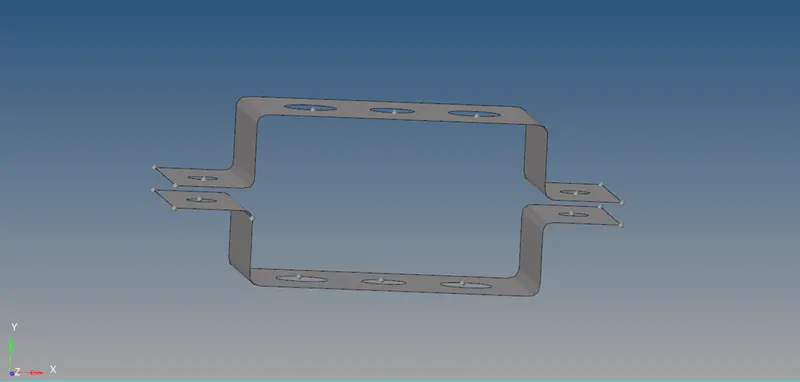
- MESHING THE COMPONENT
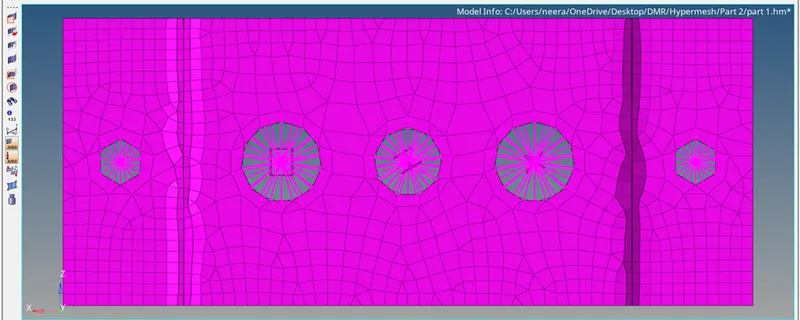
- BEFORE STARTING WITH THE MESH WE NEED TO CREATE WASHER IN HOLE REGION FOR THE BETTER MESH QUALITY.
GEOMETRY>QUICK EDIT>WASH SPILT>OFFSET AS 5MM
GENERATE THE MESH WITH THE ELEMENT SIZE AS 5 MM WITH MIXED ELEMENT
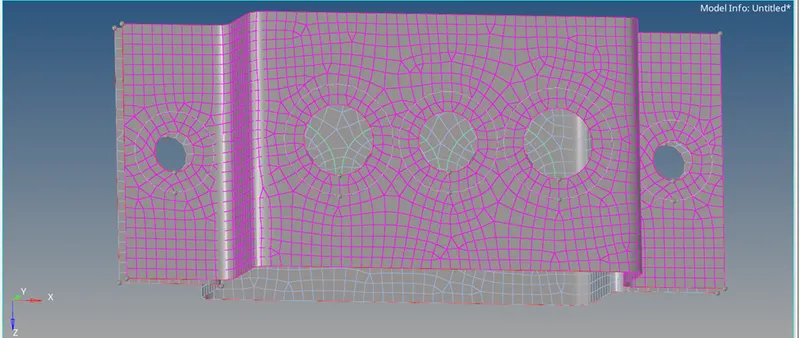
- CREATING PROPERTY
We should create properties and assign there dimension and thickness to them
s.no property name card id
1 Bracket1 Pshell
2 Bracket2 Pshell
3 Rod Prod
4 bar Pbar
5 Beam Pbeam
6 Mass Pmass
- Create the 1D elements
To create the 1D elements we need to go the hyper beam and select solid cross section for the 1D element
Conclusion:
- Extracted the Mid surface for given model using automesh option.
- Created different properties and assign to them.
- Got to know how to used 1D element (RBE2,RBE3,ROD,BAR,BEAM ,MASS,SPRING).
- Assign cross section and dimension to different properties.
- Hyper beam.