Week 4-1D Element Creation Challenge
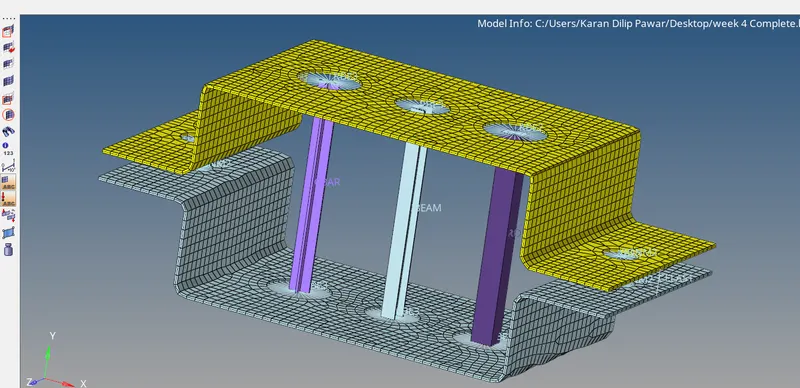
Aim- Mesh the Given component with the Size of 5 Units. Create 1D elements on the following component with given cross-section and DOF
Procedure-
1. Importing the model and performing Solids Delete
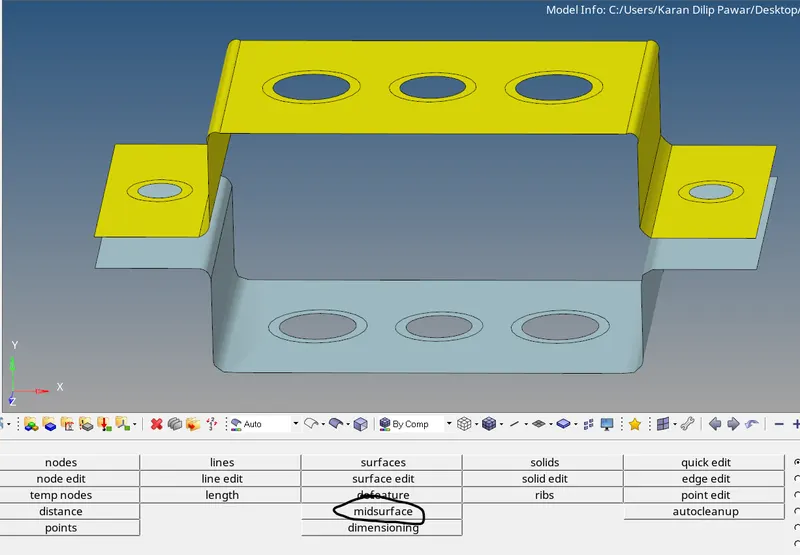
2. Creating a mid Surface Geometry-Midsurface and deleting the parent geometry from model view-Components
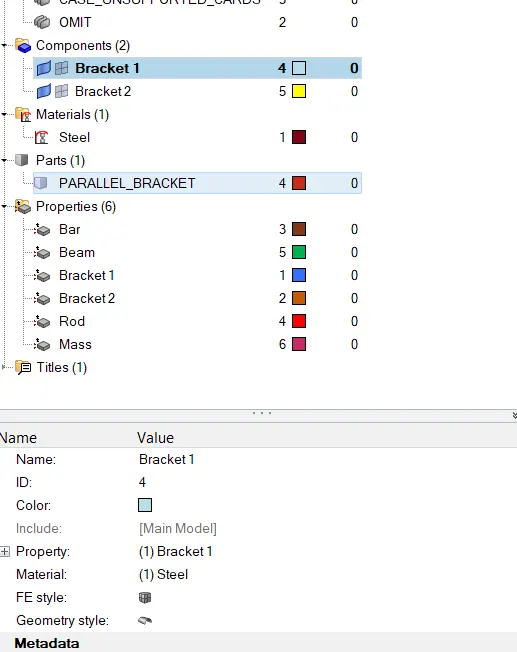
3.Assigning the material by creating material property in model view and creating two different properties for bracket (i.e bracket 1 & bracket 2) and assigned them the created material property i.e steel
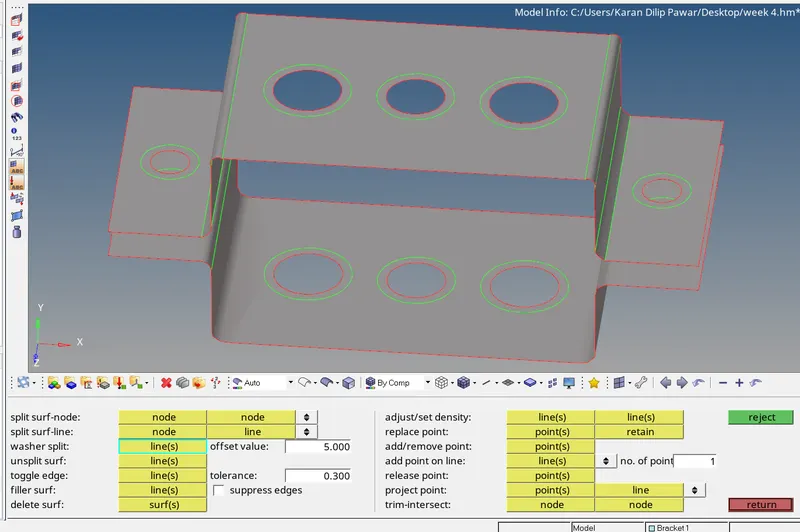
4. Making a washer split for holes for better mesh from Geometry-quick edit -Washer
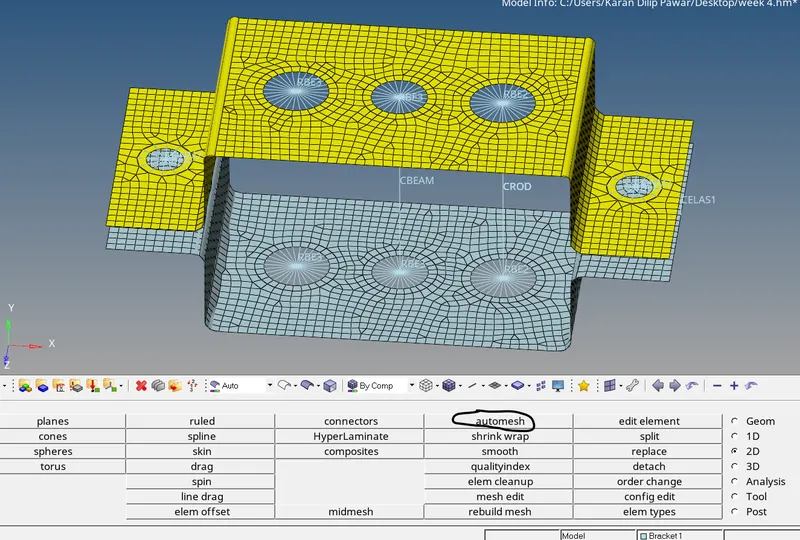
5. For meshing go to 2D-automesh-select as displayed and mesh
6. for RBE3 Link go to 1D RBE3-select as Calculate node & Multiple node and for selection of node go for path selection in nodes . same selection should be followed for RBE2 i.e Rigid
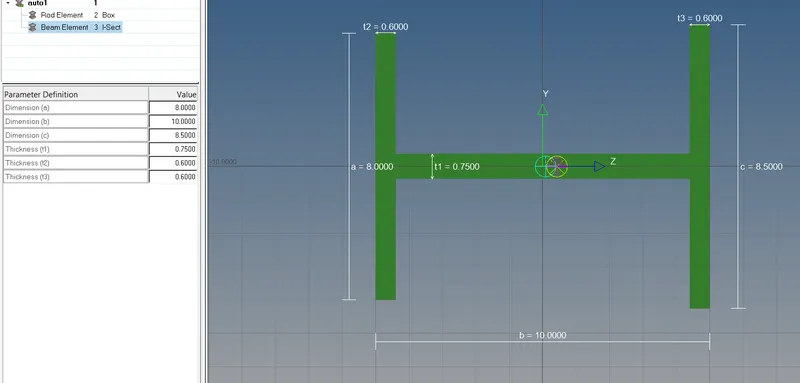
7. Now go to 1D Hyperbeam-Standard Selection-Under Standard section .Select I beam, Box and give the dimension as given
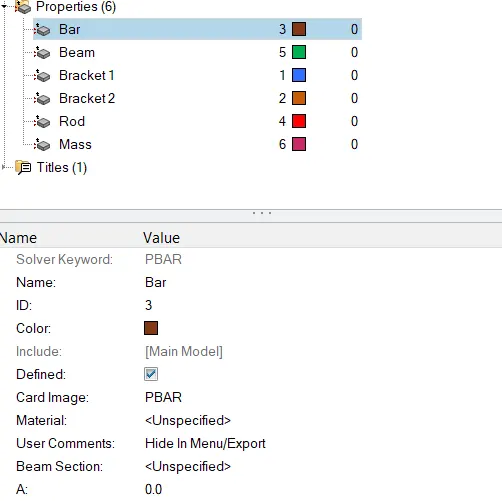
8. Under the properties create a property for Beam, Rod, Bar Element,Mass and Under it Selecting Card Element as PBEAM,PROD,PBAR,PMASS and in beam section selecting the element rod, bar, beam by the name which we saved while creating a hyperbeam
9.Now for bar go to 1D-Bar-By selecting two nodes-orientation-select the property-element type as CBAR-OK
10.For Rod-go to 1D-Rod-2nodes-Select Property-Element Type as Rod-Ok
11.For Spring 1D-Spring- 2Nodes-OK
12. For mass 1D-Masses-Enter Value- OK
Learning Outcomes
Learnt how to create a mid surface, assign material properties, how to change the properties with help of organize , meshing the elements, creating section through hyperbeam.