Week 4-1D Element Creation Challenge
Aim:
To Create 1D elements on the following component with given cross-section and DOF using hypermesh
Given:
a. Rod element:- Translational DOF should be Constrained with RBE2 link
Cross-Section: BOX- Dimension a= 12 mm
dimension b=10 mm
Thickness t= 0.75 mm
b. Beam element:- All DOF should be constrained with RBE3 link
Cross-Section: I Section- Dimension a= 8 mm
Dimension b= 10 mm
Dimension c= 8.5 mm
Thickness t1= 0.75 mm
Thickness t2= .6 mm
Thickness t3= .6 mm
c. Bar element:- Constrain only x and y DOFs With RBE3 link
Cross-section: X section- Dimension DIM1= 5 mm
Thickness DIM2= 1.2 mm
Dimension DIM3= 10 mm
Thickness DIM4= 1.2mm
d. & e. Apply the mass of magnitude 10 with the RBE2 link
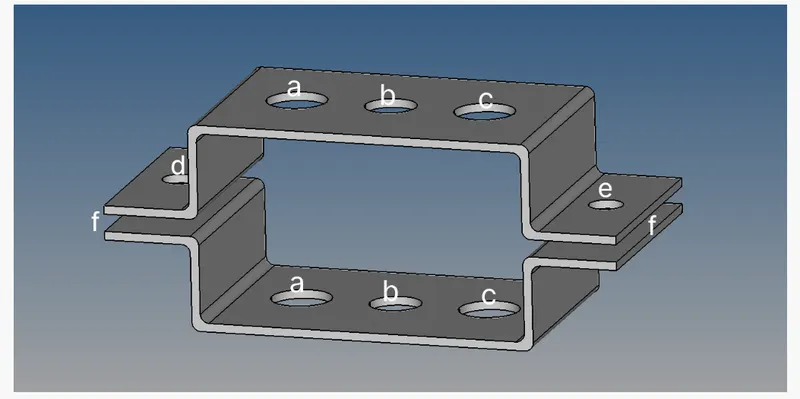
Procedure:
- IMPORT THE GEOMETRY
Import the file from the workspace and delete wireframe
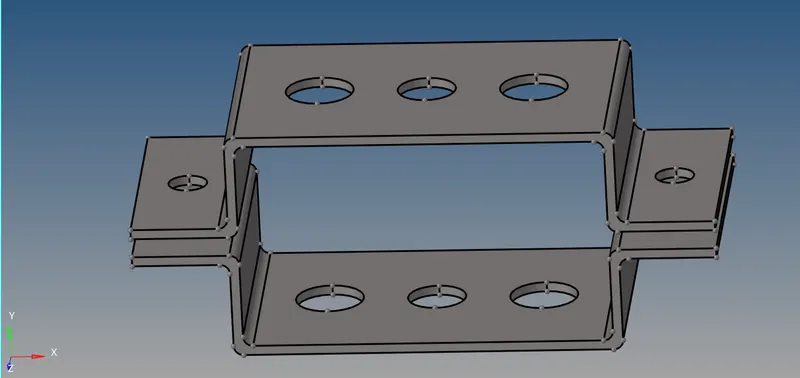
- creating the midsurface using given component
Step1 : select the geometry - midsurface - select the bracket 1 component
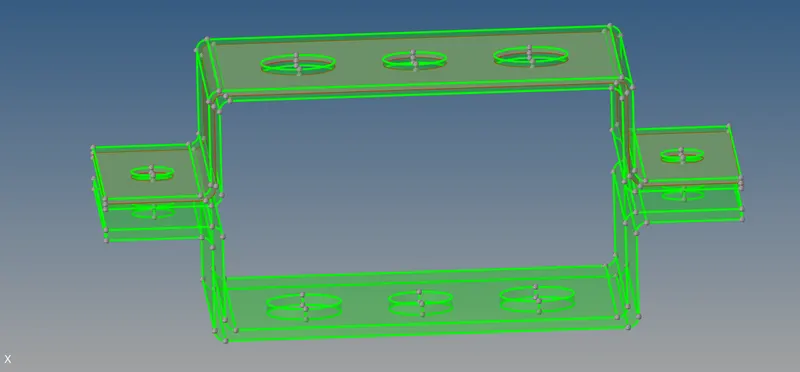
Step 2 : same process select geometry midsurface for bottom component bracket 2
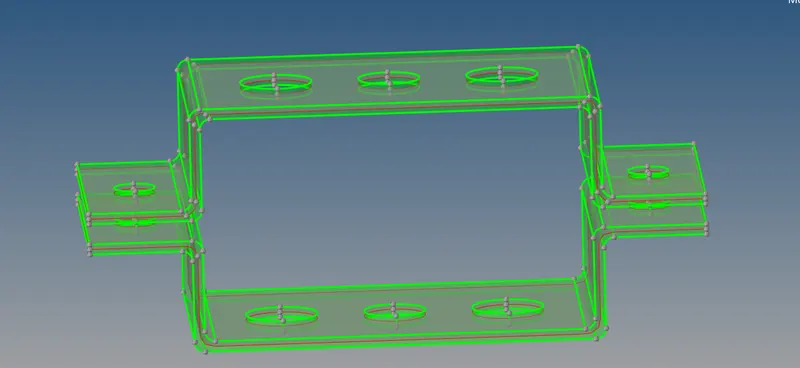
3. Meashing the component
step 1 :
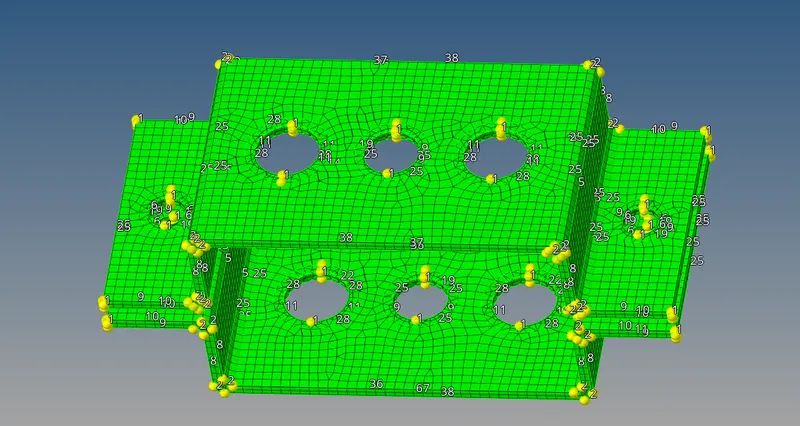
step 2:
Delete the model, keep the midsurface component, washersplit the over all holes and increase the node then mesh it again
and in the browser create the component to change the surface color for different to identify
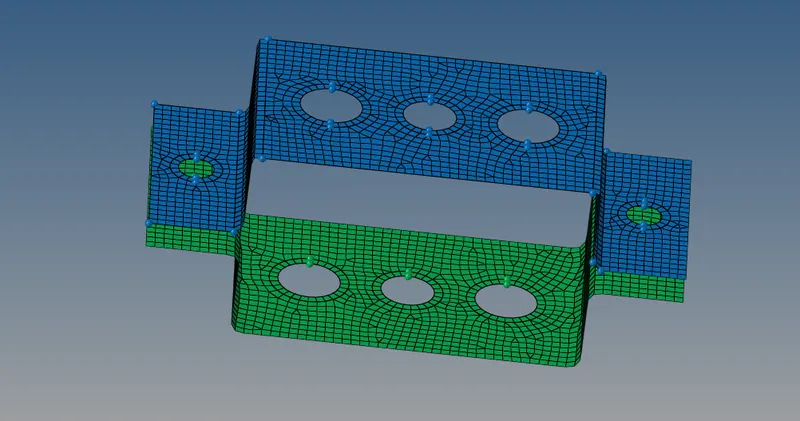
Step 3 After creating and meshing Goto - 1D element - rigid(RBE2) - place the given value on first hole which in below fig
Again Goto - 1D element- RBE3 - place it with give value in question on second Hole
Again Goto - 1D element- RBE3 - place it with give value in question on third Hole
and balance hole we should use the RBE3,side gap fill with spring element
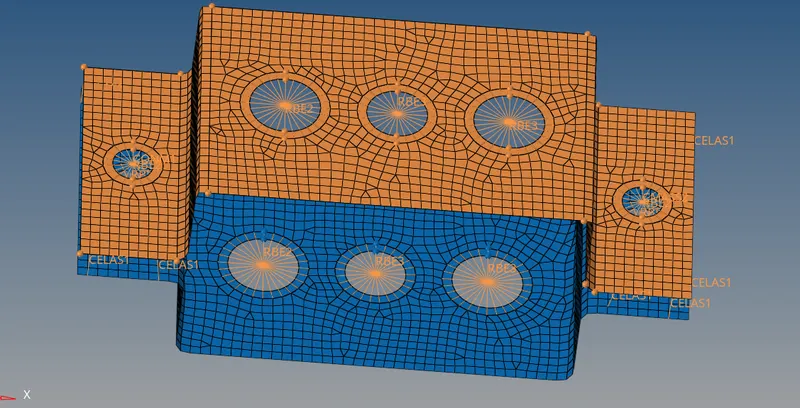
Step 4:
Goto - 1D option - select hypermesh - tab will open - create - standard section - optistruct - select I for beam and give the parameter in question
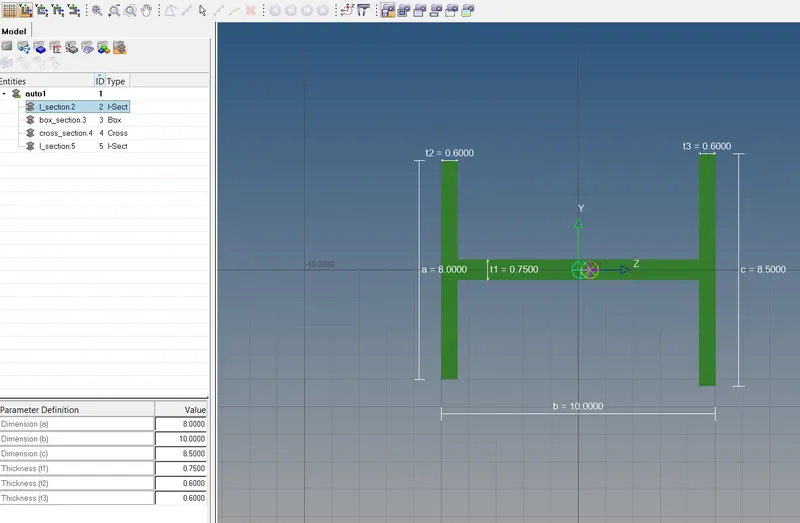
Goto - 1D option - select hypermesh - tab will open - create - standard section - optistruct - select I for rod and give the parameter in question
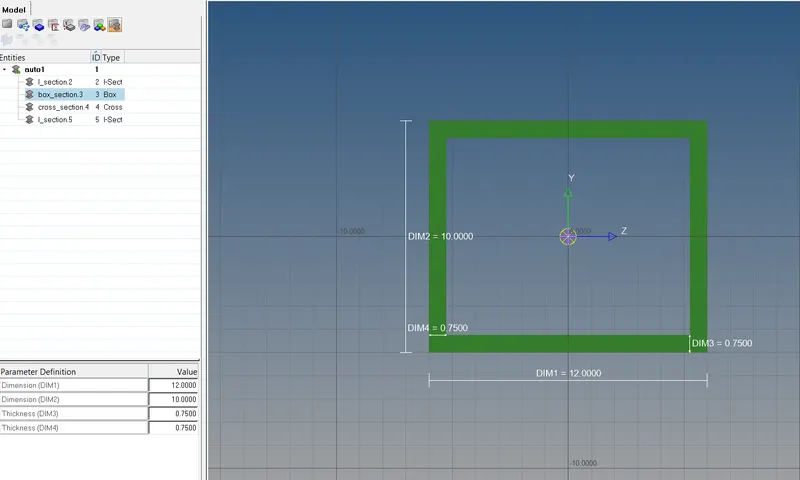
Goto - 1D option - select hypermesh - tab will open - create - standard section - optistruct - select I for bar and give the parameter in question
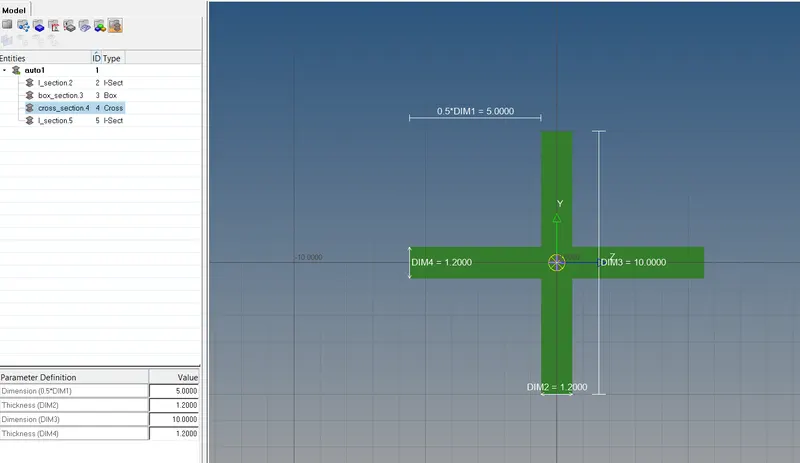
then back to the folder select the each figures in each element which we create the name as seperate seen in below figures
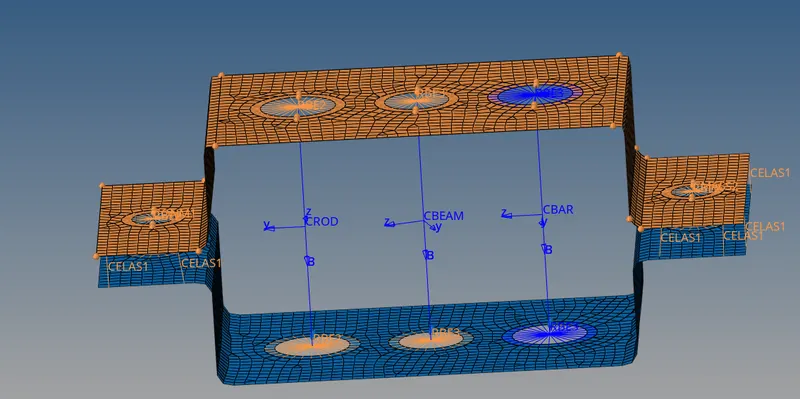
After the arrangement use the 1D element and detail element representation to view for better
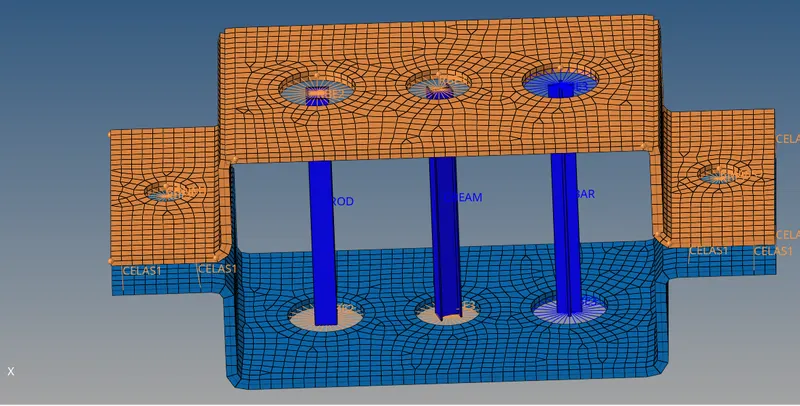
CONCLUSION:
All the give following in the question are sucessfully done by using hypermesh