Week 4-1D Element Creation Challenge
OBJECTIVE: To Mesh the Given component with the Size of 5 Units. And also create 1D elements on the following component with given cross-section and DOF
PROCEDURE:
Step1: To import the given model into Hyperworks, Import solver deck>Import geometry>file type IGES> Import.
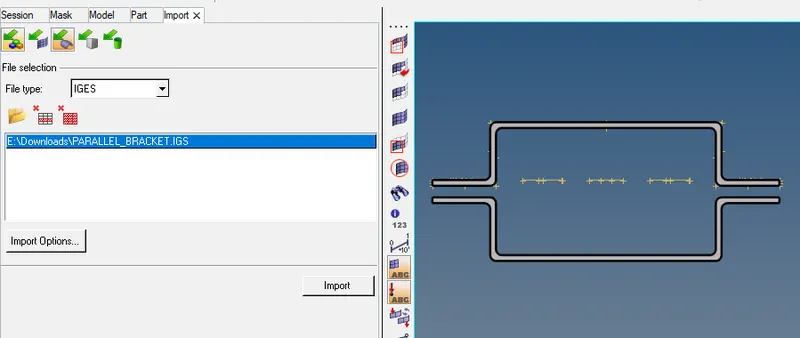
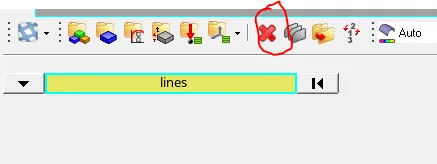
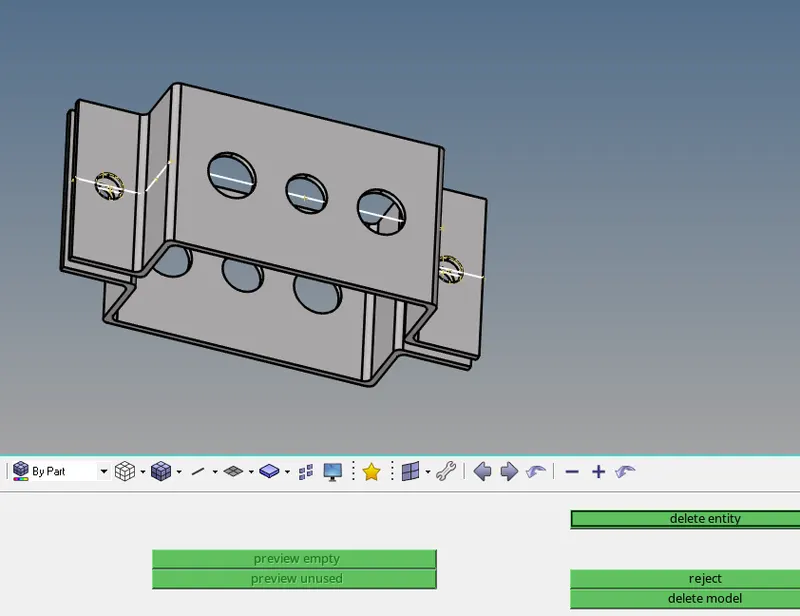
Step2: Deleted all the unnecessary , Delete > from the drop down select lines > delete the entity.
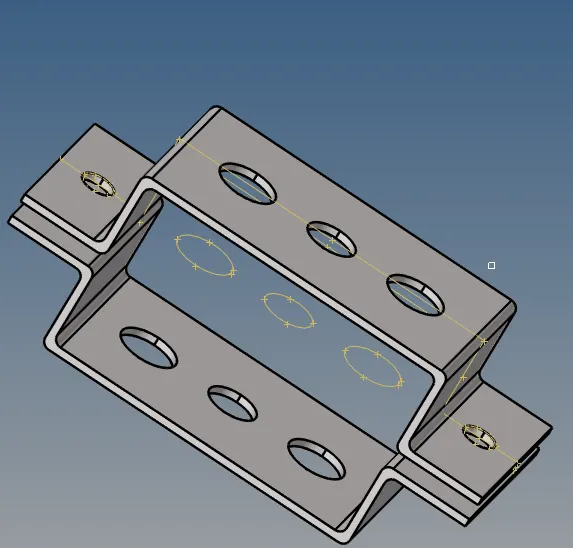
Step3: To create the Mid-surface for the flowing bracket and also creating the washer split.
- Geom> Midsurface> selecting the surface, the mid surface is created.
- To create the washer split, Geom> quick edit> washer split> offset distance 5 units.
- Creating the material card and also assigning the property for the midsurface.
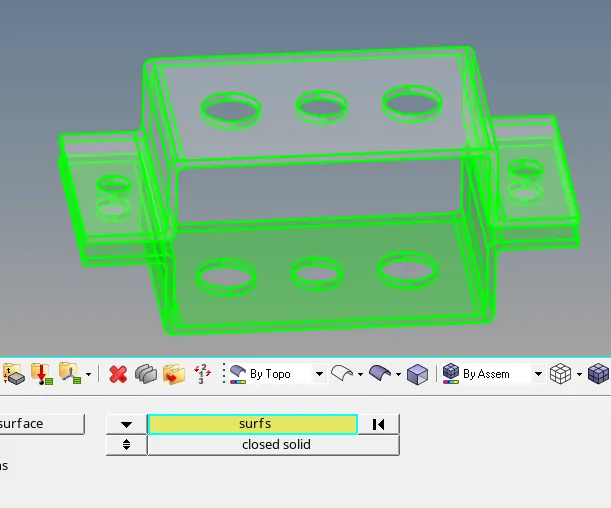
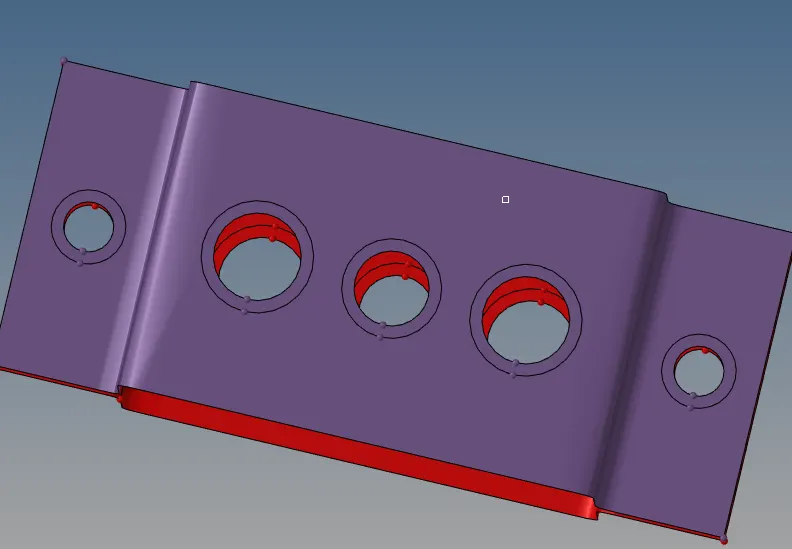
Step4: To mesh the midsurface with the element size 5 units.
- 2D> automesh> by selecting the displayed to select the whole model .
- Selecting element size as 5 units, and element type as mixed.
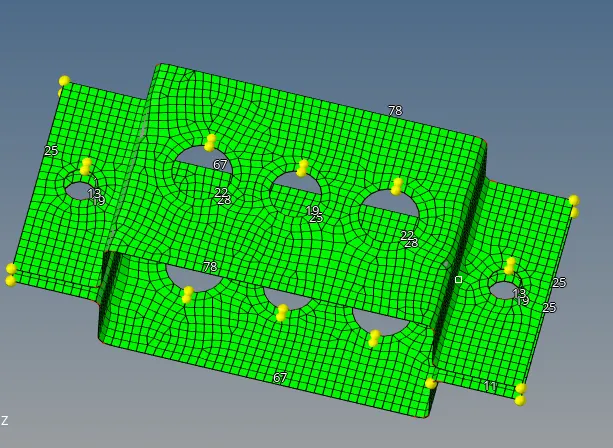
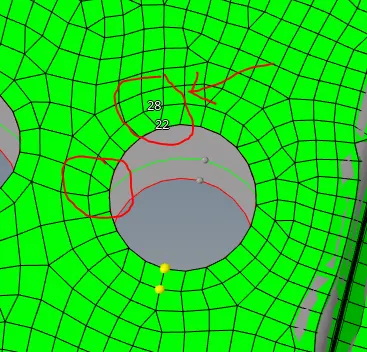
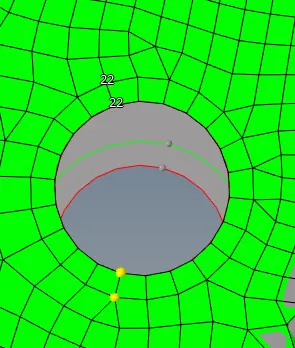
Step5: To remove the tria element present in the washer split.
- By matching the number of elements or nodes to remove the tria elements.
Step6: To create the Rebe2 elements.
- 1D element> Rigids> electing the nodes
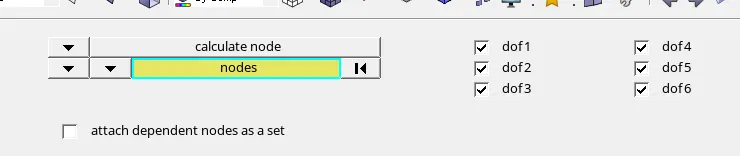
- To select the nodes from the drop down changing it to Mulitple node>calculating nodes, nodes>by path.
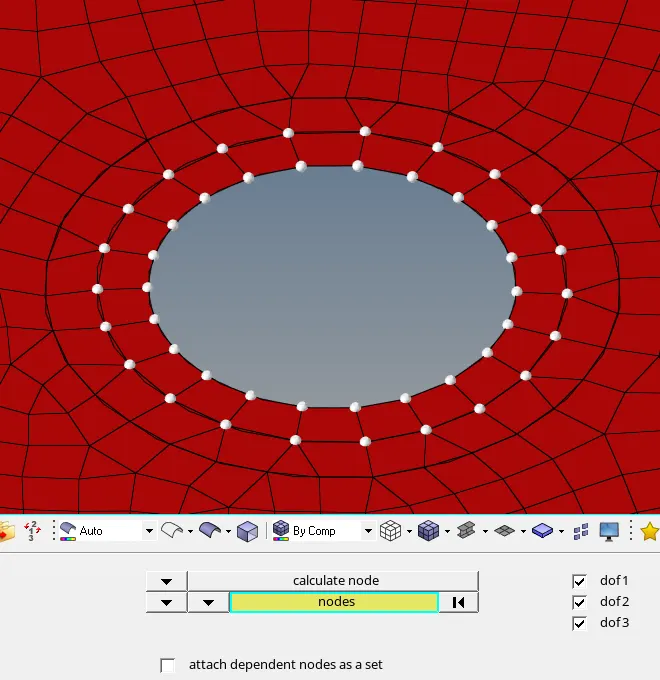
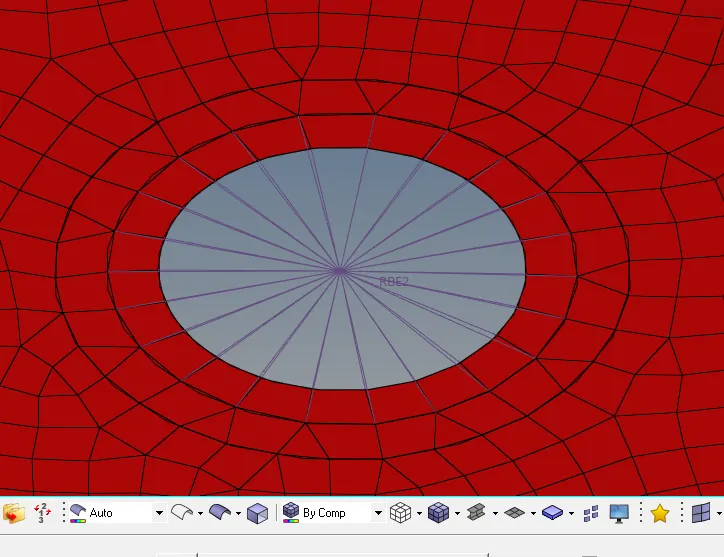
- Also similarly creating the Rebe3 elements.
Step7: To create the Rod, Beam and Bar elements.
- To create beam elements, 1D> Hyperbeam> standard section> Standard I section
- Entering all the given dimensions.
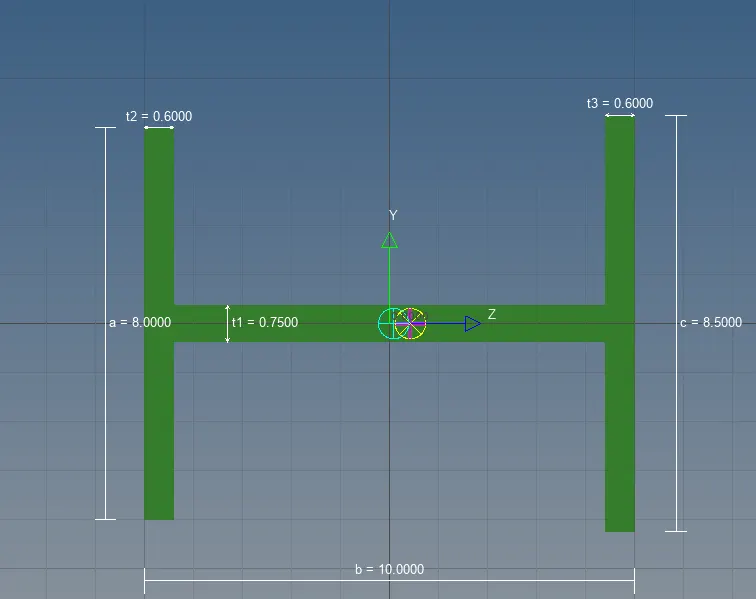
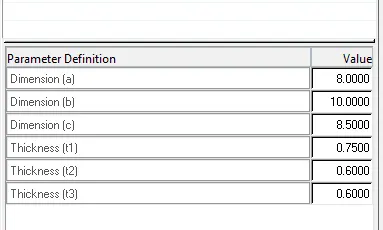
- Following the same procedure for Rod and bar element
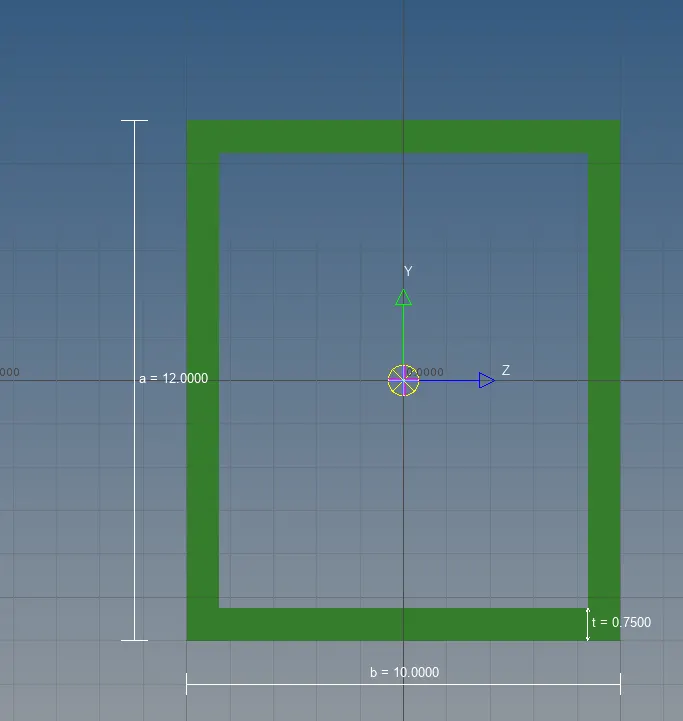
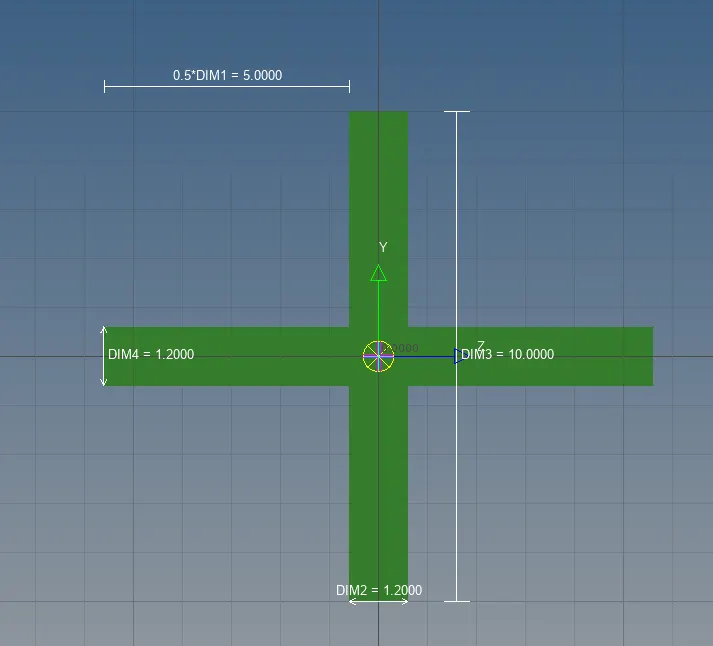
Step8: Creating 1D elements like rod, beam and bar.
- 1D> Bar> element type cbeam, selecting the node and vector accordingly.
- 1D> Bar> element type cbar, selecting the node and vector accordingly.
- 1D> Bar> element type crod, selecting the node .
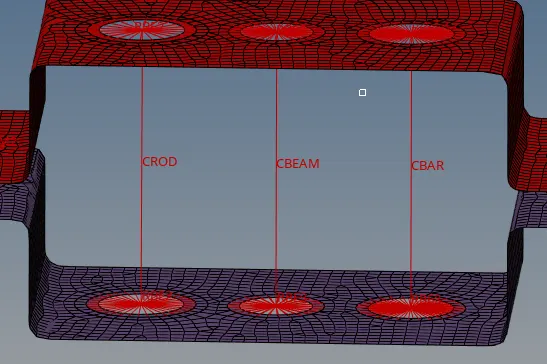
Step9: Creating the property card for for 1d elemets
- By right clicking on the tab bar> create> secting the assigning the material and also selcting the card image as Pbar
- By right clicking on the tab bar> create> secting the assigning the material and also selcting the card image as Pbeam
- By right clicking on the tab bar> create> secting the assigning the material and also selcting the card image as PRod
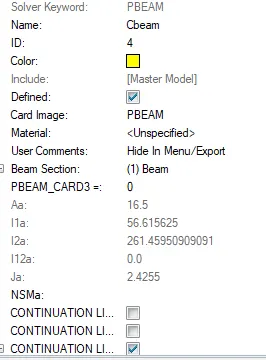
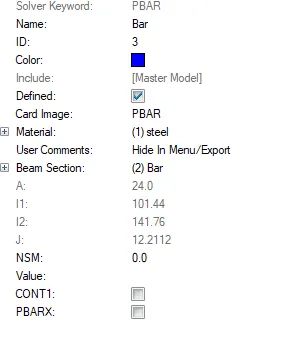
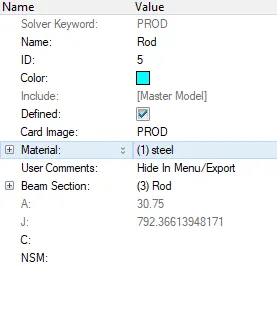
- Updating the 1D element, 1D> marking on Update> selecting element type and property as Pbeam.

- Similarly update for other elments as well.
Step10: Changing the reprensentation from traditional to detailed representation.
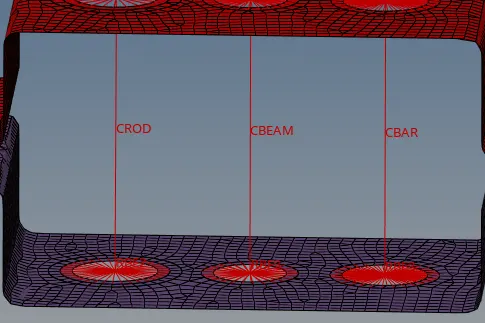
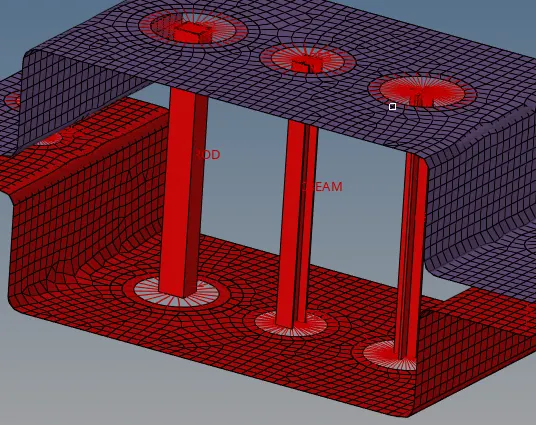
Step11: Creating the Con-Mass on the RBE2 as per given.
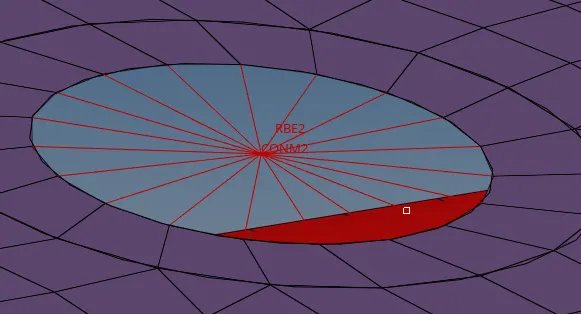

Step12: Creating the Spring elements between 2 brackets.
- Selecting nodes from bracket 1 and bracket 2 respectively.
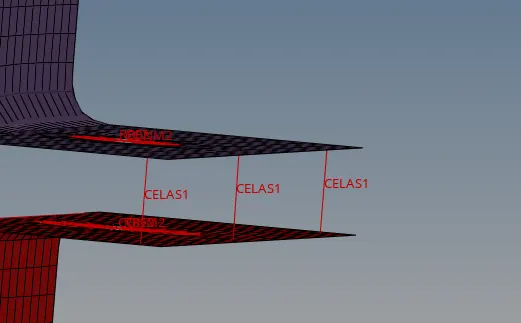
Images of the model in different views.
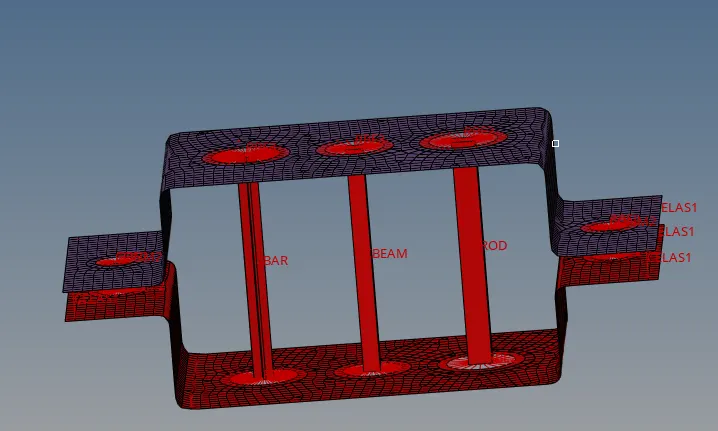
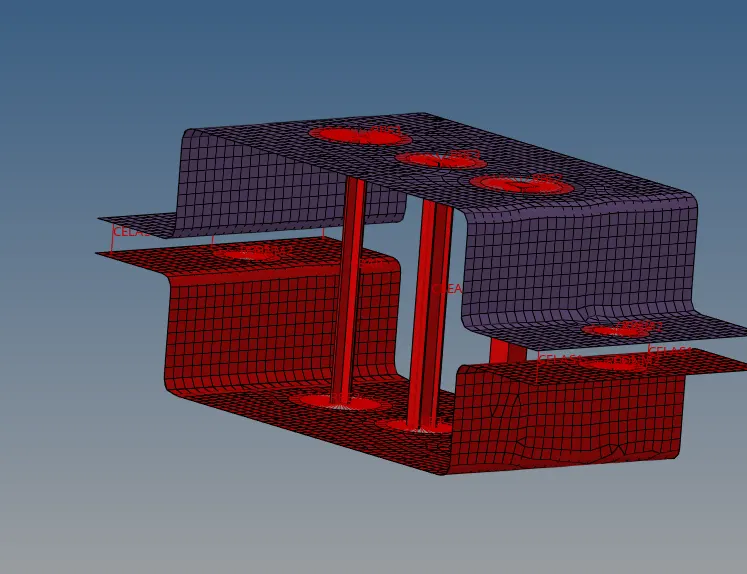
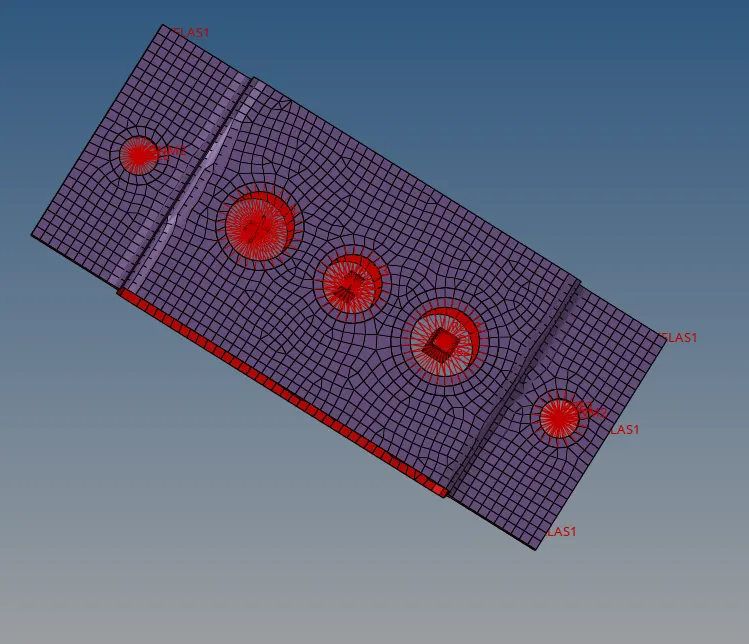
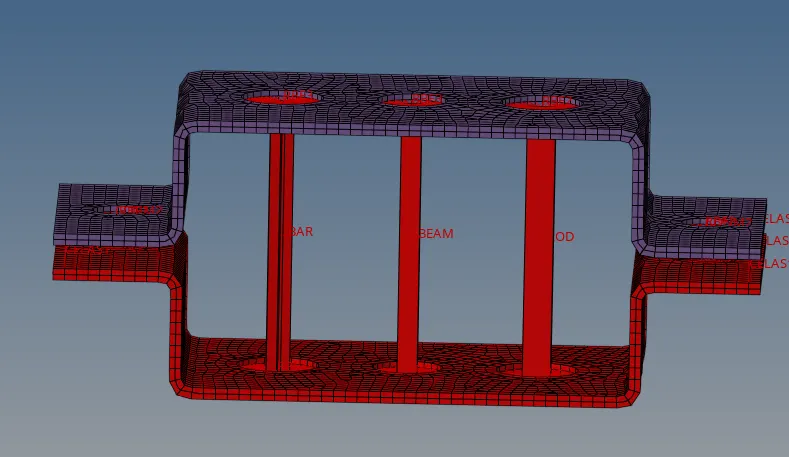
RESULT: Sucessfully created the mid surface from the given geometry and meshed, Created the rigid elements and 1-D elements.