Week 4-1D Element Creation Challenge
1D ELEMENT CREATION CHALLENGE
Aim:
Create the 1D Elements of the following component with given cross section and DOF
- Rod element:- Translational DOF should be Constrained with RBE2 link
Cross-Section: BOX- Dimension a= 12 mm
dimension b=10 mm
Thickness t= 0.75 mm
- Beam element:- All DOF should be constrained with RBE3 link
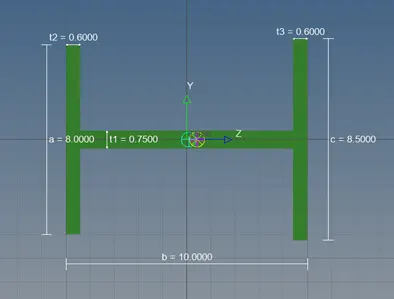
Cross-Section: I Section- Dimension a= 8 mm
Dimension b= 10 mm
Dimension c= 8.5 mm
Thickness t1= 0.75 mm
Thickness t2= .6 mm
Thickness t3= .6 mm
- Bar element:- Constrain only xand y DOFs With RBE3 link
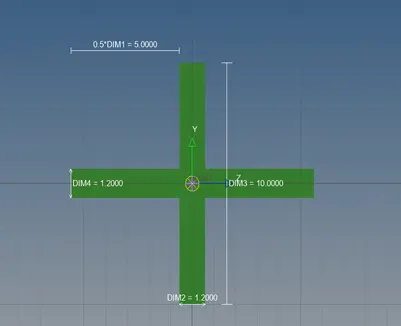
Cross-section: X section- Dimension DIM1= 5 mm
Thickness DIM2= 1.2 mm
Dimension DIM3= 10 mm
Thickness DIM4= 1.2mm
- & e. Apply the massof magnitude 10 with the RBE2 link
- Join the two components with Spring elements
Procedure:
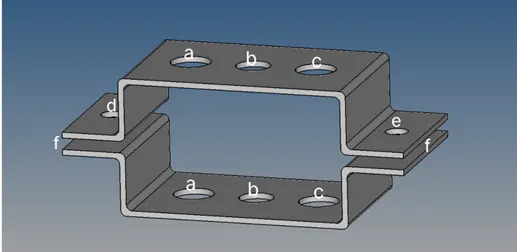
Procedure:
Import the CAD model image from the hyper works software Delete the solids using F2.
Mid surface Extraction:
Measure the thickness of the given geometry go to auto mid surface extraction options select top bracket 1and extract.
Similarly do it for the bottom bracket 2 and extract the mid surface for it.
Go to quick edit options from geometry or press F11 option.
Click on washer split option and put the offset value for the hole.
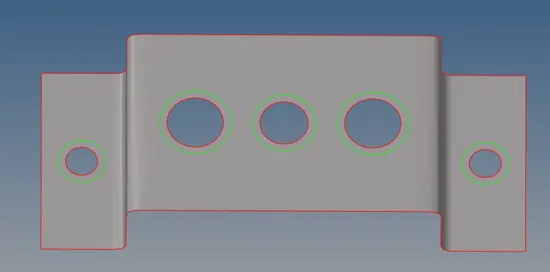
Creating the Mesh:
To mesh the mid surface extracted model press F12 or go to Auto mesh from 2d option.
Select the surfaces displayed both bracket 1 and bracket 2 and then click on mesh.
Mesh generated will be of element size 5mm. Go to clean up tools and remove the trias.
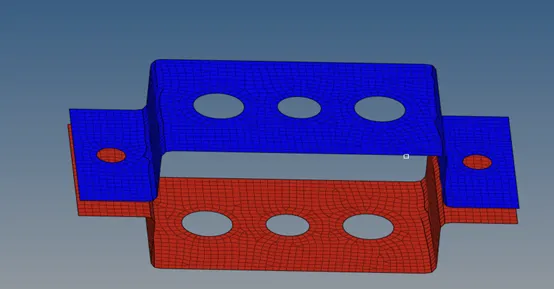
Create a material for the bracket as steel and enter the young modulus, poisons ratio, and density assign them to component.
Create the property and put the card image as PSHELL and assign a material to the property
Create RBE2 and RBE3 link for the component
To create a RBE2 link on the washer hole go to 1d rigids select the dependent node then create a RBE2 element. For bracket1 and bracket2 for the reference node (a). and select element type a CROD
To create a RBE3 link on the washer hole go to 1d RBE3 select the dependent node and then create a RBE3 element for both the brackets for the reference node (b) and select the element type as CBEAM and for the node (c) select the element type as CBAR.
To create a RBE2 link on the washer hole go to 1d rigids select the dependent node then create a RBE2 element. For bracket1 and bracket2 for the reference node (d) &(e).
Creating a Beam:
To create a cross section of the beam go to 1D Hyper beam standard section and then create it takes to the hyper beam section
Box section:
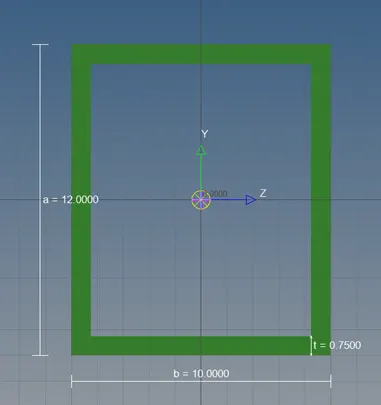
I section:
Cross section:
Assigning properties to the beam:
Create the properties for the beam and assign the cross section and material property to them.we have three different cross section and three beam elements
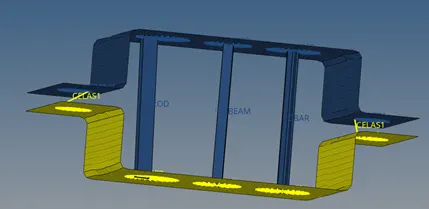
Finally create the spring elements on both side with RBE2 link and join the component with a mass of magnitude 10
To create 3d visualization of beam go to 1D detailed element representation from 1D traditional element representation.
Conclusion:
Thus the 1D element with RBE2& RBE3 link with bar, rod and beam cross section were created