Week 3-Meshing of Hood Challenge
AIM: The main aim of this challenge is to mesh the inner hood panel.
Objectives: to learn how to mesh on complicated area and how to create a fea model.
Procedures:
- First we have to import the cad geometry by clicking on Import option on above menu bar.
and select the model and click on import option and the CAD geometry will open.
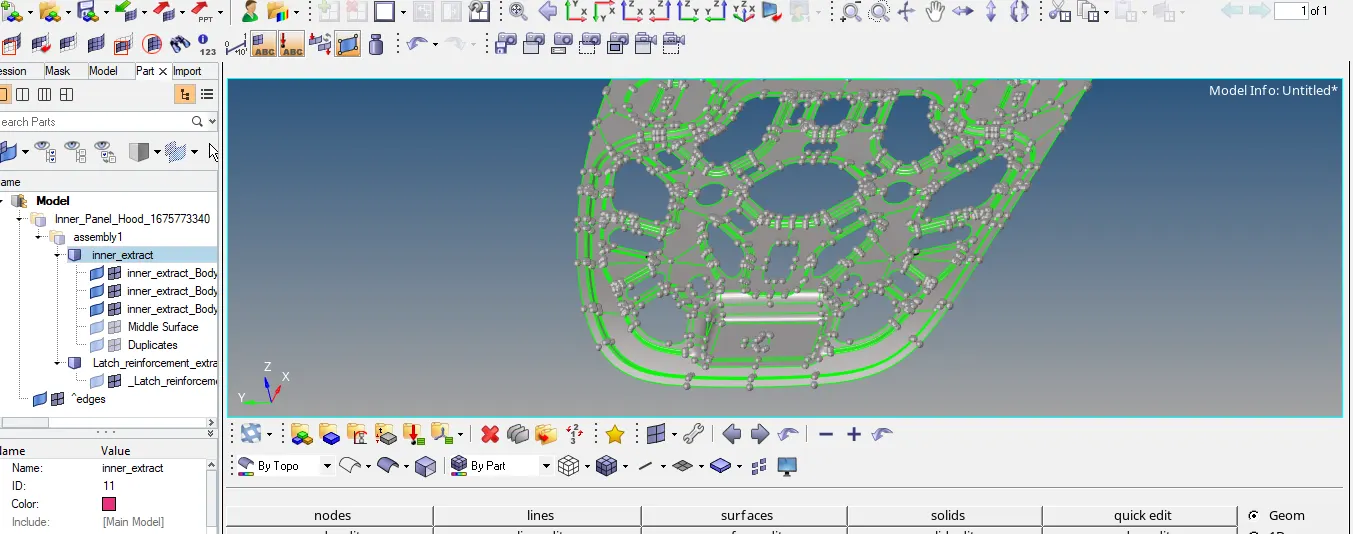
- we have to clean the geometry by clearing damaged surface and also by deleting duplicate surfaces.
-Now we should extract midsurface from parent geometry, Click on midsurface option, GEOM->MIDSURFACE.
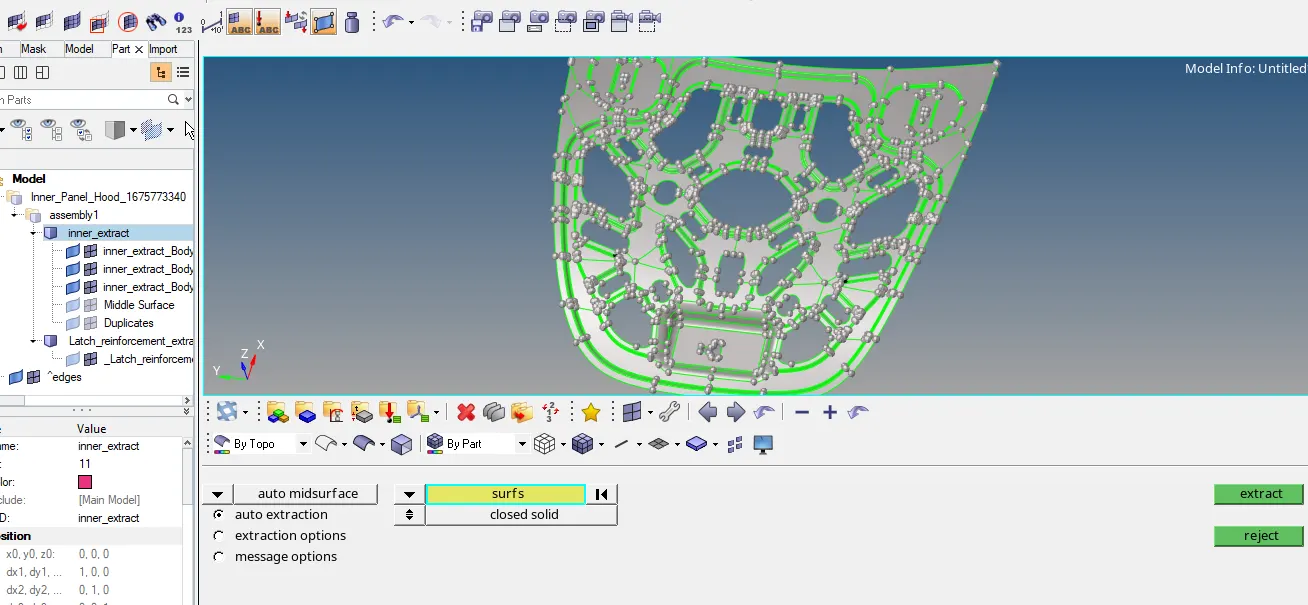
Keep the automisdurface option ON in the dropdown box & click on surf option & click on displayed option to select the entire model,
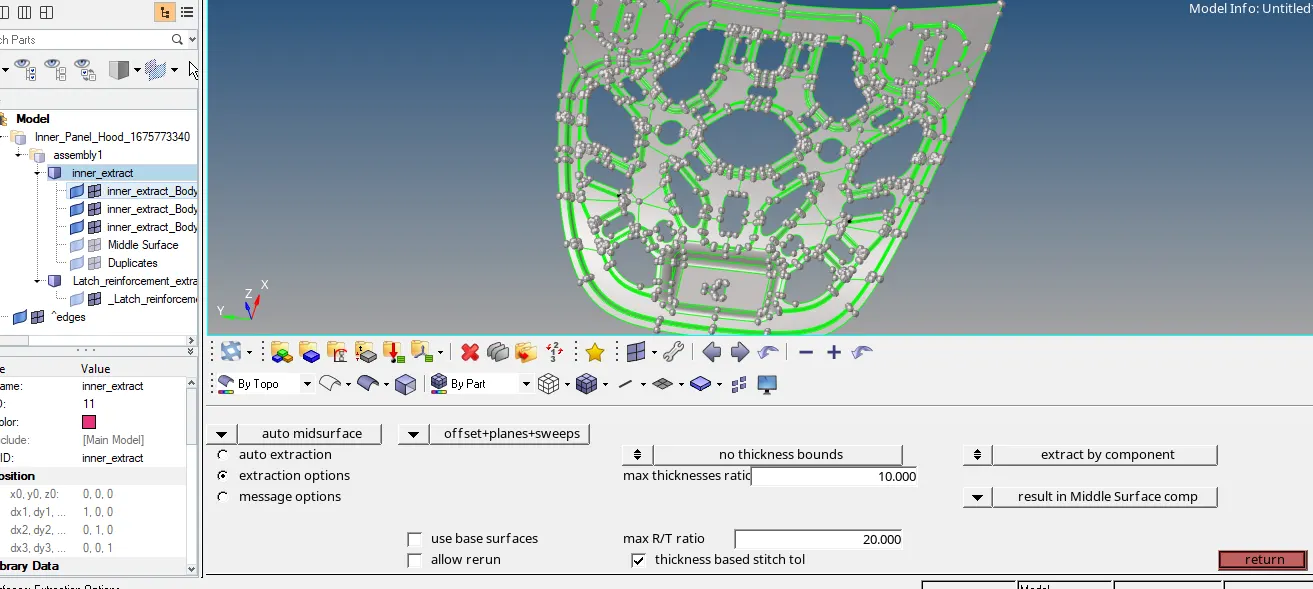
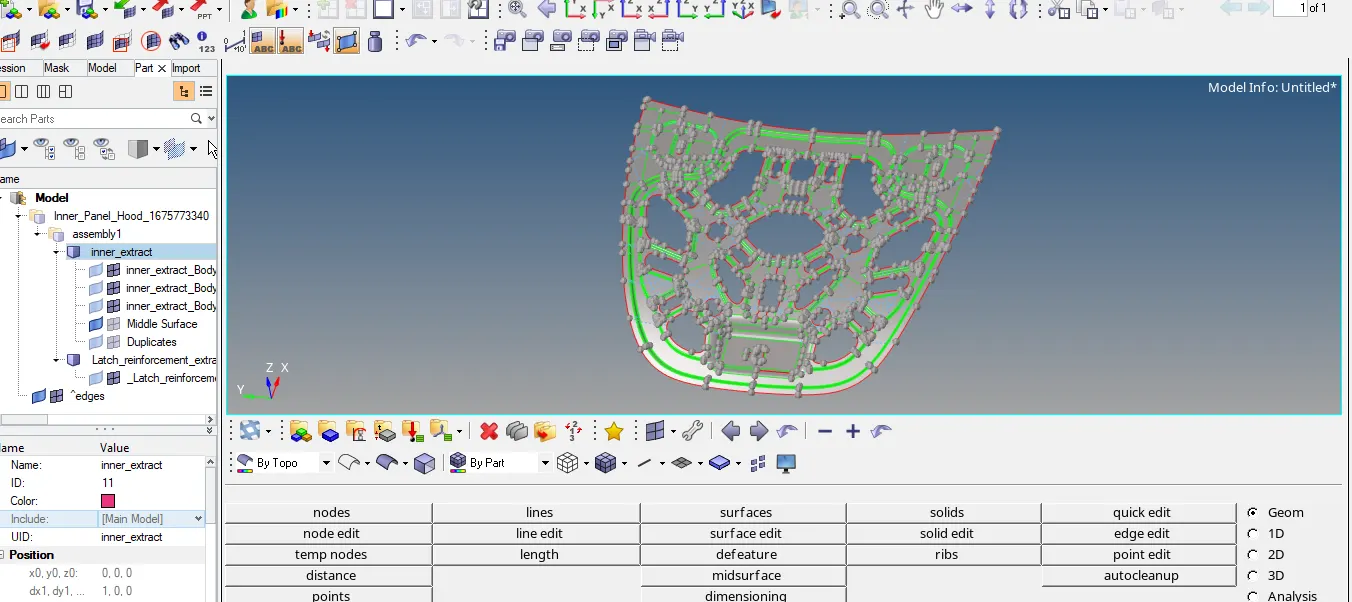
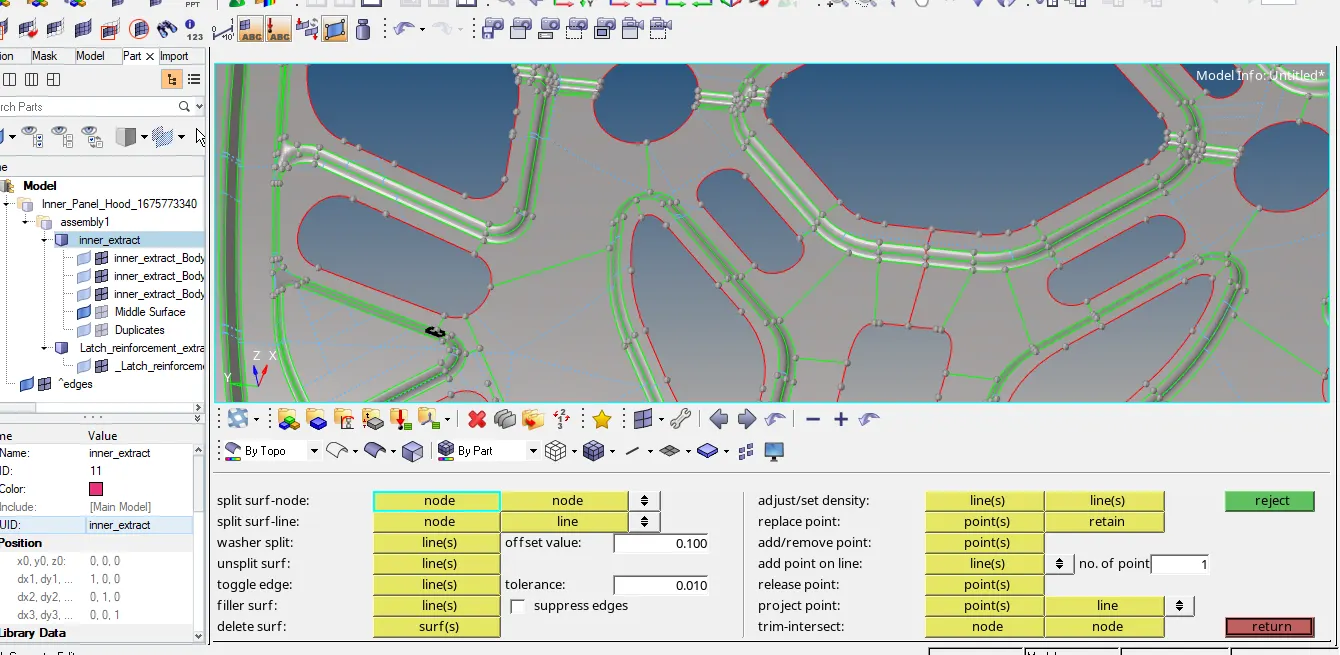
& now check for the Extraction option and keep "OFFSET+PLANES+SWEEP" option & again check for autoextraction and click on extract option and the midsurface will extracted.
- Now we should work on middle surface by focusing on individual surface we have to perform cleanup on midsurface if any damaged surface are formed we have to fix it.
& also we have to defeature the midsurface according to quality criteria & by deleting the construction lines deleting construction lines by using "TOGGLE EDGE" option GEOM->QUICK EDIT->TOGGLE EDGE,
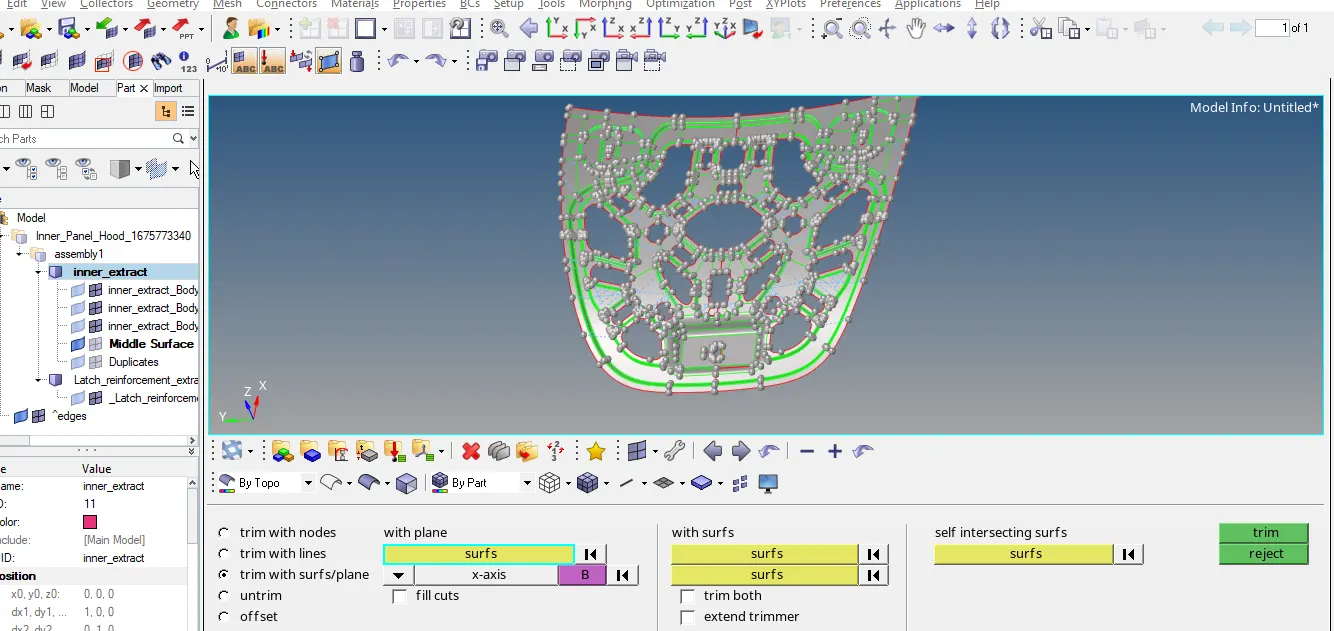
as the geometry is in symmetrical so we can divide it into two equal parts and we can delete one half and work on only one half and later we can mirror it.
To divide the part into eequal parts we have to do Trim by using "TRIM WITH SURFACE PLANE" GEOM->SURFACE EDIT -> TRIM WITH SURF/PLANE -> WITH PLANE & select the yellow box and click on displayed & select the direction in the dropdown box as X-axis ad click on trim option the surface is nowdivided into two equal halves now we have to delete the one half of part and we should work only on one half.
Now we have to perform meshing operation on the surface.
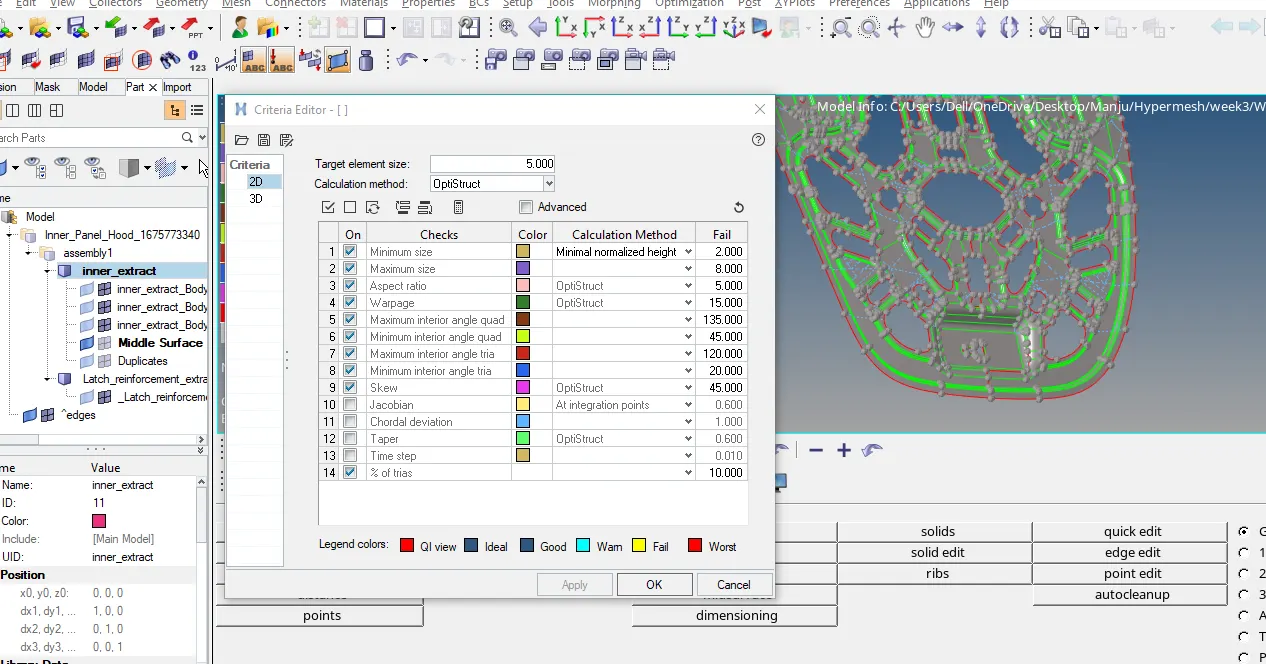
first we have to set quality criteria values, clicl on "PREFERENCE" option which is present on top menu bar click on "CRITERIA FILE SETTING" option and enter the values as per given & click on OK.
Now generaate mesh on the surface click on 'AUTOMESH" opton 2D -> AUTOMESH keep mixed option ON enter the elemetn size as 5 and select on individual surface and click on MESH option and now we have to adjust the nodes numbers on edges to obtain the good mesh flow.
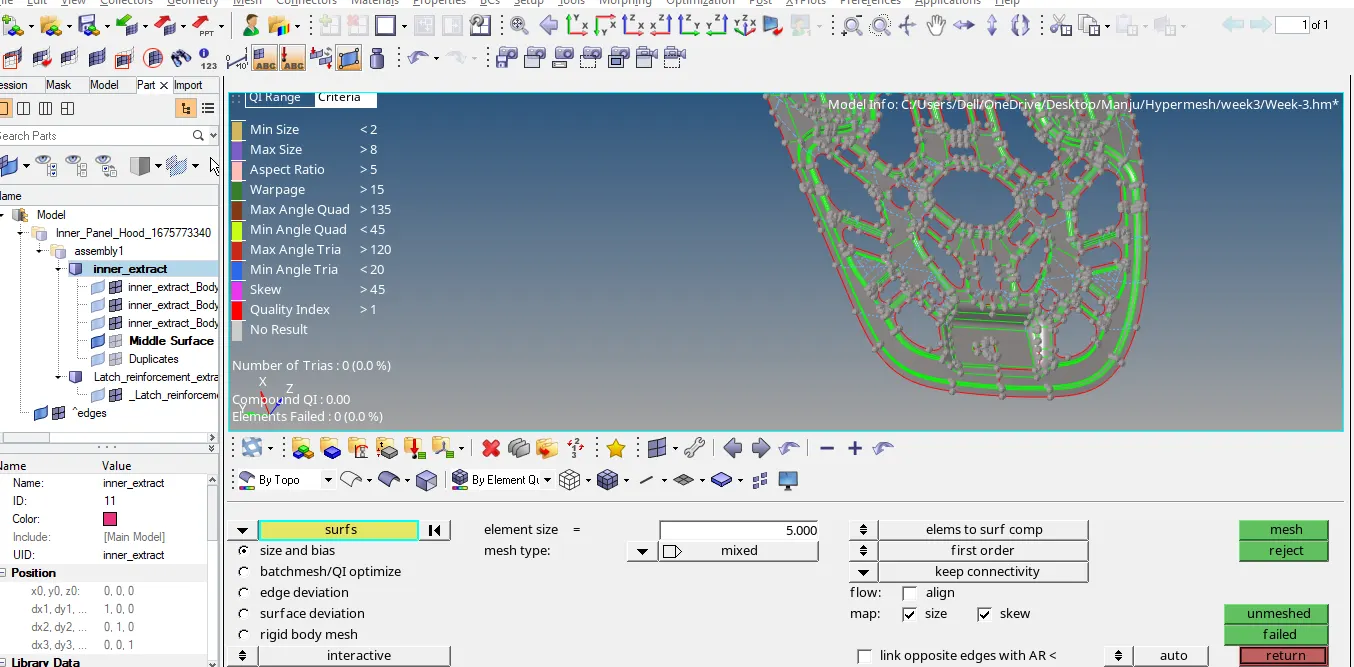
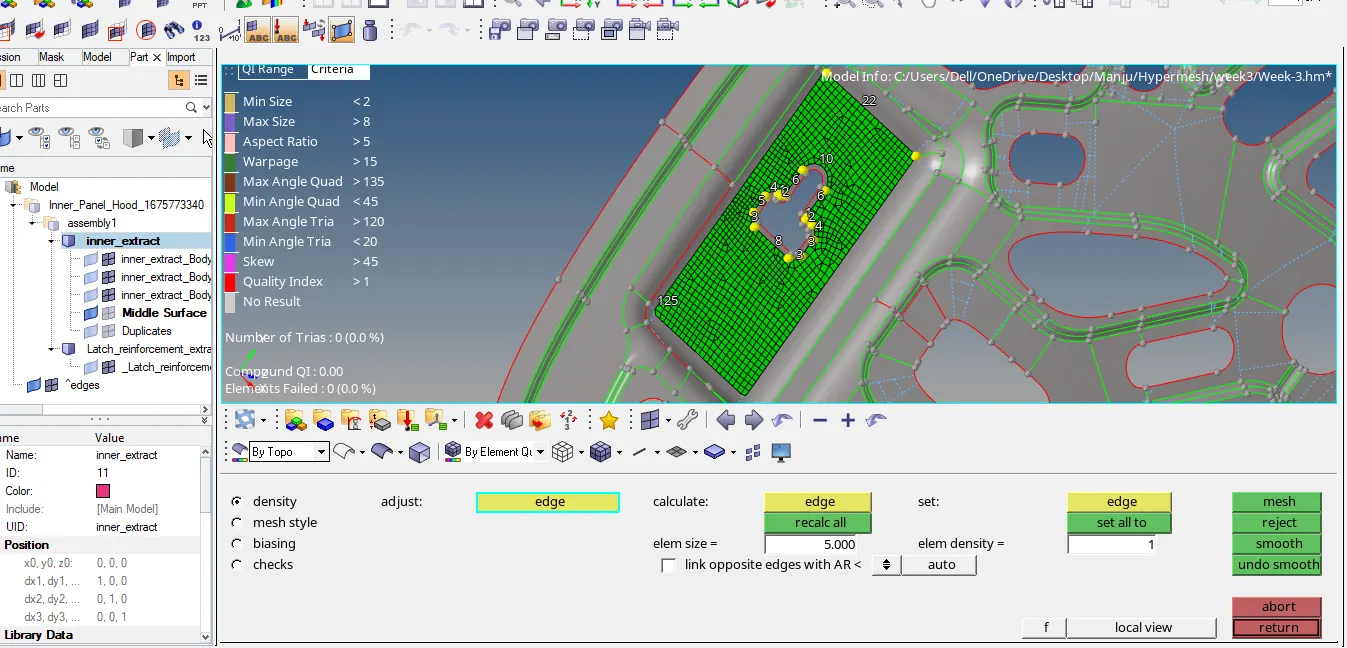
and similarly we have to work on the each and every surface if the mesh is not good then we can use rebuild option as well and we can use multiplle tools to work on mesh in order to obtain good mesh we can use multiple cleanup tools,
"2D -> QUALITY INDEX -> CLEANUP TOOLS"
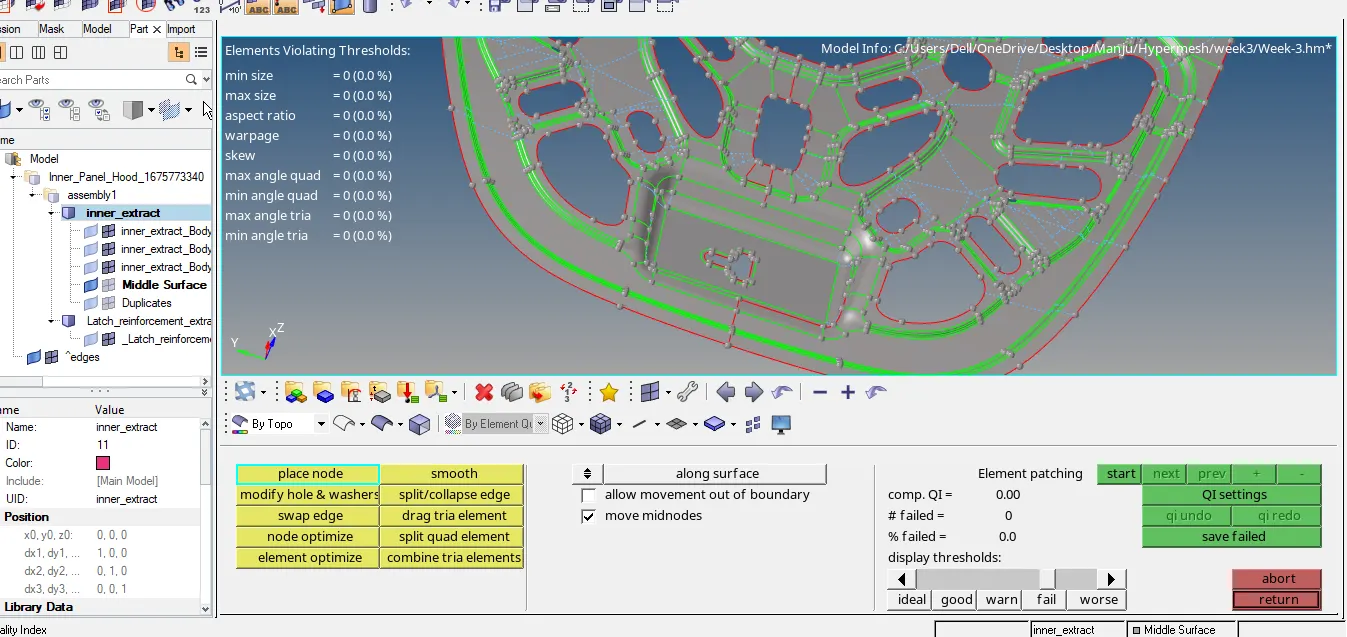
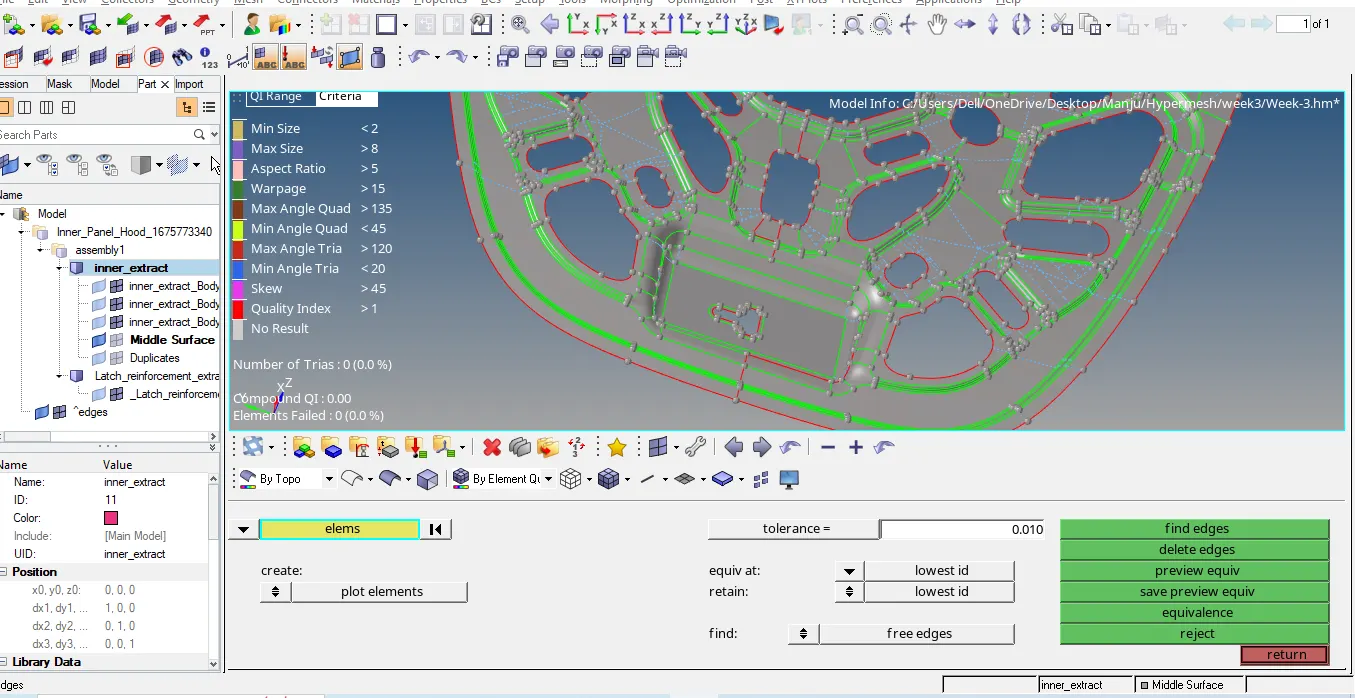
and finally we have to check for free edges if any formed " TOOLS -> EDGES " select the element option in the dropdown list click on yellow box and select displayed and click on find edges the free edges will gets highlighted and we need to clear free edges.
Model Link: https://drive.google.com/file/d/1Zgz9Yhs045r-wk5yhgq2fENQc0GjWhYM/view?usp=drive_link
Thankyou.