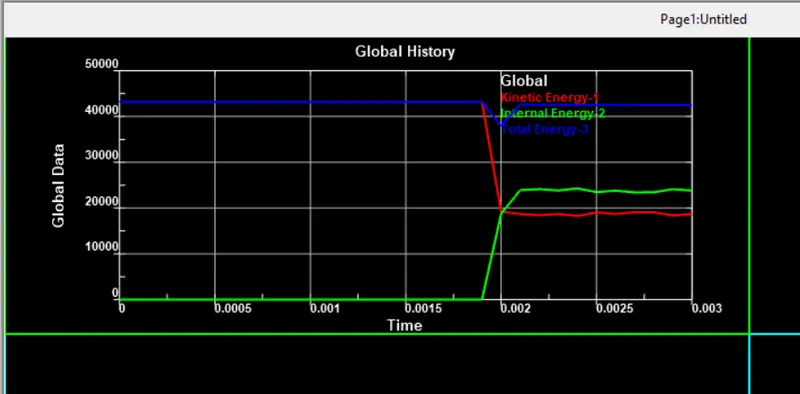
Week - 3 Drop test Challenge
AIM: to perform the drop test of cell phone
procedure to import the dot k file
click on file >click on import>click on LS dyna keyword file >select the file from the drive
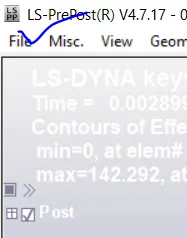
the file has been imported succesfully
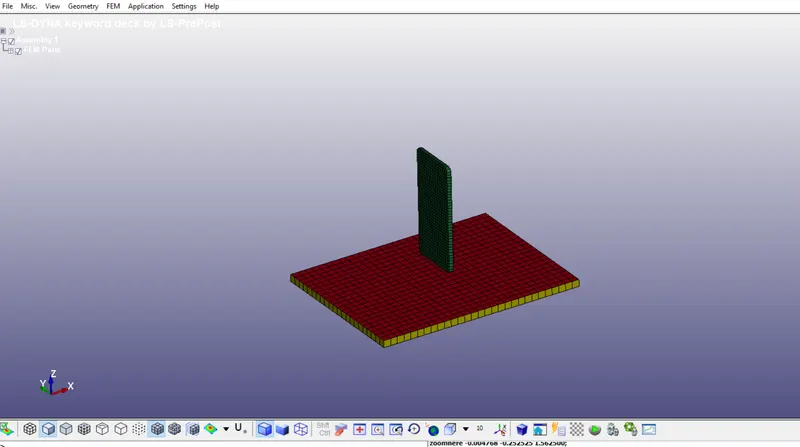
the next step is to delete the shell elements from the model, the shell elements can be viewed from the above figure the color of the shell elements is red we need to delete those elements.
Material:
now we need to create a material card for cell phones and the surface that is going to act as a Rwall.
click on FEM from the main menu bar> click on the model and part>click on keyword manager to prepare the material for the rigid wall we need to click on MAT from keyword manager>select 020-RIGID>and assign the properties like density Youngs modulus Poisons ratio.
Similarly, we can create material for cell phone the material will be different from rigid wall >in this case we need to select the material from MAT as piecewise linear plasticity and assign the properties as shown below
Material card for Rigid_wall
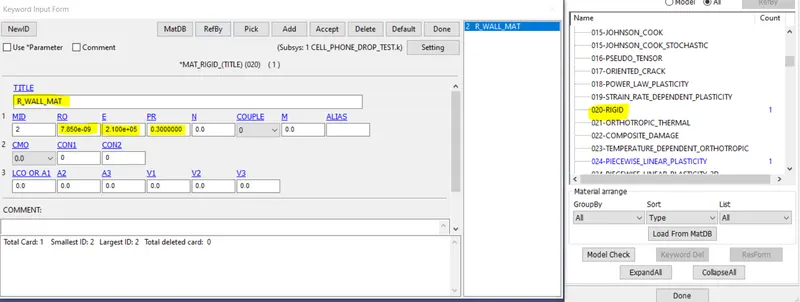
Material card for cell_phone
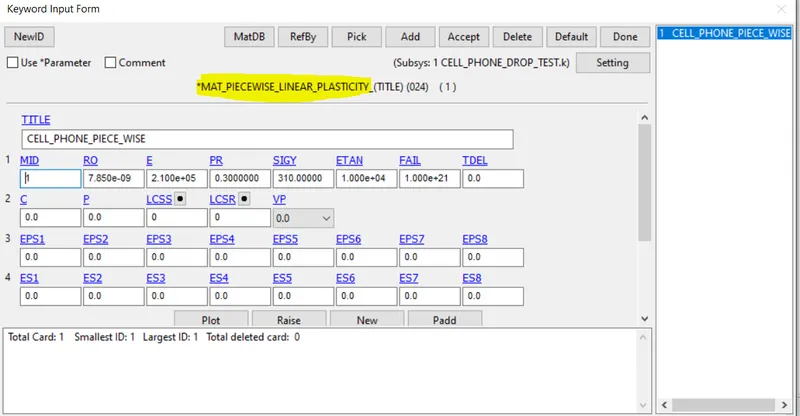
now we need to define the solid /shell elements from the section
to create a section we need to go, keyword manager,>click on the section and scroll down we can get solid section >double click on solid a window will open as shown below.
now from the window we can clearly see that ELFORM=1 we need to change it to 2.
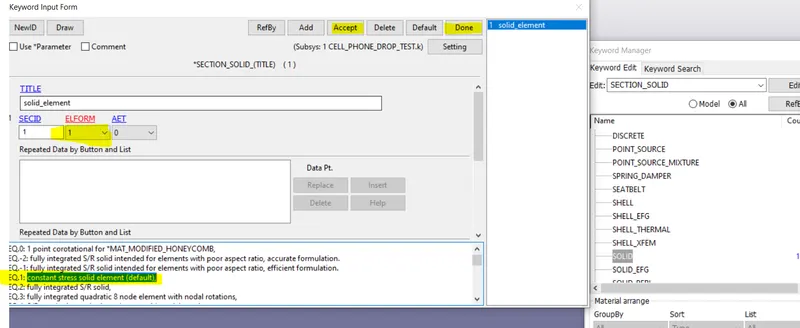
Assign the material and section to the cell phone and rigid wall
click on part >for section click on SECID and select the section for Rwall and cell phone
Similarly for material assign click on MID and select material for cell phone and rwall
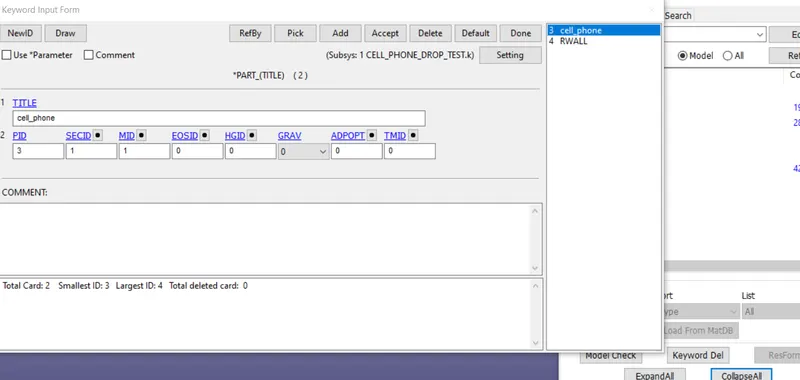
boundary condtions
in this case we are going to fix the side of the Rwall /ground surface
we need to go to the create entity >select boundary >select single point constraint (SPC)>select the nodes by box selection /by area>hit apply
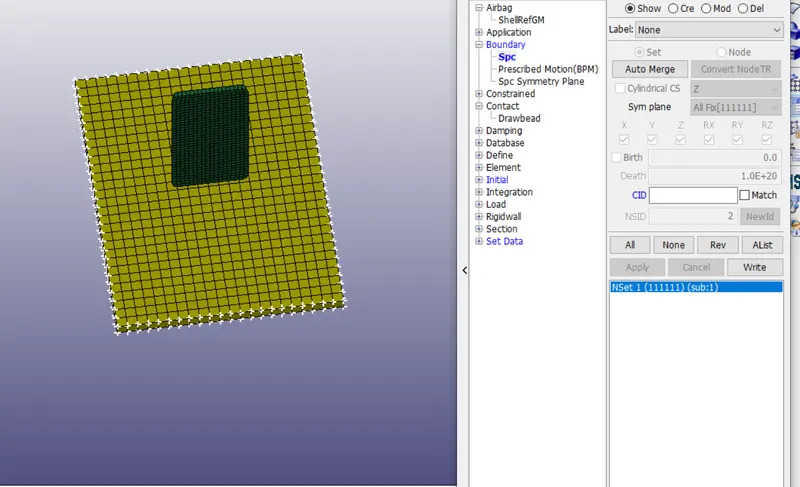
Initial velocity
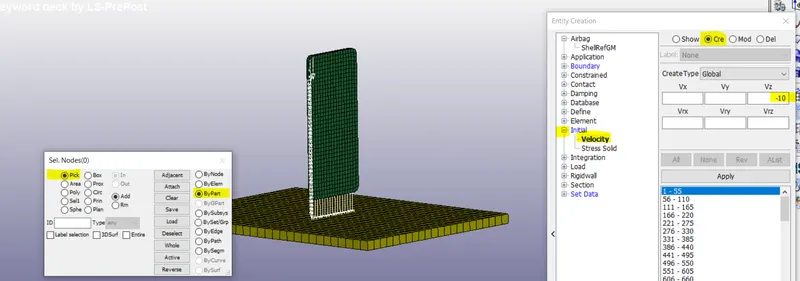
click on FEM >select model and part >select create entity.from the highlighted velocity set velocity vz to -10 and hit apply
create contact
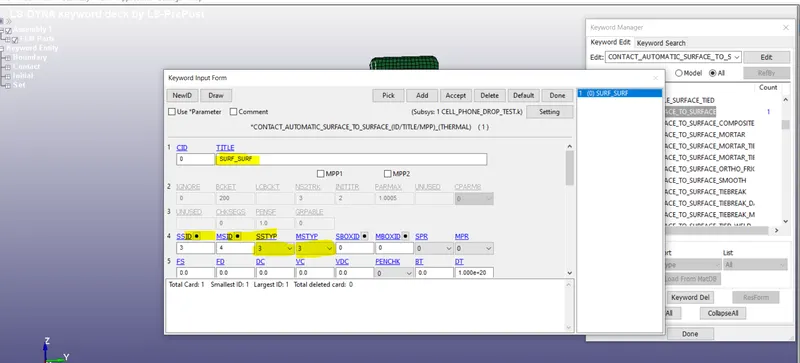
in this card we are going to use automatic surf to surf contact. change the title name to surf to surface
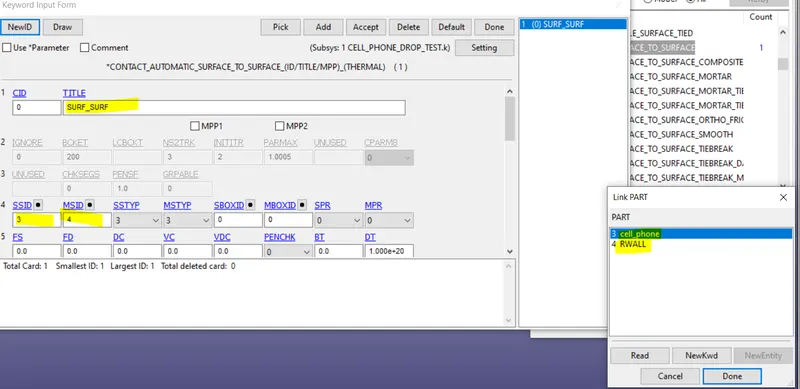
before selecting the master and slave id we need to select the part id first in SSTYP AND MSTYP and set these values to 3
for slave id select the cell phone and for master id select the rwall
control termination
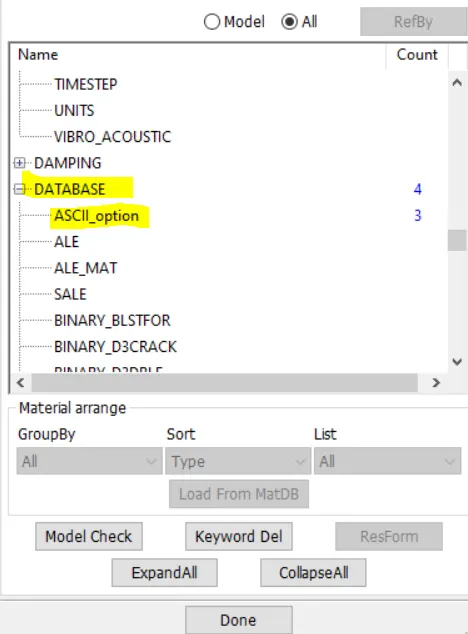
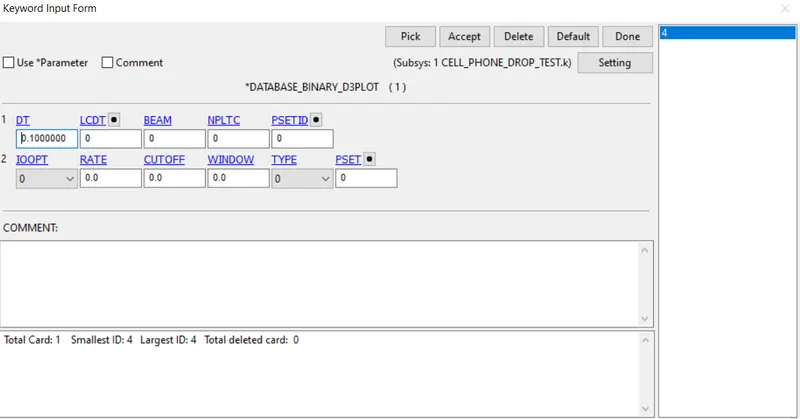
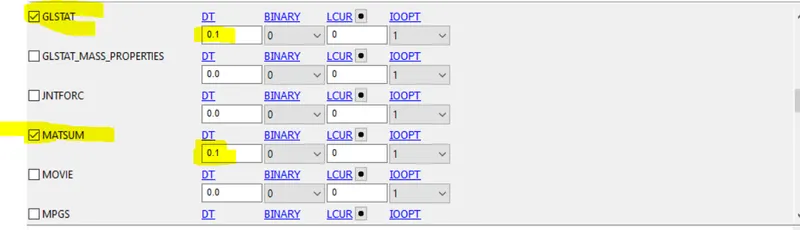
ASCII AND BINARY D3PLOT
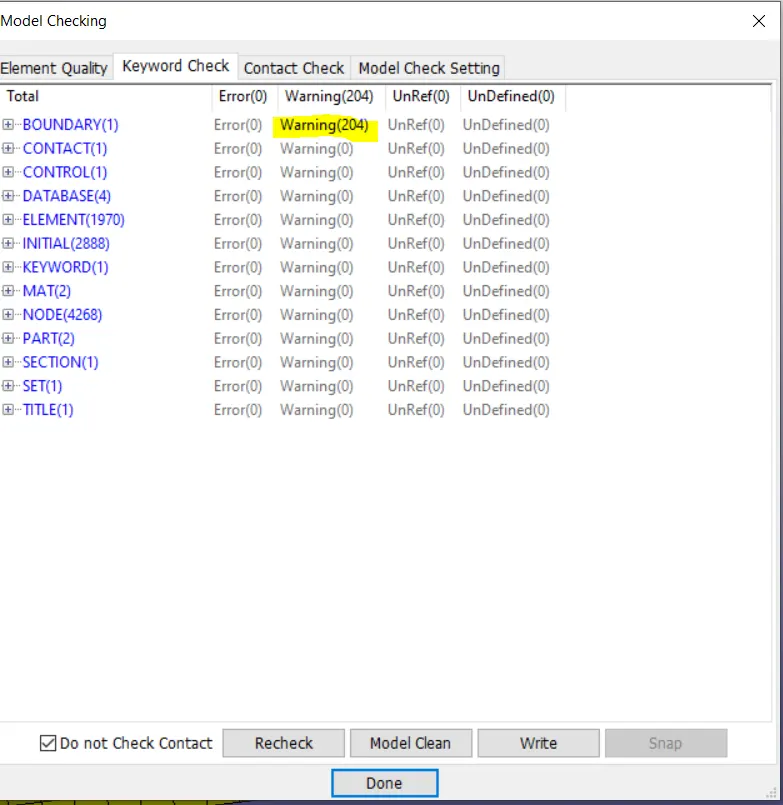
model cheker
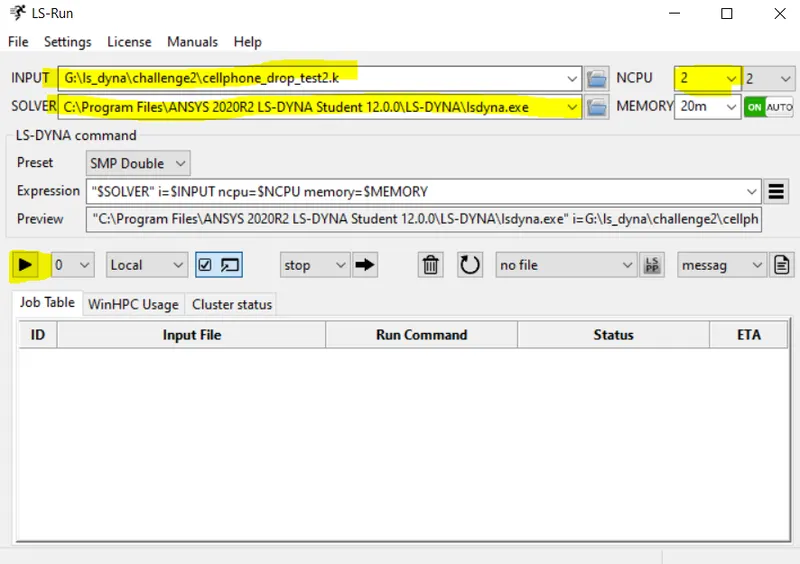
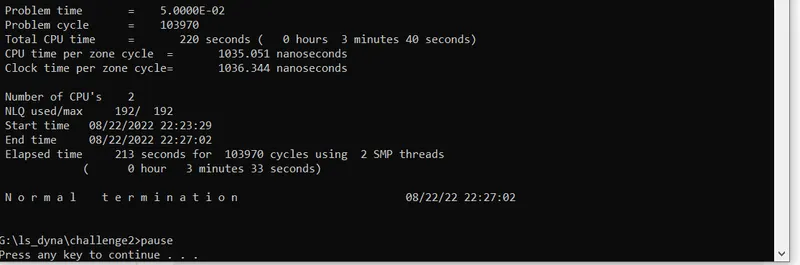
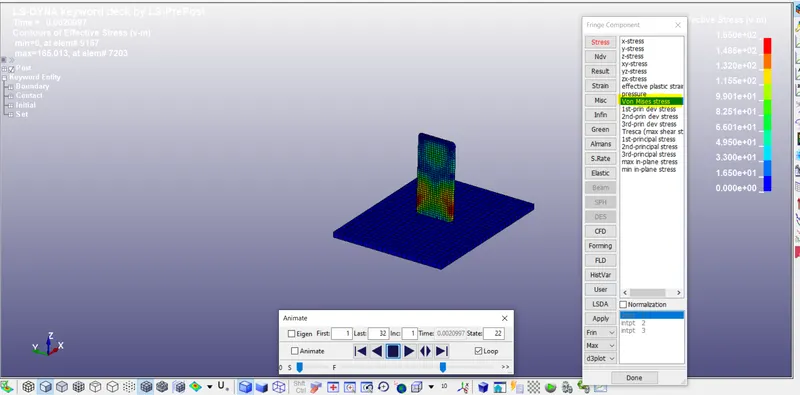
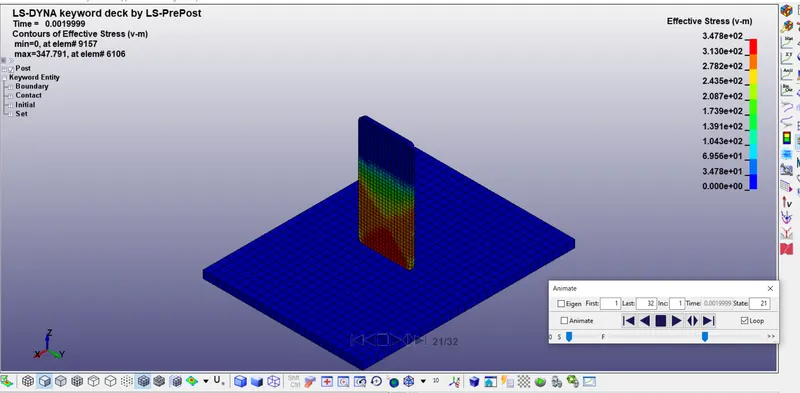
RUN THE ANALYSIS