Week - 3 Drop test Challenge
Mobile Drop Test
Aim: To perform a mobile drop test simulation with the given nodes and elements of two parts, a simplified cellphone and a plate mimicking ground.
Procedure:
1. Open the given keyword file to the software. The file contains 3 components. One green solid Hexa mesh resembling the mobile and the remaining 2 red shell mesh and yellow solid hexa mesh resembling the floor.
2. The keyword file is provided with the properties shown below in the keyword manager.
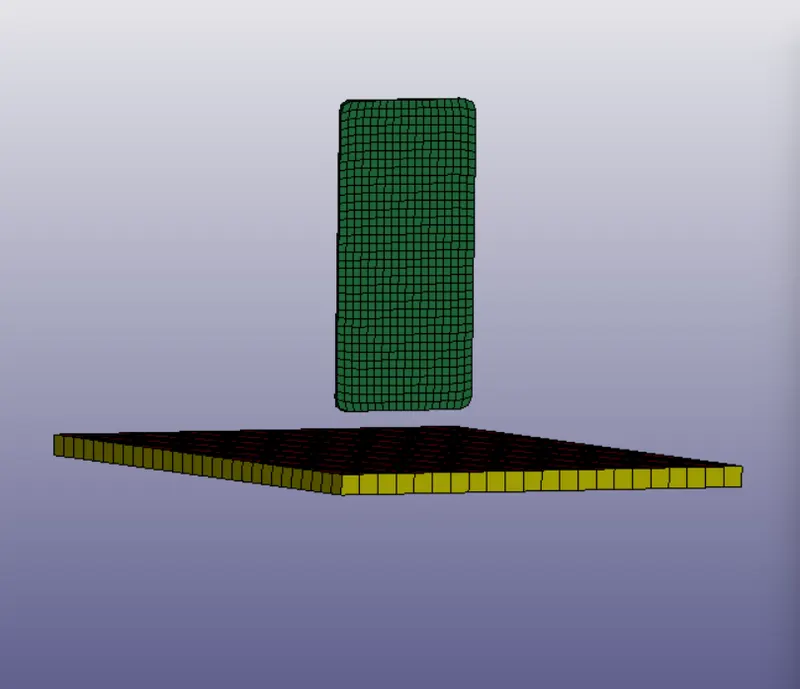
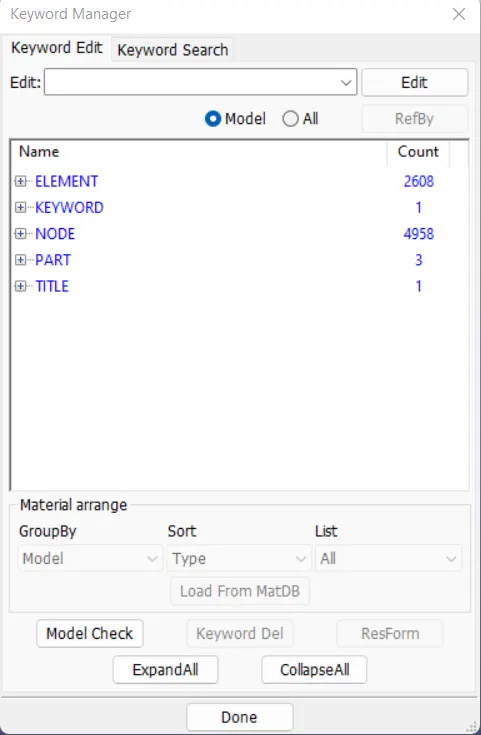
Fig1: given model Fig 2: keyword manager
3. First the material IDs are to be created for the components. Considering the phone in made of plastic, go to 'MAT' in the keyword manager and select '001 Elastic'. The properties of the phone such as Mass density, young's modules and poission's ratio values and to be given in the material card.
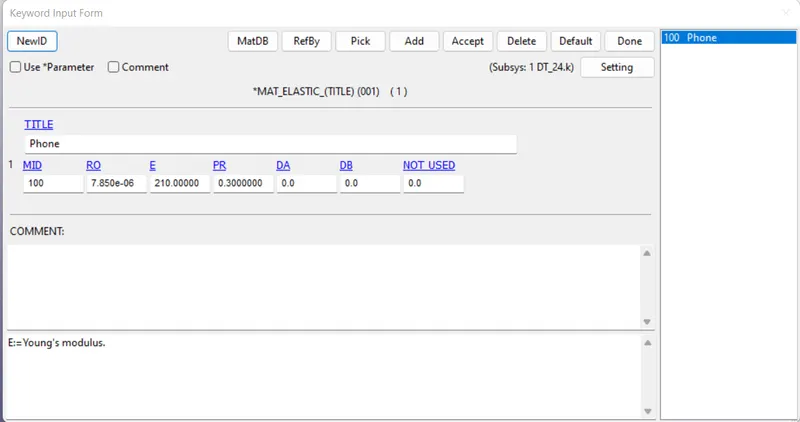
Fig 3: MAT id for the mobile.
4. The floor mesh is to be considered a rigid component in this case. So similarly, as the MAT id created for the mobile, create a 'Rigid' MAT id for the floor as shown below.
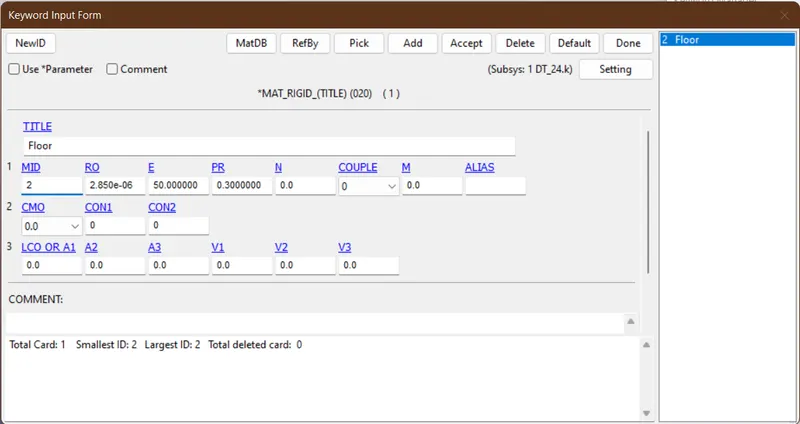
Fig 4: MAT id for the floor.
5. After creating the material IDs for both components, create section IDs for both components. Section IDs are created for the components so that depending on the mesh type and the simulation purpose, the software can calculate the shear facters with respect to the element formulation options which we set in the section card.
The 'SECTION' IDs for both the components are created as shown below.
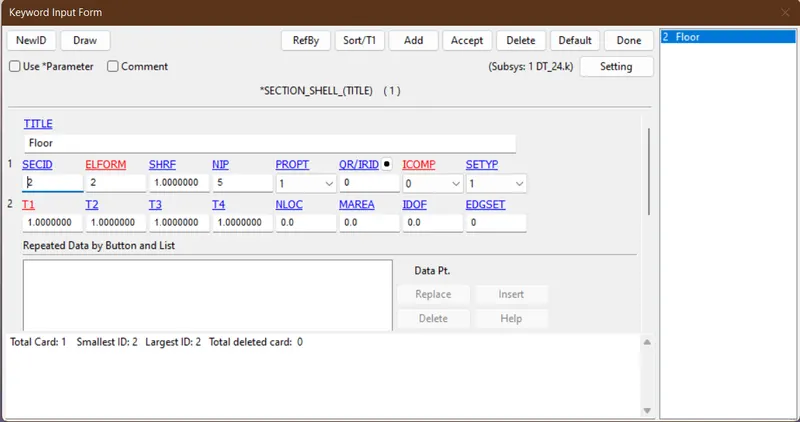
Fig 5: Section ID for the floor
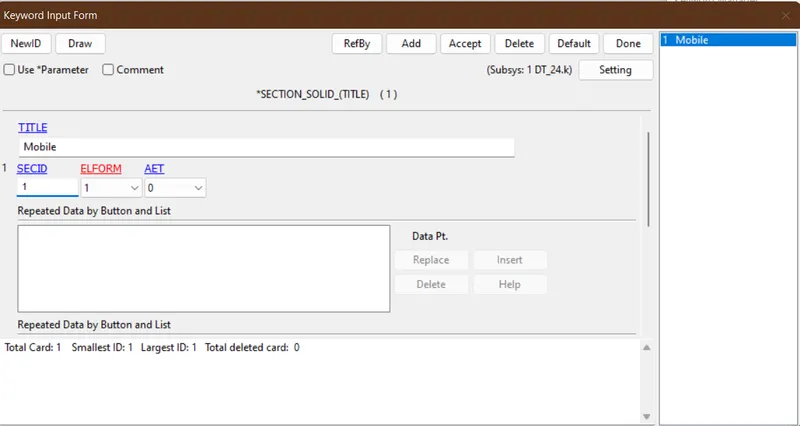
Fig 6: Section ID for the mobile
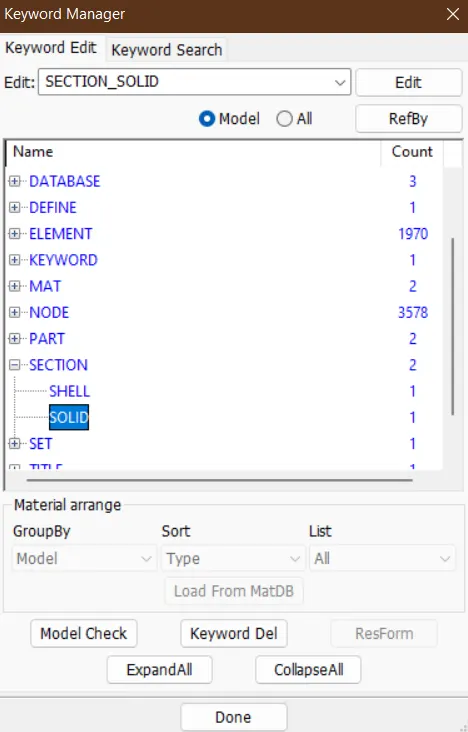
Fig 7: Section Card
6. After creating the SECTION IDs, both the MAT and SECTION cards are to be assigned to the part IDs which are provided in the keyword file. Select the PART keyword file and assign the material and section IDs for both the components as shown below.
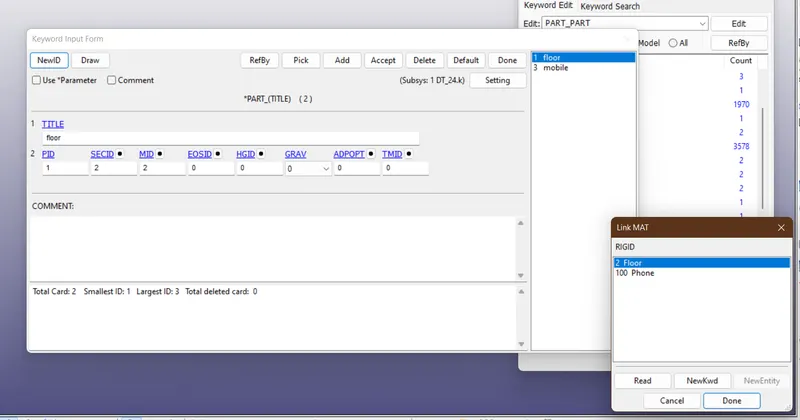
Fig 8: PART ID for floor
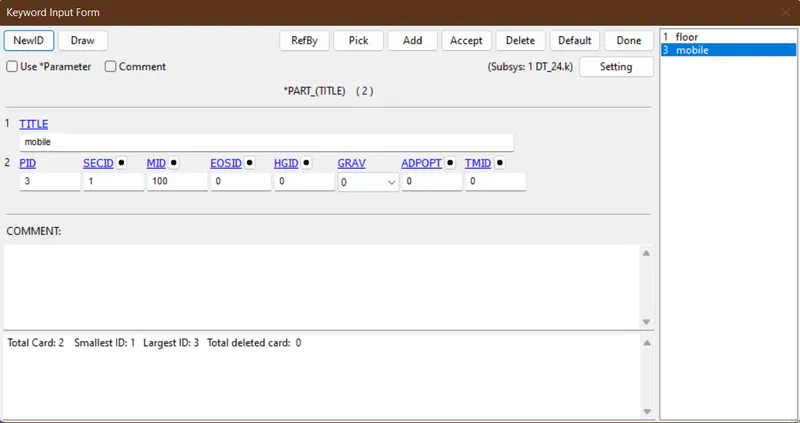
Fig:9: PART ID for mobile.
7. Now boundary conditions are to be set to the floor component to constrain the movement of the floor. Select the Boundary>Spc option in create entity. Select the nodes of the floor component and click on apply to constraint the movement of the floor.
8. After constraining the floor mesh, set velocity for the mobile such that the mobile hits the floor. Select Boundary>Prescribed motion option to set the velocity for the mobile. The mobile should drop in z axis towards the floor, so set the velocity in negetive direction as shown below.
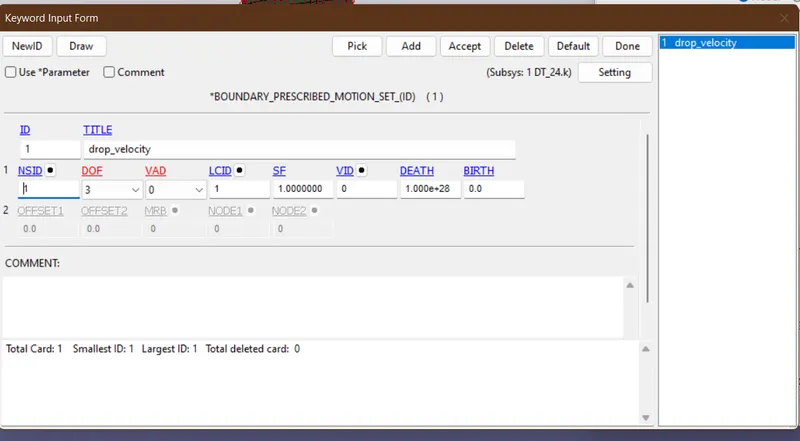
Fig 10: Boundary Prescribed motion for mobile.
9. Create contact card for both components using automatic surface to surface card. Set the floor elements as master elements and mobile elements as slave elements.
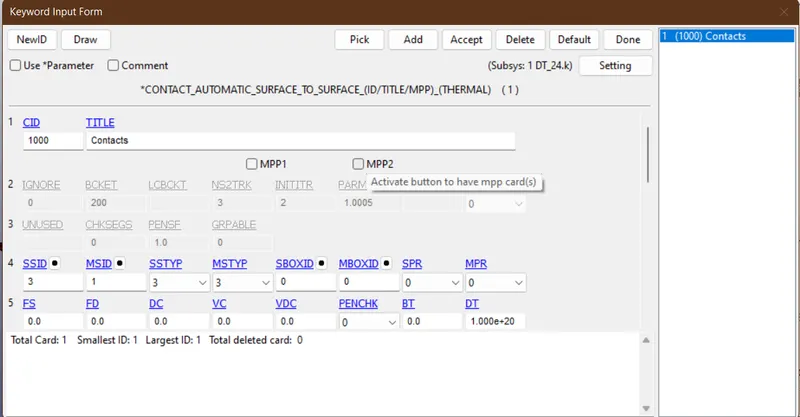
Fig 11: Automatic surface to surface contact card.
10. Create a termination card in control deck to set the end time for the simulation.
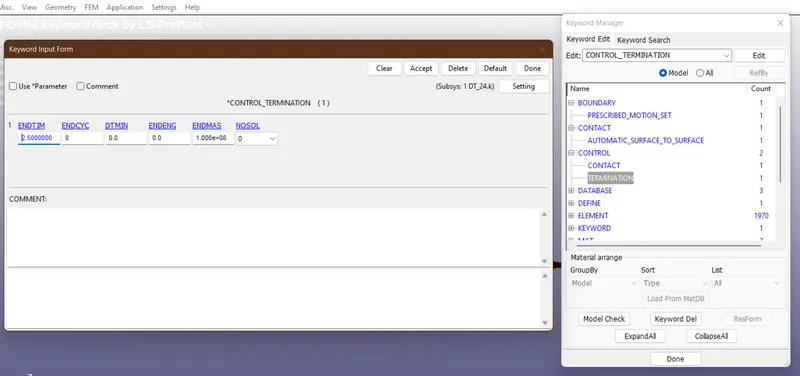
Fig 12: Termination card
11. To view the simulation output, create a 'Binary d3plot' card in the 'DATABASE' option and set the card as shown below.
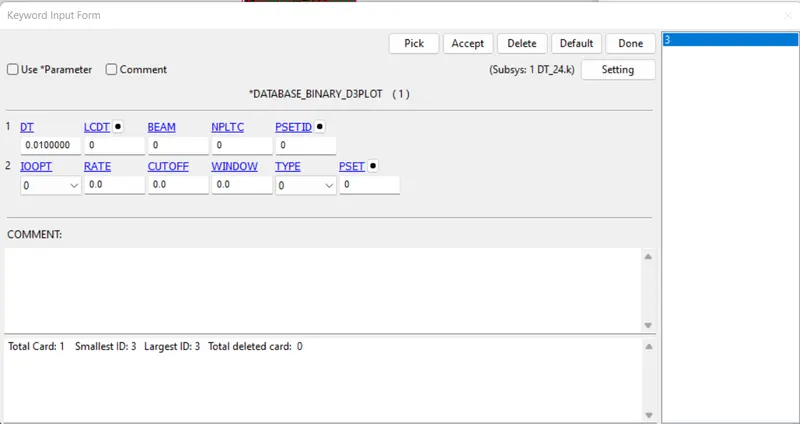
Fig 13: binary d3plot card
12. After creating the necessary keyword cards, check for any errors in the model check file. If there are any errors shown then the simulation will be terminated. Rectify the errors the save the keyword file in a new folder.
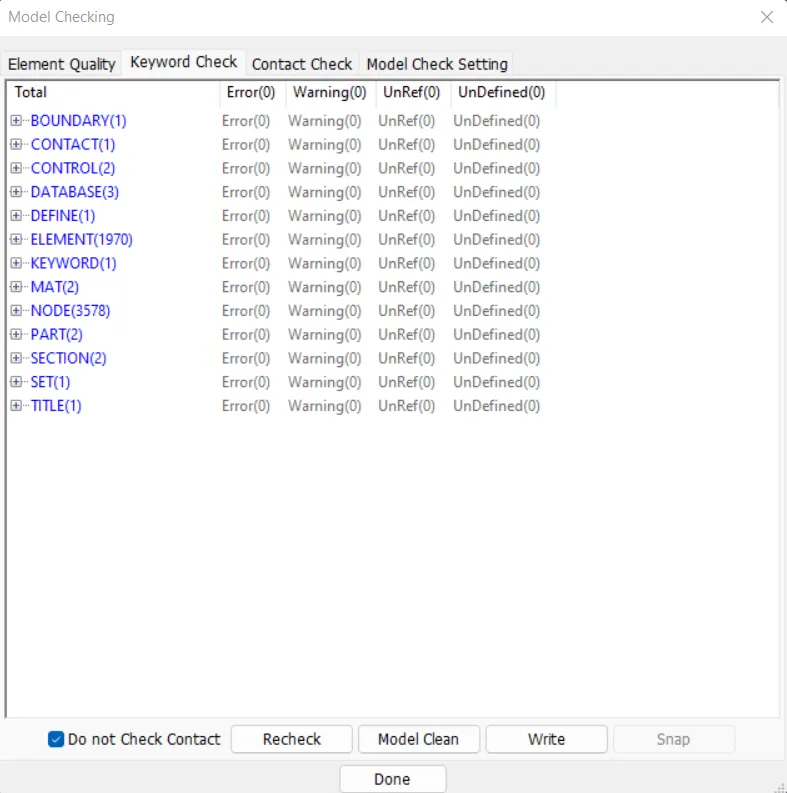
Fig 14: Model check
13. The saved file is to be simulated. Start the simulation in LS-Run. If the simulation gets terminated in between then check for any warnings or errors shown by the software. If the simulation shows normal termination then the simulation is successful.
Result:
Thus the given challenge of creating a keyword file and performing the given drop test challenge is completed. The simulation is normally terminated.
The results of the simulation are shown below.
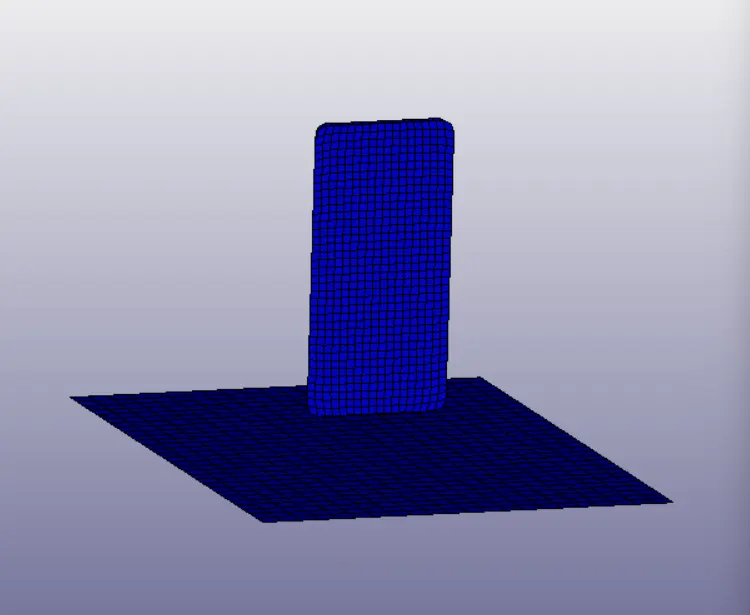
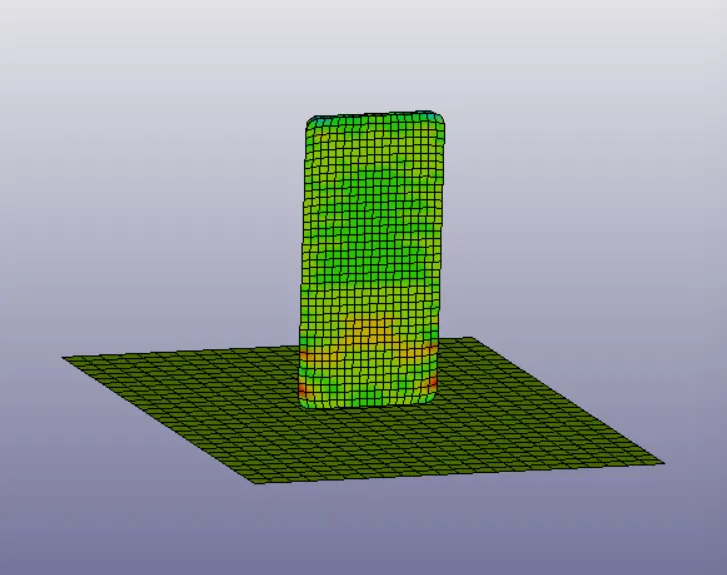
Fig 15: stress in the z-axis before touching the floor Fig 16: stress in z-axis while touching the floor.
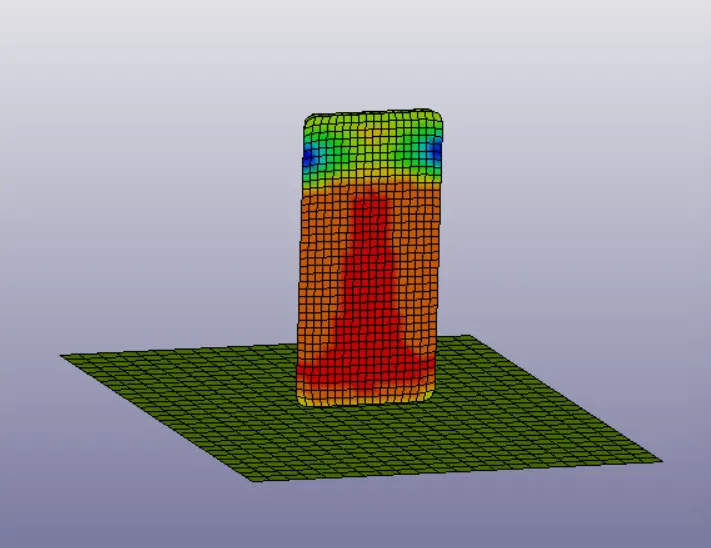
Fig 17: Strain in the z-axis
Learning Outcomes:
1. Learned to create Material and section IDs for components.
2. Learned to assign the material and section Ids in the Part ID cards.
3. Learned to set the velocity for the slave component.
4. Learned to set contacts for the components.
5. Learned to trouble shoot the basic errors through model check.