Week - 3 Drop test Challenge
Phone Drop Test
OBJECTIVE:-
To create a drop test simulation of phone with all necessary keywords in ls dyna.
PROCEDURE:-
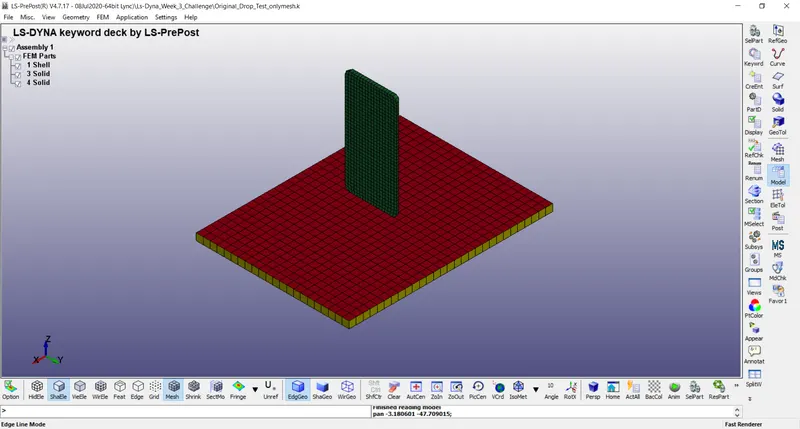
1) .k File is the input file for LS-Dyna so open the .k file provide in LS-PrePost using File > Open > LS-DYNA Keyword File > Locate the .k file > Open. Now delete the FEM File with name Shell which is not needed in this case so it is better to delete it.
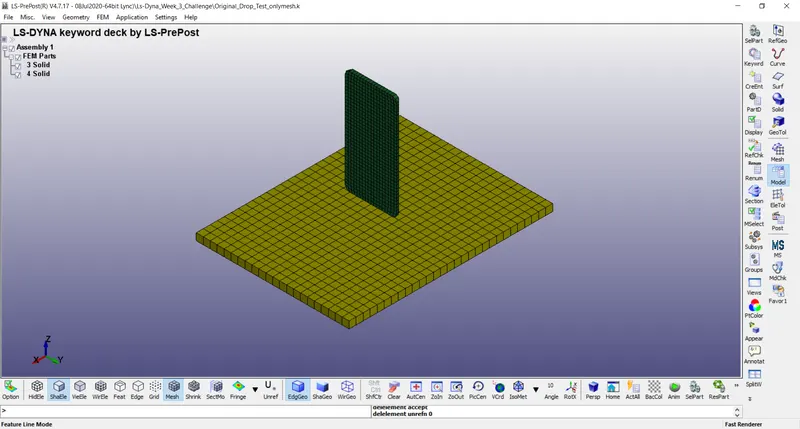
2) Go to Model and Part on right toolbar and click on Keyword Manager option, this pops up a window which has 2 radio button named Model and All so in Model, we have all the keywords that are already there associated with the file showing number of elements and nodes present in the model etc. Now to run a simulation, we have to create all the additional keywords that are necessary for this simulation to run properly one by one and Those keywords can be created by clicking on All radio button which contains all the keywords that Ls-Dyna software have. Some of these additional keywords, need to be created for this simulation are mentioned below.
- MAT
- SECTION
- BOUNDARY
- DATABASE
- CONTROL
3) When we go to part keyword in Model, we have now 2 parts present in the model and both have name auto created so for proper identification of the parts here, we have to change the name of these parts. For changing the name delete the current name in Title and change it to Phone. Then click on Accept, now do the same for the other part as well. After changing the names click on Done and now we have first part Phone with PID 3 and other one Floor with PID 4.
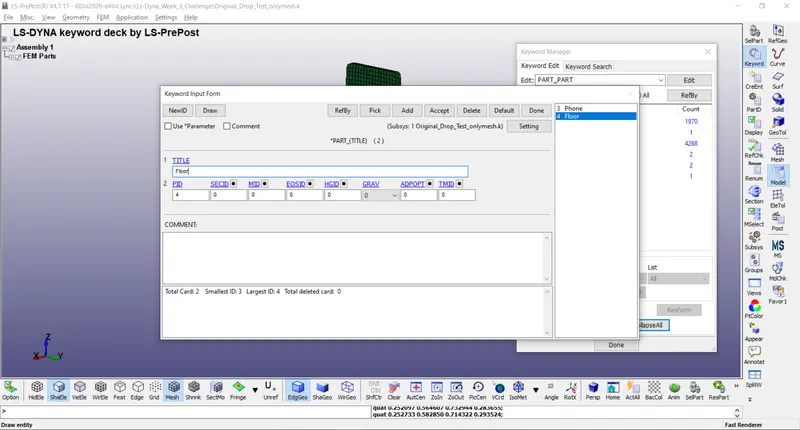
4) Defining Material:-
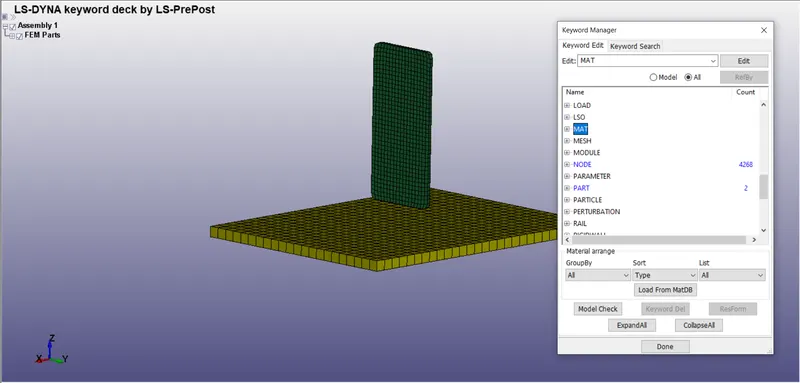
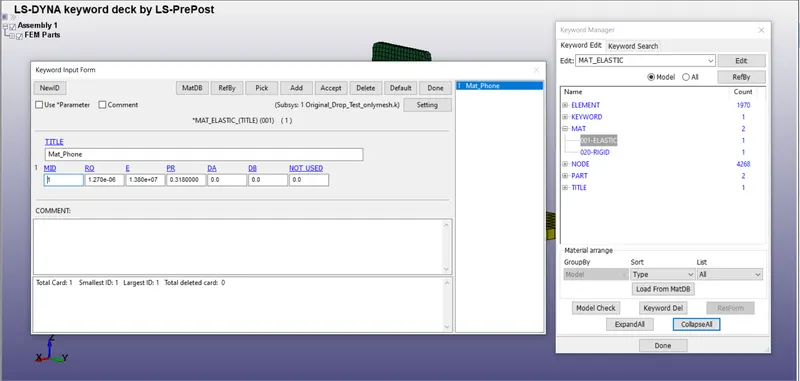
For Phone -
Go to All > MAT > 001-ELASTIC and define all the parameters as shown in image below. Then click on Accept and Done.
For Floor -
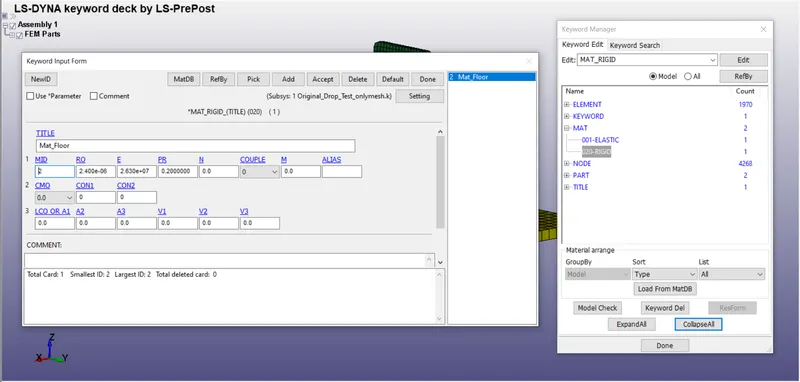
Go to All > MAT > 020-RIGID and define all the parameters as shown in image below. Then click on Accept and Done.
5) Defining Section:-
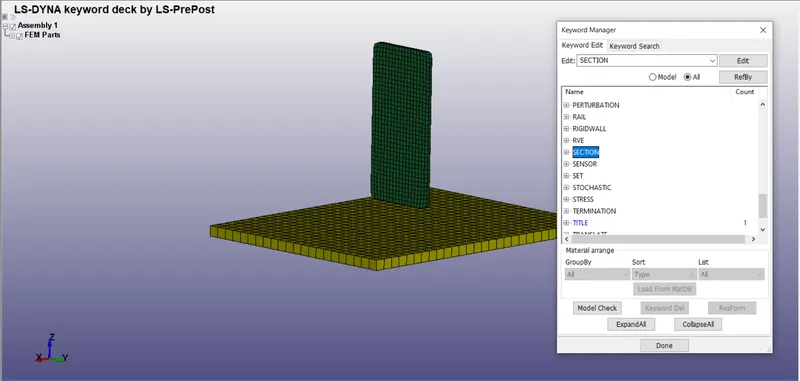
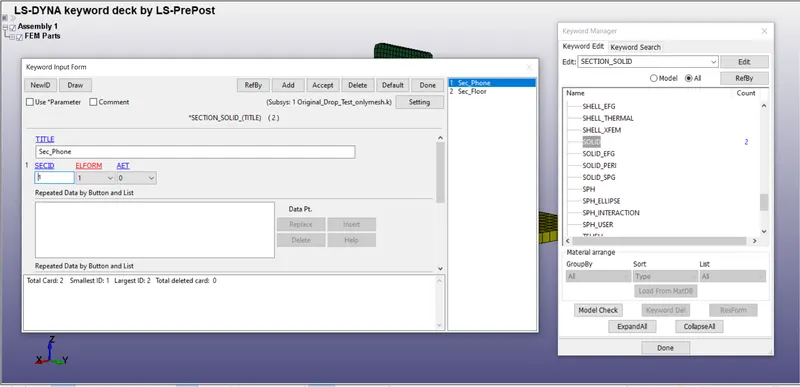
Go to All > SECTION > SOLID and define all the parameters for Phone and Floor as shown in image below. Then click on Accept and Done.
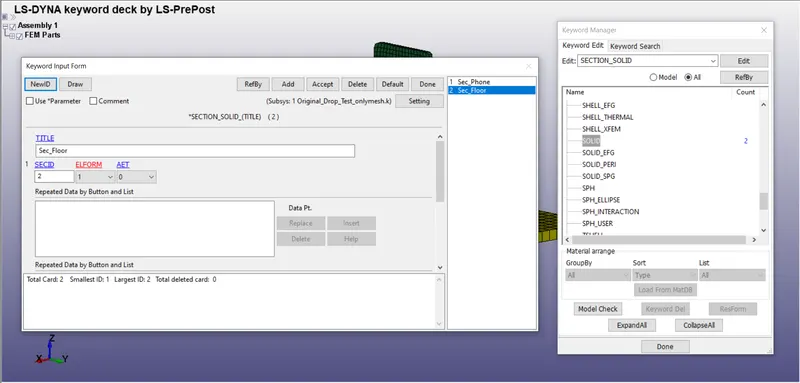
6) Assigning Material and Section to Parts:-
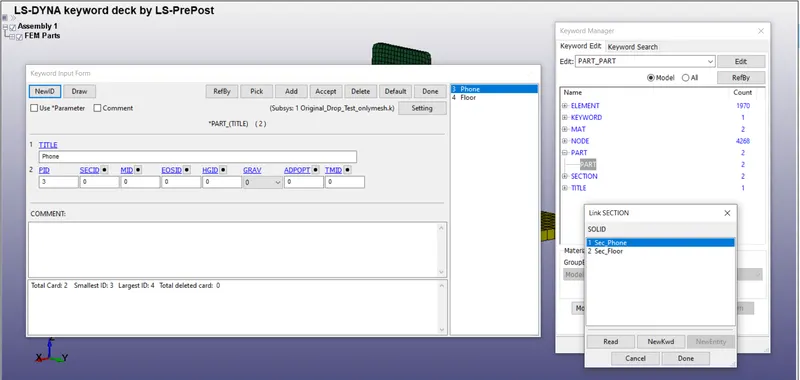
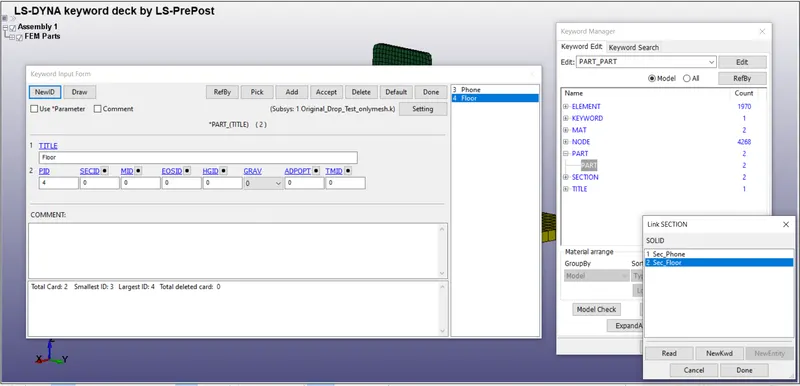
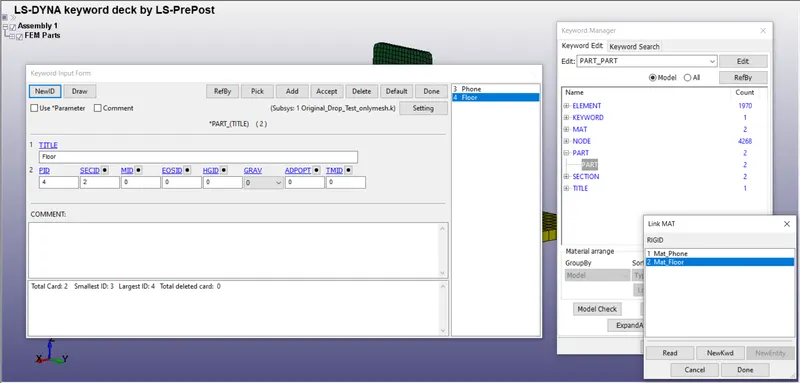
Go to Model > PART and give SECID and MID values as shown in image below. Then click on Accept and Done.
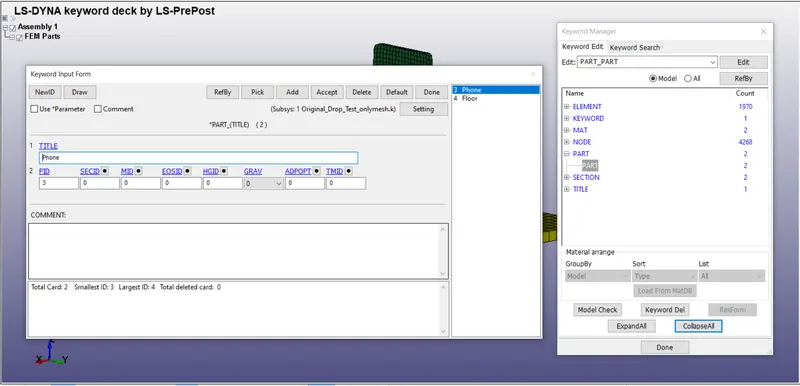
For Phone -
For Floor -
7) Creating Node Sets for Phone and Floor:-
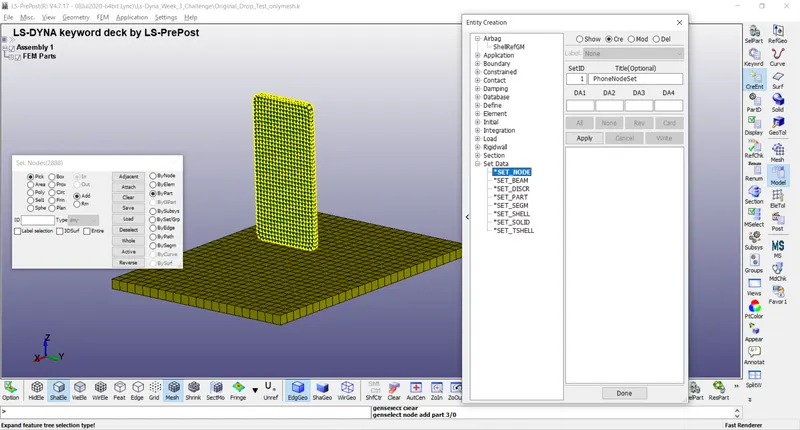
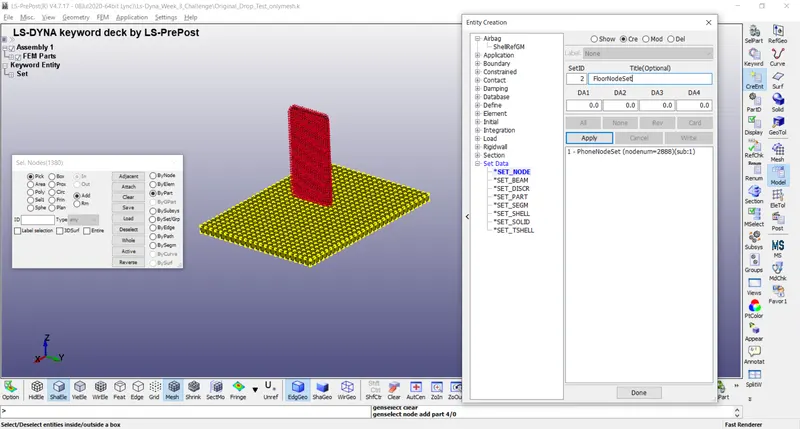
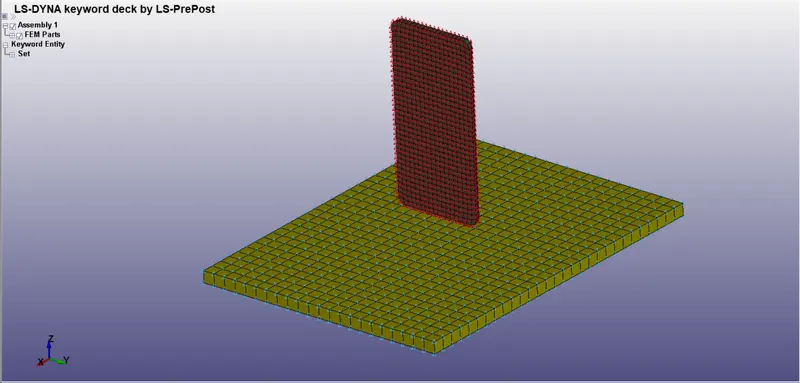
Go to Model and Part > Create Entity > Set Data > *SET_NODE > Cre, now give it SetID and Title as shown. Now click on ByPart and then click on the phone model present on the graphics area. Then click on Apply and Done.
For Phone -
For Floor -
8) Defining Boundary Conditions:-
Go to All >BOUNDARY > SPC_SET. Give it Title as shown and assign FloorNodeSet as NSID to this card because we want the Floor to be fixed in this whole simulation. Then click on Accept and Done. SPC_SET keyword is generally used to define a non movable part with the help of it's node set.
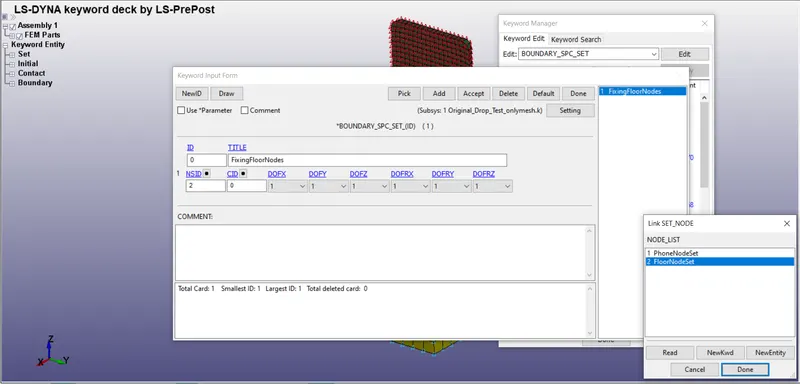
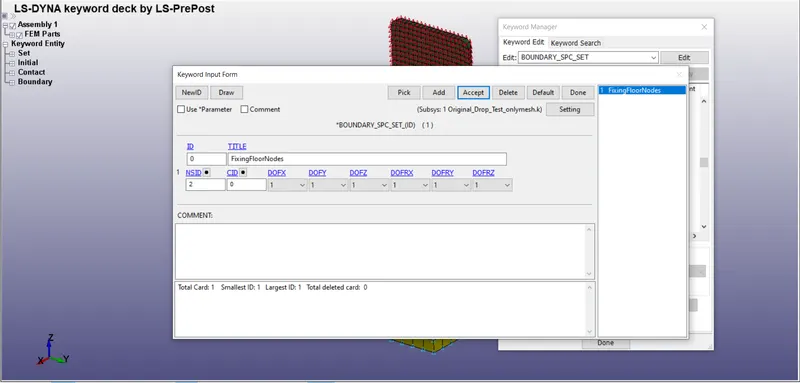
9) Defining Initial Velocity:-
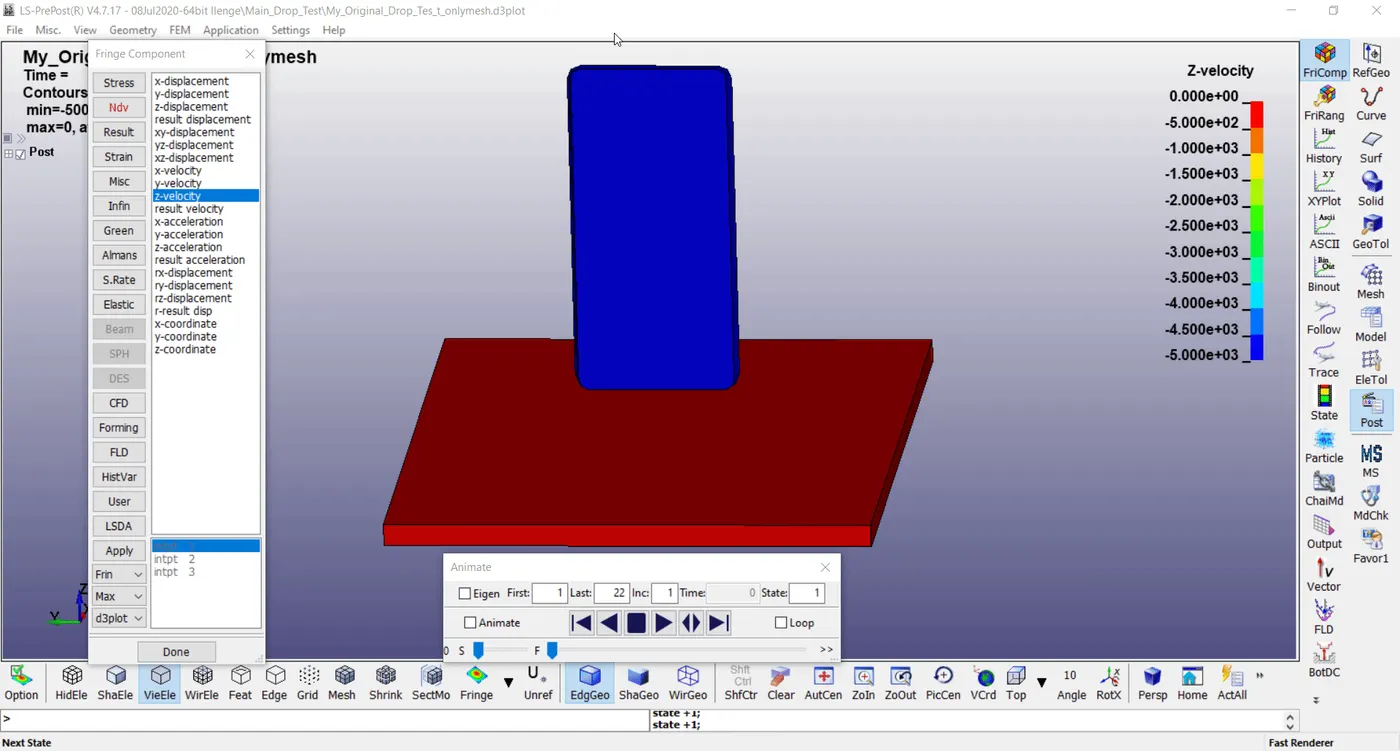
Go to All > VELOCITY and give PhoneNodeSet as NSID and velocity value in VZ as -5000. Then click on Accept and Done.
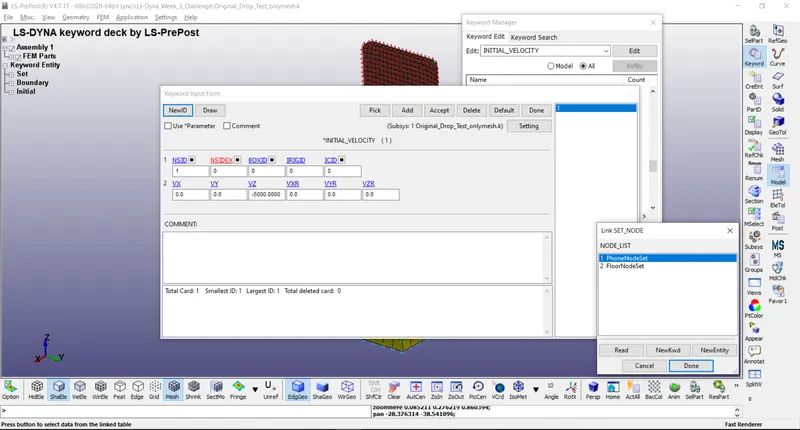
10) Defining Contact:-
Go to All > CONTACT > AUTOMATIC_SURFACE_TO_SURFACE and give values as shown in image below. Then click on Accept and Done.
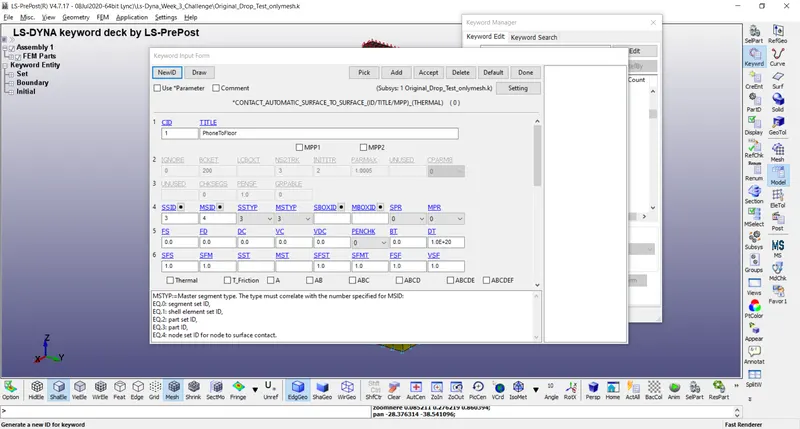
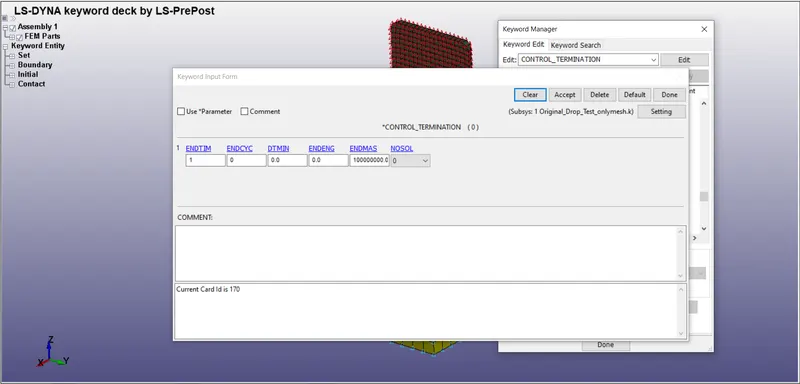
11) Defining Simulation Termination:-
Go to All > CONTROL > TERMINATION and give ENDTM value as shown. Then click on Accept and Done.
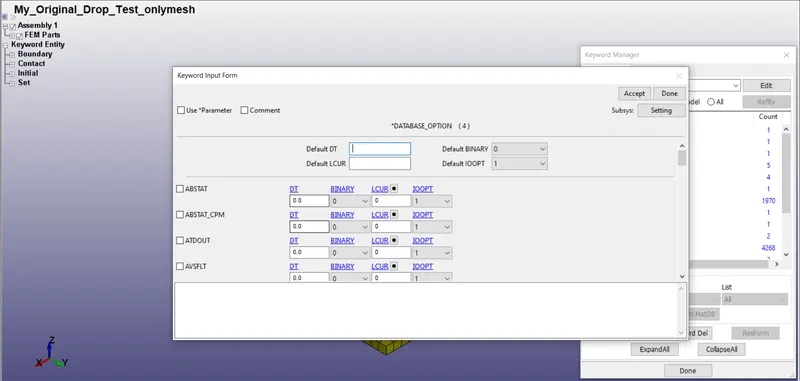
12) Defining Result Output:-
Go to All > DATABASE > ASCII_option and check some of the parameters like GLSTAT, MATSUM, RCFORC, SLEOUT to give value of DT as shown. Then click on Accept and Done.
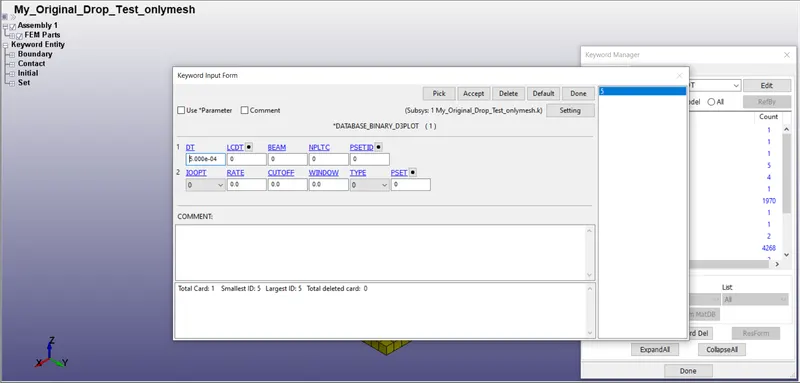
Go to All > DATABASE > BINARY_D3PLOT and give value of DT as shown. Then click on Accept and Done.
13) Running the Simulation:-
Save this file in .k format and run the file in LS-Run. A command prompt window opens and shows the process of simulation in the form of written D3Plot entries. Now wait for the program to get terminated, this has to be a normal termination but in case if it shows error then it has to get rectified by the engineer.
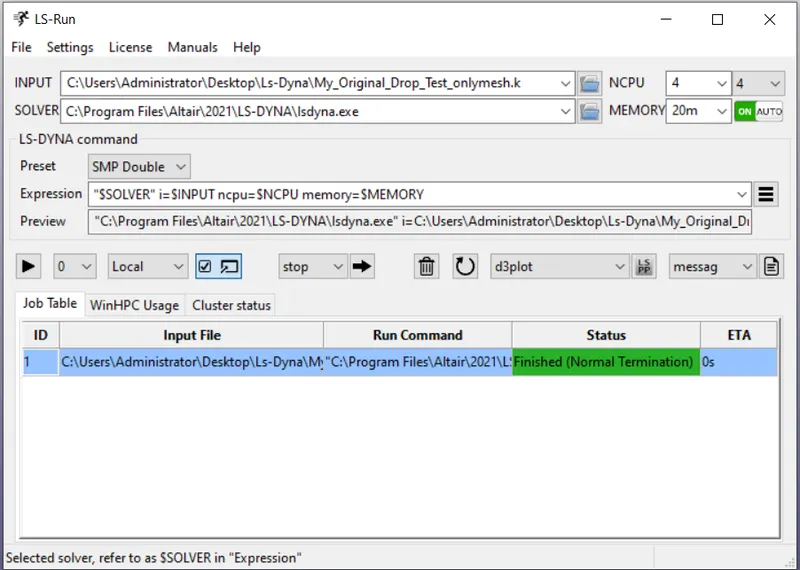
Now open the generated D3PLOT file in a fresh LS-PrePost session and run the Drop Test simulation.
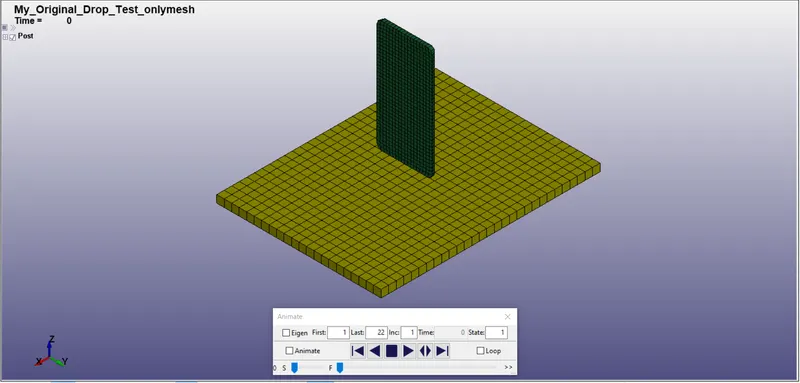
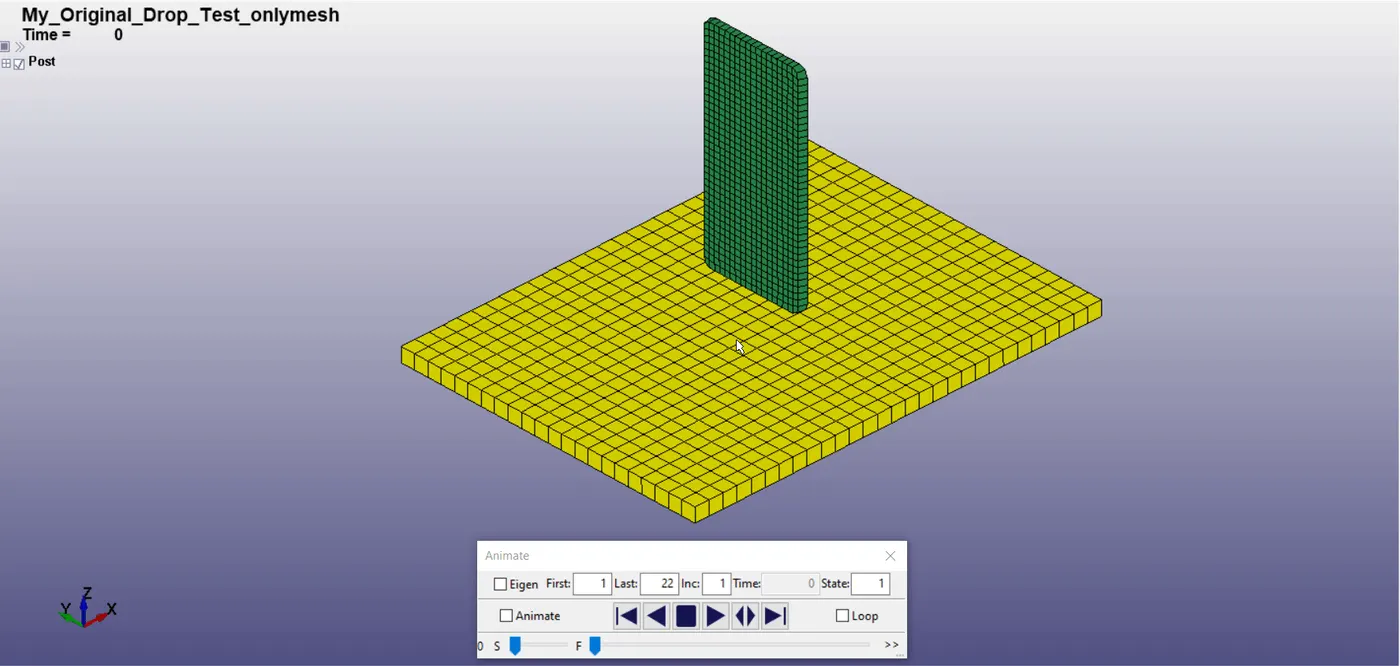
We can observe change in velocity in Z direction.
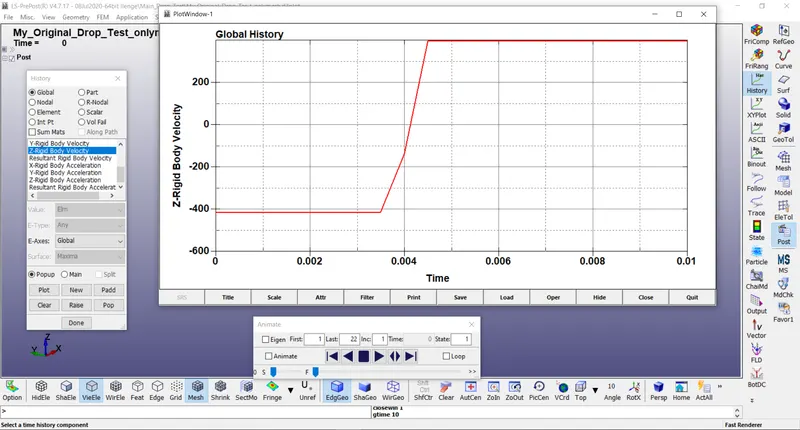
Variation in Rigid Body Velocity in Z direction with respect to time can be seen in the image below.
RESULT:-
Successfully Performed Drop Test and also keywords defined in the simulation are studied.