Week 3 Challenge : CFD meshing on Turbocharger
Objective:
1.For the given Turbocharger model, check for the geometrical errors to make appropriate volumes. Create and assign PIDs as shown in the video. Perform surface mesh with the given target lengths as per PIDs.
- Blade stage-1 = 1 mm
- Blade stage-2 = 1 mm
- Impeller = 2 mm
- Shaft rotor = 1 mm
- Turbo casing = 5 mm
- Compressor casing = 5 mm
- Inlet casing cover = 5 mm
2.Perform Volumetric mesh for the required volumes as shown in the videos.
3.Write a detailed report on your surface meshing & Volume meshing process.
Procedure:
Step 1 : First we will import geometry and we will clear all geometric errors and intersecting errors
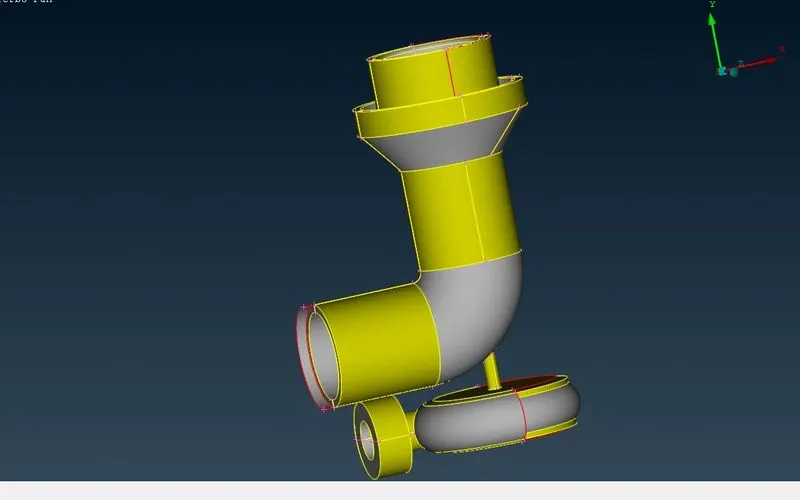
The above geometry is in entity mode,Now we can change to PID mode
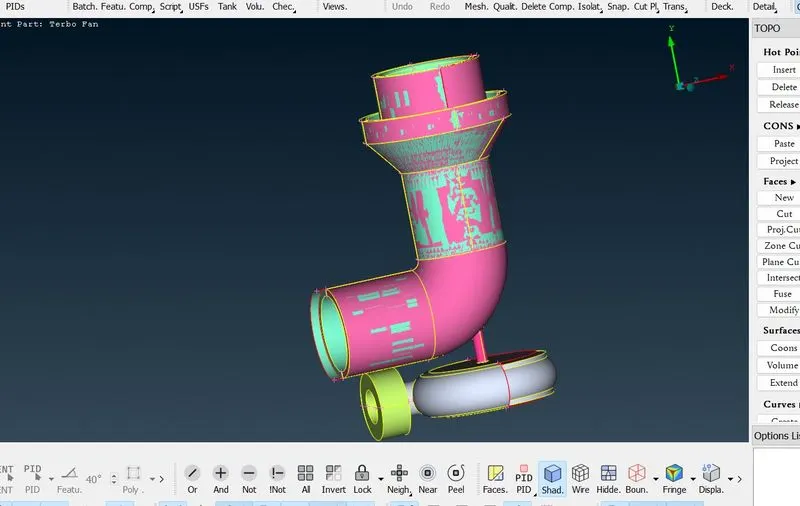
In the above there is glitches on compressor casing,Now click Topo under Faces
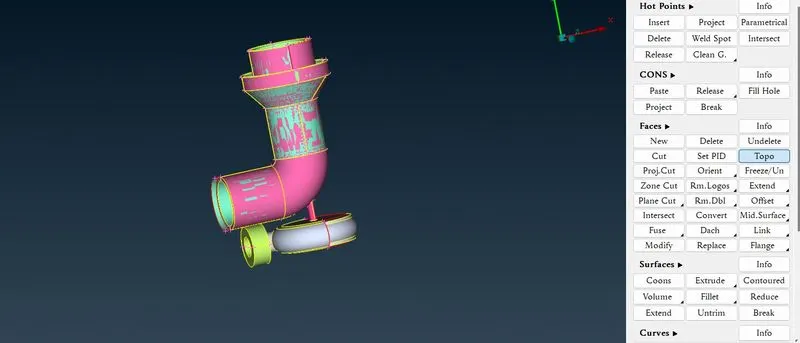
Select the object by box selection by left click and hit middle click
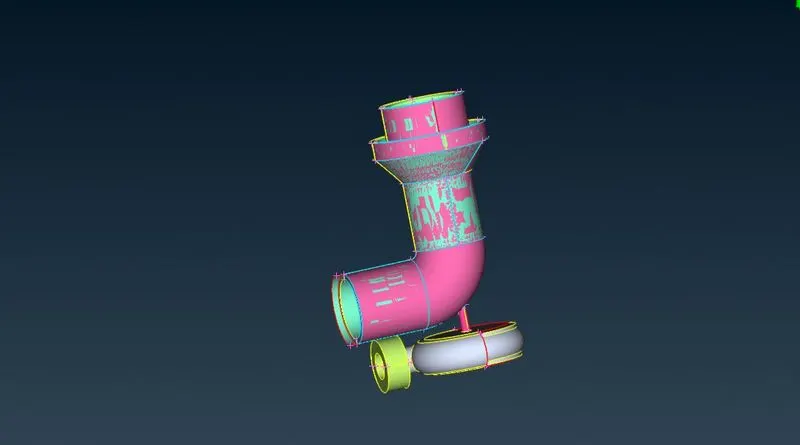
Now we are able to see triple cons on geometry. Now lets see why these triple cons are come.Before that open the PIDs.By disabling the pink PID from PID menu, identification could be done that the half part of compressor casing is present overlapping on compressor geometry. Delete pink PID.
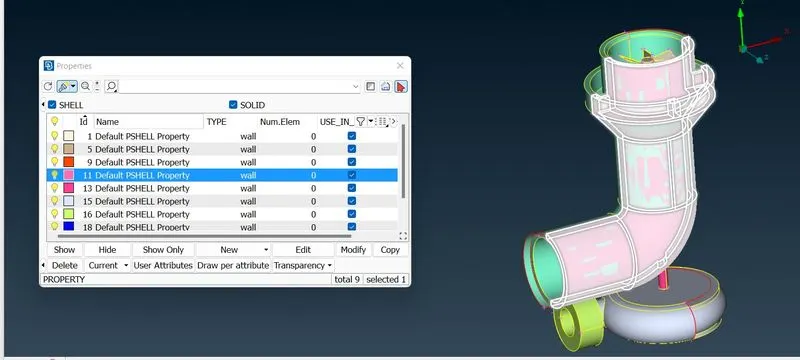
In the above except that pink PID hide remaining ones and use universal delete option for removing that overlapping surface
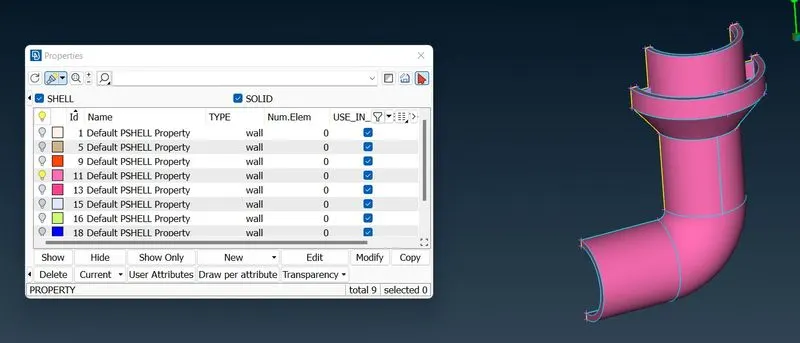
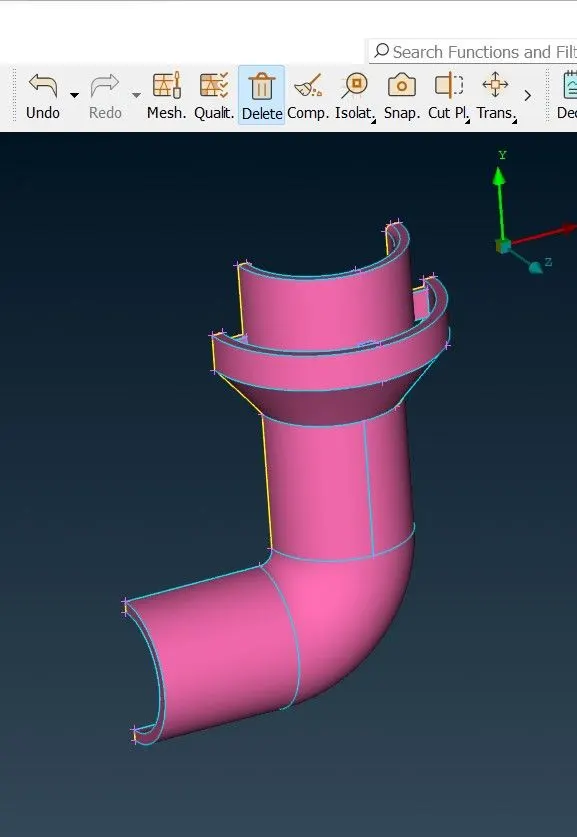
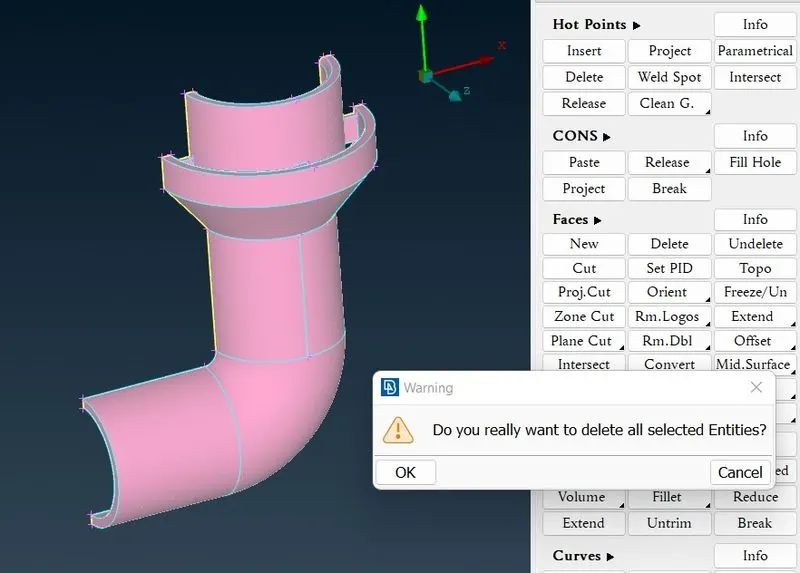
Click on ok,now its gone,click on All to show all parts
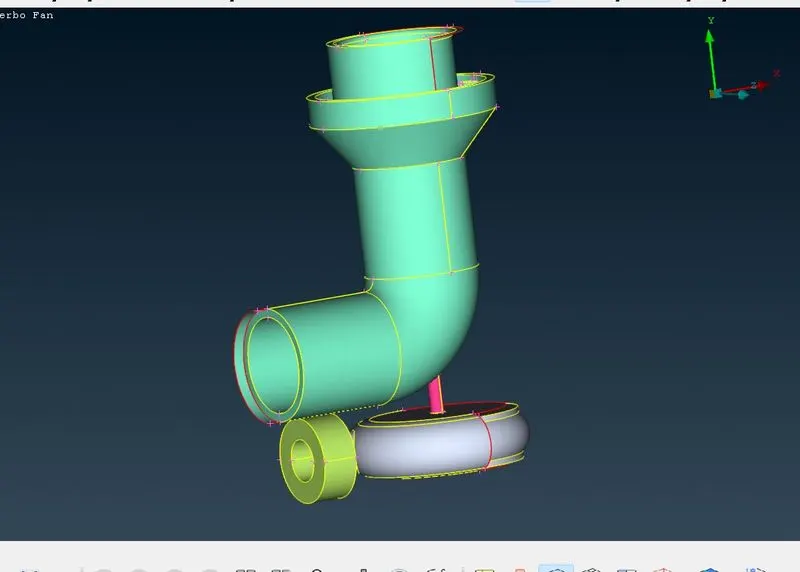
Agin open the PIDs.Now we are trying to delete the bulb off pid by compress tool
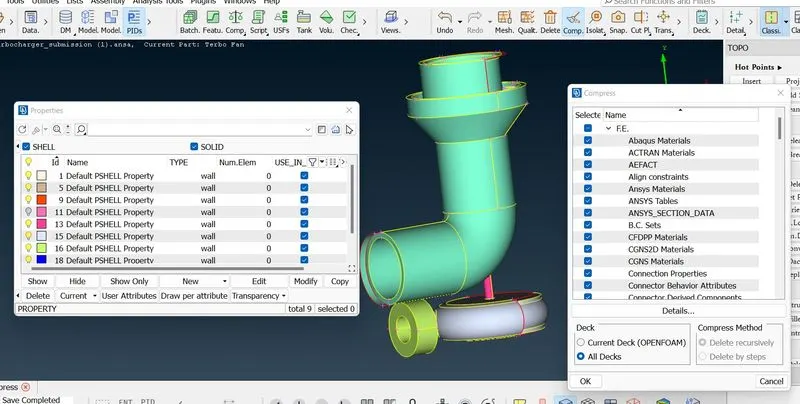
Click on ok,now its gone.
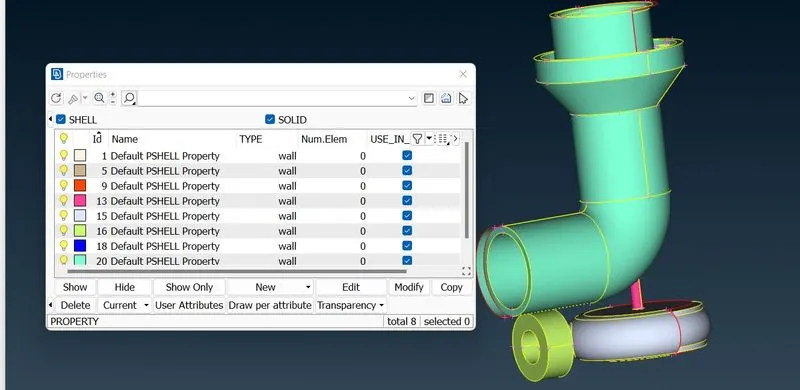
Now will go to chcek for geometric errors,for this
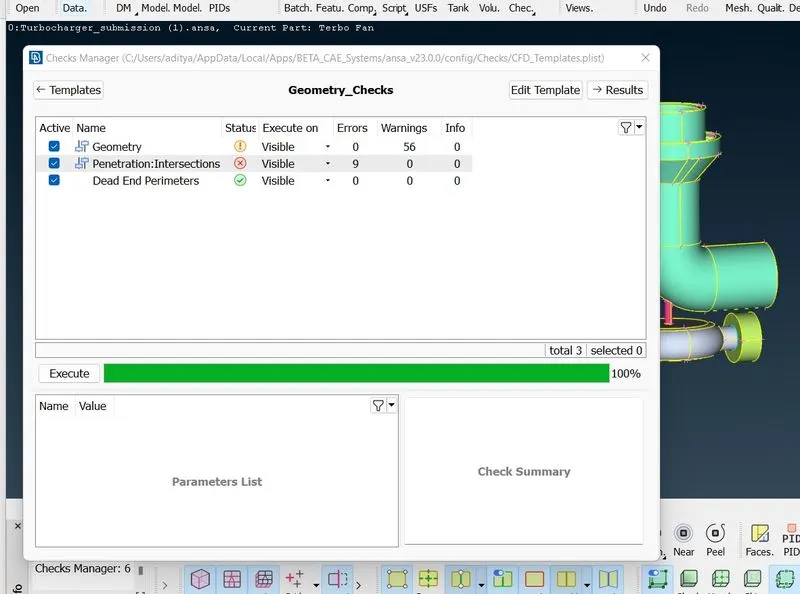
Go to the checks manager----> geometry check----> Execute----> Results. All the triple cons, intersections, single cons will be identified.
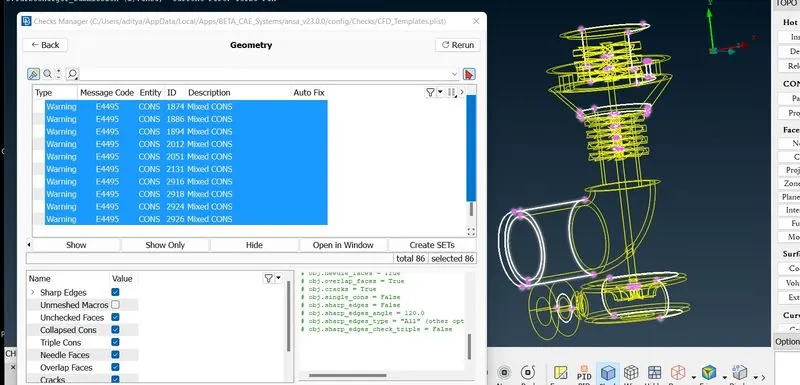
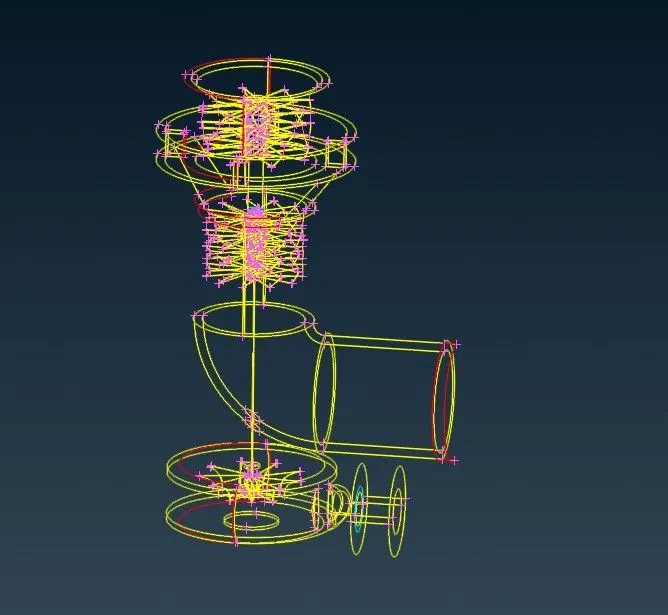
First we will clear geometric errors,lets clear below error
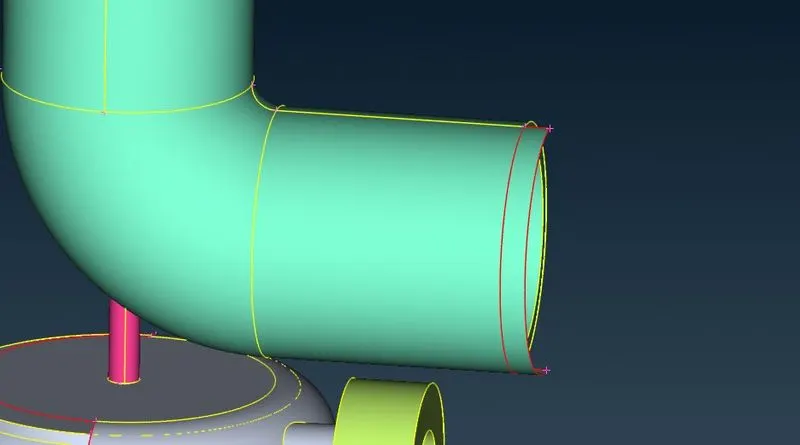
For this first we will hide all other pids except compressor casing
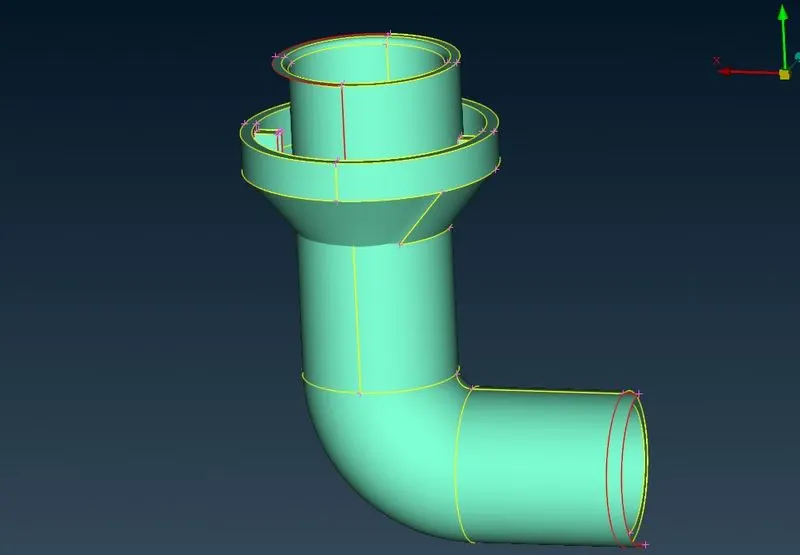
Above surface we will delete and we will create new surface by using COONS under Faces along with Loop option
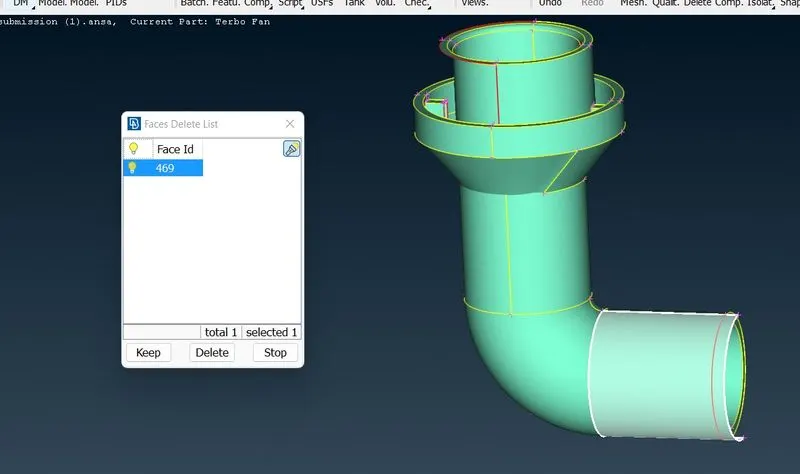
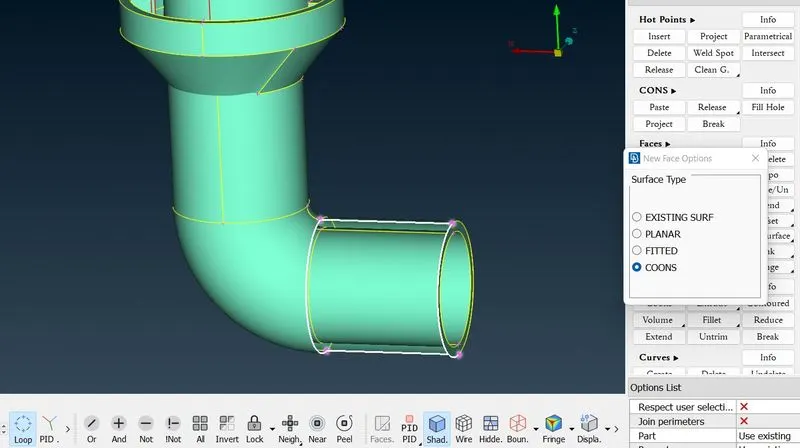
Now we will create the surface
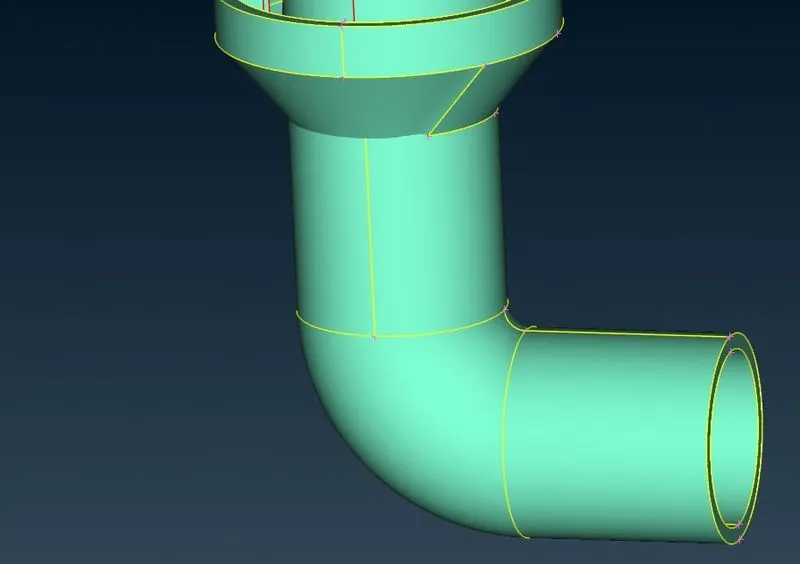
Next we will go to another error and below surface is curved and another side it is perfect,For clear this we will use intersect option for creating proper boundaries(double coons)
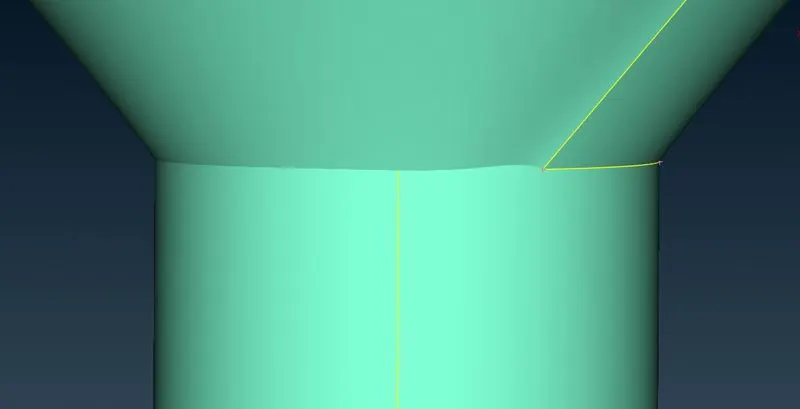
For this select the first entity and middle click,then it asking the second entity,select that one and middle click,after that then it asked for which surfaces do you want to keep and which surface delete,then keep necessary surfaces and delete unnecessary one.
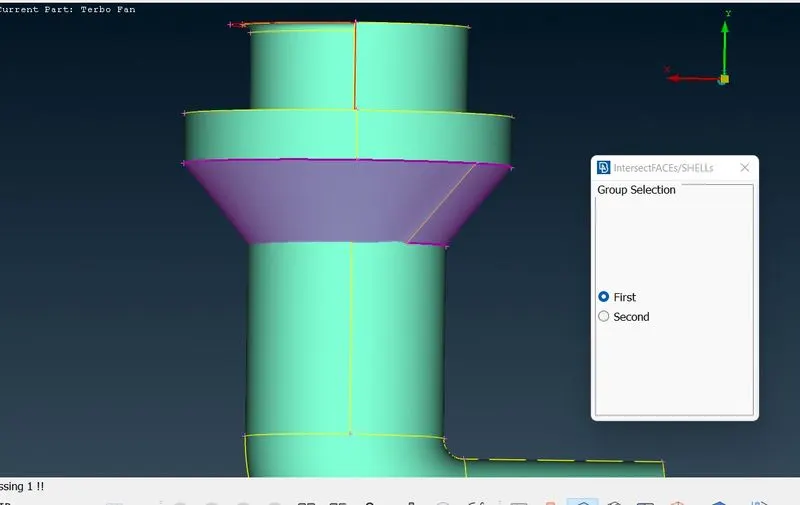
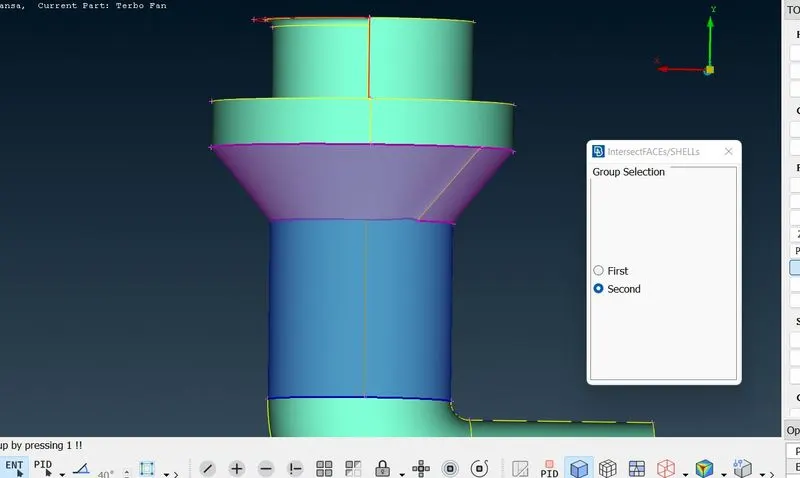
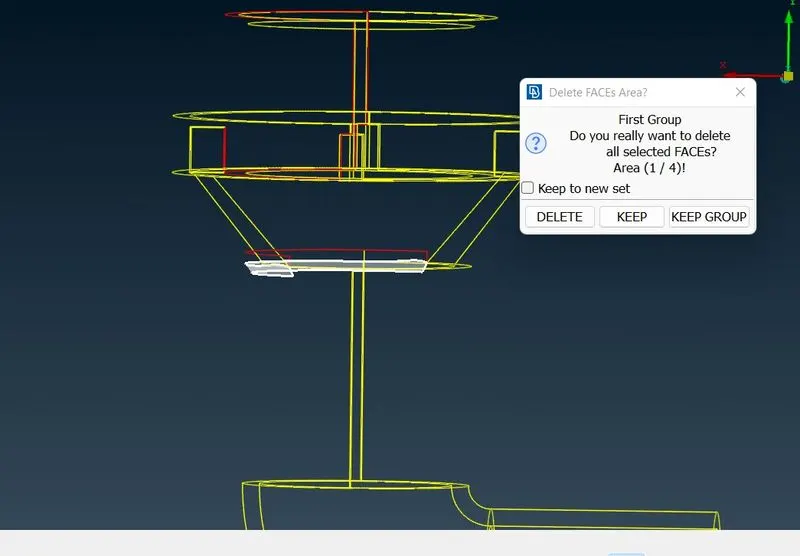
Delete above surface,we dont need
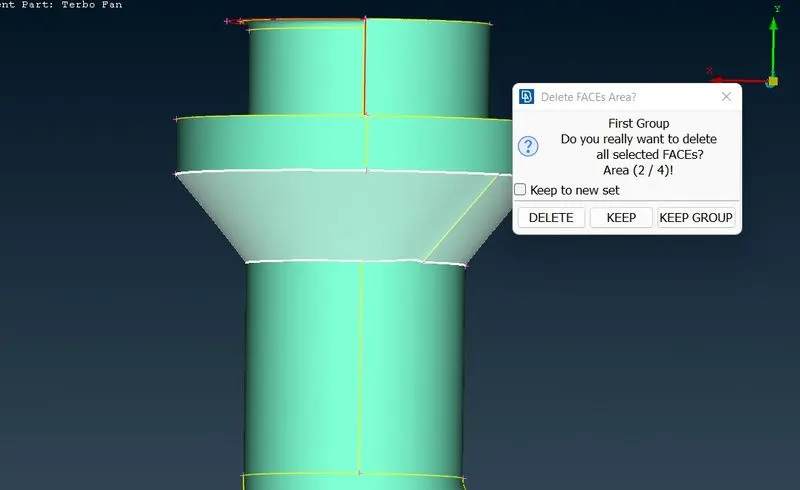
Keep above surface
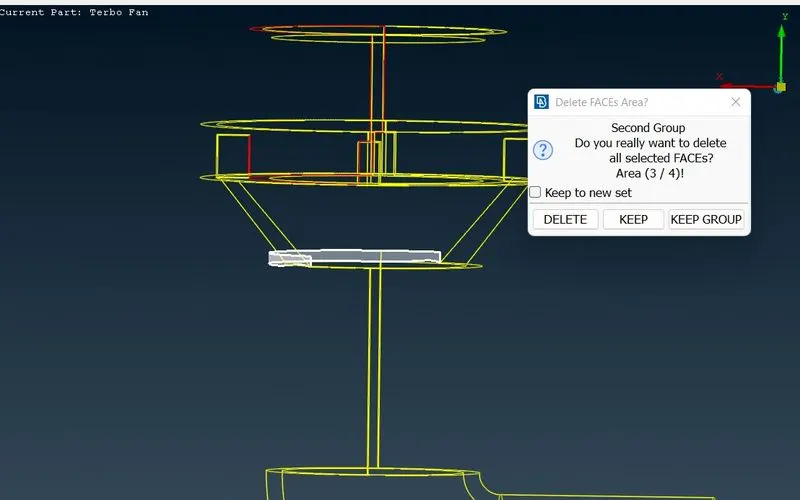
Above surface we dont want,so delete
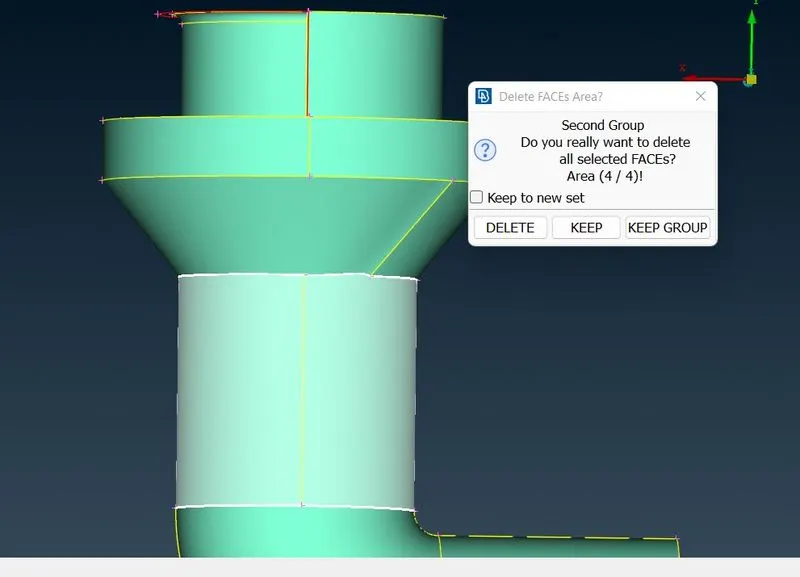
Keep above surface
.........................................................................................................................................................................
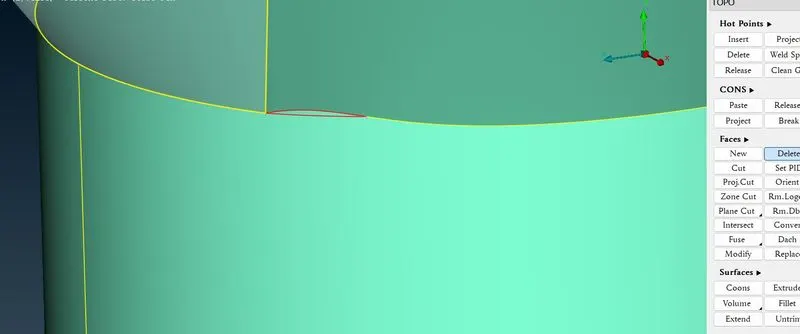
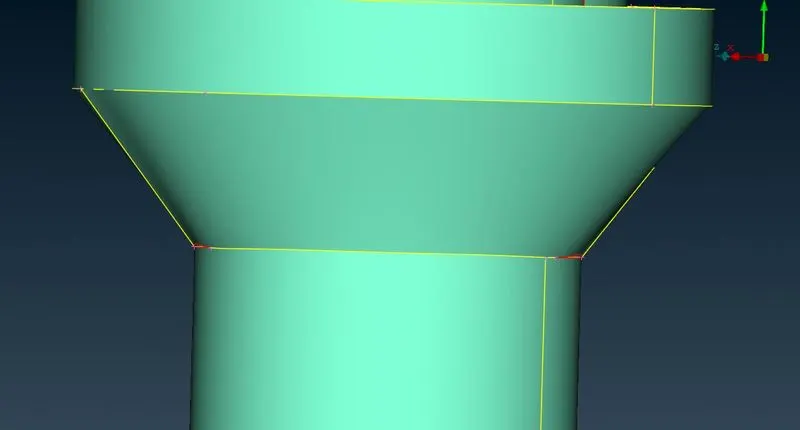
Below now con is created but there is a distorted coon so we using cut tool to make uniform coon.By using cut option we will create coon and delete that surface,similarly we are doing other side also.Finally we are deleting that face as shown below and creating the new surface.
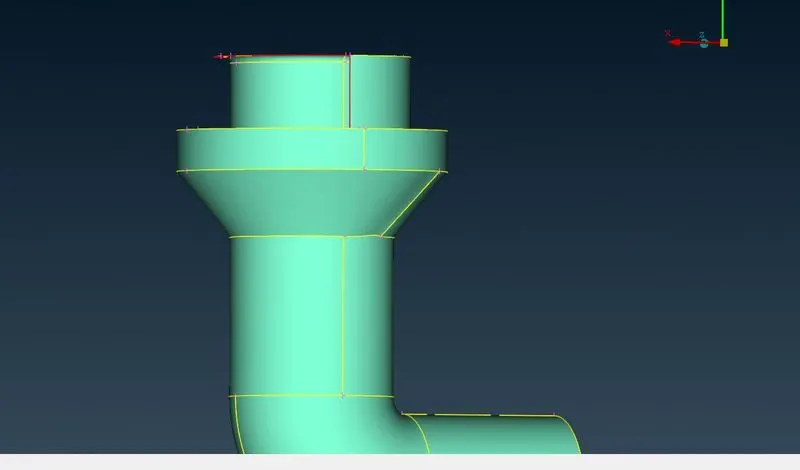
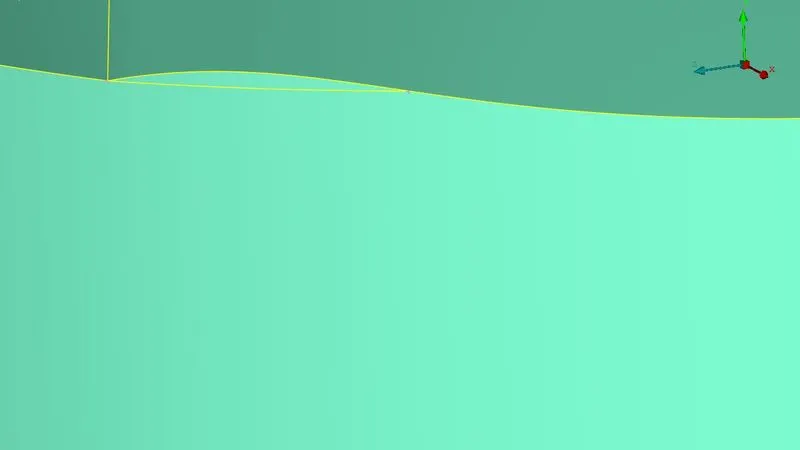
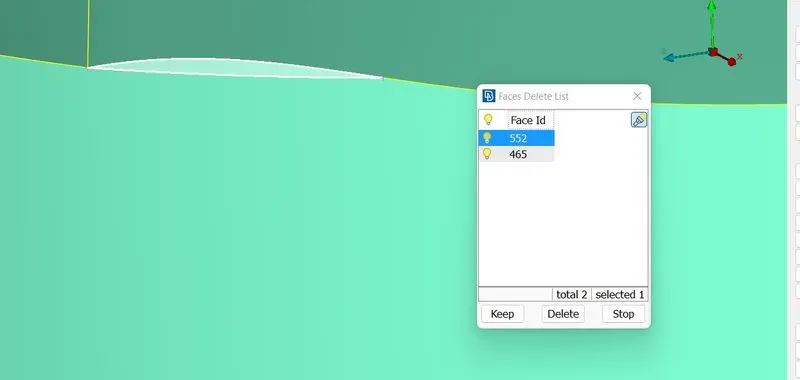
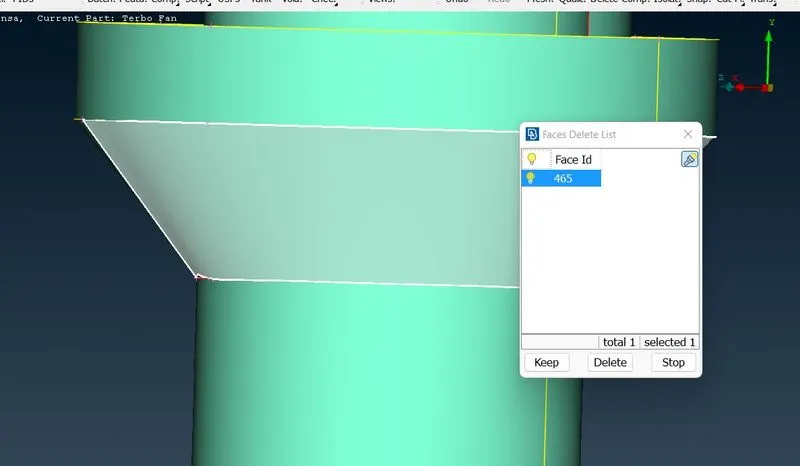
After deleting the face remove unnecessary hot points.
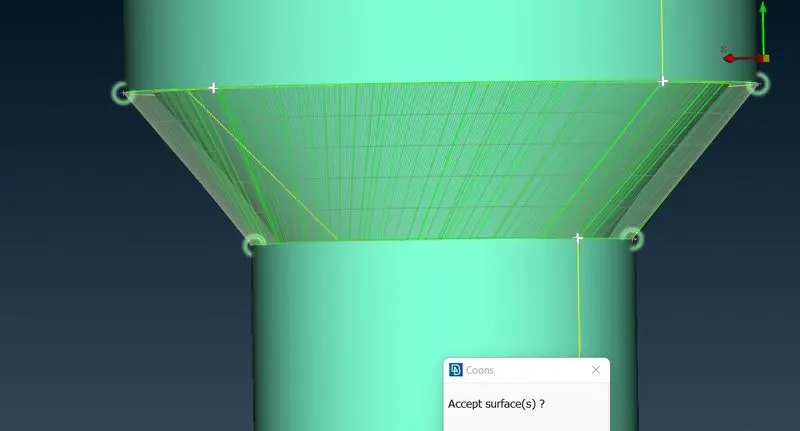
Now below surface looks perfect
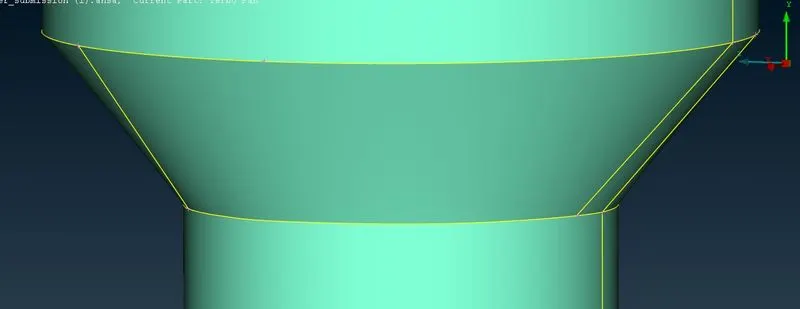
Now we will go to another error,To see clearly we will hide some faces by using not and entity at top face of compressor casing and Lock it.
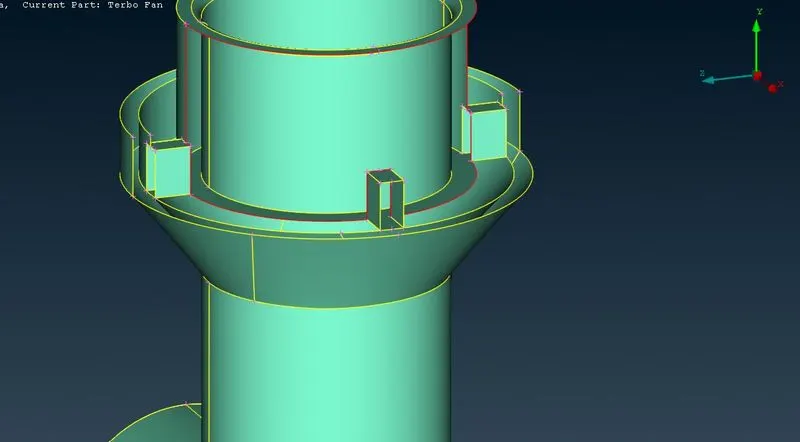
By using Transform option under curves,after that by COONS option we will clear this error
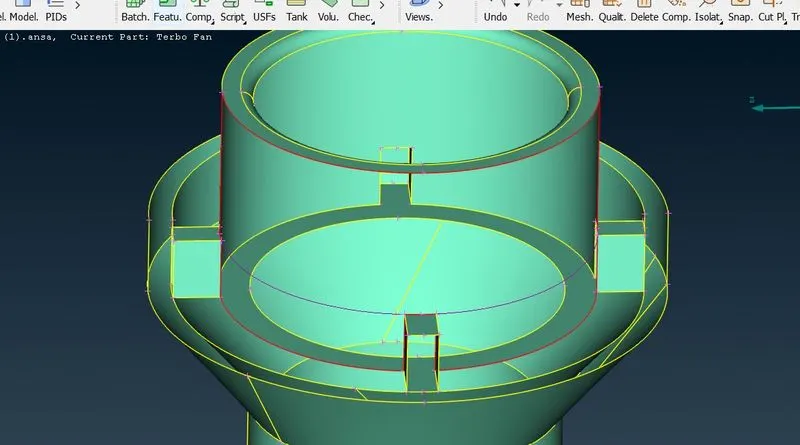
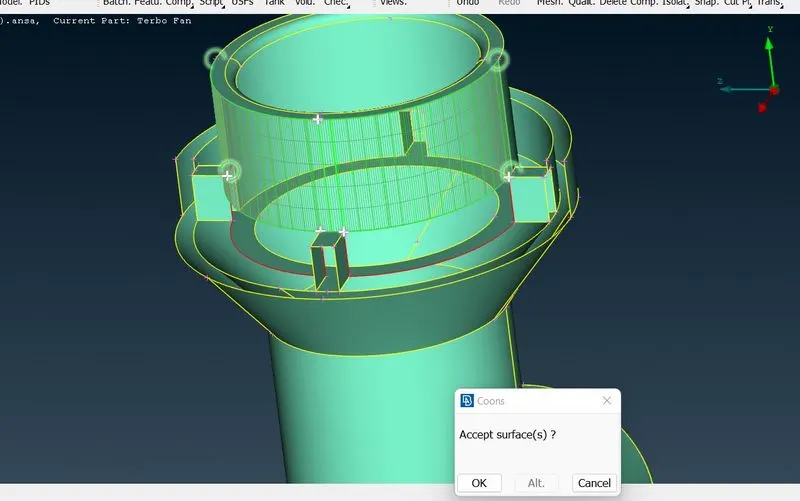
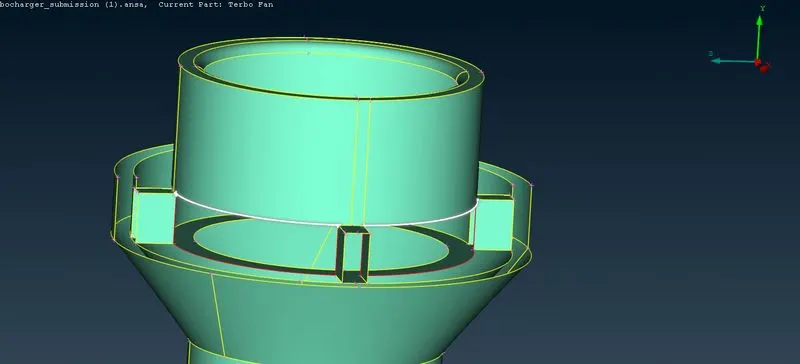
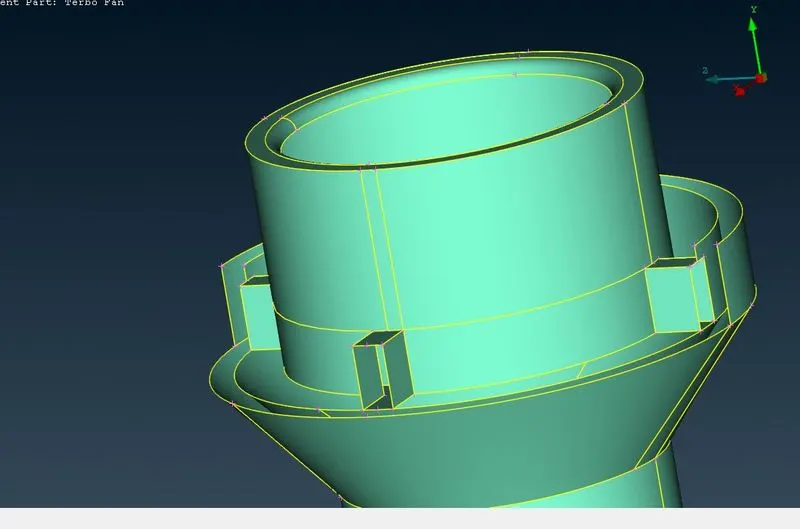
So finally cleared this error,finally its look like below
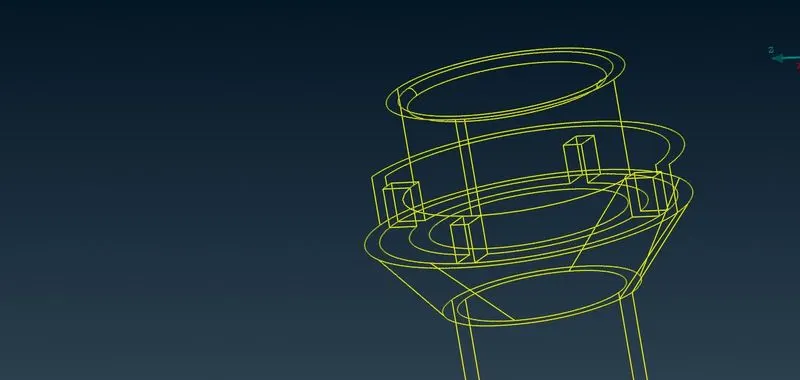
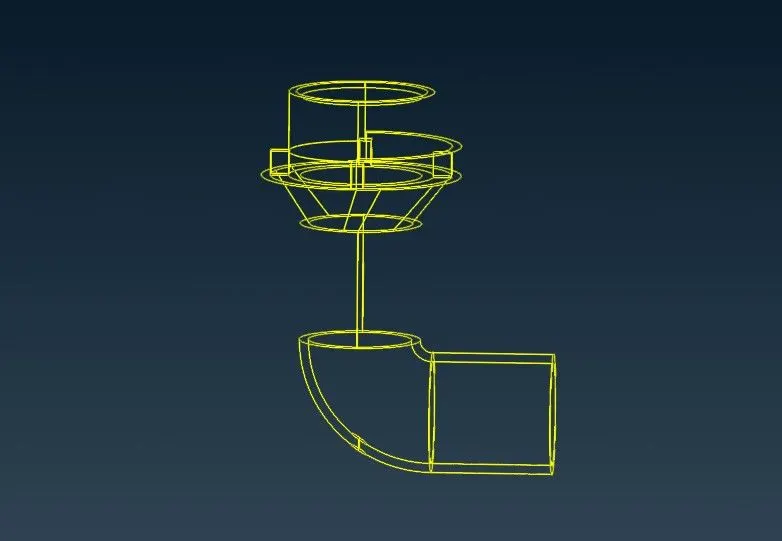
Now we are going to clear single coons in turbine casing.
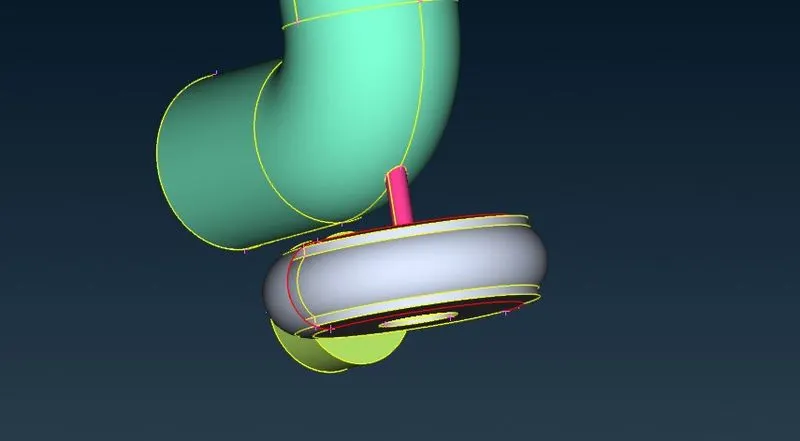
Above error is remove by using copy option in transform option.
This error in geometry is rectified by copying the opposite face available. For Copying the face, three points were needed. Two points are available are at edge ends and third point is inserted by using Hot Points---> Insert. Point was inserted just at the mid of open edge.
From top menu Utilities---> Trasform---> Copy is selected.
Below we are inserting hot point
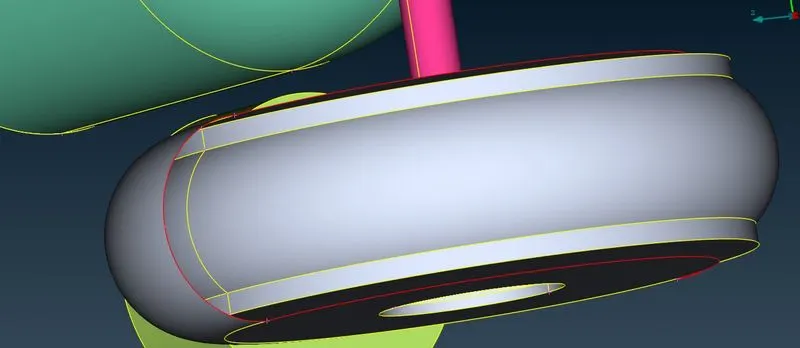
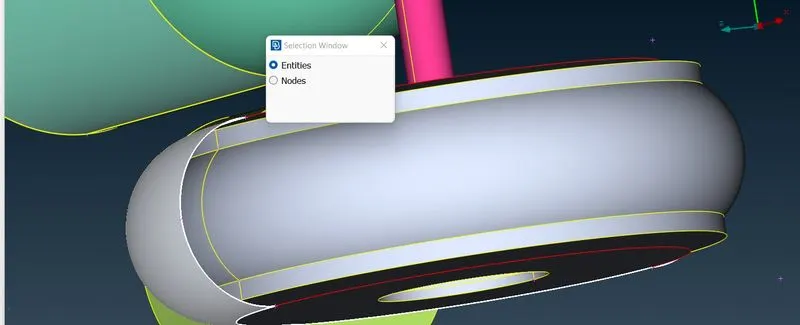
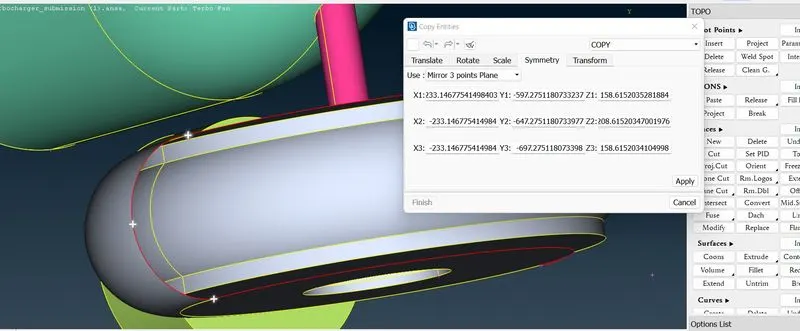
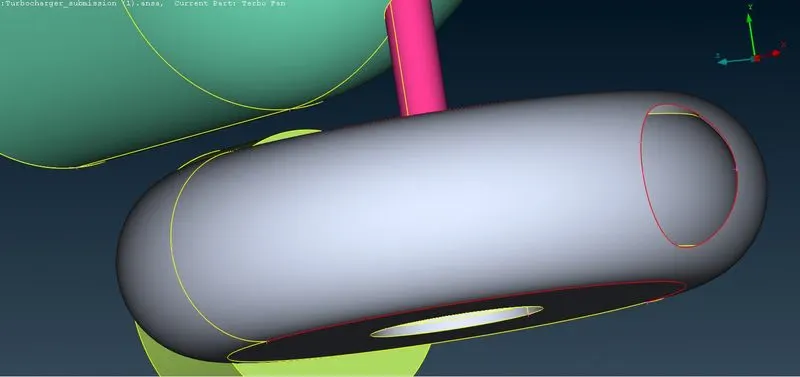
Now we cleared,by using Fill hole will fill hole in above figure
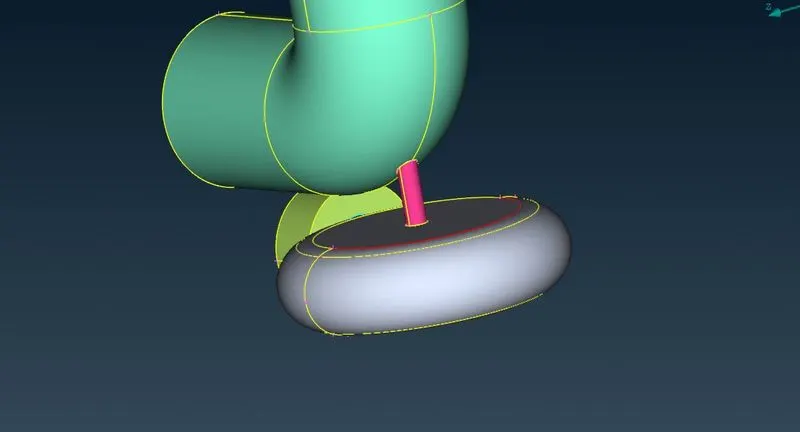
By using Topo will remove that red coons
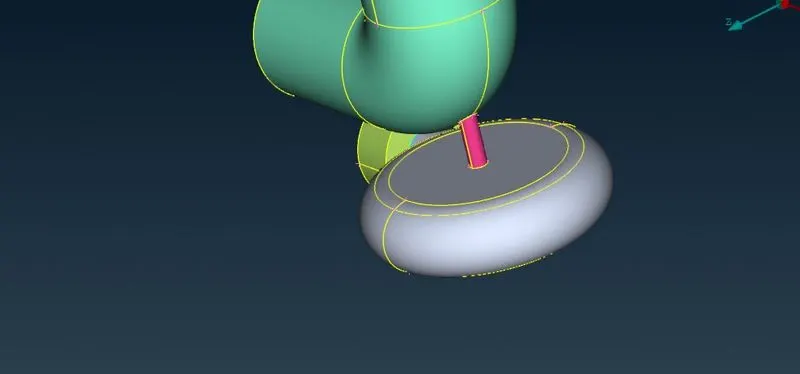
Now finally go to checks manager to check. It was found out that there were intersection errors present in the shaft-blades-impeller assembly and also triple cons. Now the preprocessing focus is shifted to the internal components.
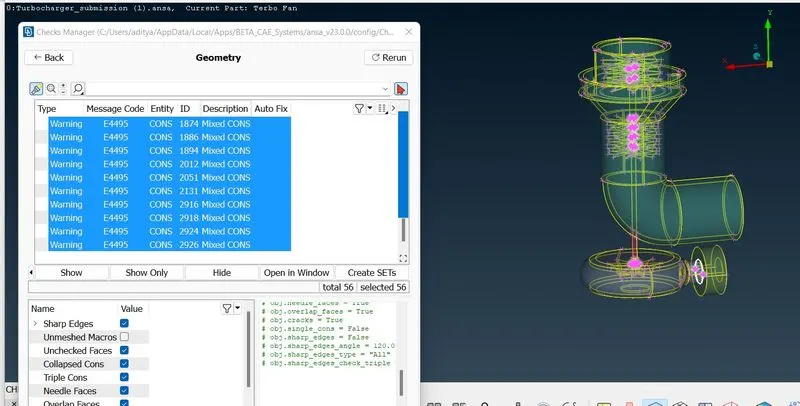
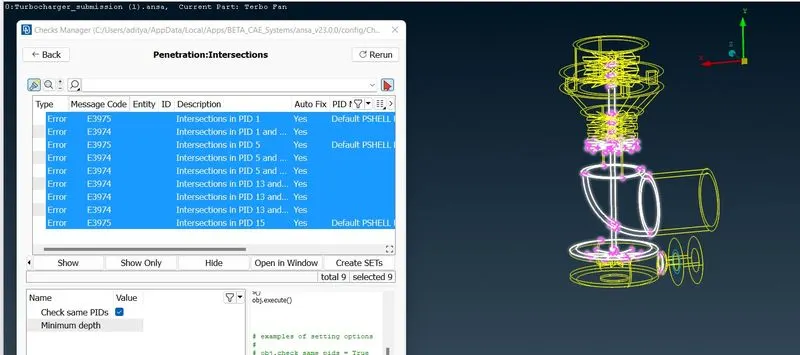
Now hide compressor casing and Lock it.
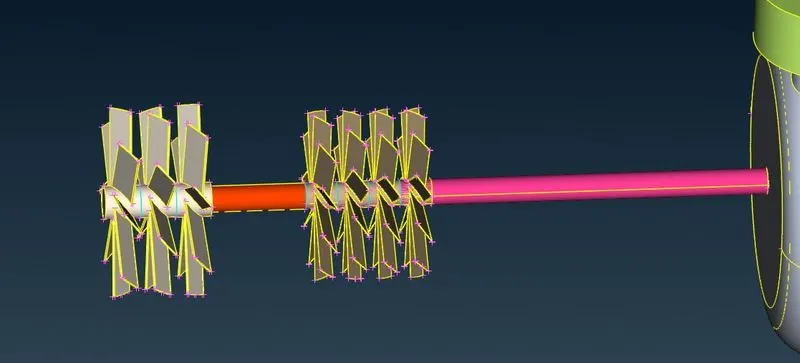
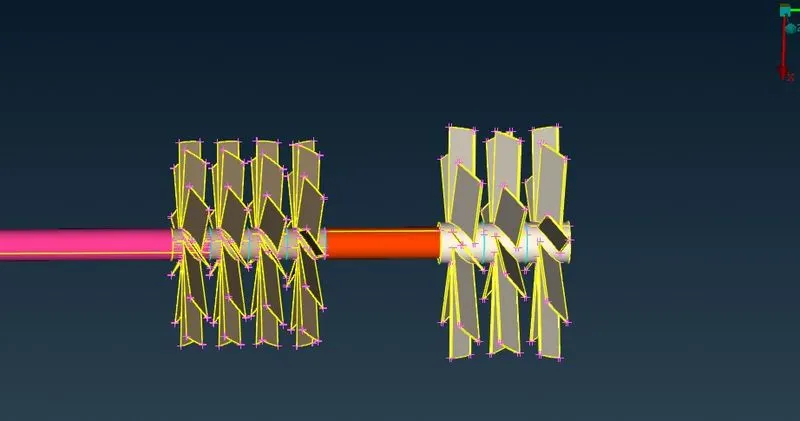
By using not option we will hide surfaces and we will clear all triple coons one by one
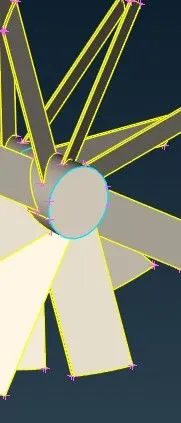
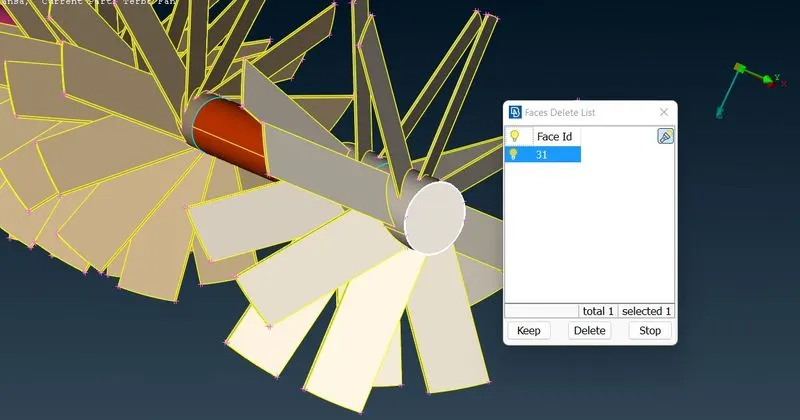
Delete above surface
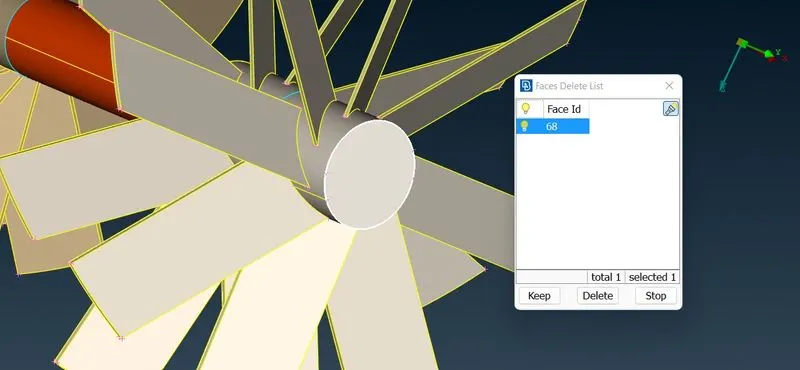
Delete abive surface
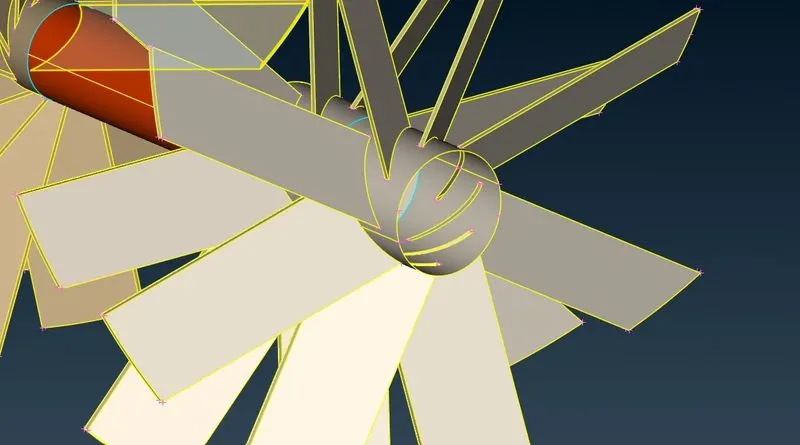
Now we cleared triple coon,similarly we will do for others.
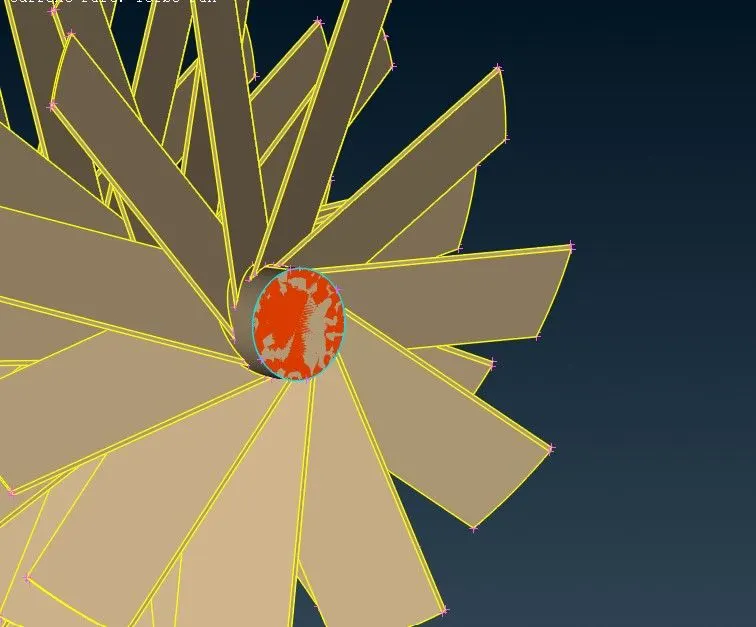
Above there is overlapping surface,just delete and clear that one.
Similarly we will do for others and remove all triple cons
To clear the intersection error shown below, the shaft which is inserted in the blade should be deleted upto the blade part. But it can be identified that there is no edge present on shaft to delete the shaft faces upto blade part. To make section use Face--> Cut option/ Intersection option/ Project CONS option.
In this below slides, Project CONS option is demonstrated.
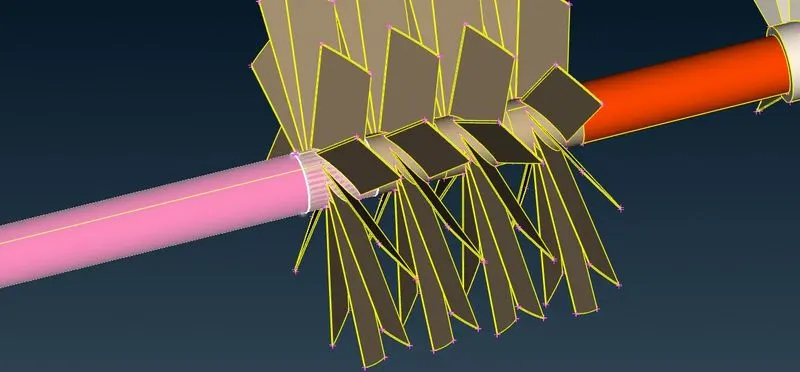
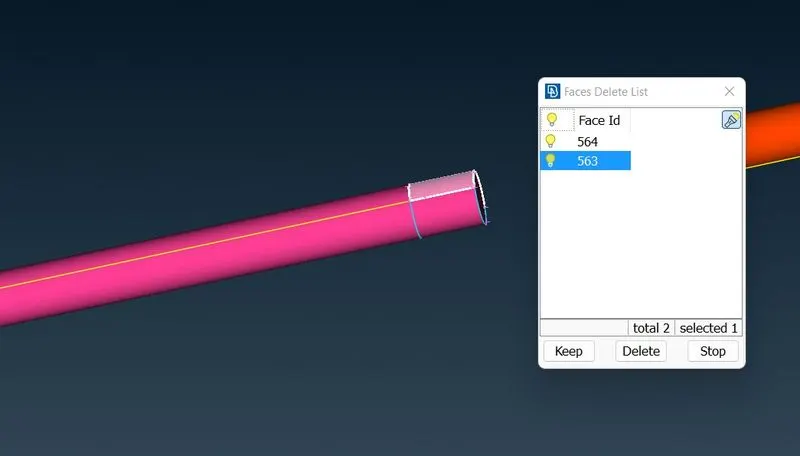
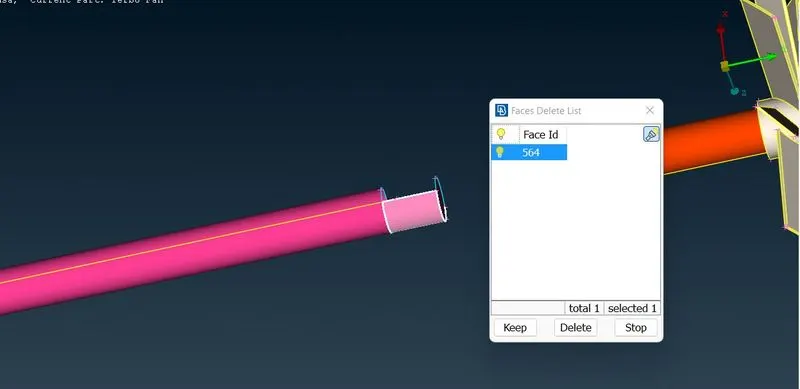
Do same procedure,delete all triple coons,then finally the surface looks like below
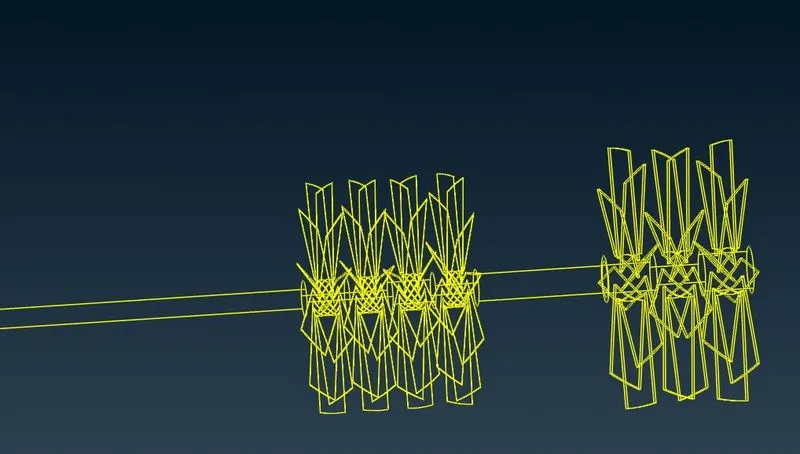
Below another overlapping surface,delete that one
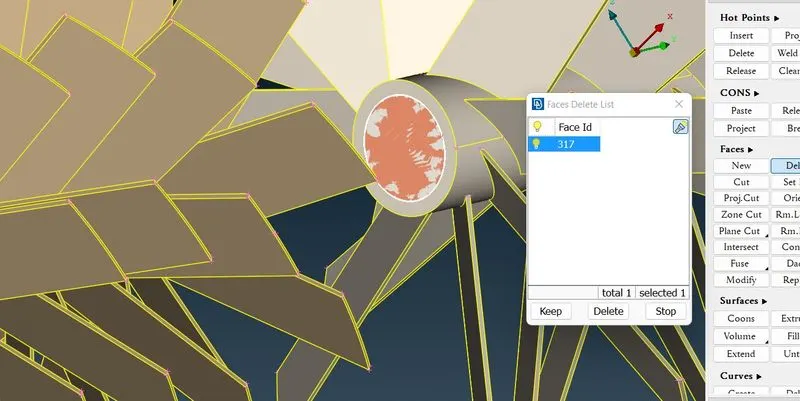
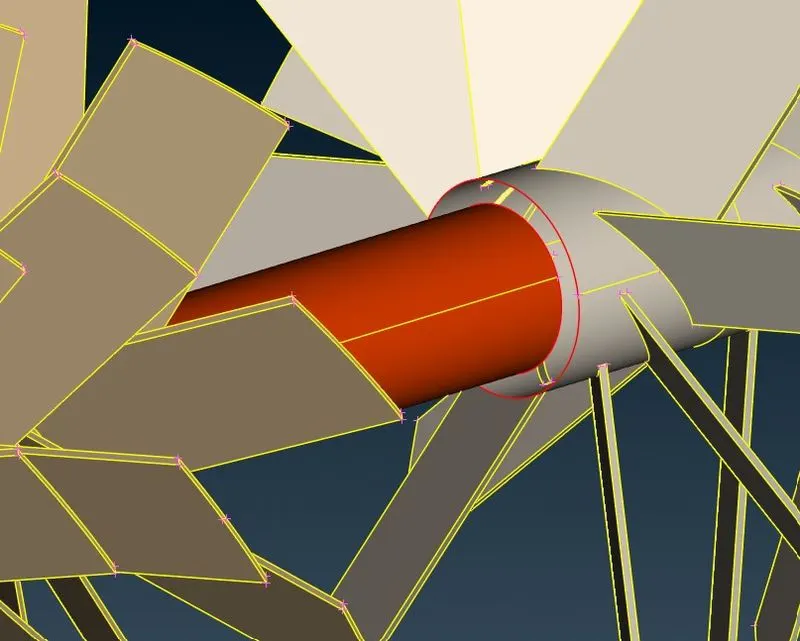
By deleting that surfaces red coon created,that is cleared by Coons option
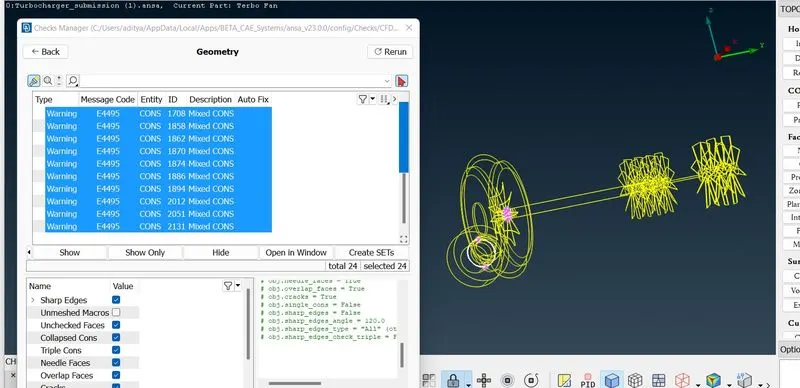
Now go to Checks manager and check for geometry and intersecting errors.
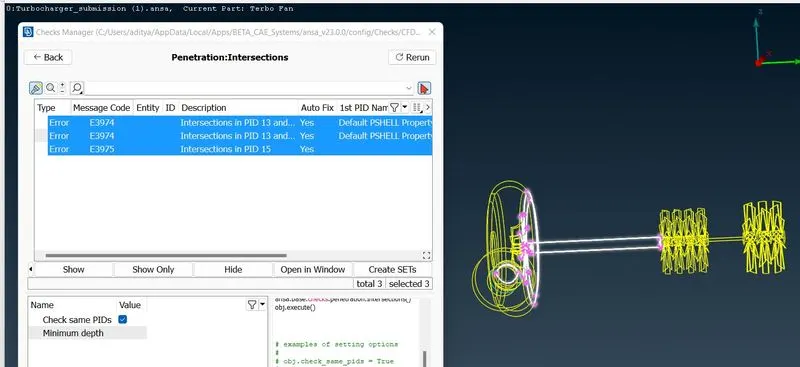
We have cleared all errors between shaft and blades,remove lock,then again click on all to show all geometry.
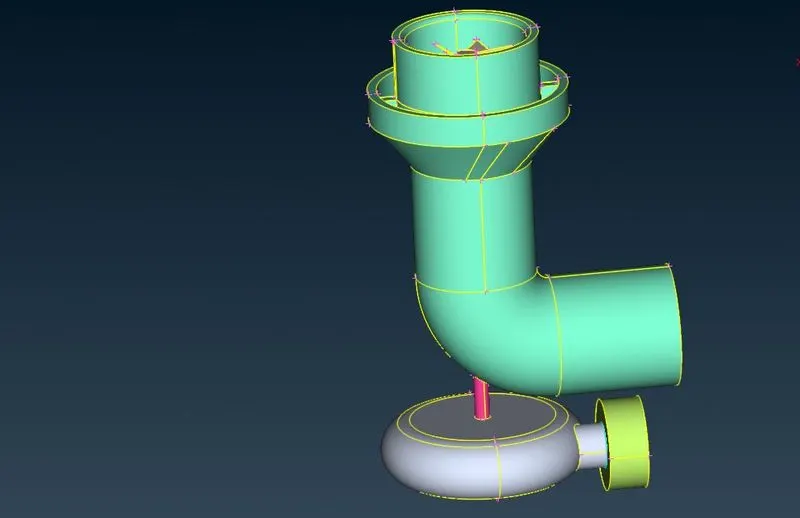
Now we will clear below intersection errors.
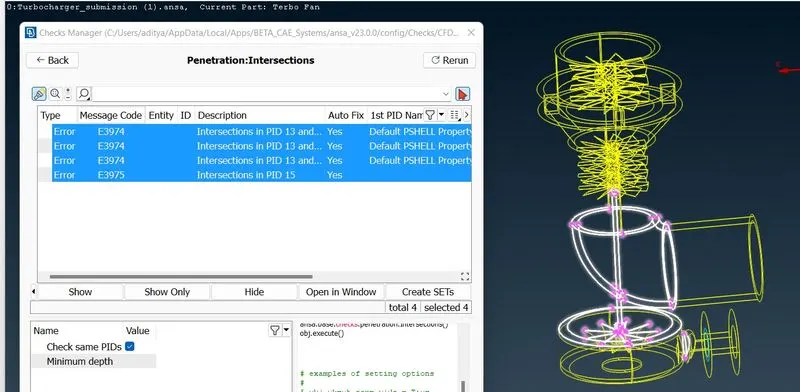
By hiding bottom of compressor casing,there is a overlappping error,we will delete these,after that red coons created.
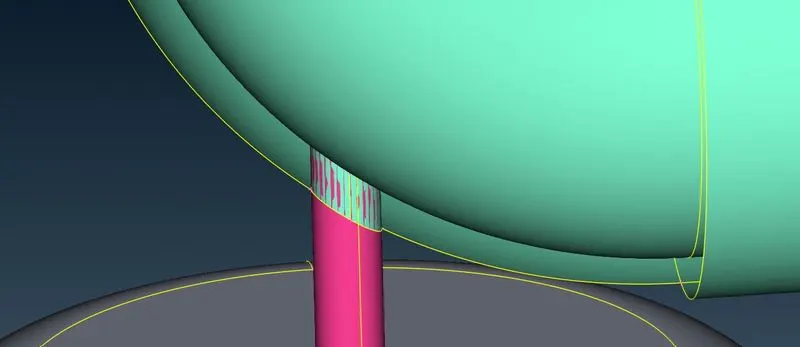
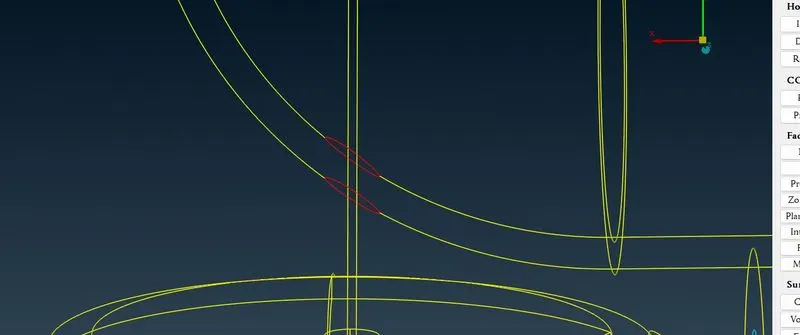
The above red coons are cleared by projecting coons,and delete that portion of shaft which is interesect with compressor casing.
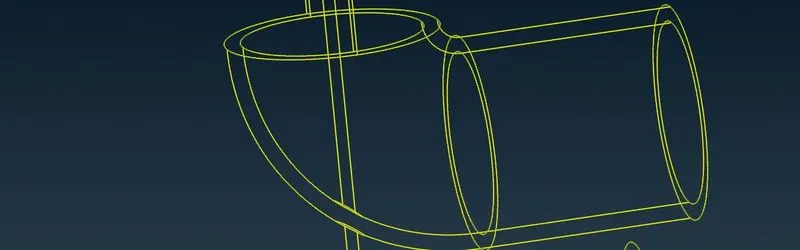
Similar procedure in turbine casing also for clearing another intersection error.
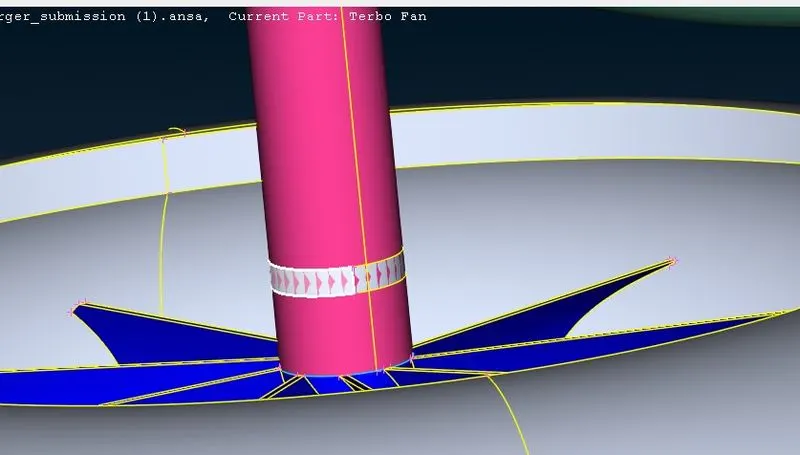
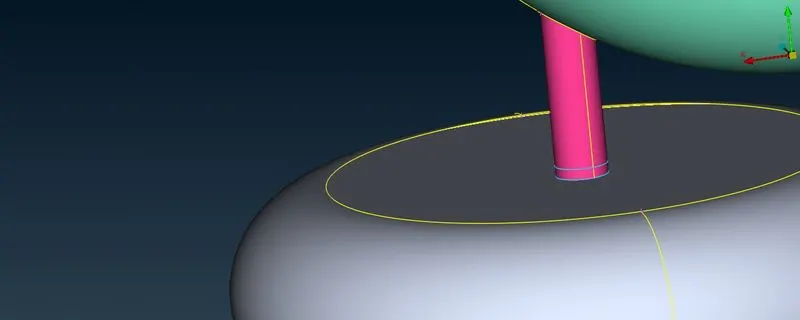
above triple coons will clear by deleting that faces
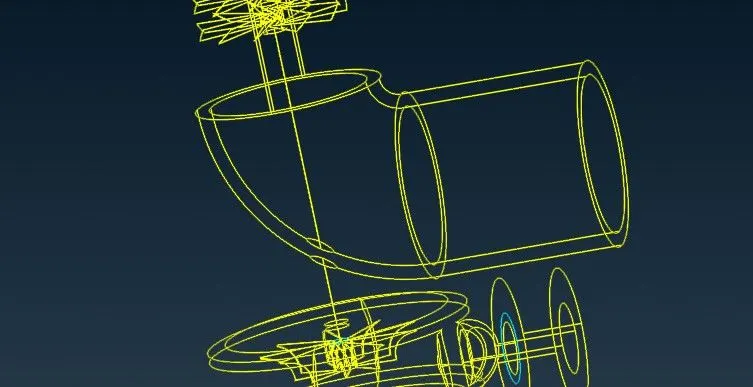
Now only Two intersecting errors are remaining
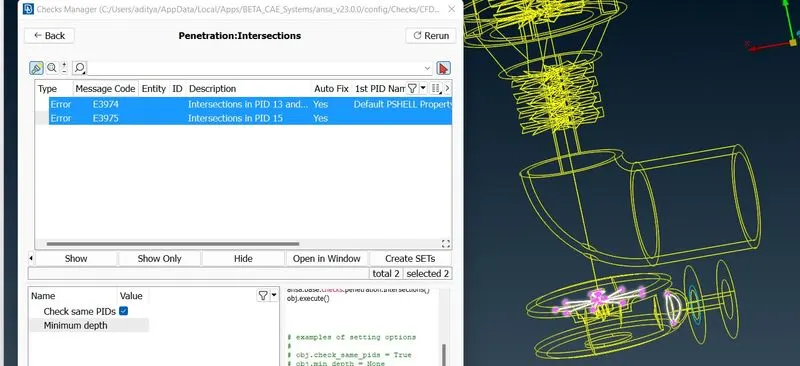
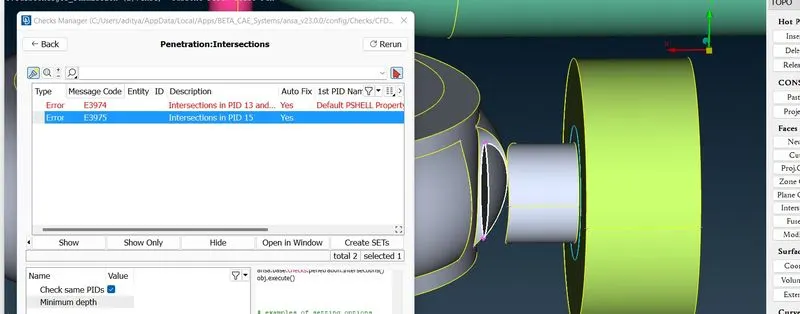
By delete option under Faces we will delete above error.
Now only one intersection remaining that is between blades and shaft, let us see by hiding some parts
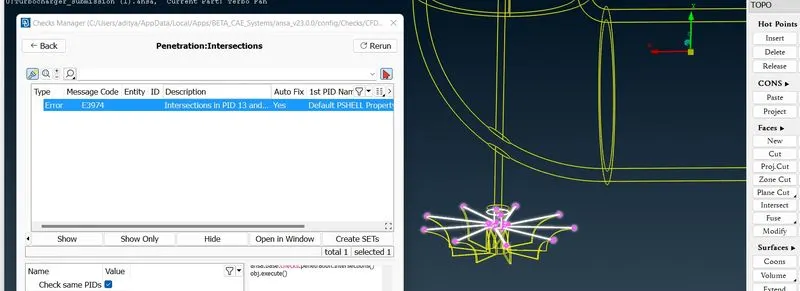
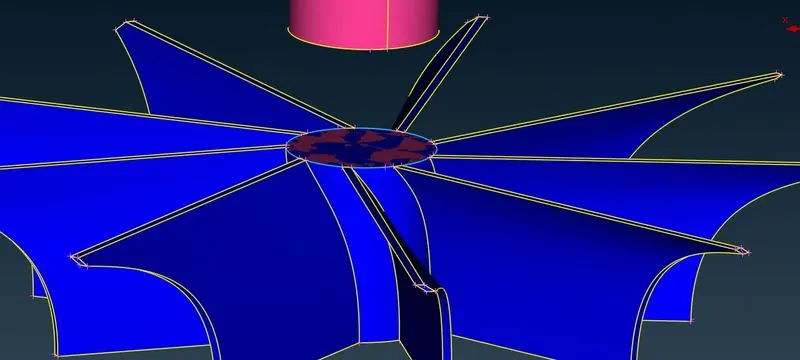
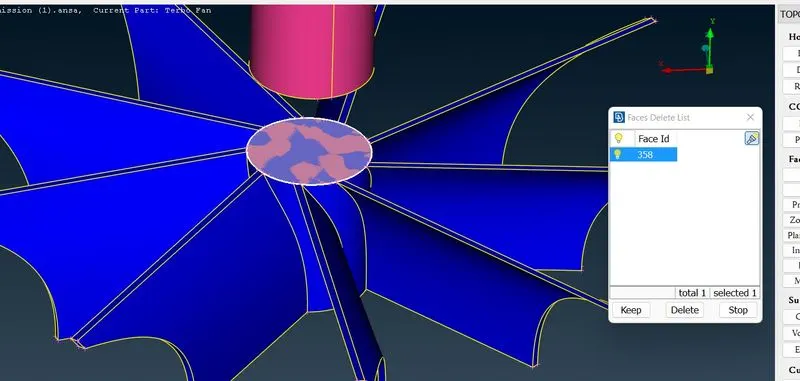
Delete above overlap surface.some triple cons remaining
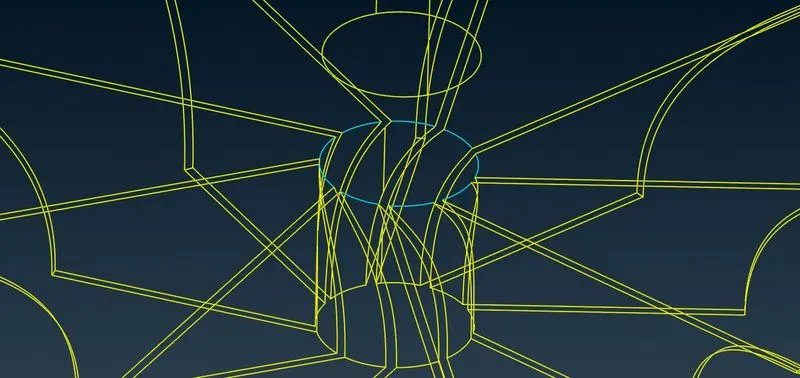
by project the shaft coons on below blade shaft we will delete that surface
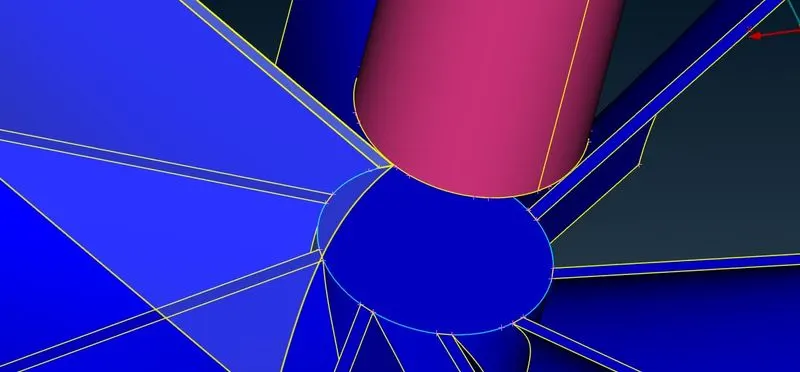
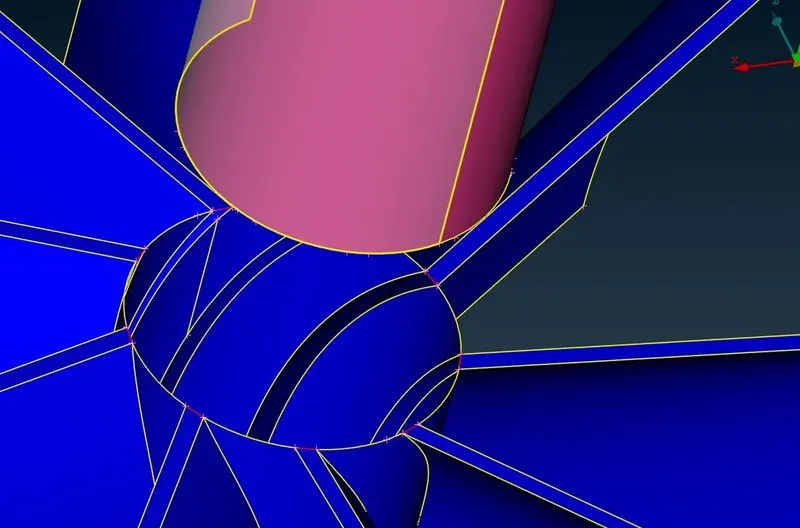
There is a red coons on above surface,by hitting topo can remove that error also,now can go geometry checks
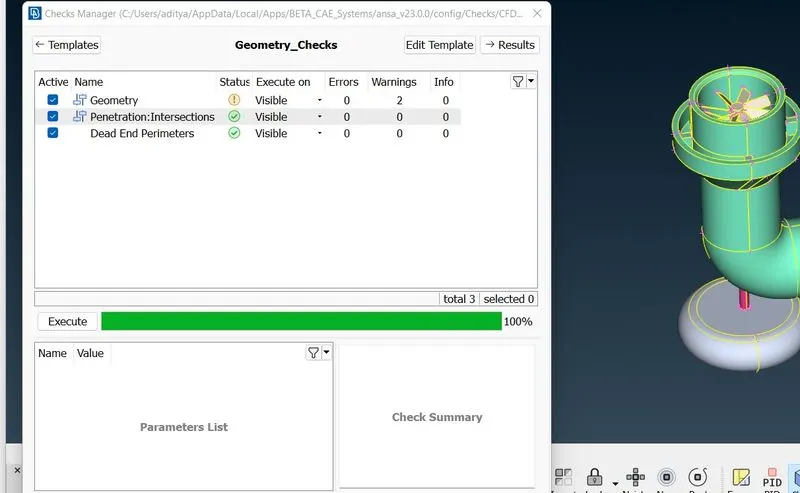
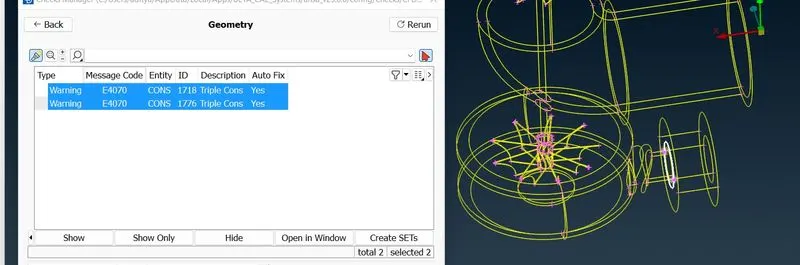
Above is because of above 3 surfaces are meeting,So it is necessary part,We are ignoring this. So we have cleared all geometrical and intersection errors.Next step is surface meshing. Before that we will assign PIDs
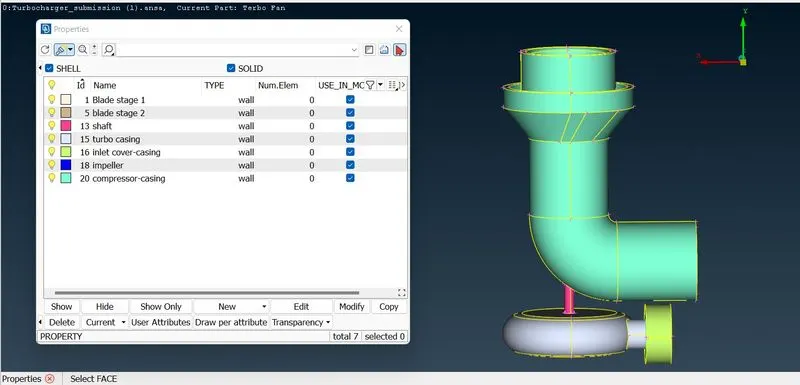
Next step is surface meshing. We need a water tight mesh i.e. fully closed mesh for external flow analysis. so for close all openings.
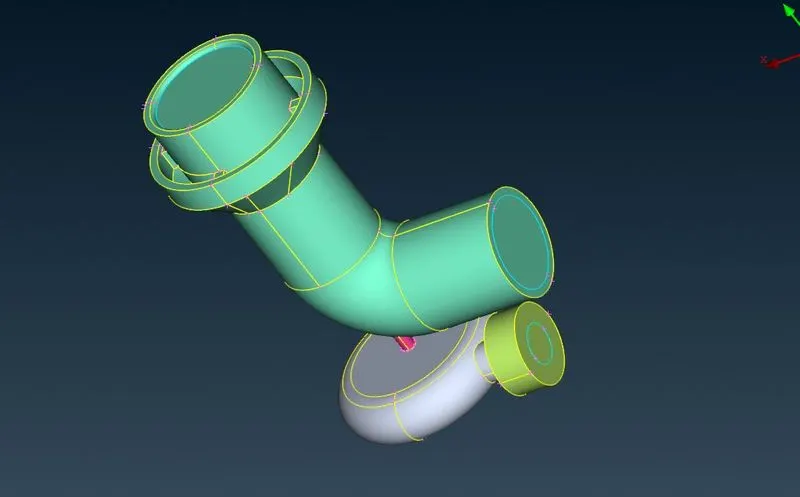
Now we will start surface meshing,First we do for compressor casing for hiding all other parts with a traget length of 5mm,after that Freeze it.
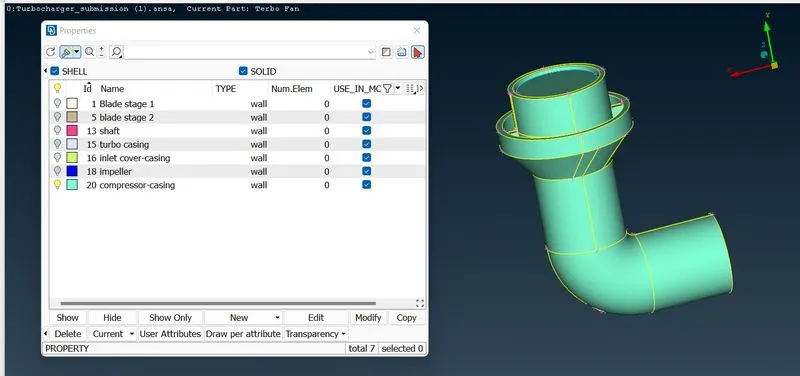
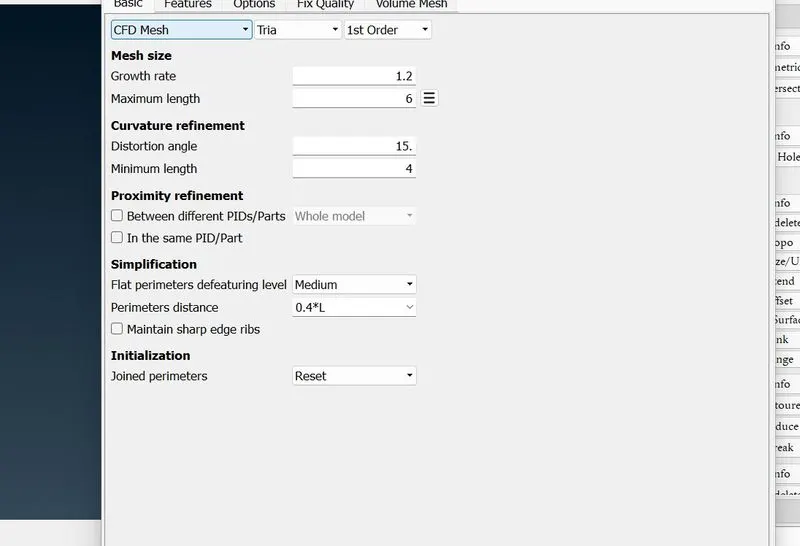
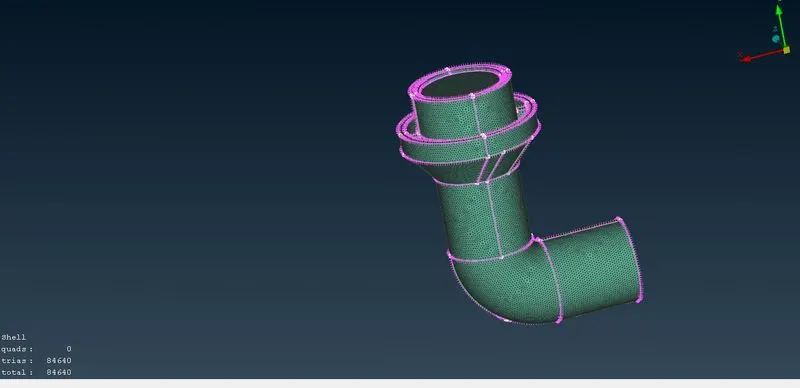
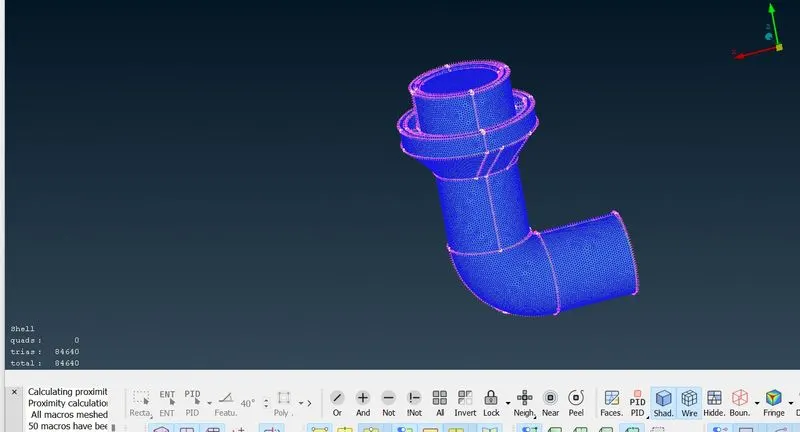
Similarly we do for turbo casing and inlet cover casing
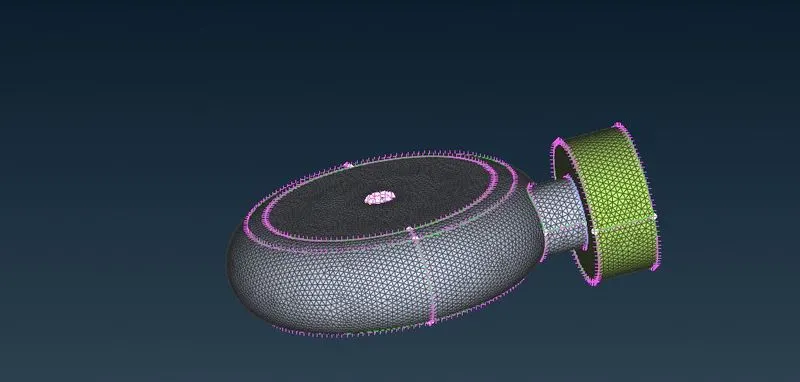
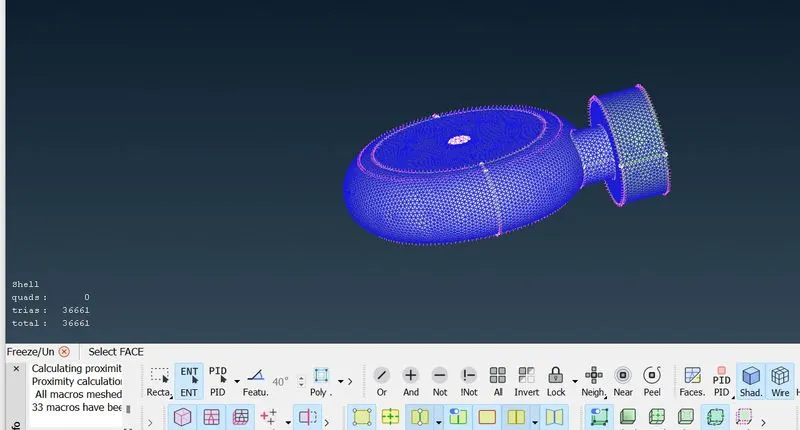
Now will do for impeller for target length of 2mm
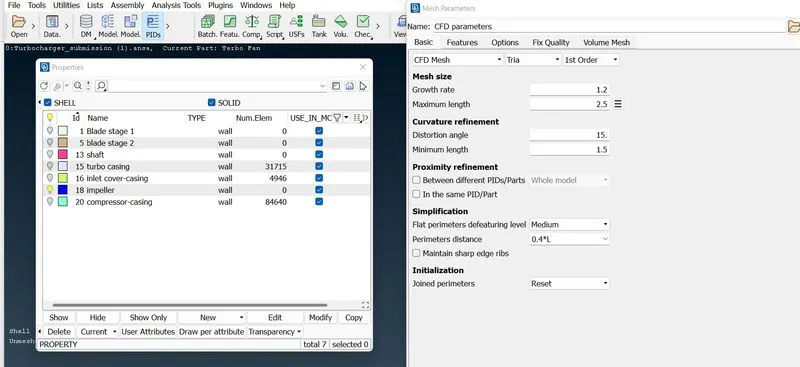
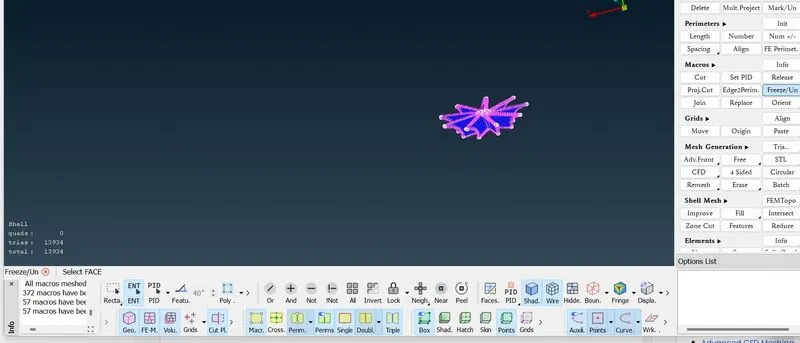
Lets go for blade stage-1,2 and rotor shaft together because for all target length=1mm.
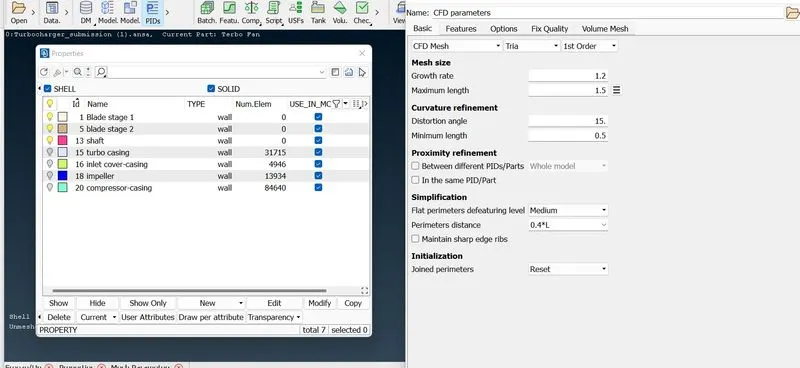
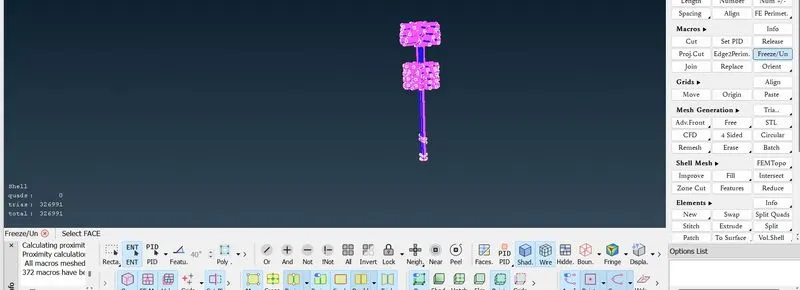
Lets do all
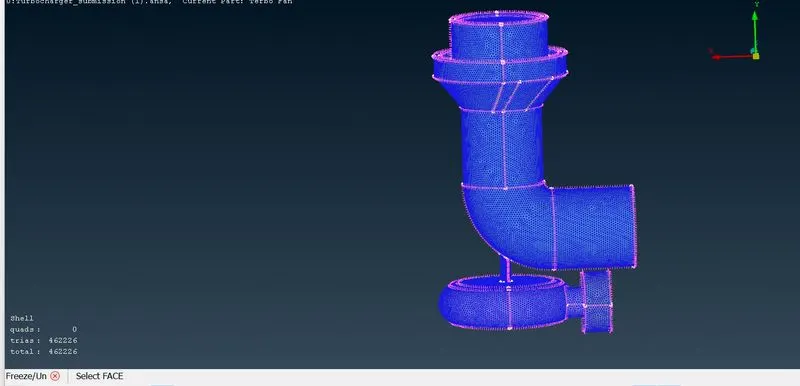
Lets now unfreeze
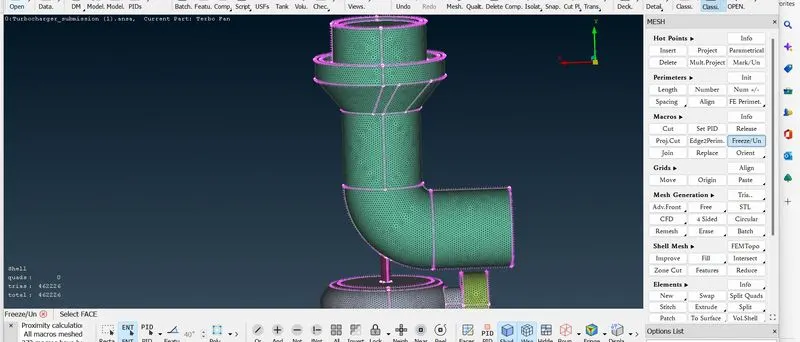
Now we will go to volumetric meshing
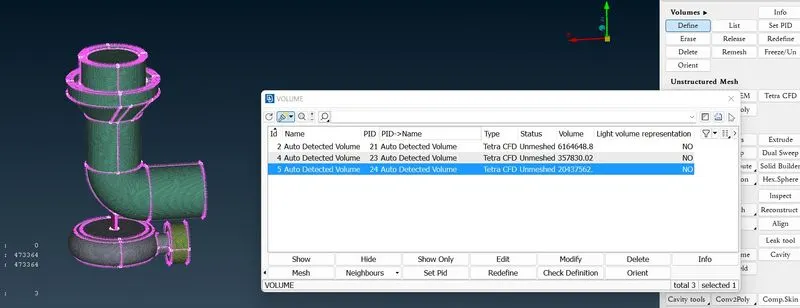
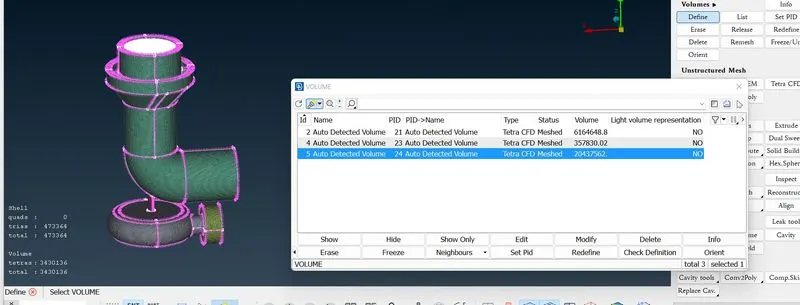
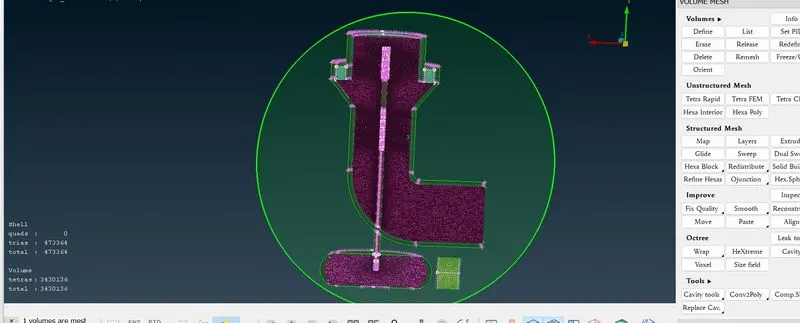
After preparing the surface mesh, the volumes of the model are defined using the Define tool in the Volume menu of the Vmesh toolbar and then all the unnecessary volumes are deleted. And the type of the volumetric mesh is defined as tetra CFD in the type section of the define menu.
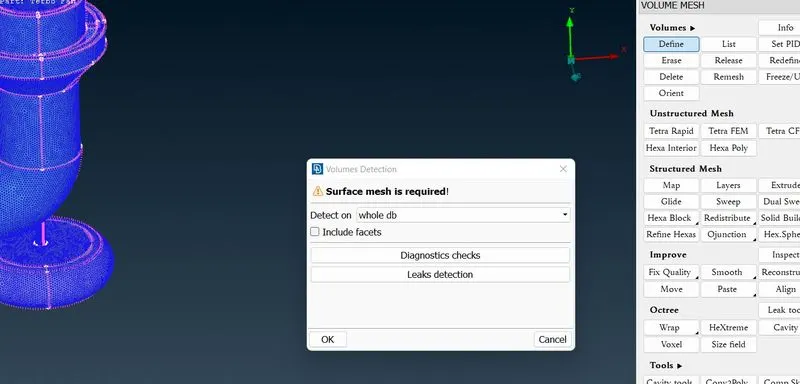
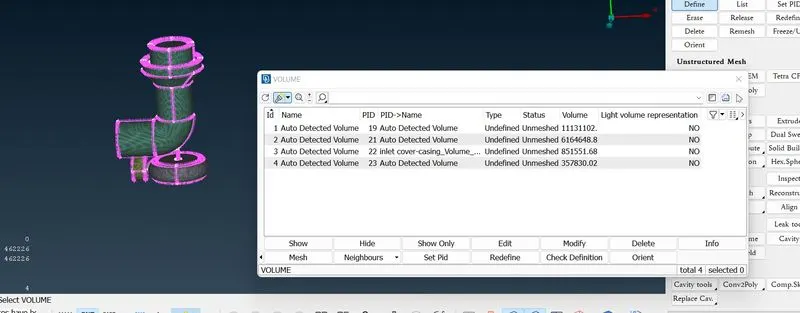
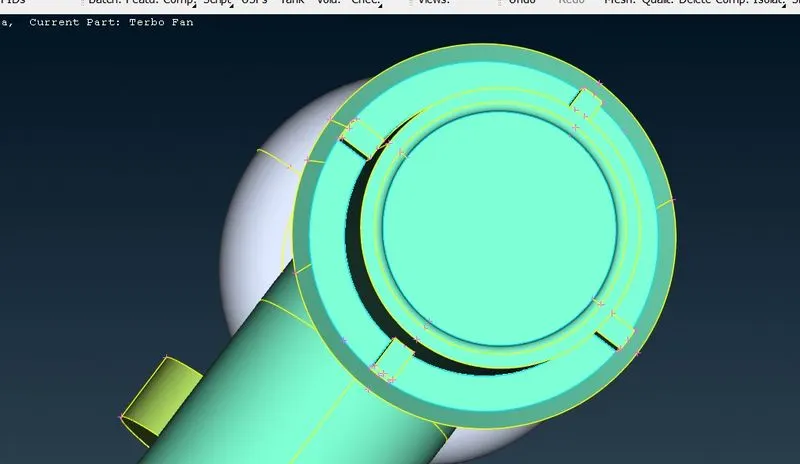
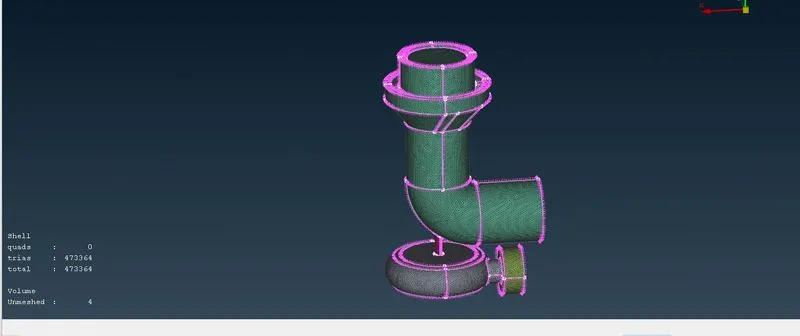
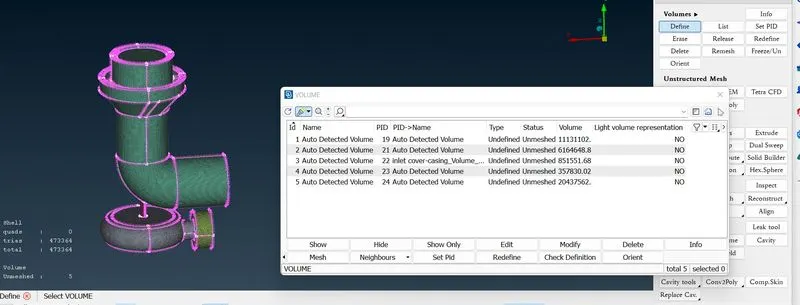
Delete unnecessary volumes and finally mesh
Conclusion:
1.I have learned volume meshing in ansa (surace meshing is prerequisite for volume meshing)
2.Freeze option under Macros,transform option under curves,Free mesh and money new commands learned in this challenge.
Output files
https://drive.google.com/file/d/1iz9WOiLAmK1uhIMbzfx5AwNhsdqQ7uL0/view?usp=share_link