ADVISOR Tool
AIM: To use the ADVISOR tool for SIMULATION.
OBJECTIVES:
- For EV_defaults_in file, if cargo mass is 500 kg with all other default conditions, can the vehicle travel for 45 km with FTP drive cycle? Conclude your observations.
- In the above case, try changing the battery capacity and repeat the simulation.
- Perform gradeability test with PRIUS_Jpn_defaults_in file. Compare your results in table and conclude.
INTRODUCTION:
ADVISOR Tool:
ADVISOR is a set of model, data, and script text files for use with MATLAB and SIMULINK. It’s short for “Advanced VehIcle SimulatOR” and was created by NREL in November 1994. It is designed for rapid analysis of the performance and fuel economy of conventional, electric and hybrid vehicles. ADVISOR also provides a backbone for the detailed simulation and analysis of user defined drivetrain components, a starting point of verified vehicle data and algorithms from which to take full advantage of the modeling flexibility of Simulink and analytic power of MATLAB.
ADVISOR can help in the following tasks:
- To estimate the fuel economy of vehicles that have not yet been built.
- To learn about how conventional, hybrid, or electric vehicles use (and lose) energy throughout their drivetrains.
- To compare relative tailpipe emissions produced on a number of cycles.
- To evaluate an energy management strategy for your hybrid vehicle’s fuel converter.
- To optimize the gear ratios in your transmission to minimize fuel use or maximize performance, etc.
ADVISOR will allow the user to answer questions like:
- Was the vehicle able to follow the speed trace?
- How much fuel and/or electric energy were required in the attempt?
- How does the state-of-charge of the batteries fluctuate throughout a cycle?
- What were the peak powers delivered by the drivetrain components?
- What was the distribution of torques and speeds that the piston engine delivered?
- What was the average efficiency of the transmission?
By iteratively changing the vehicle definition and/or driving cycle, the user can go on to answer questions such as:
- At what road grade can the vehicle maintain 55 mph indefinitely?
- What’s the smallest engine I can put into this vehicle to accelerate from 0 to 60 mph in 12 s?
- What’s the final drive ratio that minimizes fuel use while keeping the 40 to 60 mph time below 3 s?
- What is the fuel economy sensitivity to mass, aerodynamic drag, or other vehicle or component variations?
Starting the ADVISOR tool:
- Open the MATLAB program and make sure the default location has ADVISOR tools folder in it.
- In the command window, type “advisor” and press ENTER.
- A window should pop up. Set the units to “Metric or US”, based on the user requirement. And, click START. It should launch the ADVISOR tool main window.
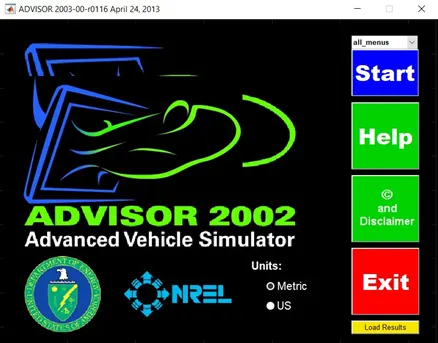
ADVISOR tool Windows:
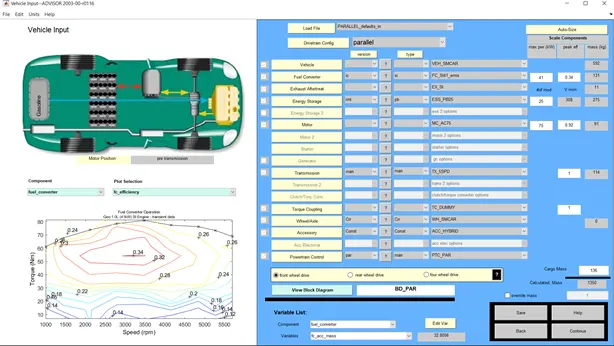
ADVISOR has three windows:
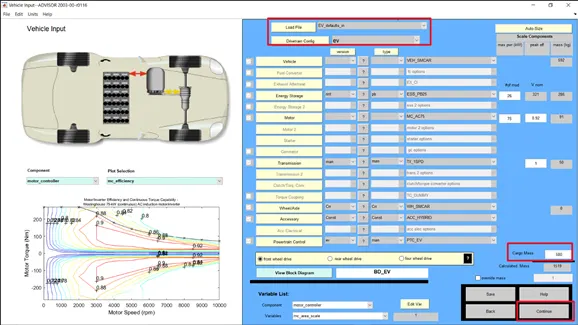
- Vehicle Input Window – User can adjust the configuration and components using drop down menus and also can modify the variables from the variable list. The graphical representation of selected drivetrain can be seen in top left block. And, components performance contours on the bottom left.
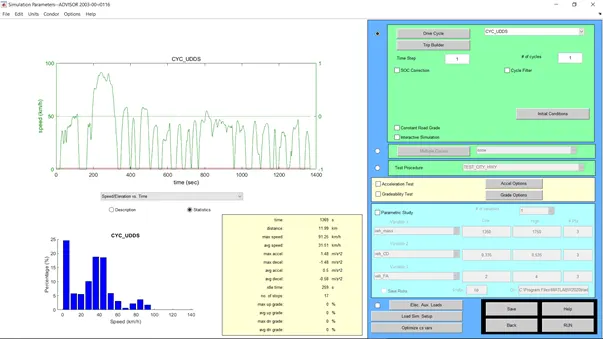
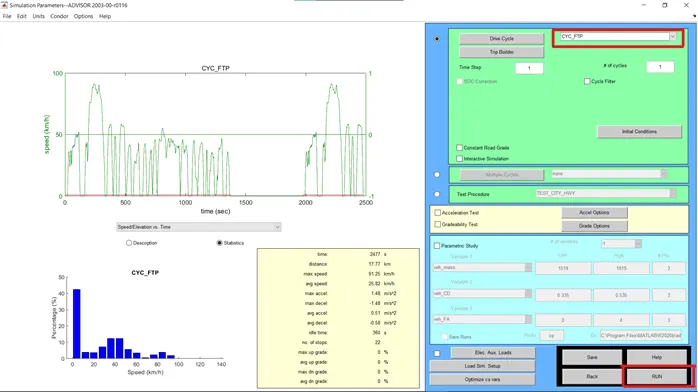
- Simulation Parameter Window – Users can specify few parameters like, type of drive cycle, no. of cycles, initial conditions, SOC correction, etc. Can also perform Acceleration test and Gradeability tests by giving required variables. The graphical representation of selected drive cycle can be viewed in the left side of the window.
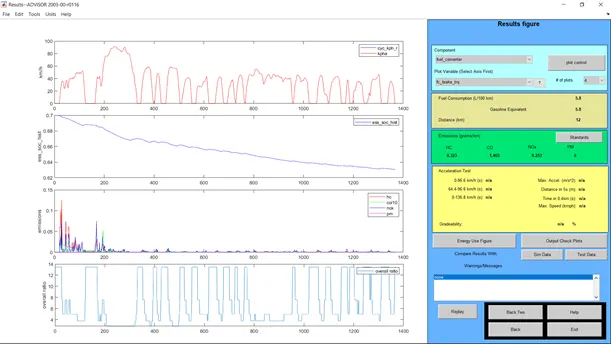
- Results Window – It has six blocks. Plot Controls, where you can select the plots you want to view. The fuel economy block where we can see gasoline equivalent and distance covered. The Emission data. Acceleration and Gradeability tests results. Warnings Block. Versus Graphs.
-------------------------------------------------------------------------------------------------------------------
OBJECTIVE 1:
For EV_defaults_in file, if cargo mass is 500 kg with all other default conditions, can the vehicle travel for 45 km with FTP drive cycle? Conclude your observations.
Steps to follow:
Vehicle Input Window
- In Vehicle Input Window, select “EV_defaults_in” file from the load file drop down menu or by selecting “ev” in the Drivetrain Config drop down menu.
- Keeping all the variables in their default conditions, change the Cargo Mass value to “500”.
- Click Continue for the next window.
Simulation Parameters Window
- In Simulation Parameters window, select “CYC_FTP” from the Drive Cycle drop down menu.
- of cycles be left as default and click OK
- RUN the program and wait for the results.
Output:
- At Default Speed: 55mph/88.5kmph and # of Cycles: 1
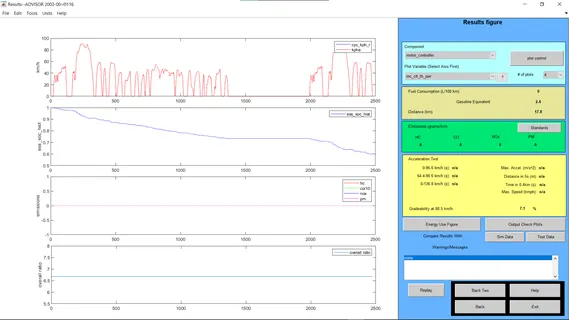
We can observe from “ess_soc_hist” plot that the battery charge level has come down to around 60% approximately. The distance covered is only “17.8KM” which is lower than over target distance, i.e., 45KM. We can come to conclusion with one more test with just increasing no. of cycles.
- At Default Speed: 55mph/88.5kmph and # of Cycles: 3
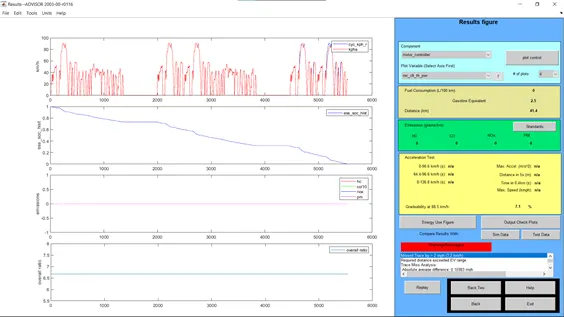
We can observe that there’s a Warning Message which reads “Missed Trace by > 2mph(3.2kmph)” and “Required Distance exceeded EV Range”. So, the Battery got drained before completing second cycle and was unable to cover the remaining distance. The Distance covered is “41.4KM”, which is less than our Target distance.
CONCLUSION: We can conclude that, for EV_defaults_in file, if cargo mass is 500 kg with all other default conditions, the vehicle cannot travel for 45 km with FTP drive cycle.
------------------------------------------------------------------------------------------------------------------
OBJECTIVE 2:
“In the above case, try changing the battery capacity and repeat the simulation.”
Steps to follow:
Vehicle Input Window
- By default, the value of “# of mod” variable is 25.
- For consecutive number of times, we are going to raise the no. of modules by 1 after each run, until the target distance (45KM) is covered by the vehicle.
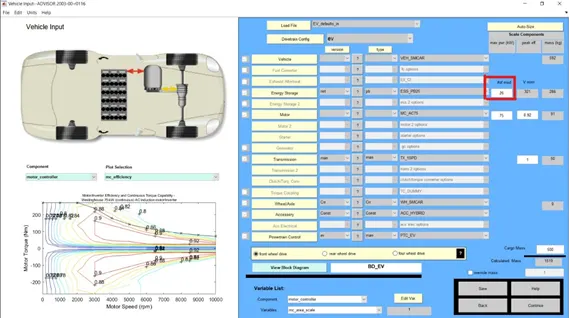
Simulation Window
- Make sure that Drive Cycle is set to “CYC_FTP”.
- Now, for every change in “# of mod” value, we’re going to run 3 simulations. Each time, increasing the no. of Drive Cycles by 1 number.
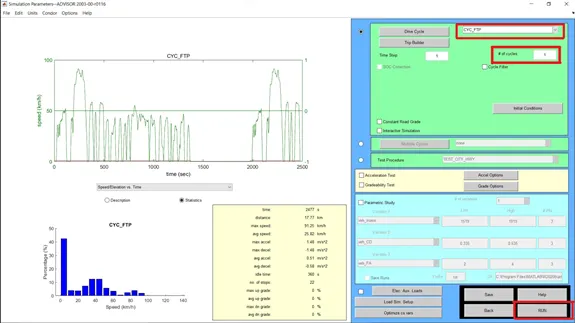
Output:
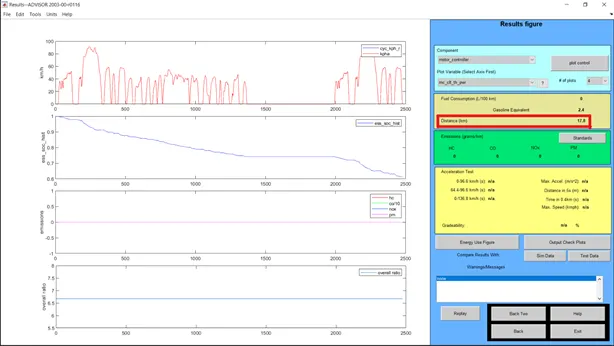
- # of mod: 26 | # of cycles: 1 | Distance covered:8km
Observation: Required Distance not covered. SOC drops to almost 60%.
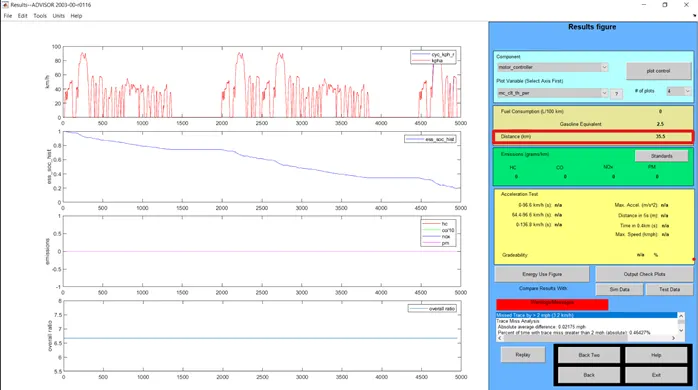
- # of mod: 26 | # of cycles: 2 | Distance covered:5km
Observation: Required Distance not covered. SOC drops to almost 20%.
- # of mod: 26 | # of cycles: 3 | Distance covered:7km
Observation: Required Distance not covered. SOC drops to almost 0%.
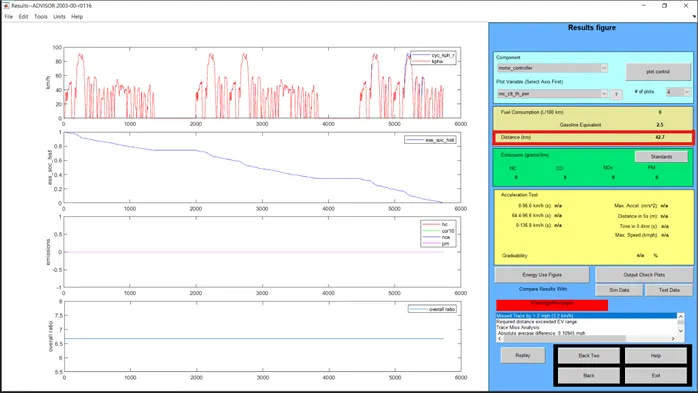
- # of mod: 27 | # of cycles: 1 | Distance covered:8km
Observation: Required Distance not covered. SOC drops to almost 60%.
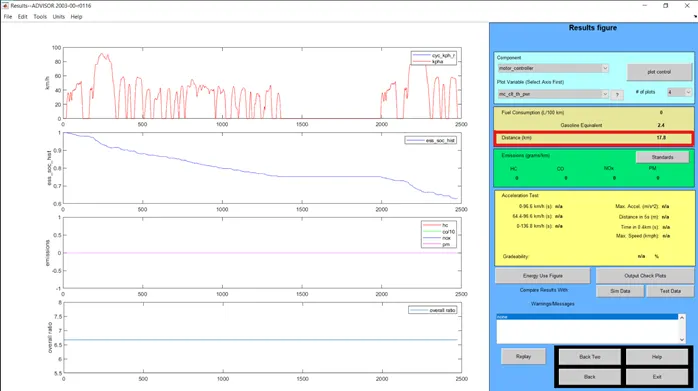
- # of mod: 27 | # of cycles: 2 | Distance covered:5km
Observation: Required Distance not covered. SOC drops to almost 20%.
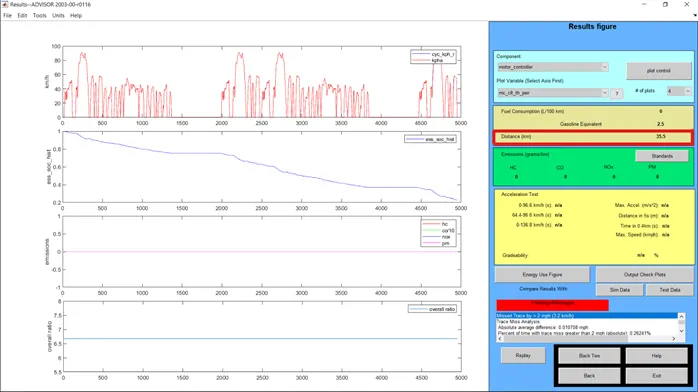
- # of mod: 27 | # of cycles: 3 | Distance covered:8km
Observation: Required Distance not covered but almost reached. SOC drops to almost 0%.
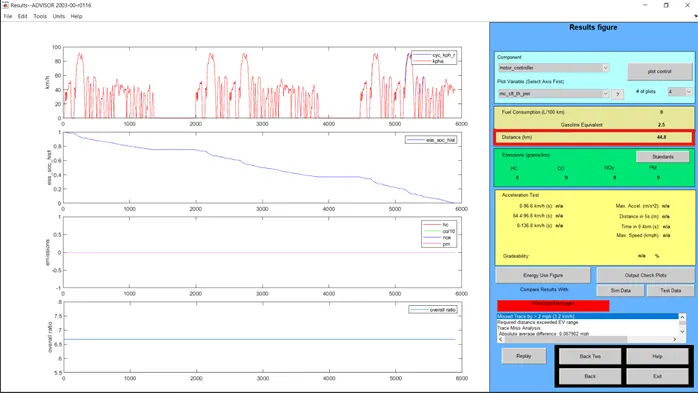
- # of mod: 28 | # of cycles: 1 | Distance covered:8km
Observation: Required Distance not covered. SOC drops to almost 60% (70% to 60%).
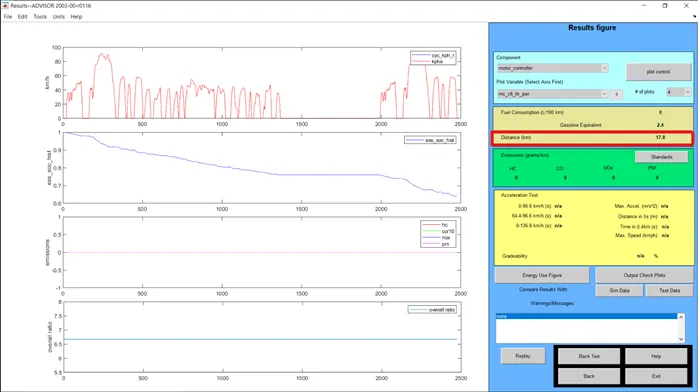
- # of mod: 28 | # of cycles: 2 | Distance covered:5km
Observation: Required Distance not covered. SOC drops to almost 20%.
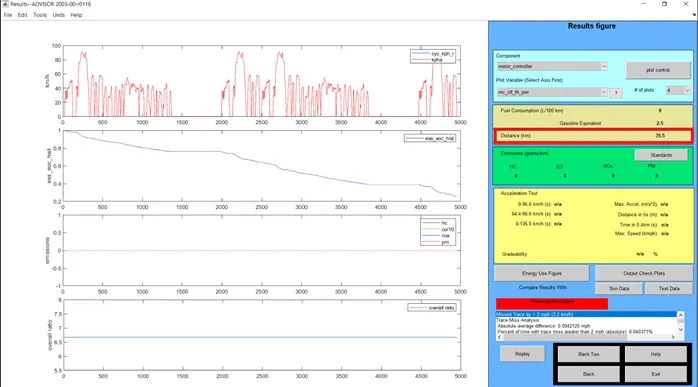
- # of mod: 28 | # of cycles: 3 | Distance covered:3km
Observation: Required Distance is covered. SOC drops to almost 0%.
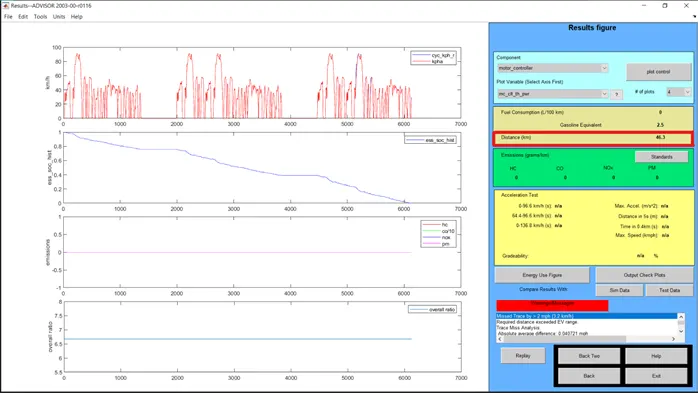
CONCLUSION: From our observation we can conclude that, for EV_defaults_in file, to travel for 45 km with FTP drive cycle and a Cargo Mass of 500kg, it requires 28 fuel modules and 3 drive cycles.
------------------------------------------------------------------------------------------------------------
OBJECTIVE 3:
“Perform gradeability test with PRIUS_Jpn_defaults_in file. Compare your results in table and conclude”.
Steps to follow:
Vehicle Input Window
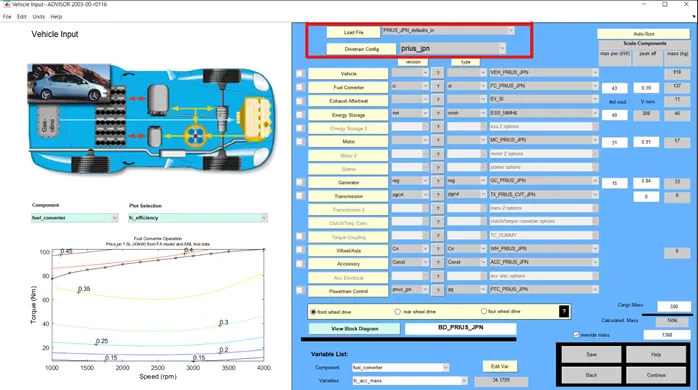
- In Vehicle Input Window, select “PRIUS_Jpn_defaults_in” file from the load file drop down menu.
- Keeping all the variables in their default conditions, click Continue for the next window.
Simulation Window
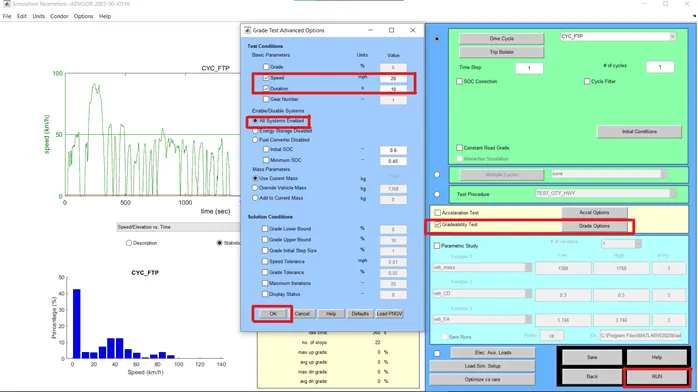
- Check Gradeability Test check box and open Grade Options.
- In the Grade Options window, make sure All Systems Enabled checkbox is checked.
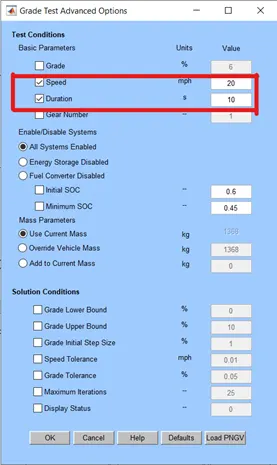
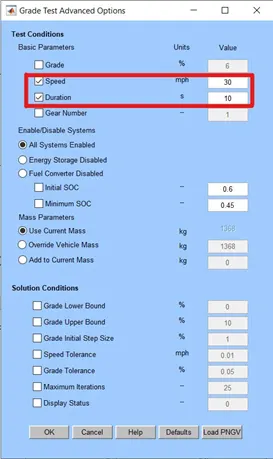
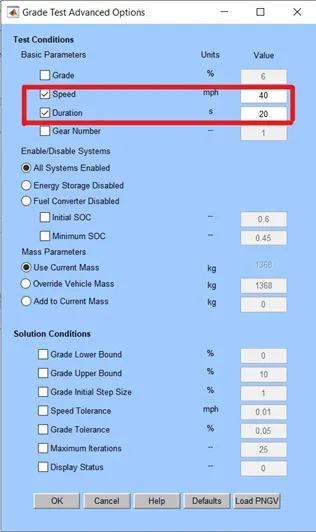
- Keeping Duration as 10 sec, we’ll change Speed values for every run.
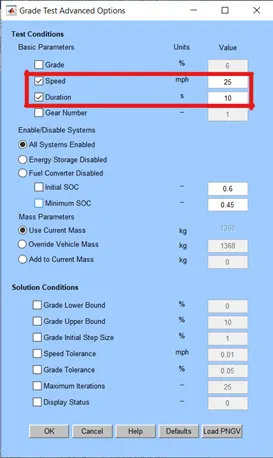
- Run the simulation for speeds: 20mph, 25mph, 30mph, 35mph, 40mph and 45mph.
- Repeat the simulation sequence by changing duration to
Output:
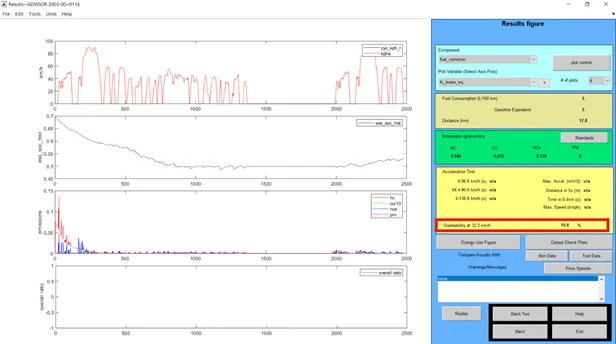
- Speed: 20mph/32.2kmph | Duration: 10sec
- Gradeability: 8%
- Speed: 25mph/40.2kmph | Duration: 10sec
- Gradeability: 5%
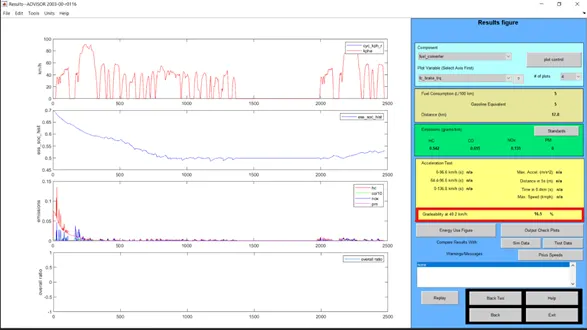
- Speed: 30mph/48.3kmph | Duration: 10sec
- Gradeability: 7%
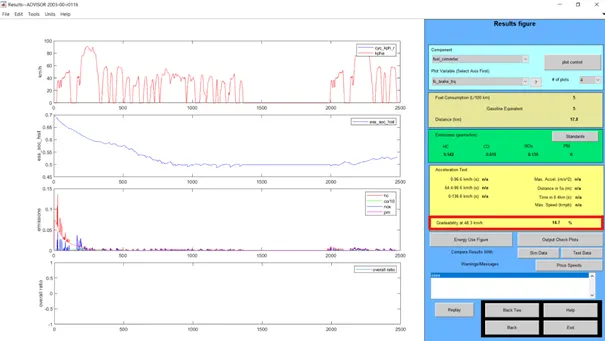
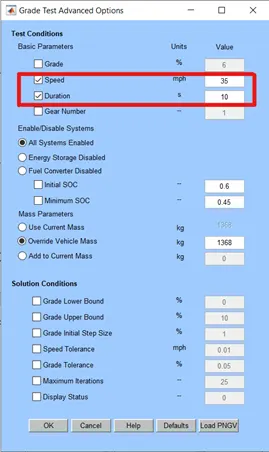
- Speed: 35mph/56.3kmph | Duration: 10sec
- Gradeability: 13%
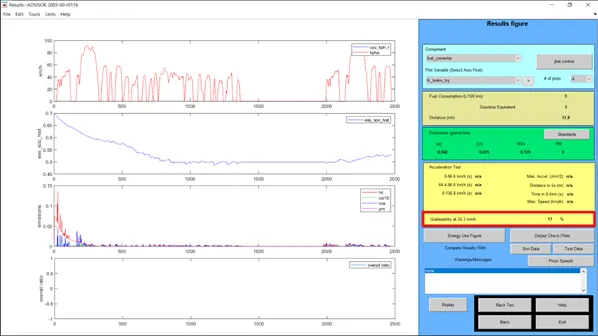
- Speed: 40mph/64.4kmph | Duration: 10sec
- Gradeability: 7%
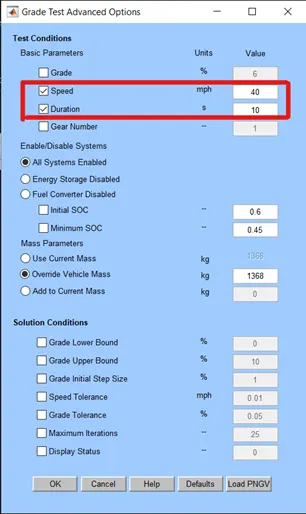
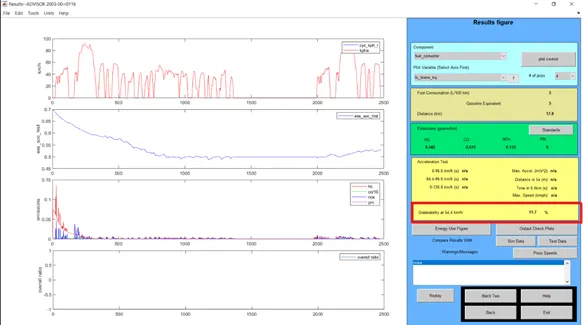
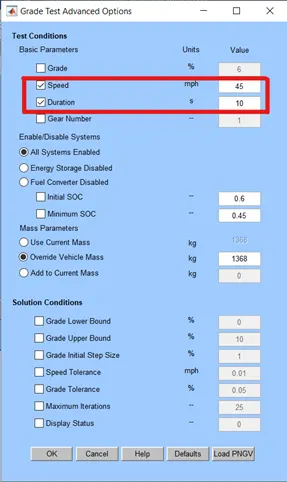
- Speed: 45mph/72.4kmph | Duration: 10sec
- Gradeability: 7%
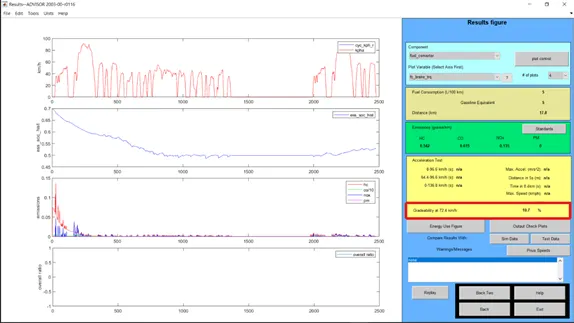
- Speed: 20mph/32.2kmph | Duration: 20sec
- Gradeability: 9%
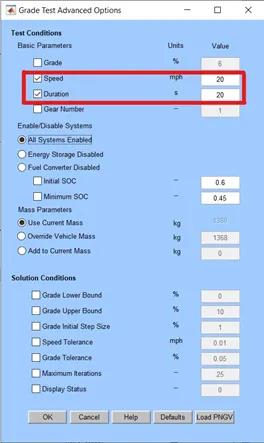
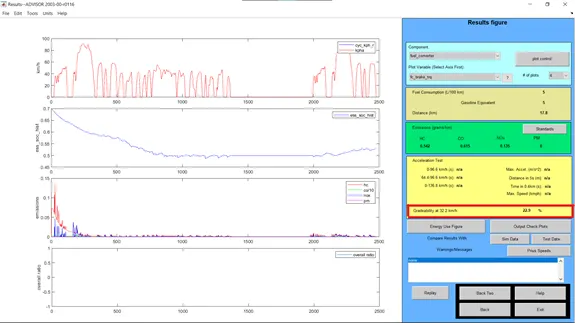
- Speed: 25mph/40.2kmph | Duration: 20sec
- Gradeability: 7%
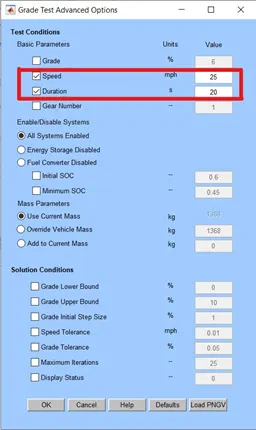
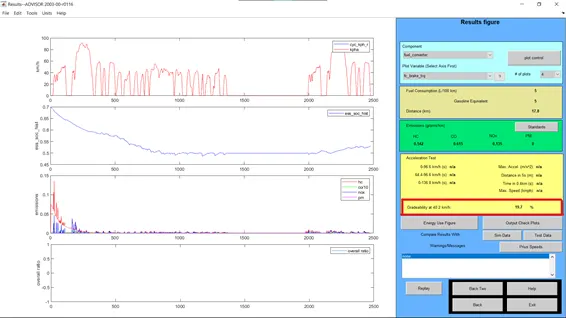
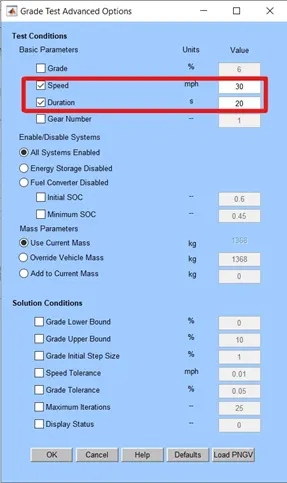
- Speed: 30mph/48.3kmph | Duration: 20sec
- Gradeability: 7%
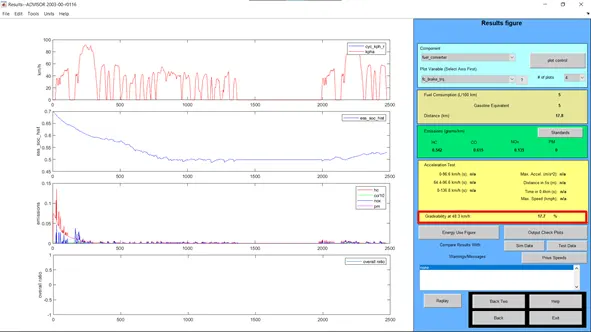
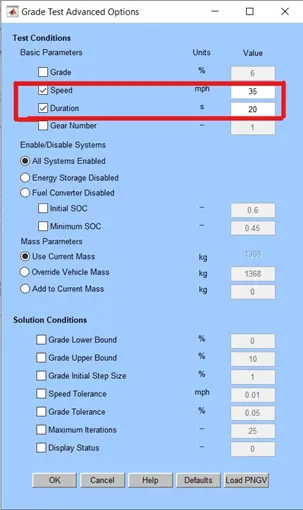
- Speed: 35mph/56.3kmph | Duration: 20sec
- Gradeability: 16%
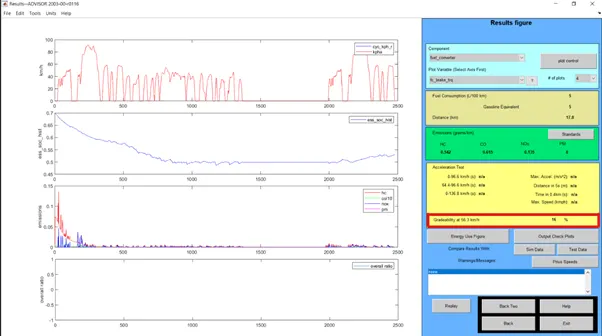
- Speed: 40mph/64.4kmph | Duration: 20sec
- Gradeability: 6%
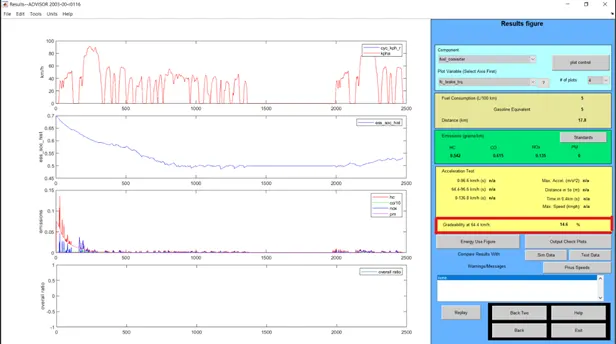
- Speed: 45mph/72.4kmph | Duration: 20sec
- Gradeability: 4%
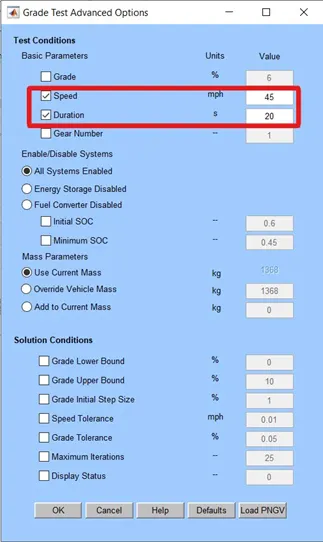
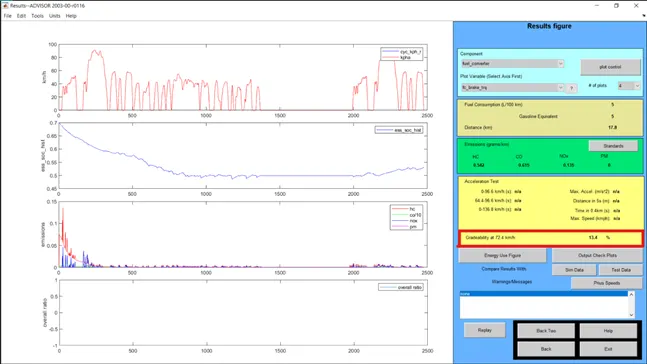
Table for comparing results:
|
Sl.NO |
SPEED |
GRADEABILITY (%) |
||
|
MPH |
KMPH |
For 10 sec |
For 20 sec |
|
|
1 |
20 |
32.2 |
19.8 |
22.9 |
|
2 |
25 |
40.2 |
16.5 |
19.7 |
|
3 |
30 |
48.3 |
14.7 |
17.7 |
|
4 |
35 |
56.3 |
13 |
16 |
|
5 |
40 |
64.4 |
11.7 |
14.6 |
|
6 |
45 |
72.4 |
10.7 |
13.4 |
Observation: We can observe two things from the results table.
- As the time duration increased, the value of gradeability is also raised.
- As the Speed of the Vehicle increased, the Gradeability is decreased.
CONCLUSION: The gradeability performance of PRIUS_Jpn_defaults_in is subminimal. For better performance and efficiency of Battery, the vehicle should have better gradeability above 45mph speed.
-------------------------------------------------------------------------------------------------------------------
REFERENCES: