Week-3 Challenge: ADVISOR Tool
Week-3 Challenge: ADVISOR Tool
AIM: Familiarization with the 'ADVISOR' Tool for Hybrid/Electric Vehicle Simulations
For this week challenges, the problem statements are given first; followed by their specific solutions.
Problem Statements:
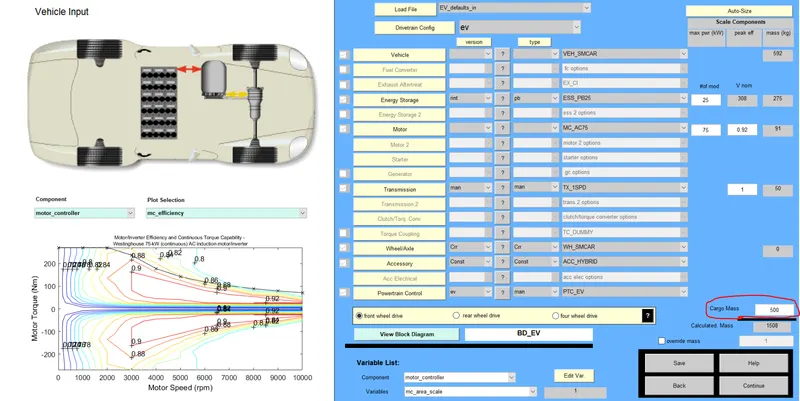
- For EV_defaults_in file, if cargo mass is 500 kg with all other default conditions, can the vehicle travel for 45 km with FTP drive cycle? Conclude your observations.
- In the above case, try changing the battery capacity and repeat the simulation.
-
Perform gradeability test with PRIUS_Jpn_defaults_in file. Compare your results in a table and conclude.
Introduction about the tool:
ADVISOR tool(Ref-Matlab documentation), developed in November 1994 by the National Renewable Energy Laboratory (NREL), USA. It allows users to simulate and analyze conventional, advanced, light, and heavy vehicles, including hybrid electric and fuel cell vehicles. This tool allows users to assess the effect of changes in vehicle components (such as motors, batteries, catalytic converters, climate control systems, and alternative fuels) and other modifications that might affect fuel economy, performance, or emissions.
It is a set of models, data, and script text files for use with Matlab and Simulink.
The use ADVISOR tool mainly for the following purposes:
- Estimate the fuel economy of vehicles that have not yet been built
- Learn about how conventional, hybrid or electric vehicles use (and lose) energy throughout their drivetrains
- Compare relative tailpipe emissions produced on several cycles
- Evaluate an energy management strategy for your hybrid vehicle’s fuel converter
- Optimize the gear ratios in your transmission to minimize fuel use or maximize performance, etc.
To open the ADVISOR tool we need to type the word 'ADVISOR' in the command window of Matlab. After opening the ADVISOR tool in a different GUI window, the metric unit was chosen. After that, we came across three different windows that are vehicle model input window, Simulation parameter window and Output/Result window respectively.
Solutions:
Problem Statement-1 Answer: After opening the vehicle model window the EV_defaults_in vehicle model is selected from the drop-down menu and then the cargo mass was given as 500 kgs, instead of its default value which was 136 kgs.
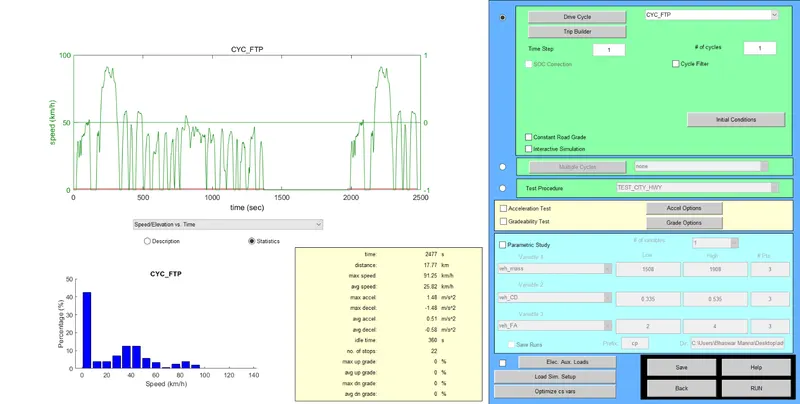
After that, the drive cycle is changed to CYC_FTP by selecting from the drop-down menu of the simulation parameter window, according to the problem statement given here. We can also choose how many cycles we want to simulate, which is the numerical value indicated after the '#' symbol.
After clicking on the 'RUN' button the simulation begins and the results are shown in the next window.
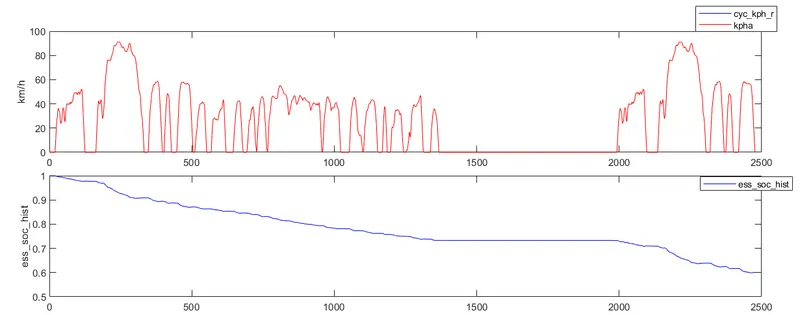

Here, results which are relevant to this problem statement is only shown. A single drive cycle is chosen and for that, the drive cycle data and the Results for "State of Charge(SOC)" are shown. This SOC represents the battery charge level depending on which we can predict how much distance the vehicle will cover for his current charged state of the batteries.
Now, we need to verify that if the vehicle will cover a distance of 45 km for its given parameter values. Since in a single cycle, there is some charge left in the batteries of the vehicle; meaning the battery can provide more km to the vehicle to cover. So, we have to find out if the SOC is draining or coming to zero value before 45 km distance or not.
To do that, 4 cycles of the CYC_FTP was taken and the vehicle model is again simulated; giving us the following results:
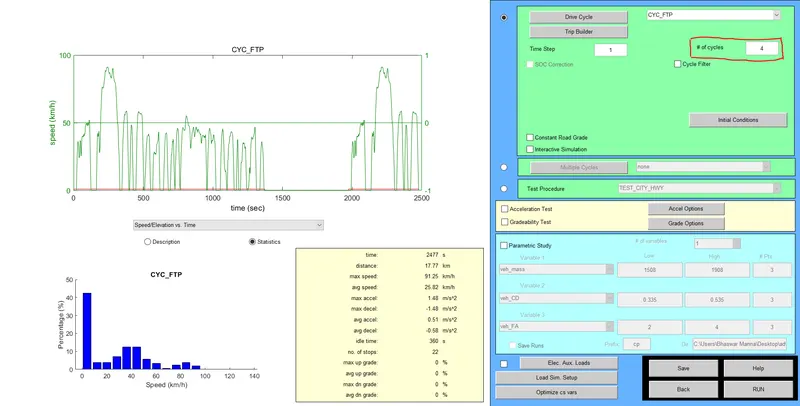
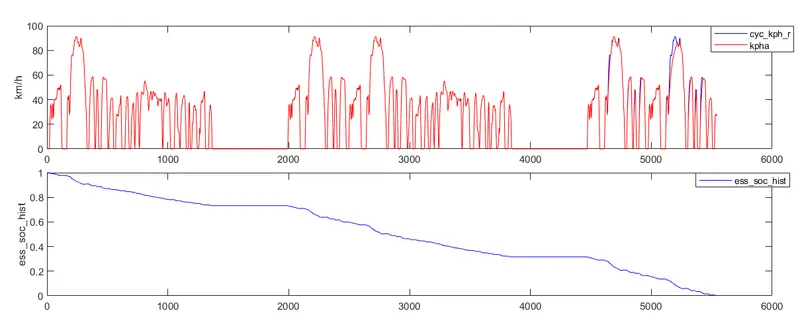
We can see from the 2nd output that SOC is drained at a point which means we will be needing to add any more cycles to come to our conclusions. The km value obtained from these results will indicate the range for this vehicle.

From the above results, it is clear that the vehicle can only manage up to 41.4 km distance with its current parameters.
So, we can conclude that the vehicle can not cover 45 km of distance with its driving cycle as CYC_FTP.
Problem Statement-2 Answer:
The symbol “#of mod V nom” describes the battery capacity, so we will change the module number of batteries from the first box and we will see that changes in voltage and weight of the battery.
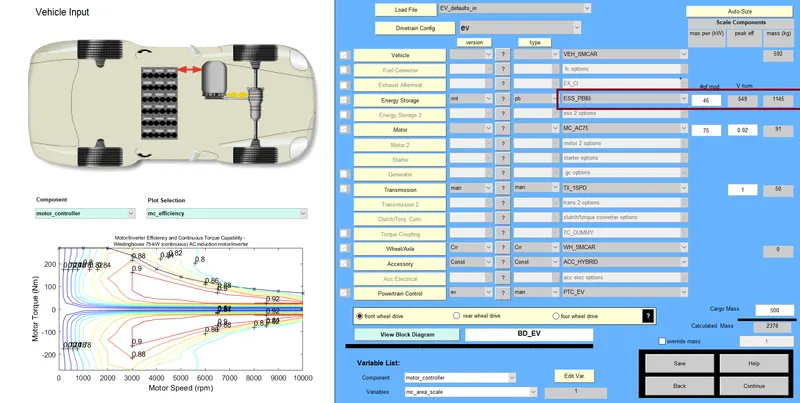
Now, to change the battery capacity the drop-down window is to be used from the vehicle model window. The default value is the ESS_PB25 battery having 25 modules, which is changed later with two different types of batteries. To compare the results we have chosen ESS_PB65_FocuesEV with 28 modules and also ESS_PB85 having 46 modules.. The range of the same vehicle for both the cases was tested in the same drive cycle i.e. CYC_FTP. It is important to mention that only the results that was shown for which the SOC is drained for the vehicle and for that the differ in the total number of cycles.
(i)With ESS_PB65_FocusEV, 28 Modules:
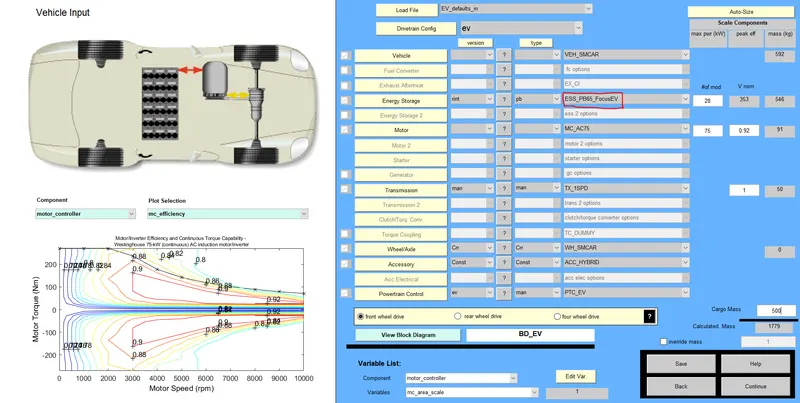
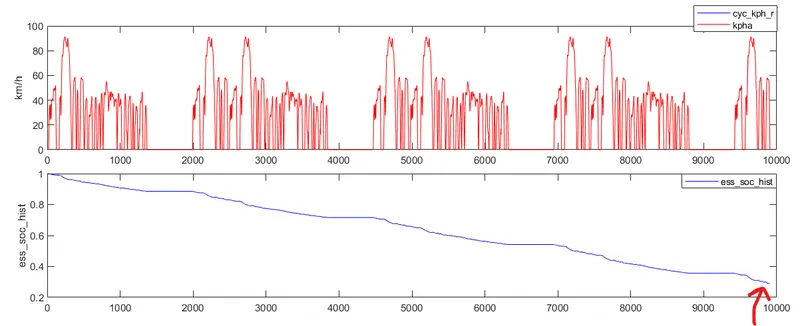

Here, For the 4 number of cycles the SOC is not Draining. To find out the exact range of the vehicle it was again simulated for the 8 cycles which can seen in below:
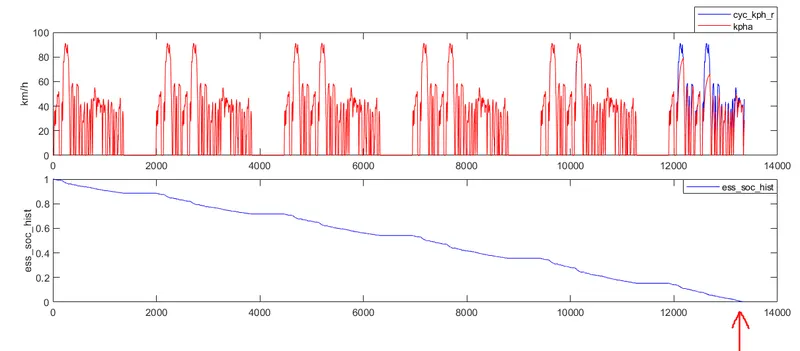

The vehicle range we are getting with this type of battery pack is 96 kms.
(ii)With ESS_PB85, 46 Modules:
Here, only the results for 12 drive cycles is shown for which the battery charge is completely drained and the exact range of the vehicle is obtained.
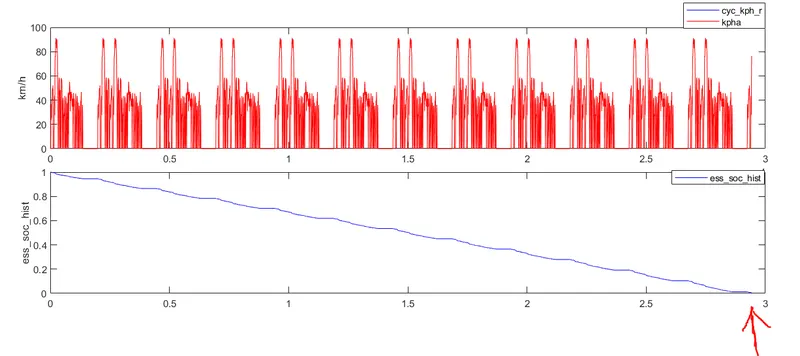
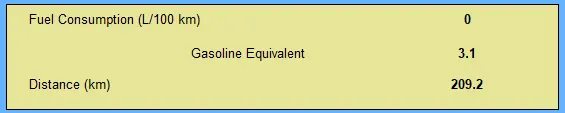
Here, with this battery pack the range we are getting is 209.2 km due to its higher charge capacity rating.
So, by repeating the simulation with two different battery rating we got the results and the ranges were obtained. It is evident that the battery pack with greater number of modules and higher charge capacity will give higher range coverage for the same parameters of the vehicle.
Problem Statement-3 Answer:
In ADVISOR tool Vehicle Input window the PRIUS_Jpn_default model was selected. After that, The Simulation Parameter window will open. By selecting the gradeability test and click on the grade Option box, a new dialogue box will open. The Vehicle model window, Simulation window and the option from where gradeability was being calculated for specific speed is given below:
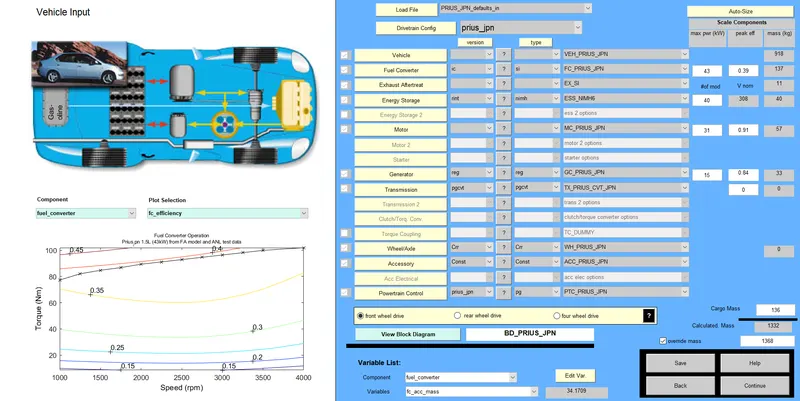
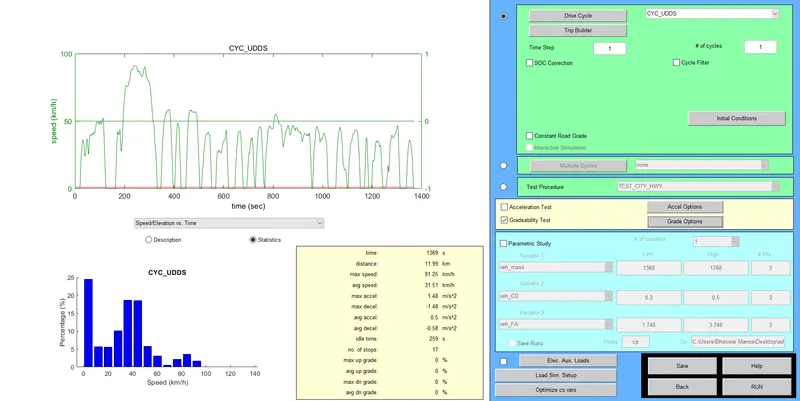
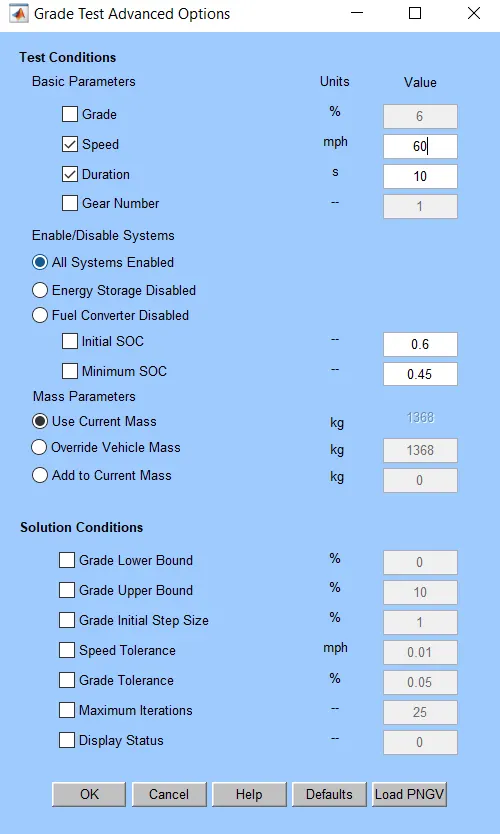
In grade option box we can change speed or duration with respect to our simulation. So, for this simulation, the speed range is given to 10 to 60 mph.During the simulations, all systems was enabled. After that, Click Ok and run the simulation and a Result window will open showing different results depend upon input data.
The different simulations for every specific speed is shown given below with their corresponding gradebility:
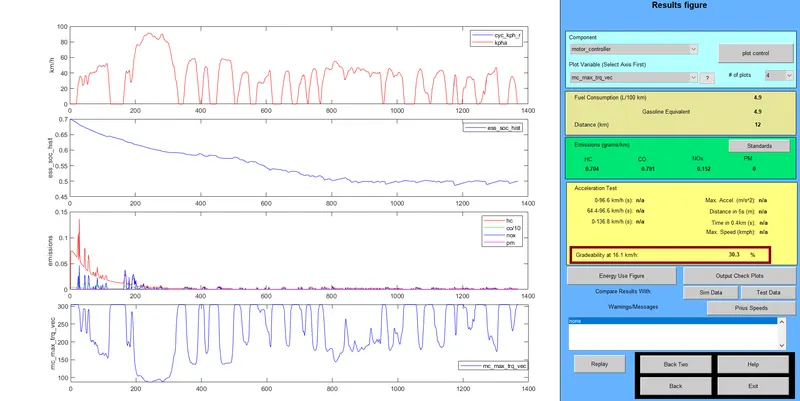
(I) At 10 MPH or 16.1 KMPH, Gradibilty= 30.3 % :
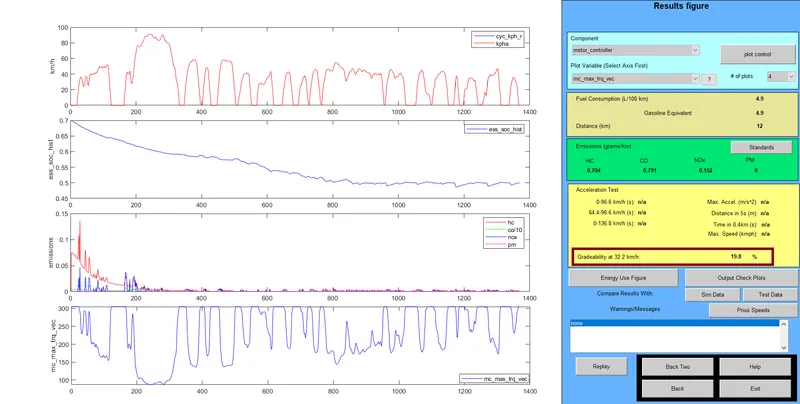
(II) At 20 MPH or 32.2 KMPH, Gradibilty= 19.8 % :
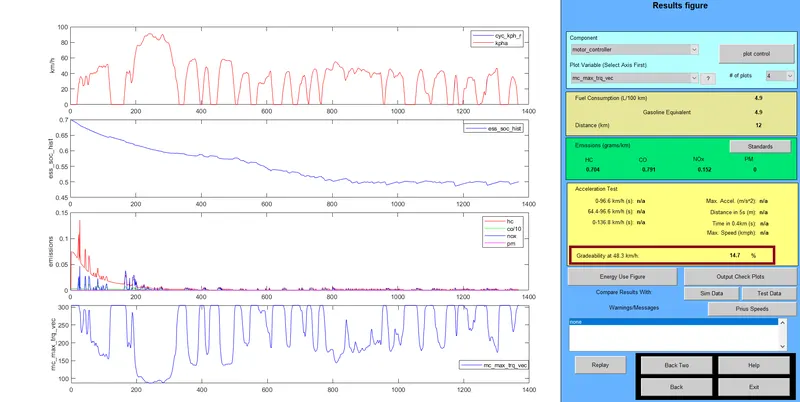
(III) At 30 MPH or 48.3 KMPH, Gradibilty= 14.7 % :
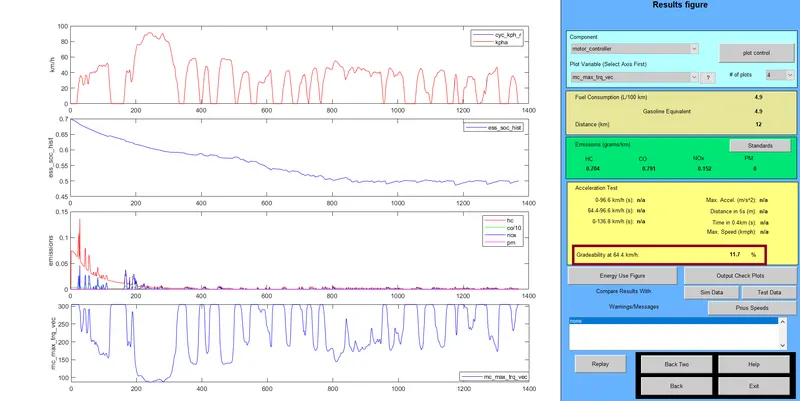
(IV) At 40 MPH or 64.4 KMPH, Gradibilty= 11.7 % :
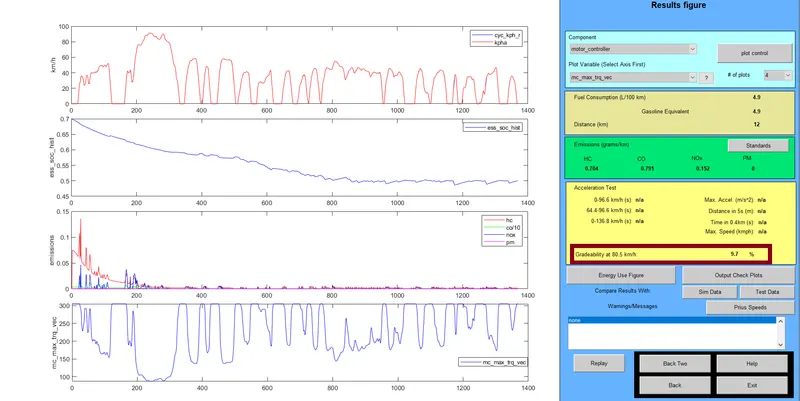
(V) At 50 MPH or 80.5 KMPH, Gradibilty= 9.7 % :
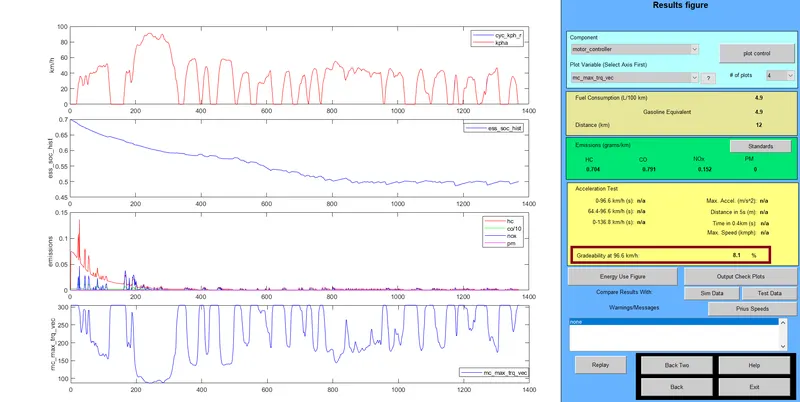
(VI) At 60 MPH or 96.6 KMPH, Gradibilty= 8.1 % :
A table is given for the gradeability results for each specific speed in below:
| Serial Number | Speed in MPH | Speed in KMPH | Gradeability Percentage |
| 1 | 10 | 16.1 | 30.3 |
| 2 | 20 | 32.2 | 19.8 |
| 3 | 30 | 48.3 | 14.7 |
| 4 | 40 | 64.4 | 11.7 |
| 5 | 50 | 80.5 | 9.7 |
| 6 | 60 | 96.6 | 8.1 |
From the above table we can see that with increase in speed, the gradeability is decreased.
So, we can conclude that all the problem statements are being answered successfully.