Project 2-Meshing of Rear Wheel Holder challenge
OBJECTIVE:-To create midsurface and Meshing of Rear Wheel Holder with given quality parameters should be passed as mention in the below table.
Target Element Length = 5 Units
| S.N | Quality Criteria | Value |
| 1 | Aspect Ratio | 5 |
| 2 | Skewness | 45 |
| 3 | Warping | 15 |
| 4 | Taper | 0.5 |
| 5 | Min. Length | 2 Units |
| 6 | Max. Length | 8 Units |
| 7 | Min angle Quad | 45 |
| 8 | Max angle Quad | 135 |
| 9 | Min angle Tria | 20 |
| 10 | Max angle Tria | 120 |
| 10 | Tria % | 10 |
and also while generating mesh on the Rear Wheel Holder component with low tria concentration and proper mesh flow.
CAD MODEL IMAGE:-
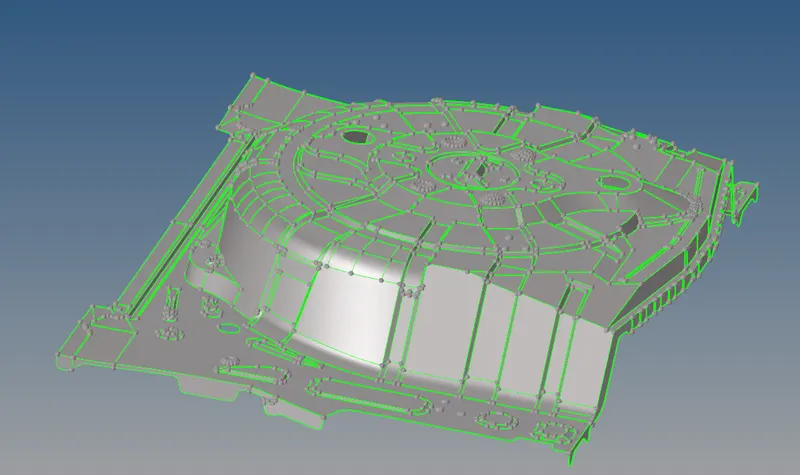
PROCEDURE:-
1.Import the file into hypermesh -select→import→import model.
2.Click on the files select model and click on import.
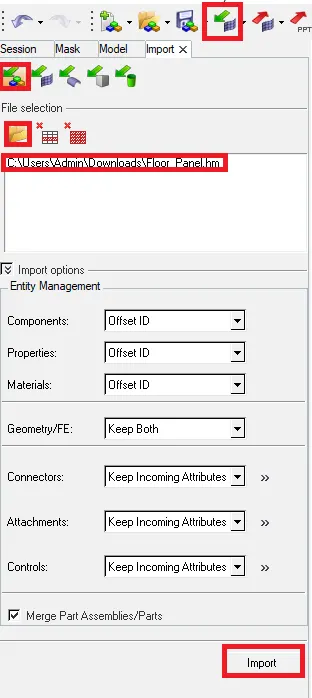
3.It shows on the graphical area.
4.After importing the cad model, generating the mid surface by using the mid surface tool select→Geom→mid surface.

5.While creating mid surface goto→extraction options→select→offset+planes+sweep.

6.Next click on auto extraction→select→surfs→extract.

7.Next hide the surface parent geometry.
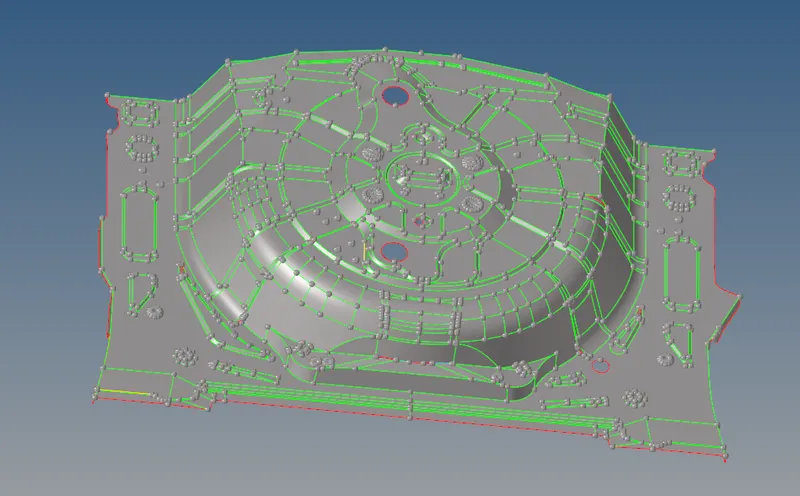
8.By using Quick edit clean the geometry.
9.Set given quality parameters in the criteria as shown in fig.
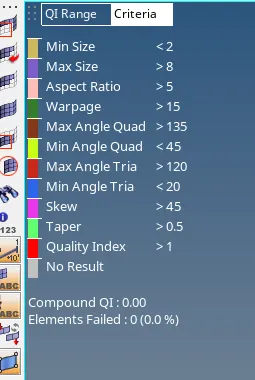

10.Next click on the menu bar 2D select automesh.

11.Give the mesh size is 5.
12.Select mesh style is mixed and click on the mesh.

13.The mesh will be displayed in the graphical area.
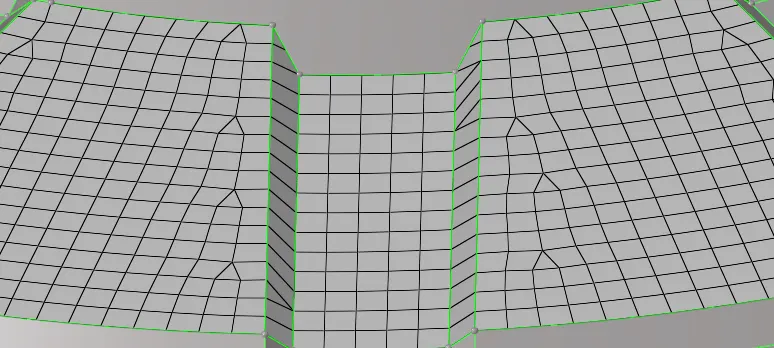
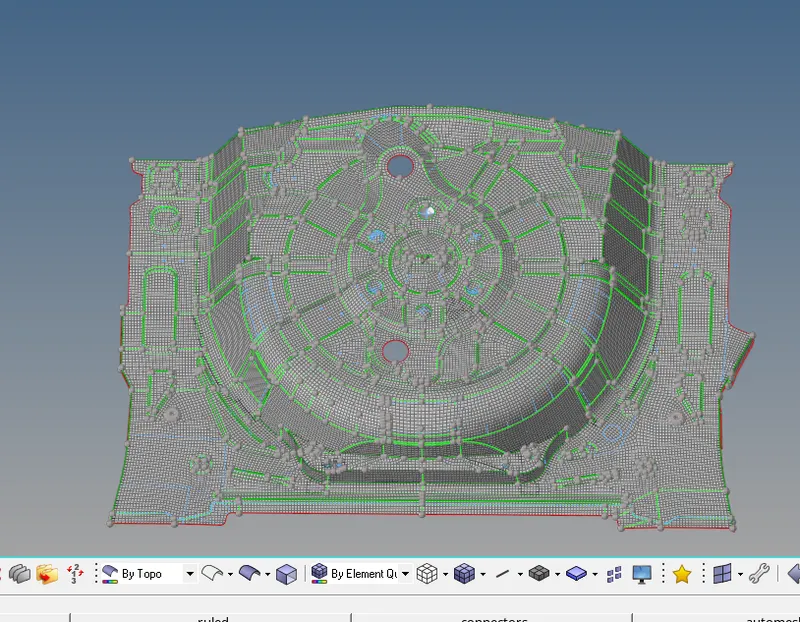
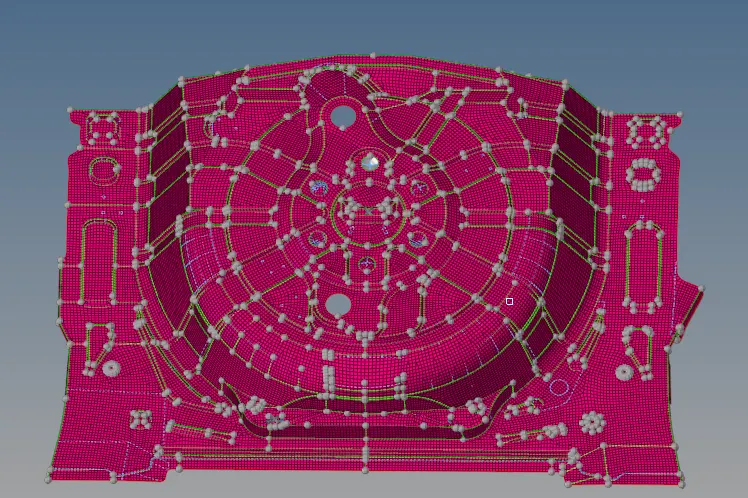
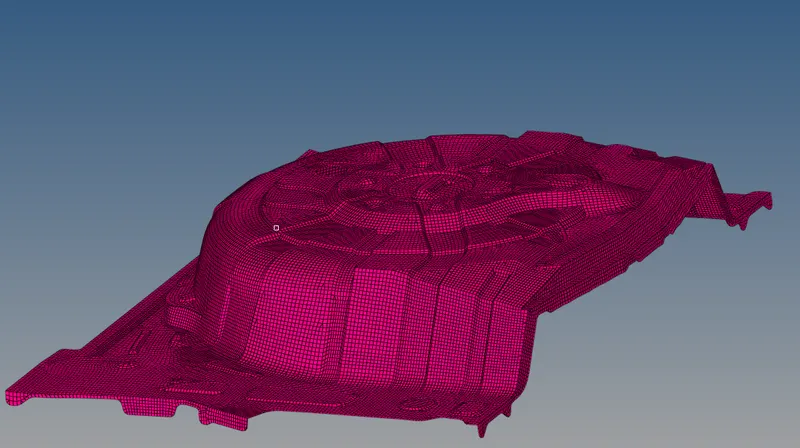
14.By using the above steps creating the mesh on the total component as shown in fig.
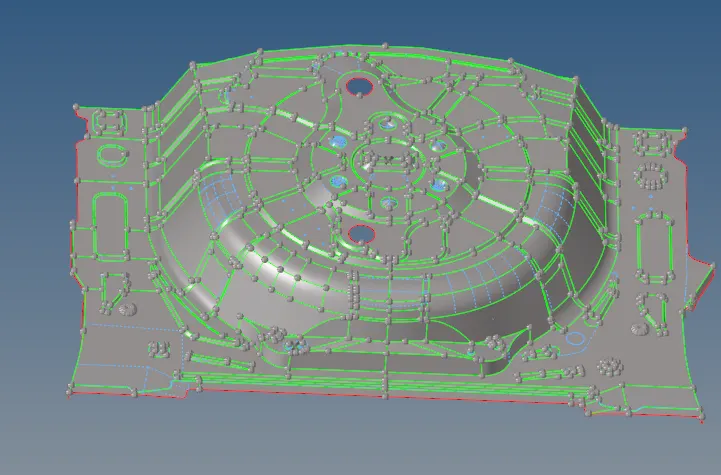 Before mesh
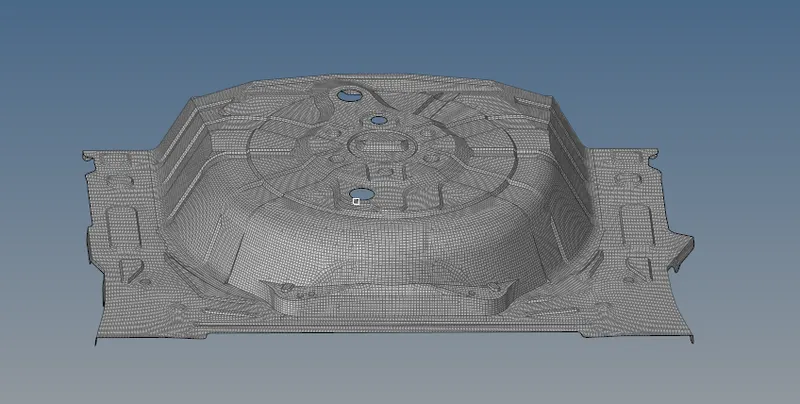 After mesh
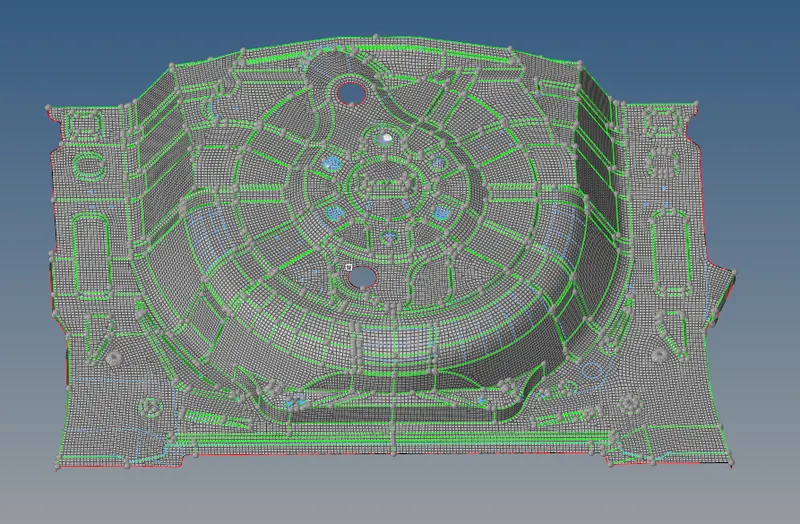
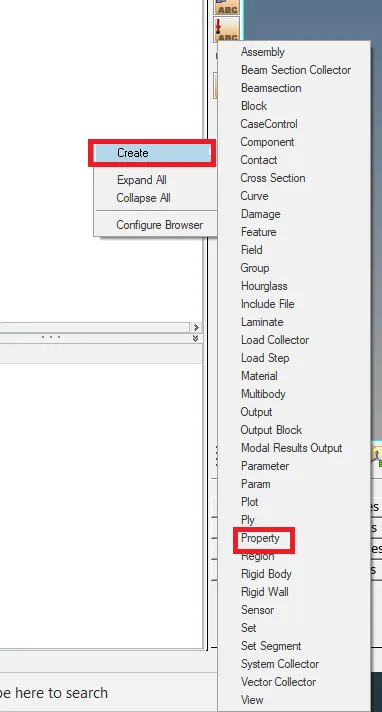
15.Right-click on the tab bar Create→Property.
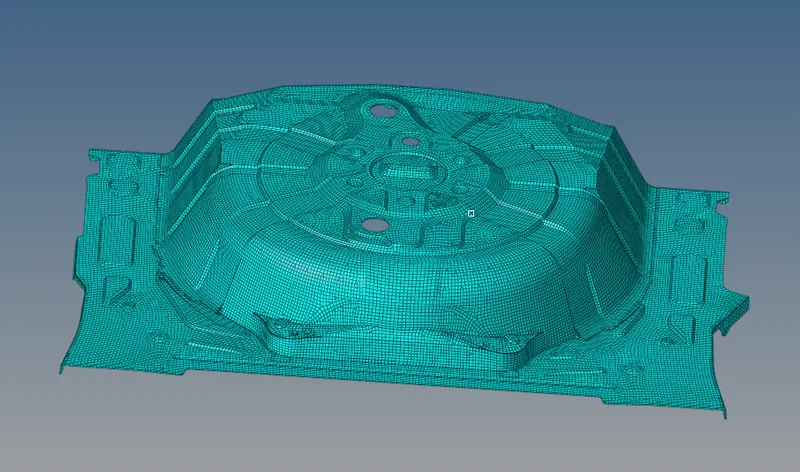
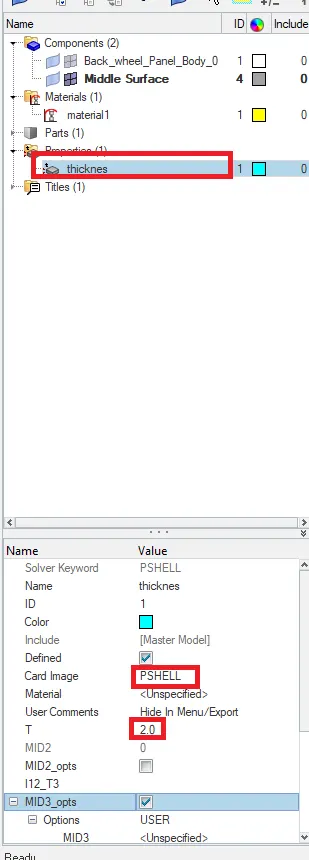
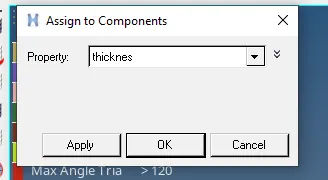
16.Assign the thickness 2 for the component as shown in fig.
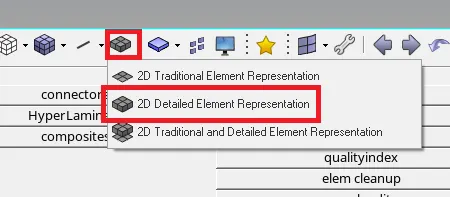
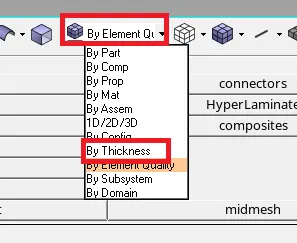
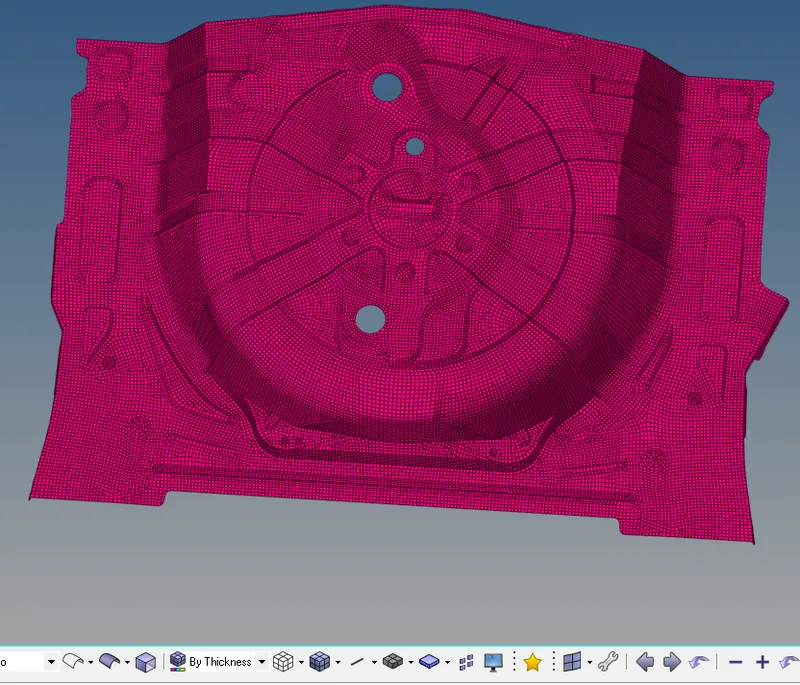
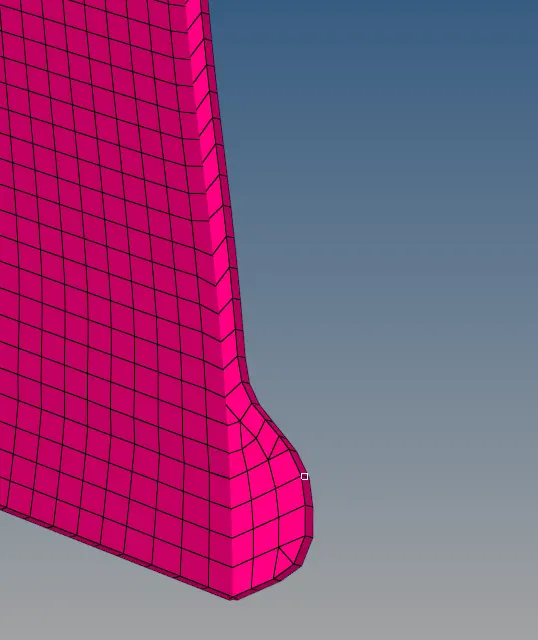
16. Let see the thickness on the graphical area as shown in fig.
RESULT:-
Thus, I am complete meshing on the rear wheel holder and assigning the thickness is 2.All given quality parameters are passed by using hyper works 2021