Project-1-Meshing of Door Inner Panel Challenge
OBJECTIVE:-To mesh the door inner panel with the given quality criteria file and assign thickness.
Target Element Length = 4 Units.
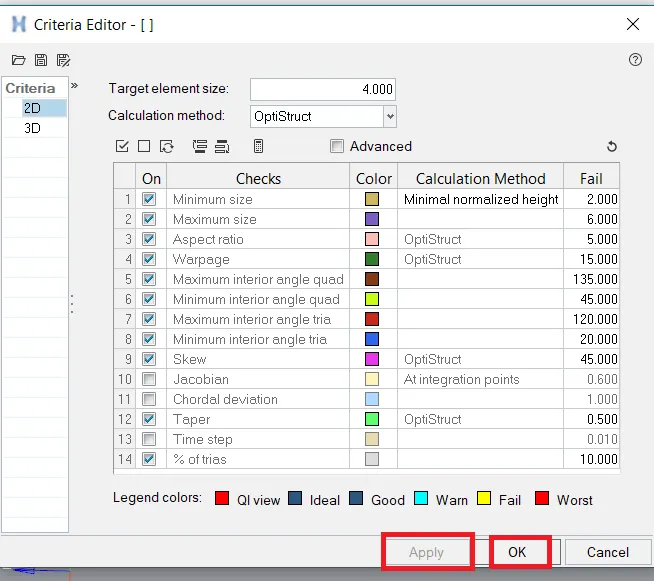
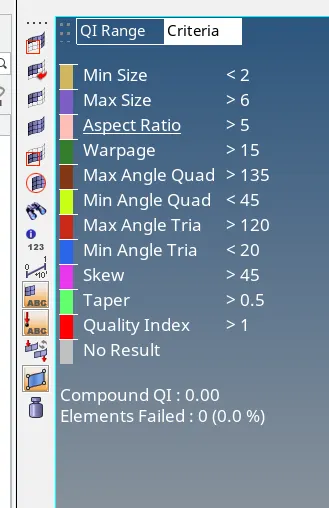
| S.N | Quality Criteria | Value |
| 1 | Aspect Ratio | 5 |
| 2 | Skewness | 45 |
| 3 | Warping | 15 |
| 4 | Taper | 0.5 |
| 5 | Min. Length | 2 Units |
| 6 | Max. Length | 6 Units |
| 7 | Min angle Quad | 45 |
| 8 | Max angle Quad | 135 |
| 9 | Min angle Tria | 20 |
| 10 | Max angle Tria | 120 |
| 10 | Tria % | 10 |
CAD IMAGE MODEL:-
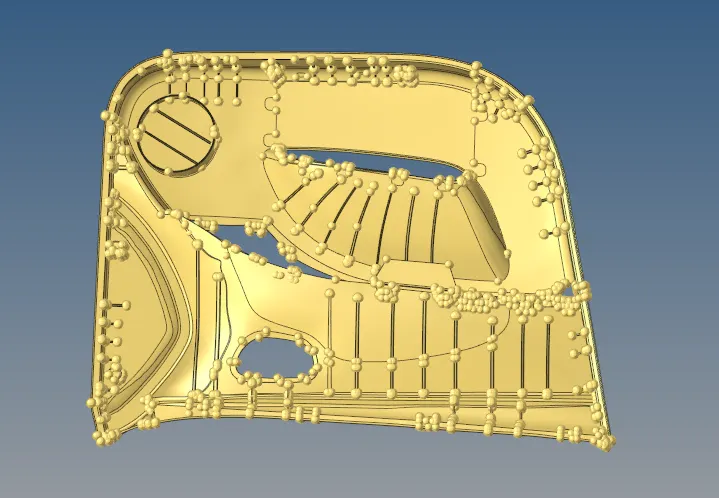
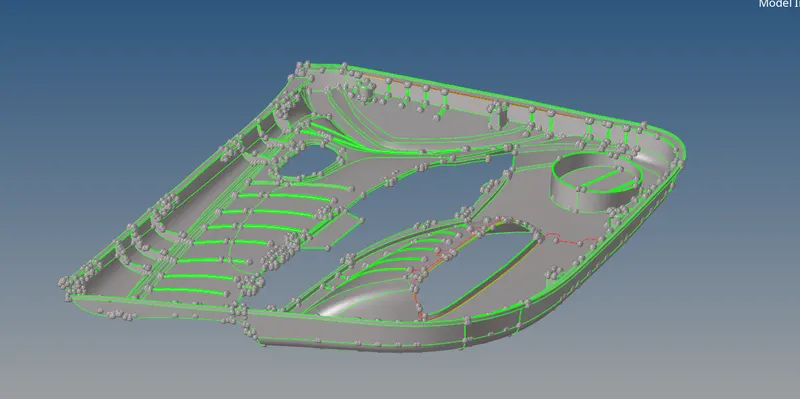
PROCEDURE:-
1.First import the model by using the import icon on the menu bar as shown in the below figures.
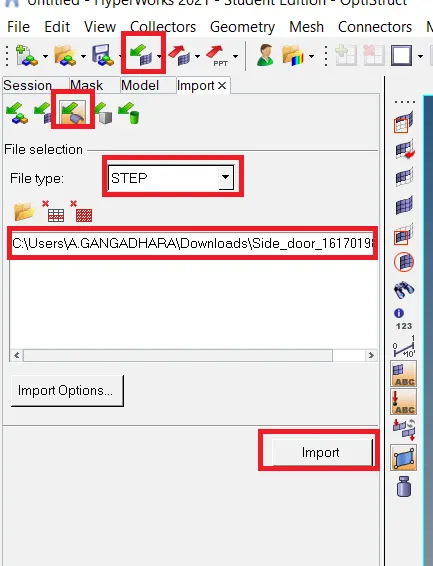
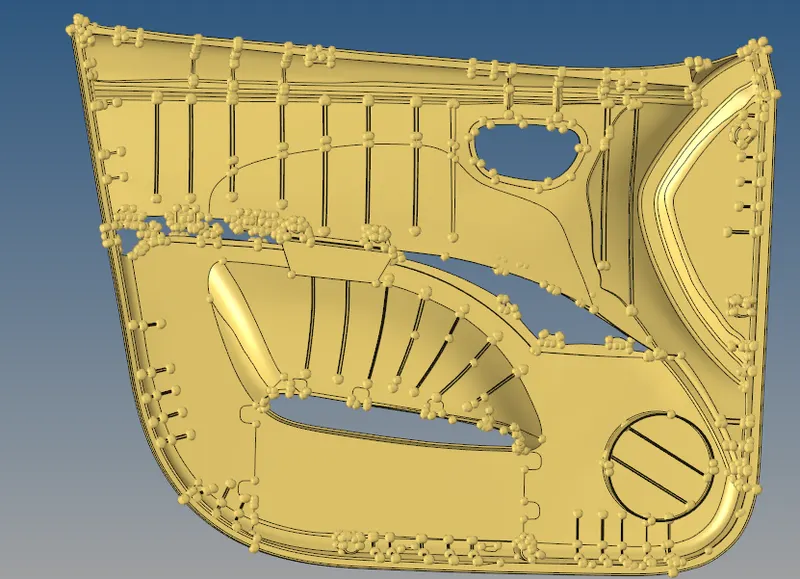
2.Next click on the graphical area and press F on the keyboard the door inner panel is visible on the screen as shown below the figures.
3.Next goto Geometry colour mode→Select→Topo.
4.Next generate the manual mid surface.
5.Click on the tab bar and create the component. 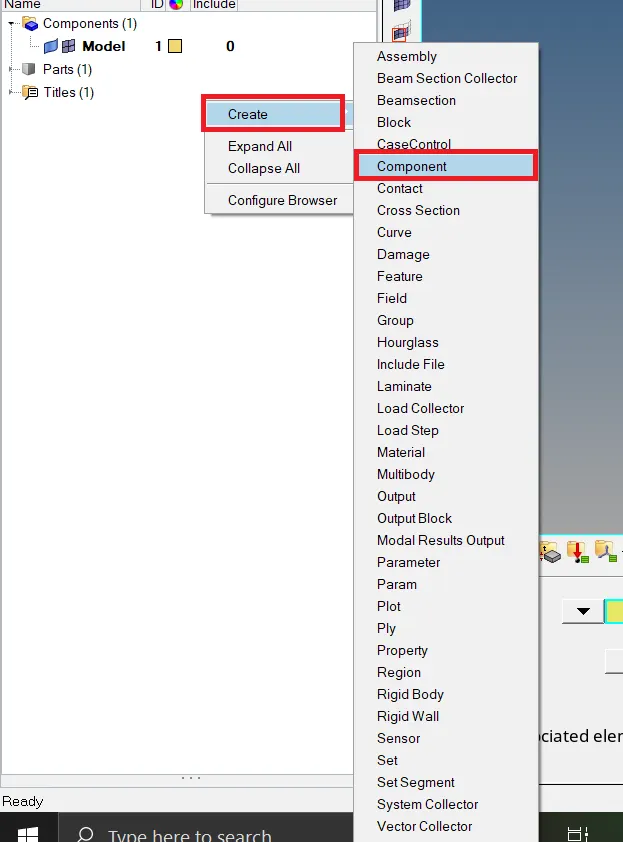
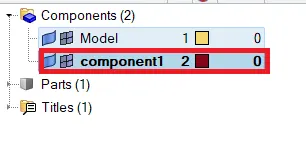
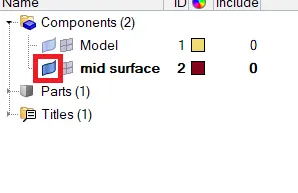
6.Change the component name to mid surface. give the make current component.
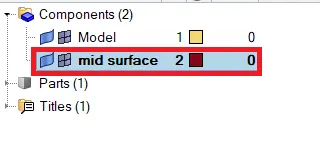
7.Next create each surface manually created mid surface.
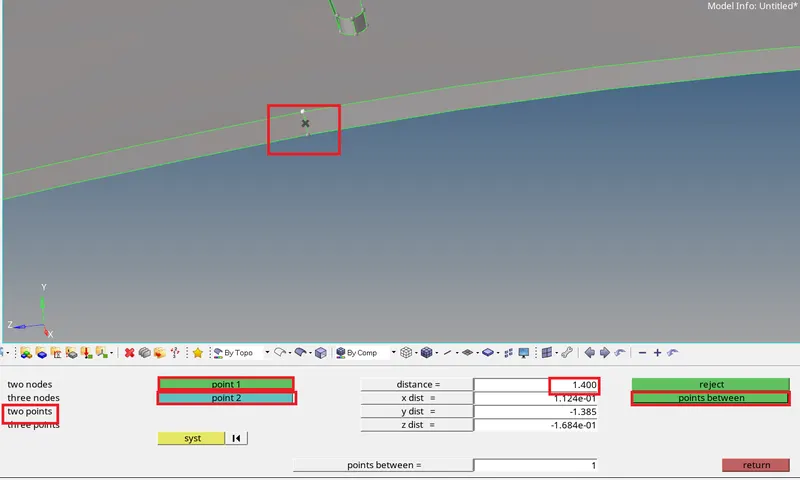
8.Click on the main menu bar Select→Geom→distance.

9.Select two points and click on the surface thickness points to be selected and the distance between the two points visible on the screen.
10.Next go to the main menu bar select→Geom→ Surface Edit.

11.Select surface edit click on Offset → Select → surf → Duplicate → Current component → Offset.
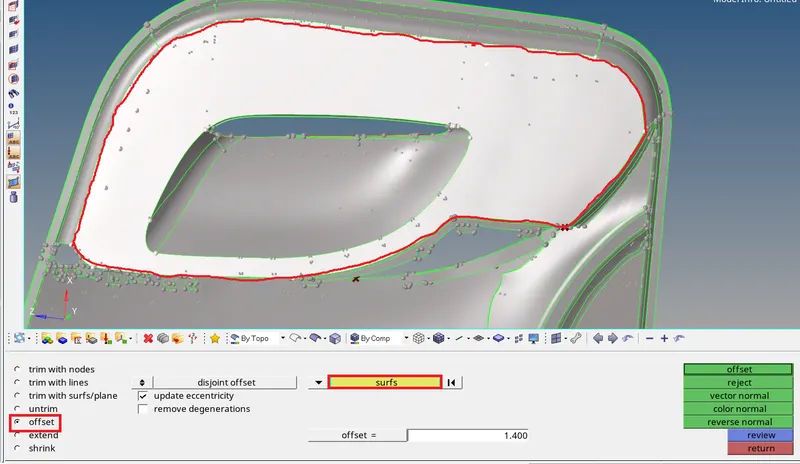


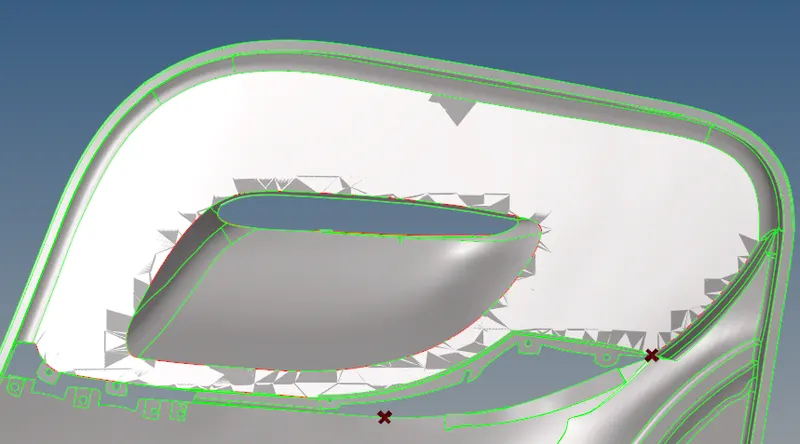
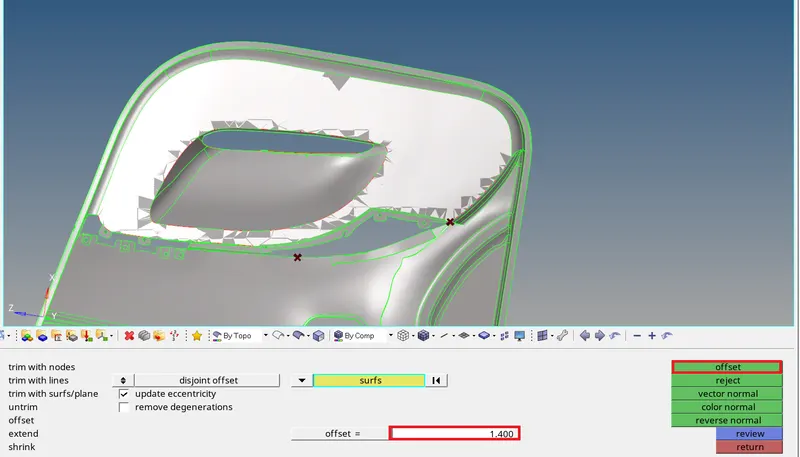
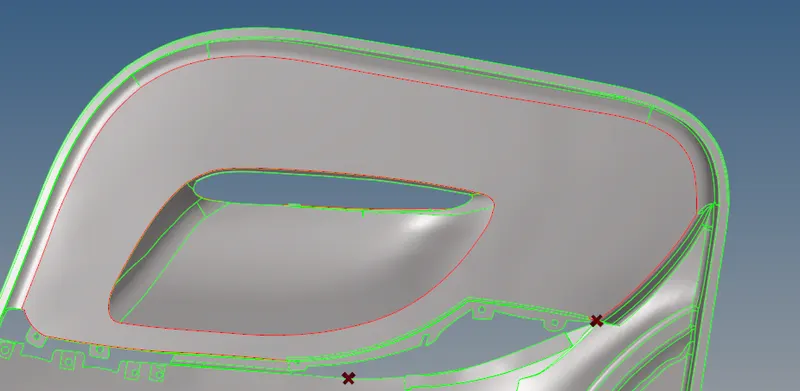
12.It will be created but it not shows on the display. Go to the tab bar hide the model surface as shown in the figure.
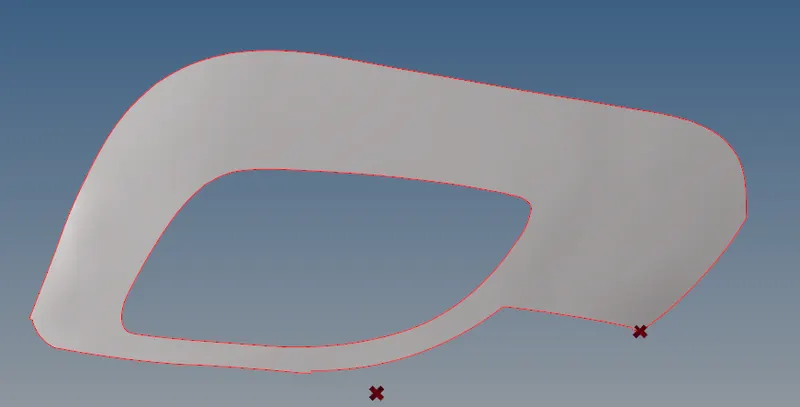
13. By repeating the above steps complete the geometry mid surface.
14.Completing mid surface some problems are coming are shown below.
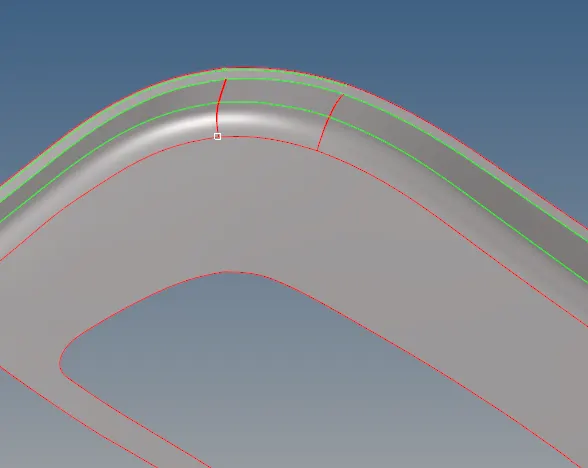
15.To clear this problem Select → Geom → Quick Edit → Toggle Lines.


→ Before
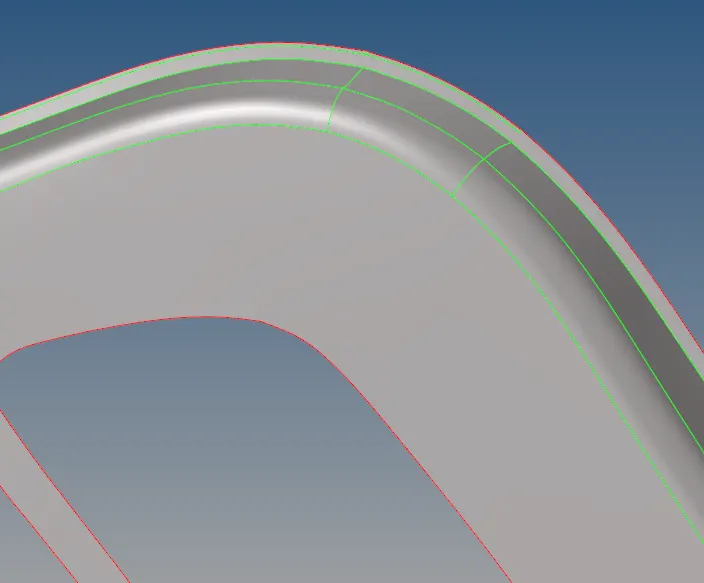 → After
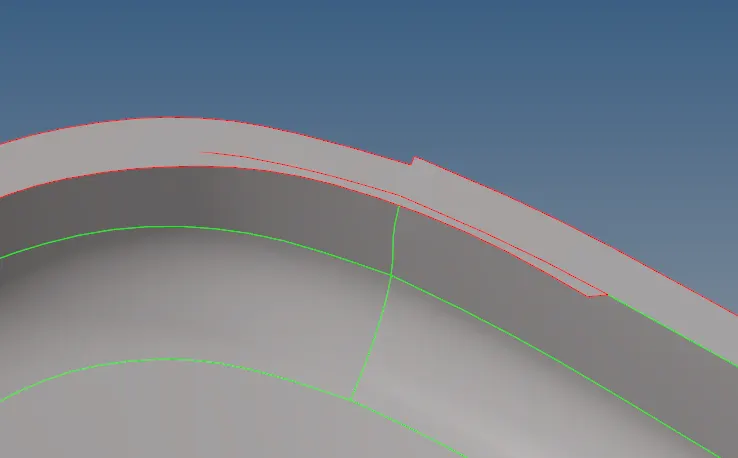
16.Next problem will show below
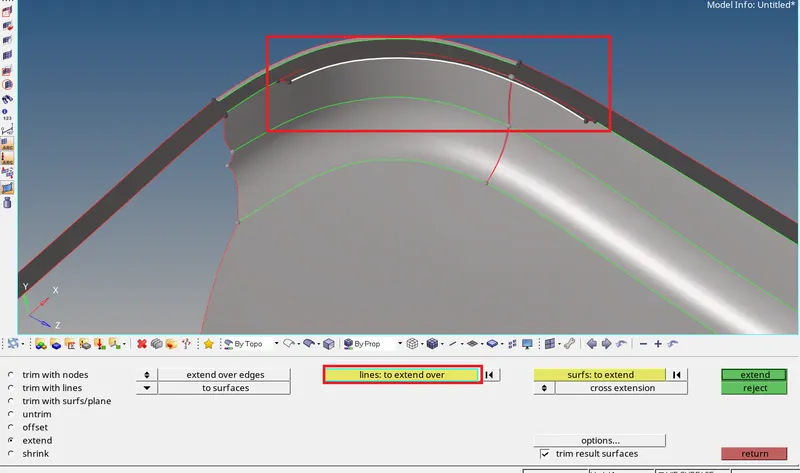
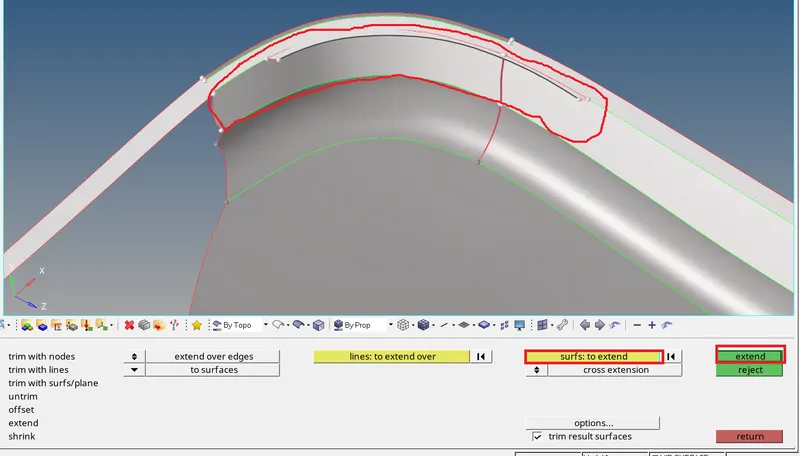
17.Go to Select → Geom →Surface Edit → Extend → Extend over edges → Line to extend over → Surface to extend → Extend as shown below.


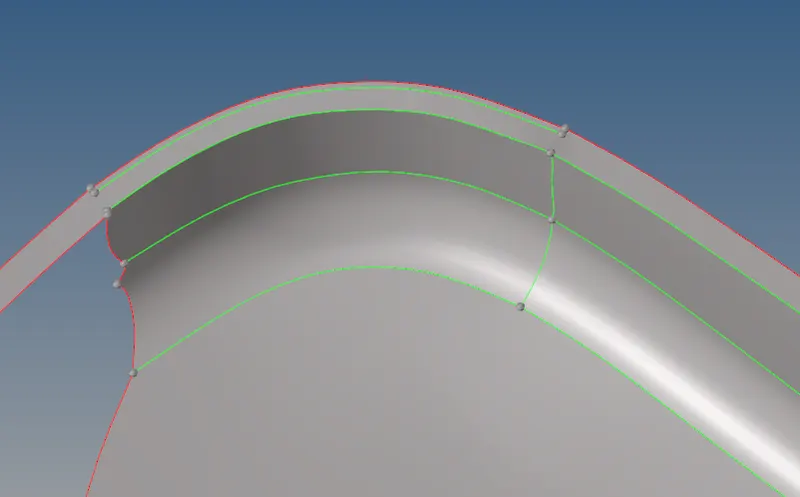
18.Then solving the above problems by using Surface edit, Surface, Quick edit etc,
19.Finally completed manual mid surface for whole geometry as shown below.
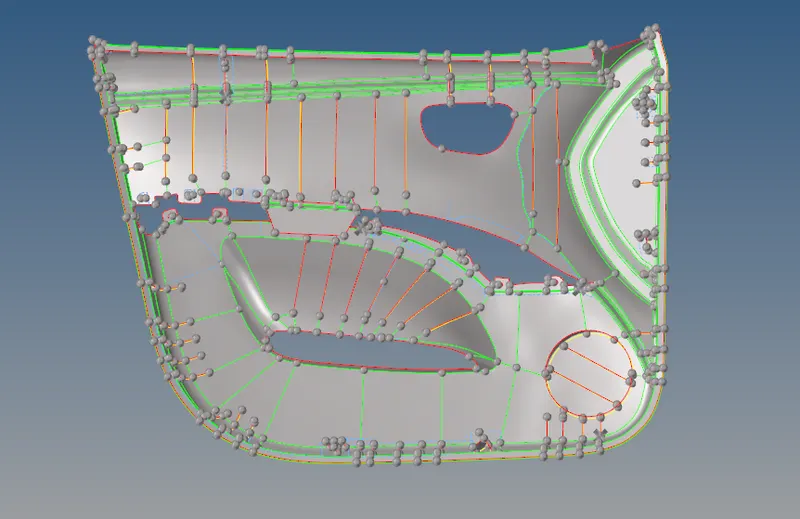
20.After completing the mid surface I am going to mesh the component.
21.Goto menu bar select preferences and click on the criteria file and fill the given values of quality criteria then apply and click on ok
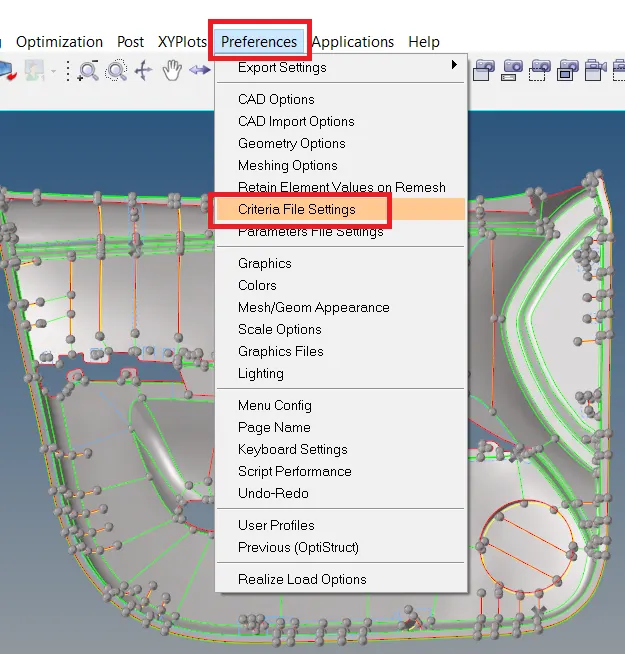
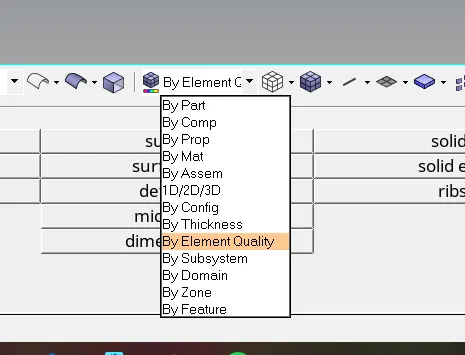
22.Goto toolbar select element colour mode click on by element quality as shown below.
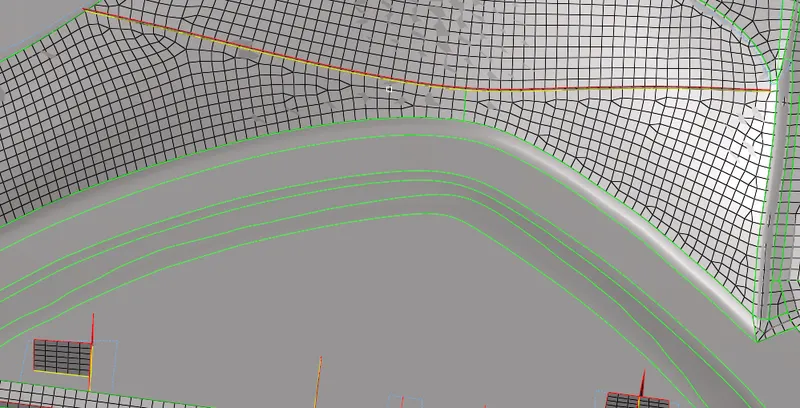
22.Goto main menu bar Select → 2D → Automesh → Surf → Element Size → Mesh.

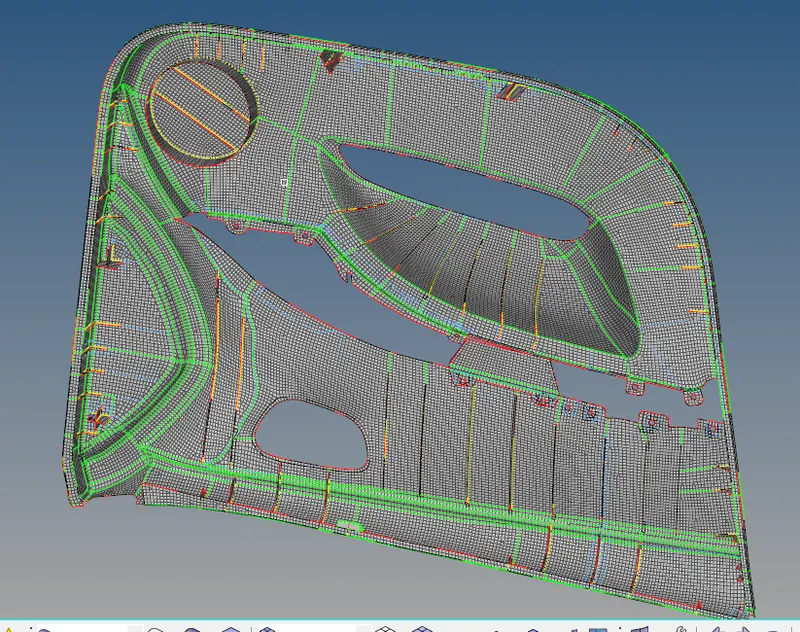
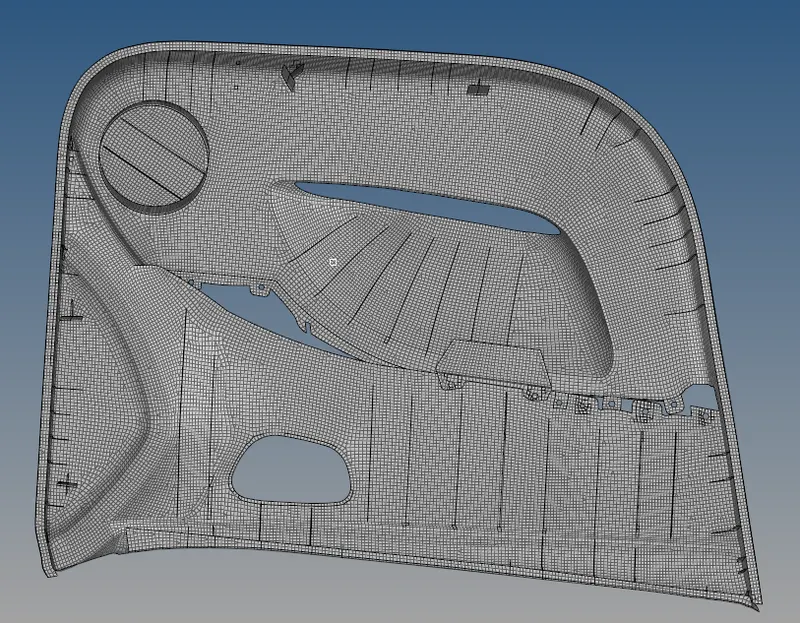
23.Repeat the above steps completed the meshing with given quality parameters as shown in below.
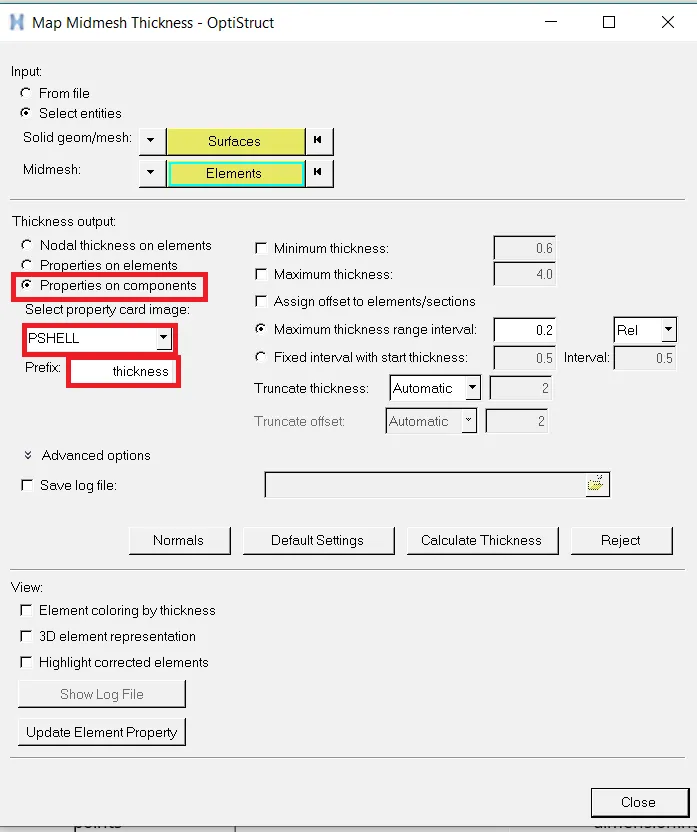
25.To assign the thickness for the component.
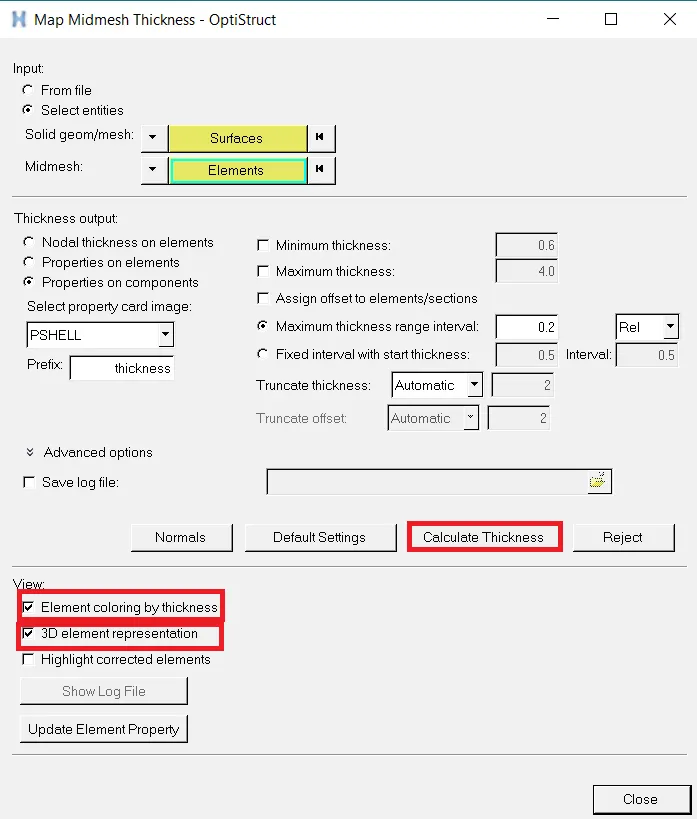
26.I am taking auto thickness for all surfaces.
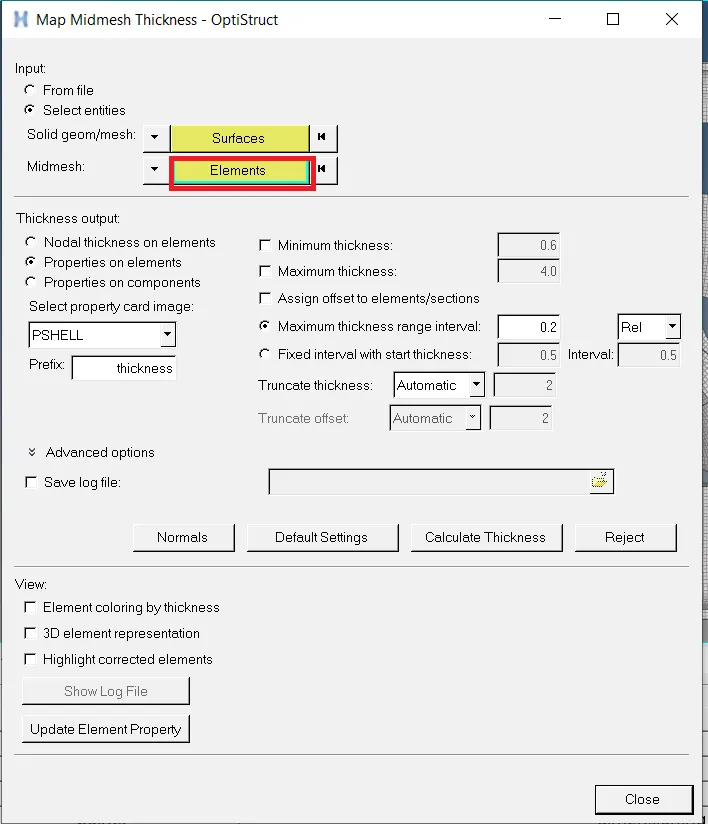
27.Goto Mesh → Assign → Midmesh thickness.
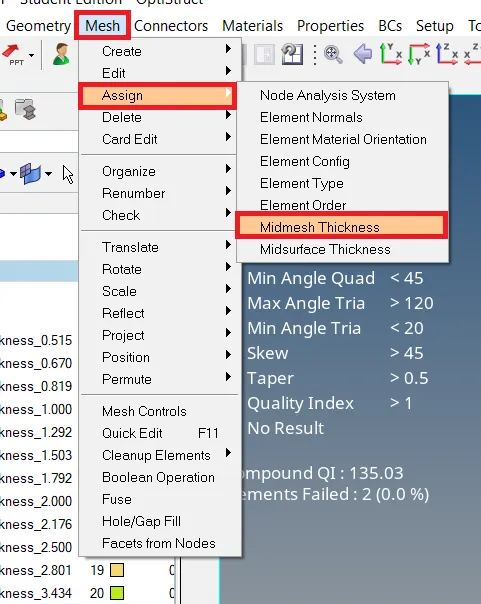
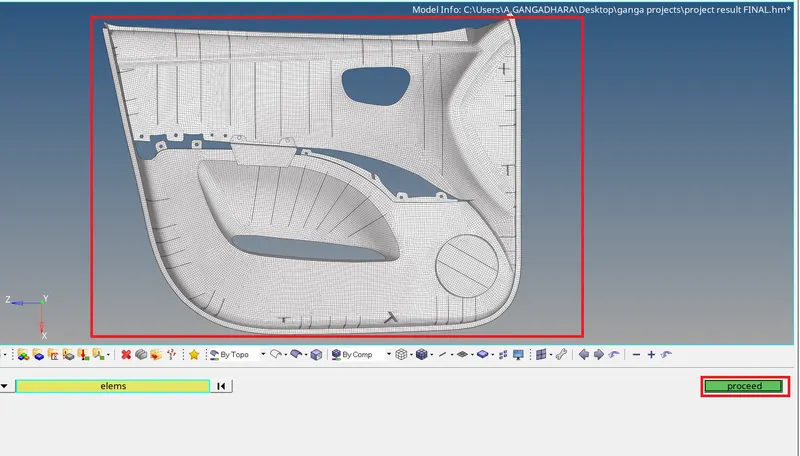
28.Click on the mid mesh thickness opening the dialogue box as shown below.
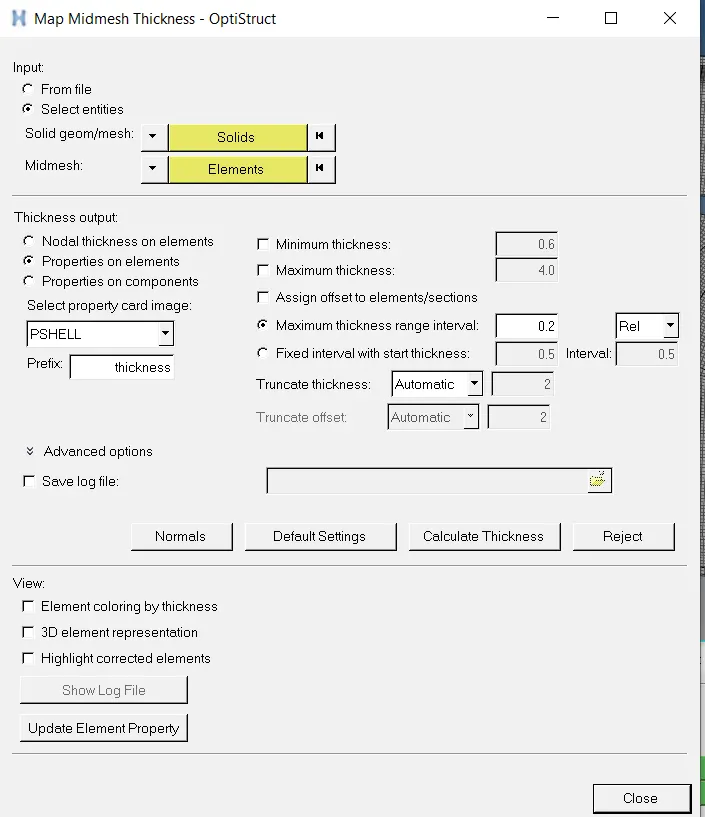
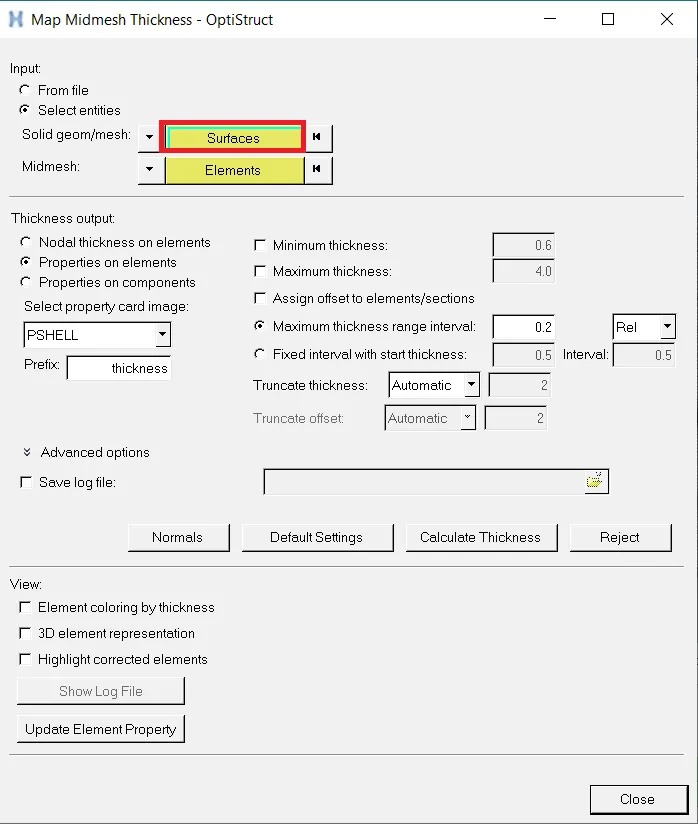
28.Click on the select entities goto solid Geom/mesh select surface as shown in below


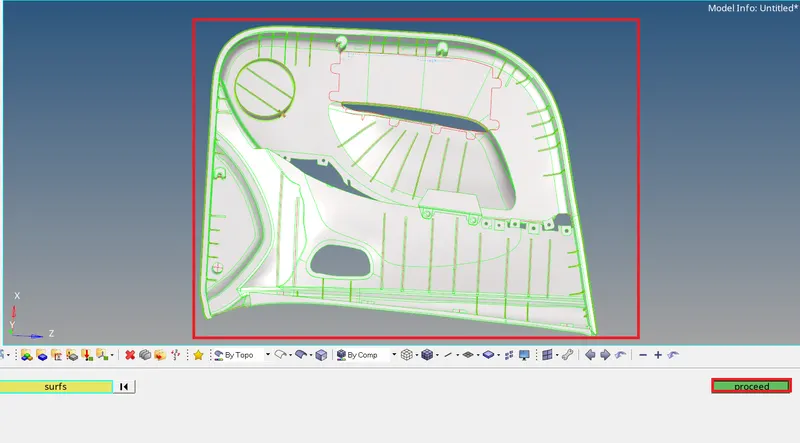


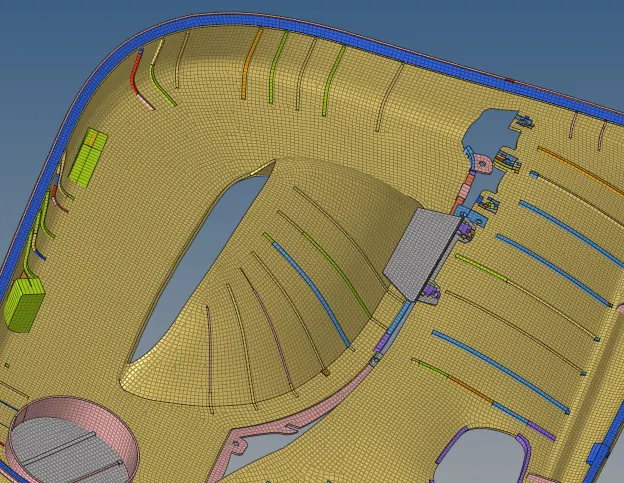
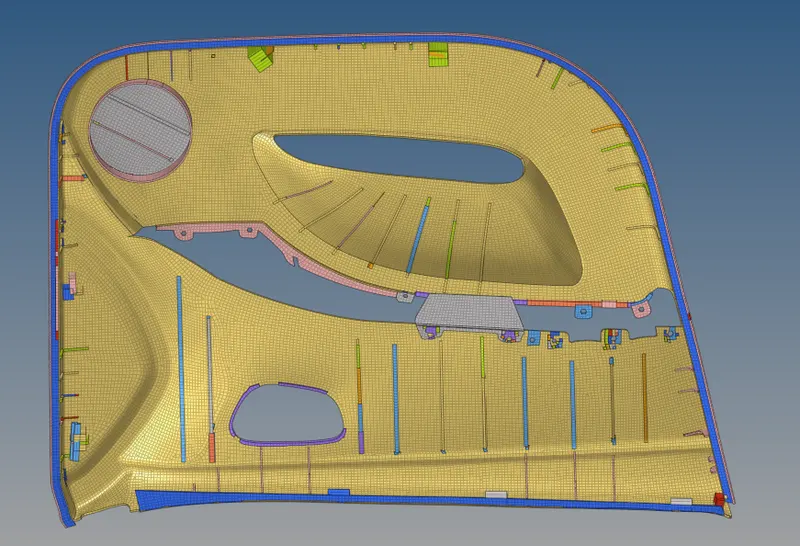
RESULT:-
I am completing manual mid surface, mesh with given quality criteria no failure elements are done and assign the thickness for door inner panel by using the Hyper works 2021.
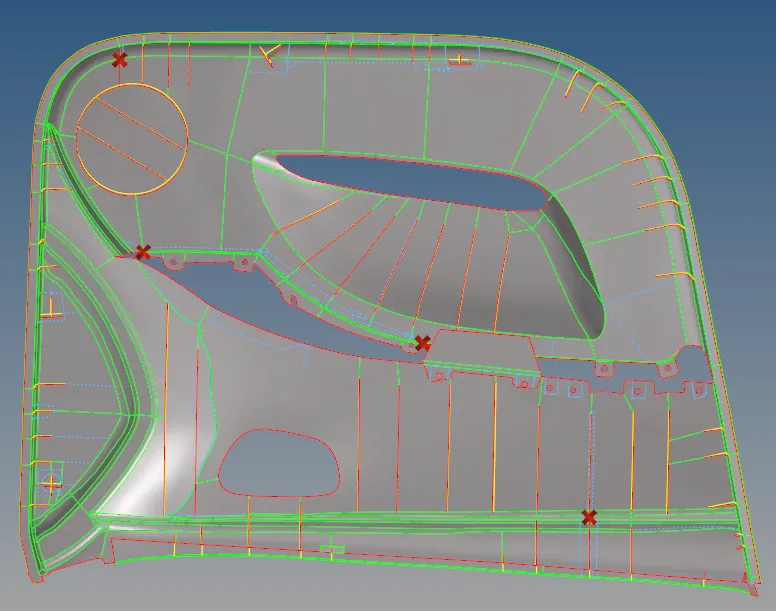 → Result for manual mid surface
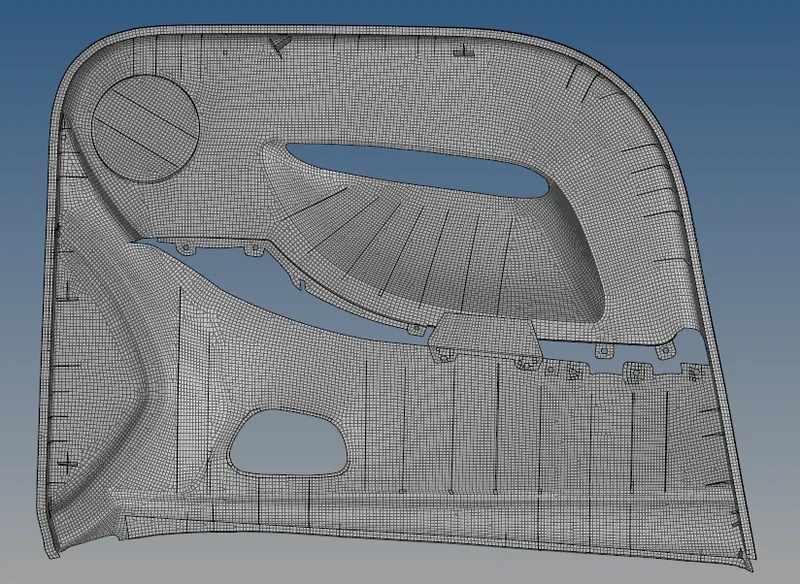 → Result for meshing with low tria concentration.
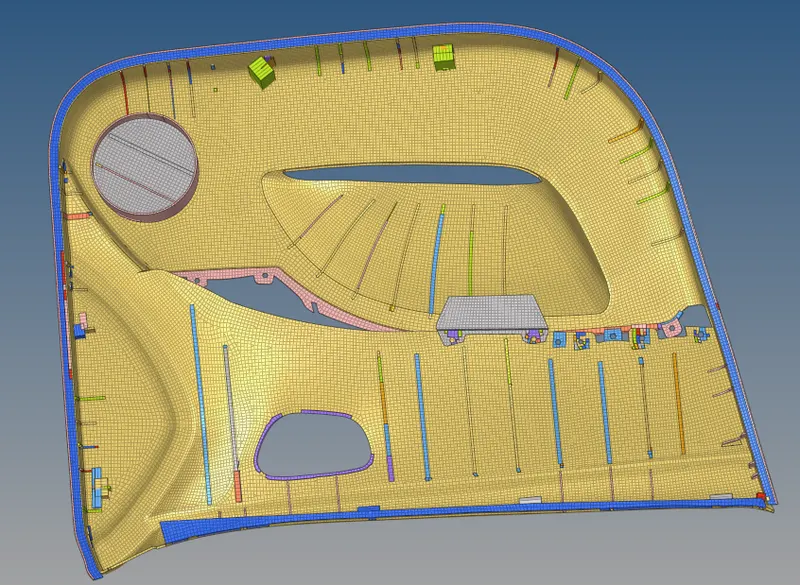 → Result for assigned thickness