Week 12:Project 2-Meshing of Rear Wheel Holder challenge
AIM
Follow the below-mentioned quality criteria, mesh the given component and assign thickness:
Target Element Length = 5 Units
| S.N | Quality Criteria | Value |
| 1 | Aspect Ratio | 5 |
| 2 | Skewness | 45 |
| 3 | Warping | 15 |
| 4 | Taper | 0.5 |
| 5 | Min. Length | 2 Units |
| 6 | Max. Length | 8 Units |
| 7 | Min angle Quad | 45 |
| 8 | Max angle Quad | 135 |
| 9 | Min angle Tria | 20 |
| 10 | Max angle Tria | 120 |
| 10 | Tria % | 10 |
MODEL
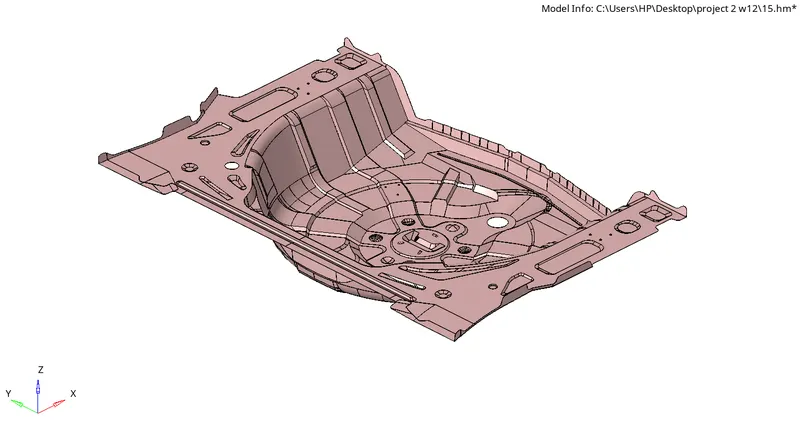
PROCEDURE
- Open the hyperworks software
- Select "import geometry" option and also set the file type format, then import the first model.(import geometry>model>open)
- we have to clean up the given model by removing the holes and unfilled surfaces (Geometry>quick edit>fill hole)
- Use surface tool to generate the surface for required area(Geometry>surface>rule)
- As the model consists of the various components we should extract the midsurface for the each components and do the topology clean up(geo>autoclean up)
- There are some features in the rear wheel holder model.We have to capture all of it. So manuel midsurface can also used in the model.
- Before that give the quality criteria and mesh parameters for the given model and save it as supperate file.(Preference>criteria file settings/parameter setting)
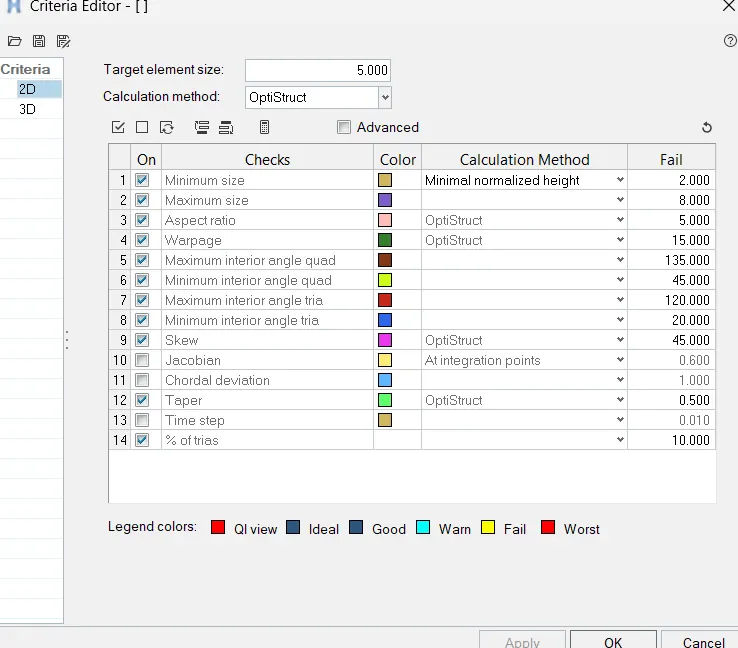
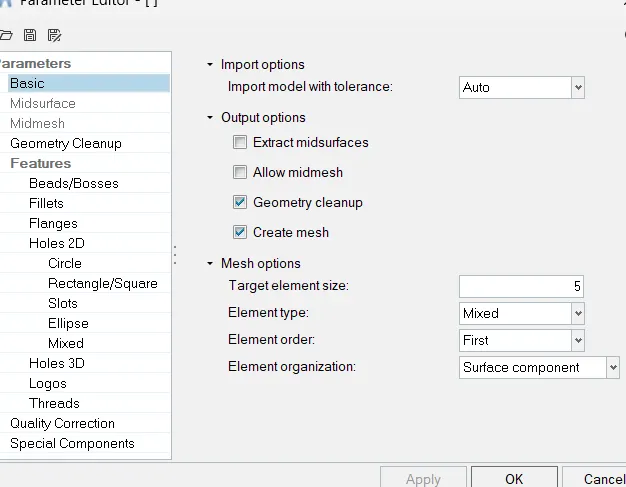
- Next step is to extract mid surface from given rear wheel holder model. There are two methods for generating mid surface. Automid and Manuel offset method.Some area of plastic or sheet metel components we can't use auto mid method. It will not give proper result. So we use manuel method.
- We have to take midsurface of the given model.so go through thefollowing steps(Geometry>midsurface>select surface>extract)

- Find the thickness of the component (F4)
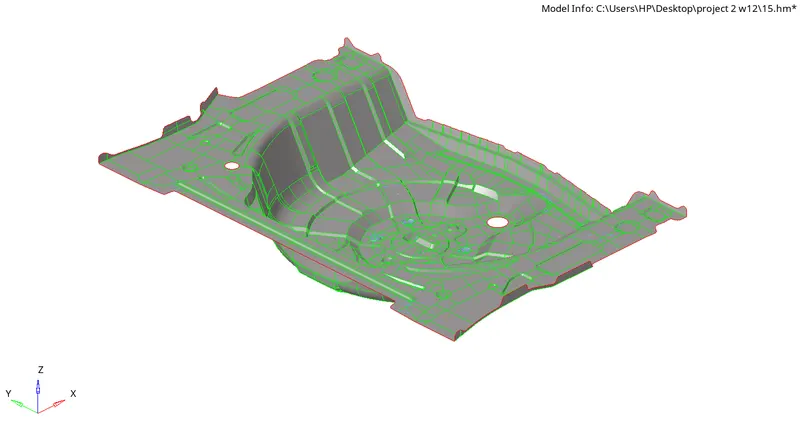
- After midsurfacing do the geometry clean up by toggle edge where the minimum length criteria fails.(Geometry>quick edit>toggle)
- Use quick edit panel to edit unfilled area
- Divide the surface into different parts by using split-surface-line tool(Geometry>quick edit>split-surface-line)
- Give washer split with length 5mm.(Geometry>quick edit>washer split)
- After the geometry cleanup, go to 2D mesh menu and select automesh option, change the element size to 4, element type to mixed and select the mid surface and click mesh to generate the mesh.(2D>automesh>select surface>mesh)
- We can adjust the no of nodes on the edges by right click/left click and give the good mesh flow
- Use rebuild mesh for better result in mesh flow(2D>Rebuild mesh>select surface>rebuild)

- Mesh the area by area for the good mesh flow
- After completed the meshing we have to check quality so shift the view into by element quality
- clear the element off elements by using element clean up tool.(2D>element clean up)
- Fix the failed elements using the tools in quality index (2D>quality index)
- There are many tools in quality index section for fixing the failed elements.

- After the meshing check wheather there is any free edges present within the body (Tools>edges)

- Fix the free edges inside the meshed body by using preview equivlance option.We can also adjust the tolerence level
- If there is any free edge present mesh fix it by using replace nodes(F3)

- Next step is to give thickness to the given components and assign meterial property.
- In order to give thickness to the shell elemets we need to create a property and give thickness of the component to the propert and assign the property to the mid-surface component and change visibility to 2D detailed element representation.
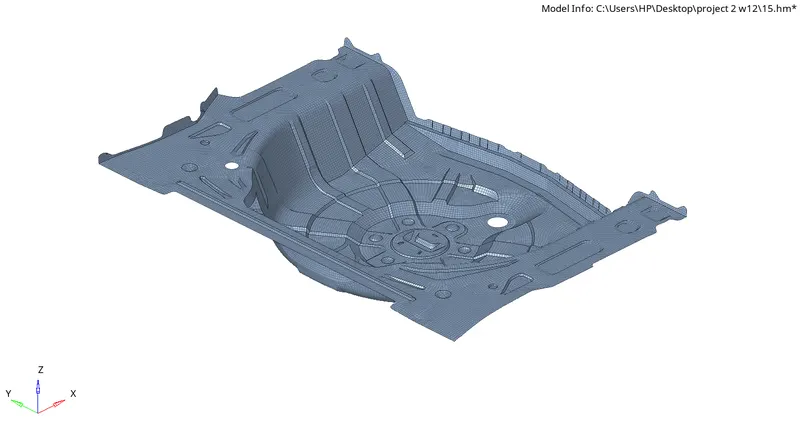
CONCLUSION
The given rear wheel holder has meshed as per given quality criteria and maintain proper mesh flow.