Week 12:Project-1-Meshing of Door Inner Panel Challenge
OBJECTIVE:
To extract the mid-surface and mesh the component with given Quality Criteria and assign thickness for the FE model.
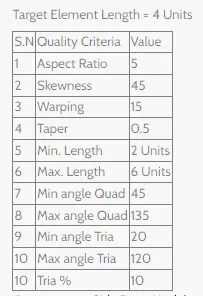
GIVEN QUALITY CRITERIA:
PROCEDURE:
Import the given model by using the import option.
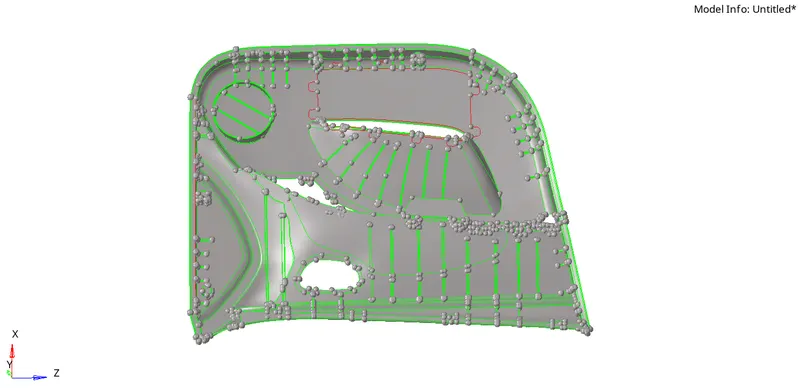
Perform geometry clean up on the model before extract the mid surface.
Create a mid-surface for the given component by using Geom << mid surface option and select extraction option as offset and select the surfaces and click extract option in auto extraction subpanel and the another method to extract the mid surface is manual midsurface. Go to Geom << surface edit << offset and select surface to offset and give offset value and offset.
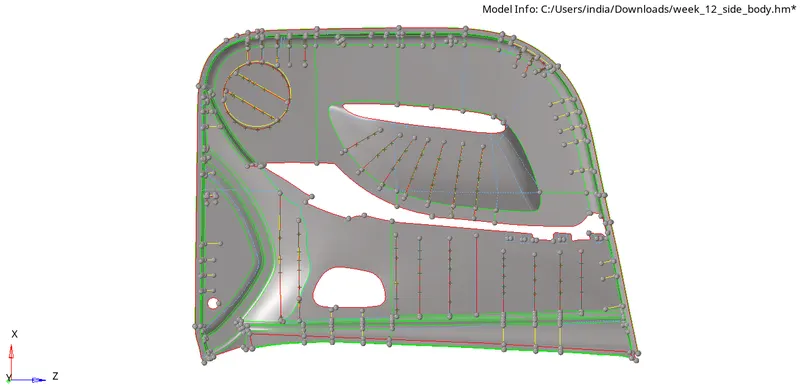
After extracting the mid surface, toggle the unwanted lines by using Geom << quick edit << toggle option and split the surface by using split surf-node or splir surf-line option and replace one point with another point by using replace point option in quick edit panel.
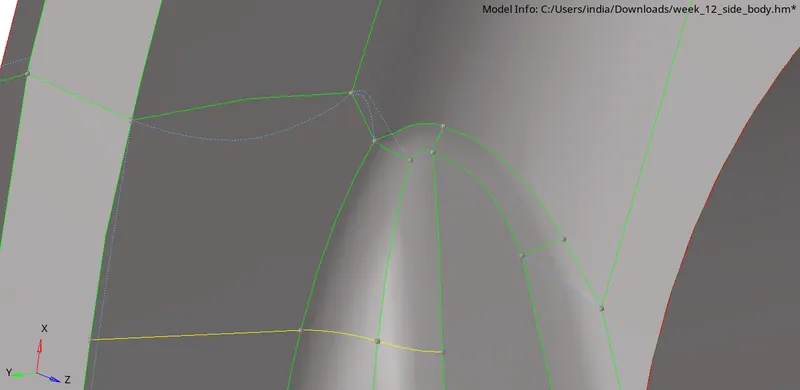
Remove unnecessary points by using add/remove point in quick edit panel.
Use trim with lines and trim with surfs/plane in surface edit panel in geometry to trim lines with the surface or trim two surfaces.
After clean up the mid surface, start mesh on the mid surface component separately.
Before perform meshing, set the given element quality criteria. Go to preference in the main tool bar and select criteria file setting option and set target element size and given quality criteria values and click apply.
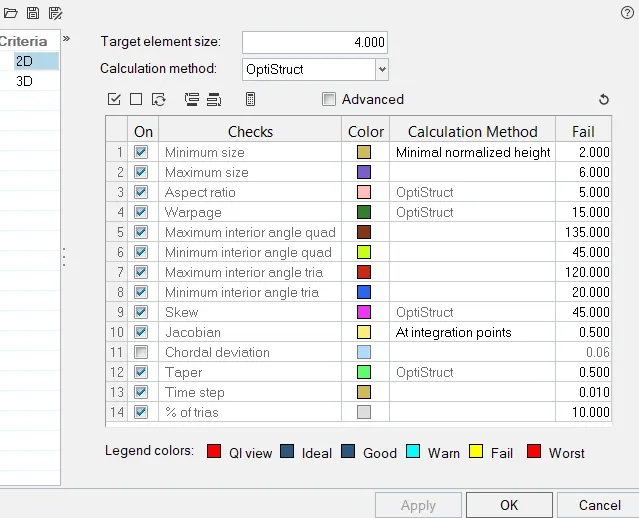
Go to 2D << automesh << size and bias and give element size as 4 and select the surfaces and click mesh. Do meshing the surfaces separately.
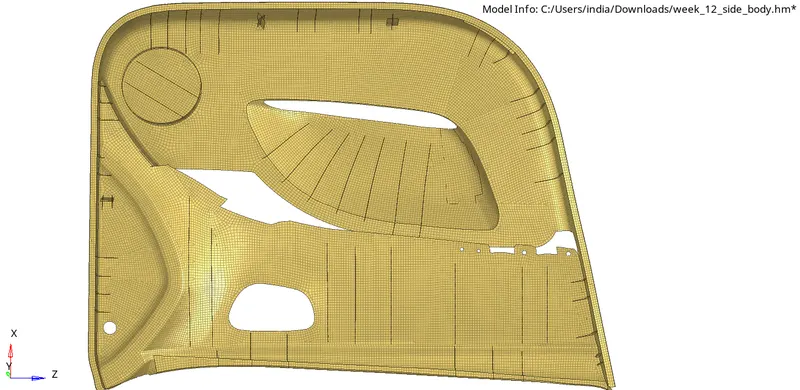
After generating mesh on the component, Go to 2D << quality check and check the element quality issue and fix them by using cleanup tool option.
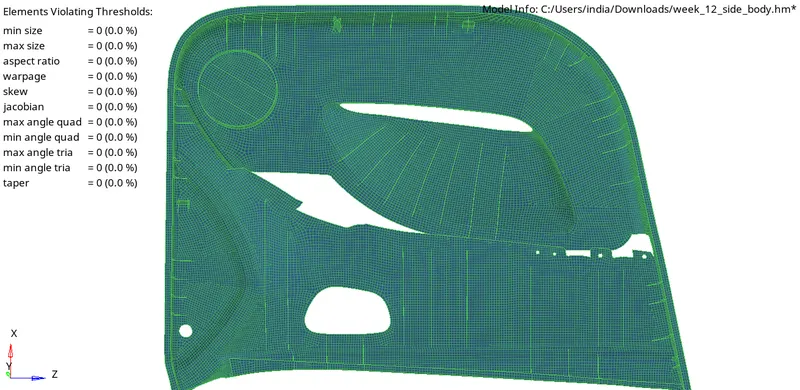
Go to 2D << smooth option and select the elements and smooth the elements.
In order to get the proper connectivity between two node or elements, Go to tolls << edges option and select all the elements and give tolerance value and click find edges. Click preview equiv option to preview the unconnected elements and click equivalence to connect the elements or use F3 option to replace one node with another node.
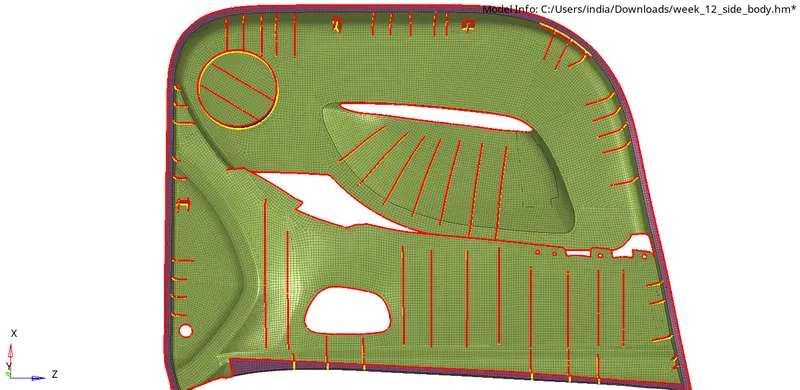
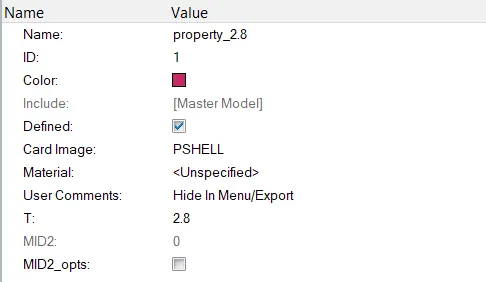
To assign property, Go to tree panel on the left side where all the components and parts are shown, right click the mouse and create << property option and give the thickness to all the property by right click on the property. It will be mentioned as T.
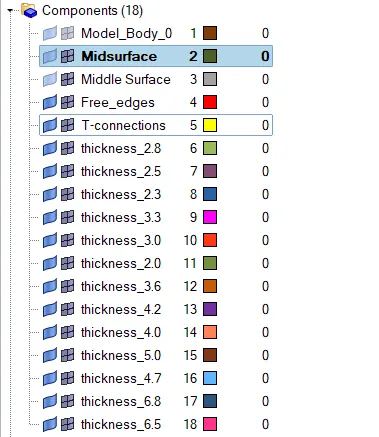
Create several components as per thickness and move elements to that component by using organize. Go to tool << organize option and select the elements which should be moved and select the destination component where the elements should be moved and click move.
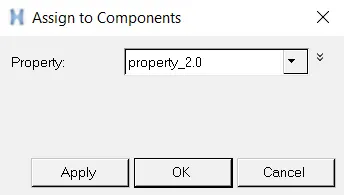
Go to components and left click on the component and click assign and give the property and click apply.
To see the thickness main tool bar and right click on down arrow symbol on 2D Detailed Element Representation.
FINAL MODEL:
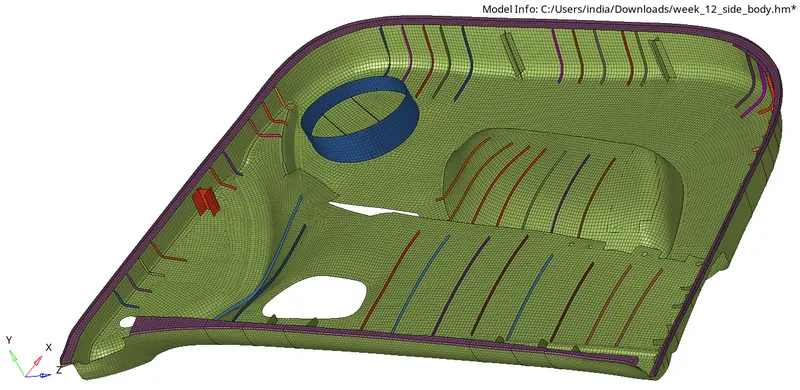
RESULT:
For the given side door body model, extracted mid surfaces and performed mesh and assigned the property to the components.