Week 12 Challenge
1)
ANS:-
AIM:- To generate report for the steel building design from challenges 1-6 along with the loading summary.
TOOLS USED:-
- Tekla model.
- Report.
- Model report.
- Show reports.
- Edit header.
PROCEDURE:-
- Firstly open the TEKLA model that is previously created as shown below.
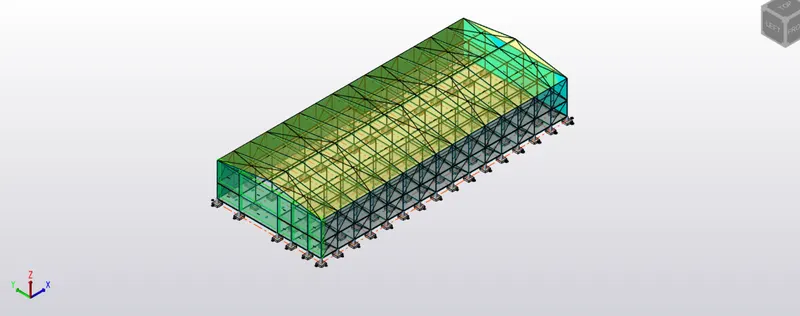
- Next we have go to report tab and select.

- Now under the report tool bar we find the select option where we can choose the options.
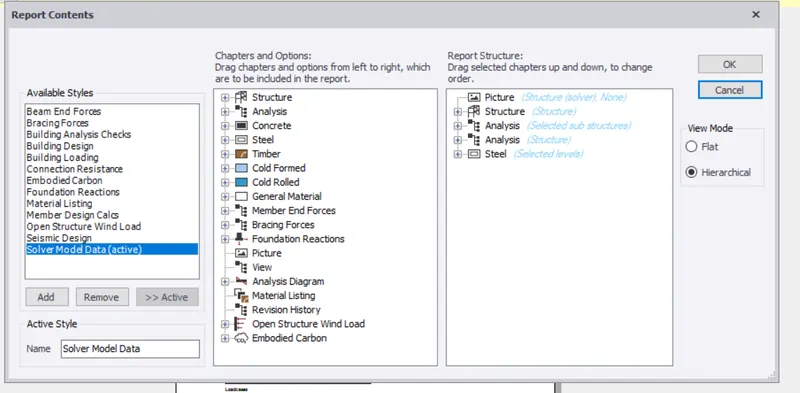
- After selecting one among them click on the model report.
- Now you will be directed to a new dialogue box,where you have to select few among them which are required for our structure input details.
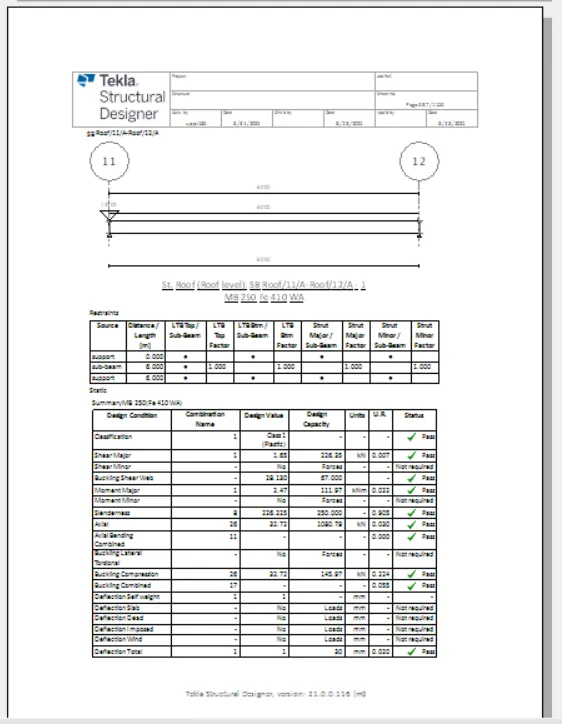
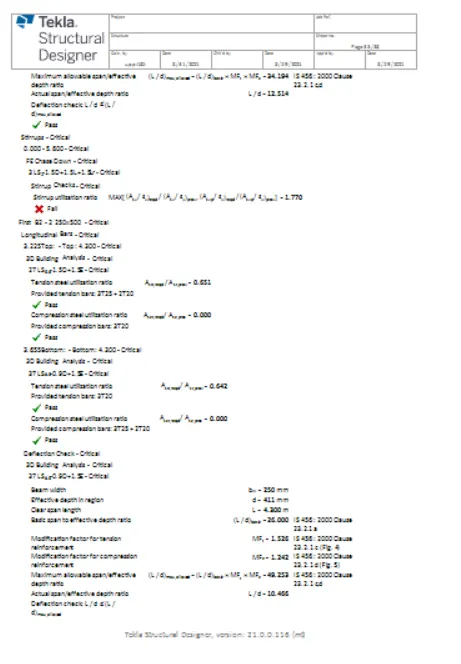
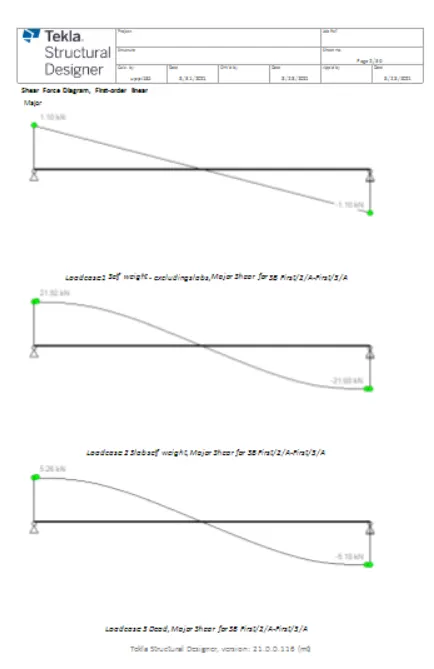
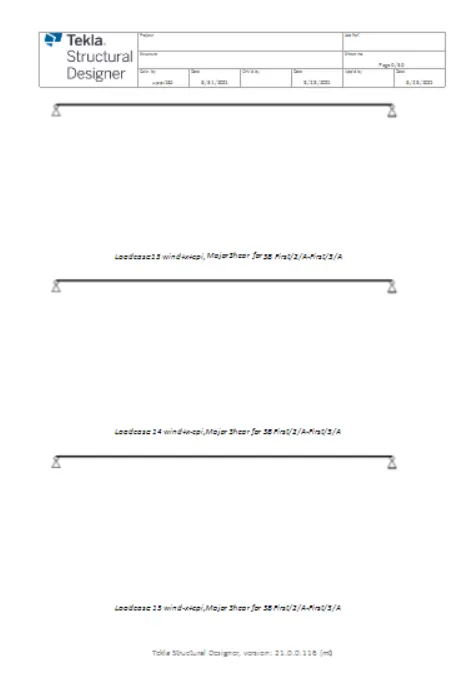
- After selecting few you can click on ok.
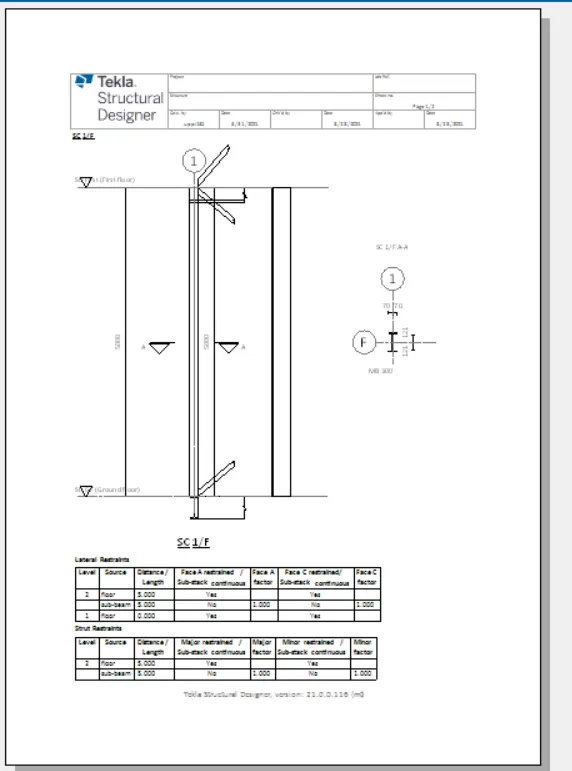
- Now select the show reports option to see them.
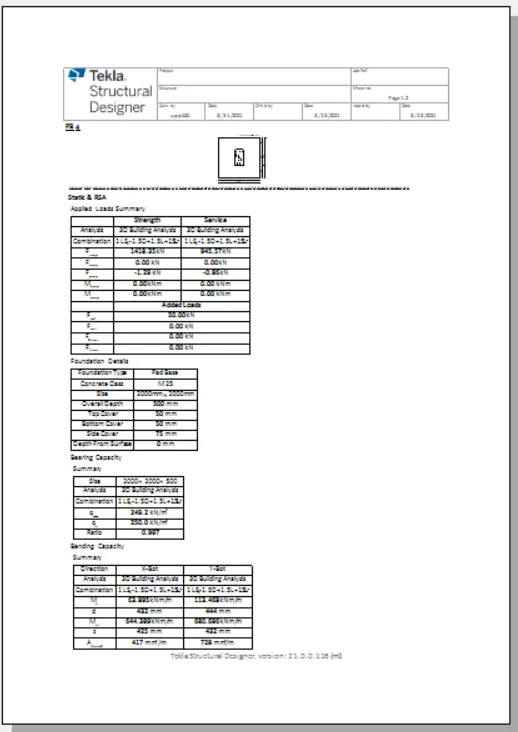
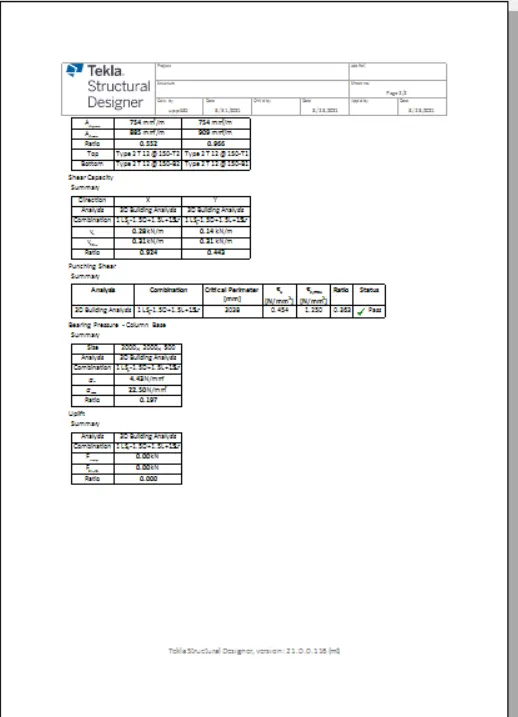
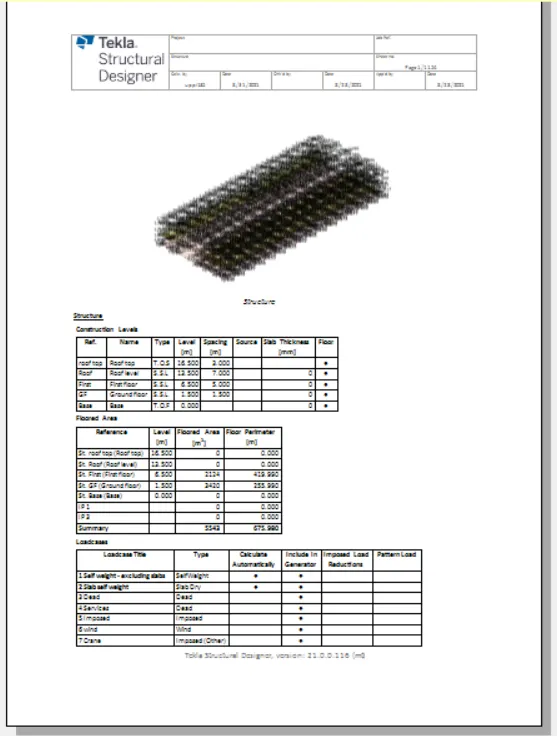
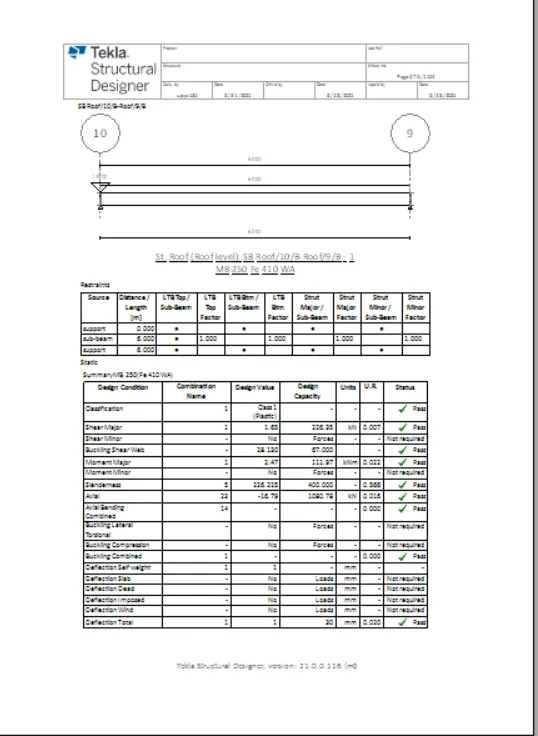
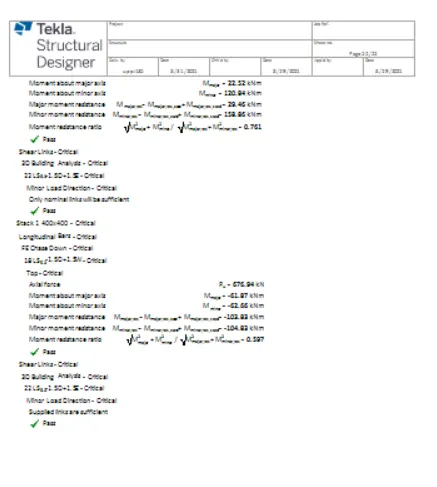
- Now you can see reports are generated on your work space.
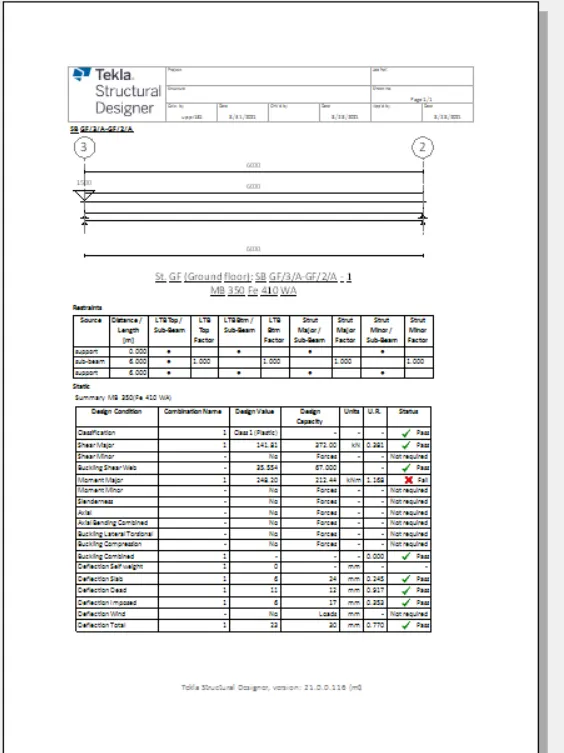
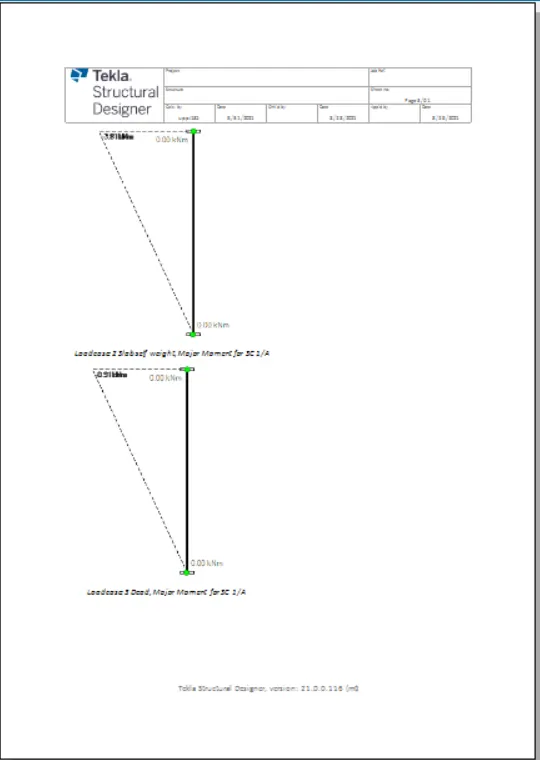
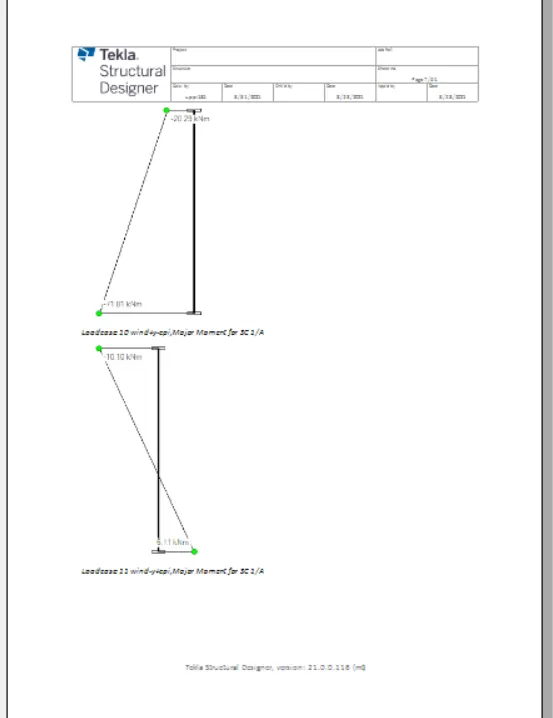
- You can click on the icon present on the tool bar for the next and previous page options.
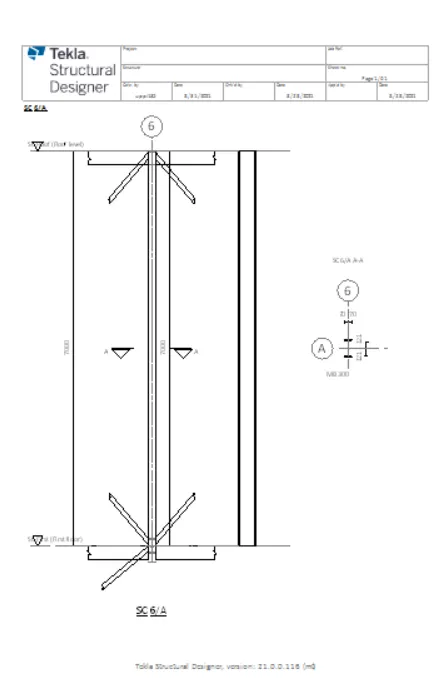
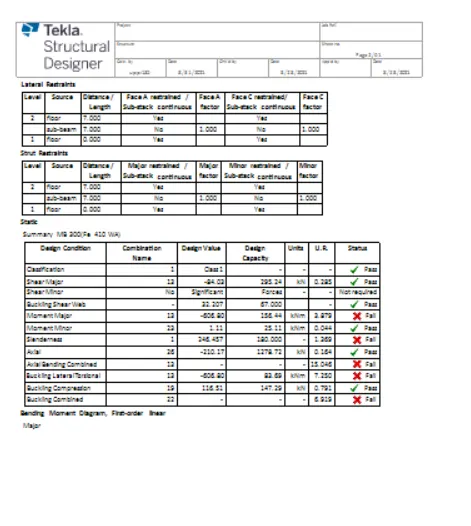
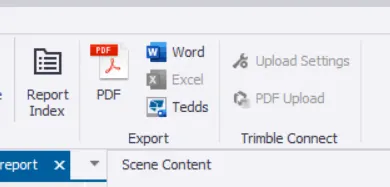
- Also you can click on the PDF option to generate a PDF of the reports.
- Or you can convert the reports into any format such as PDF,EXCEL,WORD and many more of your choice depending on the availability.
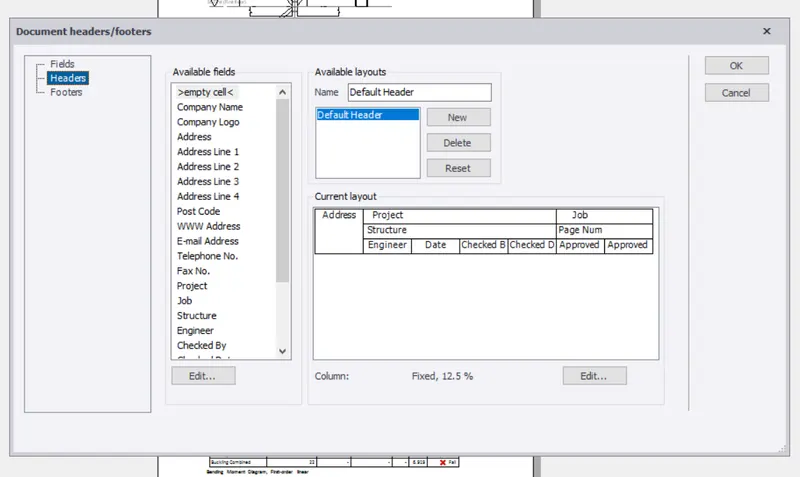
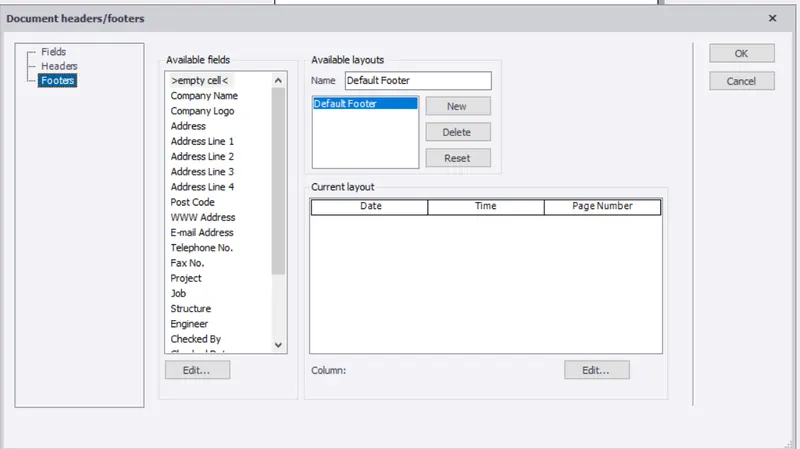
- Now with the help of header edit header option you can edit the project name, address, checked by,approved by and many more.
REPORT:-
Hence by following the above series of steps we can generate report for the steel building design from challeges 1-6 along with the loading summary.
2)
ANS:-
AIM:- To generate reort for RC structure along with the loading summary.
TOOLS USED:-
- Tekla model.
- Report.
- Model report.
- Show reports.
- Edit header.
PROCEDURE:-
- Firstly open the TEKLA model that is previously created as shown below.
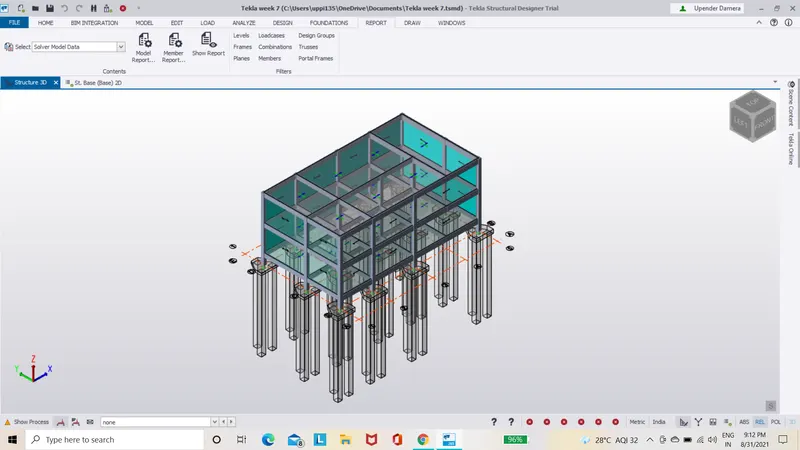
- Next we have go to report tab and select.
- Now under the report tool bar we find the select option where we can choose the options.
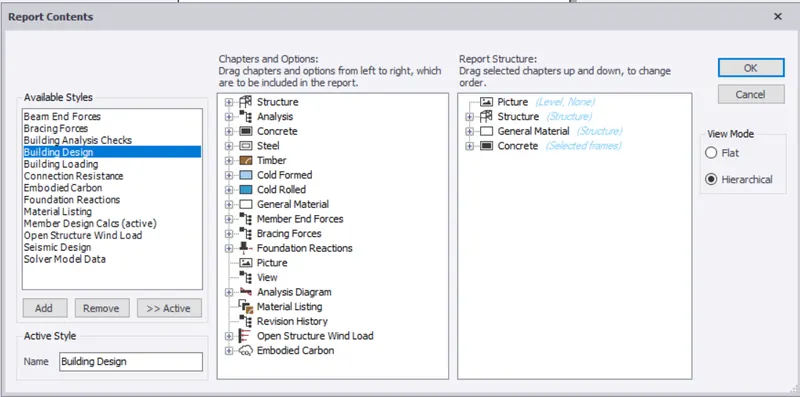
- After selecting one among them click on the model report.
- Now you will be directed to a new dialogue box,where you have to select few among them which are required for our structure input details.
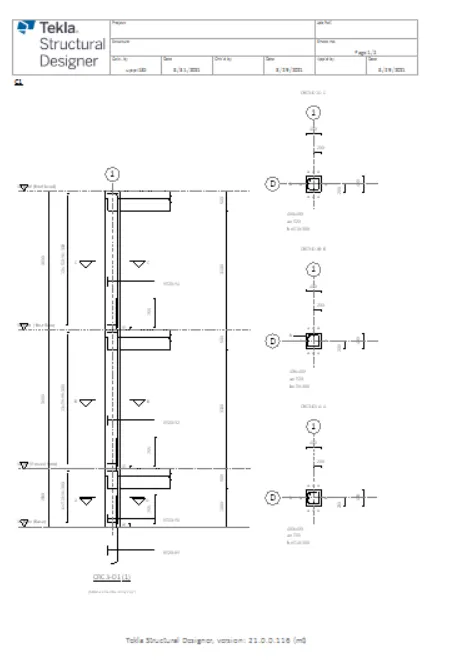
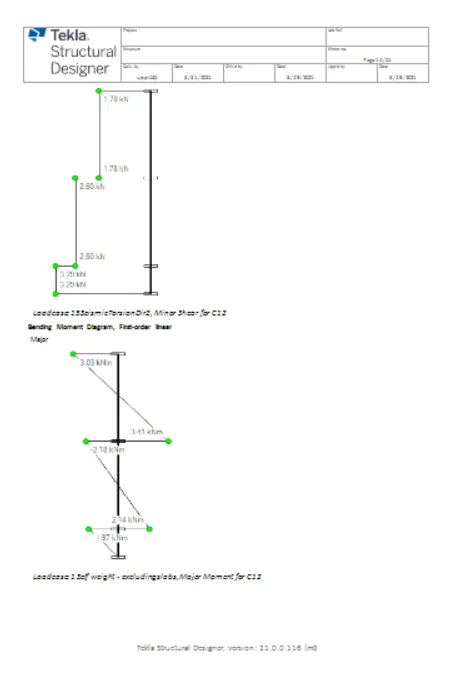
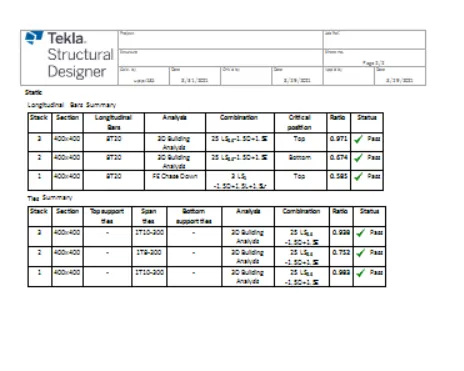
- After selecting few you can click on ok.
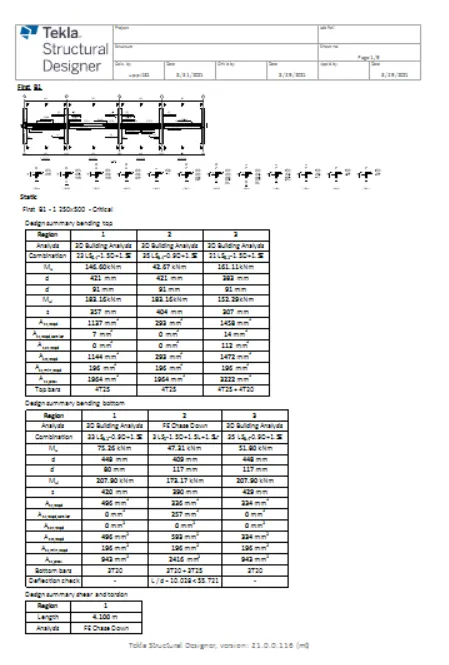
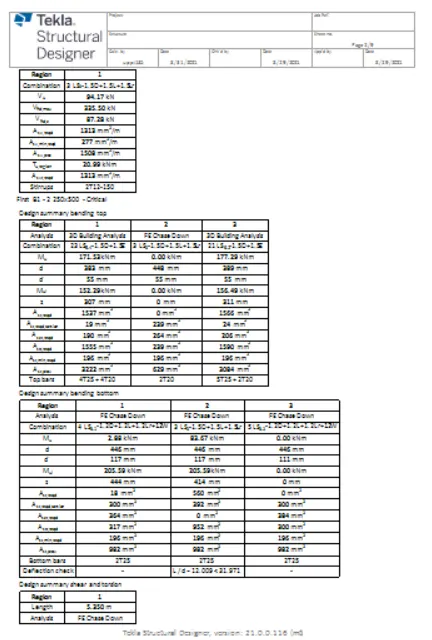
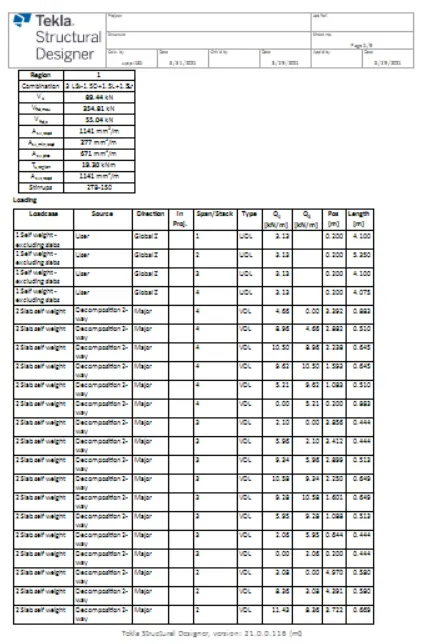
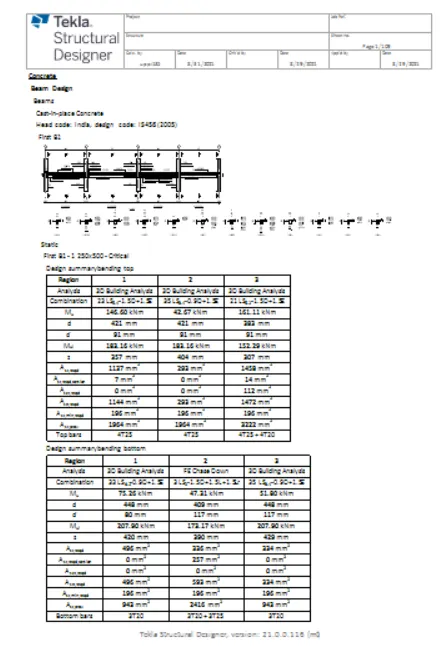
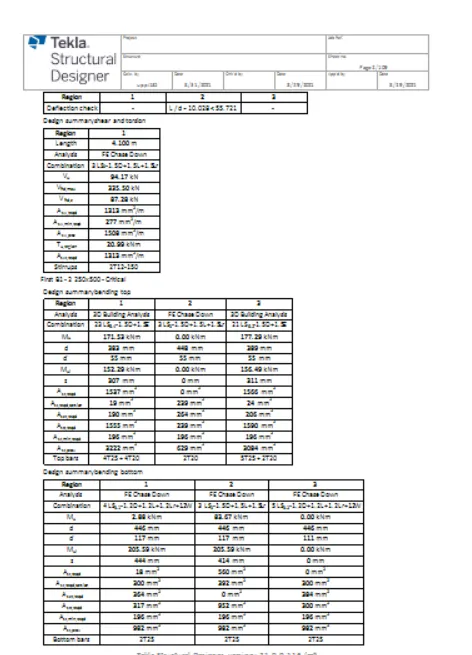
- Now select the show reports option to see them.
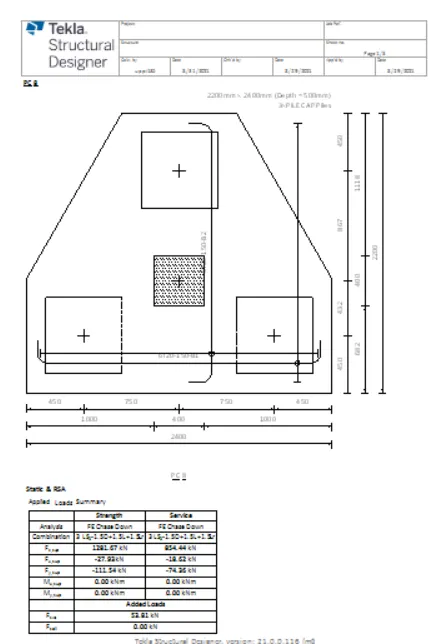
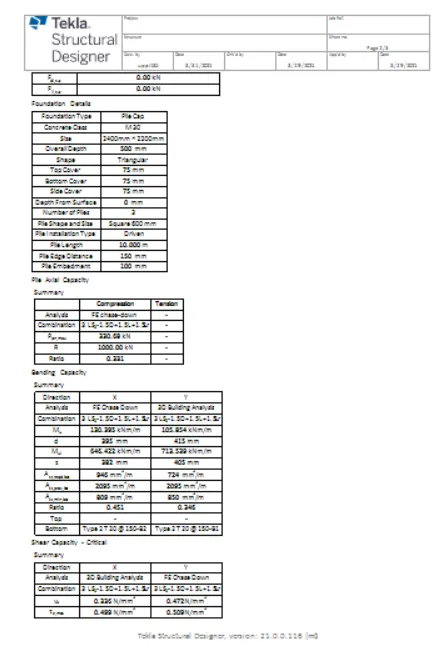
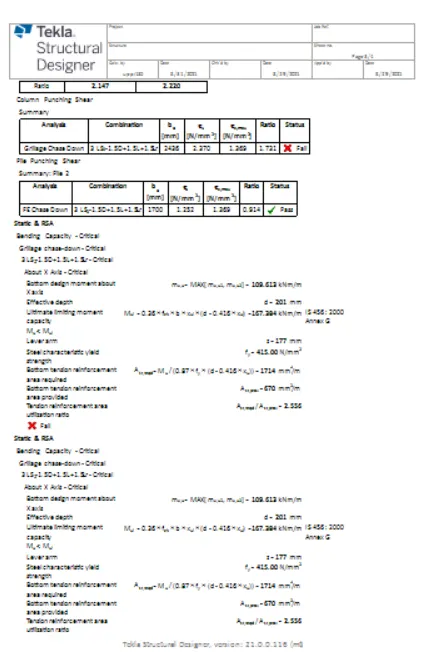
- Now you can see reports are generated on your work space.
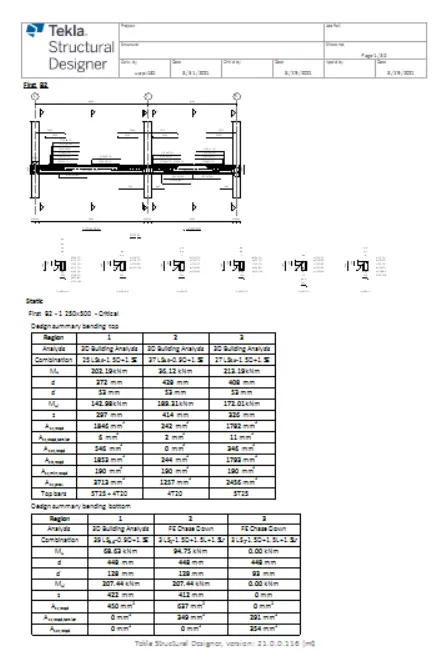
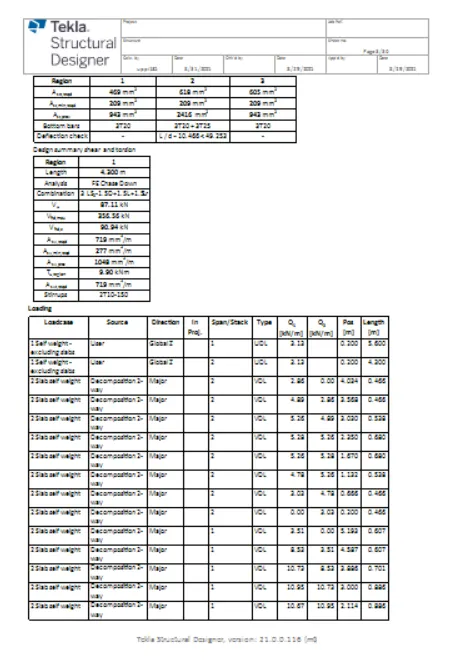
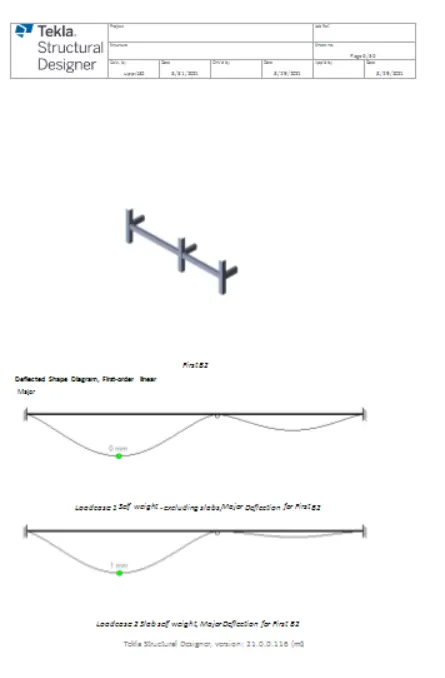
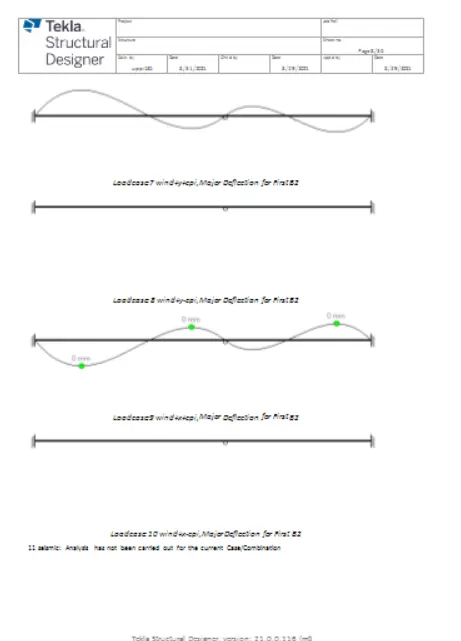
- You can click on the icon present on the tool bar for the next and previous page options.
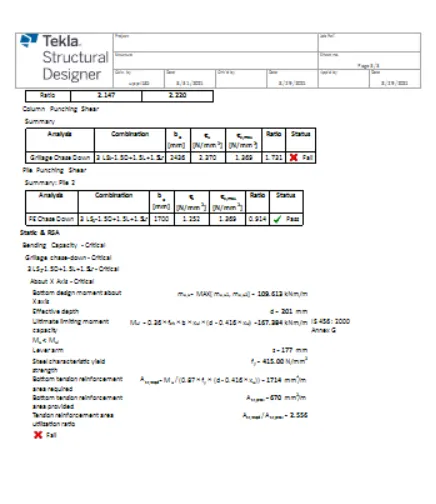
- Also you can click on the PDF option to generate a PDF of the reports.
- Or you can convert the reports into any format such as PDF,EXCEL,WORD and many more of your choice depending on the availability.
- Now with the help of header edit header option you can edit the project name, address, checked by,approved by and many more.
RESULT:-
Hence by following the above series of steps we can generate report for the RC structure along with the loading summary.
3)
ANS:-
AIM:- To update the layers settings in the model and generate plan drawings and details from the model.
TOOLS USED:-
- TEKLA model.
- Home.
- Settings.
- Drawings.
- Layer style.
- Layer configurations.
PROCEDURE:-
- Firstly, open the TEKLA structural model that is previously created.
- Now select the settings option under the home page.
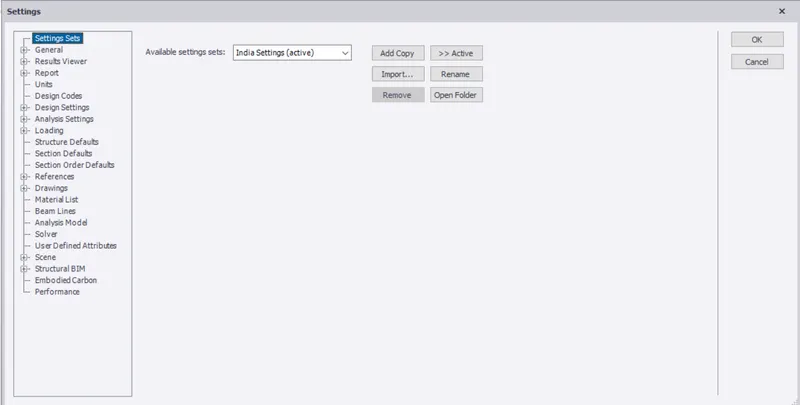
- Now you wil be directed to a new dialog box.
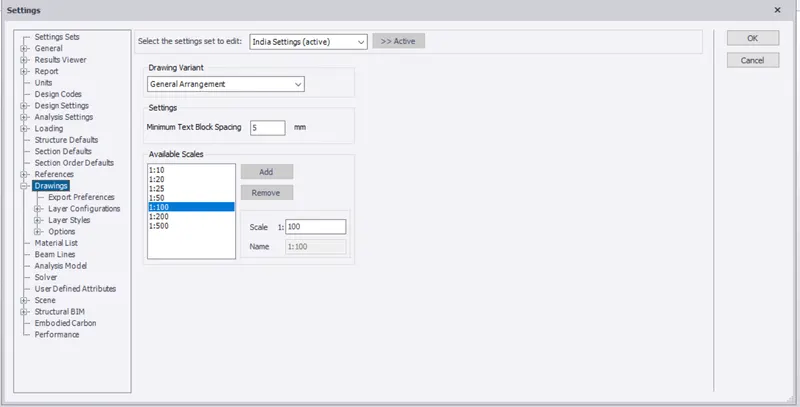
- Where you need to select the drawings option under that select the layer configuration option.
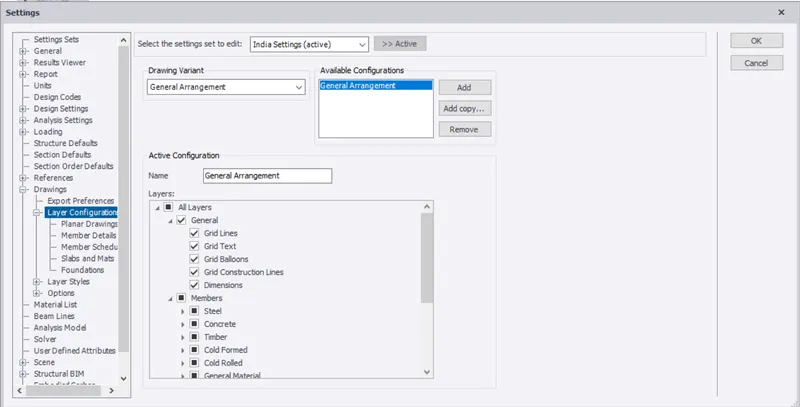
- Now under that select the options of your choice that you like to change.
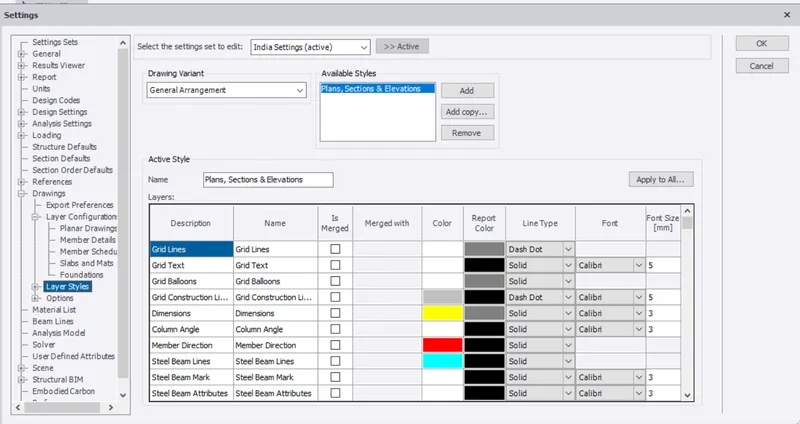
- In the same manner select the layer styles options.
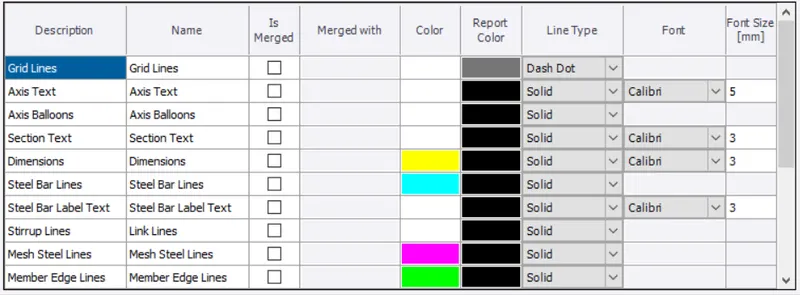
- Now under that select the options of your choice that you like to change.
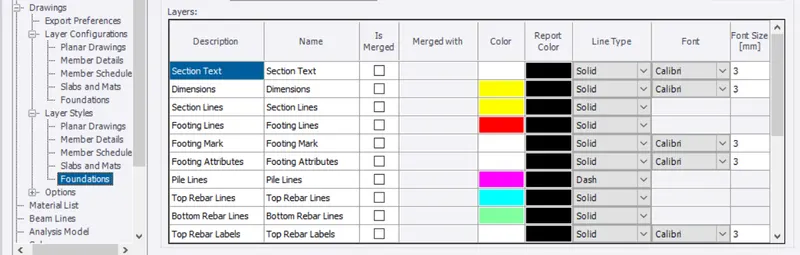
- Now select the colour chaange of your requirements for both the layer configurations and layers settings.
- If you are fine with system defaults selections then there is no need of any change.
RESULT:-
Hence by following the above series of steps we can update the layers settings in the model and generate plan drawings ad details from the model.