Week 1 Challenge
QUESTION 1
1
- Select STAAD Import from the backstage.
The Import from STAAD.Pro dialog opens.
- Click General settings to browse and select a STAAD.Pro (*.std) file to import.
- Select Use Mapping File in Section Mapping settings, and then click [...] to browse and select a mapping file to import.
- Set the catalog type and catalog instance assignments for the imported member types. This data is used by AECOsim Building Designer to rebuild the members' structural data as defined in the structural member catalogs.
- In Steel settings, select a section definition that is to be designated as the Default Section Name. This section definition applies to imported members whose section data is unavailable in AECOsim Building Designer.
- Check Verify to scan the imported file for unknown sections.
- In Revision Tracking, check Use Design History. Design History tracks changes to a DGN file. View details about the revision by using the controls on this tool.
- Click Import.
- Click Update to complete the import process.
The structure is updated.
2
- Concrete
- Aluminum
- Stainless steel
- Steel
3
YES, it is possible to capture images in STAAD Pro
To get the pictures in an external file ( like a word file, excel file, MSPaint, etc.) go to the menu option Edit > Copy Picture, open the application you want, and do a paste in there. Files saved through the taking Picture option are not directly saved in common picture formats like BMP, jpg, and png.
To Preview the pictures before including these in the STAAD.Pro report, you can always go to the Picture Album tab within the same Report Setup dialog box
4
The three ways by which you can create a model are
- Using StaadPro physical modeler interface
- Using the traditional StaadPro analytical modeling interface,
- Using command file
5
In STAAD.Pro Physical Modeler, the general order of operations is that you first select physical objects and then assign properties or perform some operation on the selection.
This differs from STAAD.Pro, where there are many tasks, you select the operation, property, or specification first and then assign that to some list of model objects.
QUESTION 2
1 Design parameters
- Steel design
- Concrete design
- Aluminum design
- Timber design
- Design codes
- 2D element design
2 CURSOR used in StaadPro
 Nodes Cursor
 Beam Cursor
 Plate Cursor
 Solid Cursor
 Geometry Cursor
 Members Cursor
 Plates & Solids Cursor
 (Select) Text
 Previous
 Load
Load
3
- Prepare geometry tab
- Specify the property tab
- Assign the material tab
- Run design tab
- Assign specifications tab and run analysis
4 The procedure to define a “Simply Supported” condition in STAAD Pro
- Start the program
- Start Staadpro - Click new project- tick space-Add file name- chose location- change length units-click next- tick add beam- click finish
- Generate the model geometry
- Click on the front view and draw beam length using the Snap node
- Specify member properties
- File-Commands-member property-prismatic- rectangle
- YD = 0.45m
- ZD=0.23m
- Add-close
- Click, Assign view- Assign - close
- File-Commands-member property-prismatic- rectangle
- Specify Support types
- Commands-support specification-fixed-Click Add
5 Topics that you will include while creating DBR.
- Brown’s concept of DBR
- Collins’s concept of DBR
- Design-driven
- Iterative
- Theory building
6. Describe the term “Multi-material design” of STAAD Pro.
3
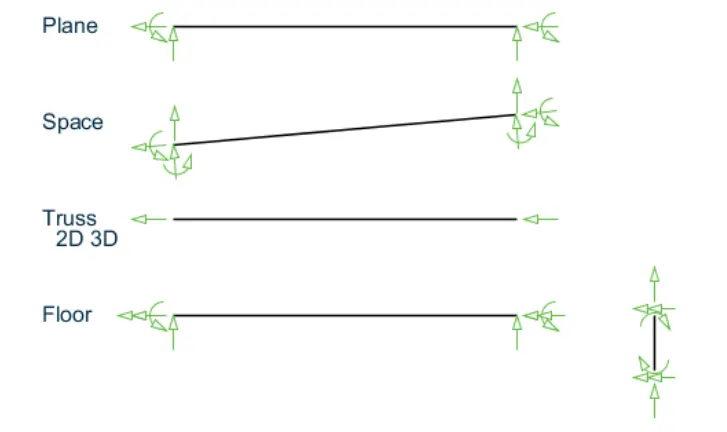
1. The structure systems in STAAD Pro
- The structure is defined as an assembly of elements
- Almost all types of structures can be analyzed by StaadPro
- Space
- Plane
- Truss
- Floor
2 Coordinate System
- Global Co-ordinate system
- Local Co-ordinate system
3 DBR
The full form of DBR is Distributed Bragg Reflector.
Uses
- Dynamic braking resistors (DBRs) produce braking torque and absorb the high amounts of energy generated by stopping electric motors.
- They are used in variable-speed drive systems such as elevators, cranes, and trains.
- Some DBRs are also used in related devices with high inertial loads.
4 The different types of analysis options in STAAD pro.
- StaadPro building planner
- Physical modeling
- Analytical modeling
- Steel AutoDrafter
- Advanced Slab Design
- Advanced Concrete design
- Earthquake mode
5 The difference between Fixed and Fixed But condition.
Fixed Support
- Fixed support is the most rigid type of support or connection.
- It constrains the member in all translations and rotations (i.e. it cannot move or rotate in any direction).
- The easiest example of fixed support would be a pole or column in concrete.
Fixed but
- The Fixed But support condition is used to allow the user to define which degrees of freedom of a node are free and which are fixed.
- For example, Pinned support is equivalent to Fixed But MX MY MZ
Practical
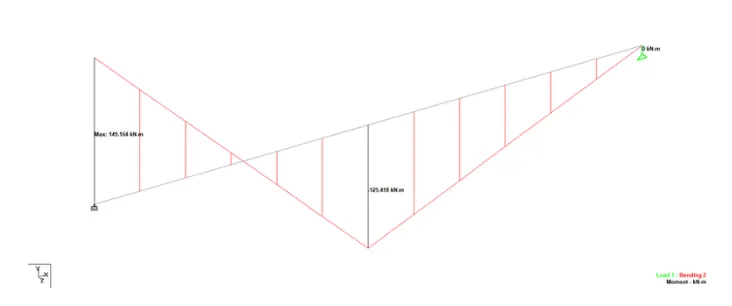
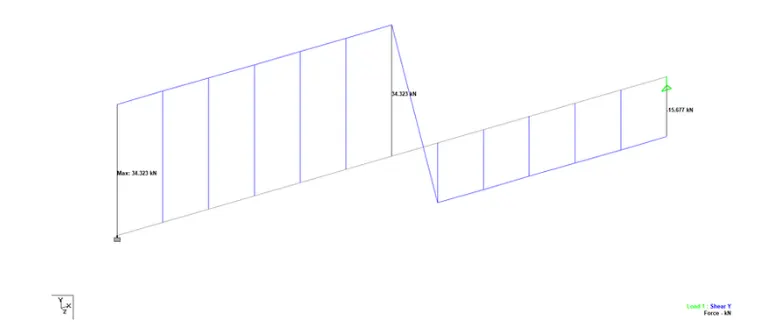
1. Create a STAAD Model with the following Specification
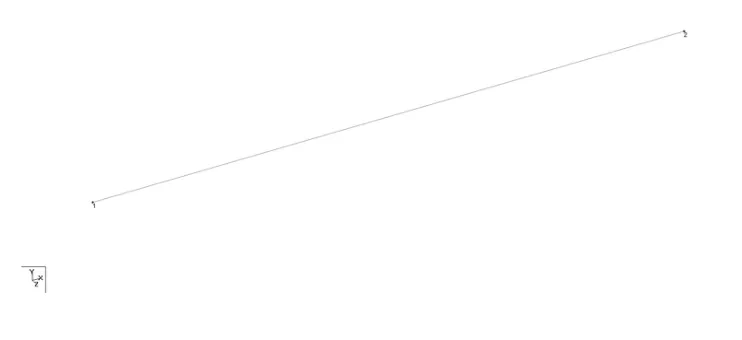
a. A beam of span 16m
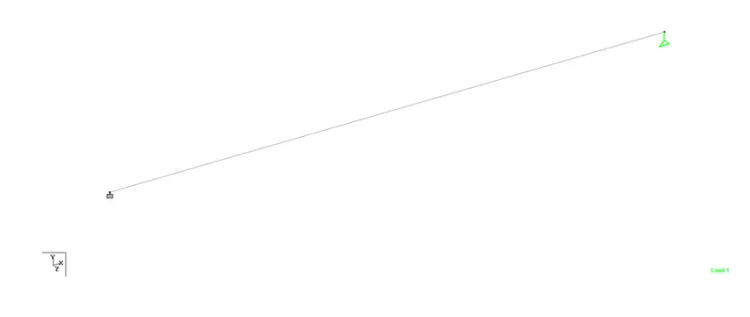
b. Support: Fixed on one end and Roller support(Horizontal) on the other end
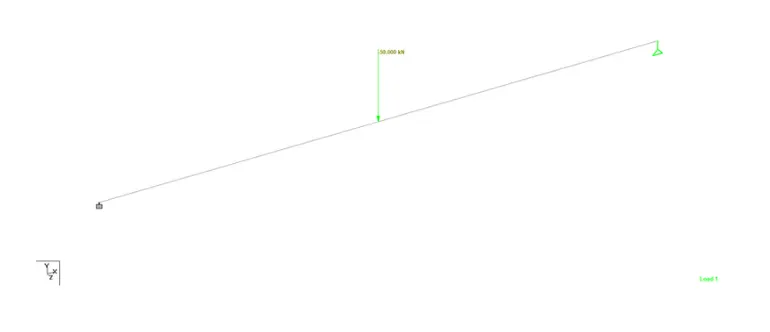
c. A point load of 50 kN at the mid-point
d. Draw SFD and BMD using software