Usage of Navigation tool , Timeliner and Clash Detection test using Naviswork
1)
Aim - Using the Architecture/Structure project file developed and exporting the Revit architecture and structure model to Naviswork Cache file following the export settings.
Procedure -
- Open the Architectural model of previous weeks and viewing in 3D view.
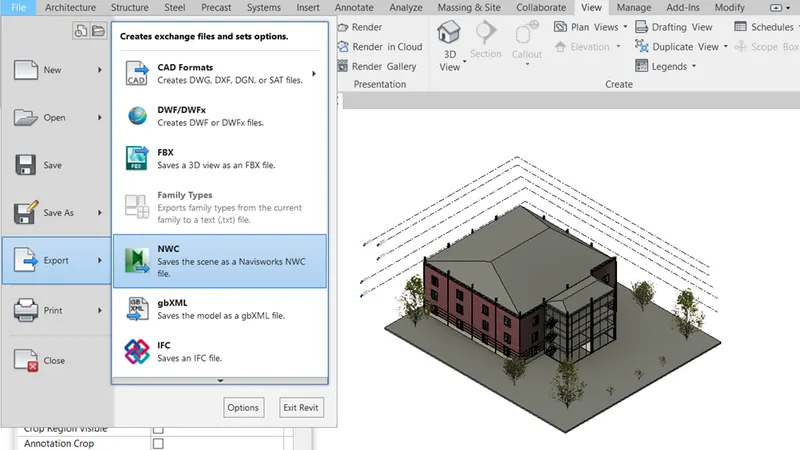
- Click on export option in the file tab and then select the NWC
- The file is now format and repeating the same procedure to other files.
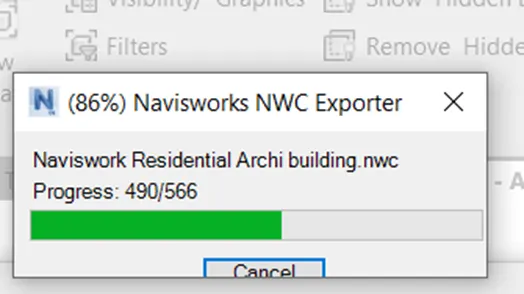
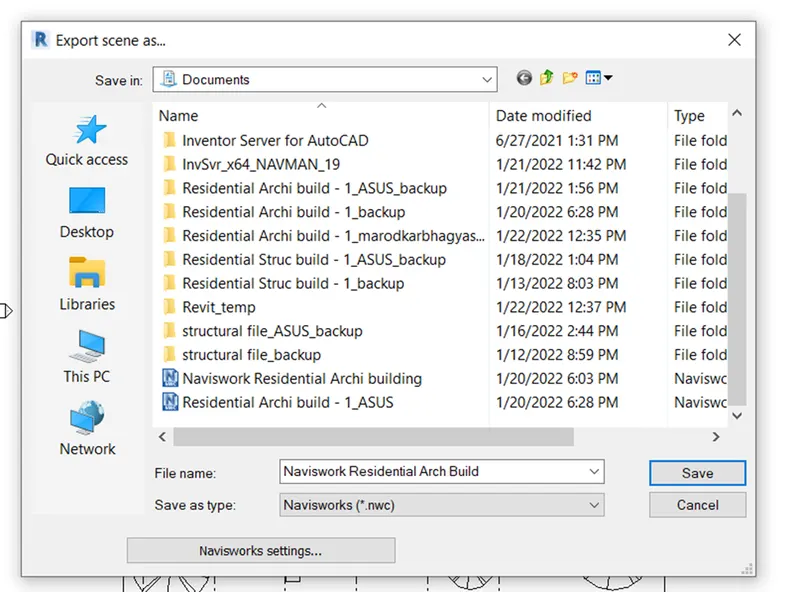
- Save the file .
Result -
- Architecture / Structure project file is exported successfully.
2)
Aim - Using Navigate tool to walk around the model and walk through the room created and recording the Naviswork file.
Procedure -
- Exporting the structural and architectural model to Naviswork.
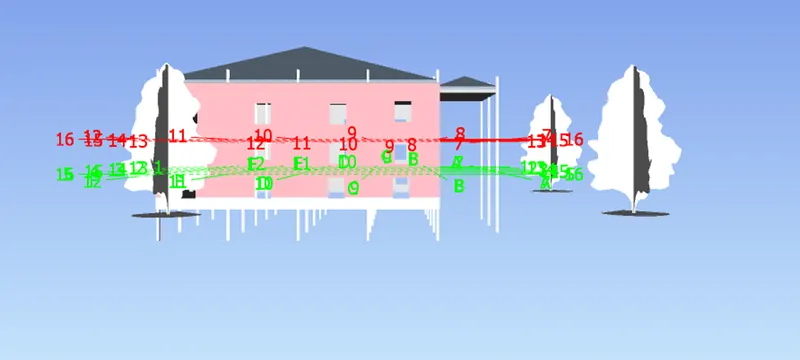
- Creating viewpoint
- Selecting the record option from the viewpoint and clicking on walk command and walking through the rooms created
- Clicking Stop after walking through all rooms.
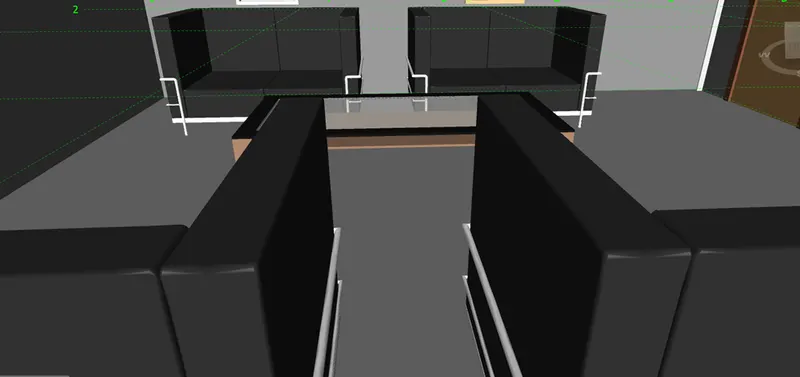
Living Room -
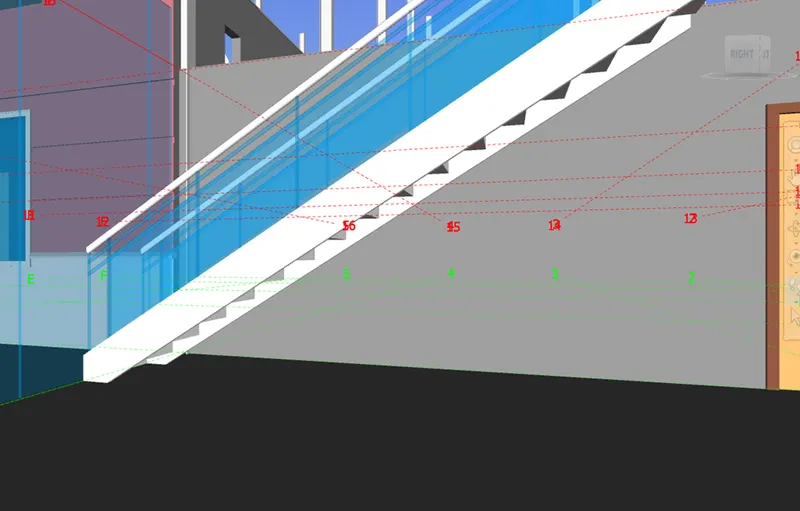
Entrance -
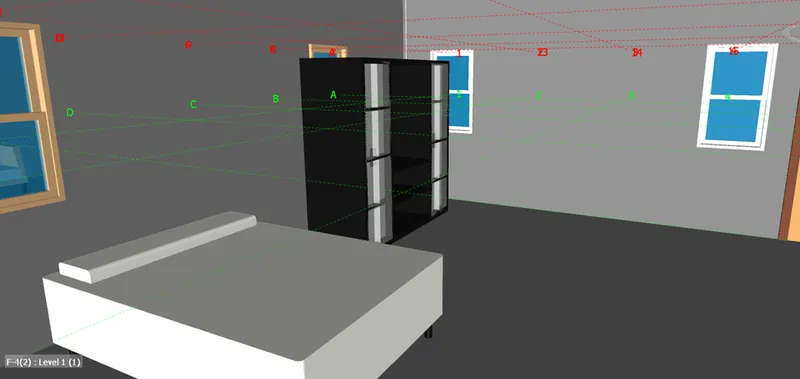
Bed Room -
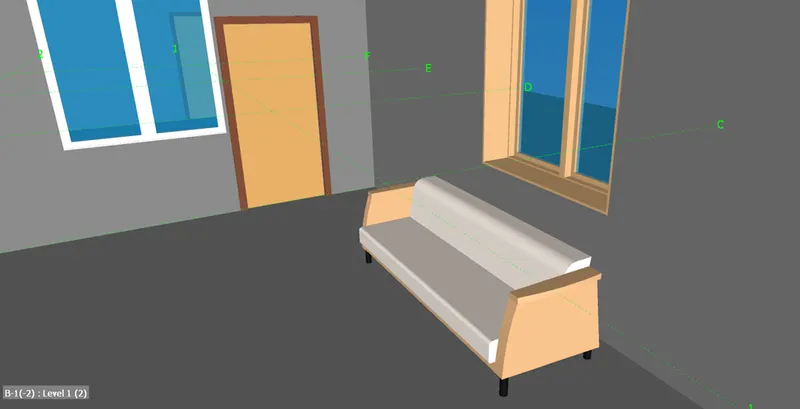
Balcony -
Result -
- Created a walk through in rooms is created successfully in Naviswork.
3)
Aim - To use Realism feature to walk through the model and record moving as animation in Naviswork file.
Procedure -
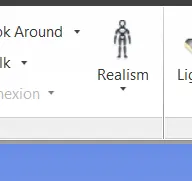
- In the Naviswork software under the Viewport tab go to Realism and in Realism choose Third person.
- Now ,record the moving from save viewport option
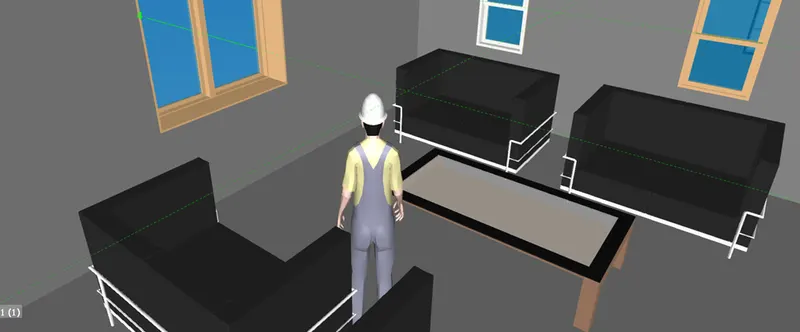
Living Room -
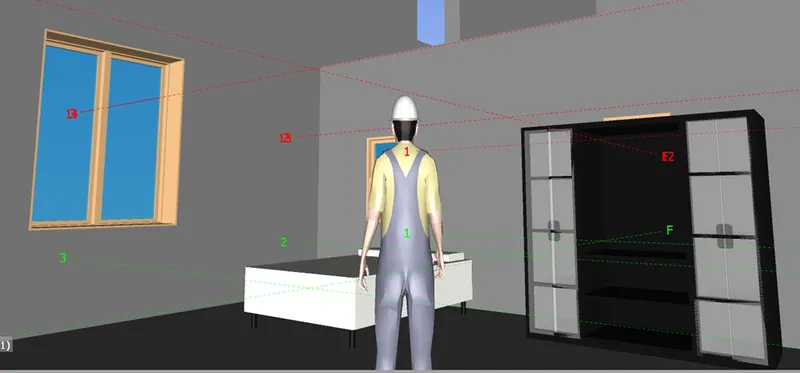
Bed Room -
Result -
- Walk through the model using Realism is completed successfully.
4)
Aim - To create Clash Detection test between the two models.
Procedure -
- Opening the exported Architectural and structural file
- Selecting the clash detective model on home tab
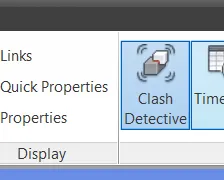
- Two new tabs will be appear
- Clicking on add test and renaming it as Architectural ans structural file and clicking Run test.
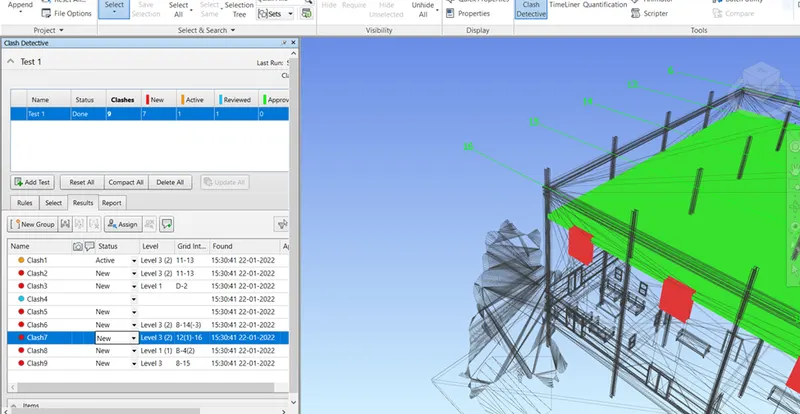
Result -
- Clash detective test is run successfully.
5)
Aim - Using the Timeliner feature in Naviswork prepare a schedule for the project developed in week 6-8 by adding reasonable assumptions for task start date and end date and simulate the task completion as a visual simulation.Record it and save the timeline simulation to Naviswork file.
Procedure -
- Open the exported structural model to the Naviswork
- Select timeliner option and selecting the tree selection
- Selecting add task and renaming the appropriate components
- The planned start,planned end,actual strat and actual end is filled with appropriate date
- Specifing the task type as construction.
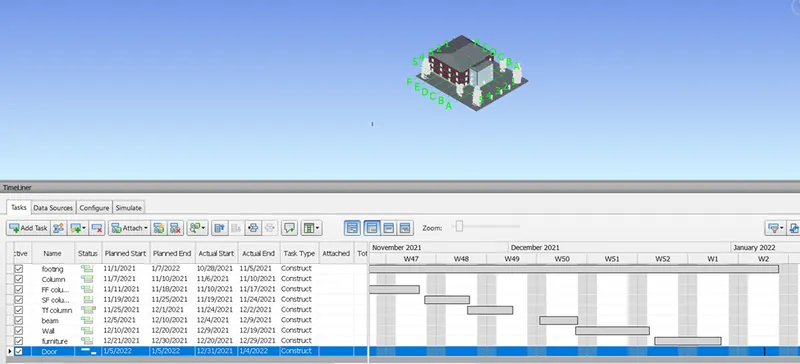
Result -
- Timeliner option is used successfully.