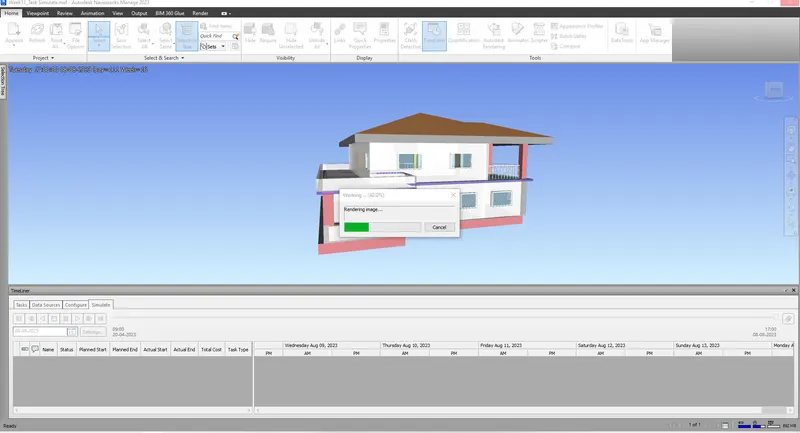
Usage of Navigation tool , Timeliner and Clash Detection test using Naviswork
1) Use the Architecture/ Structure Project file developed by you in Week 6 to 8. Export the Revit architecture and structure model to Navisworks Cache file following the export settings discussed in class
Aim: To Export the Revit architecture and structure model to Navisworks Cache file
Proceure:
File > Export> NWC
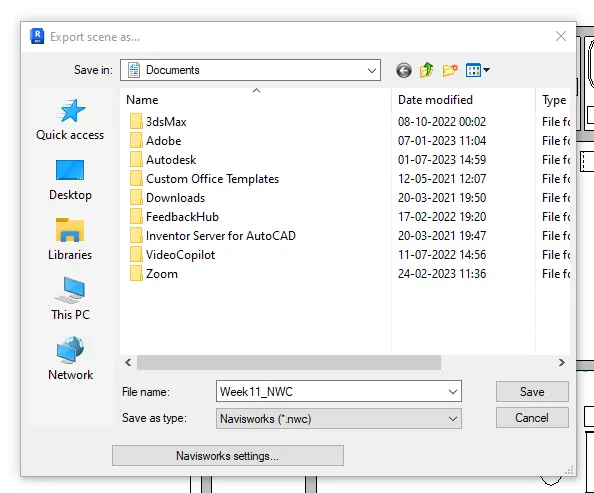
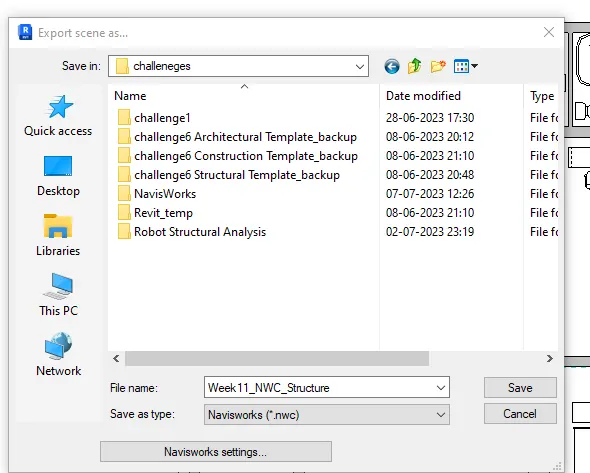
Locate the file location > save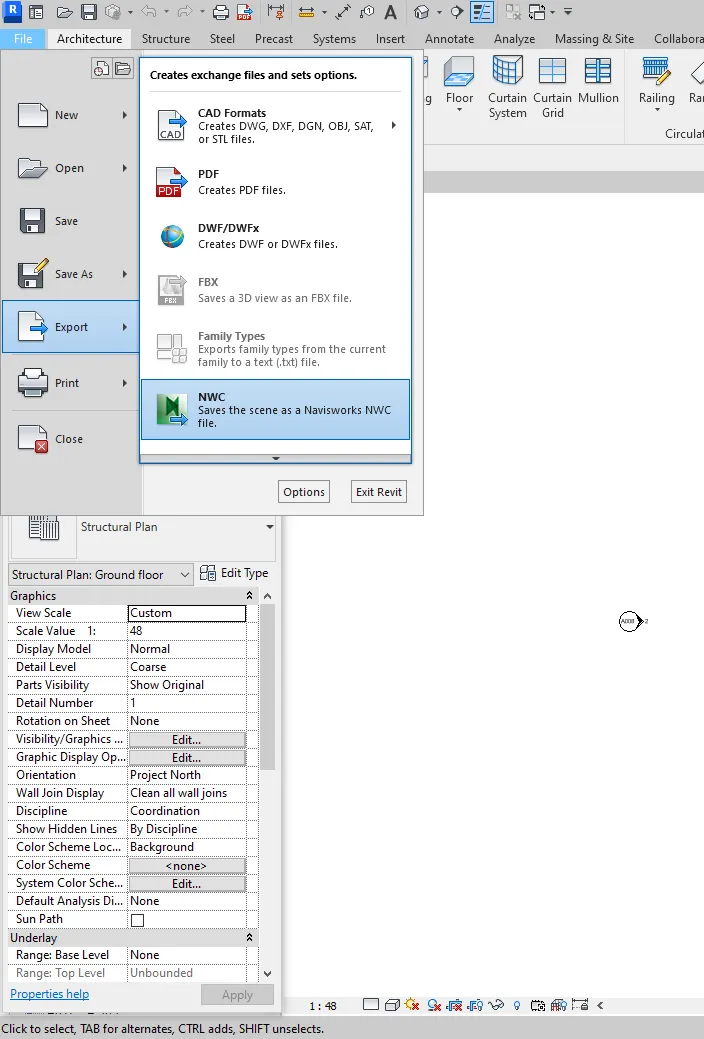
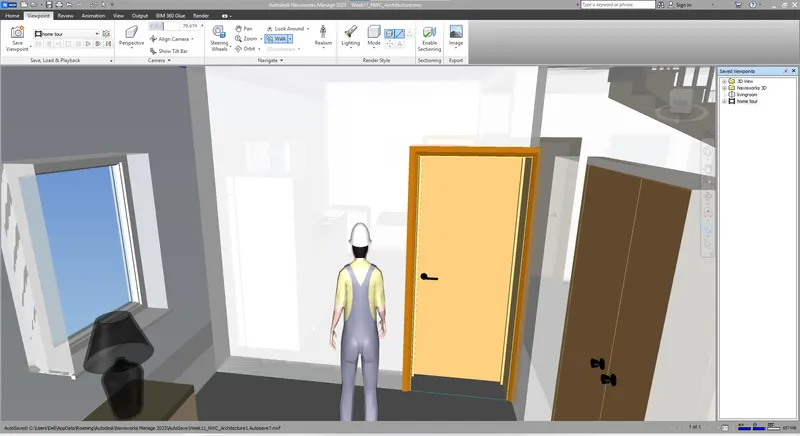
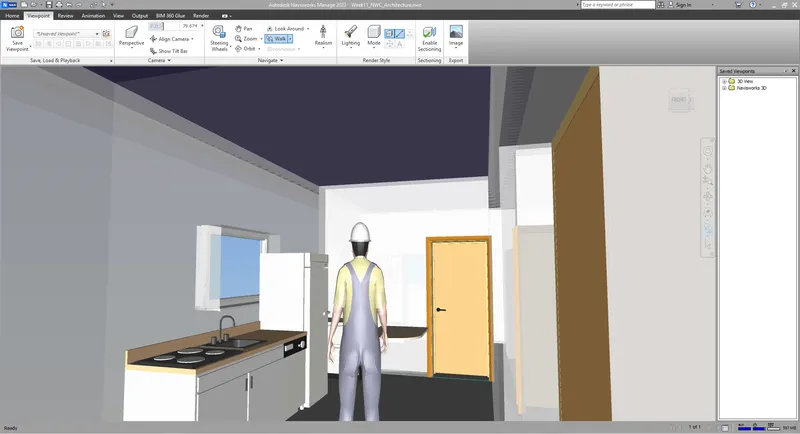
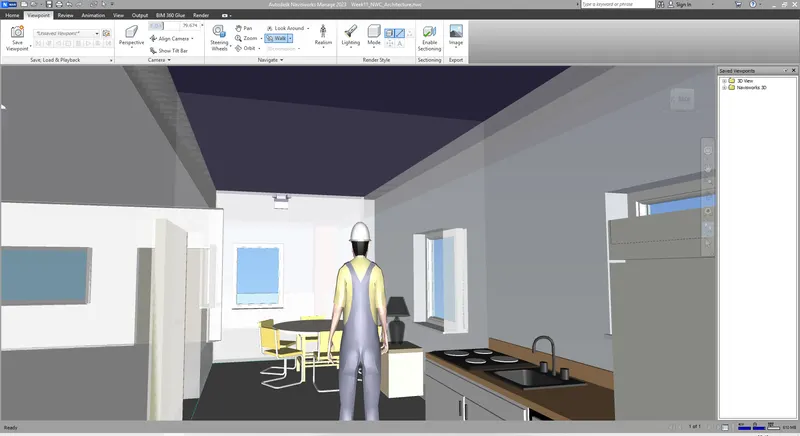
2) Use Navigate Tool to walk around the model and walk through the rooms created and record your moving as animation in your Navisworks file
Aim: Use Navigate Tool to walk around the model and walk through the rooms created and record your moving as animation in your Navisworks file
Proceure:
File>Open>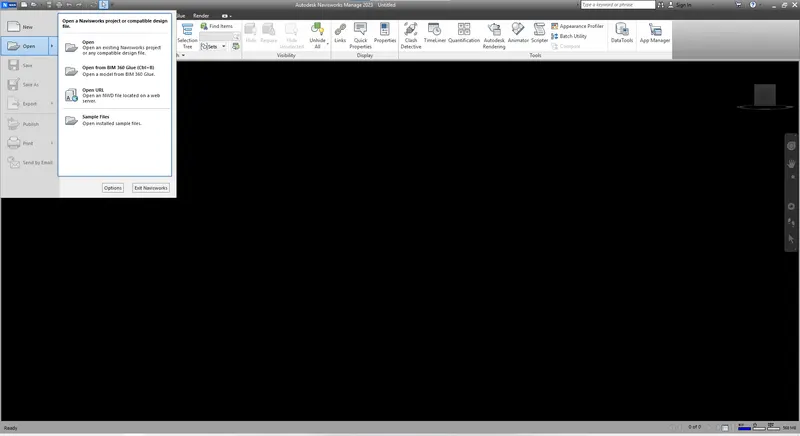
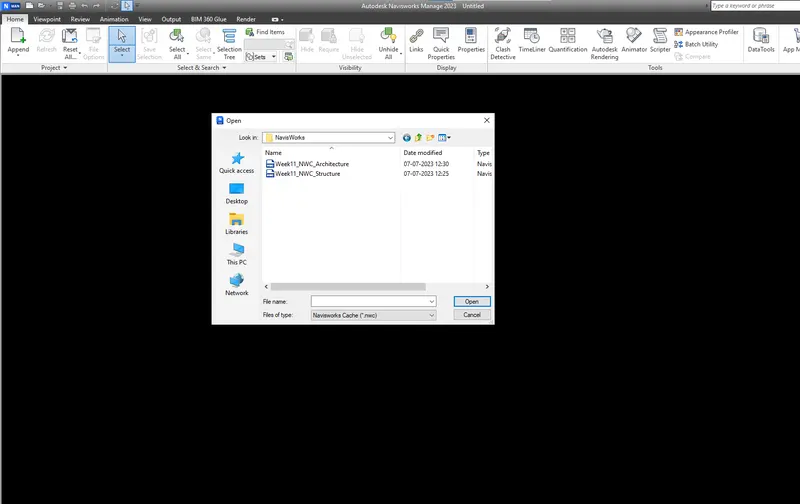
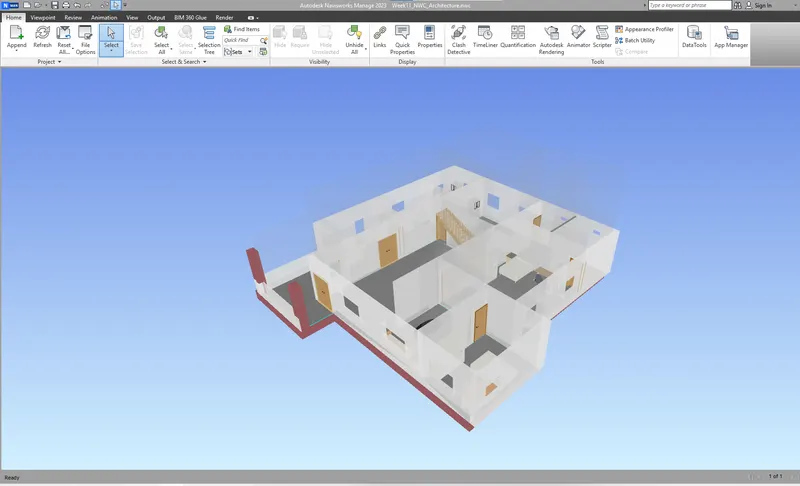
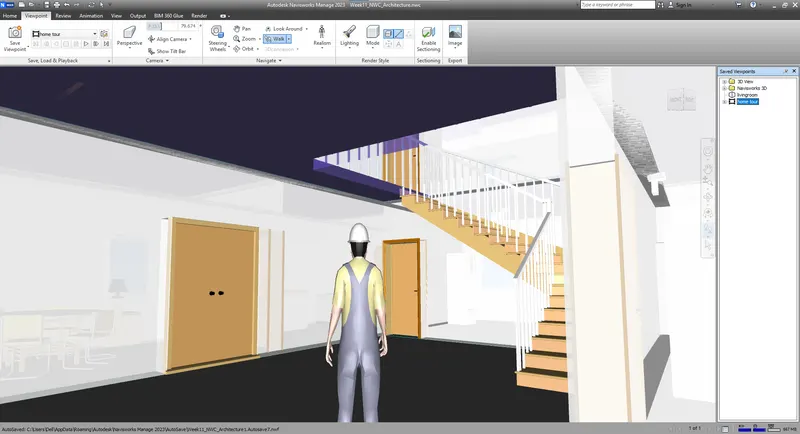
For creating a walkthrough animation scroll into inside the building
Viewpoint>walk>walk
To Save the walkthrough
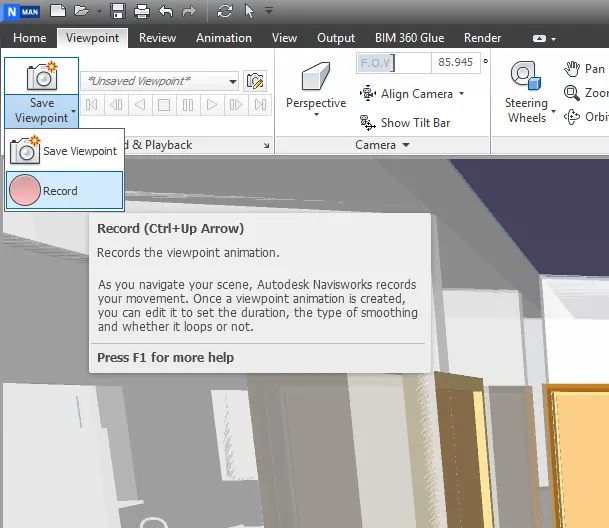
Click the Save>Rename accordingly >SaveViewpoint> Record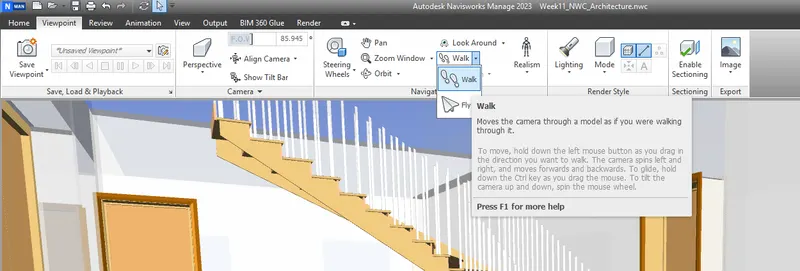
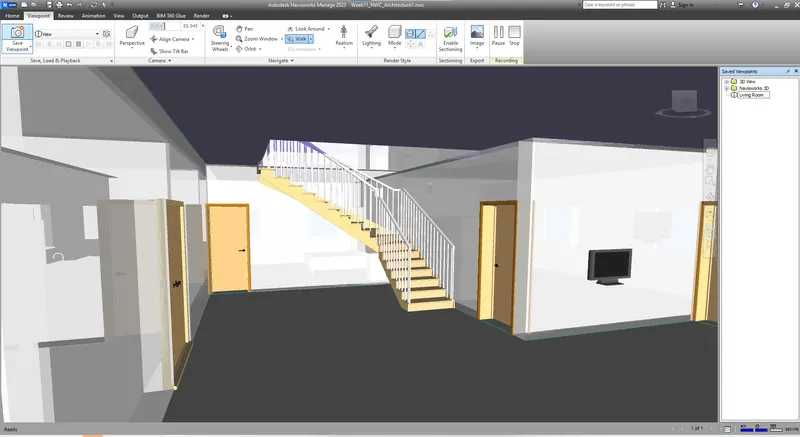
For playing the video
Animation > Select the recorded file> play
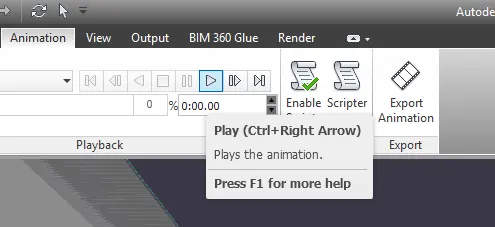
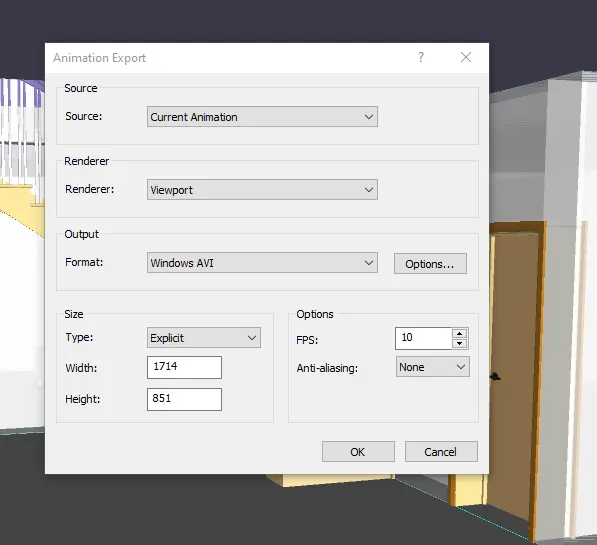
For exporting as video
Export Animation> Choose output as WindowsAVI >Ok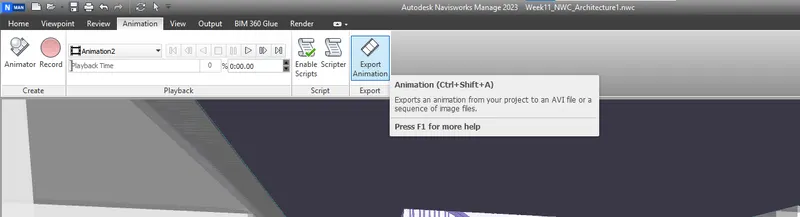
3) Use Navigate tool to use Realism feature to walk through the model and record your moving as animation in Navisworks file
Aim: Use Navigate tool to use Realism feature to walk through the model and record your moving as animation in Navisworks file
Proceure:
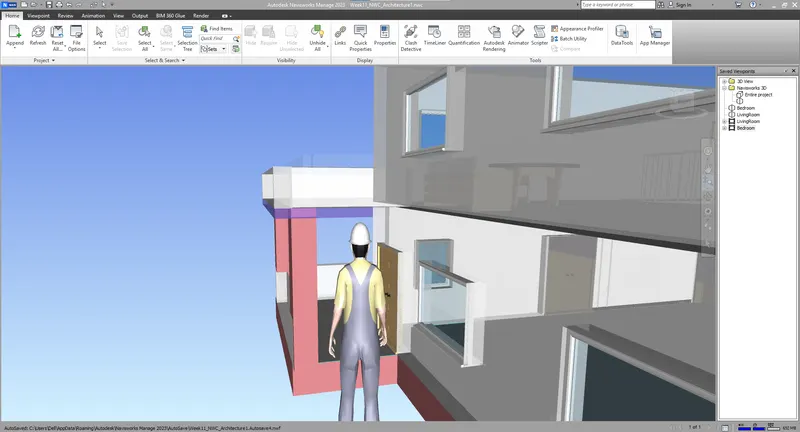
Viewpoint>Realism>Third Person
Create a walkthrogh as we did earlier animationand export it as a video.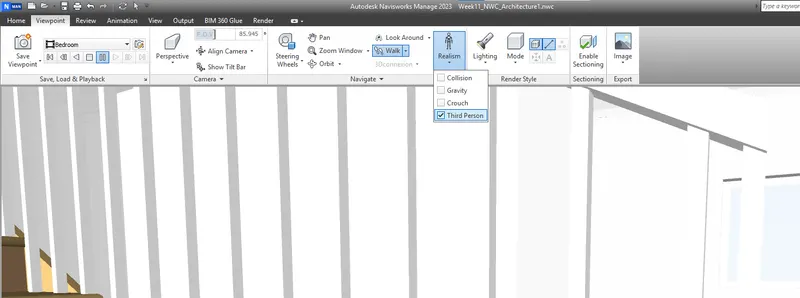
4) Embed both architecture and structure *.nwc file to your Navisworks file. Create a clash detection test between the two models
a. Run the Clash Detection Test
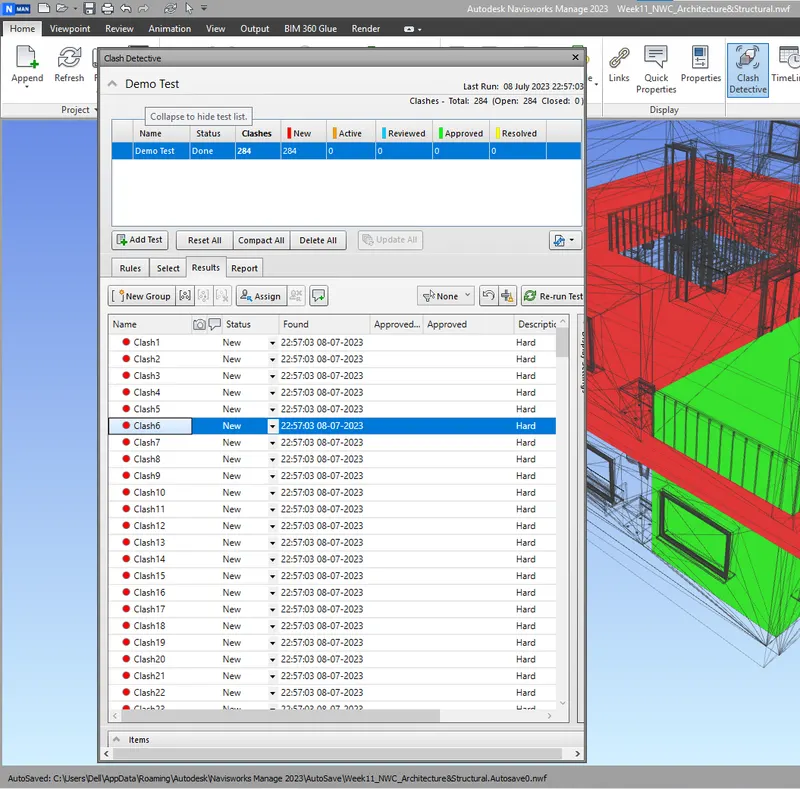
b. Study the clashes between the two models
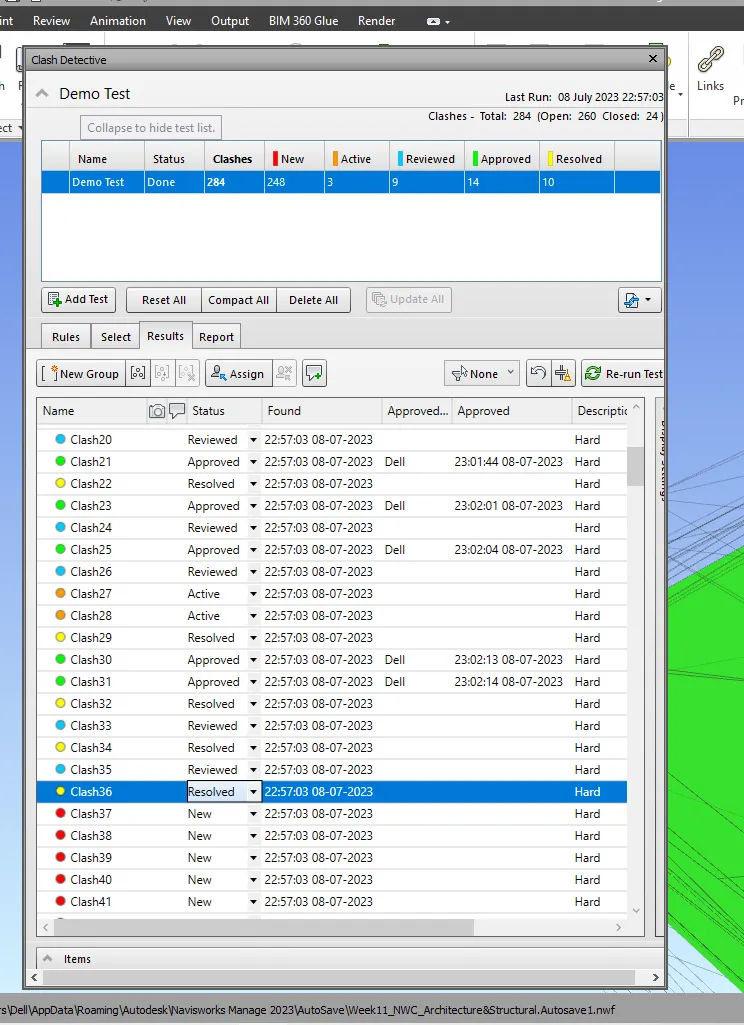
c. List which of the clashes could be approved
d. List which of the clashes could be neglected ( will be taken care later)
e. List which of the clashes can be resolved
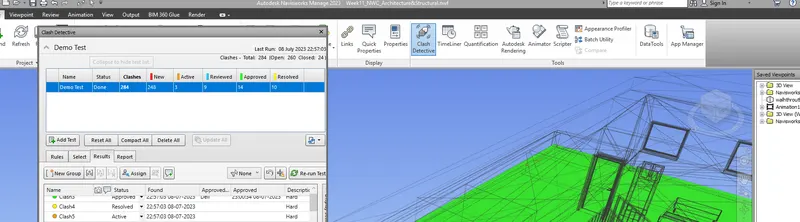
f. Save the results after color coding the clashes to the Navisworks file
g. In case of resolution annotate the clash and save the view to defined views in Navisworks
Aim: Embed both architecture and structure *.nwc file to your Navisworks file. Create a clash detection test between the two models
Proceure:
To import the structural file
Home> Append > choose the file > Open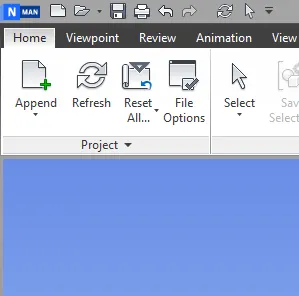
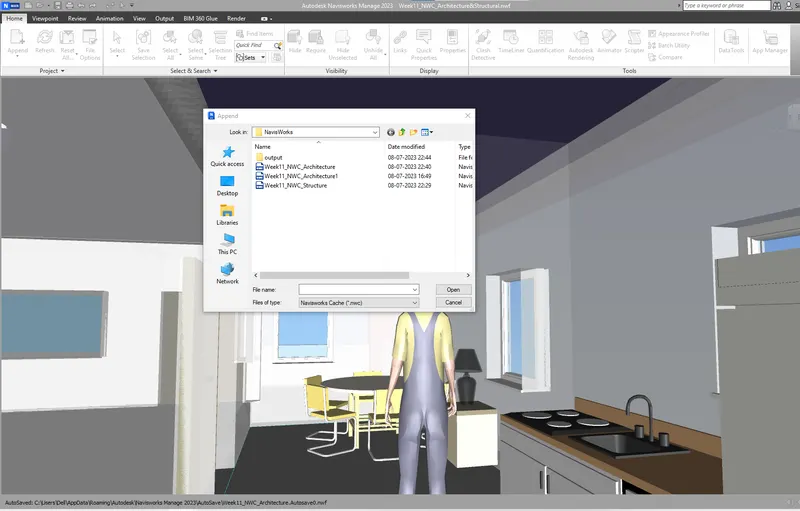
Now I imported both Architectural and structural file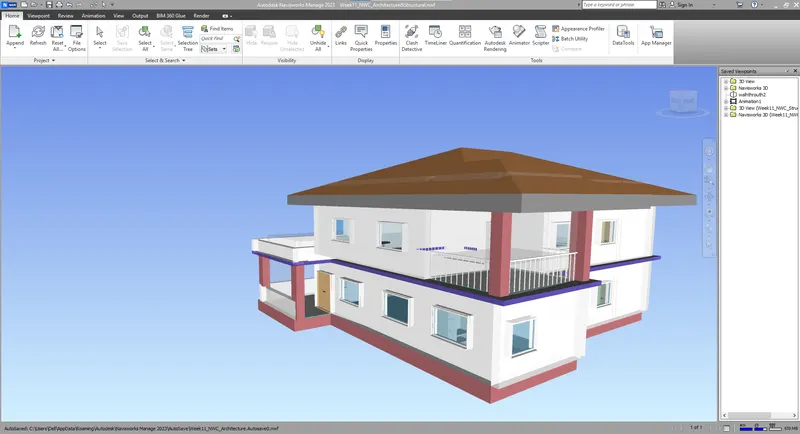
To run the clash test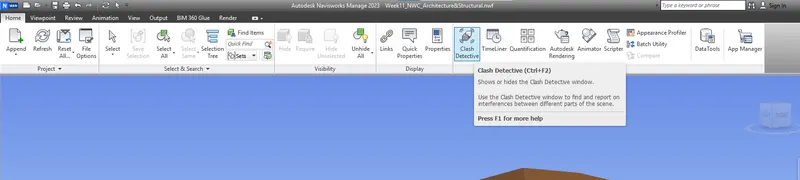
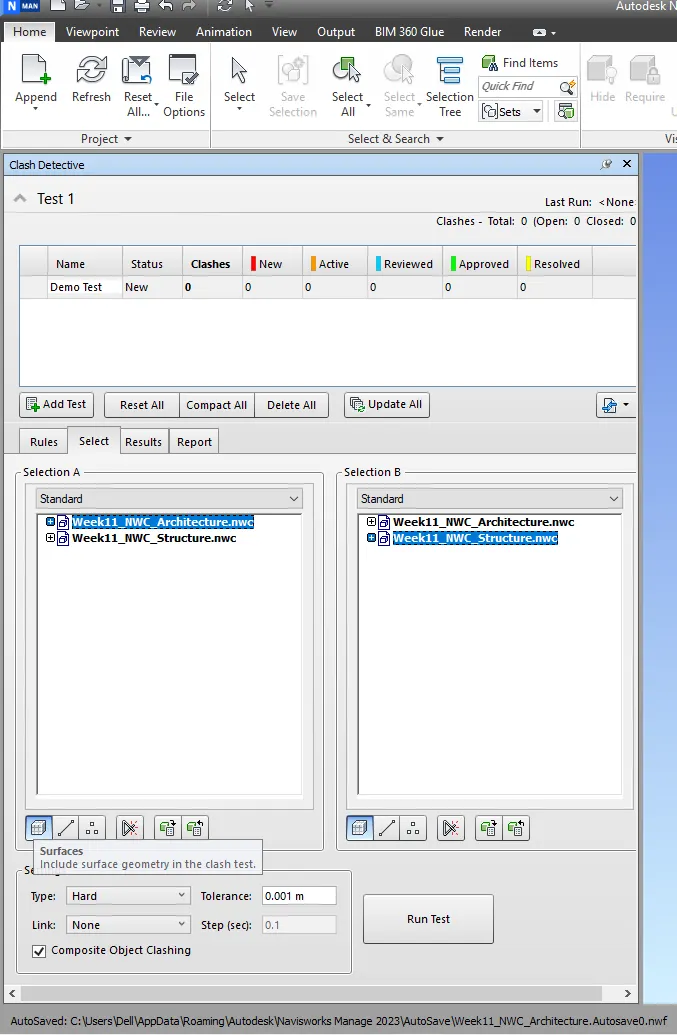
Home> Clash Detective> Add test> Rename as Demo test> Choose Architecture from A and Structural from B > Run Test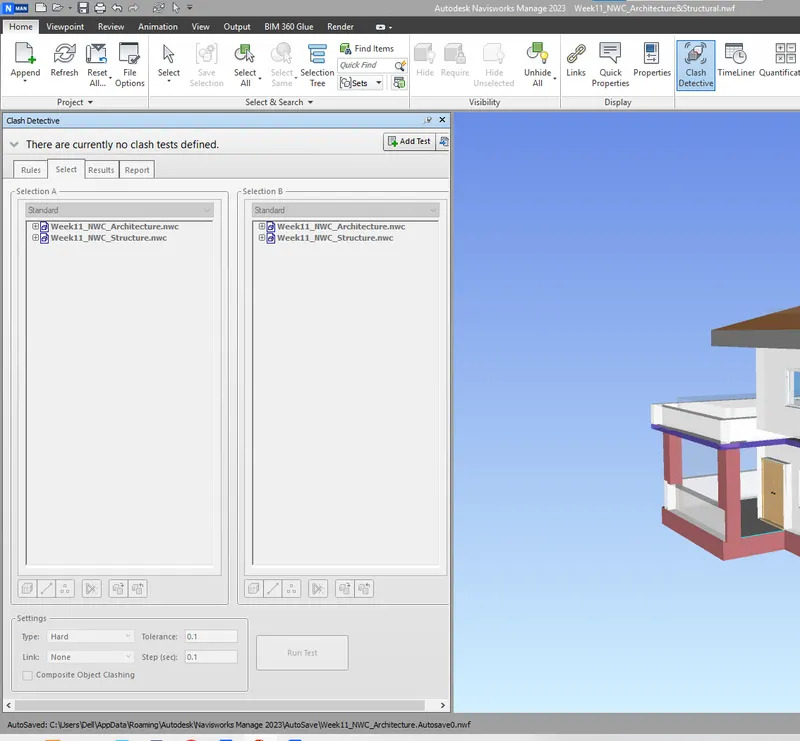
5) Using the Timeliner feature in Navisworks prepare a schedule for the project developed in week 6 to 8 by adding reasonable assumptions for task start date and end date and simulate the task completion as a visual simulation. Record it and save the timeline simulation to Navisworks file
Aim: Using the Timeliner feature in Navisworks prepare a schedule for the project by adding reasonable assumptions for task start date and end date and simulate the task completion as a visual simulation. Record it and save the timeline simulation to Navisworks file
Proceure:
Open Naviswork Manager > Home > Time Liner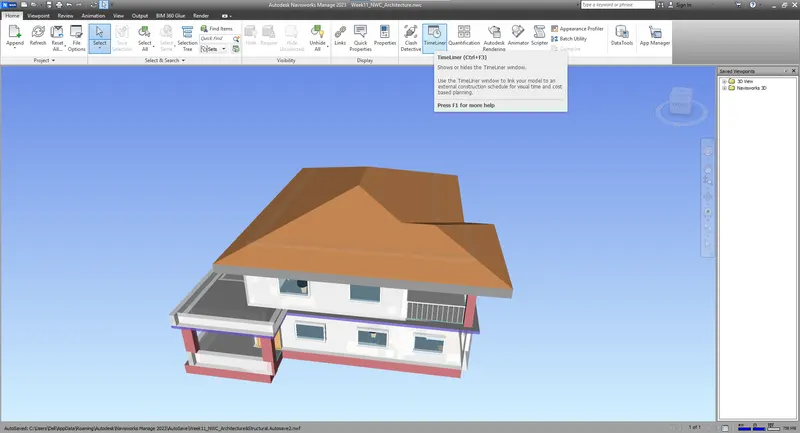
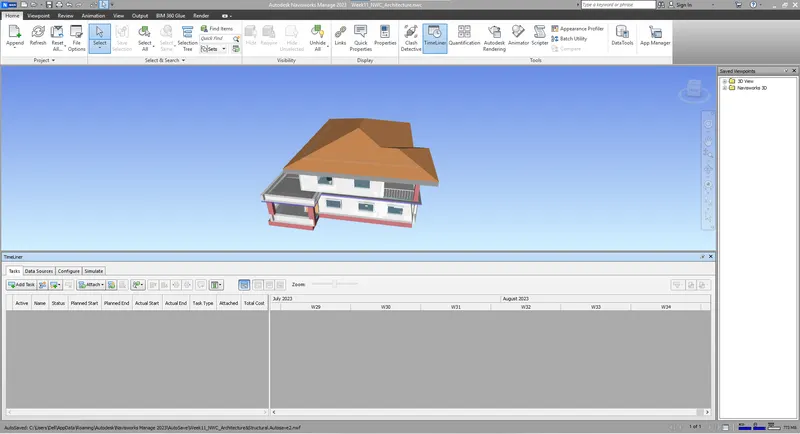
Selection Tree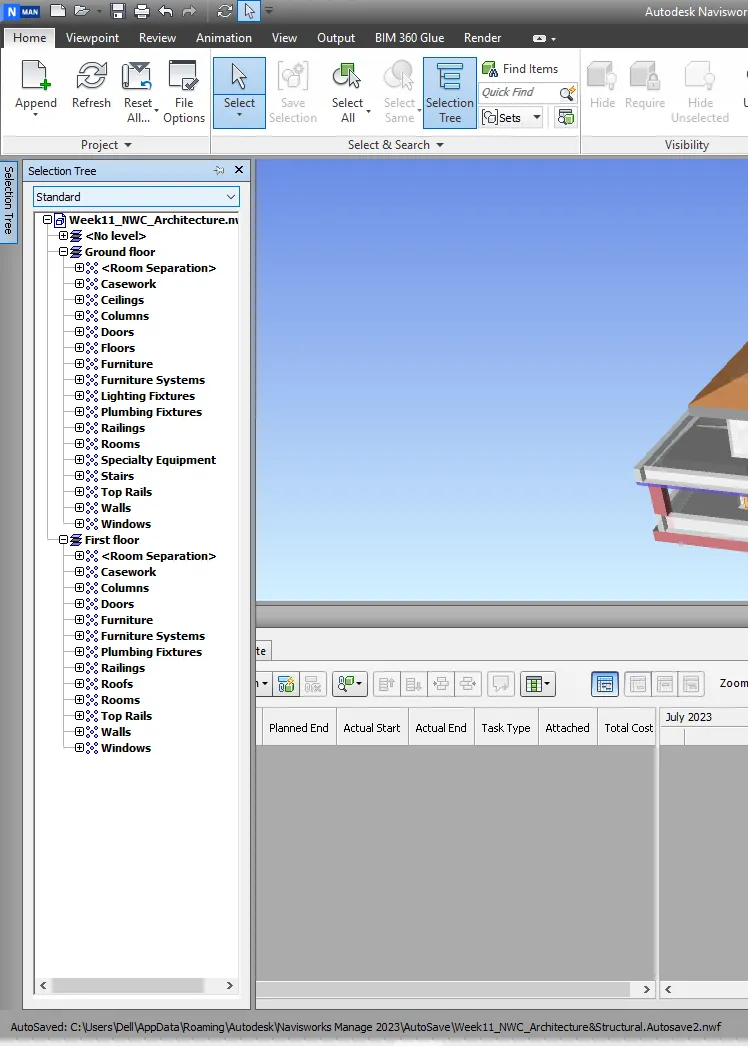
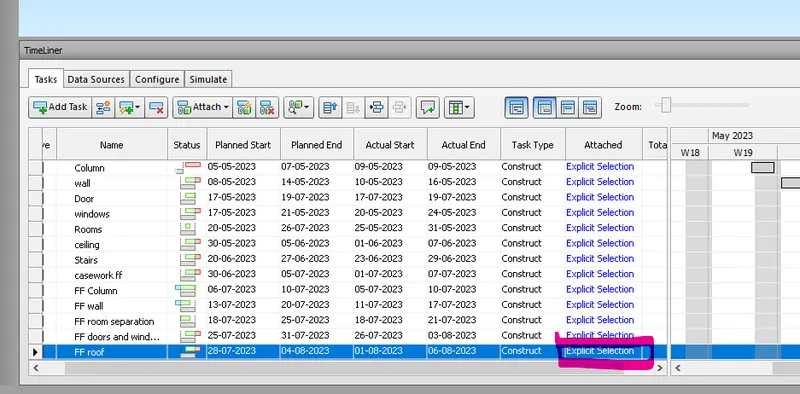
Add task>Input the values in the current raw

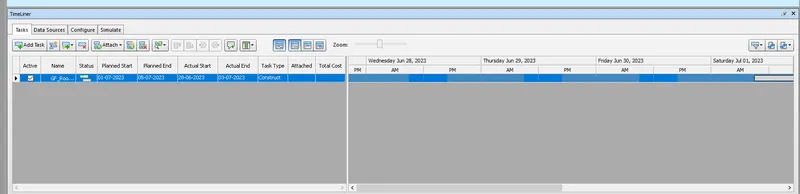
For attaching the works
Click attach followed by selecting the same work from Selection Tree. 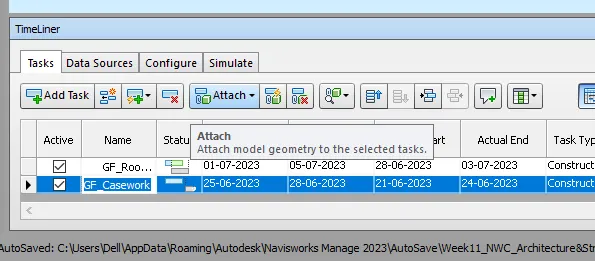
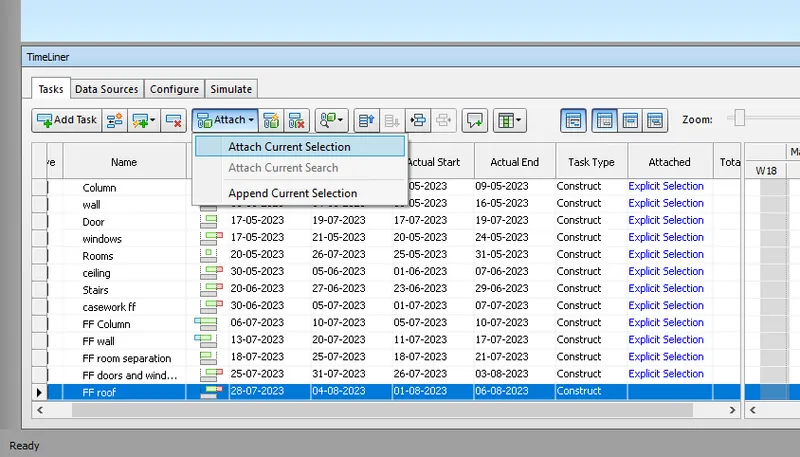
So it has been attached
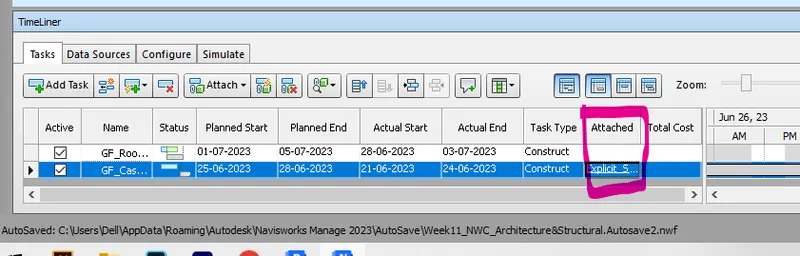
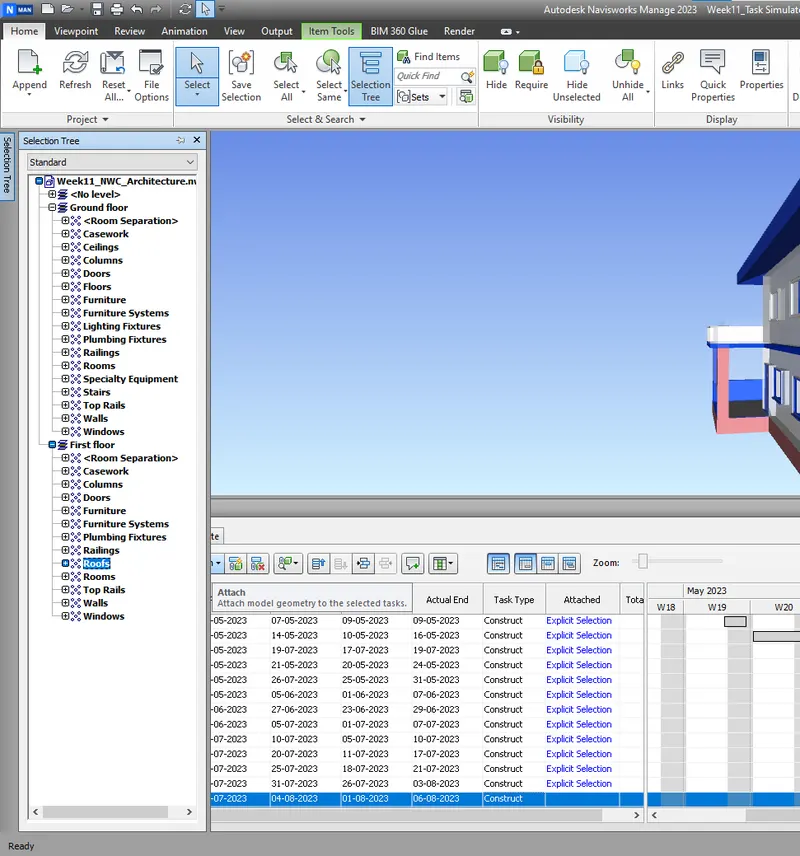
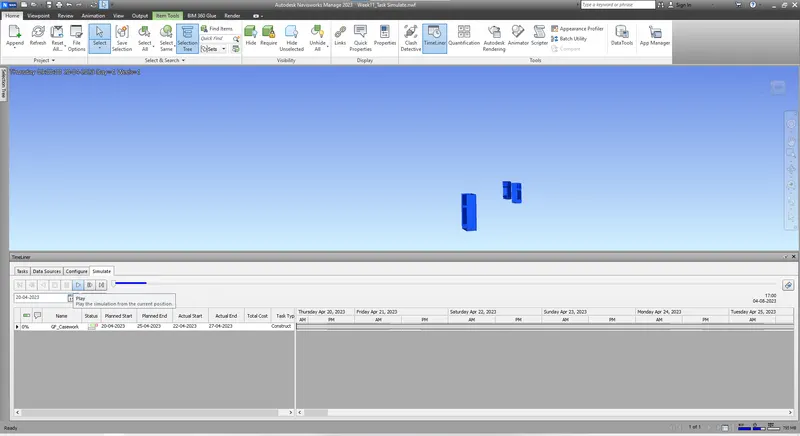
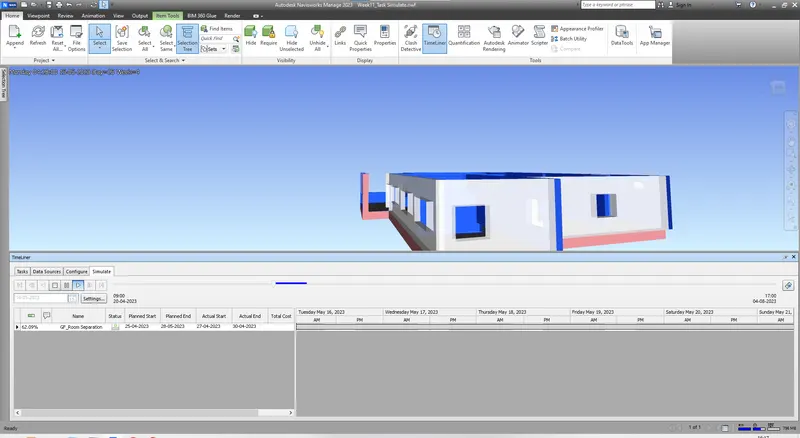
For stimulating the views
Stimulate > play
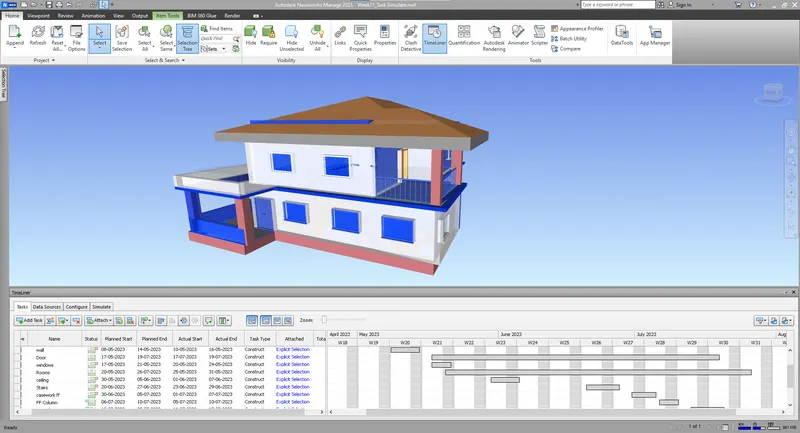
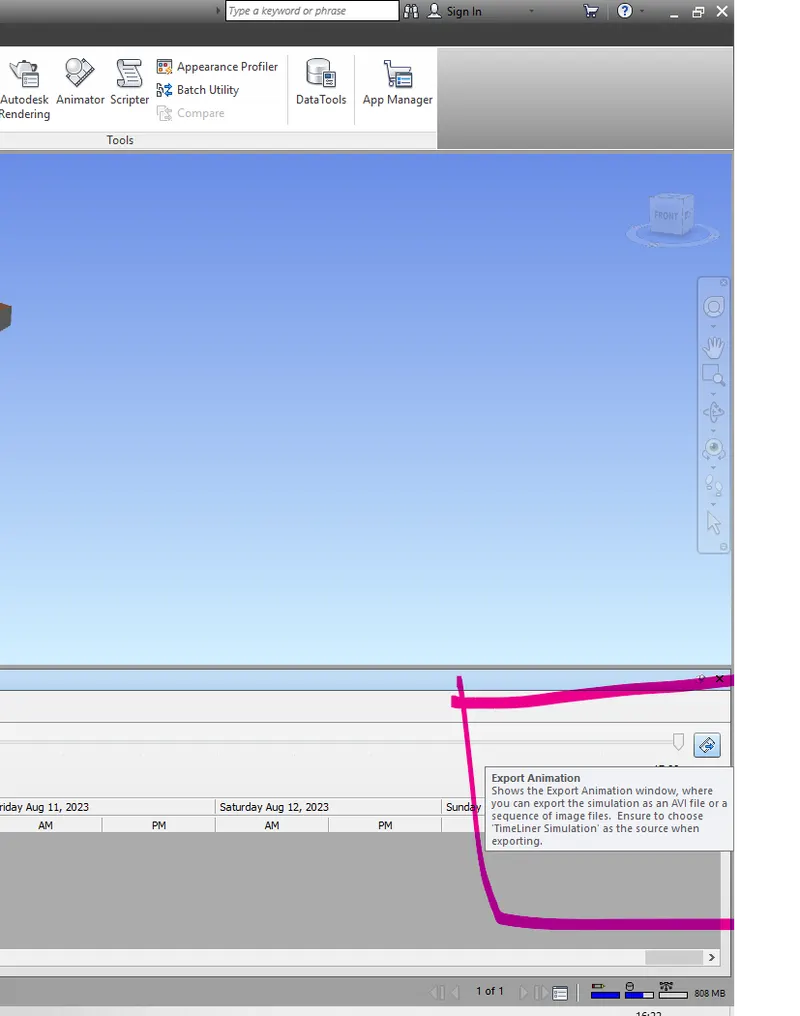
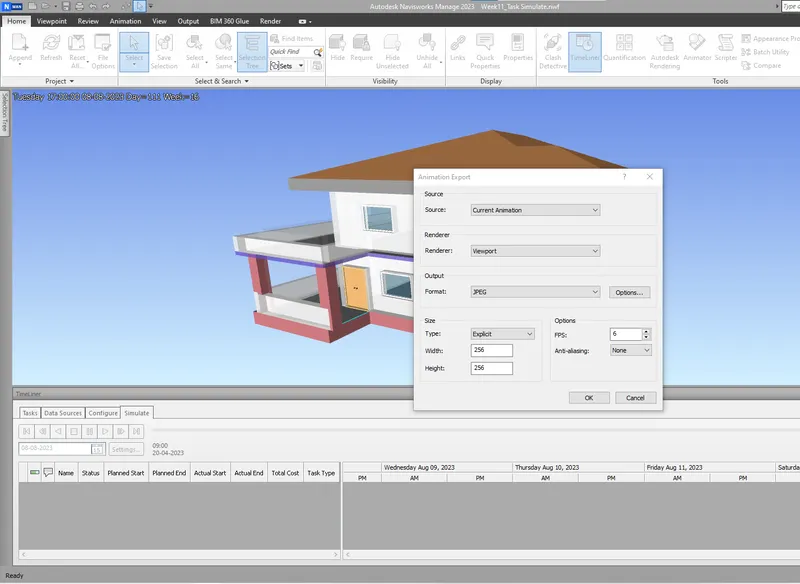
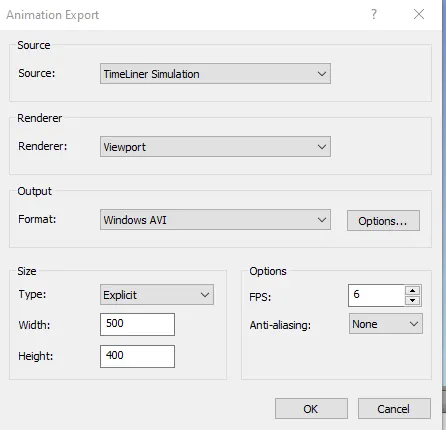
For exporting the video
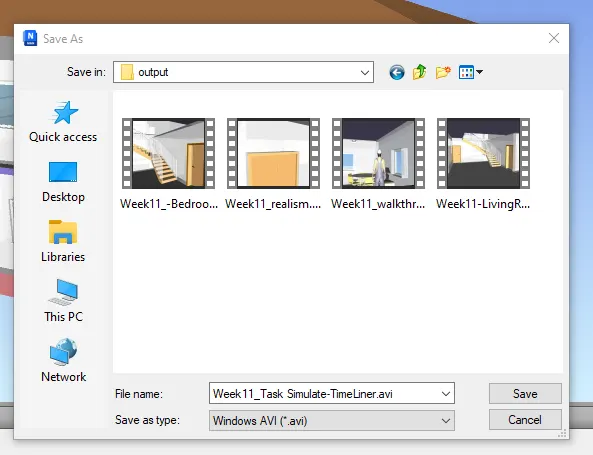
Export animation > Select the video size and quality > Ok > Give the path where tp save the video > Save