Usage of Navigation tool , Timeliner and Clash Detection test using Naviswork
Q.1
AIM- Use the Architecture/ Structure Project file developed by you in Week 6 to 8. Export the Revit architecture and structure model to Navisworks Cache file following the export settings discussed in class.
INTRODUCTION-
- Navisworks software help us to resolve problem like clash between two different discipline model corresponding architecture and structure.
- This software which is part of revit help us to resolve these type of problem and save the time and effort and also give us a effective solution.
- If we want to track our project that it is going to timely or not all things we can track by this nevisworks sofware and can create document and resolve it efficient manner.
PROCEDURE-
- First we will open the revit software.
- In revit we under the file tab we will select export option.
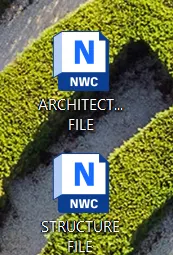
- Under this export option we can save Architectural and structural file into NWS file.
- Save these file with appropriate name and appropriate place in desktop.
RESULT-
SO under the file tab we can export revit file to nevisworks or nwc format file.
Q.2
AIM-Use Navigate Tool to walk around the model and walk through the rooms created and record your moving as animation in your Navisworks file.
INTRODUCTION-
- In nevisworks we can recort interior as well as exterior view of our structure.
- We can realise a real structure by these tool and construct any structure economically or effectively.
PROCEDURE-
- We will open a nevisworks file.
- Select architectural file and instert it into the nevisworks software.
- Viewpoint tab select and under this viewpoint tab we will save view point and name it.
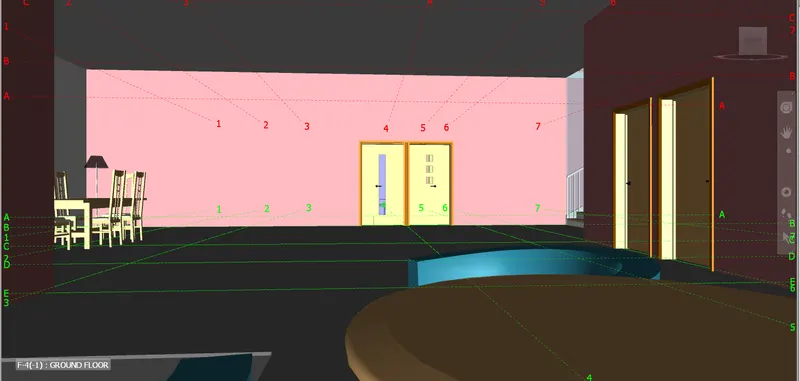
- Record view inside of building and choose walk option to walk into the building.
- Stop the recording and save it.
RESULT-
In nevis model we can walk into the building and with walking we can record inside view and can save all view as video.
Q.3
AIM-Use Navigate tool to use Realism feature to walk through the model and record your moving as animation in Navisworks file.
INTRODUCTION-
- Realism feature is option available in revit under which we can record inside view of building.
PROCEDURE-
- Select realism option under the viewpoint tab.
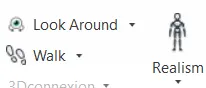
- Go inside the building and choose walk option.
- Record video under the save view point option.
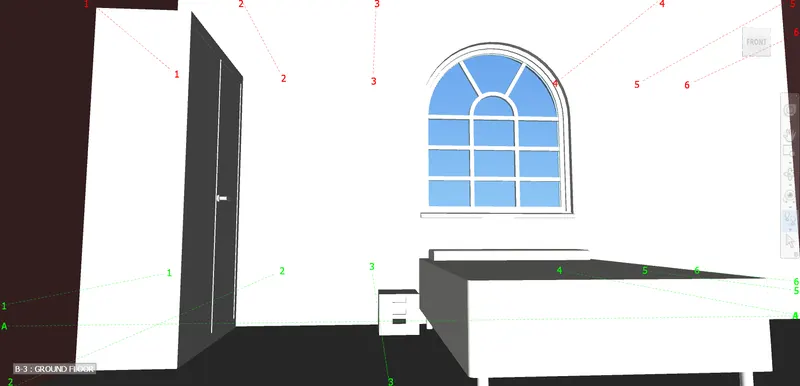
- Now walk inside the building with the use of mouse and use navigation tool to look around or other movement.
- Stop the recording and save it in desktop.
RESULT-
It is another way which we can record video and analysis inside view of a building.
Q.4
AIM-Embed both architecture and structure *.nwc file to your Navisworks file. Create a clash detection test between the two models
a. Run the Clash Detection Test
b. Study the clashes between the two models
c. List which of the clashes could be approved
d. List which of the clashes could be neglected ( will be taken care later)
e. List which of the clashes can be resolved
f. Save the results after color coding the clashes to the Navisworks file
g. In case of resolution annotate the clash and save the view to defined views in Navisworks.
INTRODUCTION-
- Navisworks software help us to resolve problem like clash between two different discipline model corresponding architecture and structure.
- This software which is part of revit help us to resolve these type of problem and save the time and effort and also give us a effective solution.
PROCEDURE-
- Open nevisworks software and import architectural file into nevis under the home tab and append option.
- Same as structural file also import into the nevis software.
- Now select clash detective option under the home tab.
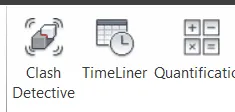
- We will see a dialogue box in this name it and select both the file.
- Run the test here we can see all clash between architecture and structure components.
- Give the status of all clash component like Active, Reviewed, Approved and resolved.
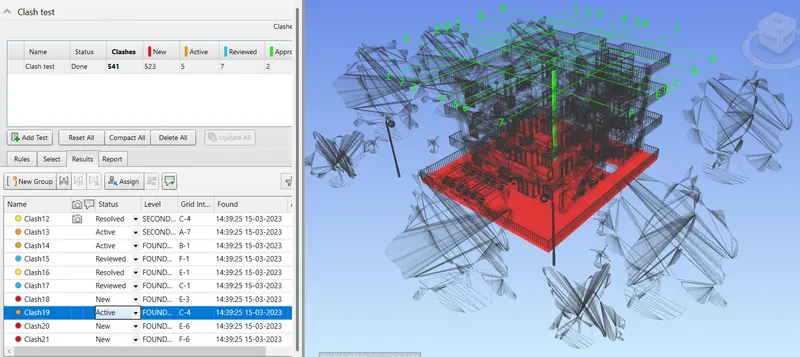
- Resolved all clashes one by one.
STATUS OF ALL CLASHES-
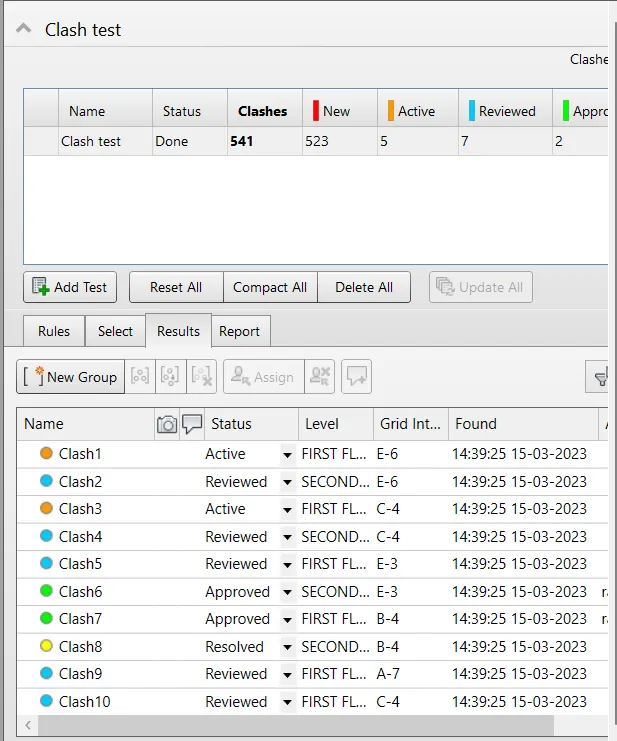
RESULT-
Clash test in nevis give all clashes and we can resolved all and can give clash status according to review.
Q.5
AIM-Using the Timeliner feature in Navisworks prepare a schedule for the project developed in week 6 to 8 by adding reasonable assumptions for task start date and end date and simulate the task completion as a visual simulation. Record it and save the timeline simulation to Navisworks file.
INTRODUCTION-
- Navisworks software help us to resolve problem like clash between two different discipline model corresponding architecture and structure.
- This software which is part of revit help us to resolve these type of problem and save the time and effort and also give us a effective solution.
- If we want to track our project that it is going to timely or not all things we can track by this nevisworks sofware and can create document and resolve it efficient manner.
PROCEDURE-
- Open the nevis works software and insert architectural file.
- Under the home tab we will select timeliner option.

- Next select selection tree option same as under the home tab in menu bar.
- Add task which option shown in dialogue box.
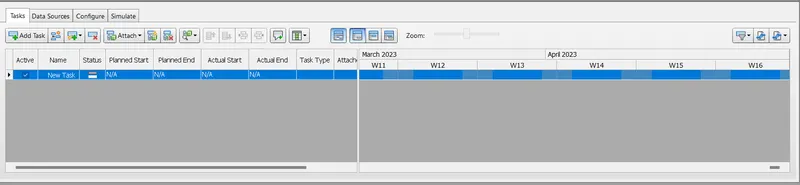
- Give task name like first floor and fill all data related to this task like start date, end date , actual strat date and end date of task etc.
- In selection box select floor and select option attach current selection.

- Same as we attach all construction activity with their relative start and end date.
- Now we can see annimation video of construction by floor to floor under simulate option.

- Export this annimation video and save it with appropriate name in desktop.
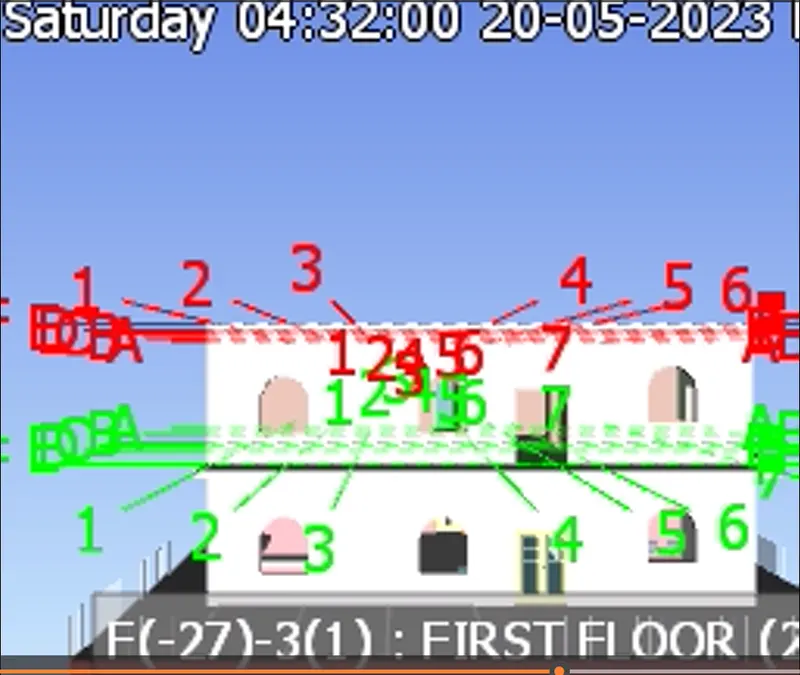
RESULT-
This nevis software option timeliner give us a way to done all activities in proper time like ground floor and all construction on ground floor we can track and complete under this nevis option.
So we can work smartly and effectively and can save construction cost.